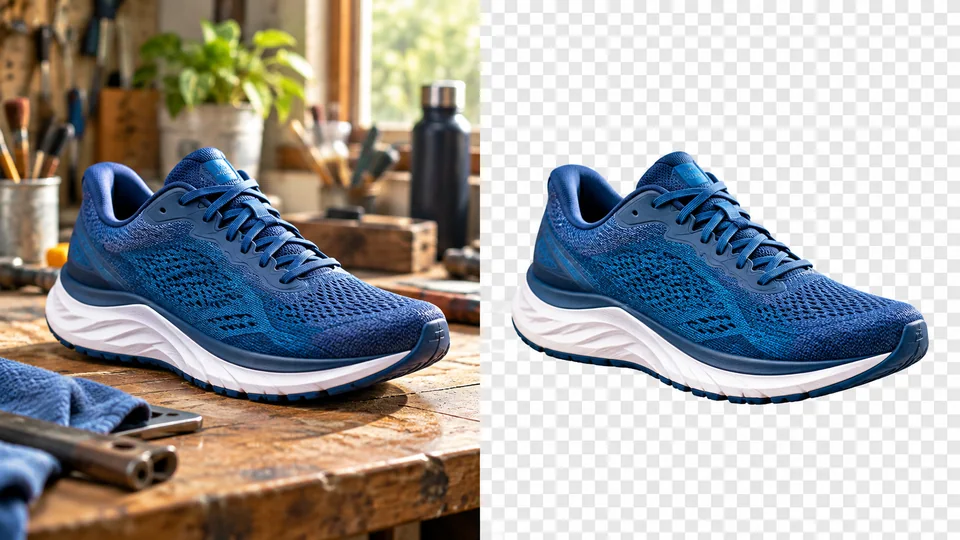
Start from a Video Reference
Select an available model and add your source video to its reference input.

Use an existing clip as a reference for a new AI video. Seedance's video-to-video workflow combines your source footage with a written direction so you can explore another look, setting or creative treatment.
Restyle Your VideoSelect an available model and add your source video to its reference input.
Describe the desired transformation, choose the available output settings and review the credit estimate.
Generate the new clip, preview it in your results and download the version you prefer.

A source clip gives your request movement and scene context beyond a text prompt alone. Upload a supported video, choose a compatible model and describe the direction. Compare with the reference rather than expecting an exact frame-by-frame filter.
Restyle Your Video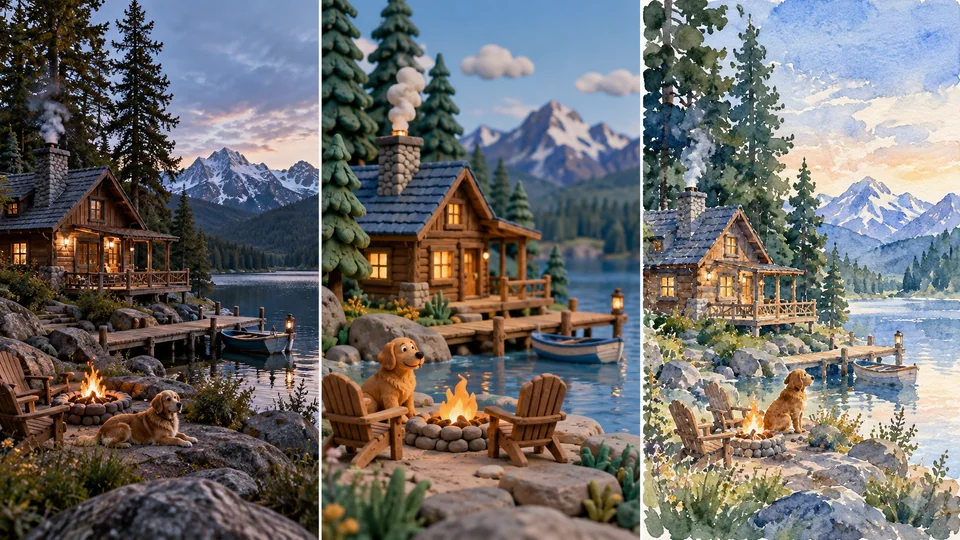
Painted animation, clay-like materials and a cinematic treatment suggest different outcomes. Explain which visual qualities should change and which scene elements should remain recognizable. Available controls, input limits and output settings depend on the selected model.
Restyle Your Video
A dance or camera movement can start an expressive new clip. Review the entire output for identity changes, flicker and motion continuity. A compelling first frame does not guarantee that every moment will work equally well.
Restyle Your Video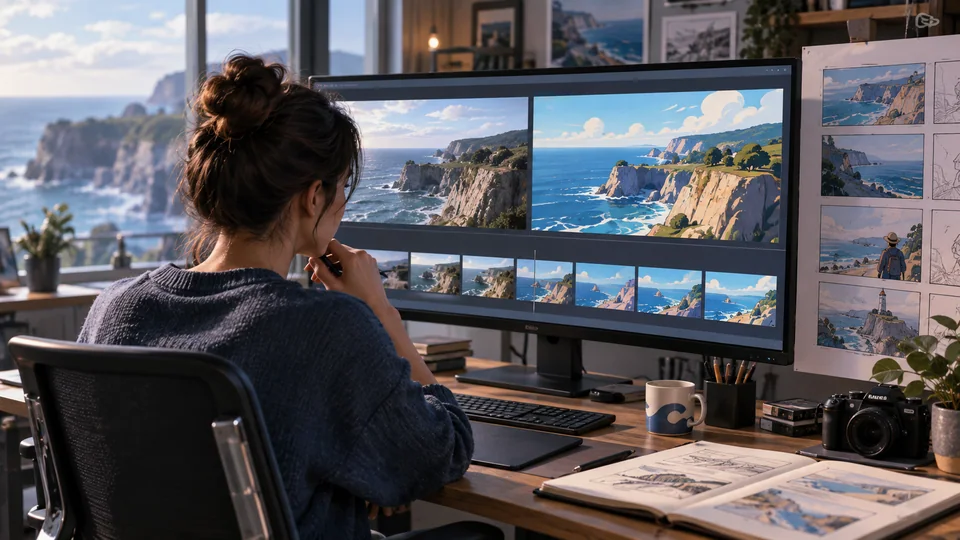
Use a short focused reference when testing a look. Keep original footage and notes about the model and prompt. Check the displayed estimate before submitting because reference input and output settings can affect credit cost.
Restyle Your Video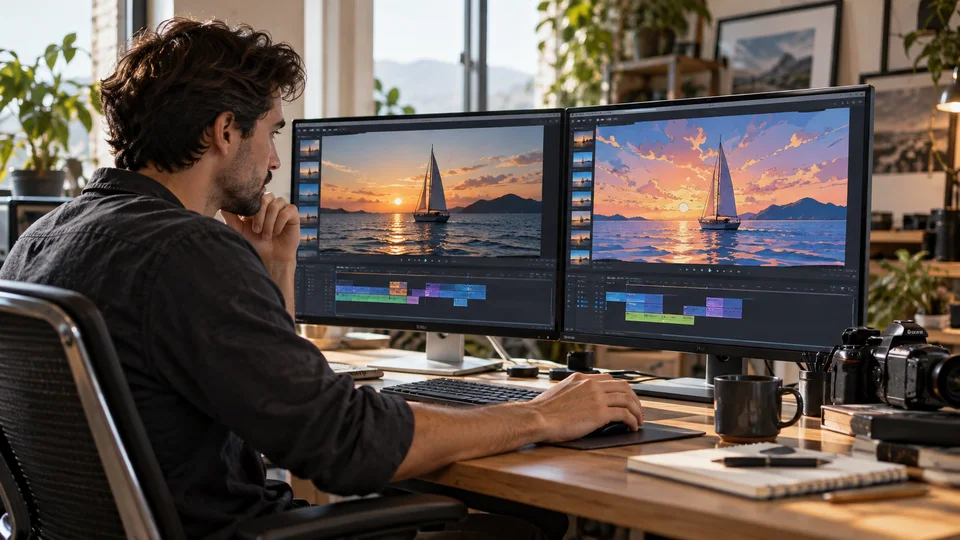
Start from footage you own or can edit. Review the complete generated sequence before adding it to a published project.
Describe materials, color and atmosphere. Treat the output as a generative interpretation rather than a guaranteed shot-matching process.
Check the treatment at your target format. Verify faces, transitions and any text visible in the footage.
Keep source footage, versions and prompts together. Select useful sections and finish timing, sound and transitions in your editor.
Select an available model and add your source video to its reference input.
Describe the desired transformation, choose the available output settings and review the credit estimate.
Generate the new clip, preview it in your results and download the version you prefer.
Use an existing clip as a reference for a new AI video. Seedance's video-to-video workflow combines your source footage with a written direction so you can explore another look, setting or creative treatment.
No. It generates a new clip guided by the reference, so motion, timing and details can change. Use Video Upscaler when your goal is resolution enhancement rather than a new generation.
Some available models charge for reading the reference video as well as generating the output. Seedance's generator calculates the applicable cost from the selected model and settings.
Select an available model and add your source video to its reference input. Describe the desired transformation, choose the available output settings and review the credit estimate. Generate the new clip, preview it in your results and download the version you prefer.
This tool uses your Seedance credits. Check the cost shown in the generator before submitting; the amount depends on the model and settings. Your existing Seedance plan and credit balance apply.
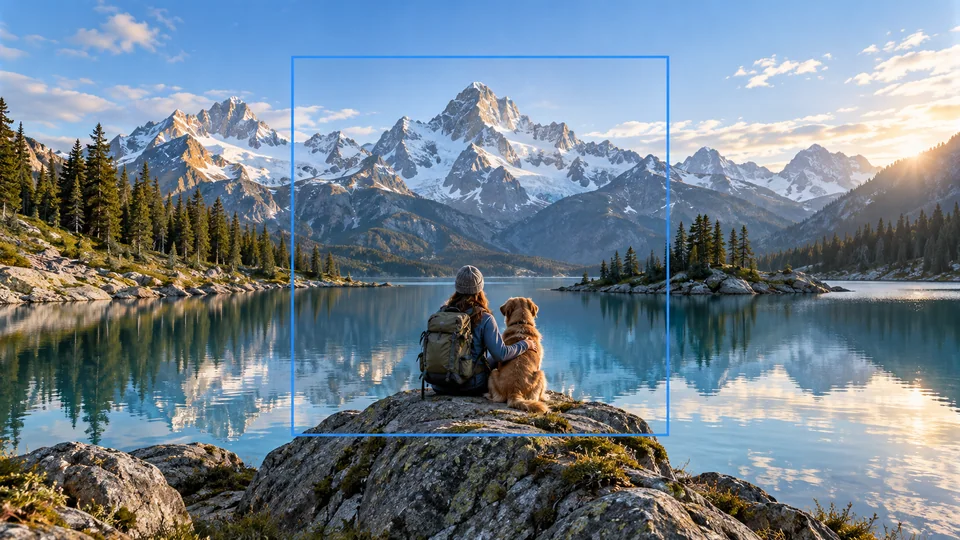
The SEO illustrations show creative directions, not measured video outputs. Use the playable tool showcase for its separate demonstration, and review your own generated clip in full.
Watch the entire clip for continuity, unwanted changes and visual artifacts. Keep the original and verify you have the rights to edit and publish the material.