Choose a Target Ratio
Upload the image you want to expand.
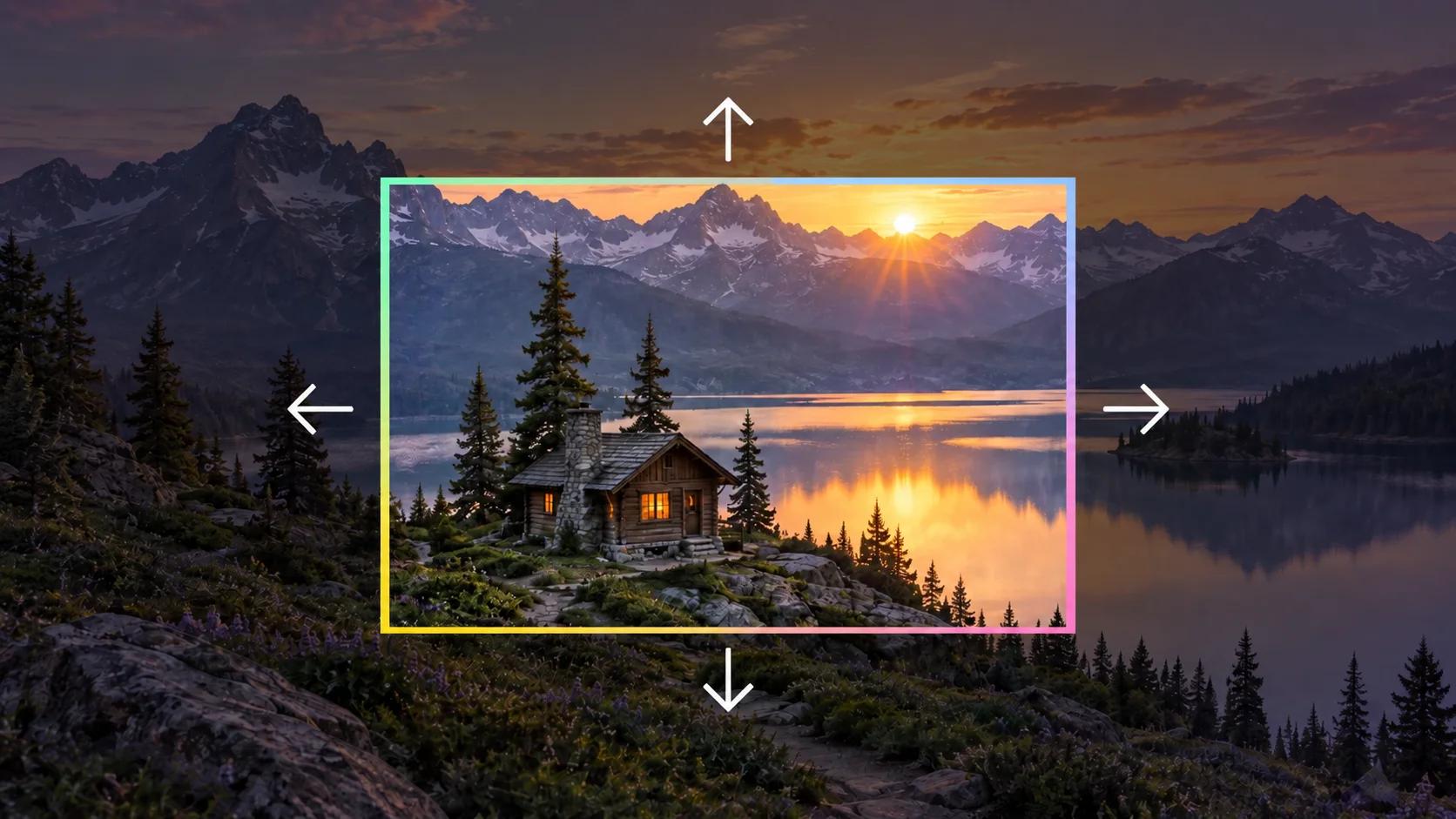
Expand an image beyond its original edges with Seedance's AI image extender. Choose a new aspect ratio and generate additional surroundings for banners, vertical posts and wider compositions.
Expand Your Image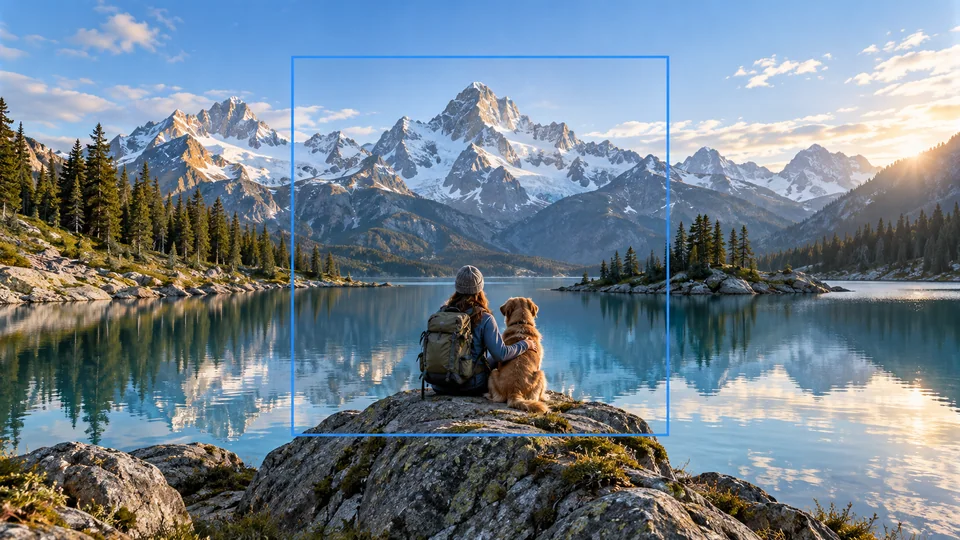
Upload the image you want to expand.
Choose a target aspect ratio in Settings and review the credit cost.
Generate the expanded picture, inspect the new edges and download it.
An image extender creates new surroundings outside the original edges. Choose an available target ratio and review how horizon, perspective and texture continue. The additional scenery is generated, not recovered from a hidden wider version of the photograph.
Expand Your Image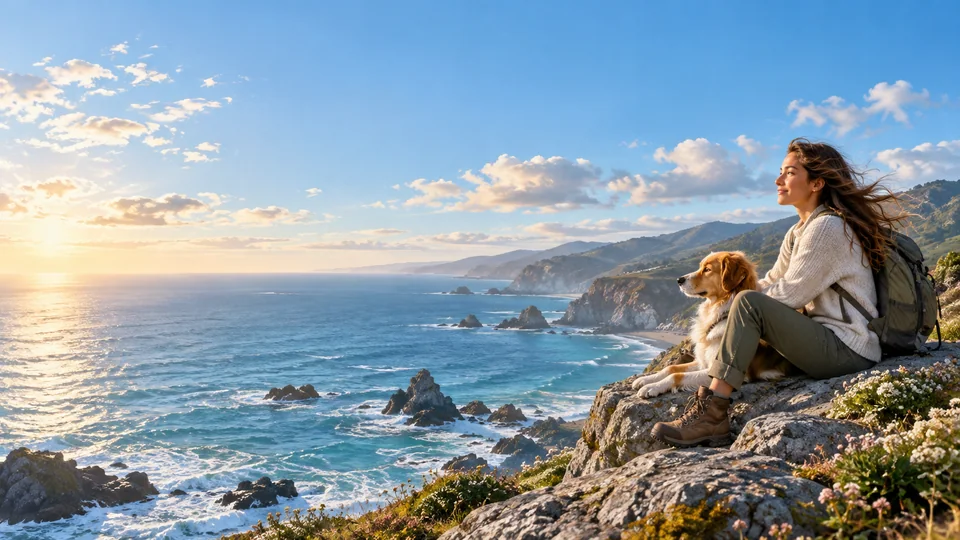
A tightly framed subject can leave little room for a layout. Expand the surrounding scene to explore a different composition without simply enlarging the whole picture. Inspect the boundary where the original meets the generated area, especially around complex backgrounds.
Expand Your Image
A wider backdrop gives text room without covering the main subject. Generate the extra space first, then add copy in your editor. Keep original product details as the reference and inspect expanded surfaces for repeated patterns or inconsistent shadows.
Expand Your Image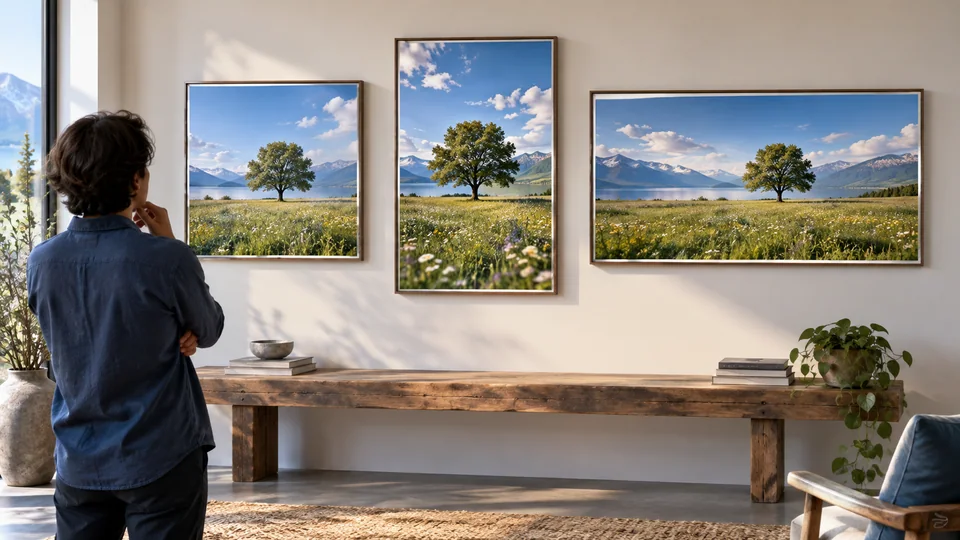
Explore a banner, social post or portrait composition using the ratios in the tool. Expansion differs from stretching and resolution upscaling. Select the shape you need, then compare the result with the original before exporting into your final layout.
Expand Your Image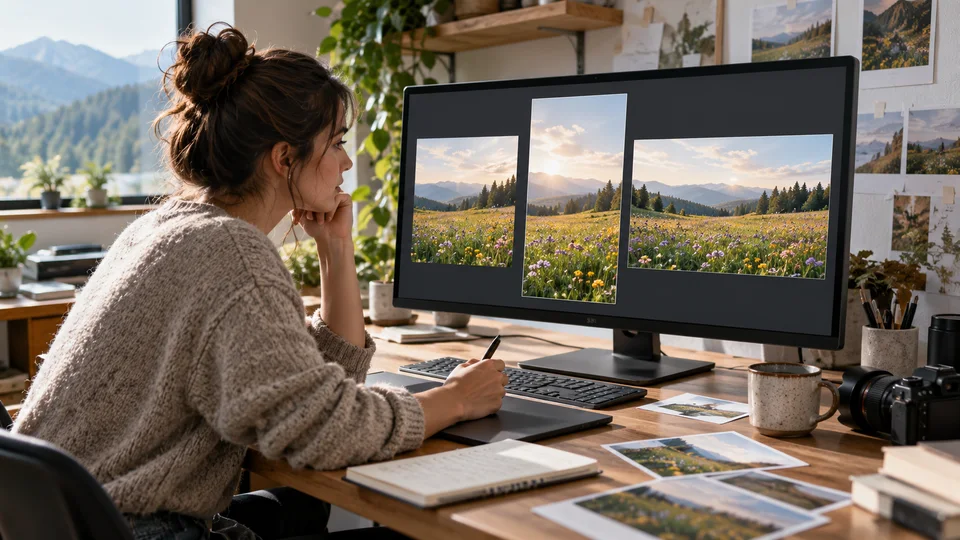
Choose a supported ratio and inspect the generated surroundings. Add platform-specific text and safe margins during final design.
Use the expansion as a creative edit while keeping the untouched photograph. Generated edges should not be treated as documentary detail.
Create space around a subject and add editable text afterward. Review the full output at its intended display size.
Prepare a flexible frame instead of stretching the image. Check perspective and repeated texture at the extension boundary.
Upload the image you want to expand.
Choose a target aspect ratio in Settings and review the credit cost.
Generate the expanded picture, inspect the new edges and download it.
Expand an image beyond its original edges with Seedance's AI image extender. Choose a new aspect ratio and generate additional surroundings for banners, vertical posts and wider compositions.
No. The new area is generated from the visible image. It is a plausible extension, not a recovery of content that was cropped away.
An extender adds visual content around the frame. An upscaler increases pixel dimensions or apparent detail. Choose a different aspect ratio here when you need more space around your subject.
Upload the image you want to expand. Choose a target aspect ratio in Settings and review the credit cost. Generate the expanded picture, inspect the new edges and download it.
This tool uses your Seedance credits. Check the cost shown in the generator before submitting; the amount depends on the model and settings. Your existing Seedance plan and credit balance apply.
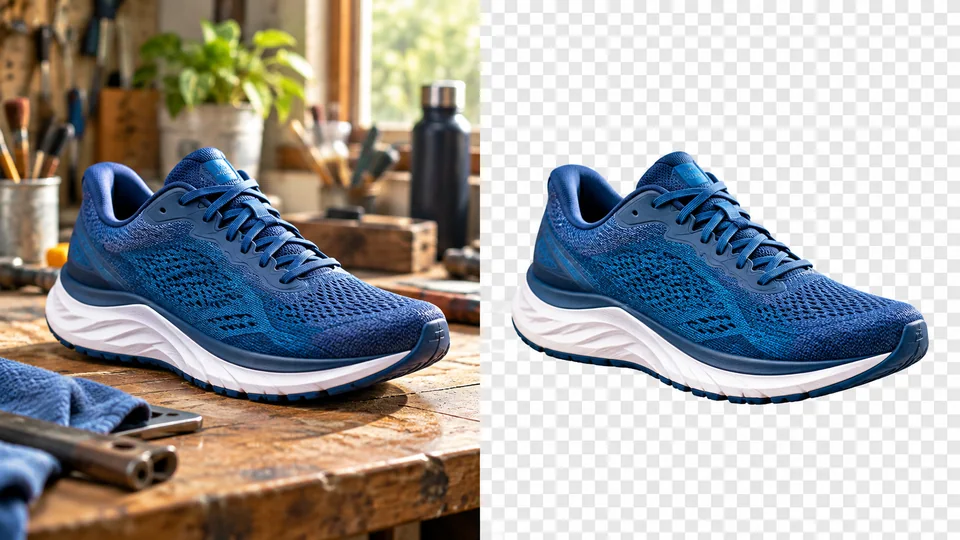
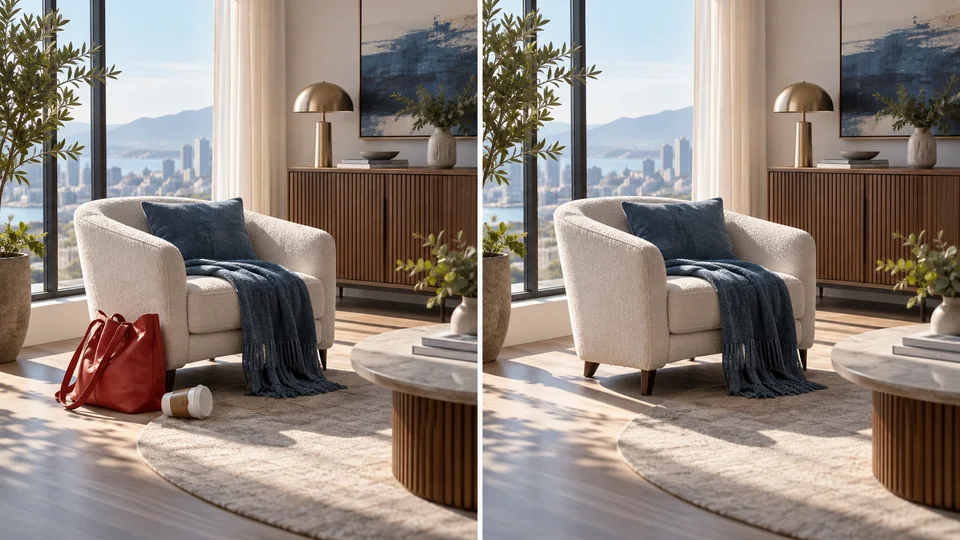
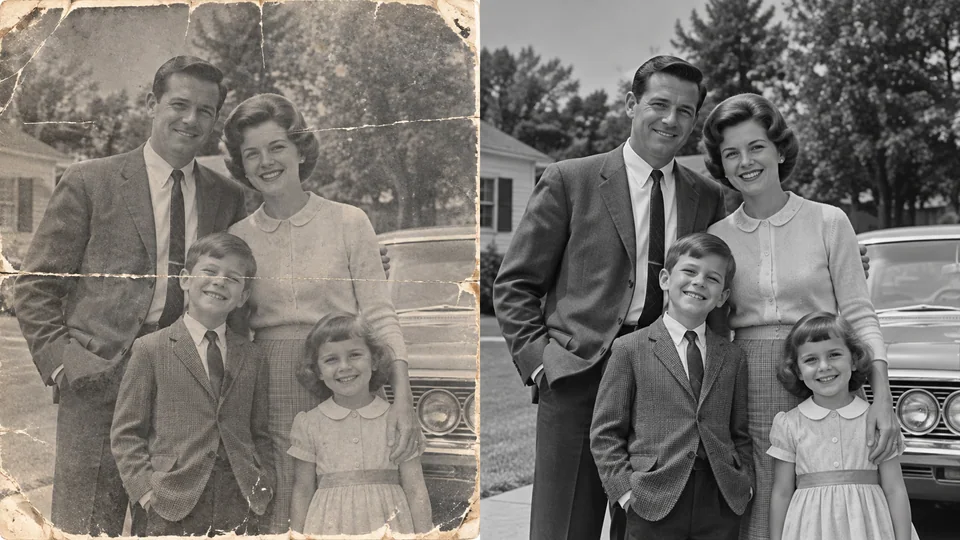
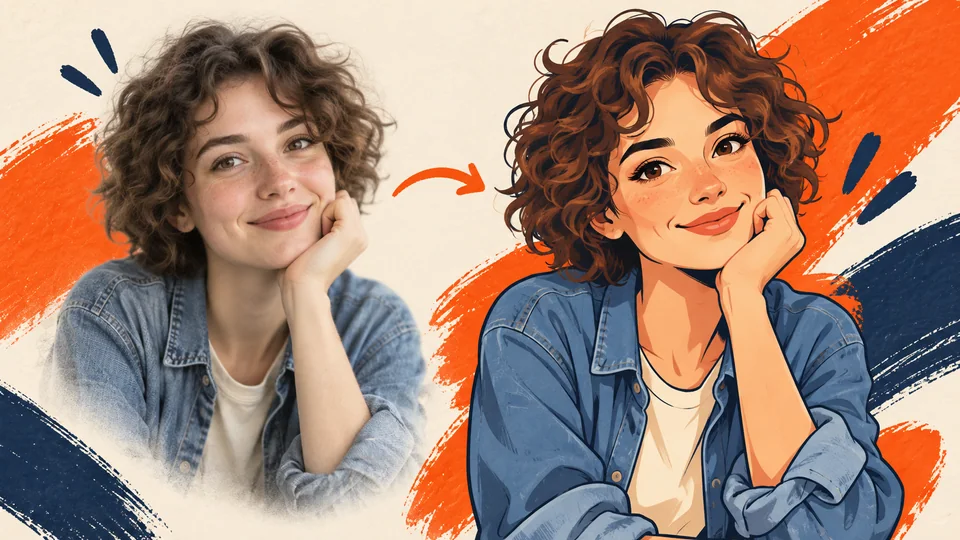
The examples below are AI-generated illustrations of possible uses, not measured outputs from this tool. Your result depends on the source image and generation settings.
Compare the output with your original at full size. Inspect faces, text, edges and important details, and make sure you have the rights to edit and publish the image.