Object Remover

Image

Upload 1 image

Prompt
0/20000
Credits: -
Cost: 1 ⚡

Please upload at least one image for editing

Object Remover

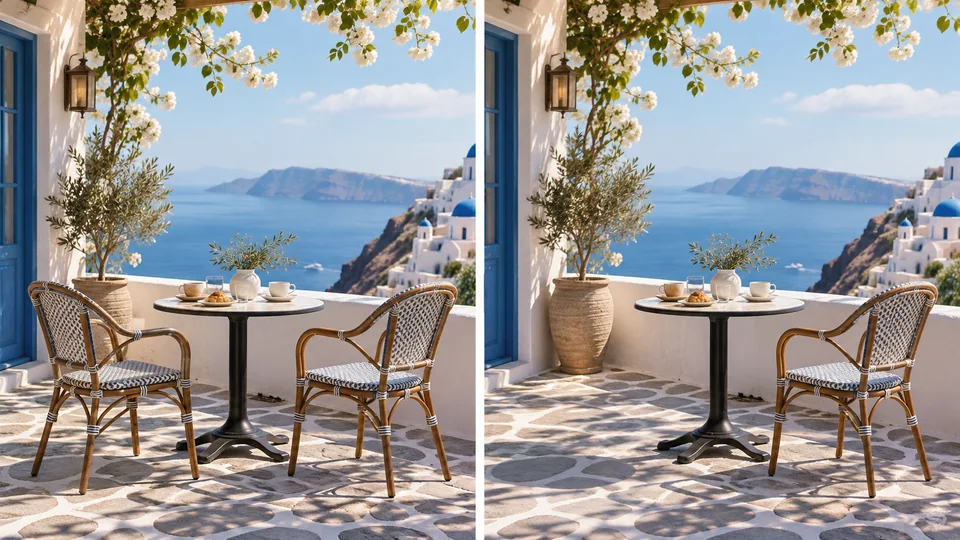
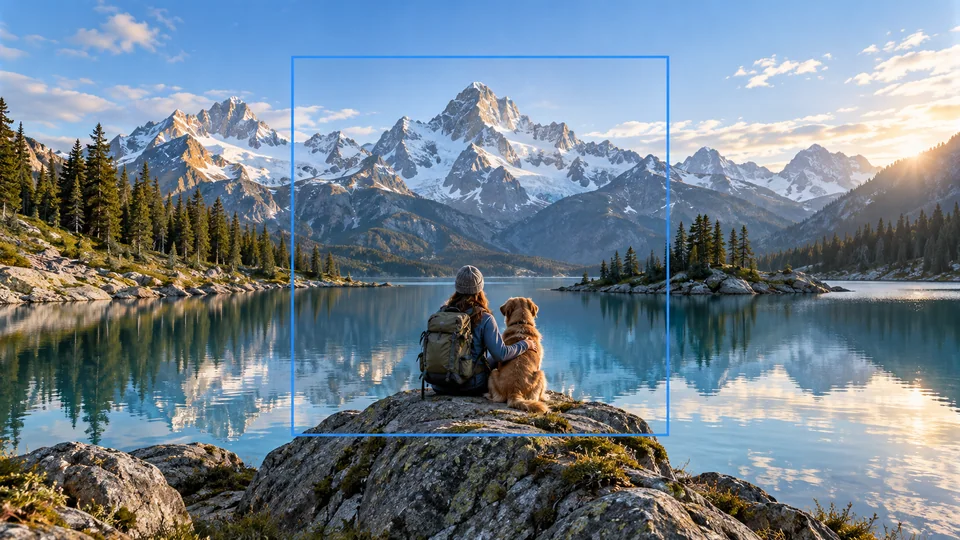
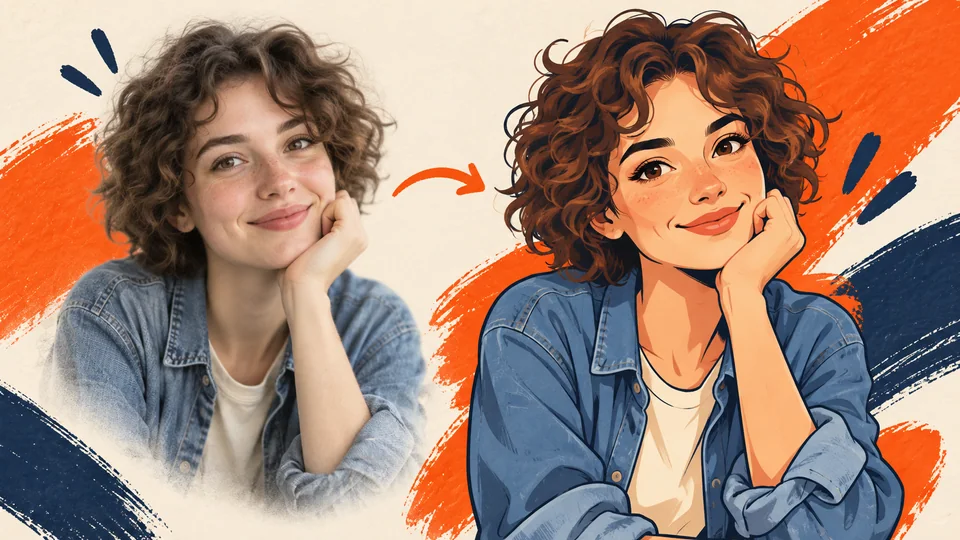
Illustrative preview

AI Object Remover: Remove Objects from Photos Online

Remove unwanted objects from photos by describing what should disappear. Seedance uses the surrounding scene to generate a replacement for the area, helping you clean up distractions in personal and product images.

Remove an Unwanted Object
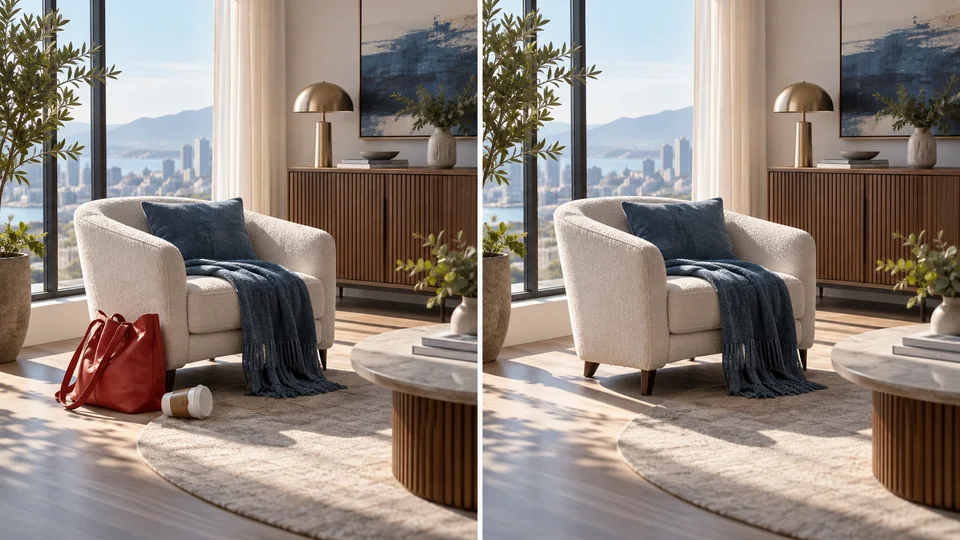
Side-by-side same sunlit modern living room; left has a red bag and discarded cup beside chair, right those two objects removed leaving natural floor and shadow.
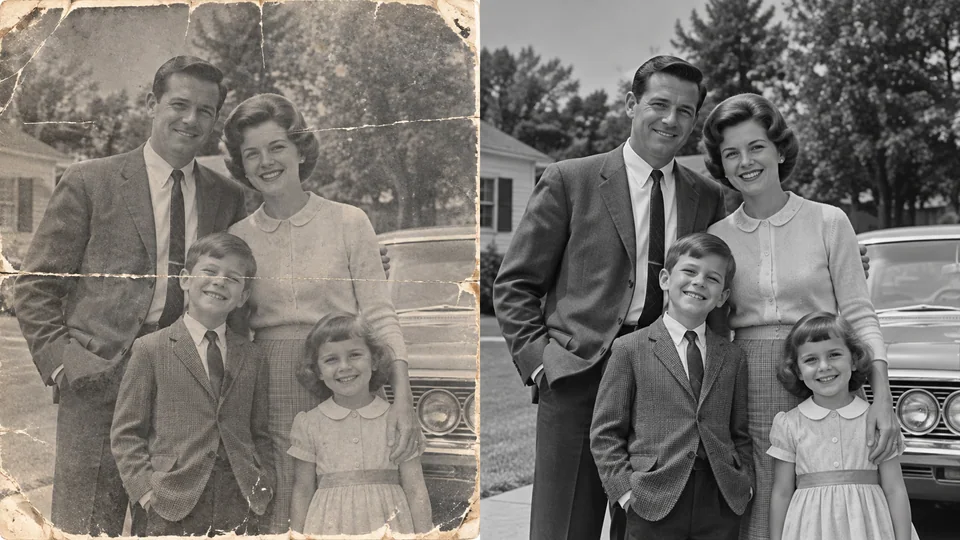
AI-generated illustrations of creative possibilities. Results vary by source photo.

Describe the Object

Upload the photo you want to edit.

AI-Assisted Scene Repair

Describe the object to remove, such as 'the red bag beside the chair', and review the credit cost.

Compare Before Downloading

Generate the edit, compare it with your original and download the result.

Interior Projects: Explore a Less Crowded Room

Clear the Distraction, Keep the Scene

An unwanted bag or cup can draw attention away from a useful photograph. Describe the object and its location in the prompt field. Seedance generates surrounding texture, so compare the floor, shadows and nearby edges with your original.

Remove an Unwanted Object
Product Sellers: Reduce Product Clutter

Give Product Details More Space

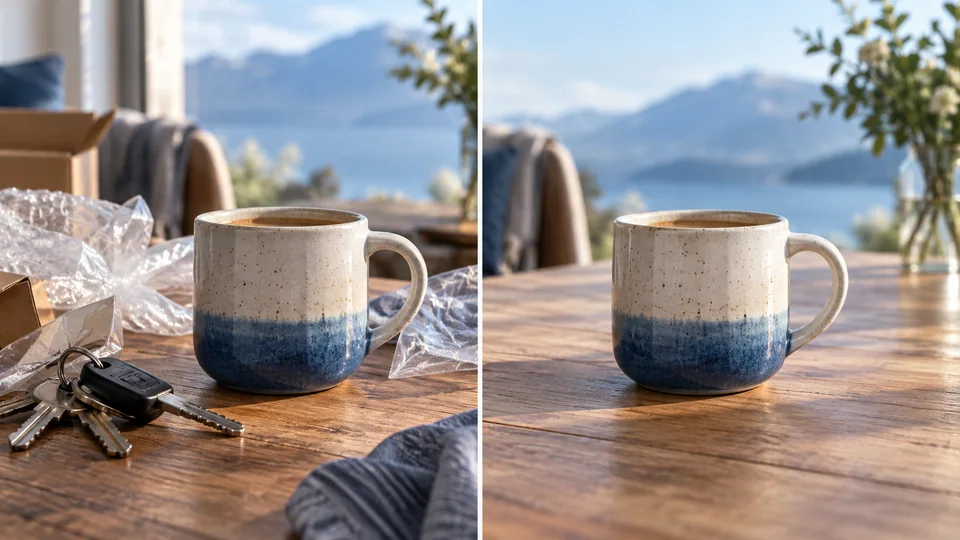
Remove distracting props from a tabletop photo without planning an entirely new shoot. Be precise about what should disappear and remain. Inspect packaging, labels and reflections afterward, especially when the removed object touches the product itself.

Remove an Unwanted Object
Travelers: Keep Attention on the View

Refine a Favorite Travel Photograph

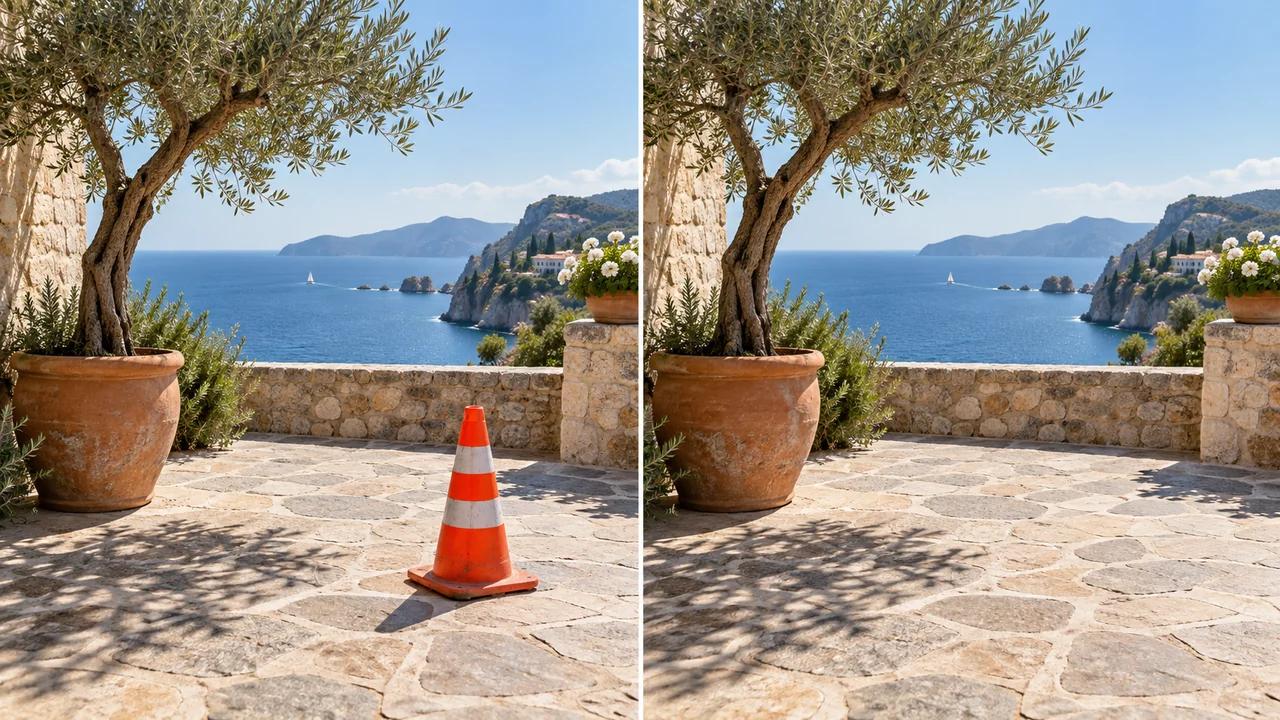
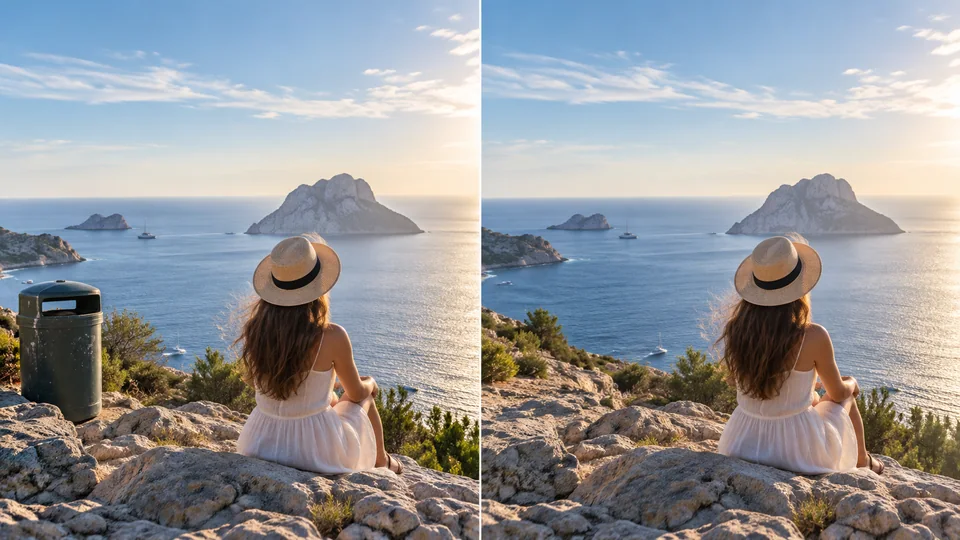
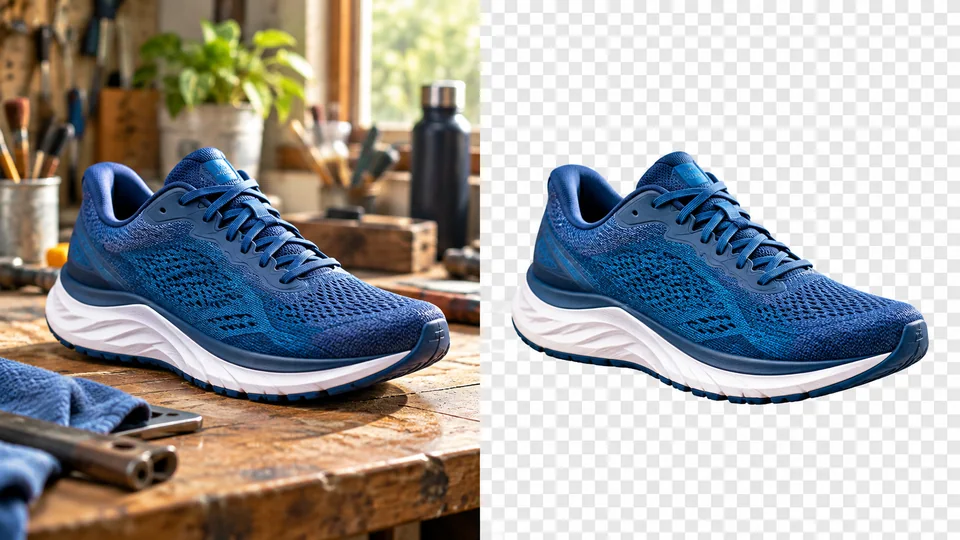
A bin at the edge of a view can be easier to remove than to crop around. Start with one clearly identified distraction and review at full size. The AI estimates what could be behind it; it does not recover unseen scenery.

Remove an Unwanted Object
Content Creators: Prepare a Cleaner Post

Tidy a Composition Before Sharing

Prepare an image for a presentation or personal post by clearing an unnecessary item. Check repeating tiles, furniture legs and architectural lines after the edit. Large removals can benefit from a smaller, more specific request.

Remove an Unwanted Object

AI Object Remover for Your Next Project

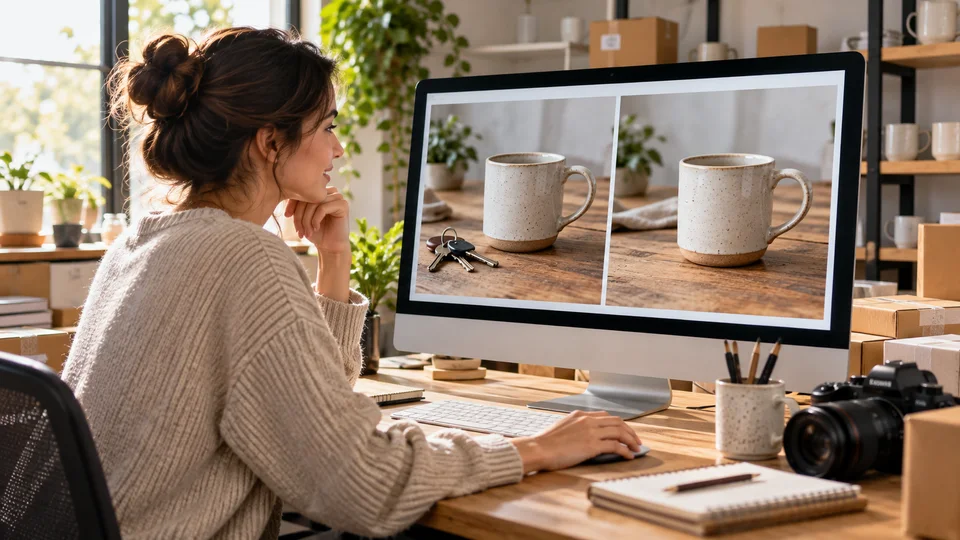
Side-by-side ceramic coffee mug on table; left distracting keys and plastic packaging, right just mug and natural tabletop.

Reduce Product Clutter

Name one distracting prop and keep the product as your reference. Check important commercial details before using the edited version.

Remove an Unwanted Object

How to Use AI Object Remover

  1. Step 1

    Choose Your Source

    Upload the photo you want to edit.

  2. Step 2

    Set Up and Generate

    Describe the object to remove, such as 'the red bag beside the chair', and review the credit cost.

  3. Step 3

    Review and Download

    Generate the edit, compare it with your original and download the result.

Remove an Unwanted Object

AI Object Remover: Common Questions

What does AI Object Remover do?

Remove unwanted objects from photos by describing what should disappear. Seedance uses the surrounding scene to generate a replacement for the area, helping you clean up distractions in personal and product images.

Do I need to paint a mask over the object?

This Seedance tool uses a text description. Identify the unwanted object and where it appears; you do not need to draw a selection in this workflow.

What appears behind the removed object?

AI generates a plausible continuation of the visible surroundings. It does not reveal the actual hidden background, and large removals may require another attempt.

How do I get started?

Upload the photo you want to edit. Describe the object to remove, such as 'the red bag beside the chair', and review the credit cost. Generate the edit, compare it with your original and download the result.

How much does it cost on Seedance?

This tool uses your Seedance credits. Check the cost shown in the generator before submitting; the amount depends on the model and settings. Your existing Seedance plan and credit balance apply.

Are the examples measured results from this tool?

The examples below are AI-generated illustrations of possible uses, not measured outputs from this tool. Your result depends on the source image and generation settings.

What should I check before using the result?

Compare the output with your original at full size. Inspect faces, text, edges and important details, and make sure you have the rights to edit and publish the image.

See Seedance Pricing ↗

Bring the Focus Back to Your Photo