Separate Visible Elements
Upload one image containing the elements you want to separate.
Turn a flattened image into separate visual elements with Seedance's AI image layer splitter. Start with a composition you want to reuse, then inspect the generated layers to find elements for your next design.
Separate Your Image into Layers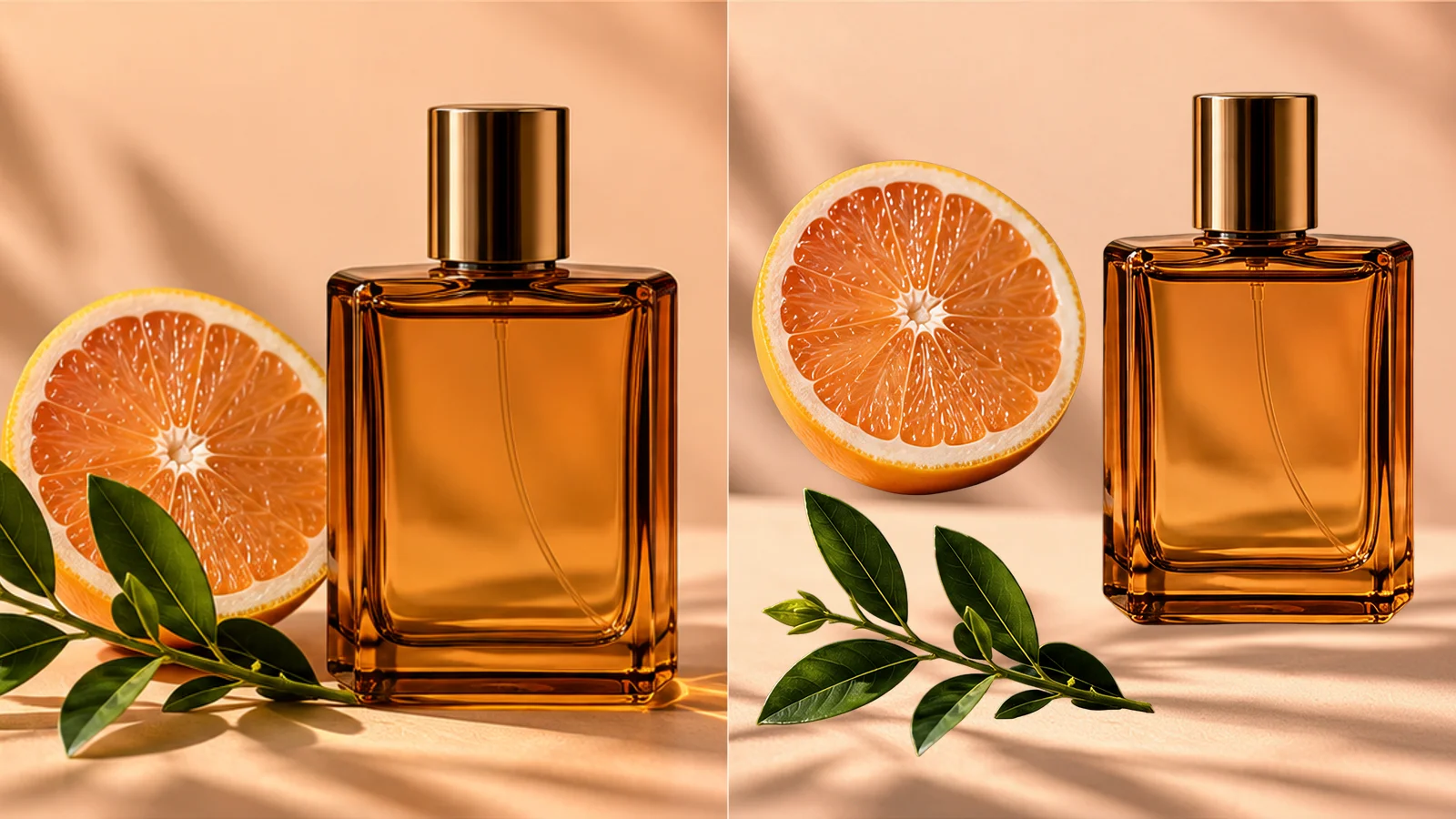
Upload one image containing the elements you want to separate.
Review the displayed credit cost and start the layer split.
Inspect the generated layers in the result view and download the elements you need.

A single exported image can still hold useful design elements. Infer separable parts of a composition, then inspect the outputs individually. Keep the source alongside them to check alignment and decide what belongs in your next layout.
Separate Your Image into Layers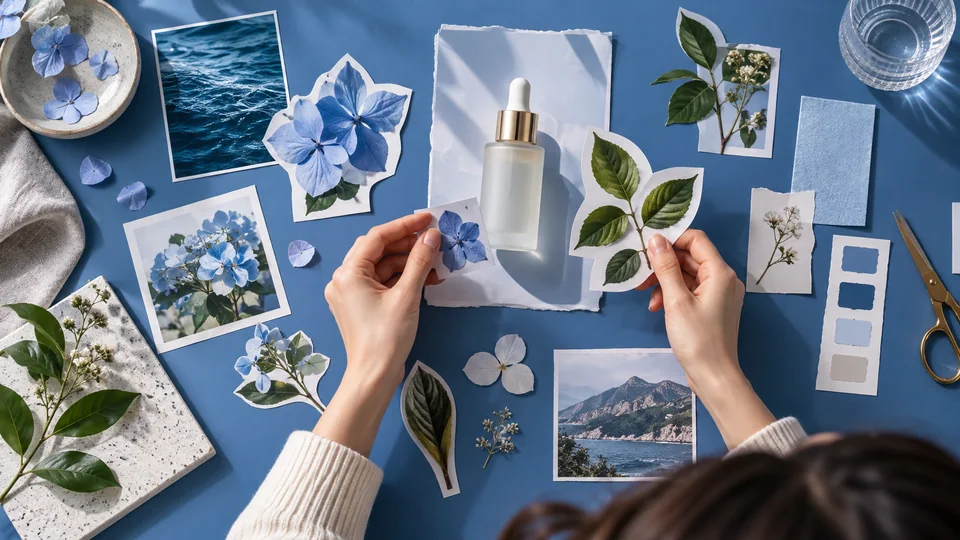
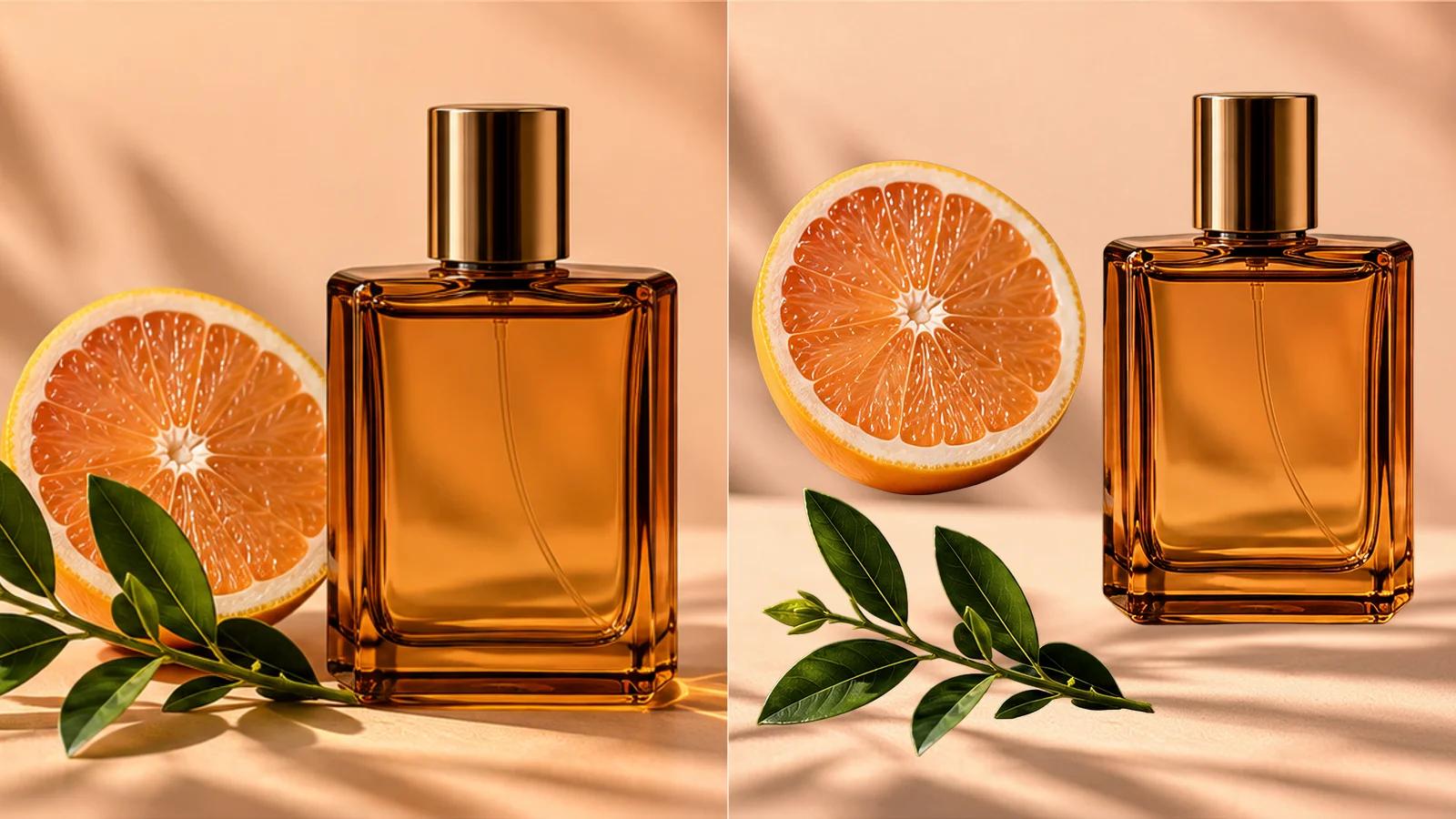
A bottle, botanical accent and backdrop do different jobs in a design. Separating them can make a new arrangement easier to explore in your editor. Complex shadows and overlapping edges may need cleanup before final artwork.
Separate Your Image into Layers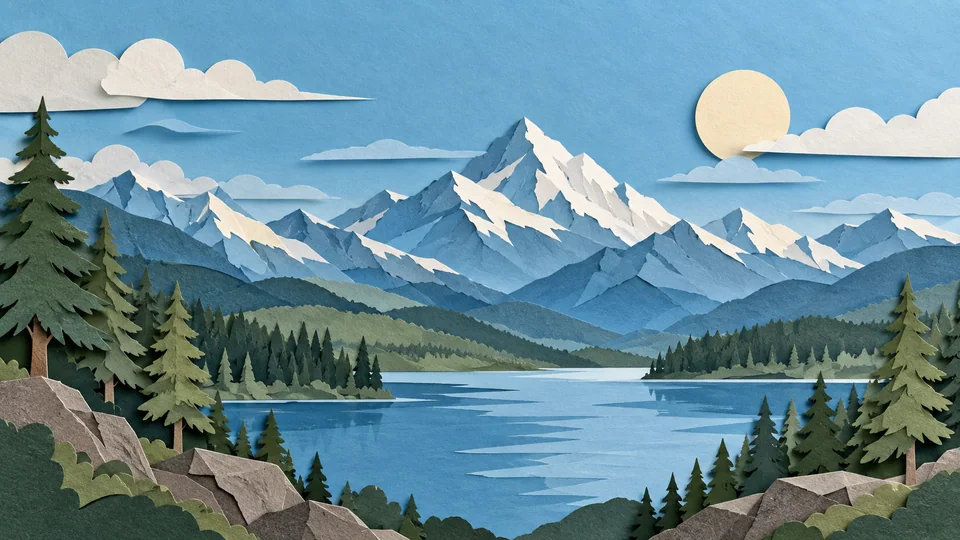
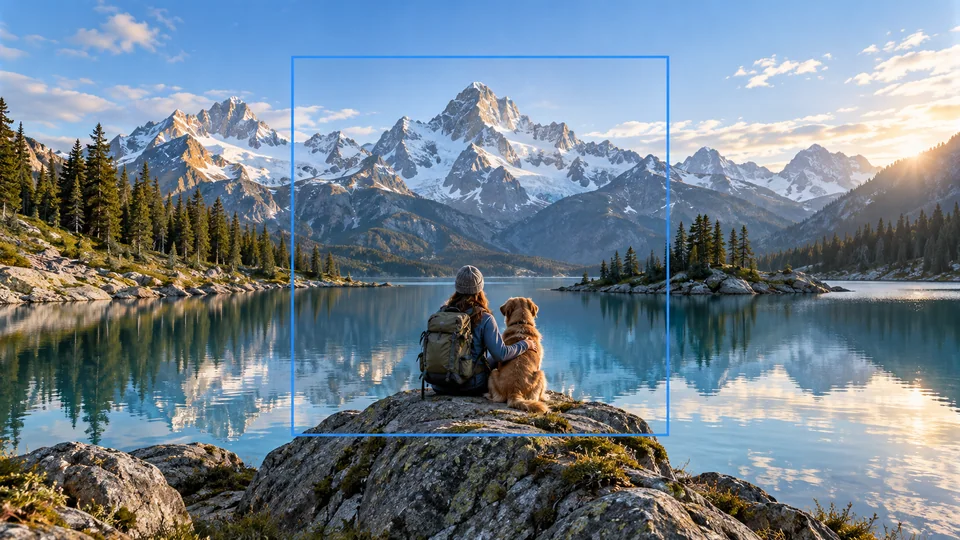
Layered landscapes are useful starting points when foreground and background are visually distinct. Review what the AI assigns to each layer, especially at overlaps. This is an interpretation of the visible composition, not recovery of hidden source layers.
Separate Your Image into Layers
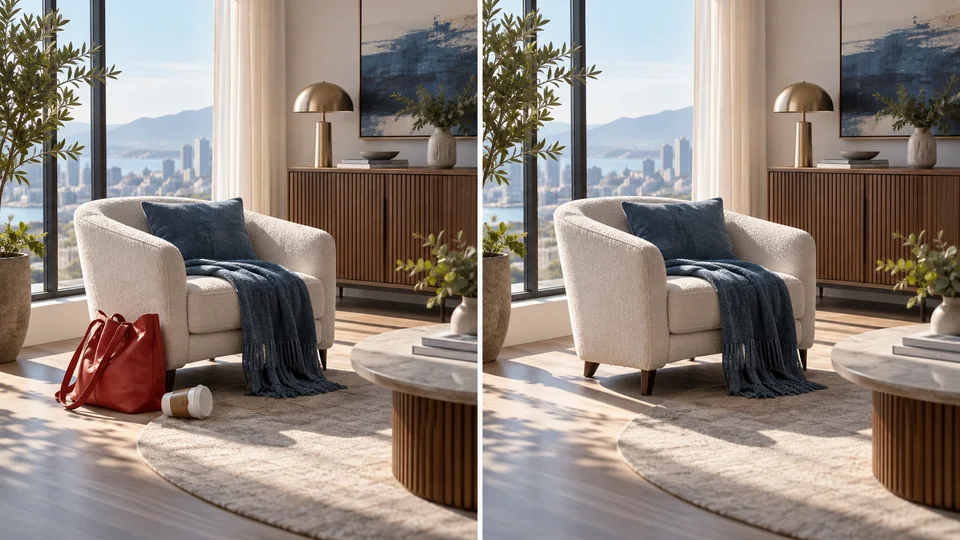
Share the original together with the layers you have checked. A designer can decide which pieces to reuse, mask or rebuild. Label exported files in your own workflow so a collaborator understands where each element came from.
Separate Your Image into Layers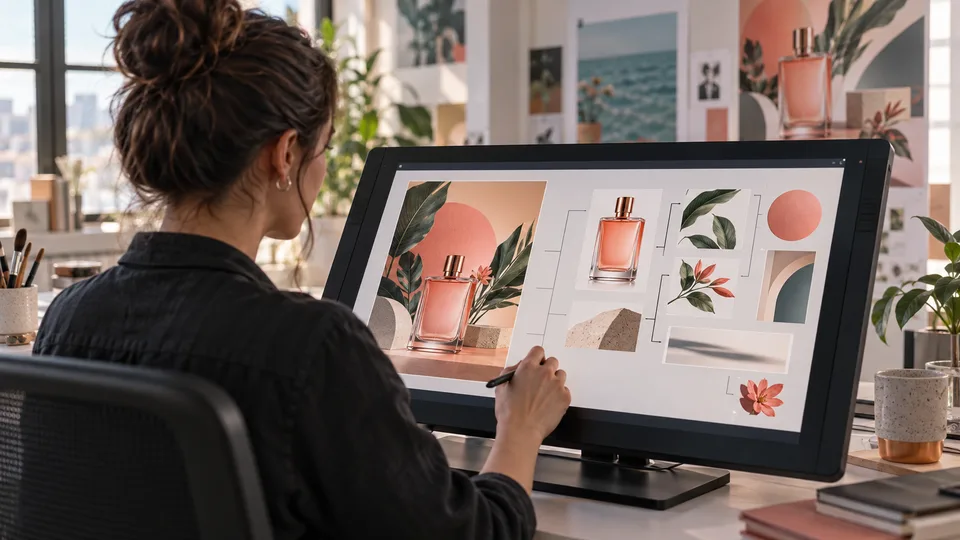
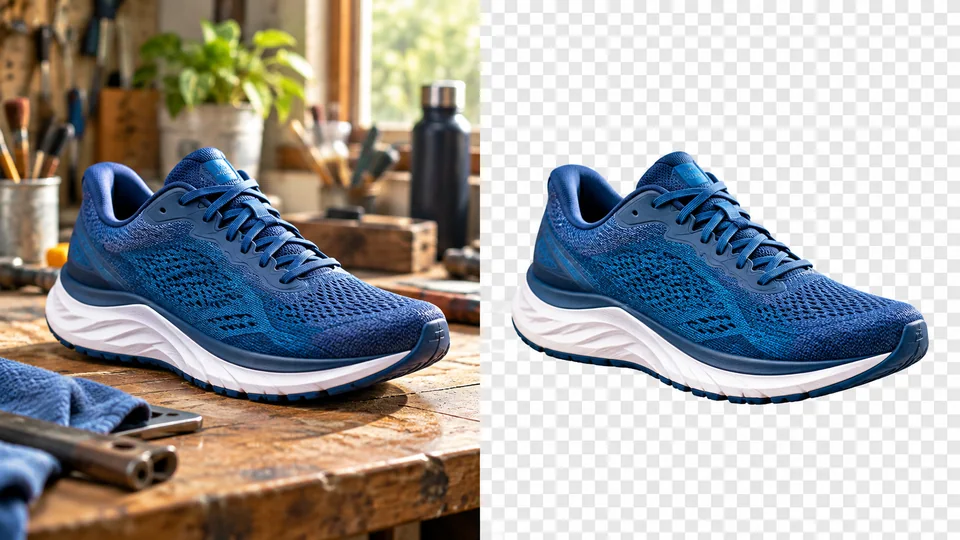
Separate candidate elements when the editable source is unavailable, then rebuild the layout in your usual editor. Review overlap areas before reusing a layer.
Explore product and supporting elements from a styled scene. Check labels, transparency and shadows before placing them in a new commercial layout.
Inspect how foreground and background shapes can be separated. Use the generated layers as references for rebuilding your own editable illustration.
Keep the source next to selected layers, note imperfect edges and pass only useful outputs into the next production step.
Upload one image containing the elements you want to separate.
Review the displayed credit cost and start the layer split.
Inspect the generated layers in the result view and download the elements you need.
Turn a flattened image into separate visual elements with Seedance's AI image layer splitter. Start with a composition you want to reuse, then inspect the generated layers to find elements for your next design.
No. AI estimates layers from the visible image. It cannot recover the original editing history, hidden content or exact layer structure of a source design file.
Choose a clear composition with distinguishable subjects and backgrounds. Small text, translucent objects and heavily overlapping elements are harder to separate cleanly.
Upload one image containing the elements you want to separate. Review the displayed credit cost and start the layer split. Inspect the generated layers in the result view and download the elements you need.
This tool uses your Seedance credits. Check the cost shown in the generator before submitting; the amount depends on the model and settings. Your existing Seedance plan and credit balance apply.
The examples below are AI-generated illustrations of possible uses, not measured outputs from this tool. Your result depends on the source image and generation settings.
Compare the output with your original at full size. Inspect faces, text, edges and important details, and make sure you have the rights to edit and publish the image.