

AI Overview
How many reference images can the Veo API use?
Veo 3.1 accepts up to three reference images for one person, character, or product. Use a small, coherent set that shows identity, materials, and shape clearly instead of three unrelated compositions.
Are reference images the same as first and last frames?
No. referenceImages guides subject or style consistency, while image sets the first frame and lastFrame constrains the ending. Choose one mode according to what must remain fixed.
Which Veo model supports reference images?
Google's current Gemini API documentation lists reference images for Veo 3.1 and Veo 3.1 Fast, not Veo 3.1 Lite or Veo 3.0. Reference-image generations use an eight-second duration.
What should an API integration save?
Save the input asset IDs, normalized prompt, model and config, operation name, final file, and review result. This record makes a failed shot reproducible instead of turning every retry into guesswork.
Choose Reference Mode Before Coding
The practical job behind a Veo reference images API tutorial is not merely sending base64 data. Developers need to know which visual control matches the shot, which fields belong together, and how to recover when the output ignores a product detail or drifts from a character.

A new reference-set concept made for this guide. The rider, saffron jacket, amber glasses, and cobalt motorcycle provide clear continuity anchors; it is not presented as a Veo benchmark.
Start by selecting one of three modes:
| Goal | API input | Best use |
|---|---|---|
| Animate an exact opening composition | image |
A still should become the first video frame |
| Connect two designed compositions | image plus lastFrame |
The shot must start and finish at specific frames |
| Preserve a person, character, or product | referenceImages |
The scene may change while the asset stays recognizable |
The difference matters. A character portrait in referenceImages is guidance, not a promise that the first rendered frame will reproduce that portrait pixel for pixel. Conversely, a starting image locks the initial composition but does not provide three separate identity views. Do not mix concepts in the prompt and then blame the API for choosing the wrong constraint.
Google's current Gemini API table says referenceImages supports up to three VideoGenerationReferenceImage objects on Veo 3.1 and Veo 3.1 Fast. Veo 3.1 Lite does not support this field. A reference-image request produces one video, uses an eight-second duration, supports landscape or portrait, and can generate at 720p, 1080p, or 4K on the full Veo 3.1 routes. Higher resolution increases latency and cost, so validate the shot contract before scaling delivery.
For a broader interface-level explanation before you build the endpoint, see the Google Flow and Veo workflow guide.
Prepare Reference Images and Prompt
Build one coherent asset set
Use references that agree on identity. A useful three-image pack might contain a clean face and wardrobe view, a product geometry view, and a small accessory that must survive. Keep color temperature, lens distortion, and proportions compatible. If one image shows a cobalt motorcycle and another shows a different chassis in navy, the prompt cannot reliably decide which geometry is canonical.

Character reference: inspect face shape, hair silhouette, jacket panels, and amber lenses. A readable reference is more useful than a dramatic but obscured portrait.
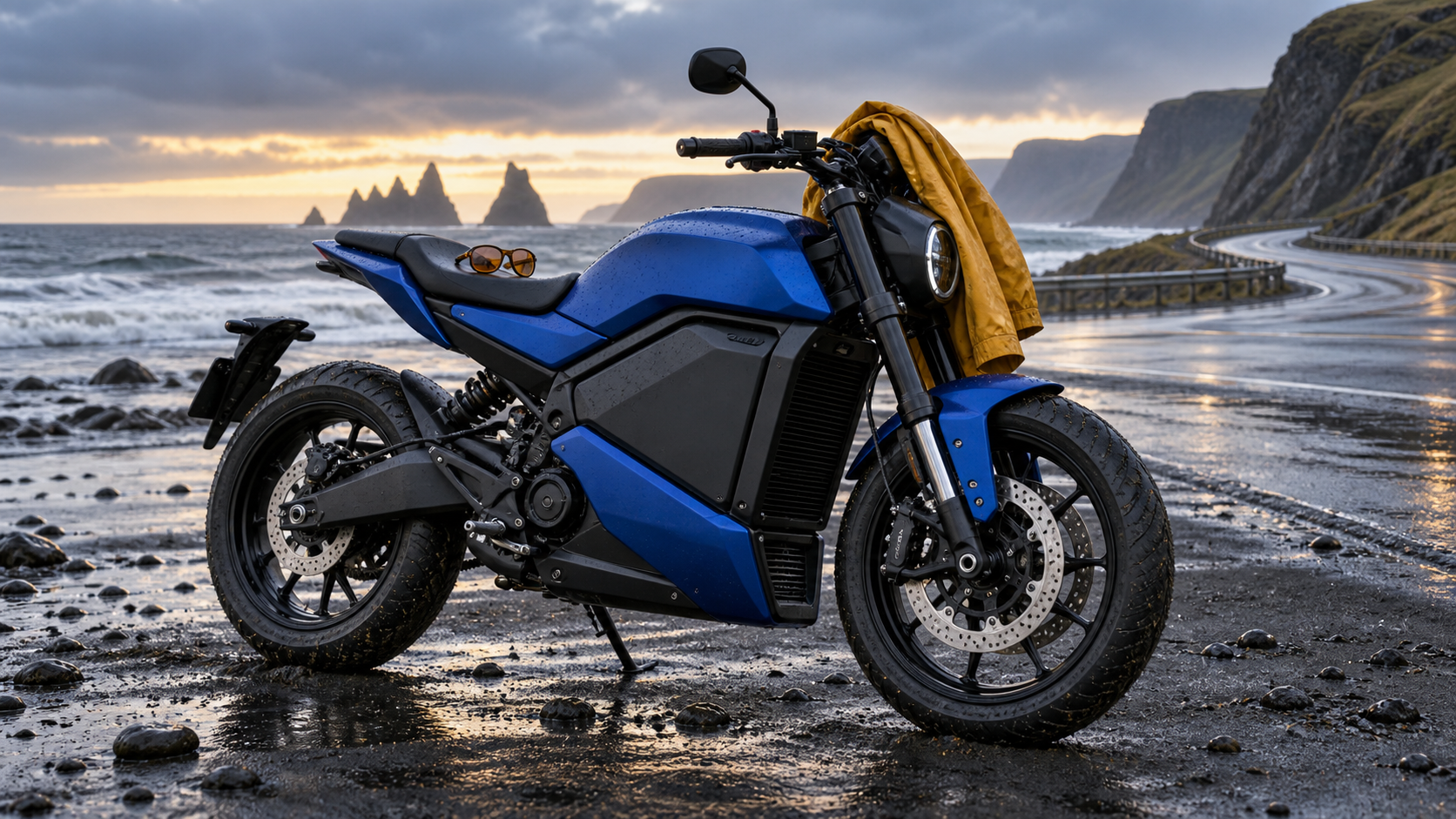
Product reference: the full wheel geometry, frame silhouette, cobalt panels, jacket, and glasses are visible under neutral post-rain light.
Preprocess images before the paid request. Confirm the MIME type, reject empty files, decode once to catch corruption, and keep the original aspect ratio unless your pipeline deliberately crops. Store a checksum and an internal asset ID. Base64 increases request size, so avoid repeatedly encoding oversized masters when a correctly sized derivative retains all visible details.
Write a preservation-aware prompt
A good prompt tells Veo what happens and what should remain stable. Use this reusable order:
Medium tracking shot. The silver-haired rider in the saffron jacket rides the matte cobalt motorcycle along a wet coastal road at sunrise. Preserve her face, short bob silhouette, amber visor glasses, jacket panels, motorcycle body geometry, wheel count, and cobalt finish. Ocean spray moves naturally; the camera tracks parallel without orbiting. Native wind, tire, and distant surf audio; no dialogue, no text, no logo.
Name references by visible traits rather than filenames. Keep one primary action and one camera move per eight-second shot. Contradictory commands such as “locked camera” and “fast orbit” create a coordination problem no reference image can solve. The image-to-video prompting guide has a compact subject-action-camera-preservation pattern you can reuse.
Send a Veo 3.1 Request
Create asset references in JavaScript
With the current @google/genai SDK, represent each prepared image as an object containing imageBytes and mimeType, then wrap it with referenceType: 'asset'. The SDK reads the API key from your environment; keep it on the server, never in browser JavaScript.
import { GoogleGenAI } from '@google/genai';

const ai = new GoogleGenAI({});
const assets = [riderImage, motorcycleImage, glassesImage].map((image) => ({
  image,
  referenceType: 'asset',
}));

let operation = await ai.models.generateVideos({
  model: 'veo-3.1-generate-preview',
  prompt,
  config: {
    referenceImages: assets,
    aspectRatio: '16:9',
    durationSeconds: 8,
    resolution: '720p',
  },
});
Field names can differ between the Gemini API and Vertex AI surfaces, so pin the SDK version and validate against the official documentation for the endpoint you actually deploy. Do not copy a third-party wrapper's JSON shape into a Google endpoint. Log a redacted request manifest rather than the full base64 payload.
Use 720p for the first acceptance pass. After identity, motion, camera, and audio pass, repeat the approved configuration at the required delivery resolution. If your application routes across providers, the aggregator versus direct API guide explains why a normalized job record is more dependable than provider-specific UI memory.
Poll, Download, and Store Output
Veo video generation is asynchronous. The initial call returns a long-running operation, not the finished MP4. Poll by operation name with a sensible interval, stop at a bounded timeout, and persist the operation ID so a worker restart can resume rather than submit a duplicate job.
while (!operation.done) {
  await new Promise((resolve) => setTimeout(resolve, 10_000));
  operation = await ai.operations.getVideosOperation({ operation });
}

const generated = operation.response.generatedVideos[0];
await ai.files.download({
  file: generated.video,
  downloadPath: `outputs/${jobId}.mp4`,
});
Google currently retains generated videos on its server for two days, so download promptly to storage you control. Verify that the file exists, has nonzero length, decodes as video, and matches the expected duration. Save a poster frame for review, but never treat the poster as proof that the full motion is clean.
Watch the complete clip for identity, environment, camera, and audio continuity. A moving file exposes failures that one attractive frame hides.
Validate Consistency and Handle Failures
Review with a fixed acceptance grid
Inspect each output at normal speed and again around the most complex motion. Record pass, revise, or reject for the same criteria every time:
| Review area | Pass condition | Targeted correction |
|---|---|---|
| Identity | Face, hair, clothing, and accessory stay recognizable | Replace weak or conflicting portrait references |
| Product | Silhouette, panels, wheels, and materials remain coherent | Use a cleaner full-product reference and simplify motion |
| Camera | One requested move with stable horizon and crop | Remove competing camera verbs |
| Action | Subject motion is continuous and physically readable | Reduce action count or speed |
| Audio | Sound matches location and action without unwanted speech | Specify sound sources and explicitly exclude dialogue |
| Ending | Final frame is usable for a cut or continuation | Constrain the ending action or use interpolation mode |

The alternate composition changes time and framing while preserving the same continuity anchors. Use this kind of frame to judge whether the asset identity survives a scene change.
If every output loses the same feature, the reference or prompt hierarchy is likely wrong. If failures vary randomly, keep the inputs fixed and rerun before rewriting everything. If composition must end at an exact designed image, switch to image plus lastFrame instead of adding more preservation language to referenceImages.
This is a different model and shot type, included as a real-motion review example rather than a Veo benchmark. Apply the same geometry and camera rubric.
Separate provider errors from creative failures. Authentication, quota, invalid MIME, unsupported config, safety filtering, timeout, and a completed-but-unusable clip require different responses. Retry only transient transport or service errors automatically. A rejected prompt or bad visual result should return to human review, not enter an infinite paid loop.
Before final export, confirm the delivery cadence with the AI video frame-rate guide, because generated 24 fps and platform delivery settings are related but not interchangeable decisions.
Build It into a Seedance Agent Workflow
The raw Veo API is a good fit when a developer already owns asset storage, prompt versioning, operation polling, approval, and retry policy. Seedance Agent is useful when the real task spans more than one call: turn a brief into a shot list, assign reference roles, choose a supported model per shot, review real outputs, and rerun only the failed segment.
For the rider sequence, an agent can register the portrait, motorcycle, and glasses once; create a coastal tracking shot and a blue-hour ending as separate jobs; keep their preservation rules aligned; and expose both clips for approval. The API remains the generation layer while the agent carries production state. That reduces accidental duplicate requests and prevents a late prompt edit from silently changing the canonical asset set.
Measure cost per approved second, not requests completed. Compare Veo 3.1 with other routes on identity stability, usable endings, review time, and rerun count using the Seedance 2.5 versus Veo 3.1 comparison. The goal is not to force every shot through one model; it is to deliver a consistent sequence with the fewest avoidable revisions.
Conclusion
A reliable Veo reference images API integration starts by choosing the right control mode, preparing up to three coherent asset references, writing one clear motion-and-preservation prompt, submitting a valid Veo 3.1 request, persisting the long-running operation, downloading before retention expires, and reviewing the full clip with a fixed rubric. Keep transient API retries separate from creative reruns, and switch to first-and-last-frame interpolation when exact endpoints matter more than flexible asset guidance; when the project needs shot planning, shared references, model routing, approvals, and selective reruns around the API call, start the workflow with Seedance Agent →
Ready to try it yourself?
Put the steps from this guide into practice with Seedance and turn prompts or images into polished videos in minutes.
Free credits on signup. Plans from $28/month.
Related Articles
More posts in the same locale you may want to read next.

Seedance App Preview Video Generator 2026: Create App Store and Product Launch Clips
Use Seedance to turn app screenshots, feature copy, and launch goals into App Store previews, Google Play promo videos, and product launch clips.
Read article
How to Make a Talking AI Avatar You Can Reuse
Make a talking AI avatar with Seedance: design one consistent character, give it a voice, and make it speak in a talking photo or a full Seedance 2.5 scene, episode after episode.
Read article
Best AI Video-to-Video Models in 2026
The best AI video-to-video models in 2026 for editing footage you already shot: Higgsfield Genjutsu, Seedance 2.x, Runway Aleph, Luma Modify and Kling Omni compared.
Read article