
Image to Video AI With Prompt Online Free: Animate Any Photo
AI Overview
What is image-to-video AI with a prompt?
It turns one still image into a short video by using your prompt to direct subject movement, camera motion, atmosphere, and timing.
Can I use image-to-video AI online for free?
Yes. Many tools include trial credits or limited free generations, although login, watermark, resolution, queue, and download rules vary.
What should an image-to-video prompt include?
Describe one subject action, one camera move, environmental response, pacing, and the details that must remain unchanged.
Which images produce the best AI videos?
Use a sharp image with a clear subject, visible edges, believable depth, enough space for movement, and no badly cropped hands or objects.
Try Image to Video AI With a Prompt Online
The fastest way to understand image-to-video AI is to make one controlled clip. Open the Seedance image-to-video generator, upload a still, add a motion prompt, choose the available ratio and duration, then generate. Treat the first result as a test of your direction, not a lottery ticket.
Start with a motion-ready source
Pick an image that already looks like the first frame of a shot. A portrait with the whole head visible, a product with clean edges, or a landscape with foreground and background separation gives the model room to infer depth. Leave space in the direction the subject should move. If a runner faces right but touches the right edge, the shot has nowhere to travel.
Low-resolution images, overlapping fingers, unreadable product labels, and heavy blur create uncertainty before motion begins. Upscaling can help clarity, but it cannot invent a reliable structure. Prepare the source before spending a generation on motion.
Prompt the change, not the picture
The uploaded image already defines the person, object, clothing, composition, and color. Repeating every visual detail wastes prompt space and can make the model reinterpret what was correct. Describe what happens next: where the subject moves, how quickly, how the camera responds, what reacts in the environment, and what must remain stable.
Generate, inspect, then change one variable
Watch the whole clip at normal speed and again frame by frame. Check identity, object shape, contacts, direction, timing, background stability, and the final frame. If it fails, change one variable—reduce the action, remove the camera move, shorten the instruction, or strengthen one preservation rule. A controlled revision tells you what improved the result.
Image-to-Video Prompt Formula and Copy-Ready Examples
A dependable prompt can be written as: subject action + camera action + environmental response + timing + preservation rule. Keep each part concrete. “She turns toward the window over three seconds” is easier to execute than “make it cinematic and dynamic.” If you need vocabulary for pans, tracks, orbits, and push-ins, see these Seedance camera movement prompts.
Portrait prompt: subtle expression and wind
The woman slowly turns her head toward the camera and gives a small natural smile.
A loose strand of hair and nearby fern leaves move in the same soft breeze.
The camera makes a very slow push-in for five seconds.
Preserve her face, hands, linen blouse, greenhouse geometry, and daylight.
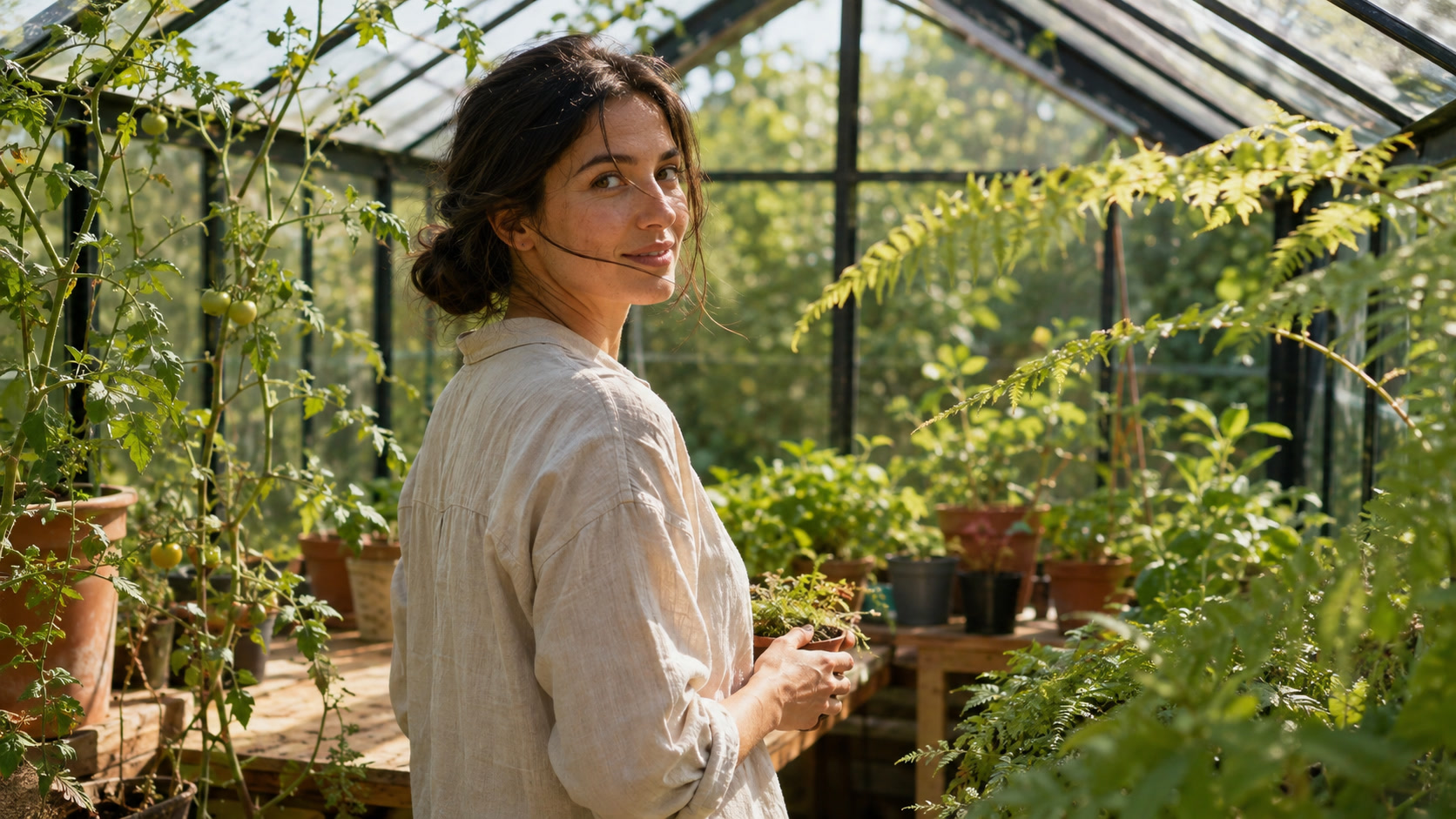
A restrained turn, matching environmental motion, and a slow push-in create life without asking the model to rebuild the portrait.
Product prompt: controlled orbit
The blue bottle remains upright while condensation moves slowly down its surface.
The camera makes a subtle low-angle orbit from left to right.
The linen napkin lifts once in a light breeze; window reflections shift naturally.
Preserve bottle shape, cap, blue color, table edge, and background layout.
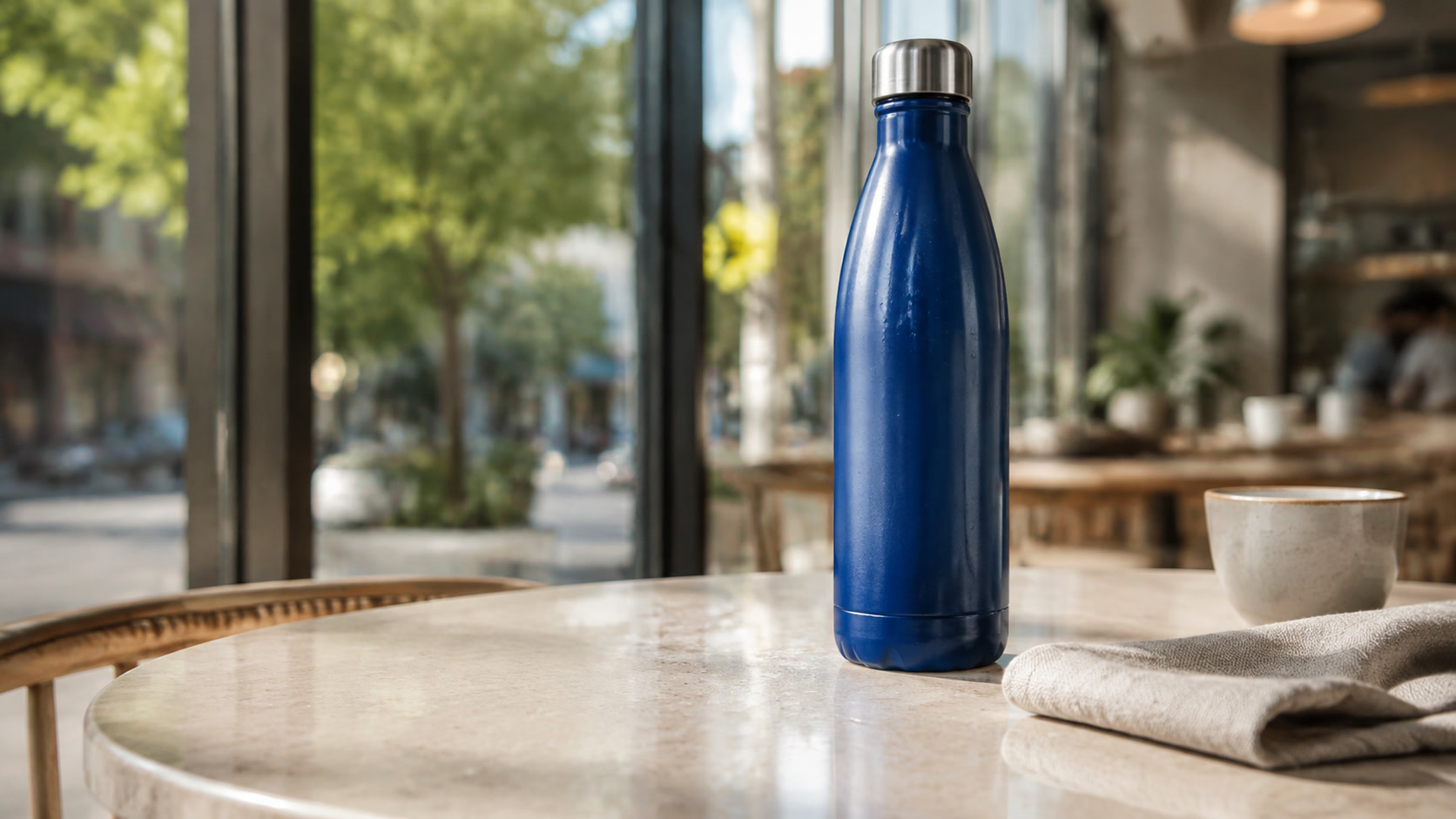
Product motion should come from the camera, light, and small environmental reactions—not from changing the product itself.
Landscape prompt: movement with depth
The red kayak glides steadily from left to right as the paddler completes one stroke.
A narrow V-shaped wake spreads behind it and low mist drifts sideways.
The camera tracks gently at water level for six seconds.
Keep the kayak, paddler, shoreline, mountains, and reflections coherent.
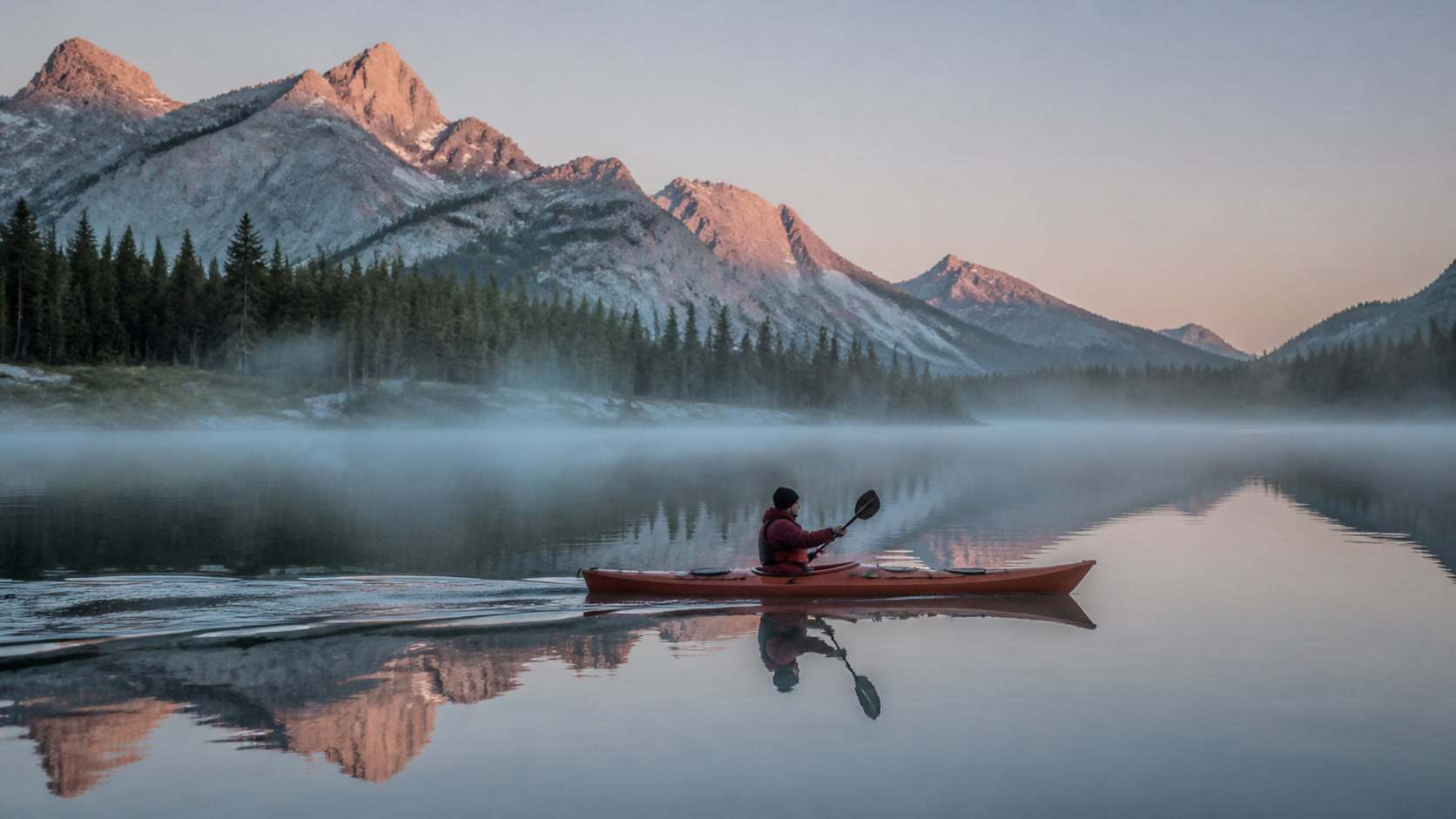
Foreground wake, midground action, and distant mist give the model three readable depth layers to animate.
What “Free Online” Actually Means
Searches for a free image to video AI generator, image to video AI free no sign up, or a tool “without watermark” usually mean the same thing: users want to test a real result before committing money or personal details. “Free” is useful only when you know what the free tier includes.
| Check before generating | Why it matters |
|---|---|
| Trial credits | A free account may cover only one or two clips |
| Sign-up requirement | Guest previews may not include downloads |
| Watermark | A clean preview can still export with branding |
| Resolution and duration | Free outputs may be shorter or lower resolution |
| Queue priority | Peak-time generation can take longer |
| Usage rights | Commercial use may depend on the plan or asset source |
Free credits are a test budget
Use limited credits to answer one question: can this tool animate your kind of image? Test the hardest required detail first. For a product, inspect geometry and label stability. For a portrait, inspect the eyes, mouth, hairline, and hands. For a landscape, inspect straight lines, reflections, and parallax. Our separate free image-to-video guide focuses on evaluating free access itself; this page focuses on getting better motion from the prompt.
No sign-up and no watermark are separate claims
A service may let you enter a prompt without an account but require sign-in to render or download. It may also show an unmarked player while placing a watermark on the exported file. Check the final download conditions before refining a clip you cannot use.
Protect sensitive source images
Do not upload confidential designs, unreleased products, private portraits, or client assets until you understand retention, deletion, and training policies. Keep the original file and prompt locally, and confirm that you own or can license every element in the source image.
How to Preserve Faces, Products, and Backgrounds
Good image-to-video prompting adds motion while protecting the approved frame. The model needs to know both what may change and what must not.
Assign one dominant action
“Turn, walk, wave, laugh, and look back” creates several competing transitions. Choose the action that communicates the shot. Secondary movement should support it: hair follows a turn, fabric responds to a step, and water responds to a paddle. This cause-and-effect structure usually looks more natural than unrelated motion everywhere.
Name the locked features
Write preservation rules with nouns: “preserve facial identity, hairstyle, jacket, bottle silhouette, printed mark, shelf positions, and window geometry.” Avoid asking for “perfect consistency,” which does not identify what consistency means. When multiple references are involved, decide which one controls identity, product shape, clothing, environment, or lighting. The Seedance reference-image workflow explains how to give each source one job.
Match motion to the source perspective
A close portrait supports a small expression, eye movement, or push-in. A full-body frame supports a step, turn, or gesture. A wide environment supports tracking, parallax, weather, and crowd motion. Large camera moves from a flat or tightly cropped source force the model to invent unseen surfaces, increasing warping and background drift.
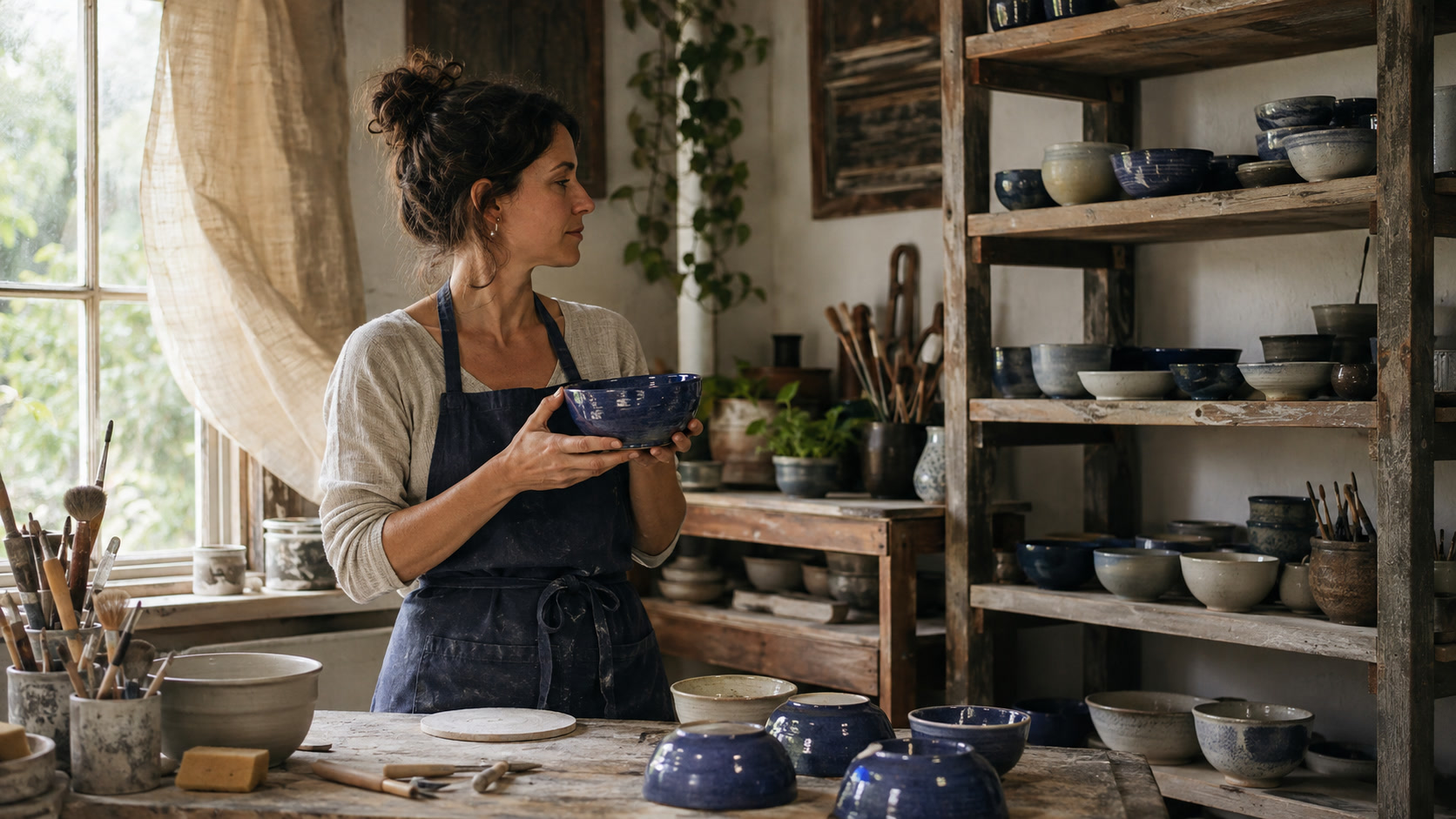
The action changes, but the face, hands, bowl geometry, apron, shelving, tools, and window light remain readable enough to approve the shot.
Best Uses for Image-to-Video AI
Image-to-video works best when a strong still already carries the art direction and the video only needs focused motion.
Social posts and short hooks
Animate a campaign image into a five-second opening: a glance, fabric movement, one camera push, or a reveal of negative space for copy. Keep the first second visually readable because autoplay feeds may be muted and viewers decide quickly.
This finished five-second clip uses continuous body, coat, crowd, and camera motion rather than a sequence of still frames.
Product ads and ecommerce loops
Use a clean packshot to create an orbit, light sweep, condensation detail, or small interaction. Lock the product shape and keep the movement reversible if you need a seamless loop. Generate a clean plate without text, then add verified pricing, claims, and CTA in an editor where spelling remains deterministic.
Portraits, artwork, and story moments
A still can become an establishing beat, character reaction, atmospheric insert, or transition. Illustrations benefit from motion that respects the original medium: paper texture should not become plastic skin, and painted shadows should not suddenly behave like photorealistic lighting.
For one independent clip, the direct generator is the shortest route. When you need several dependent shots, shared references, approvals, or alternate models, start from Seedance and use the broader workflow to keep accepted assets and decisions connected.
Fix Common Image-to-Video Problems
The image barely moves
Replace vague words such as “dynamic” with an observable action and direction. Add timing: “over the first three seconds,” “pause for one beat,” or “complete one paddle stroke.” Do not increase every motion at once.
Faces or products distort
Reduce rotation, speed, and camera travel. Lock the critical features by name and begin from a sharper, less occluded image. If the subject leaves its original pose completely, use a wider source or split the idea into two shots.
The model ignores the camera move
Use one standard camera instruction—slow push-in, pan left, track right, or gentle orbit—and remove conflicting framing language. Separate subject motion from camera motion into different sentences.
The subject gets cropped
Choose the delivery aspect ratio before generation. Leave headroom, foot room, and travel space in the source; a landscape image adapted to 9:16 cannot preserve every edge. Put essential faces, hands, products, and copy-safe areas away from the crop boundary.
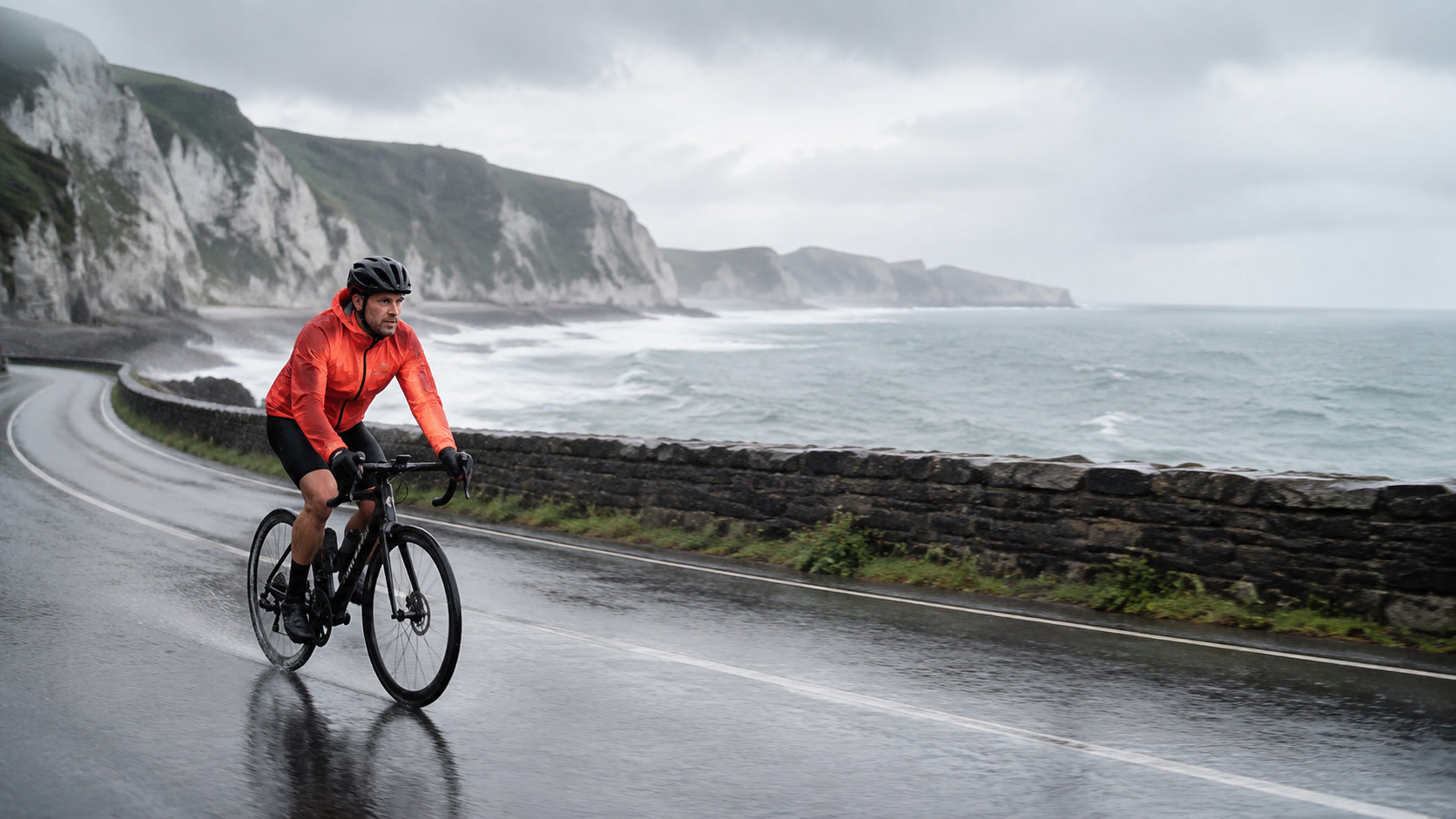
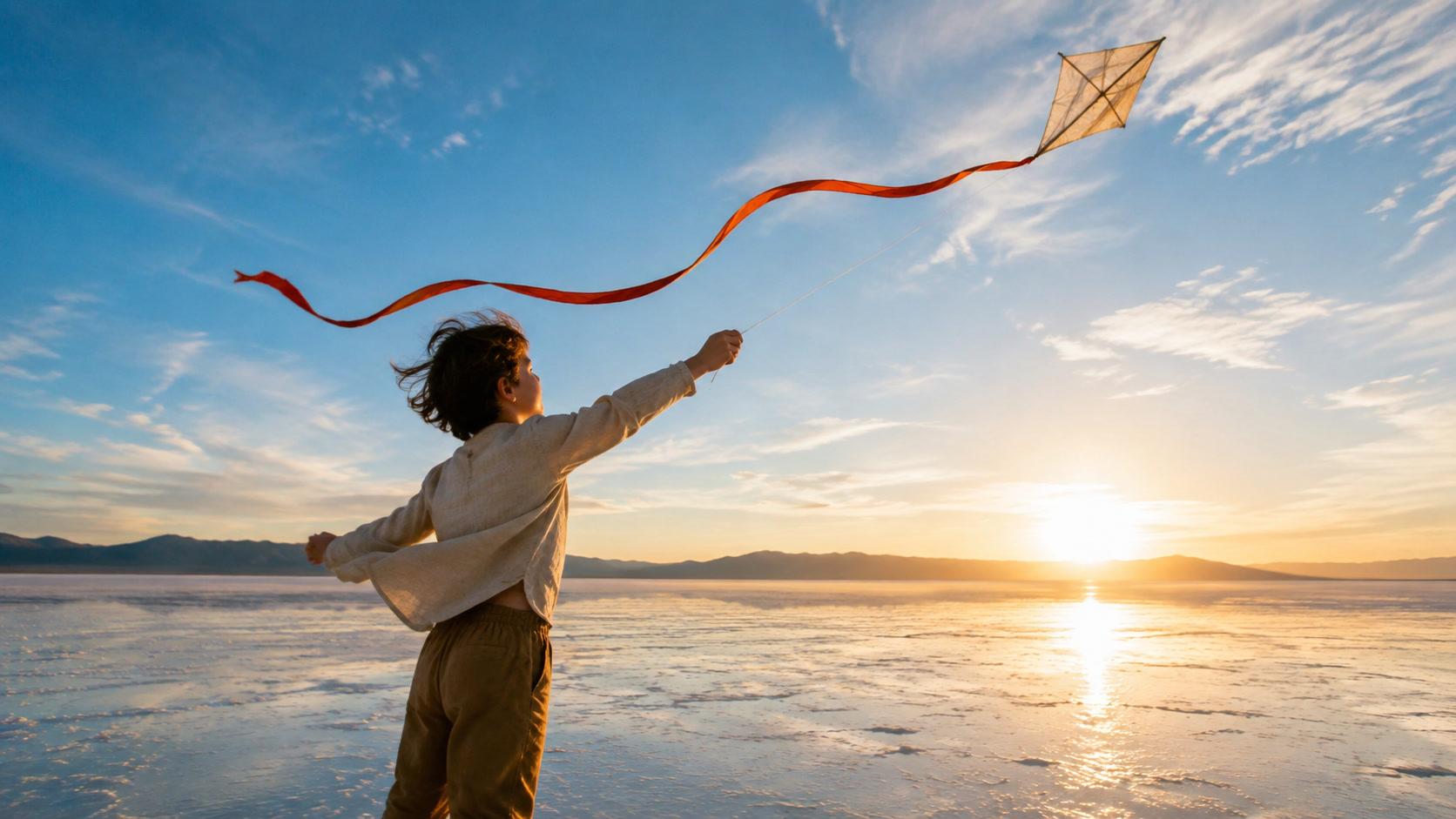
Keeping the whole bicycle inside the frame and leaving open road ahead gives both subject motion and reframing enough room to work.
The result looks busy or artificial
Cut adjectives and reduce simultaneous effects. One believable action plus one environmental response is usually stronger than particles, lens flares, dramatic zooms, cloth, hair, weather, and crowds all moving at once. Restraint makes the generated motion easier to approve and reuse.
Conclusion
The best image to video AI with prompt online free workflow begins with a strong first frame, directs one clear movement, protects the details that matter, and uses free credits as a controlled test. Write the change rather than redescribing the image, inspect the entire clip, and revise one variable at a time. Upload an image and create your first prompted video with Seedance →
Ready to try it yourself?
Put the steps from this guide into practice with Seedance and turn prompts or images into polished videos in minutes.
Free credits on signup. Plans from $28/month.
Related Articles
More posts in the same locale you may want to read next.

Seedance App Preview Video Generator 2026: Create App Store and Product Launch Clips
Use Seedance to turn app screenshots, feature copy, and launch goals into App Store previews, Google Play promo videos, and product launch clips.
Read article
Best AI Video-to-Video Models in 2026
The best AI video-to-video models in 2026 for editing footage you already shot: Higgsfield Genjutsu, Seedance 2.x, Runway Aleph, Luma Modify and Kling Omni compared.
Read article
Kling 4.0 vs Seedance 2.5: Full Comparison
Kling 4.0 vs Seedance 2.5 compared by spec: 30-second clips, keyframes vs 50 references, audio, 4K and 10-bit color, editing, and which model fits which job.
Read article