
Seedance App Preview Video Generator 2026: Create App Store and Product Launch Clips

Mobile teams are under pressure to explain more in less time. A product page, an App Store listing, a Google Play listing, a launch email, and a paid social campaign all need video, but most app teams do not have a film crew, a motion designer, and a week of production time for every release. That is why the search demand around app preview video generator, mobile app promo video, and AI app demo video keeps growing. Teams want a repeatable way to turn screenshots, product positioning, and feature copy into polished launch clips.
Seedance is useful for this workflow because app preview videos are not only screen recordings. A strong preview needs context, pacing, user emotion, device framing, feature sequencing, and a clear story about why the app is worth installing. With Seedance, you can combine screenshot-based image-to-video, text-to-video scene prompts, short B-roll moments, and consistent visual direction into a compact video system for app launches.
This guide explains a practical Seedance app preview video workflow for 2026. It is written for mobile app founders, growth marketers, indie developers, SaaS teams with mobile products, and agencies creating launch assets. The goal is not to make one generic video. The goal is to build a reusable process for App Store previews, Google Play promo videos, Product Hunt launches, landing page hero clips, short paid ads, and feature update announcements.
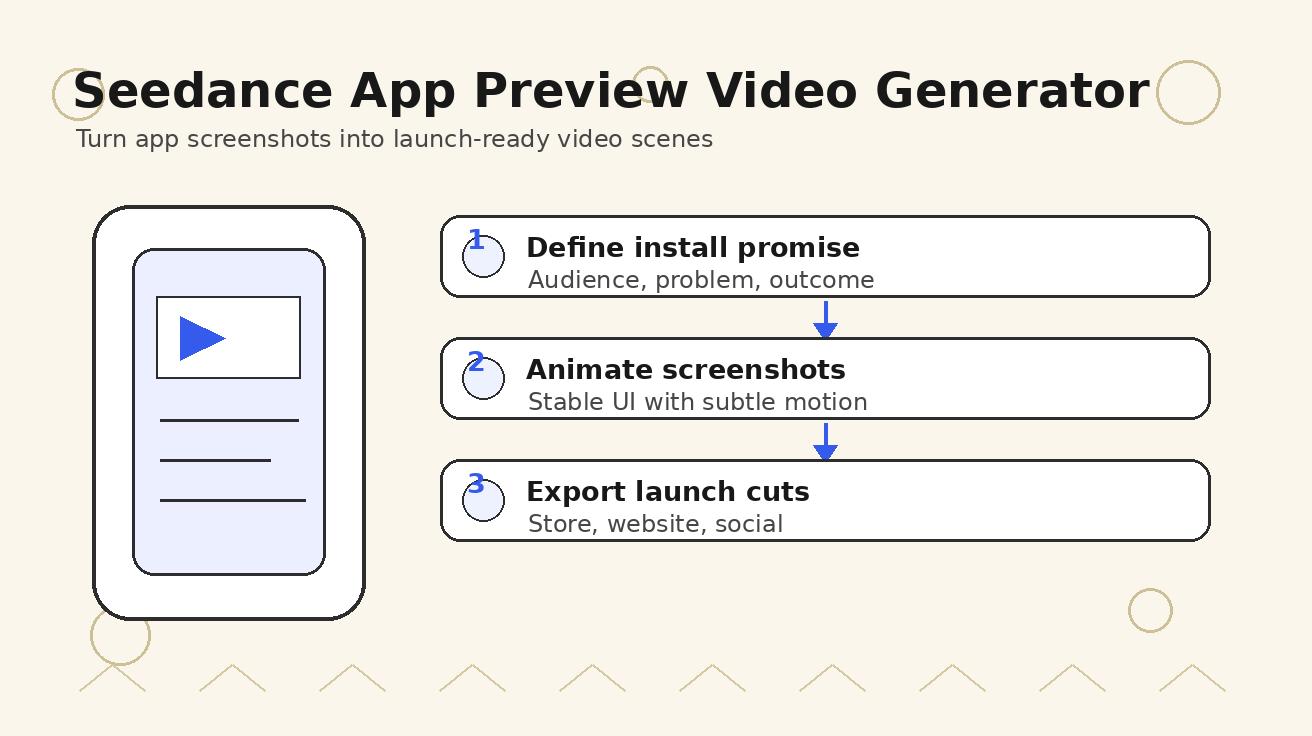
Quick answer: what is a Seedance app preview video generator workflow?
A Seedance app preview video generator workflow is a structured way to use Seedance to transform app screenshots, product messaging, feature notes, and launch goals into short AI-generated video scenes. Instead of filming a hand holding a phone or manually animating every screen in motion software, you create a shot list, feed Seedance clear scene prompts, use image-to-video for screenshot-based motion, and assemble the strongest shots into a 15- to 45-second launch asset.
The workflow works best when you treat Seedance as a creative production layer rather than a random clip maker. You still decide the audience, promise, sequence, device context, and call to action. Seedance helps you create cinematic transitions, lifestyle context, motion around static screens, product benefit shots, and social-ready variations faster than a traditional production process.
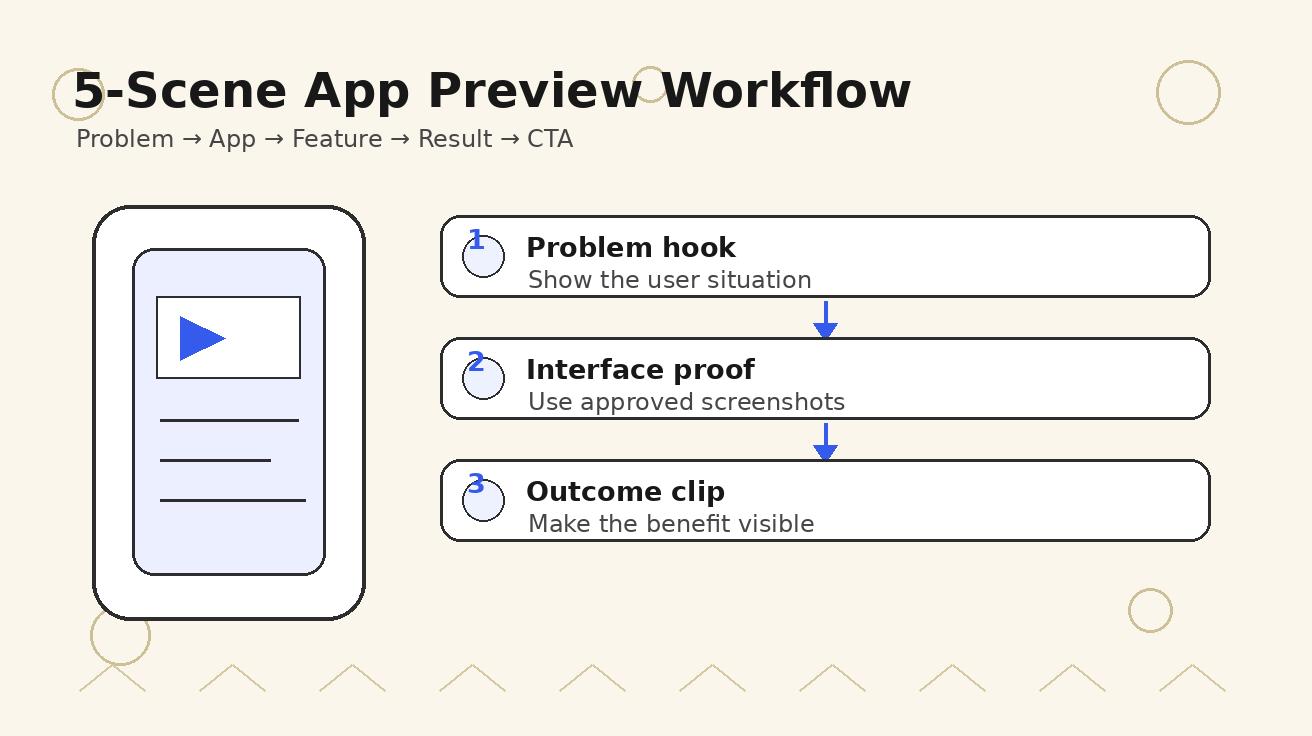
For most app teams, the ideal first output is a 30-second launch clip with five scenes: the problem, the app interface, the key feature, the result, and the call to action. After that, the same material can be adapted into a 15-second paid ad, a 9:16 TikTok or Reels version, a landing page loop, and a short feature update clip.
Why app preview videos need a different approach from normal product videos
A mobile app is not a physical product. You cannot simply rotate it on a table, show packaging, or film someone opening a box. The product lives inside a screen, and the user value is often invisible until the workflow is understood. That creates three problems for video.
First, screen recordings alone often feel flat. A clean screen capture may show the interface, but it rarely creates emotion or urgency. Users need to understand what changes in their day after installing the app. Seedance can help by adding contextual scenes: a creator planning a post, a traveler organizing a route, a student reviewing notes, or a founder checking analytics before a launch.
Second, app previews must be concise. Store visitors do not watch long tutorials before deciding whether an app feels relevant. The first three seconds need to make the category, benefit, and visual style obvious. Seedance lets you generate multiple opening hooks quickly, so you can test whether a problem-first, feature-first, or outcome-first opening works better.
Third, app videos have strict asset reuse needs. The same launch might require landscape for a website, vertical for social, square for ads, and short cuts for email. If you design the Seedance workflow scene by scene, you can regenerate or crop individual scenes without restarting the whole production.
Best use cases for Seedance app preview videos
Seedance works especially well when the app has a clear visual interface and a concrete user outcome. The following use cases are strong candidates.
| Use case | Best Seedance format | Why it works |
|---|---|---|
| App Store preview | Screenshot-to-video plus clean device framing | Shows the real interface while adding motion and polish |
| Google Play promo video | Benefit-led text-to-video scenes | Explains the app value before users install |
| Product Hunt launch | Fast 20-30 second story clip | Gives viewers a reason to click and try the product |
| Landing page hero video | Short looping feature sequence | Increases clarity above the fold without a long explainer |
| Paid social ad | Hook-driven vertical variation | Lets you test different problems and benefits quickly |
| Feature update announcement | Before/after or old/new workflow | Makes a release feel concrete and shareable |
| Investor or partner teaser | Polished product narrative | Shows product maturity without booking a studio shoot |
The key is to avoid asking Seedance for a vague “cool app video.” That prompt usually produces generic startup imagery. Instead, define the app category, target user, interface moment, emotional outcome, device framing, motion style, and CTA.
The five-scene structure that works for most app preview videos
A reliable app preview video does not need ten features. It needs one clear journey. Use this five-scene structure as your default starting point.
Scene 1: the problem or desire
Open with the situation your target user already recognizes. For a budgeting app, that might be a user looking at scattered subscriptions. For a fitness app, it might be someone trying to plan a workout between meetings. For a photo editing app, it might be a creator preparing a product post. This scene can be generated with Seedance text-to-video because it does not require exact UI accuracy.
Prompt pattern:
A busy mobile app user facing [problem], modern realistic lifestyle setting, close-up of phone nearby, subtle tension, clean lighting, cinematic but natural, no readable fake UI text, 9:16 vertical composition.
Scene 2: the app appears
Introduce the app interface in a controlled way. Use image-to-video with a real screenshot or a designed mockup. Seedance can add gentle device movement, parallax, tap gestures, or environment context while preserving the main screen as the hero. Keep the motion subtle. The goal is credibility, not chaos.
Prompt pattern:
Animate this app screenshot as a premium mobile app preview. Keep the interface layout stable and readable, add a slow device push-in, soft hand gesture near the screen, modern launch video style, clean background, no extra text overlays.
Scene 3: the key feature
Show the action that makes the app useful. This could be generating a report, organizing content, scanning a receipt, planning a workout, editing an image, booking a service, or tracking progress. If the exact screen matters, use image-to-video. If the benefit matters more than pixel-perfect UI, use text-to-video with product context.
Scene 4: the result
Translate the feature into an outcome. A productivity app creates a clean plan. A travel app creates a confident itinerary. A learning app turns confusion into progress. A creator app produces a polished asset. This is where Seedance can create emotionally clear B-roll that screen recordings cannot.
Scene 5: call to action
End with the app name, a simple benefit line, and the next action. Do not overload the end card. A good CTA for a launch video is usually one sentence: “Plan your week in minutes,” “Create polished product posts faster,” or “Try the smarter way to track your habits.”
Step-by-step Seedance workflow for app preview videos
Step 1: define the install promise
Before writing prompts, write one sentence that explains why someone should install the app. This sentence is not a tagline. It is a production brief.
Weak: “A powerful productivity app.”
Better: “A calendar app that turns scattered tasks, notes, and deadlines into one realistic daily plan.”
Seedance prompts become better when the promise is specific. The model needs to know what kind of world it is creating. A meditation app, a receipt scanner, a team chat product, and an AI photo editor should not share the same visual language.
Step 2: collect screenshots and safe UI assets
Use real screenshots whenever interface clarity matters. Remove private data, user names, API keys, unreleased roadmap details, and sensitive customer information. If the app is not public yet, create polished mock screenshots with sample data. Seedance can make the scene feel alive, but it should not be asked to invent critical UI details that must be accurate.
For the first version, prepare three screenshot types:
- A home or dashboard screen that explains the app category.
- A feature screen that shows the main action.
- A result screen that shows the outcome.
These three images are enough to create a credible first preview. More screens can be added after the core story works.
Step 3: choose the video orientation before prompting
Do not generate everything in one aspect ratio and hope it crops well. App preview distribution usually needs multiple cuts.
- Use 9:16 for TikTok, Reels, Shorts, and many paid social tests.
- Use 16:9 for landing page hero videos, YouTube, and launch decks.
- Use 1:1 or 4:5 for feed ads and LinkedIn posts.
If the video will be used for app store listings, check the latest platform requirements before final export. Requirements can change, and different placements may have different duration, resolution, and content rules. The creative workflow should stay flexible so you can regenerate scenes in the right format.
Step 4: write one prompt per scene
The most common mistake is asking Seedance for the whole preview in one prompt. That gives the model too much to solve at once. Instead, write one prompt per scene. Each prompt should include subject, setting, app category, camera movement, device treatment, motion style, and what not to change.
Example for a budgeting app interface scene:
Image-to-video: premium mobile budgeting app preview, keep the supplied dashboard screenshot stable and readable, phone held over a clean desk, soft morning light, gentle push-in camera, subtle thumb tap near the “monthly plan” area, no new UI text, no distorted numbers, realistic hand, polished App Store preview style.
Example for a result scene:
A young professional relaxing after organizing monthly expenses with a budgeting app, phone on desk showing a clean finance dashboard without readable fake text, calm confident mood, warm apartment lighting, cinematic close-up, slow camera slide, modern app launch video style.
Step 5: generate more hooks than endings
For paid acquisition and launch pages, the hook matters more than the final CTA. Generate at least five opening scenes. Try different angles: problem-first, result-first, interface-first, founder-demo style, and social proof style. Then reuse the best hook across multiple cuts.
For example:
- Problem-first: “Still planning your week from five different apps?”
- Result-first: “One clean daily plan, built from your scattered tasks.”
- Interface-first: “Meet the calendar that reorganizes itself around reality.”
- Founder-demo: “Here is how we turn messy notes into a schedule.”
- Social style: “This is the workflow I wish I had before launch week.”
Seedance makes this kind of variation affordable because you can generate multiple visual openings without arranging a shoot every time.
Prompt templates for Seedance app preview videos
Use these templates as starting points. Replace the bracketed details with your app category and use case.
Template 1: App Store preview opening
A polished App Store preview video opening for a [category] mobile app. A [target user] picks up a phone and sees a clean, modern app interface. The mood is [emotion]. The background is minimal and premium. Slow push-in camera, crisp lighting, realistic hand movement, no fake readable UI text, no distorted phone screen, launch video style.
Template 2: Screenshot-to-video feature demo
Animate this screenshot for a mobile app promo video. Keep the interface structure stable and readable. Add subtle parallax, a soft phone tilt, and one natural tap gesture that suggests the user is activating [feature]. Clean background, modern product video lighting, premium SaaS launch style, no extra words, no UI hallucination.
Template 3: Before-and-after result
A short cinematic scene showing the result of using a [category] app: before, the user is dealing with [problem]; after, the user has [clear outcome]. Keep the tone practical and credible, not exaggerated. Mobile phone visible, clean interface impression without readable fake text, smooth transition, modern AI app preview style.
Template 4: Landing page hero loop
A seamless looping hero video for a mobile app landing page. The phone screen shows a clean [category] app dashboard, surrounded by simple visual cues for [benefit]. Gentle motion, no dramatic camera shake, premium startup website aesthetic, light background, stable device, no fake brand logos.
Template 5: Product Hunt launch clip
A fast 20-second Product Hunt launch video for a [category] app. Show the problem, the app interface, the main feature, and the user outcome. Energetic but clean pacing, modern founder-launch style, clear mobile device framing, realistic gestures, no unreadable text overlays, friendly and useful tone.
How to keep screenshots accurate in AI-generated app videos
Accuracy matters. If an app preview promises a feature or shows a workflow incorrectly, it can create user confusion and support issues. Use these rules when working with Seedance.
First, do not ask the model to invent exact UI screens. Provide screenshots when UI accuracy matters. AI is helpful for motion, context, camera style, and surrounding scenes, but exact interface details should come from approved assets.
Second, avoid tiny text as the main proof point. App preview videos are often watched on small screens. If a feature requires reading a paragraph of UI text, the scene is too complex. Show a simple visual action and explain the detail in the caption, landing page copy, or product page.
Third, separate cinematic context from product proof. A lifestyle scene can show why the app matters, while a screenshot-to-video scene can show what the app actually does. Mixing both into every shot often creates clutter.
Fourth, review every generated frame for unwanted text, distorted icons, strange hands, fake buttons, and misleading claims. AI video is fast, but it still needs editorial control.
App preview video shot list for a real launch
Here is a practical shot list you can adapt for almost any mobile app.
- User opens the phone in a real context where the problem appears.
- App home screen appears with a clean device push-in.
- User taps the primary action or key feature.
- A quick transition shows the feature working.
- The result screen appears with stable UI.
- Lifestyle result scene shows the user outcome.
- End card shows the app name, benefit, and CTA.
For a 30-second preview, each scene should last about three to five seconds. For a 15-second ad, cut the sequence to problem, feature, result, CTA. For a landing page loop, remove the problem scene and focus on feature and result.
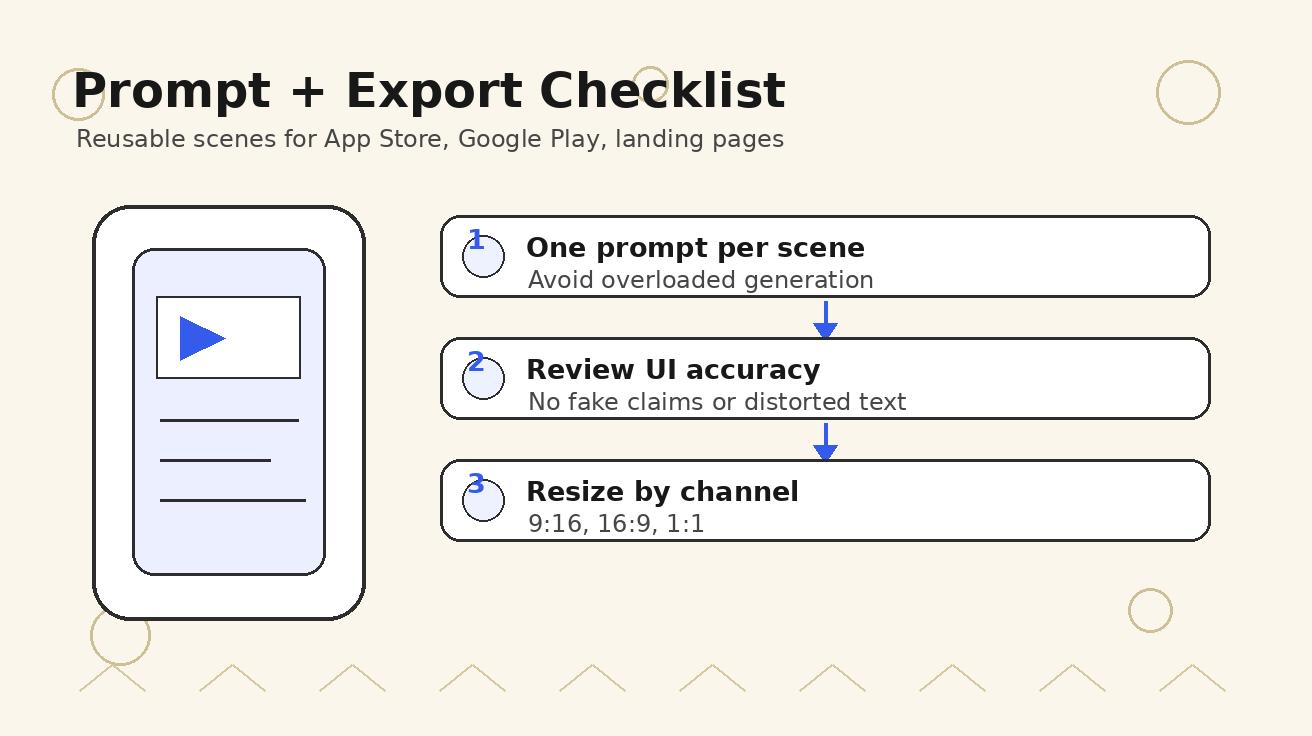
Editing tips after generating Seedance clips
Seedance can create strong raw clips, but editing turns them into a launch asset. Keep the edit simple.
Use one visual rhythm. Do not mix cinematic shots, loud meme pacing, documentary footage, and abstract motion in one 30-second clip unless the brand already supports that style. App previews usually convert better when the viewer immediately understands the category.
Keep captions short. A caption like “Plan your day automatically” is stronger than a full sentence explaining every feature. If you need more copy, place it on the landing page.
Match motion to product maturity. A finance app may need calm, trustworthy motion. A creator app can use faster movement. A meditation app should feel quiet. A developer tool should feel precise. Seedance prompts should reflect the brand personality.
Create separate versions for each channel. The first cut is rarely the final cut for every placement. Export a clean website hero, a fast vertical social ad, a store listing preview, and a short feature announcement. Reuse the same Seedance scenes, but adjust pacing and text overlays.
Common mistakes to avoid
Mistake 1: showing too many features
An app preview is not a full tutorial. If you show seven features, viewers may remember none of them. Pick the one feature most likely to drive installation or trial.
Mistake 2: using generic startup visuals
Shots of people pointing at floating dashboards are common, but they rarely explain the app. Use Seedance to show your real user, real context, and real interface moments.
Mistake 3: relying on fake UI text
AI-generated interface text can be wrong or unreadable. Use approved screenshots for important UI claims. Let Seedance handle movement and context.
Mistake 4: skipping compliance review
App store policies, ad network rules, and category-specific claims can matter. Finance, health, education, and productivity apps should review claims before publishing a video. Avoid guaranteed outcomes unless the product can support them.
Mistake 5: ignoring localization
If the app is available in multiple markets, plan localization early. Seedance can support visual variations, but the editing layer should handle localized captions, store requirements, and market-specific CTAs.
Seedance workflow for App Store, Google Play, and landing pages
For App Store and Google Play, start with clarity. Use real screens, avoid exaggerated claims, and make the first scene explain the category. A user should know within seconds whether the app is for budgeting, fitness, photo editing, language learning, travel planning, or team productivity.
For landing pages, use the video to support the headline. If the page headline says “Turn scattered notes into a daily plan,” the hero video should show scattered inputs becoming a clean plan. Do not use a generic lifestyle loop that could belong to any app.
For paid social, test hooks aggressively. Generate several Seedance openings and keep the middle of the video stable. This lets you learn whether the audience responds to pain points, outcomes, interface proof, or creator-style narration.
For launch announcements, focus on momentum. Show the app, the core feature, and the result. Product Hunt, LinkedIn, and founder-led posts often benefit from a fast, specific video that explains why the release matters now.
Internal Seedance links for the workflow
If your first app preview relies on text prompts, start with Seedance text-to-video: Seedance text-to-video. If you have approved screenshots or product mockups, use image-to-video for interface scenes: Seedance image-to-video. If you want to understand the model capabilities before planning your launch system, review Seedance 2.0.
FAQ
Can Seedance create an app preview video from screenshots?
Yes. The strongest workflow is to use approved screenshots as image-to-video inputs, then ask Seedance for subtle device motion, clean camera movement, and product-video styling. This helps preserve interface credibility while making the preview feel more polished than a static screen recording.
Is an AI app preview video safe for App Store or Google Play use?
It can be, but you still need to follow current platform requirements and review the final video carefully. Use accurate screenshots, avoid misleading claims, and check duration, format, and content rules before uploading.
What length should an app preview video be?
For most launch assets, 15 to 30 seconds is a practical range. A landing page hero loop can be even shorter, while a deeper product demo can be longer. The first three seconds should make the category and benefit obvious.
Should I use text-to-video or image-to-video for app demos?
Use image-to-video when the exact app interface matters. Use text-to-video for context scenes, user outcomes, lifestyle moments, and abstract benefit shots. Most strong app previews combine both methods.
How many scenes do I need for a mobile app promo video?
A simple five-scene structure works well: problem, app appears, key feature, result, call to action. For short ads, cut it down to three or four scenes. For a launch page, reuse the same scenes in a calmer loop.
Can I make multiple channel versions from one Seedance workflow?
Yes. Generate each scene as a reusable asset, then edit different versions for App Store, Google Play, landing pages, Product Hunt, TikTok, Reels, Shorts, and paid social. Planning by scene makes localization and resizing much easier.
Final takeaway
A good app preview video is not just a moving screenshot. It is a compact explanation of who the app helps, what action it makes easier, and what result the user gets after installing it. Seedance gives app teams a faster way to create those scenes without waiting on a full production cycle.
Start with one install promise, three approved screenshots, and a five-scene structure. Generate separate Seedance clips for the problem, interface, feature, result, and CTA. Then edit the best moments into channel-specific versions. That process can turn a static launch page into a clearer product story and give your team a repeatable video system for every release.
Ready to create your own AI video?
Turn ideas, text prompts, and images into polished videos with Seedance. If this article helped, the fastest next step is to try the product.
Free credits on signup. Plans from $20/month.
Related Articles
More posts in the same locale you may want to read next.

Seedance in Firefly: Why Real Faces Are Blocked and What to Do
Firefly rejected a face-bearing Seedance reference? Learn what Adobe's rule covers, how to identify the blocked asset, and three compliant ways to finish your video.
Read article
Kling AI Credits per Video: A Practical Cost Calculator for 5s and 10s Clips
Calculate Kling VIDEO 3.0 credits for 5- and 10-second clips, compare audio and resolution settings, and budget for the cost of an approved video.
Read article
Google Veo Audio Generation Failed: What It Means and How to Retry
Diagnose Google Flow's Audio Generation Failed error, check credit refunds, distinguish silent exports from blocked jobs, and retry Veo with a focused audio prompt.
Read article