
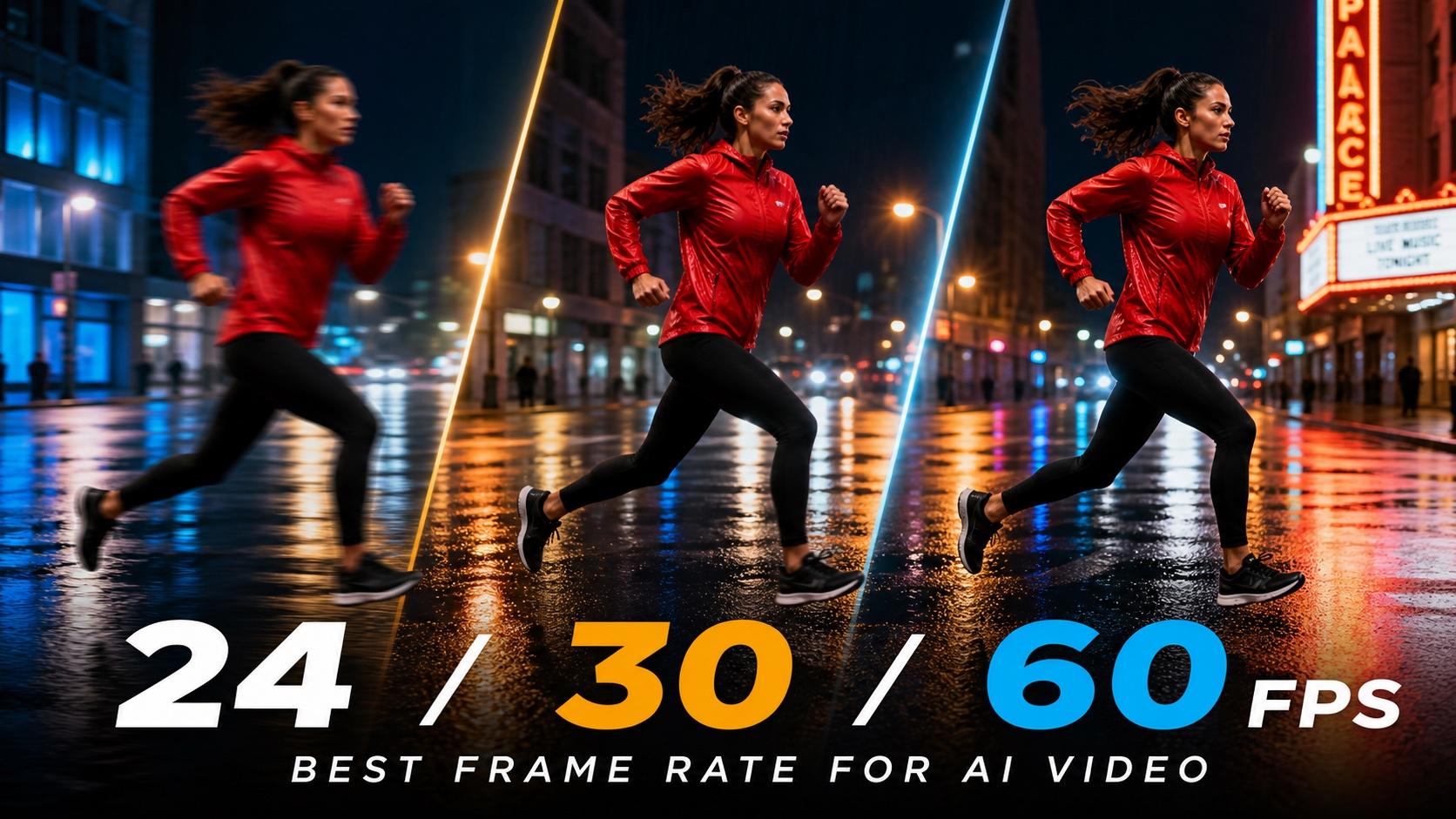
AI Overview
What is the best frame rate for AI video?
Use 24 FPS for cinematic scenes, 30 FPS for most social and marketing videos, and 60 FPS for fast action or slow motion. Whenever possible, keep the source, timeline, and export frame rates consistent.
Is 24 FPS or 30 FPS better for AI-generated video?
24 FPS creates a familiar cinematic cadence, while 30 FPS makes movement, speech, and screen content feel slightly smoother. The better choice is the one that matches your delivery format.
Does converting an AI video to 60 FPS improve quality?
It can improve perceived smoothness, but it cannot restore missing detail. AI frame interpolation may also create warped edges, doubled hands, or unstable textures between the original frames.
Why does my AI-generated video look choppy?
The usual causes are a source-and-timeline mismatch, very fast camera movement, duplicate frames, or poor interpolation. Check the file and editing timeline before paying to regenerate the shot.
Best Frame Rate for AI Video: Quick Decision Table
The best frame rate for AI video is usually the clip's native rate. Choose a target before generation only when you know where the finished video will be published or how it will be edited. Moving every clip to 60 FPS does not automatically create a premium result; it can simply generate more opportunities for temporal errors.
| Frame rate | Best use | Visual character | Main risk |
|---|---|---|---|
| 24 FPS | Narrative scenes, brand films, controlled camera moves | Cinematic motion with natural blur | Fast pans can judder |
| 25 FPS | PAL-region broadcast workflows | Similar to 24 FPS with regional compatibility | Awkward conversion from 30 FPS sources |
| 30 FPS | Social videos, ads, tutorials, product demos | Smooth, direct, and easy to read | Less traditional film cadence |
| 50 FPS | PAL action or slow-motion capture | Clear movement and flexible retiming | Larger files and more processing |
| 60 FPS | Sports, fight scenes, fast demos, slow motion | Crisp, highly fluid action | Artificial smoothness or interpolation artifacts |
If your generator does not expose an FPS control, do not treat that as a failure. Generate the cleanest motion available, inspect the downloaded file, and build the project around its native frame rate. The Seedance AI video generator gives you a practical place to test motion briefs before committing to a longer edit.
24 FPS vs 30 FPS vs 60 FPS for AI Video
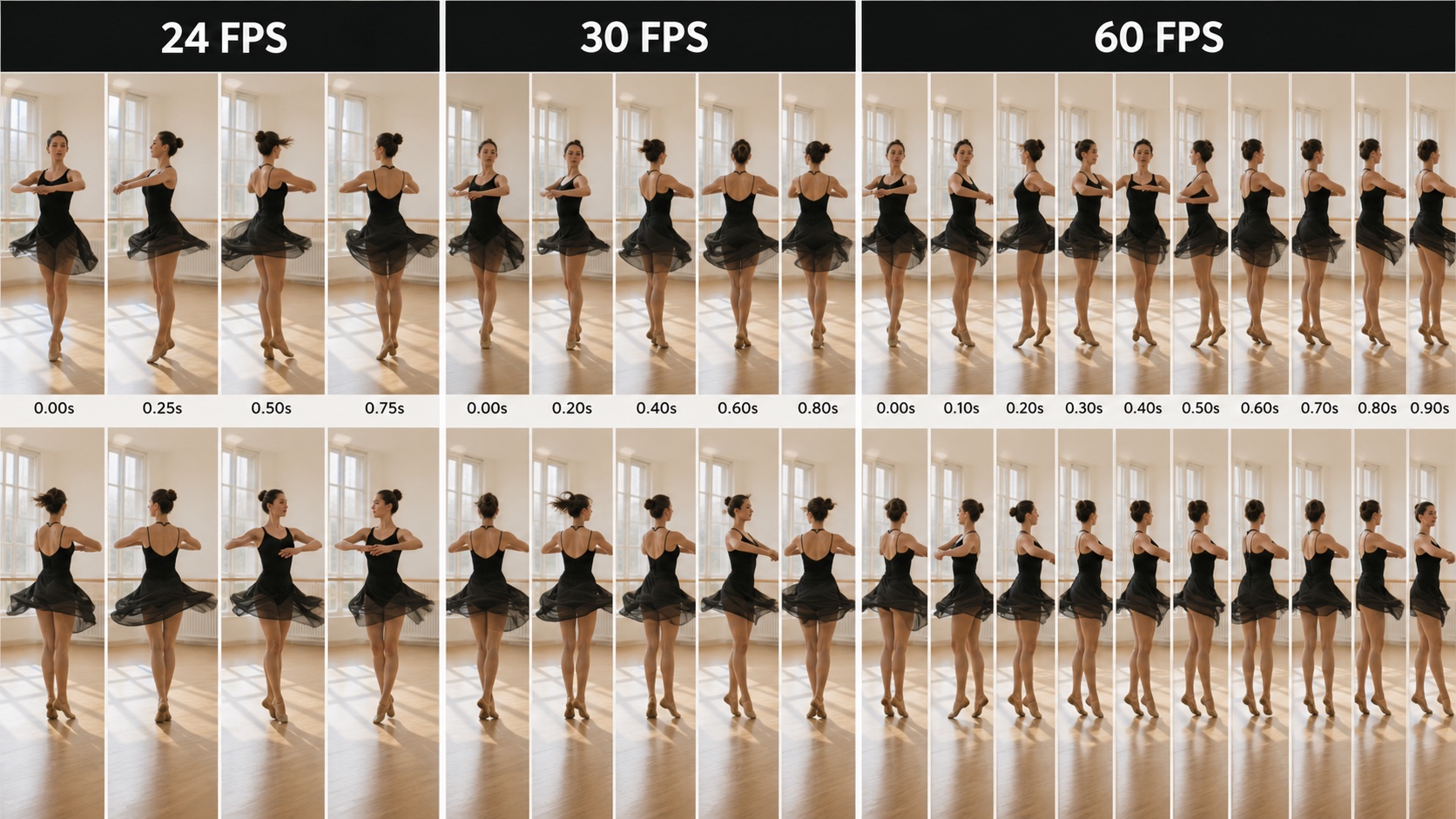
The same one-second turn sampled at different rates. More frames can describe motion more precisely, but consistency between those frames still matters more than the number alone.
24 FPS: Best for cinematic AI video
At 24 FPS, each frame remains on screen slightly longer. Viewers associate that cadence and motion blur with films, scripted commercials, and narrative work. It is a strong choice for slow dollies, controlled performances, atmospheric establishing shots, and product close-ups where mood matters more than maximum motion clarity.
The weakness appears during rapid lateral movement. A whip pan, running subject, or object crossing close to camera travels farther between frames, so the motion can feel stepped. Prompt slower camera movement and a readable action path instead of trying to repair an overloaded shot later.
30 FPS: The practical default
For most AI-generated marketing content, 30 FPS is the safest general-purpose choice. Gestures, speech, captions, screen recordings, and product handling are easier to follow, while processing and file sizes remain more manageable than 60 FPS.
Thirty FPS also fits the visual language of tutorials, ecommerce videos, creator content, and direct-response ads. If you are combining generated shots with phone footage or a presenter recording, match the timeline to the dominant source instead of converting every asset independently.
60 FPS: Best for action and slow motion
Sixty FPS is valuable when movement is the subject: a sprint, fight combination, fabric toss, liquid splash, fast camera orbit, or interface demonstration. It provides twice as many displayed frames as 30 FPS, allowing smoother half-speed playback on a 30 FPS timeline when those frames are genuinely present.
But many generated clips do not contain 60 unique native frames per second. A converter may duplicate frames or invent new ones. Before choosing 60 FPS, ask whether you need more temporal information or merely want the exported number to look impressive.
Choose FPS by AI Video Use Case
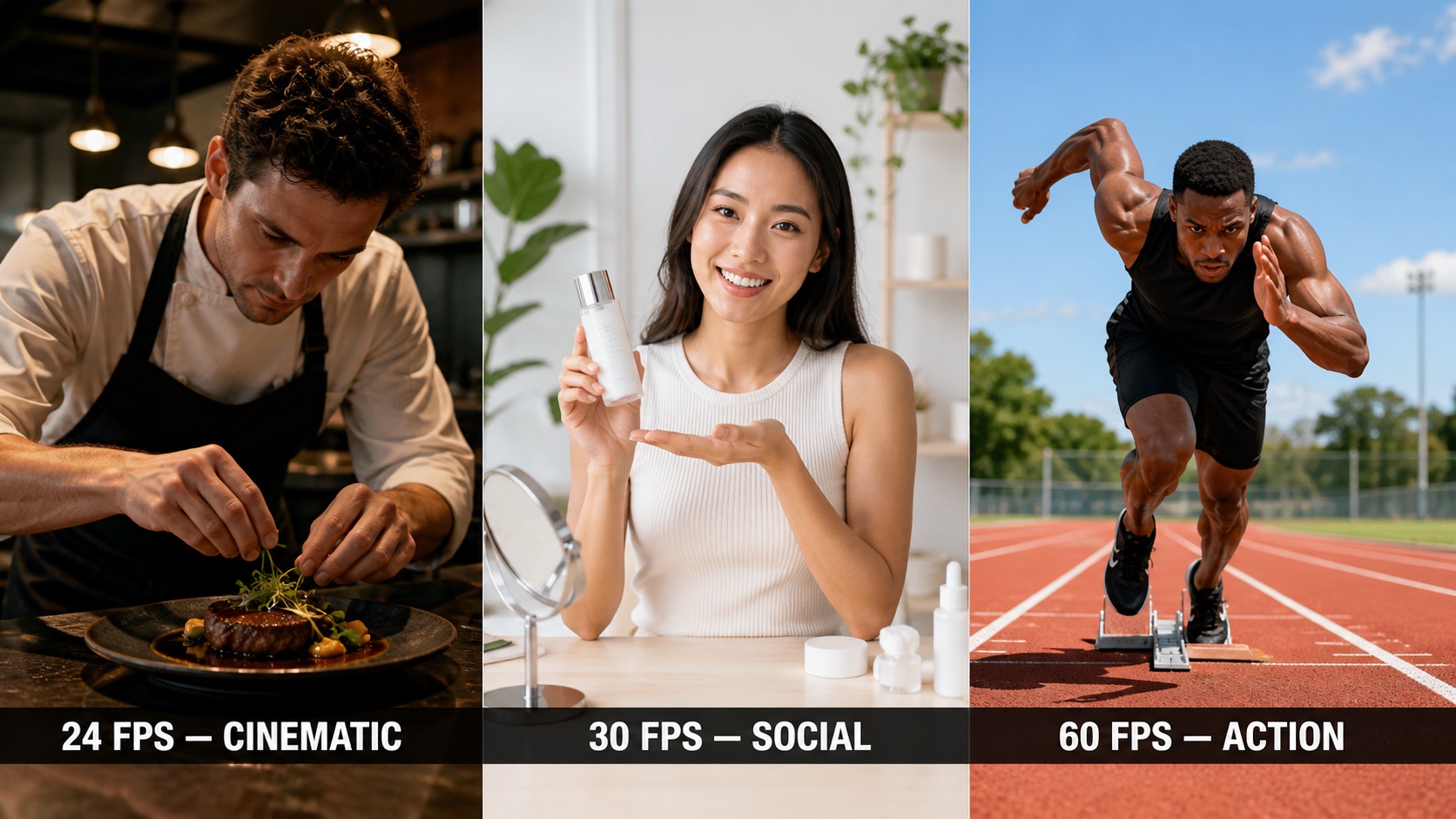
Start with the viewer's job: feel a story, understand a demonstration, or follow fast movement. That decision is more useful than choosing the highest available FPS.
Cinematic stories and brand films
Choose 24 FPS when the scene depends on atmosphere, performance, lighting, or deliberate camera choreography. Keep pans slow enough that important objects remain readable between frames. For prompt-led scenes, use Text to Video to describe one clear action and one controlled camera move rather than stacking several fast motions into a short clip.
Talking-head, dialogue, and product videos
Choose 30 FPS when viewers must read lips, captions, hands, packaging, or interface details. The slight increase in motion sampling helps explanatory content feel immediate without producing the hyper-smooth character associated with high-frame-rate sports footage. When identity or product geometry must stay fixed, begin with Image to Video and keep the reference visible throughout review.
Sports, fight scenes, and slow motion
Use 60 FPS only if the source provides enough clean temporal information or the interpolation test survives close inspection. Review contact points, hands, feet, fast edges, and the final pose. For a campaign that mixes dialogue, products, and action, route each shot according to its risk instead of forcing one model or setting across the sequence; the multi-model AI video workflow explains that production approach.
Best Frame Rate for YouTube, TikTok, Instagram, and Ads
YouTube and long-form video
For YouTube, preserve the source frame rate whenever possible. Use 24 FPS for narrative work, 30 FPS for explainers and standard creator videos, and 60 FPS for sports, gaming-style motion, or material intended for slow motion. A consistent 24 or 30 FPS master usually looks better than footage converted repeatedly between timelines.
TikTok, Reels, and Shorts
Thirty FPS is a reliable default for vertical social video because it balances smooth motion, readable captions, processing time, and file size. Use 24 FPS for a fashion film, restaurant story, or mood-driven hook. Use 60 FPS when fast movement genuinely helps viewers understand the moment—not simply because the platform accepts it.
Paid ads and ecommerce video
Match the frame rate to the creative promise. A premium perfume close-up can work at 24 FPS, while a skincare routine, unboxing, or app walkthrough generally benefits from 30 FPS. Sports products and rapid demonstrations may justify 60 FPS. If sound is generated with the picture, verify that conversion has not introduced lip-sync drift; see the native-audio AI video guide for a broader audio review workflow.
Why AI-Generated Video Looks Choppy
The source does not match the timeline
Putting a 24 FPS clip in a 30 FPS timeline requires the editor to distribute frames unevenly, duplicate them, or synthesize missing moments. The result is most visible during a pan or when a subject crosses the frame. Inspect the clip's real frame rate first, then set the timeline deliberately.
Motion is too large for the clip duration
An AI model has limited frames in which to complete the prompted action. A sprint, explosion, orbit, costume transformation, and crash zoom packed into five seconds will create large visual jumps. Simplify the brief, extend the duration, or split the action into shots with clear entry and exit states.
Temporal errors are mistaken for low FPS
Flickering textures, changing faces, bending objects, sliding feet, and unstable backgrounds are consistency failures. Raising FPS cannot fix them and may make the errors more noticeable by creating additional in-between images. Regenerate the source or reduce motion before adding frames.
How to Change Frame Rate Without Ruining AI Video
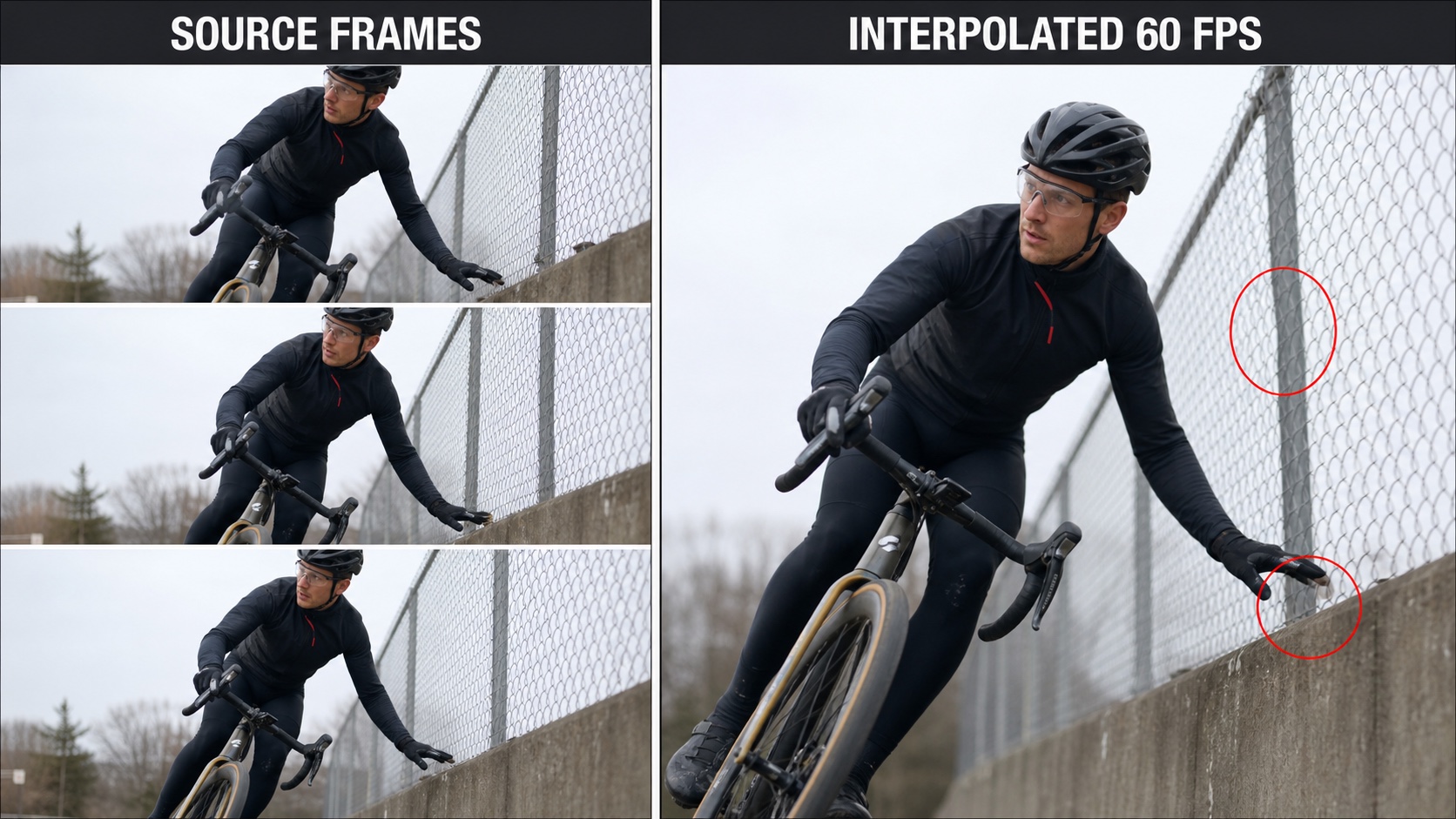
Interpolation can smooth playback while inventing incorrect geometry. Always inspect occlusion zones, repeating patterns, fingers, wheels, hair, and hard scene cuts.
Inspect before converting
Confirm the source FPS, duration, resolution, and whether every displayed frame is unique. Step through the shot one frame at a time. If the original already contains identity drift or broken anatomy, fix the generation first. Upscaling improves spatial detail, while interpolation changes temporal detail; they solve different problems. The AI video upscaler and detailer workflow shows how to separate those finishing decisions.
Interpolate only when the shot passes a test
Create a short 24-to-48 or 30-to-60 FPS sample before processing the full sequence. Examine faces, fingertips, thin edges, reflections, fences, spokes, hair, water, text, and every scene cut. These are common places for a model to guess the wrong motion path. If the sample introduces ghosting or rubbery movement, keep the native frame rate.
Use a final export checklist
- Match the sequence setting to the intended master.
- Avoid converting a clip more than once.
- Keep audio duration and sync unchanged.
- Review fast movement at full speed and frame by frame.
- Confirm that captions and graphics remain correctly timed.
- Export a short platform test before rendering the complete campaign.
Conclusion
The best frame rate for AI video is the lowest rate that delivers the motion and publishing result you need without introducing new artifacts. Use 24 FPS for cinematic cadence, 30 FPS as the practical default for social, ads, tutorials, and product content, and 60 FPS when fast action or slow motion genuinely benefits from additional frames. Preserve the native source whenever possible, align the timeline and export, and treat interpolation as a tested repair—not an automatic upgrade. Create a motion test with Seedance →
Ready to try it yourself?
Put the steps from this guide into practice with Seedance and turn prompts or images into polished videos in minutes.
Free credits on signup. Plans from $28/month.
Related Articles
More posts in the same locale you may want to read next.

Seedance App Preview Video Generator 2026: Create App Store and Product Launch Clips
Use Seedance to turn app screenshots, feature copy, and launch goals into App Store previews, Google Play promo videos, and product launch clips.
Read article
Best AI Video-to-Video Models in 2026
The best AI video-to-video models in 2026 for editing footage you already shot: Higgsfield Genjutsu, Seedance 2.x, Runway Aleph, Luma Modify and Kling Omni compared.
Read article
Kling 4.0 vs Seedance 2.5: Full Comparison
Kling 4.0 vs Seedance 2.5 compared by spec: 30-second clips, keyframes vs 50 references, audio, 4K and 10-bit color, editing, and which model fits which job.
Read article