
Google Flow Studio Veo 3: Access, Pricing and Workflow Guide
AI Overview
Is Google Flow Studio the same as Veo 3?
No. The product is officially called Google Flow, while Veo 3.1 is one of the video models available inside its filmmaking workspace.
Can I use Veo 3 for free in Google Flow?
Yes. Accounts without a paid AI subscription currently receive 50 daily Flow credits, but free credits expire instead of rolling over.
How much does Veo 3 cost in Google Flow?
Current rates range from 10 credits for a Veo 3.1 Lite generation to 100 credits for Quality; subscriptions add monthly credits and higher-end options.
Can Google Flow turn an image into a video?
Yes. Frames to Video can use a first frame or first-and-last frames, while Ingredients or References can preserve subjects, objects, and style.
What Google Flow Studio Is—and How Veo 3 Fits
People searching for Google Flow Studio Veo 3 usually want the filmmaking product rather than a separate tool called “Flow Studio.” Google’s current product name is Flow. It combines video generation, image creation, prompt assistance, scene organization, and editing-oriented tools in one workspace. Veo 3.1 supplies the video-generation layer; it is not the whole application.
That distinction matters when comparing results or costs. Flow organizes the production context, while the selected Veo model determines how motion is generated. Model, mode, duration, and output count can all change credit use.
Think in scenes, not isolated prompts
Flow is most useful when a project needs continuity across shots. Define a reusable character, location, prop, light source, and ending state. Then generate the riskiest shot first: a close face, moving product, hand contact, dialogue, or camera move through a detailed environment.
What the model contributes
Veo 3.1 handles motion, camera behavior, interaction, and synchronized audio where supported. Flow adds the production context. Ask which Flow tool and Veo mode fit the shot—not whether Flow or Veo is “better.”
How to Access and Use Google Flow With Veo 3
Open Flow with a supported Google account, create a project, and check the model menu. Availability can vary by account, country, subscription, and rollout. If a tutorial shows a missing control, verify the model and plan first.
Choose the input mode from what is already approved
| Starting material | Best starting mode | What to protect |
|---|---|---|
| Written idea only | Text to Video | Action, camera, setting, ending |
| One approved still | Frames to Video | Subject identity and opening composition |
| Approved first and last frames | First-and-last frame mode | Transition path and final pose |
| Several people, props, or style references | Ingredients or References | Identity, geometry, wardrobe, palette |
When a still image already contains the correct product, character, or composition, begin with an image-to-video workflow rather than rebuilding those details in text. A visual anchor reduces ambiguity and makes failed generations easier to diagnose.
Start with a low-cost proof shot
Make the first generation answer one question. Test whether a face survives a turn, product geometry survives movement, or architecture stays fixed during a camera move. Add dialogue, weather, and secondary action only after the anchor passes.
Inspect the whole clip, not its thumbnail
Review the opening, hardest motion, and final two seconds at full size. Check hands, contact points, reflections, lip sync, and sound timing. A beautiful first frame cannot rescue a broken transition.
Veo 3.1 Models and Image-to-Video Tools Inside Flow
Flow presents Veo 3.1 in several performance tiers. Lite suits rough ideas, Fast supports stronger iteration, and Quality is the expensive final-pass option. Confirm the live selector before committing a batch.
| Veo 3.1 choice | Best use | Main tradeoff |
|---|---|---|
| Lite | Composition and motion tests | Lowest cost; not the final quality target |
| Fast | Frequent creative iterations | More credits than Lite |
| Quality | Hero shots and final evaluation | Highest generation cost and fewer attempts per budget |
For creators who want direct model access without building a separate Flow project, the Veo 3.1 generator on Seedance provides a focused path for testing a defined shot.
First frame versus first-and-last frames
A first frame defines the opening but leaves the destination open. First-and-last frames control both ends for reveals, camera arrivals, pose changes, and product rotations. Make the second frame a plausible continuation, not an impossible transition.
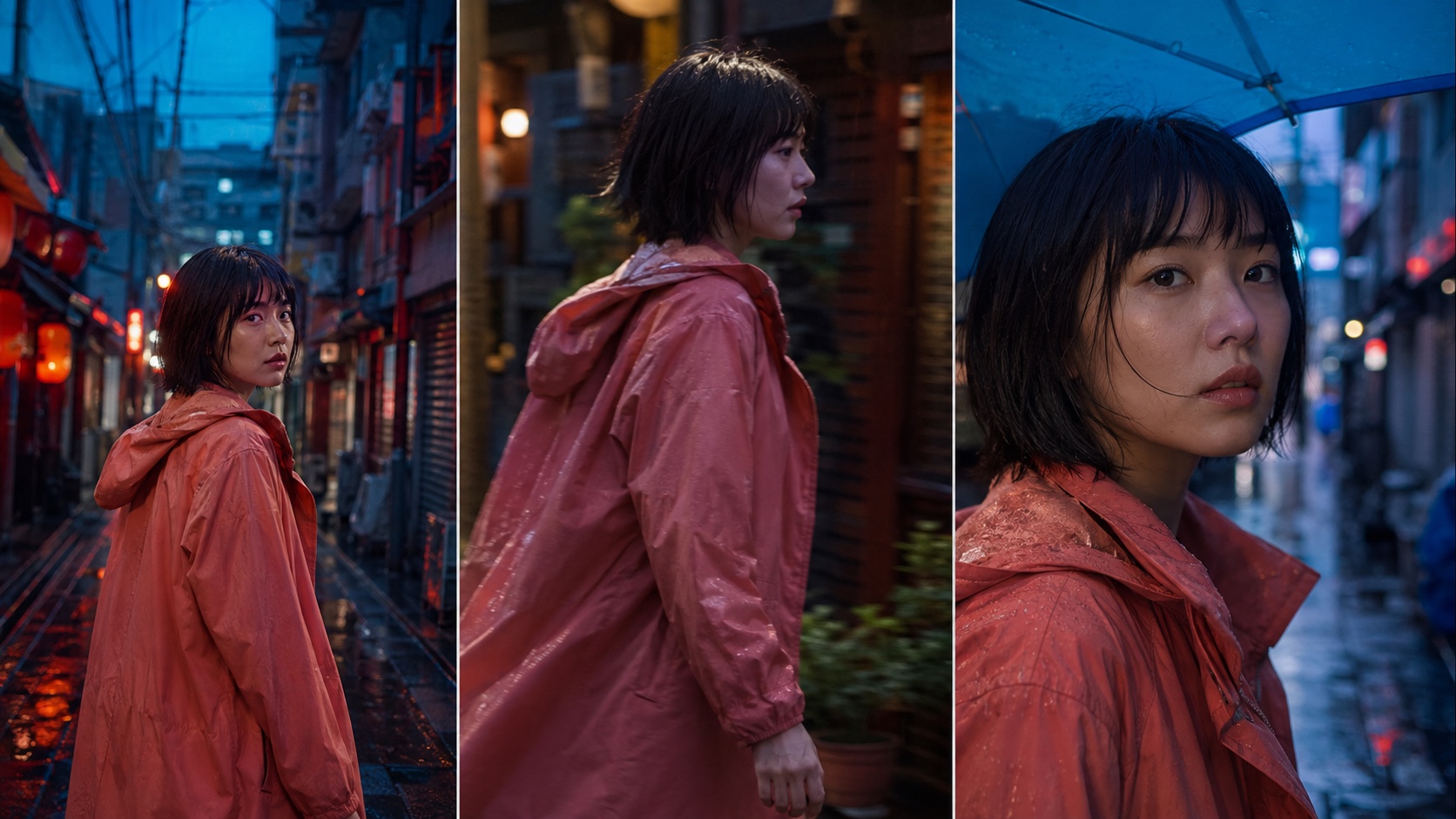
A useful first-and-last-frame test keeps identity and location fixed while allowing the movement and framing to evolve.
Ingredients and references
Use references when visual facts must survive: a face and wardrobe, product geometry and material, or location architecture. Give each image one job. One clean subject, product, and environment reference beats five conflicting mood images.

Reference consistency should be judged across changing angles and actions, not only in two nearly identical stills.
Google Flow Veo 3 Pricing, Free Credits and Cost per Clip
The useful pricing unit is cost per approved clip. Flow currently lists 50 daily credits for users without a paid AI subscription. The allowance refreshes after the first generation of the day, and unused credits do not roll over.
Paid plans currently include monthly Flow credits: AI Plus 200, AI Pro 1,000, and AI Ultra 10,000 or 25,000. Monthly credits also expire. Verify the live credit table before purchase.
| Generation setting | Current Flow credit cost |
|---|---|
| Veo 3.1 Lite | 10 credits; 5 on Ultra |
| Veo 3.1 Fast | 20 credits; 10 on Ultra |
| Veo 3.1 Quality | 100 credits |
| 1080p upscaling | Included for subscribers |
| 4K upscaling | 50 credits; Ultra only |
Each output in a multi-generation request can be charged. Two outputs at 20 credits each make a 40-credit decision, so free access works best for a controlled proof.
Calculate approved-output cost
Track attempts, credits, usable clips, correction time, and exports. If 12 Fast generations yield two approved shots, divide total spend by two. Upscale only after motion, identity, and sound pass review.
Keep exploration and finishing separate
Use Lite for composition, Fast for promising directions, and Quality only when prompt and references are stable. A written acceptance checklist prevents teams from approving a clip merely because it was expensive.
Google Flow Veo 3 Prompt and Scene Workflow
A strong prompt describes one continuous shot in order: subject, setting, action, camera, light, sound, and final state. Avoid incompatible lens moves or unrelated actions.
A reusable prompt structure
Subject and anchor: who or what must remain recognizable.
Setting and light: location, time, weather, primary light source.
Action: one readable motion with physical contact described clearly.
Camera: framing, direction, speed, and when the move stops.
Audio: dialogue, ambience, Foley, music, and what must be absent.
End state: the exact final pose, object position, or camera hold.
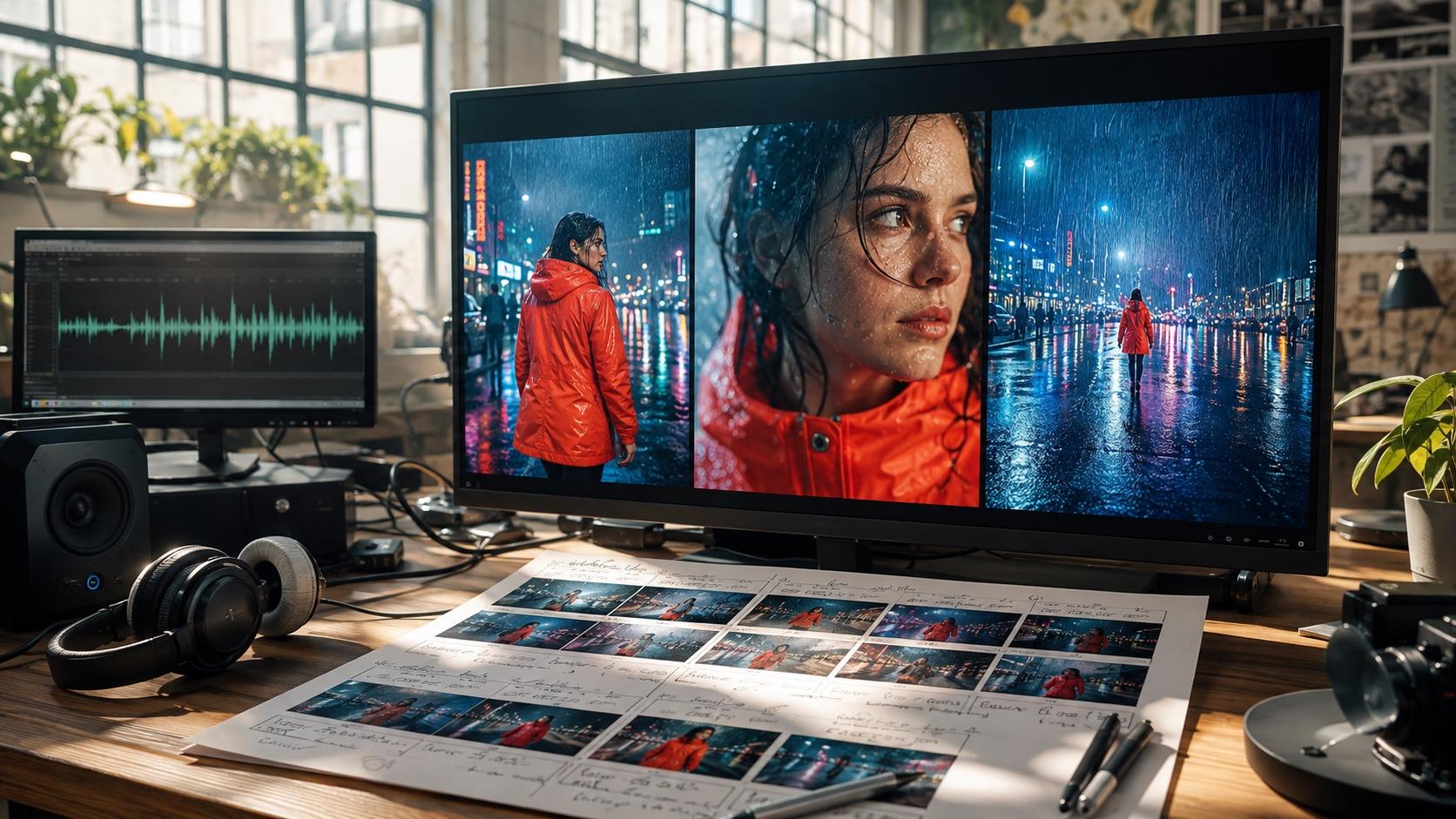
For example: “A woman in a coral raincoat crosses a wet neon alley at blue hour. The camera tracks beside her at walking speed as she turns under an awning. Rain hits fabric and pavement; distant traffic is soft, with no music or dialogue. End on a stable chest-up frame as she looks back toward the street.”
How Do You Extend a Veo 3.1 Video in Google Flow?
Open the Flow project that contains the approved clip, select the clip, and click Extend. Flow can currently extend only Veo-generated footage. The source must be an 8-second Veo 3.1 Lite, Fast, or Quality clip in either 16:9 or 9:16; although the source can come from any of those Veo 3.1 tiers, Google’s current Flow feature table says the extension itself must use Veo 3.1 Lite. Check the active model and the credit cost shown in the prompt settings before generating because supported features and costs can change.
Write the continuation prompt from the last visible state rather than describing the whole scene again. Name the subject position, action already in progress, camera direction, environment anchors, audio continuity, and the next end state. A reusable pattern is: Continue from the final frame. Preserve [subject, wardrobe, setting, light, lens and ambience]. [Complete the current action], then [begin one new action]. Keep the camera moving [direction and speed]. End on [specific composition]. Do not introduce new people, objects, music or dialogue.
For the raincoat example above, use: Continue from the final chest-up frame. Preserve the woman, coral raincoat, wet neon alley, blue-hour light and distant traffic ambience. She pauses under the awning, looks toward an approaching tram and steps back from the curb. The camera continues tracking slowly to the right, then settles into a stable medium shot. No new characters, music or dialogue. Generate the extension, compare the join around the source clip’s last second, and reject it if identity, camera direction, lighting, ambience or motion speed changes abruptly. Extended clips cannot use Flow’s insert, remove or camera edit modes, so return to the original clip and create a new extension branch if the continuation needs a different direction.
Prompt audio as part of the scene
Native audio is strongest when sound has a visible cause. Name its source, timing, distance, room, and exclusions. Review synchronization on contact frames and use headphones.
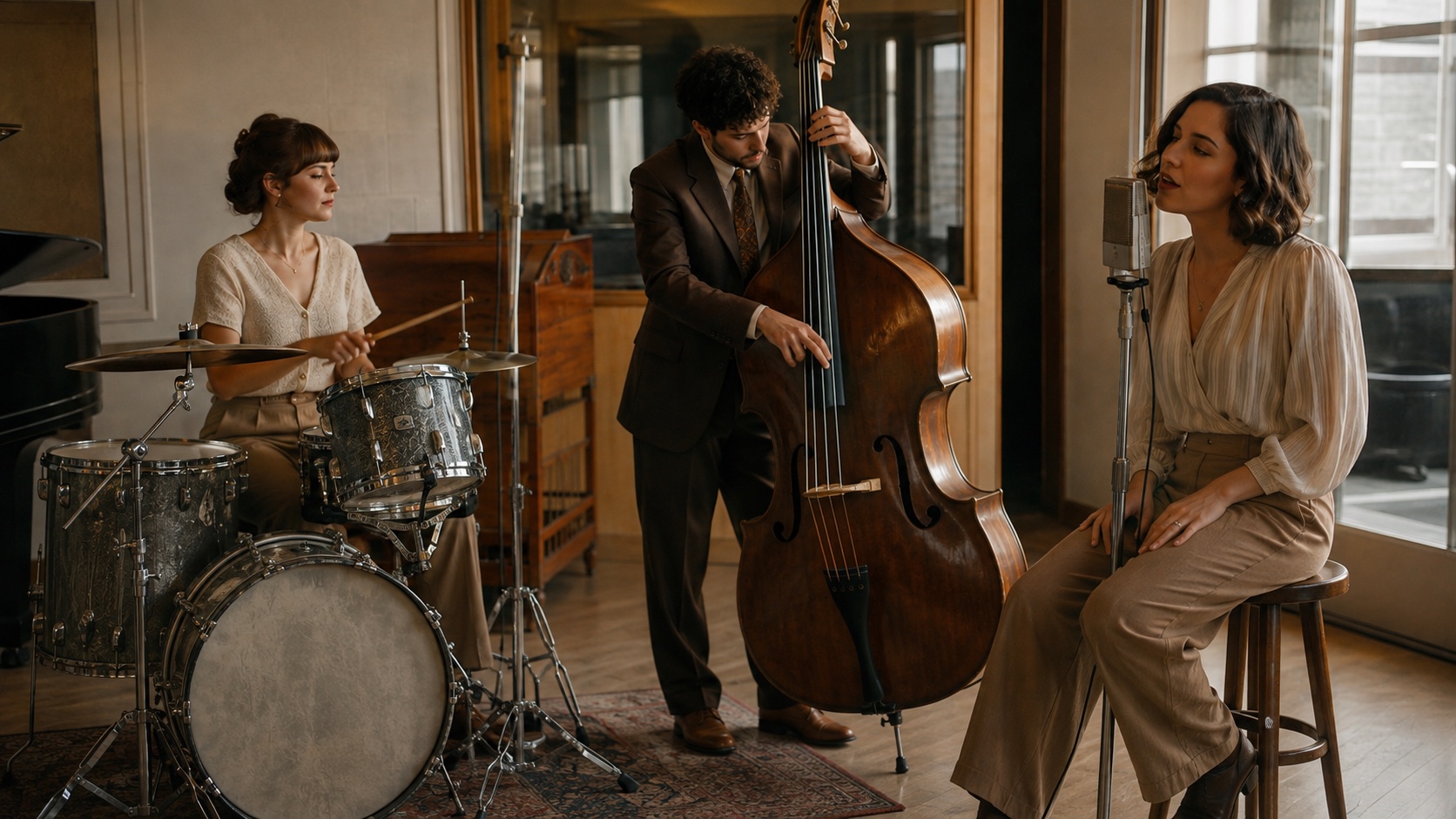
One complete frame makes the visible sound sources, instrument contact, room ambience, and performer positions easier to evaluate.
The native-audio AI video guide provides a deeper checklist for dialogue, ambience, Foley, music, and lip-sync review.
How Do You Edit Videos With Google Flow Agent?
Open an existing Flow project, switch on Agent in the prompt box, and drag in the video—or the specific clips—you want to revise. Describe the change as a narrow edit contract: identify the selected moment, name what should change, and state what must remain untouched. For example: “During the final close-up, warm the light to sunset orange; preserve the actor, dialogue, camera path, timing, and every earlier shot.” A bounded request is easier to review than “make this more cinematic.”
Flow keeps the original and saves edits in the asset’s version stack. Use the History panel to compare the source, prompt, and each result; save an earlier version back to the project when a revision removes an approved detail. For direct refinement, Flow can trim an uploaded clip, apply a prompt to a selected segment of up to ten seconds, accept reference ingredients, and retain edit context for up to three conversational turns. Treat those turns as one branch: change one variable, review the full moving result, then either continue or return to the last approved version.
Before generating, write three pass conditions and three failures. A product edit might require an unchanged handle, readable silhouette, and clean pour while rejecting duplicate spouts or altered branding. When a campaign spans several clips, use Seedance Agent to organize source assets, define shot-level change requests, approve the plan, and rerun only the rejected part. It does not edit inside Flow; it adds a clearer approval and version boundary around a multi-model production.
Google Flow vs a Direct Seedance and Veo 3 Workflow
Flow suits creators who need a Google-centered scene workspace. A direct Seedance route is clearer when the shot, prompt, reference, and acceptance test are already defined.
| Production need | Google Flow path | Direct Seedance path |
|---|---|---|
| Explore a connected sequence | Organize scenes and iterate in one project | Generate individual shots, then assemble the approved sequence |
| Use one approved still | Frames to Video | Image to Video |
| Test a defined Veo shot | Choose a Veo 3.1 tier in Flow | Open the focused Veo 3.1 model page |
| Coordinate references, script, and approvals | Manage assets inside the Flow project | Use Seedance Agent to plan and approve a guided workflow |
| Compare several models | Switch among available Flow models | Route shots by risk in one multi-model process |
Choose by task, not brand familiarity
Choose Flow when connected scene building is central. Choose a direct generator for one approved anchor and a defined shot. For mixed campaigns, a multi-model AI video workflow can route shots by identity, motion, audio, price, and deadline.
Add an approval layer for campaign work
For dependent references, copy, or product rules, Seedance Video Agent can turn a brief into a reviewable plan before paid generation, with the script, assets, variants, and cost boundary visible.
The clip below is an existing Seedance native-audio output. Review body movement, dialogue timing, cup contact, café ambience, and character identity through the full shot.
Compare outputs against the same shot goal and acceptance checks.
Conclusion
Google Flow gives Veo 3.1 a useful filmmaking context: text generation, frames, references, scene organization, native audio, and several quality-versus-credit choices. Start with one risky proof shot, select the lowest tier that can answer the question, track cost per approved output, and reserve Quality or upscaling for motion that has already passed review. If you already have a clear prompt or reference and want a shorter path from brief to finished clip, start creating with Seedance →
Start generating for free - no credit card required
Create videos with free signup credits, then scale with affordable plans whenever you need more generations.
Free credits on signup. Plans from $28/month.
Related Articles
More posts in the same locale you may want to read next.

Seedance App Preview Video Generator 2026: Create App Store and Product Launch Clips
Use Seedance to turn app screenshots, feature copy, and launch goals into App Store previews, Google Play promo videos, and product launch clips.
Read article
Best AI Video-to-Video Models in 2026
The best AI video-to-video models in 2026 for editing footage you already shot: Higgsfield Genjutsu, Seedance 2.x, Runway Aleph, Luma Modify and Kling Omni compared.
Read article
Kling 4.0 vs Seedance 2.5: Full Comparison
Kling 4.0 vs Seedance 2.5 compared by spec: 30-second clips, keyframes vs 50 references, audio, 4K and 10-bit color, editing, and which model fits which job.
Read article