
Seedance 2.5 Unwanted Audio Transitions: How to Remove Fades, Whooshes, and Added Sound
AI Overview
Why does Seedance 2.5 add unwanted audio transitions?
The model may interpret a visual cut, opening, or ending as a cue for a cinematic swell, whoosh, or fade. Ambiguous audio instructions leave room for that invention.
How do I stop an unwanted whoosh at the end?
Describe the final seconds as a stable hold with unchanged room tone. Explicitly exclude transition effects, risers, swells, fades, stingers, and added music.
Can Seedance 2.5 preserve uploaded source audio?
For an edit or extension, name the audio asset and say it is locked, unchanged, and not regenerated. Verify that the selected task actually supports preservation.
Should I regenerate the whole video to fix one sound?
Usually not. First isolate the failing time range, revise only the audio instruction, or replace the short boundary in post while keeping the approved picture.
Identify the Unwanted Audio Transition First
“Unwanted audio transition” can describe several different failures: a rising whoosh before the first image settles, a fade-in that makes ambience arrive late, a music swell at a cut, a stinger on the final frame, or a voice and room tone that change between connected shots. The fix depends on which layer is wrong.
Watch the clip with headphones and write down the exact time when the sound begins. Then classify it as dialogue, music, ambience, Foley, or a synthetic transition effect. If the sound starts before any visible action, it is probably an invented opening cue. If it follows a camera move or hard cut, the model may be treating the visual transition as a request for a whoosh. If it appears only near the end, an undefined ending may be encouraging a cinematic resolution.

A simple visible action—placing a ceramic cup on wood—supports one precise sound and leaves less room for an invented transition effect.
Do not diagnose from a waveform thumbnail or the first frame. Listen through the boundary several times at normal volume. Compare the generated track with any uploaded audio reference. Record whether the picture is already approved, because that determines whether you should regenerate, use an audio edit, or repair the boundary in an editor.
The exact issue has recently appeared in user discussion about Seedance 2.5 adding quiet-to-loud transition sounds at clip beginnings and endings. That is useful evidence of a real workflow problem, but it is not proof that every account or prompt will reproduce it.
Write an Audio Contract Instead of a Mood
A broad instruction such as “cinematic sound” gives the model permission to add transitions. Replace it with an audio contract: name the allowed layers, their timing, their level, and what must not appear. Put the global rule before the timeline, then repeat the critical exclusion at the risky opening or ending beat.
Use this copy-ready structure:
Audio: continuous quiet room tone at a constant level.
Only the visible cup contact creates one soft ceramic-on-wood sound.
No music, riser, whoosh, sweep, stinger, fade-in, fade-out, or transition effect.
00–02s: room tone is already present from the first frame.
02–06s: keep the same ambience under the action.
06–08s: hold the final image and unchanged room tone; end cleanly.
Positive direction matters more than a long negative list. “No whoosh” removes one option, but “continuous quiet room tone at a constant level from the first frame through the final hold” gives the model a replacement behavior. Tie any Foley to visible action: latch click when the hand turns the handle, footstep when the shoe lands, or cup contact when it touches the table.
If you are still designing the clip, the Seedance 2.5 model workflow lets you plan image and sound together. For a broader prompt framework covering subject, camera, timeline, and audio, use the Seedance 2.5 text-to-video guide.
Control Openings, Cuts, and Final Holds
Unwanted audio often appears at structural boundaries. Define what the listener hears before, during, and after each one.
For the opening, say the ambience is already established on frame one. Avoid “sound fades in” unless a fade is intentional. For a hard cut, specify whether the room tone also cuts, continues underneath, or changes only after the new location is visible. For a continuous camera move, explicitly say there is no transition sound. For the ending, describe a final visual hold and a constant audio bed, then use “clean stop” if you want silence after the last frame.
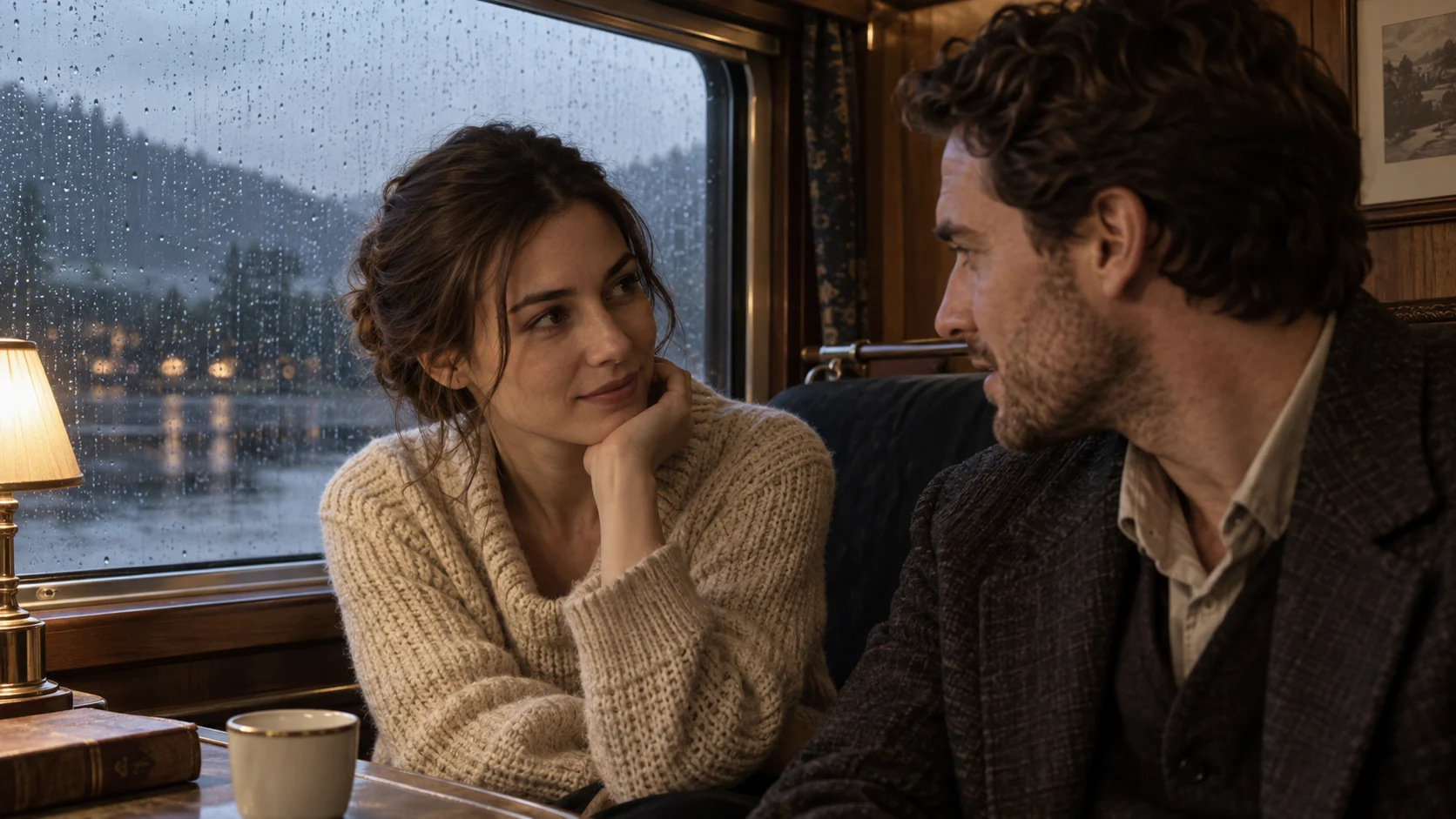
For dialogue, keep the same voice, room tone, acoustic space, and loudness through the visual cut unless the story requires a change.
A useful boundary table keeps the instruction short:
| Boundary | Preferred instruction | Avoid |
|---|---|---|
| First frame | “Room tone is already present at a constant level” | “Cinematic opening” |
| Camera move | “Continuous ambience; no transition effect” | “Dynamic sweep” |
| Hard cut | “Dialogue carries across the cut; room tone remains unchanged” | Unspecified audio behavior |
| Final hold | “Hold two seconds with the same ambience, then stop cleanly” | “Epic ending” |
When the story moves to a new location, a real ambience change may be appropriate. Delay it until the new environment is visible, and describe the change as a direct sound event rather than a stylized transition.
Preserve Source Audio During Editing or Extension
Seedance 2.5 supports generation, editing, extension, references, and assembly. These tasks do not give every input the same authority. In an edit or extension, identify the source audio explicitly and state what is locked.
Use language such as: “@video1 provides the picture and original audio. Preserve the entire audio track sample-for-sample; do not regenerate dialogue, ambience, music, loudness, timing, or transitions. Change only the described visual element between 04–06 seconds.” If the platform separates audio references from video, name the uploaded audio asset as the sole audio source.
This existing Seedance output demonstrates why dialogue, ambience, and picture should be reviewed together across the full clip.
Do not mix conflicting instructions. “Preserve source audio,” “add cinematic music,” and “make the ending dramatic” may push the system in different directions. If the audio is approved, remove all creative audio language. If only one sound must change, name the time range and replacement while locking everything else.
The native-audio workflow explains how to evaluate voice, effects, ambience, and music as one deliverable. If a voice rather than a transition is drifting, follow the separate voice-consistency guide.
Fix a Bad Boundary Without Losing Good Picture
Regenerate only when the audio problem is coupled to the action or the model must restage the moment. If the picture is already strong and the fault is a short whoosh, preserve the video and fix the boundary in post. Replacing half a second of audio is cheaper and safer than asking a new generation to reproduce the exact face, motion, and composition.

A door opening can use a latch click and continuous wind; it does not need a generic sweep simply because the scene reveals a beach.
Use room tone from a clean section to cover the transition. Apply a very short equal-power crossfade only to prevent a click, not to create an audible swell. Match loudness and frequency balance on both sides. If dialogue crosses the cut, keep the voice continuous and change ambience underneath it. If the unwanted sound overlaps speech, spectral repair or a replacement line may be more reliable than aggressive filtering.
The OpenShot editing workflow shows how to trim and repair an approved AI clip without regenerating it. Keep an untouched master, export a repaired version, and compare the full sequence on speakers as well as headphones.
Test One Variable and Approve the Whole Mix
Create a six- to eight-second boundary test before a long render. Keep the visual prompt, seed, reference assets, timing, and duration constant. Change only the audio contract. Version A can use continuous ambience; version B can lock source audio; version C can remove all generated music and effects. The difference between outputs then teaches you which instruction mattered.
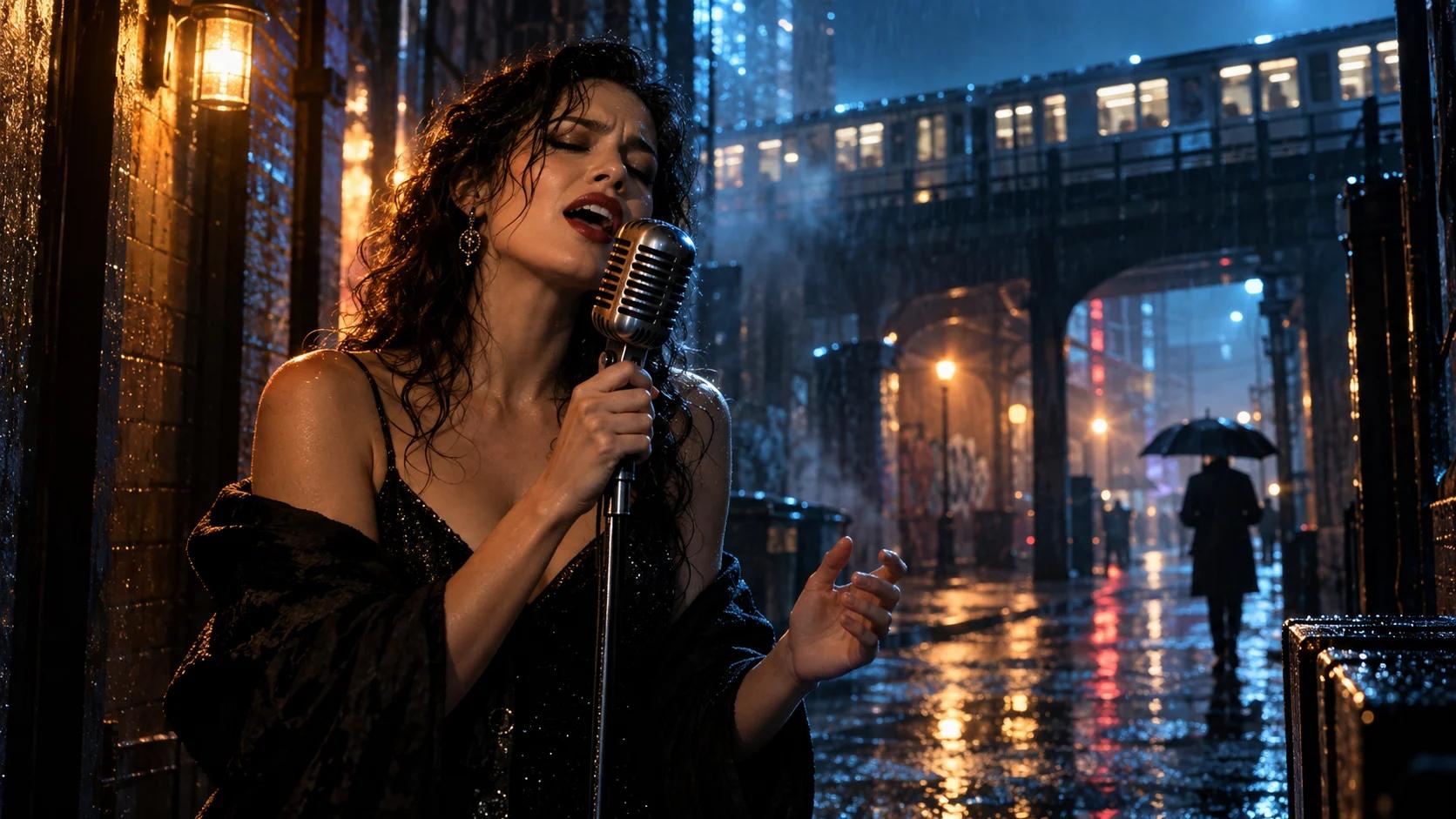
Use the full moving clip to inspect timing, contact sounds, ambience, and whether the ending introduces an unrequested swell.
Approve with a checklist: intended sound begins on the correct visible action; room tone is present from frame one; dialogue voice and level remain stable; no whoosh, riser, stinger, or music appears; the final hold keeps the same ambience; and the file ends without a click. Listen once without watching—the unwanted transition is often easier to notice when the picture cannot distract you.

A visually settled ending supports a constant natural ambience and clean stop instead of implying a dramatic audio resolution.
For a multi-shot project, use Seedance Agent to store the audio contract, source files, boundary tests, review notes, and approved mix. The Agent can rerun only the failed shot and keep the accepted picture and sound decisions attached to the sequence.
Conclusion
To fix Seedance 2.5 unwanted audio transitions, identify the failing layer and timestamp, replace vague mood language with a precise audio contract, define openings and endings explicitly, and lock source audio during edits or extensions. Regenerate only when sound and action must change together; otherwise repair the short boundary in post. For longer productions, manage references, audio rules, approvals, and selective reruns with Seedance Agent.
Ready to try it yourself?
Put the steps from this guide into practice with Seedance and turn prompts or images into polished videos in minutes.
Free credits on signup. Plans from $28/month.
Related Articles
More posts in the same locale you may want to read next.

Seedance App Preview Video Generator 2026: Create App Store and Product Launch Clips
Use Seedance to turn app screenshots, feature copy, and launch goals into App Store previews, Google Play promo videos, and product launch clips.
Read article
How to Make a Talking AI Avatar You Can Reuse
Make a talking AI avatar with Seedance: design one consistent character, give it a voice, and make it speak in a talking photo or a full Seedance 2.5 scene, episode after episode.
Read article
Best AI Video-to-Video Models in 2026
The best AI video-to-video models in 2026 for editing footage you already shot: Higgsfield Genjutsu, Seedance 2.x, Runway Aleph, Luma Modify and Kling Omni compared.
Read article