
Midjourney Animate Uploaded Image Tutorial: From Still Frame to Usable Video
AI Overview
Can Midjourney animate an image uploaded from your computer?
Yes. Upload the image in the web Imagine bar, place it in the Animate slot, then choose manual or automatic animation. The uploaded image becomes the first frame of a five-second video.
Should you choose Low Motion or High Motion?
Start with Low Motion for portraits, products, architecture, and other shots where preserving the source matters most. Use High Motion when visible subject action or stronger camera movement is worth a higher risk of distortion.
What should a Midjourney image-to-video prompt describe?
Describe change over time: subject action, environmental motion, camera behavior, pace, and the intended final beat. Avoid restating every visual detail already fixed in the uploaded image.
How long can an animated image become?
The first generation is five seconds. Each extension adds four seconds, and a clip can be extended four times for a maximum of 21 seconds, so approve each segment before spending on the next.
Prepare the Uploaded Image Before You Animate It
The source frame does most of the continuity work. A clean image gives the video model a stable subject, readable depth, and fewer ambiguous details to invent. Before uploading, inspect the face, hands, repeating patterns, typography, fine product geometry, reflections, and objects that overlap the frame edge. A defect that looks minor in a still can become a distracting moving artifact.
Frame for the delivery format before generation. Leave movement room in the direction the subject should travel, avoid cutting joints exactly at the edge, and keep important objects separated enough to preserve their shapes. A portrait that will turn should show enough shoulder and background context for the model to infer depth. A product reveal needs margin around the silhouette so a push-in does not crop the object too early.
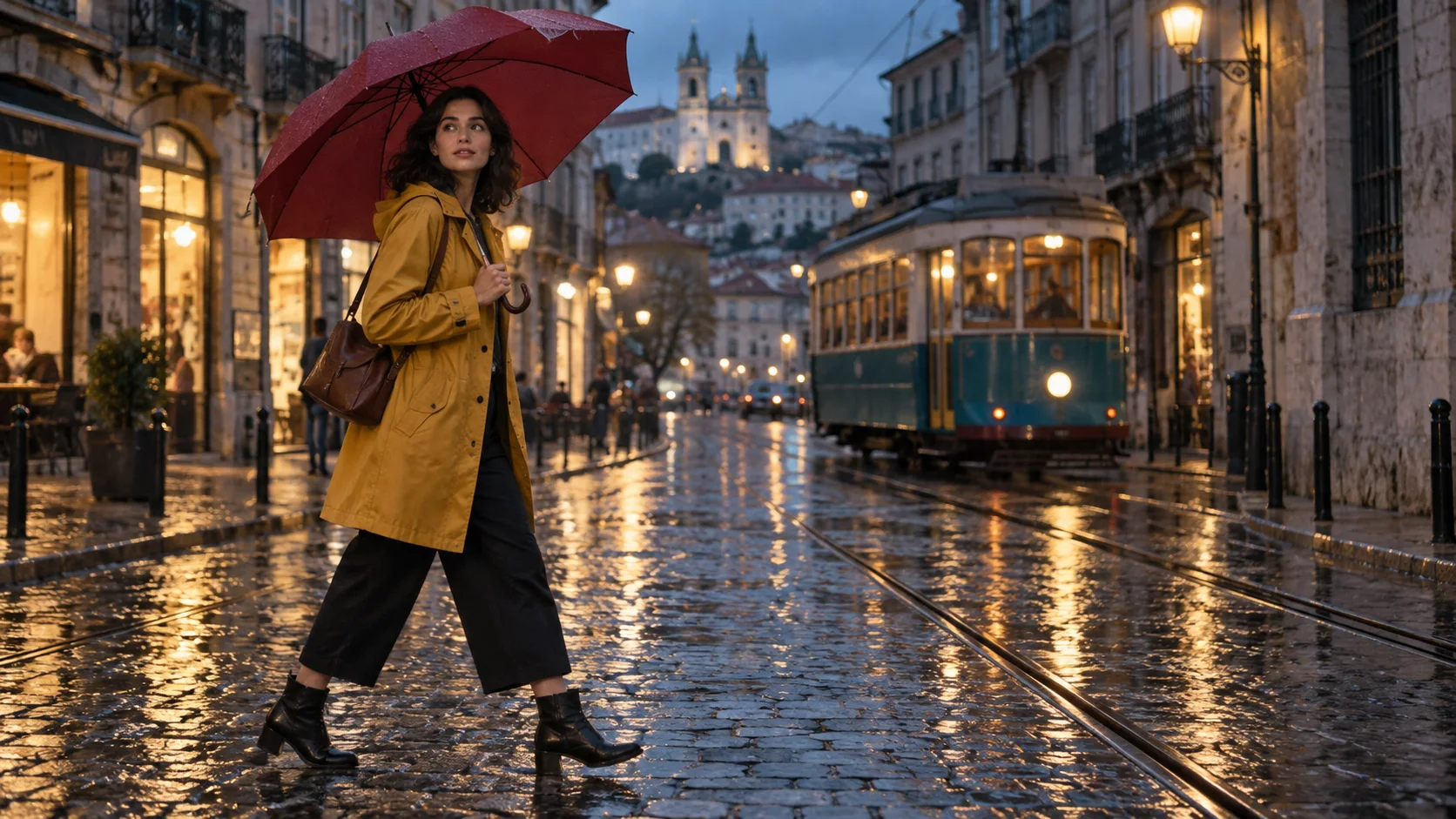
A useful start frame has one clear subject, a readable movement direction, and enough environment for the camera to move without inventing the scene.
If one reference must support several shots, lock the creative decisions before animation: subject appearance, wardrobe, location, time of day, lens feel, and color treatment. Keep the approved source beside every output. For a longer sequence, plan references and shot roles before generating motion so one good frame does not become five unrelated clips.
Upload the Image and Choose the Right Animation Route
Use the web Animate slot for your own image
On the Midjourney website, open the image panel from the Imagine bar, upload or select your file, and drag it into the Animate section. This is different from attaching the file as an Image Prompt, Style Reference, or Edit Model Reference; those reference types are not the starting-frame input for video. Pin the image if you want to test several motion prompts from the same source.
Choose an automatic option when you need a quick interpretation. Choose Animate Manually when the shot has a specific action, camera move, or stopping point. Manual prompting is usually the better production route because it creates a written instruction you can revise instead of changing several variables at once.
Midjourney's Discord route also accepts an externally hosted image URL at the start of a prompt followed by optional motion text and the --video parameter. The website route is easier for most uploaded files because it makes the starting-frame role visible.
Keep the first test economical
Video prompts generate four variations by default. If you are validating a new source frame or uncertain motion idea, reduce the batch to one with --bs 1. That turns the first run into a focused test instead of paying for four clips that repeat the same framing mistake. Increase the batch only after the prompt and source frame are sound. The related Midjourney video batch-size guide explains when one, two, or four outputs make sense.
Write a Motion Prompt That Adds Time, Not a Second Picture
A useful motion prompt is a compact shot instruction. It says who or what moves, how the environment responds, what the camera does, and where the beat settles. The uploaded image already defines wardrobe, architecture, palette, and composition, so repeating those nouns can crowd out the temporal instruction.
Use this copy-ready pattern:
[subject action], [secondary environmental motion], camera [move or locked position], [pace], ending on [final beat] --motion low|high --raw --bs 1
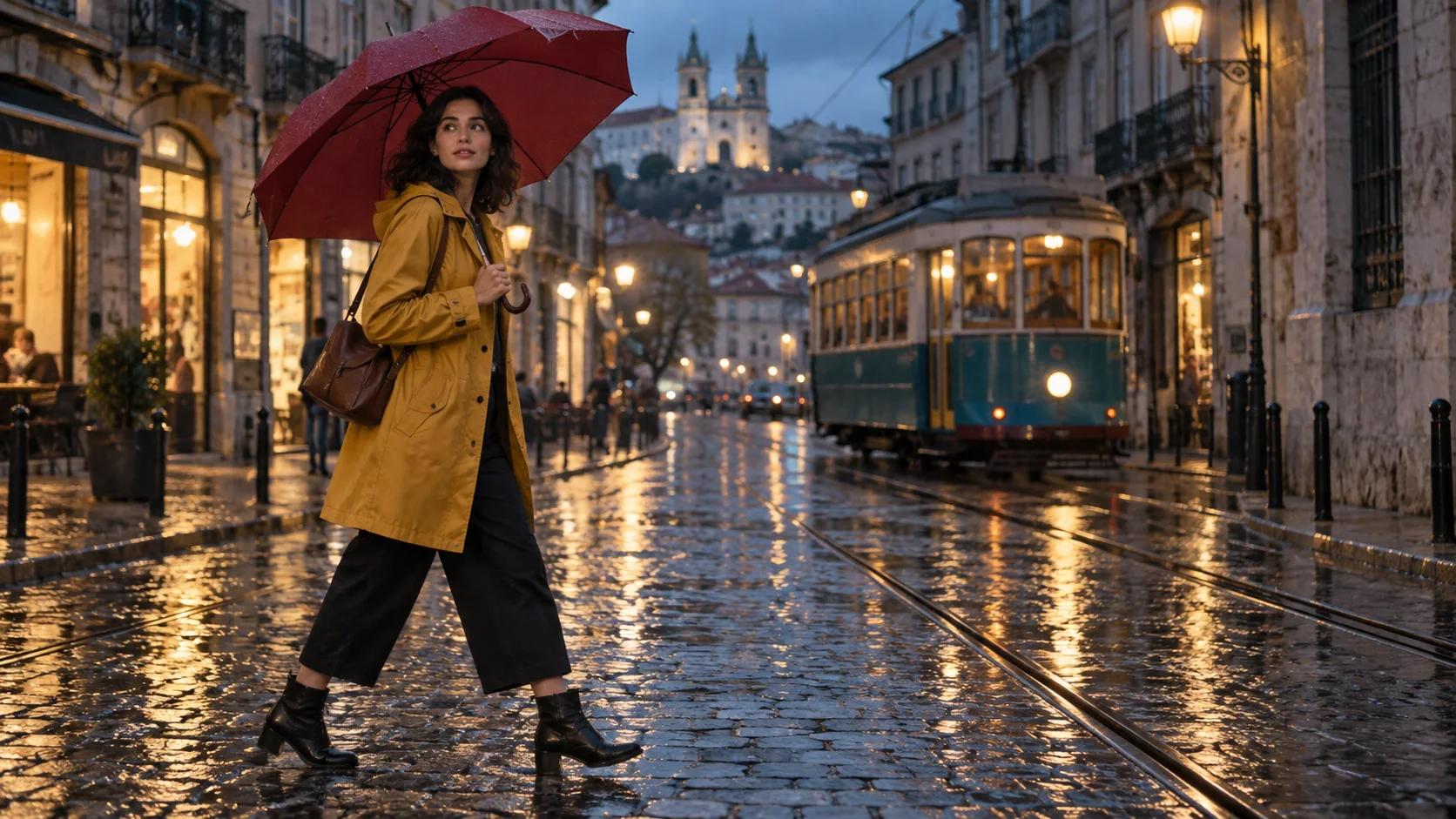
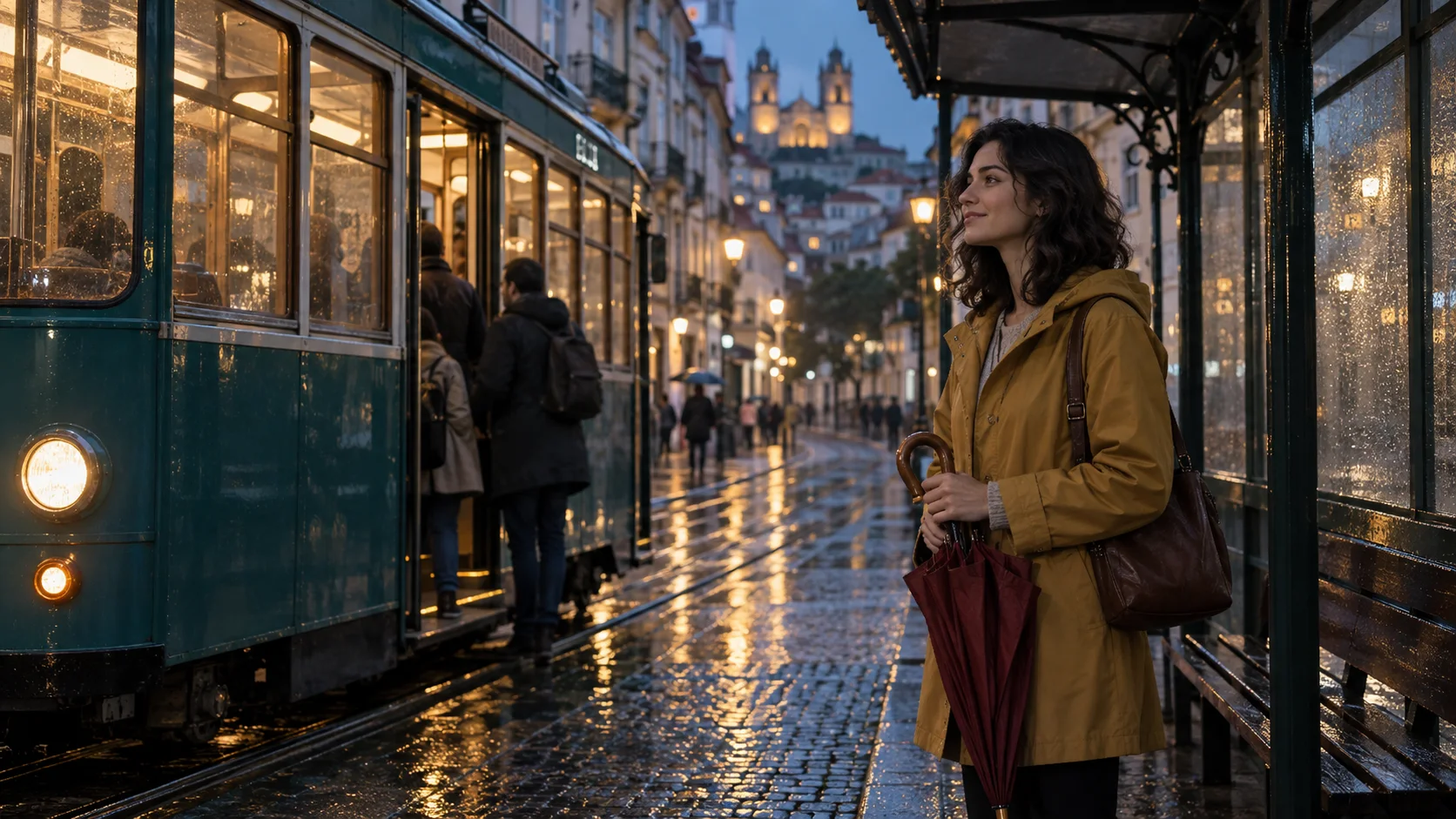
For the rainy tram frame, a controlled test could be:
She takes two deliberate steps and glances toward the tram, light rain drifts past the umbrella, camera holds a steady medium frame, restrained natural motion, ending as the tram slows behind her --motion low --raw --bs 1
The action is measurable: two steps, one glance, one arrival beat. The camera instruction is explicit. The ending gives the model a direction rather than asking for indefinite motion. --raw can make the written motion instruction more influential by reducing extra creative interpretation, but it does not guarantee literal choreography.
For prompts that need a stronger physical transition, describe one dominant action before adding atmosphere. “Turns as the tram passes” is easier to evaluate than a paragraph containing a turn, run, zoom, orbit, rain burst, costume change, and crowd reaction. When you need to transfer this planning discipline to another generator, the image-to-video prompt workflow covers the same action-camera-ending structure.
This is a Seedance image-to-video example, not a Midjourney output. Inspect how a clear starting composition gives the motion somewhere coherent to go.
Pick Low Motion or High Motion by Failure Cost
Low Motion protects the source
Low Motion is the default and is more likely to produce subtle subject movement, a steadier camera, and slower environmental change. It is the sensible first pass for faces, fashion, products, buildings, food, and any image where identity or geometry matters more than spectacle. It can also under-deliver and look nearly still, so specify one visible but modest action.
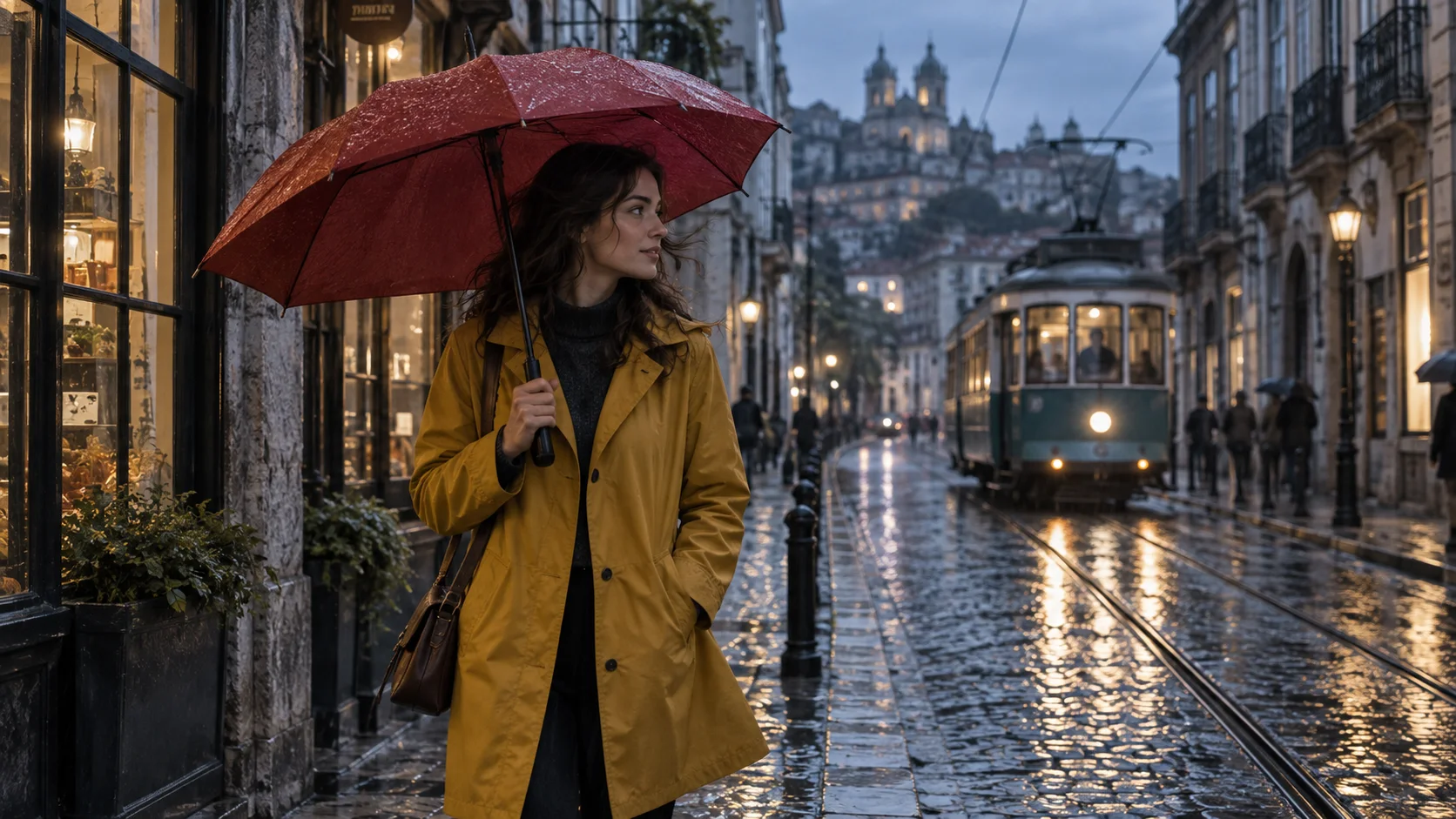
For Low Motion, inspect face shape, umbrella spokes, tram geometry, and whether the requested small action is visible without reframing the shot.
High Motion accepts more variation
High Motion is more likely to move both the camera and subject. It fits chases, dance, vehicle passes, reveals, and shots where energy matters more than strict frame preservation. The tradeoff is a greater chance of warped anatomy, sliding surfaces, unstable backgrounds, or a camera move that overwhelms the intended action. Test it as an alternative, not an automatic upgrade.
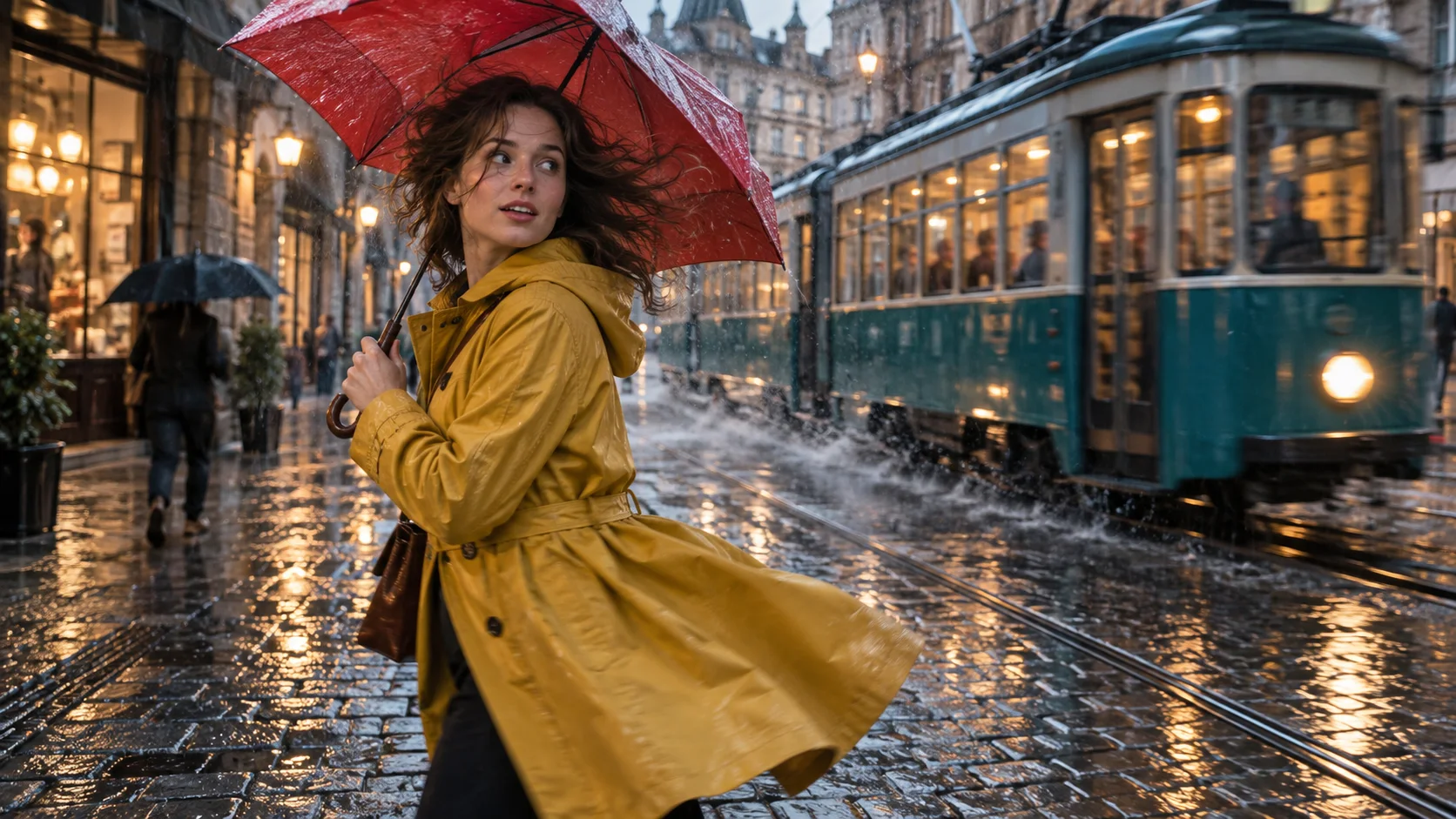
A High Motion review should freeze several points in the clip and compare object structure, not judge only the most dramatic moment.
Use a simple decision rule: choose the lowest motion setting that visibly completes the shot. If Low Motion preserves everything but lacks energy, revise the verb or camera instruction before switching modes. If High Motion creates the action but breaks the subject, simplify the source composition or split the action into a new shot. A multi-keyframe workflow is often better when exact intermediate poses matter.
Extend Only the Clip That Already Works
Midjourney starts with a five-second video. An extension adds four seconds, and you can extend four times to reach 21 seconds. Extend Auto continues with the original prompt; Extend Manual lets you change the instruction for the next segment. The useful production habit is to approve the current endpoint before adding time.
Check the final second at normal speed and frame by frame. Is the face still the same? Are hands and objects stable? Has the camera reached a position that can continue? Does the subject have a plausible next action? If the endpoint is weak, an extension usually propagates that weakness rather than repairing it. Rerun or trim first.
Write an extension as the next beat, not as a complete rewrite. For example: “the tram settles to a stop, she closes the umbrella, camera eases into a wider hold.” This maintains the scene's direction while giving the segment a finish. The detailed video-extension workflow shows how to preserve a handoff between source, continuation, and final delivery.
A clean final hold is a better extension endpoint than a frame caught halfway through a turn or camera whip.
For a multi-shot piece, save the approved start frame, chosen clip, prompt, motion setting, batch size, and extension history as one package. In Seedance Agent's reference-to-video workflow, those assets can stay attached to the shot plan while you compare outputs, approve the right take, and rerun only the segment that failed.
Troubleshoot the Most Common Uploaded-Image Failures
The clip barely moves
Replace vague atmosphere with one observable verb and one environmental cue. “Cinematic rainy mood” does not specify movement; “she turns toward the tram while raindrops slide from the umbrella” does. Stay on Low Motion for the first revision, then try High Motion only if the clearer instruction still underperforms.
The face, hands, or product changes
Reduce simultaneous actions, avoid an extreme camera orbit, and give small details more pixels in the source frame. If a close inspection point is tiny in the uploaded image, the animation model has little structure to preserve. Reframe or make a separate close shot rather than demanding a wide shot become a detail shot in motion.
The camera ignores the prompt
State a single camera behavior: locked shot, slow push-in, gentle pan, or tracking move. Do not combine “static,” “handheld,” “orbit,” and “zoom” in one instruction. With --raw, the prompt may have more influence, but the source composition still constrains plausible movement.
An extension jumps at the seam
Return to the last clean clip and choose an endpoint with low motion and stable geometry. Continue the existing action instead of reversing direction immediately. If a seam remains obvious, treat the extension as a new shot and hide the transition with an intentional cut rather than repeatedly extending a broken handoff.
Conclusion
To animate an uploaded image in Midjourney, prepare a frame with clear depth and movement room, place it in the Animate slot, describe one visible action plus one camera behavior, and test with --bs 1. Start with Low Motion when continuity matters, use High Motion when the scene can tolerate variation, and extend only an endpoint that is already stable. For production work, keep the source, prompt, chosen take, and extension history together, then build the sequence with Seedance Agent so approvals and selective reruns stay attached to the right shot.
Ready to try it yourself?
Put the steps from this guide into practice with Seedance and turn prompts or images into polished videos in minutes.
Free credits on signup. Plans from $28/month.
Related Articles
More posts in the same locale you may want to read next.

Seedance App Preview Video Generator 2026: Create App Store and Product Launch Clips
Use Seedance to turn app screenshots, feature copy, and launch goals into App Store previews, Google Play promo videos, and product launch clips.
Read article
How to Make a Talking AI Avatar You Can Reuse
Make a talking AI avatar with Seedance: design one consistent character, give it a voice, and make it speak in a talking photo or a full Seedance 2.5 scene, episode after episode.
Read article
Best AI Video-to-Video Models in 2026
The best AI video-to-video models in 2026 for editing footage you already shot: Higgsfield Genjutsu, Seedance 2.x, Runway Aleph, Luma Modify and Kling Omni compared.
Read article