
MiniMax H3 Multi-Keyframe Workflow: Control Timing, Continuity, and Transitions
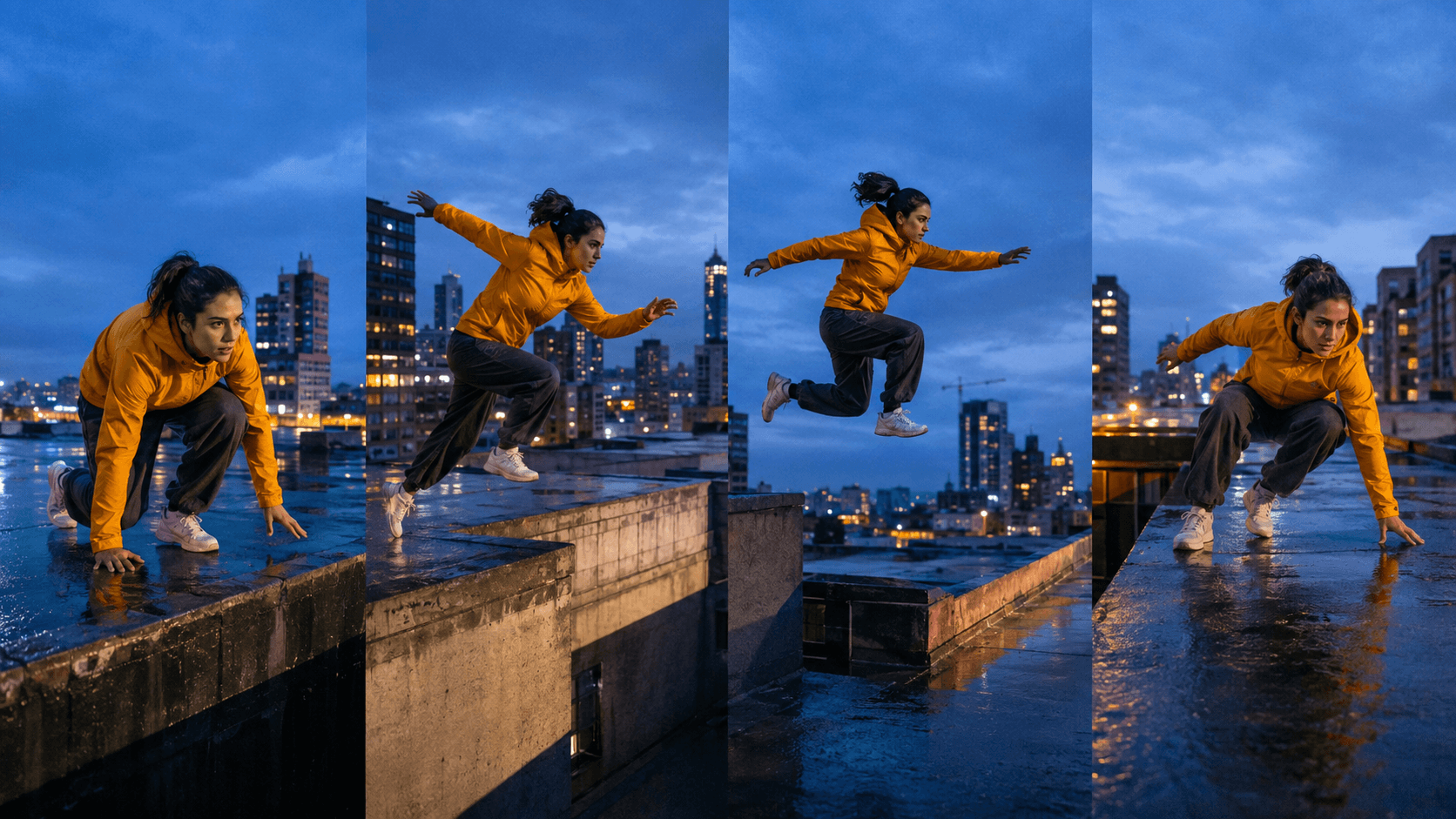
AI Overview
Does MiniMax H3 support multiple keyframes?
Yes. In local ComfyUI, you can chain MiniMaxH3AddGuide nodes and anchor images or audio at selected frame indices. The simpler hosted route centers on first/last frames and references.
How many keyframes should a MiniMax H3 video use?
Use the fewest anchors that define the required story states: usually an opening, one or two transition beats, and an ending. Extra conflicting frames can create hard morphs.
How do you keep the same character between keyframes?
Reuse one identity reference, keep wardrobe and environment descriptions stable, and make each keyframe compatible in subject scale, lighting, lens direction, and screen position.
Is ComfyUI or Seedance Agent better for this workflow?
ComfyUI gives precise frame-index and node control. Seedance Agent is the easier route for shot planning, reference organization, approvals, and rerunning only the failed section.
What a MiniMax H3 Multi-Keyframe Workflow Actually Controls
A MiniMax H3 multi-keyframe workflow tells the model which visual states matter at specific moments. A keyframe owns a place on the timeline; a reference image owns identity, style, motion, or environment without necessarily becoming an exact frame.
Keyframes versus ordinary references
Use a keyframe when the composition must be recognizable at a defined moment: a closed box at the start, an opening lid halfway through, or a finished reveal at the end. Use a reference when the same actor, product, room, costume, or color system must survive across changing compositions. The MiniMax H3 generator supports reference-heavy video creation, while a local graph exposes the timing controls more directly.
If every image becomes an endpoint, H3 may morph between pictures instead of performing the action. If every picture is only a loose reference, the clip may never reach the planned pose.
First/last frames versus intermediate guides
The standard first-and-last-frame route defines two boundaries. ComfyUI's MiniMaxH3AddGuide can add an image, short clip, audio cue, or audiovisual guide at a chosen frame_idx; several guide nodes can be chained for several anchors. That makes a genuine three- or four-state movement possible inside one generated clip.
Use intermediate guides only for non-negotiable beats. A reaching hand may not need its own frame, but a product leaving one position and arriving intact at another may do.
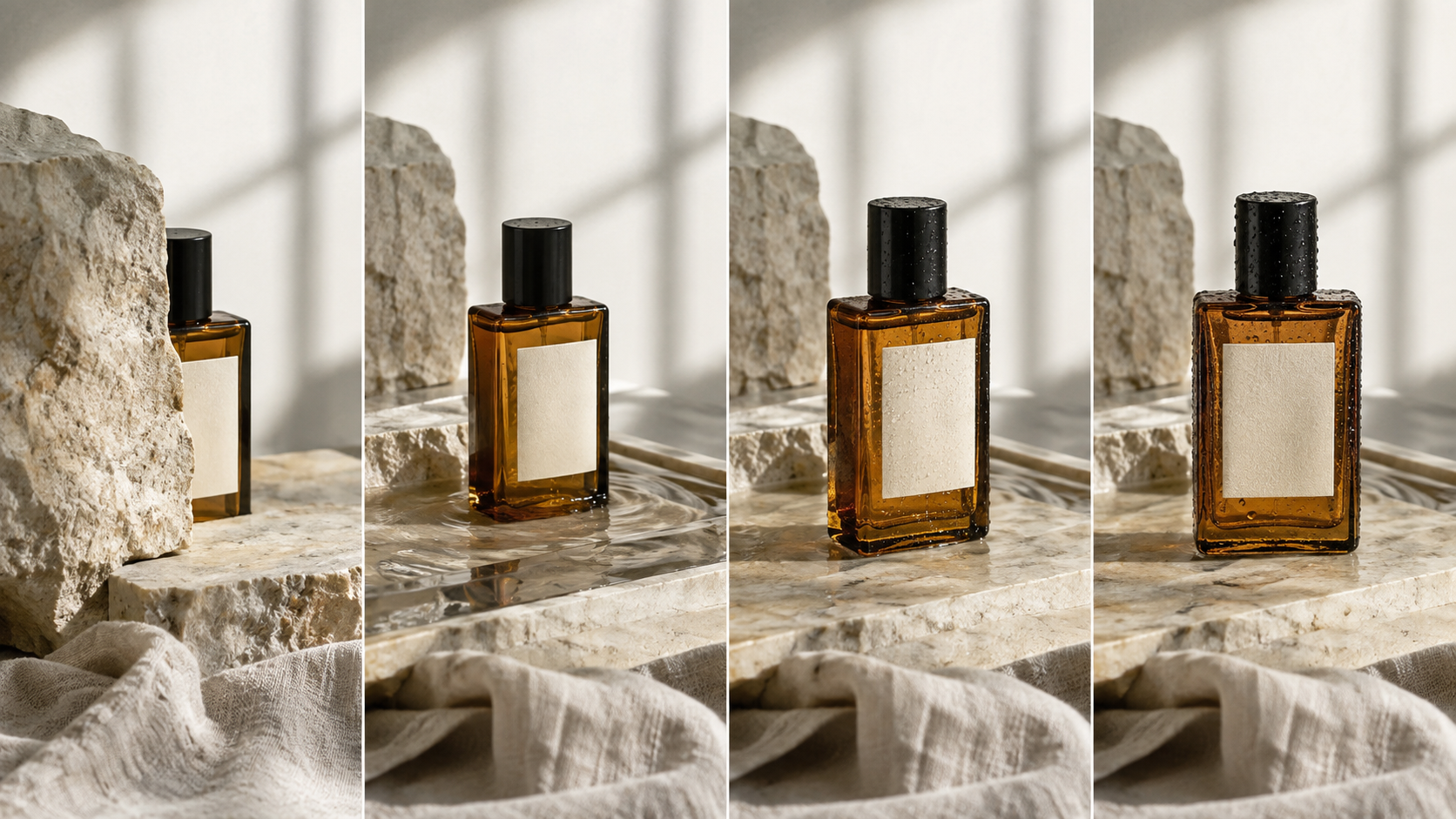
A four-anchor product test should preserve bottle geometry, glass color, cap, stone set, linen, and daylight while the framing progresses toward the final reveal.
Build a Keyframe Plan Before You Generate
The best result begins as a short timeline. Write the action in playback order and mark which states must be exact; leave the space between anchors available for natural motion.
Turn one idea into timed story beats
For an eight-second shot, a useful plan might be: frame 0 establishes the subject, an early guide begins the action, a later guide confirms the main change, and the final frame settles. At 24 fps, frame 96 is roughly four seconds, but always calculate against the actual frame count used by the graph.
| Timeline role | What the image should lock | What the prompt should describe |
|---|---|---|
| Opening anchor | Identity, composition, starting pose | Initial movement and camera behavior |
| Middle guide | Critical action state or object position | How the subject reaches and leaves it |
| Late guide | Result, reveal, or changed relationship | Deceleration and visual continuity |
| Final anchor | Stable landing composition | The last movement, sound, and hold |
Design compatible keyframe images
Match aspect ratio, subject scale, camera height, lens, screen direction, and light source. A wide opening and an extreme close-up halfway through may demand an implausible camera move. Add larger changes only after identity and timing pass.
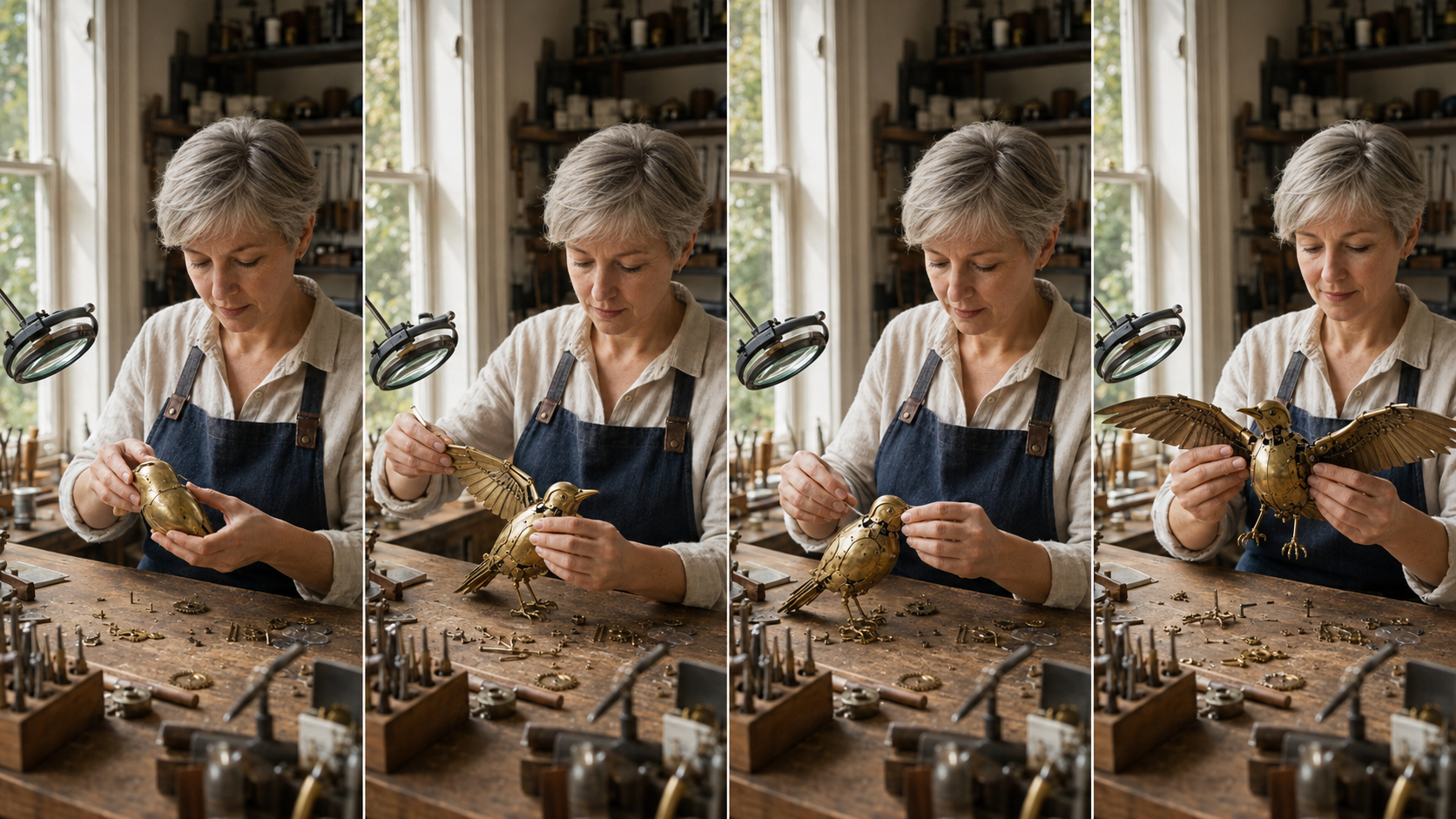
Actual output-style keyframes should read as one performance. Here the watchmaker, apron, bench, tools, brass material, and window light remain stable while the bird changes state.
Give every reference one job
Name each asset by function: identity, wardrobe, environment, product, motion, first frame, middle guide, or last frame. Do not ask one contradictory image to define both a different actor and the same actor. For looser visual guidance rather than exact timeline positions, use the reference-to-video workflow.
MiniMax H3 Multi-Keyframe Workflow: Step by Step
1. Create the audiovisual latent
Choose the delivery ratio, resolution, duration, and final frame count before adding guides. The image VAE must match the H3 graph, and every selected frame index must fall inside the latent timeline. Changing duration after placing guides can move or invalidate the intended beats.
2. Add the opening anchor
Start with a clean image that clearly shows the subject and environment. Avoid motion blur, hidden hands, cropped products, unreadable silhouettes, or a pose that already looks unstable. The opening frame establishes the geometry that later guides should respect.
3. Chain intermediate guide nodes
Pass positive conditioning from one MiniMaxH3AddGuide node into the next. Attach one approved image and set its frame_idx. Keep the graph chronological so later diagnosis stays readable.
4. Add the ending state
Use the native last-frame input when the final composition must be exact. Make it a believable destination and leave a settling beat for a product frame, completed gesture, or clean cut.
5. Write the bridge, not four separate prompts
The images already describe appearance. The prompt should describe motion between them:
Begin from the approved first frame. The craftsperson lifts the same cobalt vase with both hands, walks steadily from left to right, and places it on the established wooden shelf. Maintain the same face, olive shirt, clay-stained apron, vase proportions, studio layout, and daylight. Use one continuous lateral camera move with natural footsteps, cloth movement, and ceramic contact. Resolve into the supplied final frame and hold.
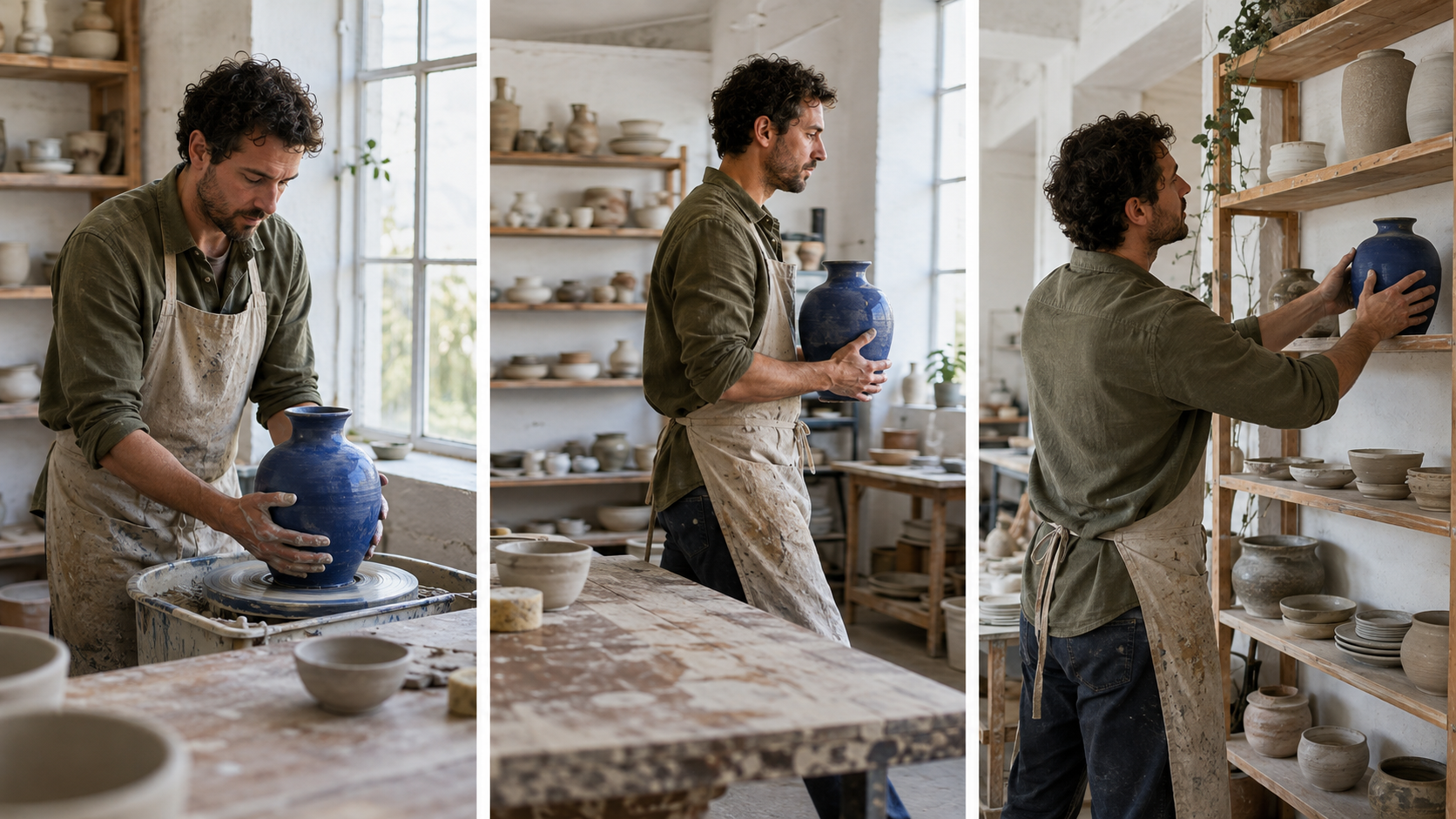
A practical three-keyframe test: the action changes, but the actor, cobalt vase, apron, shelves, windows, and left-to-right direction remain readable.
Keep Character, Environment, Camera, and Audio Consistent
Lock identity separately from pose
Reuse one canonical face reference for every attempt. Let keyframes change pose, expression, or distance without redefining age, facial structure, hair, and clothing. Compare the face at the opening, widest view, and final landing.
Preserve environment geometry
List stable relationships, not a bag of nouns: window behind the bench, blue cabinet to camera right, lamp above the table. The MiniMax H3 environment-consistency guide shows how to separate location anchors from character and motion references.
Review moving footage, not only posters. The glasshouse frame, table, chairs, foliage, lamps, pitcher, wardrobe, and daylight should remain recognizable as the action advances.
Maintain camera and audio logic
Keep the subject moving in one screen direction unless the prompt calls for a motivated change. Avoid asking for an orbit, zoom, crane, and lens swap between tightly spaced guides. When sound timing matters, anchor a short audio cue at the same frame as the visual event, then check the entire clip for dialogue restarts, repeated impacts, or abrupt room-tone changes.
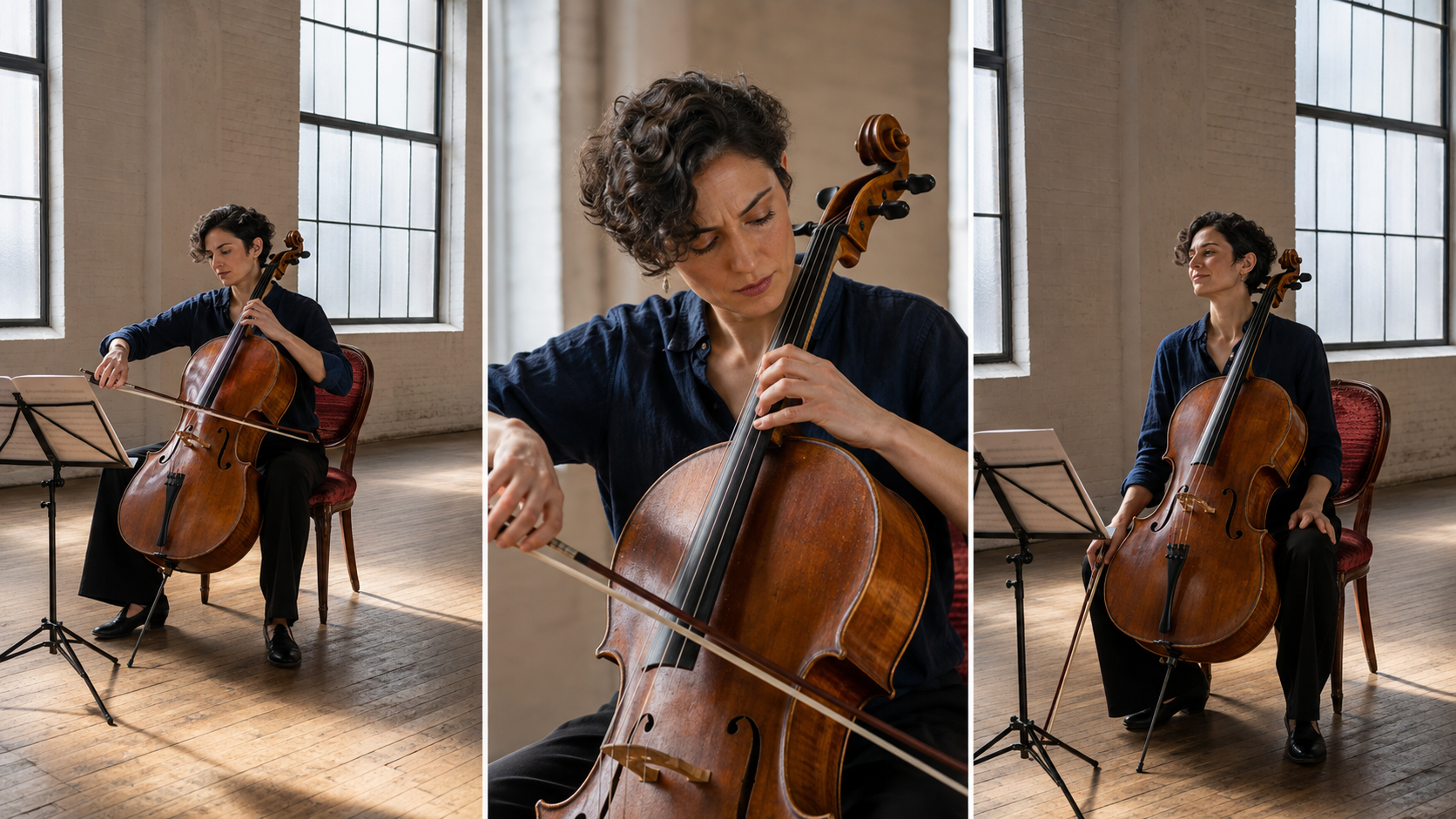
Wide, close, and medium views can still feel continuous when the performer, cello, chair, room, window light, and bow direction remain stable.
Use the moving result to judge hand rhythm, camera continuity, instrument detail, and whether the audio lands with the visible performance.
ComfyUI Multi-Keyframe Control vs Seedance Agent
Choose ComfyUI for frame-level control
Local ComfyUI suits creators who need exact frame indices, reusable graphs, latent access, or image and audio guide experiments. The cost is managing models, VRAM, node versions, paths, metadata, and failures.
Choose Seedance Agent for production management
Seedance Agent starts from the production goal. Give it the brief, references, required beats, ratio, and acceptance criteria; use it to organize the plan, compare outputs, approve sections, and rerun only what failed. The resumable multishot workflow explains how approved shots become durable checkpoints.
Use a hybrid route when the shot is difficult
Plan the sequence and reference roles in Seedance Agent, route the one timing-critical shot to a local H3 graph, then return the result for review and assembly. The creative brief remains readable to the team while the difficult section keeps its frame-level controls. Start with Seedance Agent when production coordination matters more than maintaining nodes.
Fix Frame Drift, Hard Morphs, and Missed Keyframes
A middle keyframe is ignored
Confirm that the guide is connected to the final positive conditioning, the VAE input is present, and frame_idx lands inside the video. Then move the guide farther from neighboring anchors. Two incompatible targets placed too close together give the model too little time to perform the bridge.
The transition looks like a dissolve
Reduce the visual jump. Keep identity, background, lens, and light stable while changing only pose or object position. Replace vague language such as “transform smoothly” with a visible physical path: opens, rotates, steps, unfolds, pours, or places.
The face changes in a wide shot
Reuse the canonical identity image, simplify the middle keyframe, and review whether the face is large enough to carry useful detail. Repair an otherwise approved distant shot with the H3 distant-face workflow instead of discarding a stable sequence.
The graph becomes too expensive
Prove timing and continuity at a lower draft resolution. Only upscale or refine an accepted result. Track cost per approved clip, not per generation, and change one variable per rerun so the next result teaches you something.
Conclusion
A reliable MiniMax H3 multi-keyframe workflow does not win by adding the most images. It uses a small set of compatible anchors, assigns every reference one role, describes physical motion between states, and reviews the complete audiovisual result. Use ComfyUI when exact frame placement is the creative requirement; use Seedance Agent when the larger job is planning, approvals, continuity, and selective reruns. Start with one three-keyframe test, approve the motion before refinement, and then expand the sequence without sacrificing the work that already passes.
Ready to try it yourself?
Put the steps from this guide into practice with Seedance and turn prompts or images into polished videos in minutes.
Free credits on signup. Plans from $28/month.
Related Articles
More posts in the same locale you may want to read next.

Seedance App Preview Video Generator 2026: Create App Store and Product Launch Clips
Use Seedance to turn app screenshots, feature copy, and launch goals into App Store previews, Google Play promo videos, and product launch clips.
Read article
Best AI Video-to-Video Models in 2026
The best AI video-to-video models in 2026 for editing footage you already shot: Higgsfield Genjutsu, Seedance 2.x, Runway Aleph, Luma Modify and Kling Omni compared.
Read article
Kling 4.0 vs Seedance 2.5: Full Comparison
Kling 4.0 vs Seedance 2.5 compared by spec: 30-second clips, keyframes vs 50 references, audio, 4K and 10-bit color, editing, and which model fits which job.
Read article