
AI Overview
What does Midjourney video batch size control?
It controls how many video variations Midjourney creates from one video prompt. The supported values are 1, 2, and 4; the default is 4, while a smaller batch reduces GPU time and the number of results you must review.
How do I change the Midjourney video batch size?
On the web, open Settings beside the Imagine bar, then choose Video Batch Size under More Options. For a single prompt or in Discord, add --bs 1, --bs 2, or --bs 4 at the end.
Which batch size should I use for testing?
Use batch 1 for a technical test with a locked first frame and prompt. Use batch 2 when you need a meaningful choice; use batch 4 when exploration is worth the extra GPU cost and review time.
Does batch size change video quality or duration?
Batch size changes output count, not the selected motion, resolution, or duration. Each initial clip starts at five seconds; resolution and motion are separate settings, and extensions add four seconds per step.
What Midjourney Video Batch Size Actually Controls
Searchers asking about midjourney video batch size settings usually want to stop spending for four variations when they only need one test—or understand when four alternatives are worth it. Midjourney currently produces four video outputs by default, but its video-specific --bs parameter can request 1, 2, or 4. The same choice appears as a persistent Video Batch Size setting on the web.
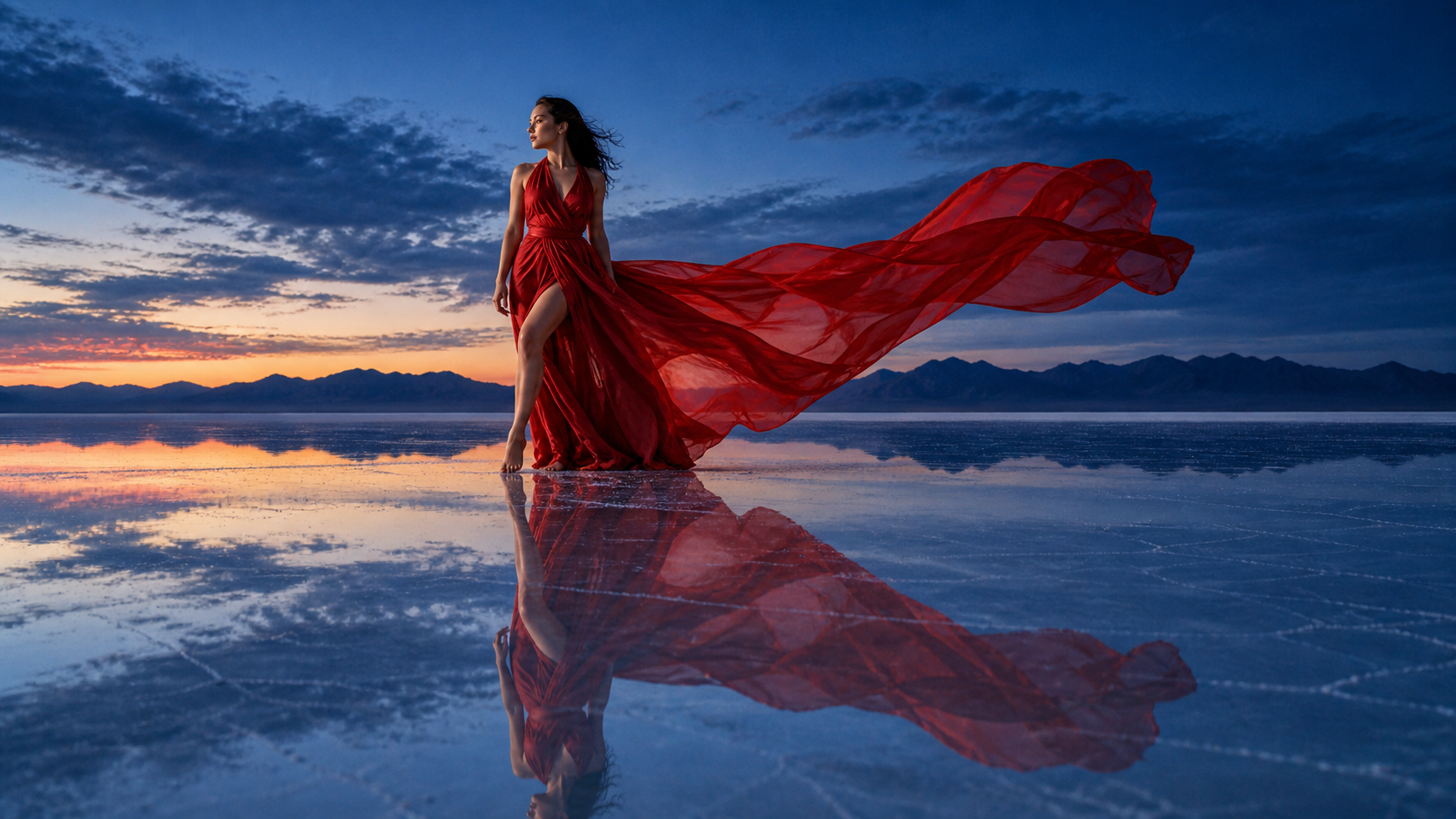
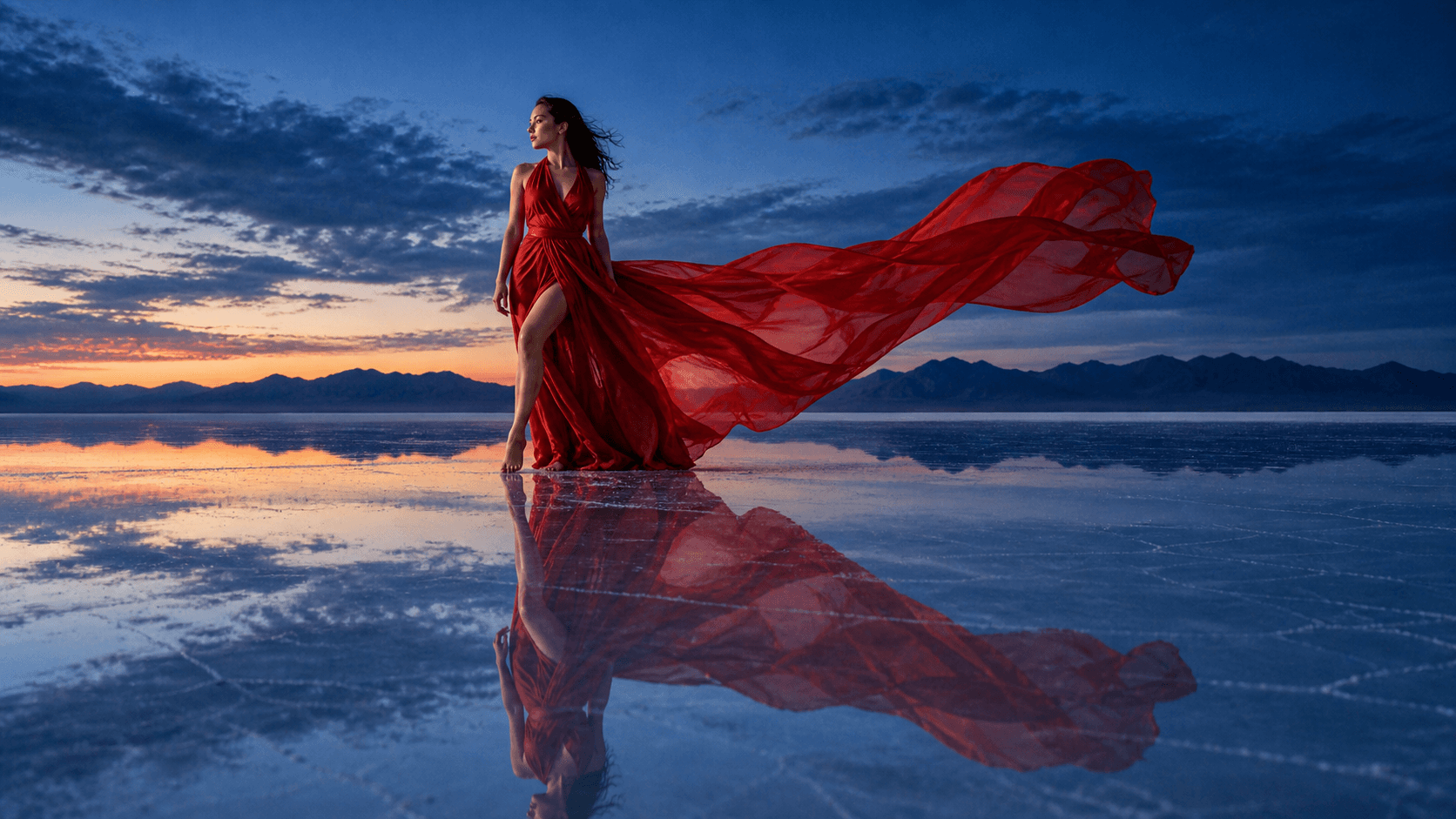
A new source-frame study for this guide. One approved image can produce several motion interpretations, but more outputs only help when you know how you will judge them.
Batch size does not mean frames per second, clip length, queue concurrency, or export resolution. It is the number of alternatives returned by one video prompt. Four gives more chances to find a clean motion path; one is cheaper but provides no same-prompt comparison.
Keep batch size separate from the creative brief. The source image still determines the starting composition and approximate aspect. The motion prompt describes subject and camera behavior. --motion low or --motion high changes movement tendency; SD or HD changes resolution; --raw, --loop, and --end change other video behavior. Choose those settings first, then decide how many attempts you actually need.
Compare Batch 1, 2, and 4 by Cost and Purpose
Midjourney's current official table lists these approximate GPU costs for one initial five-second generation:
| Video resolution | Batch 1 | Batch 2 | Batch 4 |
|---|---|---|---|
| SD | 2 GPU minutes | 4 GPU minutes | 8 GPU minutes |
| HD | 7 GPU minutes | 13 GPU minutes | 26 GPU minutes |
These figures are operational estimates, not a guarantee of wall-clock waiting time. Queue mode and demand can affect how long results take to appear. HD costs much more than SD, and extension costs the same GPU time as another initial generation at the chosen settings.
Batch 1: validate the pipeline
Use --bs 1 to test whether the image is eligible, the aspect survives, the motion follows the correct direction, or a custom end frame works. It also suits a simple product turntable or subtle ambience. The aim is one technical answer at minimum cost.
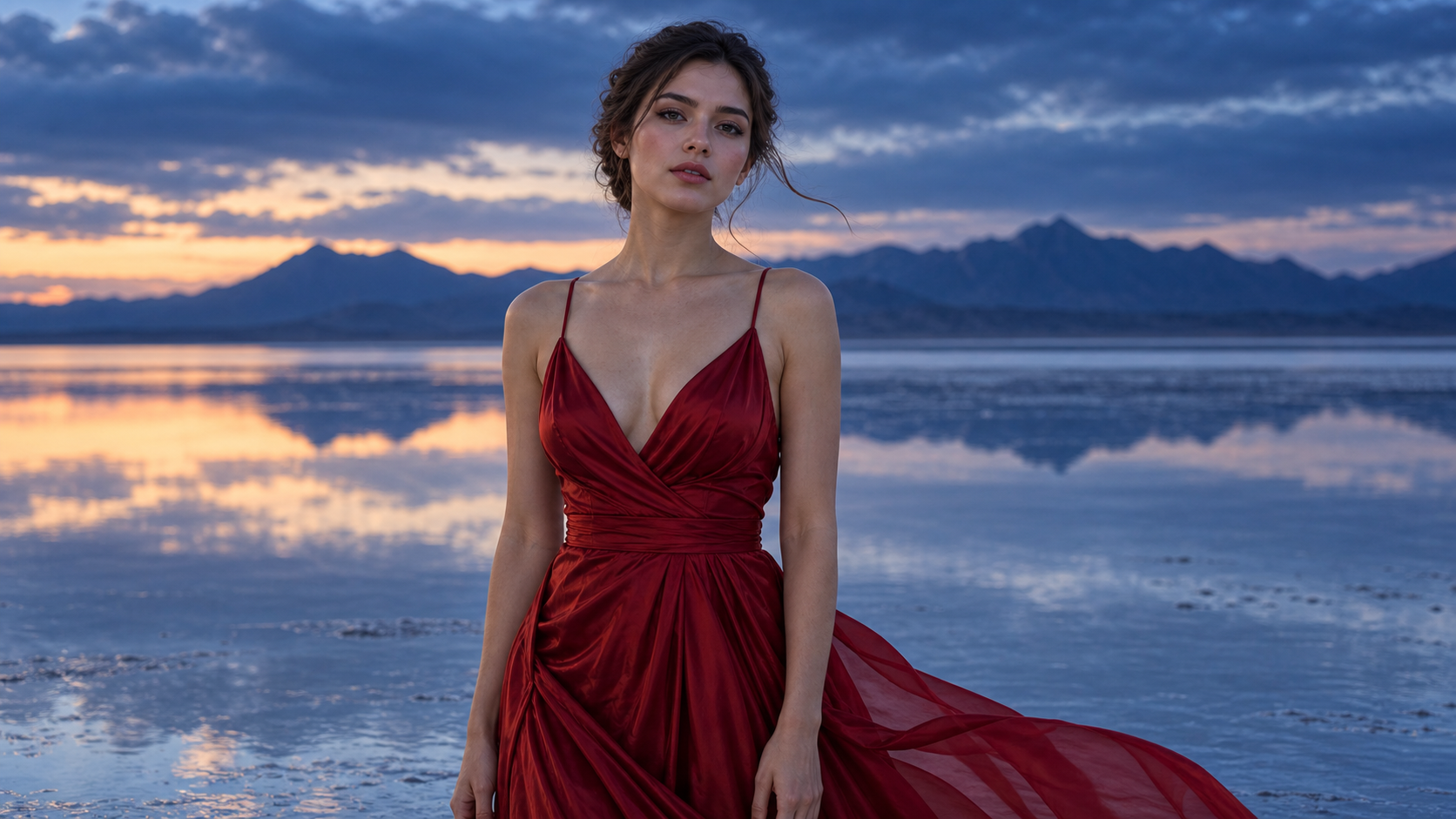
A batch-one mindset: keep the subject and camera stable, then verify a small motion instruction before widening the search.
Batch 1 is weak for open-ended exploration. If the shot depends on complex limbs, fabric, splashes, crowds, or a large camera move, one output may fail for a random reason. Do not conclude that the whole prompt is wrong from one take; either simplify the test or move to batch 2.
Batch 2: balance choice and cost
Batch 2 is the practical default for many approved first frames. Two outputs let you compare motion readability, identity stability, camera direction, and ending composition without paying for four. It works well when the creative direction is fixed but the model still has room to interpret timing.
Score both results before changing anything. If neither passes for the same reason, revise the prompt. If one passes, decide whether that winner is sufficient before buying another batch.
Batch 4: explore meaningful uncertainty
Use batch 4 when diversity is the goal or the shot contains genuine motion uncertainty. Examples include choreography, wind-driven fabric, liquid, dramatic camera motion, or an expressive character beat. Four variations can reveal different usable paths from the same starting frame, but only if the team is prepared to inspect every full clip.
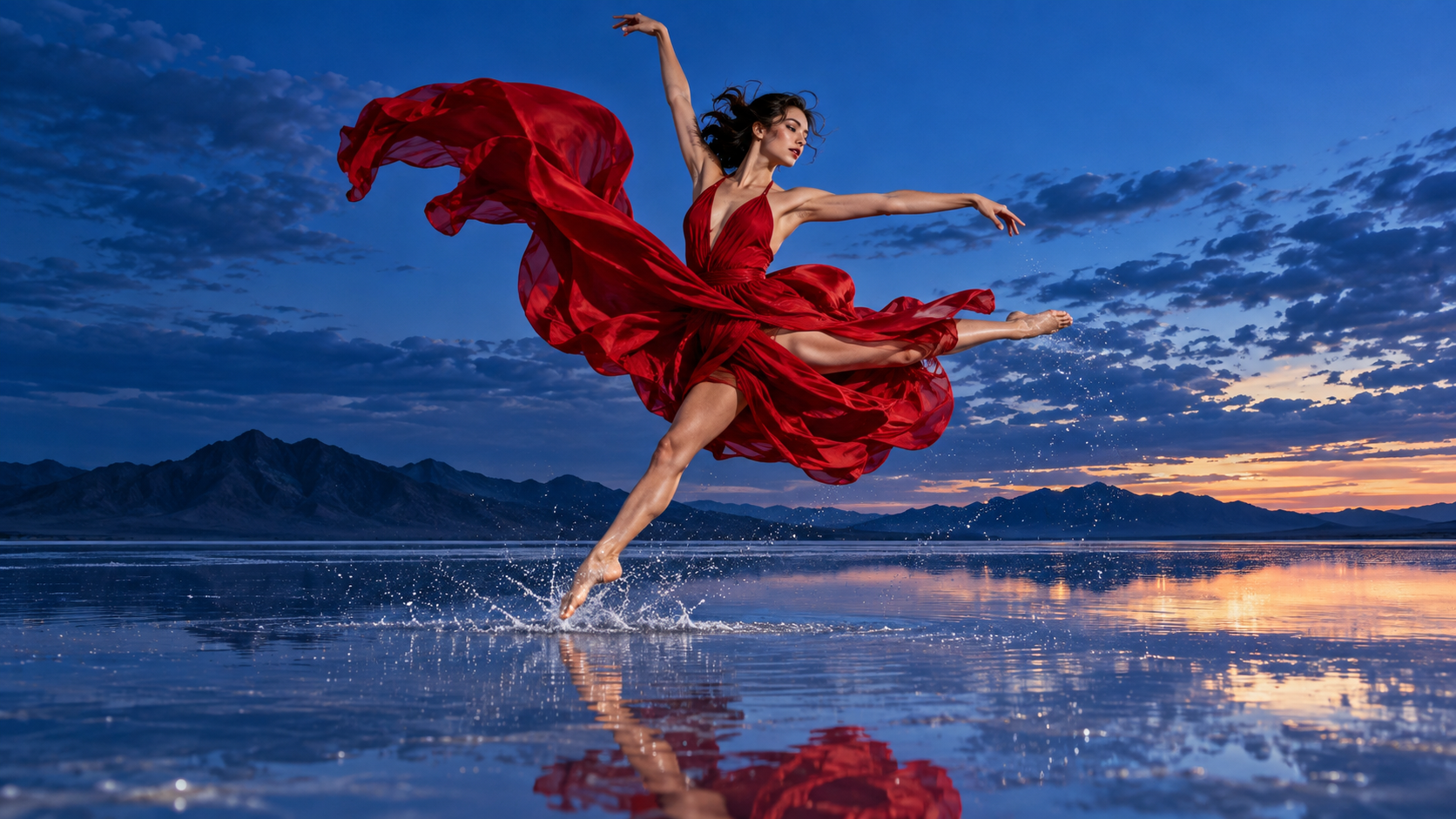
A batch-four candidate: complex fabric, limbs, spray, reflection, and camera timing create enough uncertainty to justify more alternatives.
Do not use batch 4 to compensate for an unresolved brief. Four vague results are not a strategy. Lock subject, action, camera, environment, preservation rules, and ending before paying for variety.
Set a Default on Web and Override Per Prompt
Change the web setting
On Midjourney's web Create page, open the Settings control beside the Imagine bar. Under More Options, select Video Batch Size 1, 2, or 4. This becomes the default for future video prompts, so check it when cost suddenly feels different from the previous session. Resolution and speed are nearby but independent choices.
For a source image, switch the prompt mode to video, confirm the starting frame, resolution, motion, speed, and batch size. Midjourney says parameters from the source image generation are removed when the video job begins.
Use --bs for one job
Add the parameter at the end of the video prompt:
The dancer turns toward camera as the red silk moves in a slow wind, locked wide shot, preserve face and dress silhouette
--motion low --bs 2
In Discord, the same syntax selects 1, 2, or 4. A per-prompt parameter is useful when the global default is four but one diagnostic test should return only one result. Record the exact prompt and settings with the selected clip; without that record, you cannot reproduce a successful choice later.
For a broader input-to-output workflow, the online image-to-video prompt guide explains how to lock a source frame before adding motion.
Pair Batch Size with Motion, Resolution, and Extensions
Test SD before committing to HD
If you are still deciding whether the motion works, start with SD and batch 1 or 2. Move to HD when the framing, identity, movement, and ending are worth keeping. Current Midjourney documentation says all plan tiers can generate video in Fast Mode; HD is available on Standard, Pro, and Mega plans in Fast Mode, while SD Relax video is limited to Pro and Mega.
Review the moving file, not the poster: subject stability, readable motion, crop, and ending must pass before higher resolution adds value.
Resolution cannot rescue broken anatomy or wrong camera direction. It only gives the failed movement clip more pixels. Use low-cost tests to settle the motion contract, then spend on the chosen direction. Delivery cadence is separate too; see the AI video frame-rate guide before final export.
Budget extensions as new generations
Initial Midjourney videos start at five seconds. Each extension adds four seconds, with up to four extensions for a maximum of 21 seconds. Because each extension costs the same GPU time as an initial video generation, a careless batch-and-extend plan can grow quickly.
Test one five-second SD clip, generate a second alternative only if needed, then extend the selected take. Do not extend every result to discover which opening worked. For several planned beats, the multi-keyframe workflow shows why checkpoints matter.
Review a Batch Before Generating Again
Watch all variations at normal speed, then inspect opening, peak action, and ending. Use the same acceptance grid for every output:
| Review area | Pass condition | Failure that justifies a rerun |
|---|---|---|
| Identity | Face, body, product, and wardrobe remain recognizable | Subject changes or geometry breaks |
| Motion | Action reads continuously and at the intended intensity | Frozen start, rubber motion, or sudden acceleration |
| Camera | Direction, speed, horizon, and crop follow the brief | Unrequested zoom, reversal, or cut |
| Environment | Light, reflection, and background remain coherent | Warped space or inconsistent weather |
| Ending | Last frame is usable for extension or edit | Blur, occlusion, or poor composition |
A different motion case: check reflections, silhouette, orbit speed, and the last frame across the entire take.
Select one winner and write why it passed. If all four fail differently, the shot may be too ambitious; simplify motion or return to the source frame. If all fail the same way, the brief or reference is the likely problem. If two pass, choose the one that reduces downstream editing rather than the most dramatic thumbnail.
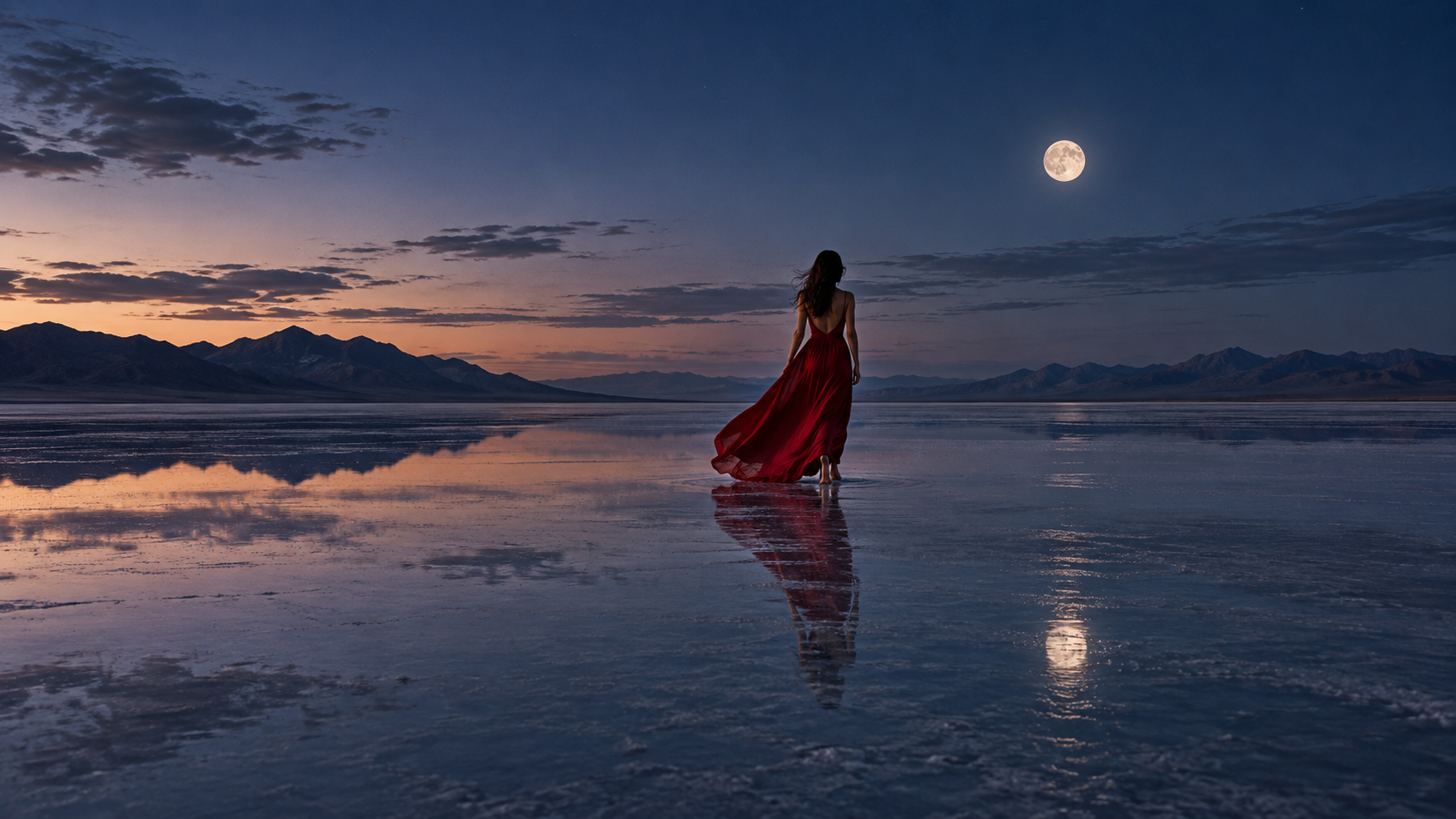
A usable alternative is not always the loudest one. A stable ending can be more valuable for extension, titles, or a clean cut.
Track GPU minutes per approved second, not cost per prompt. A batch of four that yields three usable takes can be efficient; four outputs with only one marginal winner are not. For teams comparing many providers, the AI video aggregator versus direct API guide covers the hidden review and handoff cost.
When Seedance Agent Is the Better Route
Midjourney batch size is useful when you already have one strong first frame and want several motion interpretations. Seedance Agent is better when the decision begins earlier and extends further: defining a campaign goal, planning multiple shots, mapping references to each shot, generating with supported models, reviewing actual outputs, and rerunning only the failed part.
In a multi-shot project, Seedance Agent can establish the shot list and acceptance criteria, then allocate more attempts only to risky or high-value moments. Batch size becomes a production decision rather than a habit.
Compare the routes on one deliverable: count generations, usable clips, review time, and cost per approved second. A direct tool suits a single experiment; a managed agent can reduce continuity rework. The local versus cloud AI video guide helps evaluate the operational tradeoff.
Conclusion
Choose Midjourney video batch size by uncertainty: --bs 1 for a technical check, --bs 2 for a controlled choice, and --bs 4 for motion that genuinely benefits from exploration. Keep batch count separate from motion, resolution, duration, and frame rate; test cheaply, review every full clip with the same rubric, extend only the selected result, and measure cost per approved second—then, when the work needs a shot plan, connected references, multi-model generation, and selective reruns rather than isolated alternatives, start the production with Seedance Agent →
Start generating for free - no credit card required
Create videos with free signup credits, then scale with affordable plans whenever you need more generations.
Free credits on signup. Plans from $28/month.
Related Articles
More posts in the same locale you may want to read next.

Seedance App Preview Video Generator 2026: Create App Store and Product Launch Clips
Use Seedance to turn app screenshots, feature copy, and launch goals into App Store previews, Google Play promo videos, and product launch clips.
Read article
How to Make a Talking AI Avatar You Can Reuse
Make a talking AI avatar with Seedance: design one consistent character, give it a voice, and make it speak in a talking photo or a full Seedance 2.5 scene, episode after episode.
Read article
Best AI Video-to-Video Models in 2026
The best AI video-to-video models in 2026 for editing footage you already shot: Higgsfield Genjutsu, Seedance 2.x, Runway Aleph, Luma Modify and Kling Omni compared.
Read article