
How to Extend Video in Seedance 2.5: Make Longer AI Videos Step by Step

AI Overview
Can you extend a video in Seedance 2.5?
Yes. Use the finished clip as a new reference, start from its last frame, and generate the next segment with matching continuity instructions.
What is the maximum video length in Seedance 2.5?
A single generation is typically 5–10 seconds, depending on the model and plan; chaining segments can create a 30-second, 60-second, or longer edit.
How do I make a longer AI video in Seedance 2.5 for free?
Generate short segments with your available free credits, reuse each last frame as the next starting image, and join the approved clips in an editor.
Can Seedance 2.5 create seamless video loops?
Yes. Guide the ending back toward the opening composition, then trim on the closest matching frames and use a short crossfade only if needed.
What "Extending" Actually Means in Seedance 2.5
Extending does not mean pressing an unlimited “make longer” button. It is a controlled chaining workflow: generate a short clip, export its last clean frame, use that frame as the visual anchor for a new image-to-video segment, and describe only what should happen next. The two clips are then joined in sequence.
This distinction matters because every new generation can reinterpret the scene. The last frame carries composition, subject placement, wardrobe, color, and lighting into the next segment, while the prompt carries motion and story intent. A good extension preserves those anchors and introduces one clear change at a time.
Think of each clip as a shot with a handoff point. A locked-off ending is easier to continue than a frame with motion blur, an occluded face, or a camera whip. If the first segment already contains the right story but needs a local correction, use the Seedance 2.5 video editing guide before building another segment.
Seedance 2.5 Video Length Limits — What You Need to Know First
A single Seedance 2.5 output is commonly 5 or 10 seconds, although the exact duration offered can vary by model route, plan, and current generator settings. Treat the duration displayed in your workspace as the source of truth for that generation.
Total project length is different. There is no practical 10-second ceiling once you chain approved clips: three 10-second segments can become a 30-second scene, while six can become roughly one minute. The real constraints are continuity, credits, generation time, and how many transitions remain believable.
Plan the final duration before generating. Divide the story into short beats, give every beat a visible action, and leave a stable handoff at the end. For a 30-second result, a simple six-beat plan often works better than asking each segment to carry several actions.
A real five-second continuous-motion generation: the rider, camera, water, and sand keep moving as one environment flows into the next. Review the complete clip—not only its poster frame—for motion continuity.
How to Extend a Video in Seedance 2.5 — Step by Step
- Finish the first segment. Generate a clean 5–10 second clip with one primary action. Keep the subject visible near the end and avoid a cut, flash, or rapid camera move in the final half-second.
- Choose the handoff frame. Scrub backward from the end and export the sharpest frame that still represents the intended final pose. The literal last frame is not always the best frame.
- Start a new image-to-video generation. Upload the handoff frame in Image to Video. Keep the aspect ratio and output settings identical to the first segment.
- Write the continuation prompt. Restate only identity-critical anchors, then describe the next action, camera movement, lighting, and fixed details. Start with “Continue directly from the reference frame.”
- Generate a short test. Review the first second for a pose jump, face change, lighting shift, or camera reset. Reject a bad opening before judging the rest.
- Repeat with one controlled change. If continuity fails, simplify motion or reinforce one anchor. Once a segment works, export its best ending frame and repeat the same process.
- Join the clips. Place them back-to-back in an editor. Trim duplicate frames first; add a very short dissolve only when a direct cut still reveals a small lighting or motion mismatch.
When several sources must preserve identity, motion, or location, the Reference to Video workflow gives each asset a specific job. Do not add references that do not solve a visible continuity problem.
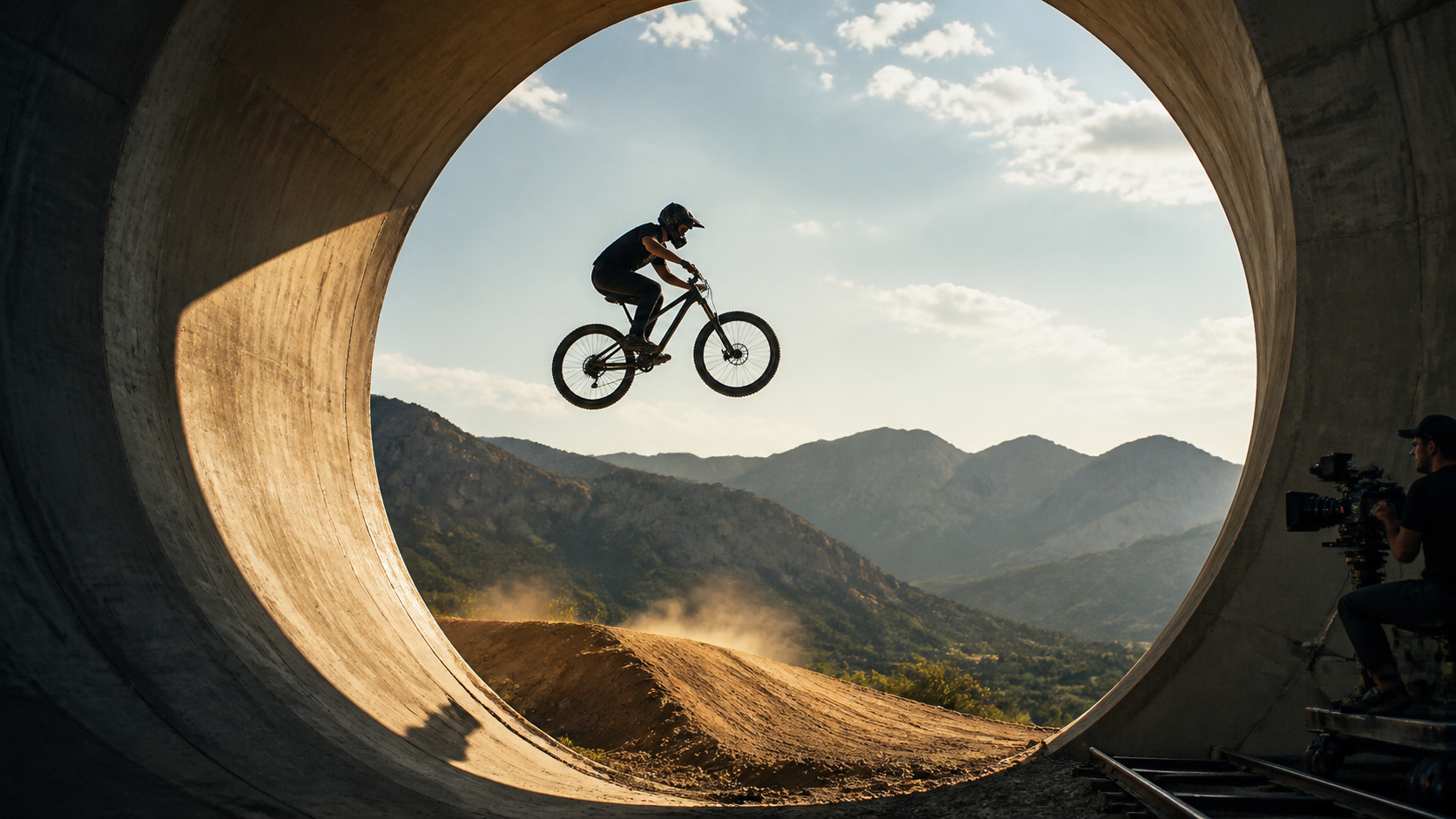
A strong handoff frame keeps subject shape, travel direction, camera height, and the next landing path readable. That gives the following segment a precise visual state to continue.
How to Make Longer AI Videos for Free
Free credits are best used for short proof segments, not ambitious one-minute generations. Draft the whole chain on paper, test the hardest transition first, and generate at the shortest available duration. If the handoff works, reuse the prompt structure for the remaining beats.
Save credits by keeping the aspect ratio, reference frame, and continuity anchors fixed. Change only one variable per retry. A completely rewritten prompt makes it difficult to learn why the subject, lighting, or camera drifted.
Use still frames for planning before spending a video generation. A three-panel storyboard can define the opening, transition, and ending of a segment. Generate only after every panel has one action and a clear visual anchor. Free allowance varies, so always check the live credit estimate before submitting.
Prompt Tips for Seamless Video Extension
A continuation prompt should separate what must stay fixed from what must move. Use this compact structure:
Continue directly from the reference frame. Preserve the same subject, face, wardrobe, environment, time of day, color grade, lens, and camera height. The subject [next action] while the camera [single camera move]. End with [stable handoff pose]. No cut, new objects, identity change, lighting shift, text, or watermark.
For timed action, assign one beat to each contiguous range: 0–3s: the cyclist rises toward the jump apex; 3–6s: the camera tracks right as the bike crosses the spillway opening; 6–8s: both wheels meet the landing and the camera settles. The Seedance 2.5 timestamp prompt guide has more copy-ready timing patterns.
Repeat only high-value anchors. “Same cyclist” is weak; “same rider, matte black helmet, charcoal jersey, black trail bike” is reviewable. Keep camera language measurable: use “track right at waist height” instead of “dynamic cinematic movement.” End every segment with a pose that the next segment can inherit.
Creating Seamless Loops with Seedance 2.5
A loop is an extension whose final frame returns to the opening composition. Start with a scene that can repeat naturally: a product orbit, fabric moving in a breeze, a character taking a breath, steam rising, or light traveling across a surface.
Save the opening frame and use it as the visual target for the final segment. Prompt the subject and camera to return gradually, not snap back. For example: “Keep the camera locked as the wave of mirrored leaves travels clockwise around the torus; finish when the white-gold highlight returns to its opening position above the dancer.”
Generate enough overlap to edit. In the timeline, align the closest matching frames, remove duplicates, and test the loop three times. If there is a small exposure change, use a 4–8 frame dissolve; if geometry or identity changes, regenerate instead of hiding the error with a long transition.
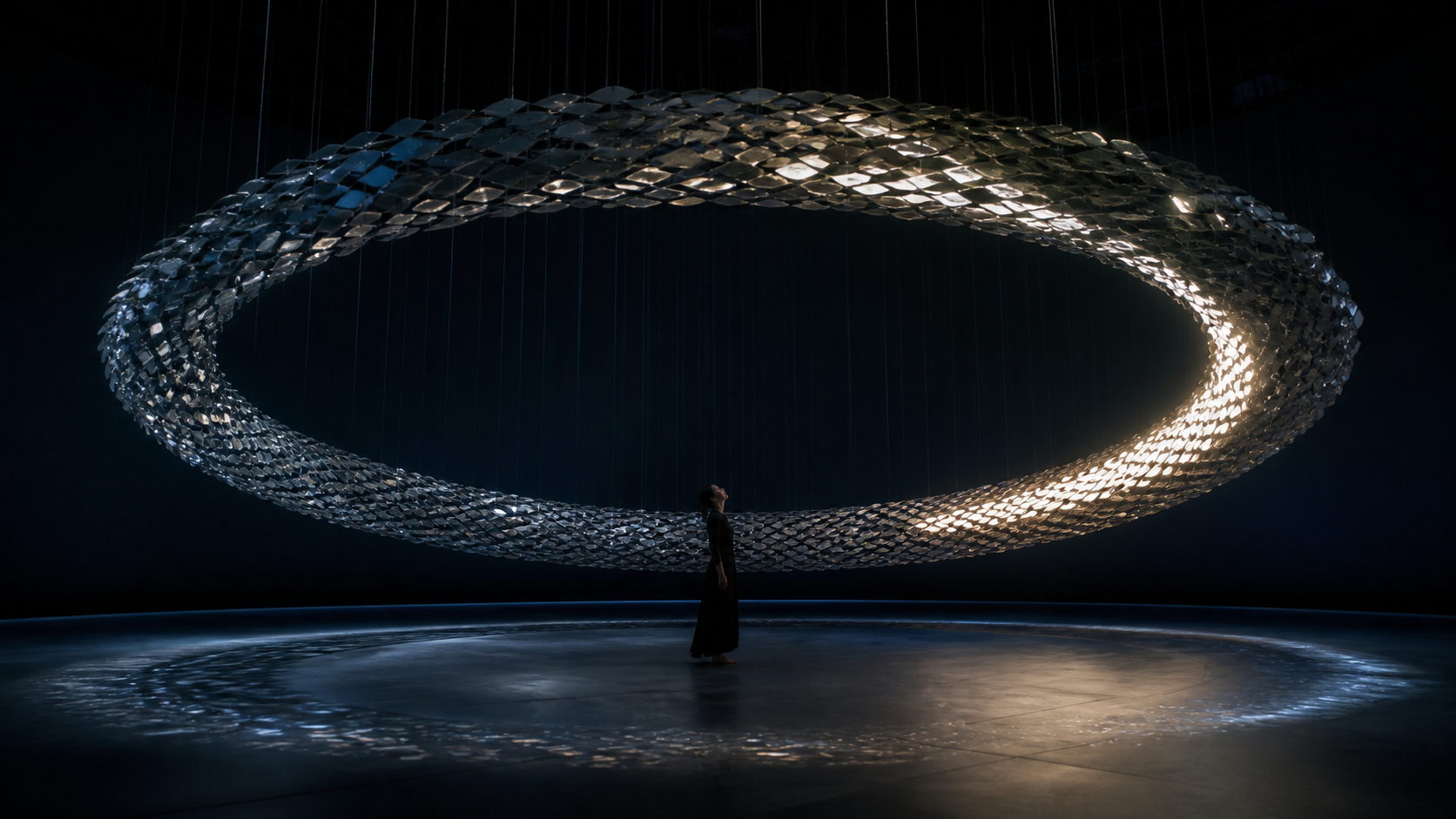
Repetition can live inside the subject, not only the camera. A traveling highlight and wave of moving leaves can complete the circle while the composition stays anchored.
Common Mistakes When Extending Video — and How to Fix Them
| Problem | Why it happens | Fix |
|---|---|---|
| The first frame jumps | The source frame contains blur, occlusion, or an unstable pose | Export an earlier sharp frame and begin with slower motion |
| The face or product changes | Identity anchors are vague or the subject turns too far | Repeat exact visual anchors and reduce rotation or occlusion |
| Lighting flickers | The new prompt introduces a different time, style, or light direction | Lock time of day, key-light direction, contrast, and color grade |
| The camera resets | The continuation prompt does not name the previous direction | State camera height, lens feel, direction, speed, and next stopping point |
| Motion pauses at every join | Each segment ends and begins from a fully static pose | Cut during controlled motion or preserve a small movement across the handoff |
| The story feels repetitive | Segments continue the same action without a new beat | Give each clip one new action, reaction, reveal, or camera purpose |
Judge the transition at normal speed and frame by frame. Fix the earliest visible mismatch first; later problems often disappear once the opening pose and camera direction are correct. For a fuller explanation of reference assignment and consistency checks, read the Seedance 2.5 reference guide.
Conclusion
The reliable answer to how to extend video in Seedance 2.5 is simple: plan short beats, finish on a clean handoff frame, continue from that frame with a tightly anchored prompt, and change one variable per retry. Chaining makes 30-second, 60-second, and longer edits possible, but continuity—not raw duration—is the real quality test.
Start with two short segments and one obvious action. Once the join holds up at normal speed, repeat the same workflow for the rest of the story. Try Seedance and build your first extended video →
Ready to try it yourself?
Put the steps from this guide into practice with Seedance and turn prompts or images into polished videos in minutes.
Free credits on signup. Plans from $28/month.
Related Articles
More posts in the same locale you may want to read next.

Seedance App Preview Video Generator 2026: Create App Store and Product Launch Clips
Use Seedance to turn app screenshots, feature copy, and launch goals into App Store previews, Google Play promo videos, and product launch clips.
Read article
Gemini AI Video Prompt Examples: Copy-Ready Veo Scenes and a Better Prompt Formula
Copy Gemini AI video prompt examples for cinematic motion, product ads, dialogue, and vertical clips, then adapt them with a practical Veo prompt formula.
Read article
How to Keep Product Shape Consistent in AI Video Ads
Lock product geometry, packaging, labels, references, camera angles, and approval checks so AI video ads preserve the real SKU across every shot.
Read article