
Seedance 2.5 Reference Guide: Models, Prompts, and Features Explained

AI Overview
What is Seedance 2.5?
Seedance 2.5 is an AI video generation and editing model for 4–30 second clips. It supports text, image, video, and audio references, timed direction, native sound, and instruction-based edits.
Is Seedance 2.5 free to use?
New users can start with limited welcome credits and no credit card. Paid plans add monthly credits; available duration and resolution still depend on the selected model route and settings.
What models are available in Seedance 2.5?
The main choices are text-to-video, image-to-video, and reference-to-video, plus editing and extension workflows. Choose by the input you need to preserve, not by treating every mode as a separate quality tier.
How do I write prompts for Seedance 2.5?
Write one production instruction: subject, action, camera, lighting, audio, and constraints. For image-to-video, describe the motion and camera instead of repeating details already visible in the image.
What's New in Seedance 2.5 — Key Features Overview
Seedance 2.5 is designed for complete creative tasks rather than a single attractive shot. Current workflows support 4–30 second generation, contiguous integer-second timing, native audio direction, and mixed reference sets of up to 30 images, 10 videos, and 10 audio files, with 50 materials maximum per request.
The practical improvements are longer continuity, clearer action order, stronger reference assignment, and local editing or extension. That can reduce stitching when an ad needs a hook, demonstration, and payoff in one clip. It can also preserve an approved source while changing one time range instead of regenerating everything.
This is a continuous Seedance generation, not a slideshow: the conservator lifts the crimson silk as the glass hummingbird takes off and hovers. Review fabric physics, wing motion, reflections, object identity, and camera continuity across all five seconds.
Seedance 2.5 Models Explained — Which One to Use
Seedance 2.5 uses one core model across several input modes. The right “model” choice is therefore the workflow that gives the model the correct visual anchors.
Text-to-Video
Choose Text to Video when you are starting from an idea and want broad visual freedom. Describe the subject, environment, action, camera, look, sound, and aspect ratio. It is best for concept shots, story beats, and visual exploration.
Image-to-Video
Choose Image to Video when a product photo, portrait, illustration, or composition must define the opening frame. Prompt for what changes: motion, camera path, atmosphere, and audio. Avoid redescribing the image unless a detail must stay fixed.
Reference-to-Video and Editing
Choose Reference to Video when several assets have different jobs: one image for identity, one video for motion, and one audio file for voice or rhythm. Use editing or extension when an existing clip is already close and the prompt can name the time range, requested delta, and everything that must remain unchanged.
How to Access Seedance 2.5 — Free Plan vs Paid
Seedance.tv lets new users begin with welcome credits. Treat this as a short trial for testing one simple prompt and short duration; it is not an unlimited free production plan.
The current pricing page lists Mini at $39/month, Standard at $80/month, and Plus at $160/month, with lower effective monthly prices on annual billing. These plans provide 400, 1,600, and 4,800 monthly credits respectively. The published plan cards currently list up to 15 seconds per video and 720p output, while the Seedance 2.5 workflow itself can expose 4–30 second generation at 480p or 720p. Check the generator before committing a deliverable because model availability and settings can change.
Start with the shortest version that can prove the idea. Estimate cost per accepted clip—not cost per generation—because retries, duration, and resolution affect the real production budget.
Seedance 2.5 Prompt Guide — Syntax, Structure, and Templates
Core Prompt Structure
Use this order:
Subject + Scene + Action + Camera + Lighting/Style + Audio + Constraints
Put reference mapping before the story: Image 1 is the exact product; Video 1 provides camera motion only; Audio 1 provides rhythm only. Then describe one primary action per beat. Keep fixed details—face, wardrobe, product geometry, label, background, and duration—in a final constraint sentence.
For timed work, use contiguous ranges such as 0–3s, 3–6s, and 6–9s. Timestamps guide sequence and pacing; they are not frame-accurate editing commands. The Seedance 2.5 timestamp prompt guide has additional copy-ready timelines.
Copy-Ready Templates
Text to video: A ceramic artist shapes a bowl in a sunlit studio. 0–4s: medium shot, slow dolly in. 4–8s: close-up of hands as the bowl takes shape. Warm natural light, quiet room tone, one continuous scene, stable anatomy, no text or watermark.
Image to video: Image 1 is the exact bottle. Preserve its shape, color, logo placement, and label. Slow 30-degree clockwise orbit while condensation forms; soft rim light sweeps across the glass. Static background, no hands, deformation, new objects, or added text.
Targeted edit: Edit Video 1 from 4–7 seconds. Remove the person in the far background. Keep the main subject, action, framing, camera movement, lighting, audio, duration, and every other detail unchanged.

One subject, one camera path, and explicit fixed details are easier to evaluate than a crowded prompt.
Camera Control and Motion Parameters Reference
Camera Vocabulary
| Intent | Prompt language | Best use |
|---|---|---|
| Move closer | slow dolly in, push toward, macro push-in |
Faces, product details, reveals |
| Move away | dolly out, pull back to wide |
Environment and scale reveals |
| Move around | 30-degree orbit right, three-quarter arc |
Products, characters, 3D form |
| Move sideways | track left, pan right |
Walking subjects and wide scenes |
| Move vertically | tilt up, crane down |
Architecture and height reveals |
| Hold position | static locked-off camera |
Talking shots and precise motion |
| Add realism | subtle handheld drift |
Documentary and creator footage |
Motion Parameters
Describe direction, speed, range, timing, and continuity. “The bottle rotates” is open-ended; “the bottle rotates 30 degrees clockwise over four seconds, then holds” is reviewable. Use one camera move and one main subject action per beat. If physics or anatomy fails, reduce speed and motion range before adding more negative prompts.
Image-to-Video and Reference-to-Video Workflow
- Choose the anchor. Use a clean opening image for exact composition or several references for identity, motion, location, and sound.
- Assign every reference. State what each file contributes and what it must not copy.
- Write the visible change. Direct motion and camera; do not spend the prompt repeating the source.
- Generate a short proof. Review identity, hands, product geometry, beat order, camera stability, speech, and the final frame.
- Revise one variable. Strengthen the failed instruction while keeping accepted details fixed. For local corrections and extension patterns, use the Seedance 2.5 video editing guide.
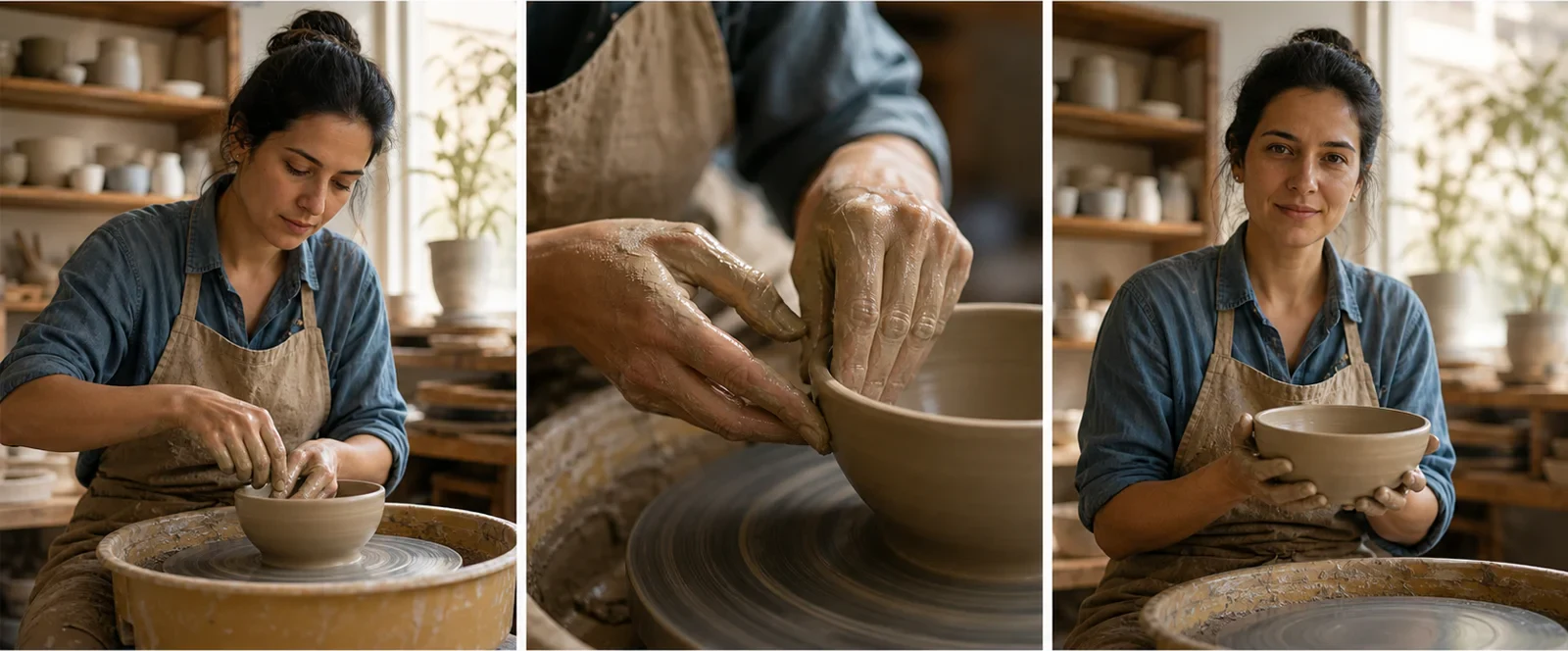
A three-state review catches missing beats and visual drift that a thumbnail can hide.
Common Issues and How to Fix Them
The Result Does Not Match the Prompt
Move the most important subject and reference mapping to the first sentence. Remove secondary actions, styles, and camera moves until each beat has one observable goal.
The Subject or Product Drifts
Use a cleaner source, add one or two targeted references, and repeat only the identity-critical details. Reduce fast turns, occlusion, and extreme camera movement that expose unseen geometry.
Timing or Camera Direction Is Ignored
Use fewer contiguous segments and give each action more time. Replace conflicting instructions such as “locked camera” plus “fast orbit” with one camera decision.
Audio or Lip Sync Feels Wrong
Name the speaker, language, exact dialogue, ambience, and unwanted sound. Keep the shot stable during speech and finish exact subtitles, logos, and frame-accurate cuts in a traditional editor.
Detail Looks Soft or Credits Run Out
Use a clean high-resolution source, simpler framing, and a short draft. Current Seedance.tv Seedance 2.5 routes may output 480p or 720p; do not assume every “4K” model description is an available export setting. Track retries and credits per accepted result.
Conclusion
This Seedance 2.5 reference guide comes down to one rule: give the model the right anchor, then direct one visible change at a time. Choose the input mode before writing, map every reference, specify camera and motion in measurable language, test a short version, and only then increase duration or complexity.
Ready to test the workflow? Create your first Seedance video →
Ready to try it yourself?
Put the steps from this guide into practice with Seedance and turn prompts or images into polished videos in minutes.
Free credits on signup. Plans from $28/month.
Related Articles
More posts in the same locale you may want to read next.

Seedance App Preview Video Generator 2026: Create App Store and Product Launch Clips
Use Seedance to turn app screenshots, feature copy, and launch goals into App Store previews, Google Play promo videos, and product launch clips.
Read article
Gemini AI Video Prompt Examples: Copy-Ready Veo Scenes and a Better Prompt Formula
Copy Gemini AI video prompt examples for cinematic motion, product ads, dialogue, and vertical clips, then adapt them with a practical Veo prompt formula.
Read article
How to Keep Product Shape Consistent in AI Video Ads
Lock product geometry, packaging, labels, references, camera angles, and approval checks so AI video ads preserve the real SKU across every shot.
Read article