
Seedance 2.5 Timestamp Prompts: Control Every Scene, Second by Second
AI Overview
What are timestamp prompts in Seedance 2.5?
Timestamp prompts assign an action, camera move, or transition to a specific moment in a clip. Markers such as [0s], [2s], and [4s] turn one broad idea into an ordered timeline.
Why do timestamp prompts give better results than a single prompt?
A single prompt leaves timing and scene order largely to the model. Timestamp prompts divide the clip into directed beats, so important actions and camera changes are less likely to compete.
Do timestamp prompts work with both text-to-video and image-to-video in Seedance 2.5?
Yes. Text-to-video can build every beat from the description, while image-to-video uses the uploaded frame as the visual anchor and the timeline to direct what happens next.
How long should each timestamp segment be in Seedance 2.5?
Use 2–3 timestamps for a 5-second clip and 3–5 for an 8–10 second clip. Give each segment one clear action or camera instruction.
What Are Timestamp Prompts and How They Work in Seedance 2.5
A timestamp prompt is a compact directing timeline. Instead of asking for “a cinematic product reveal,” you tell the model what opens the clip, when the camera changes, and what the subject does before the end:
[0s] Product in extreme close-up | [3s] Camera pulls back to a full hero shot | [6s] Product turns toward the key light
Seedance 2.5 understands integer-second timing as ordered guidance. The model uses the surrounding description to connect those beats into motion, so the strongest prompt still defines a stable subject, setting, style, and camera language before assigning changes to seconds.
Think of the difference as description versus direction. A normal prompt describes the finished idea. A timestamp prompt stages the idea across time. It is especially useful when a clip needs a hook, reveal, reaction, or transition in a deliberate order.
Timestamps are not a frame-accurate editing timeline. They strongly guide when a beat should happen, but motion may begin slightly early or late. Use them to control sequence and pacing, then review the whole clip instead of judging one still frame.
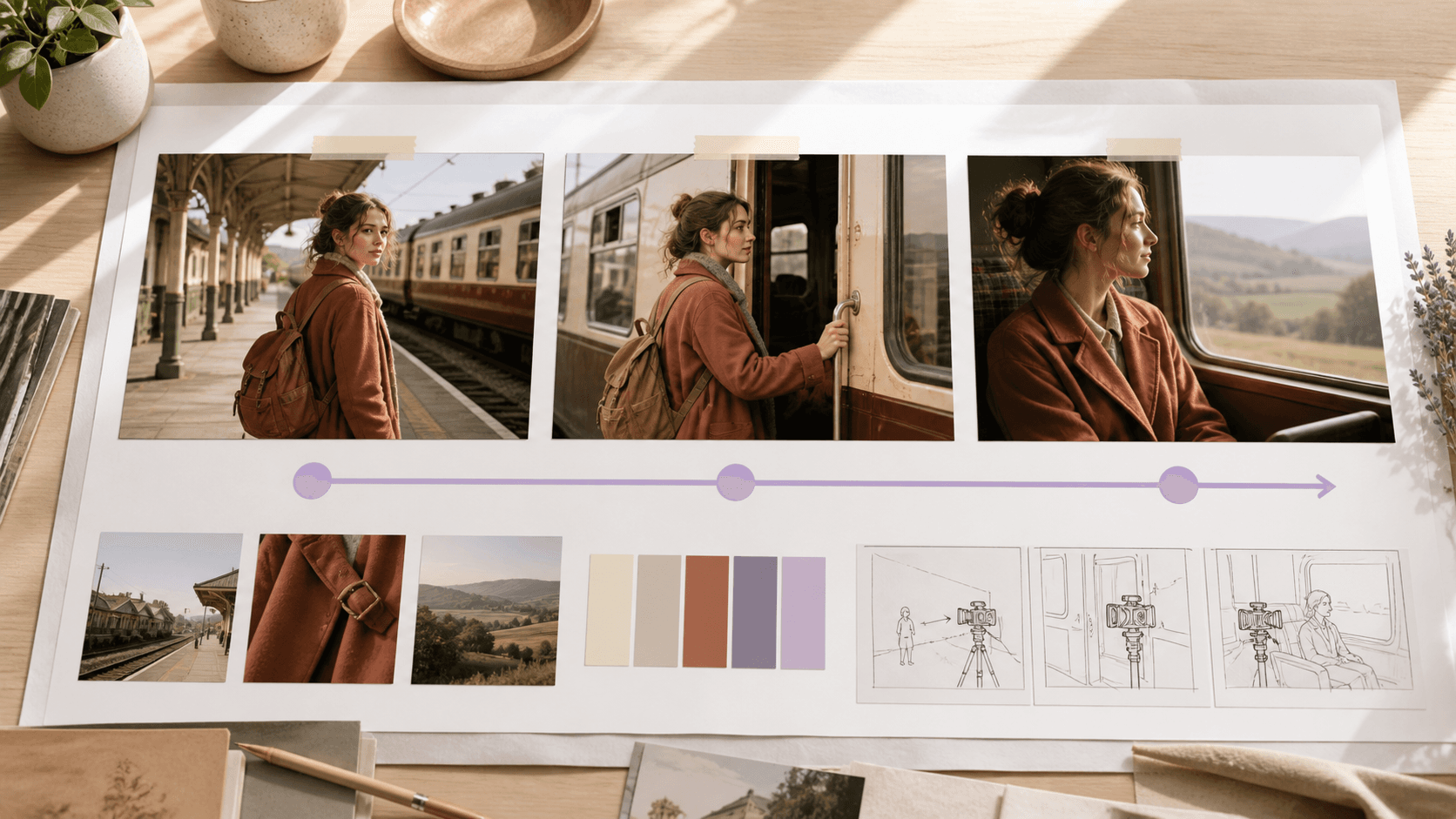
A generated scene shows how planned beats can guide action and camera movement without building a manual timeline first.
Timestamp Prompt Syntax and Formatting Rules
Use bracketed integer-second markers—[0s], [2s], [4s]—or contiguous ranges such as 0–3s and 3–6s. Keep the markers in chronological order, begin at zero, and avoid unexplained gaps. For a simple generation, points are easy to scan; for a dense scene or targeted edit, ranges give each beat a clearer time budget.
Build each segment with four parts:
Subject + Action + Camera + Lighting
The subject does not need to be repeated in full every time, but its identity must stay unambiguous. A useful base template is:
Overall scene: [subject, setting, visual style, and fixed details].
[0s] [subject + opening action], [camera], [lighting]
| [2s] [next single action], [camera], [lighting]
| [4s] [payoff or final pose], [camera], [lighting]
Global constraints: [continuity, text, audio, and unwanted changes].
Leave roughly 2–3 seconds for a visible action. Do not timestamp every second unless the action is extremely simple. A segment that asks a person to run, turn, speak, change clothes, and enter a new location has more instructions than the time can support.
The four most common formatting mistakes are crowded markers, contradictory camera moves, an identity change between segments, and a final beat that has no time to settle. Read the prompt once as a timeline: if two directions cannot happen together on a real set, simplify them before generating. Keep global continuity and negative constraints outside the timed beats so they apply to the complete clip.
5 Ready-to-Use Timestamp Prompt Templates
01 — Product Reveal
[0s] Close-up of the product on a white surface, soft studio light | [2s] Camera slowly pulls back, revealing the full product | [4s] Product rotates 45 degrees, warm backlight, label remains readable, no deformation or added text
Use a clean product image as the anchor in Image to Video when shape, material, color, or packaging must remain recognizable.

A fixed product anchor and one simple orbit make the timing easier to judge.
02 — Cinematic Scene Transition
[0s] Wide shot of an empty street at dawn, fog rolling in | [3s] A single figure walks into frame from the left | [6s] Camera pushes into a medium close-up as the figure pauses, gradual transition, consistent blue-hour light
03 — Character Emotion Arc
[0s] Portrait, neutral expression, soft natural light | [2s] A subtle smile begins and the eyes lift | [4s] Full warm smile, slight head tilt, golden-hour light, same face and framing throughout
04 — Action Sequence
[0s] Athlete in starting position, low angle | [2s] Explosive start, controlled motion blur on the legs | [5s] Mid-sprint, camera tracks smoothly from the side, anatomy and wardrobe remain stable
05 — Environment Reveal
[0s] Extreme close-up of a water surface with small ripples | [3s] Camera rises above the surface, revealing the full lake | [6s] Wide aerial pullback reveals mountains in the background, continuous morning light
Copy a template, then replace its subject, scene, and visual anchors before adding complexity. If camera vocabulary is the main challenge, the camera movement prompt guide provides practical push, orbit, track, crane, and handheld patterns.
How to Write Timestamp Prompts for Different Use Cases
Social media short video — hook → turn → payoff. Put the clearest visual interruption at zero, reveal new information around two seconds, and reserve the final beat for a clean payoff or later CTA. Formula: [0s] hook | [2s] transformation or proof | [4s] final result with clean text space. Start in Text to Video when the visual identity is still open.
Product advertisement — detail → use → brand finish. Begin with a macro product lock, spend the middle beat on one use action, and finish with a stable hero frame. Formula: [0s] exact product close-up | [3s] one use action | [6s] hero shot, logo area unobstructed. The Product Ads workflow is useful when a real product image must remain the center of the clip.
Narrative short — establish → introduce → advance. Give each beat a story job rather than a new visual style. Formula: [0s] establish place and tension | [3s] character enters or discovers something | [6s] reaction or decision. Keep wardrobe, props, light direction, and screen position stable across the transition.
Education or explainer — context → demonstration → summary. Show the complete setup first, then one correct action, then the finished state. Formula: [0s] title-safe overview | [3s] close-up demonstration | [7s] completed result and clean hold. Add exact labels in post-production when spelling or brand typography must be deterministic.
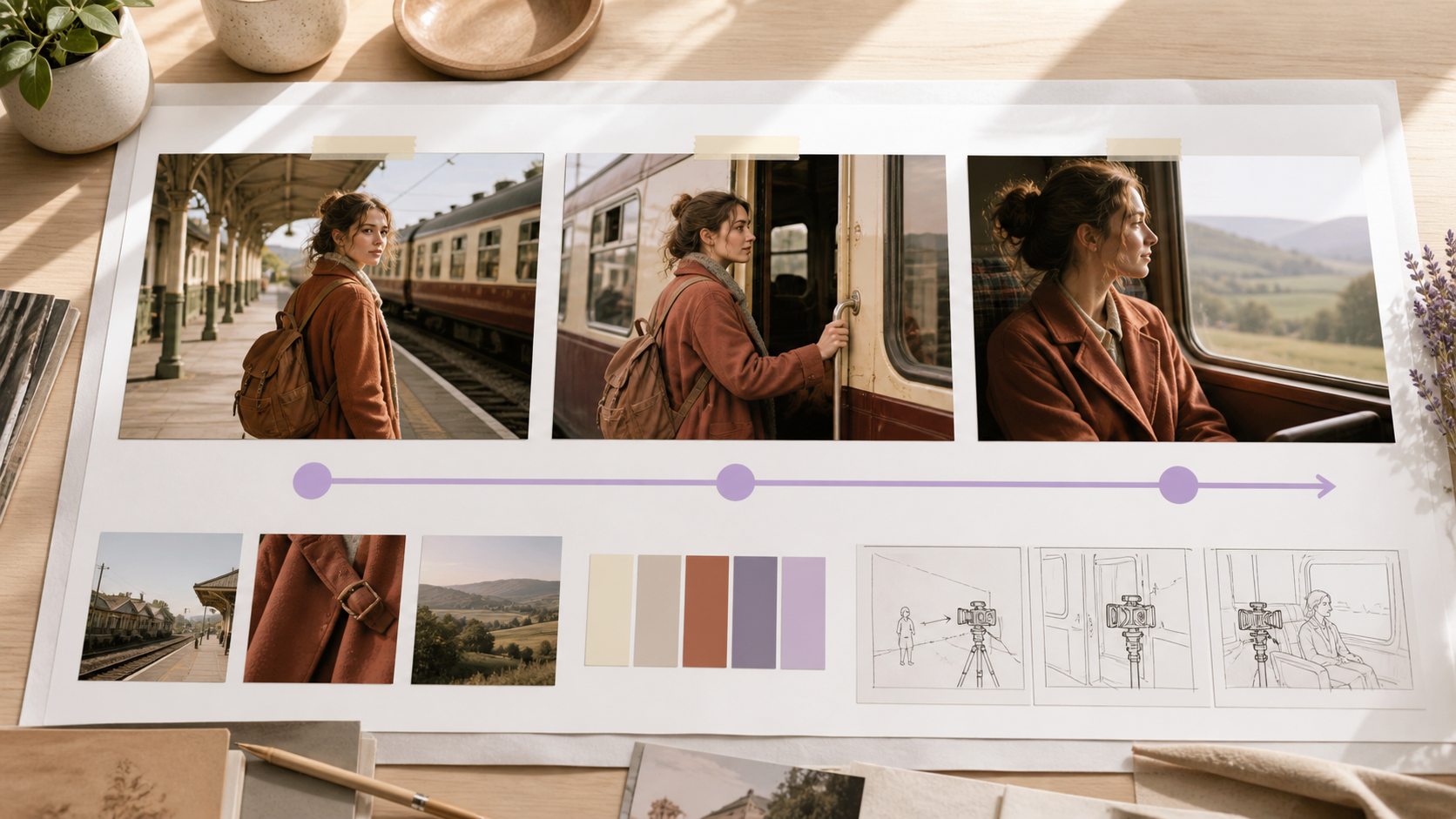
Checking three planned states makes missing beats and subject drift easier to spot.
Advanced Timestamp Techniques in Seedance 2.5
Time the camera separately from the subject. Write the subject action first, then attach one camera path: [0s] subject holds still, camera pushes in | [3s] subject turns, camera begins a slow clockwise orbit. Avoid two simultaneous moves unless their relationship is essential.
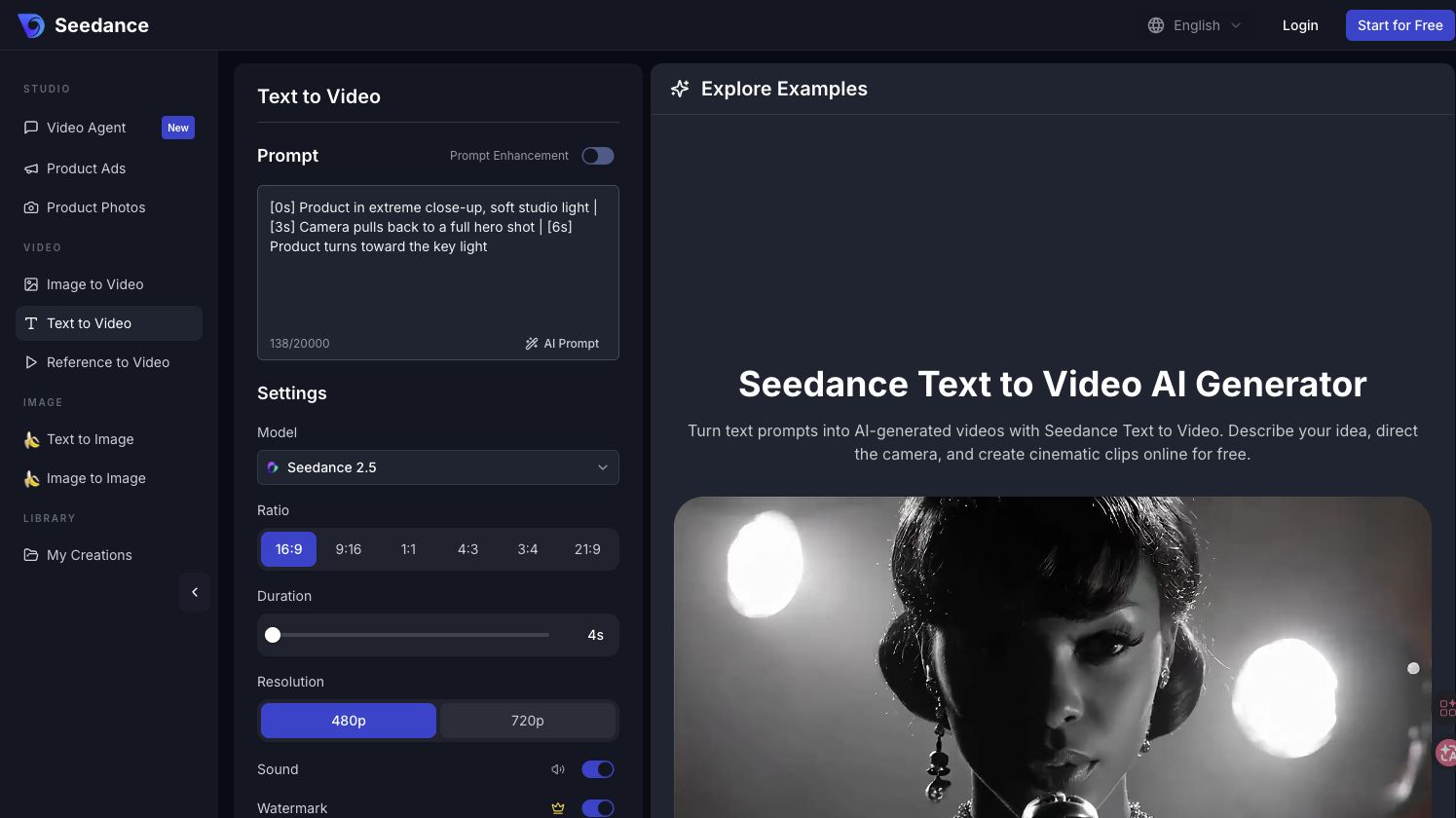
Seedance 2.5 selected in the Text to Video workspace with a three-beat timestamp prompt ready to test.
Use lighting as a transition channel. A gradual daylight-to-dusk shift can connect beats without changing the location: [0s] cool morning light | [4s] warm sunlight lowers across the wall | [8s] blue-hour ambience with practical lights on. Add “gradually” so the model bridges rather than cuts.
Stage multiple subjects with explicit handoffs. Use stable labels and screen position: [0s] Subject A speaks at frame left | [4s] slow cut to Subject B at frame right, Subject A remains silent. If references are uploaded, map each subject before the timeline so identities do not merge.
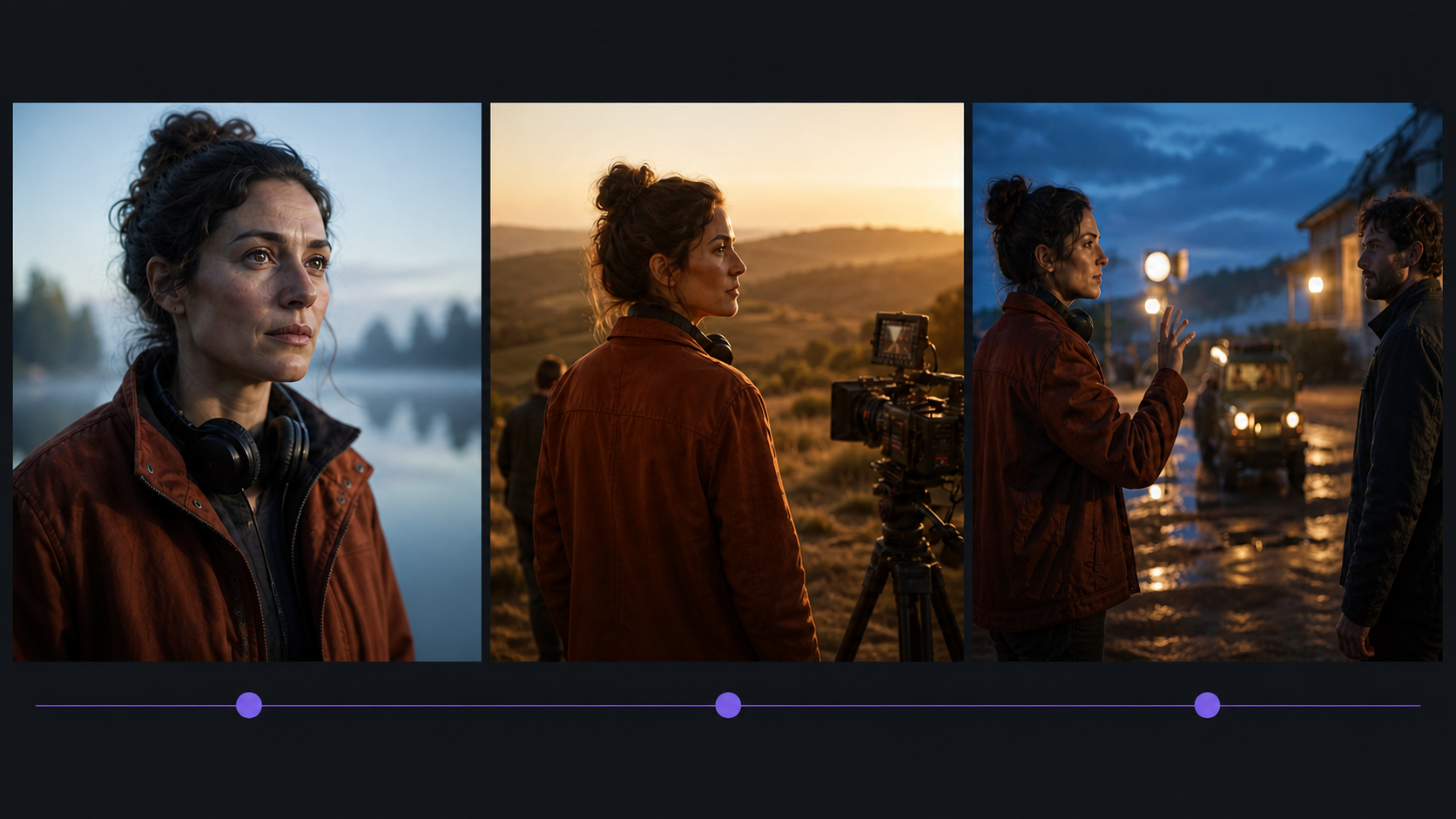
A visual timeline makes camera progression, lighting changes, and the final subject handoff easier to review before generation.
Combine timestamps with image-to-video anchors. Let the source image define the person, product, composition, or opening frame. At [0s], describe only the first motion; later markers should evolve from that frame instead of redesigning it. The Seedance 2.5 video editing guide covers mixed references, extensions, and targeted changes.
The useful limit is reached when each segment contains more than one primary action, camera instruction, or scene change. If the prompt reads like a complete shot list squeezed into five seconds, lengthen the clip or split it into separate generations.
Troubleshooting — When Timestamp Prompts Don't Work
An action is missing. The segment probably contains too much. Remove secondary gestures, dialogue, or camera changes and keep one observable action.
The model ignores a timestamp. Reduce the number of markers and give the beat more time. For a five-second clip, start with [0s], [2s], and [4s] rather than five one-second commands.
The subject changes between beats. Repeat the essential identity anchors before the timeline—face, wardrobe, product shape, colors, and label text—and make every later beat refer to the same subject.
The transition feels abrupt. Add a bridge such as “gradually,” “in one continuous shot,” “the camera slowly cuts to,” or “the lighting shifts smoothly.” Remove any cut instruction that contradicts the desired continuous move.
Before generating, ask four questions: Does every segment have one main action? Are camera directions compatible? Are subject and scene anchors unchanged? Does the final beat have enough time to land? If all four answers are yes, test one clip and revise only the beat that failed.
Conclusion
Timestamp prompts turn Seedance 2.5 into a more directed creation tool: pair each integer-second marker with one clear instruction, keep the subject consistent, and add only the beats needed to control action, camera, lighting, and transitions. Start with a template, test the short timeline, then expand it for your product reveal, story, social hook, or explainer.
Ready to try it yourself?
Put the steps from this guide into practice with Seedance and turn prompts or images into polished videos in minutes.
Free credits on signup. Plans from $28/month.
Related Articles
More posts in the same locale you may want to read next.

Seedance App Preview Video Generator 2026: Create App Store and Product Launch Clips
Use Seedance to turn app screenshots, feature copy, and launch goals into App Store previews, Google Play promo videos, and product launch clips.
Read article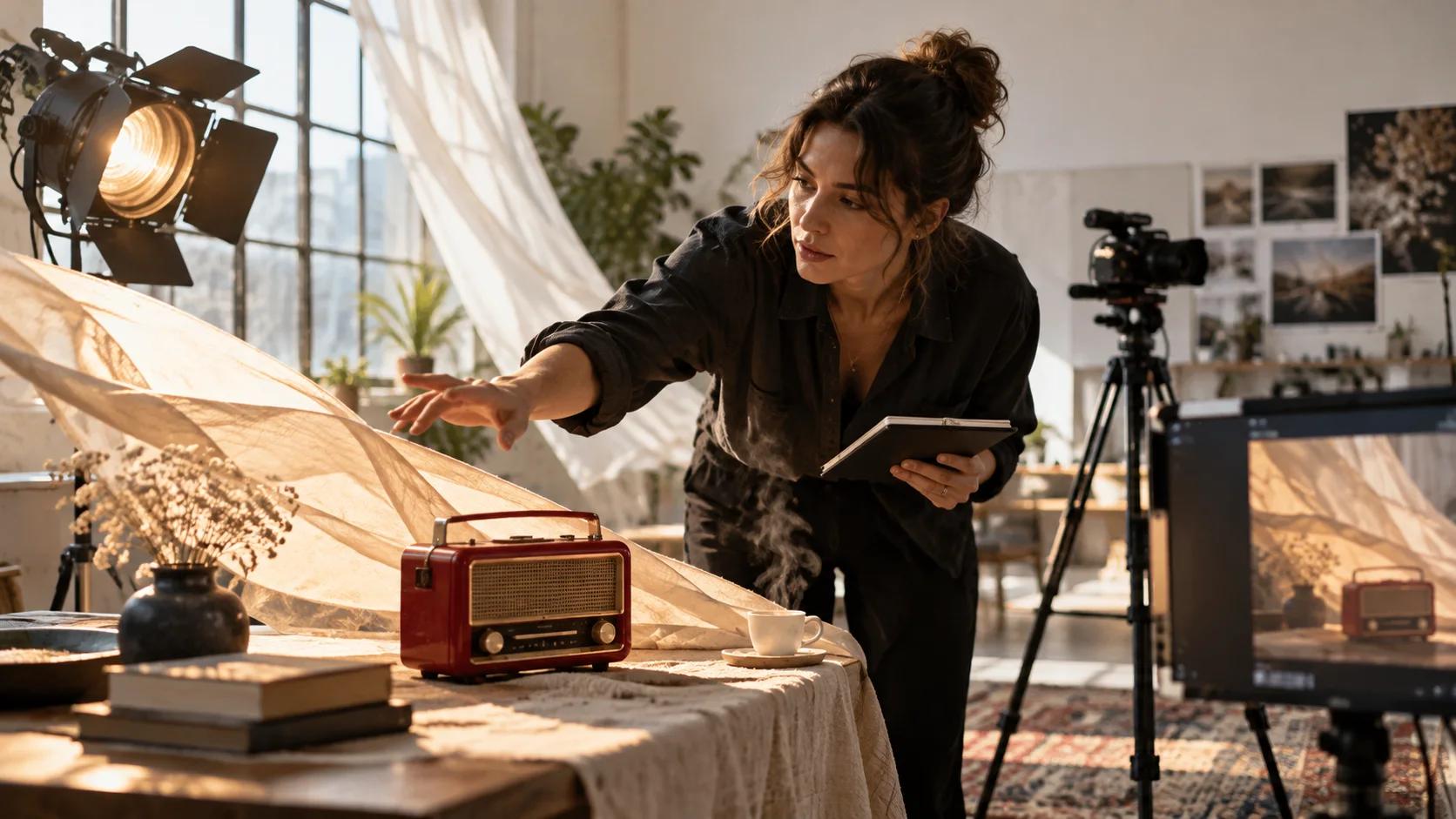
Gemini AI Video Prompt Examples: Copy-Ready Veo Scenes and a Better Prompt Formula
Copy Gemini AI video prompt examples for cinematic motion, product ads, dialogue, and vertical clips, then adapt them with a practical Veo prompt formula.
Read article
How to Keep Product Shape Consistent in AI Video Ads
Lock product geometry, packaging, labels, references, camera angles, and approval checks so AI video ads preserve the real SKU across every shot.
Read article