
Seedance 2.5 Video Editing Guide: Features, Workflow, and Prompt Tips
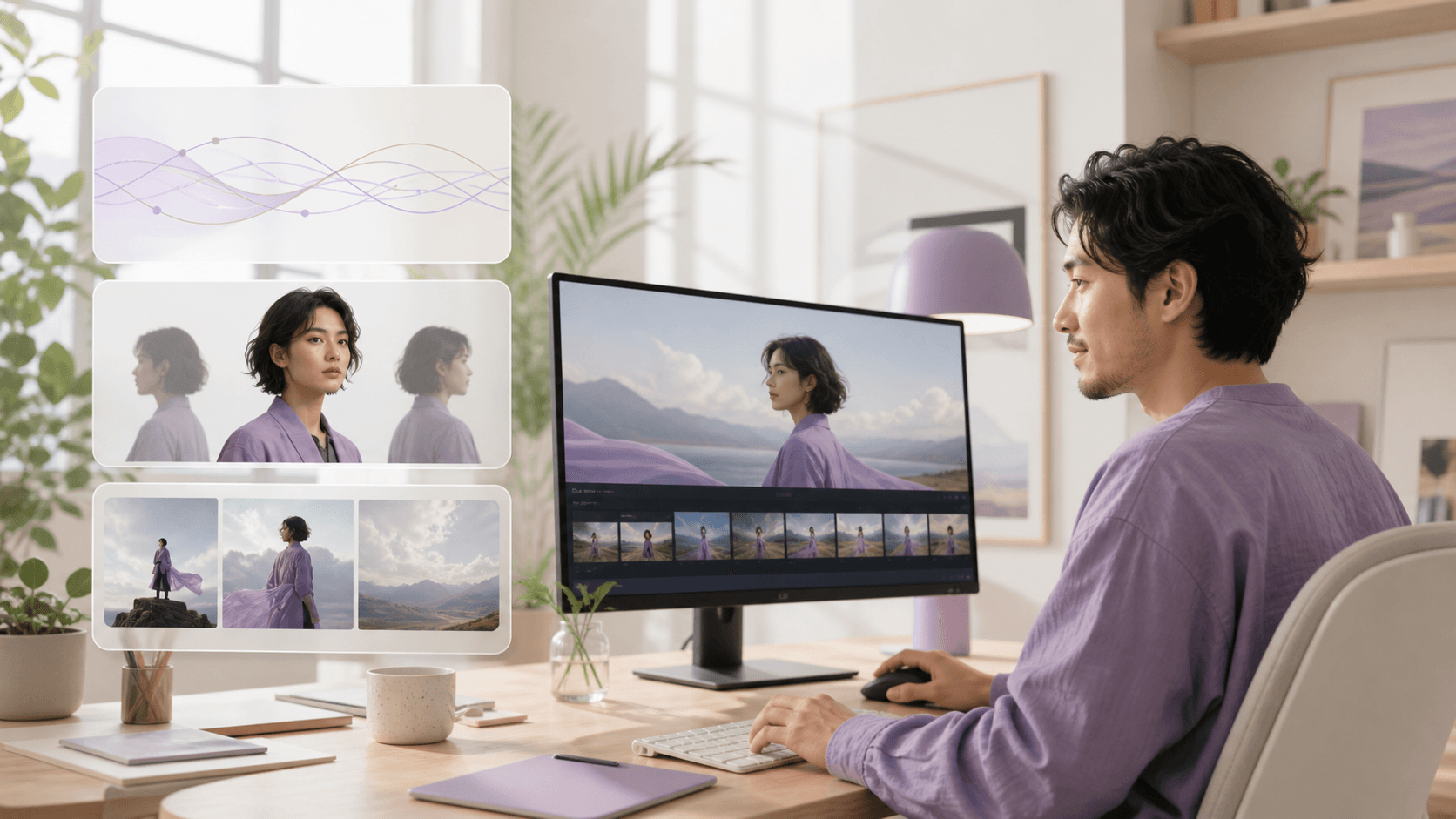
AI Overview
What is Seedance 2.5?
Seedance 2.5 is an AI video generation and editing model for creating 4–30 second clips from text, images, video, and audio references. It combines motion, camera direction, native sound, lip sync, and targeted edits in one generation workflow.
What can you do with Seedance 2.5 video editing?
You can generate video from text, animate images, create talking portraits, guide motion with timestamps, use up to 50 mixed references, edit existing footage, extend clips, and direct dialogue or sound without building a manual timeline first.
How is Seedance 2.5 different from the previous version?
Seedance 2.5 adds longer single-run clips, integer-second timing, larger reference sets, and instruction-based editing or extension. It is a production-focused option, not a universal upgrade: the current Seedance.tv route outputs 480p or 720p, while Seedance 2.0 can reach 1080p.
Who should use Seedance 2.5 for video editing?
It fits creators, marketers, and small teams making longer stories, reference-heavy ads, multilingual talking videos, or revisions to existing footage. For a routine short clip with one light reference, a faster lower-cost route may be more practical.
What's New in Seedance 2.5
The largest change is control over a complete production task. A single generation can run from 4 to 30 seconds, follow contiguous integer-second beats, and coordinate camera, action, dialogue, ambience, and music. The reference workflow accepts up to 30 images, 10 videos, and 10 audio files, with a maximum of 50 materials in one request.
Seedance 2.5 also recognizes explicit editing and extension instructions. You can identify a time range, describe the change, and state what must remain fixed. That makes it useful when one local correction can save an otherwise approved clip.
A longer single-run example shows why 2.5 is most useful when continuity and timed direction matter more than maximum pixel resolution.
Do not upgrade on the version number alone. Start using 2.5 when 30-second continuity, large reference sets, timed action, or selective editing removes real steps from your workflow. For a direct feature-by-feature decision, read Seedance 2.5 vs Seedance 2.0.
Core Video Editing Capabilities in Seedance 2.5
Text to Video. Describe the subject, setting, action, camera, sound, and finish. The model can create a complete clip without source footage. Use Text to Video when visual exploration matters more than matching an existing subject.
Image to Video. Upload an opening image—or ordered first and last frames—and describe only the motion that connects them. Use Image to Video when a product, character, composition, or final pose must stay anchored.
Motion Control. Write contiguous beats such as 0–4 seconds, 4–9 seconds, and 9–15 seconds. Each beat should contain one camera move and one primary action. Timestamps control when a beat happens; they do not reliably control repetition frequency.
Multi-reference and multi-clip work. Assign every image, video, and audio file a clear role before the story begins. Reference to Video is the practical path for combining a subject, location, motion example, and voice or music reference. For a longer deliverable, generate ordered shots with the same anchor block, review each clip, then assemble the accepted takes.
Audio and lip sync. Native audio can include dialogue, ambience, effects, and music. For a supplied voice or song, bind the audio reference to the correct speaker and restate the same voice description in every clip. A voice lock reduces drift across clips but does not guarantee a perfectly identical voice.
Step-by-Step Editing Workflow
- Choose the mode. Start with Text to Video for an open idea, Image to Video for a fixed look, Reference to Video for multiple assets, or a talking-photo setup when a portrait must speak.
- Write the prompt or upload materials. Number references by type—
image 1,video 1,audio 1—and explain what each contributes and what it must not change. - Set the parameters. Choose a supported 4–30 second duration, aspect ratio, and 480p or 720p output. Image-to-video follows the source frame ratio automatically.
- Generate and preview. Review the complete clip, not one attractive frame. Check subject identity, hands, product geometry, motion order, camera continuity, speech, audio, and the final frame.
- Refine the prompt. Change one variable at a time. If the subject drifted, strengthen the identity lock; if timing failed, simplify the beat; if the camera jumped, keep one move per shot.
- Download and export. Keep the accepted source clip, then add exact subtitles, logos, or frame-accurate cuts in post-production when those details must be deterministic.
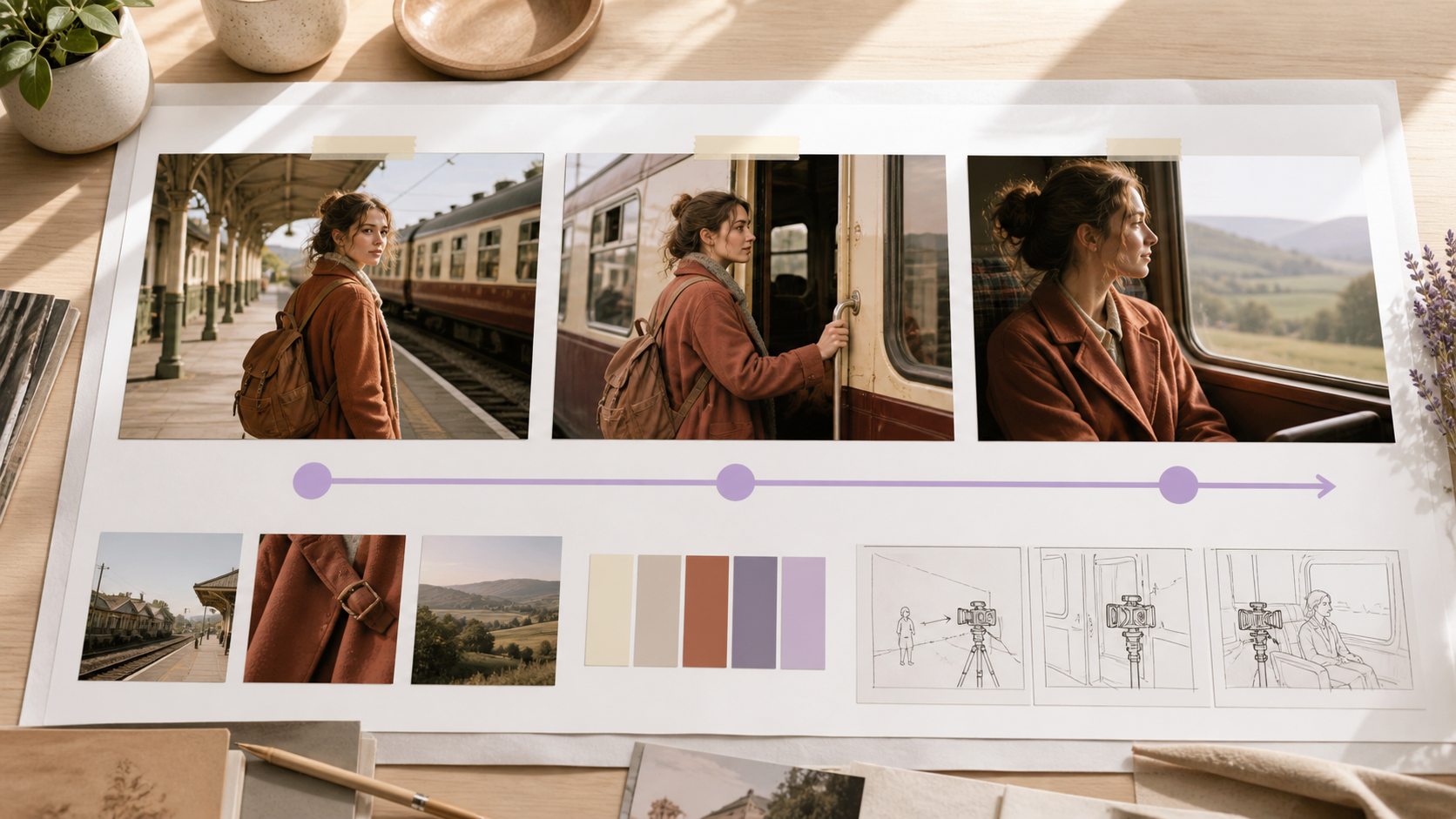
Reviewing start, middle, and end states catches drift that a thumbnail cannot reveal.
Prompt Writing Tips for Better Results
Use this structure: Subject + Action + Camera + Lighting + Style + Audio + Constraints. For reference-heavy work, place a mapping manifest first. For timed work, make every range contiguous. For editing, lead with the edit intent, name the time range, and freeze everything else.
Avoid vague praise such as “make it cinematic,” conflicting camera moves, too many simultaneous actions, and unsupported precision such as “blink exactly three times in one second.” A shorter prompt with one visible change often performs better than a dense paragraph of competing instructions. The Seedance video prompt guide goes deeper on reusable prompt structure.
Five copy-ready templates:
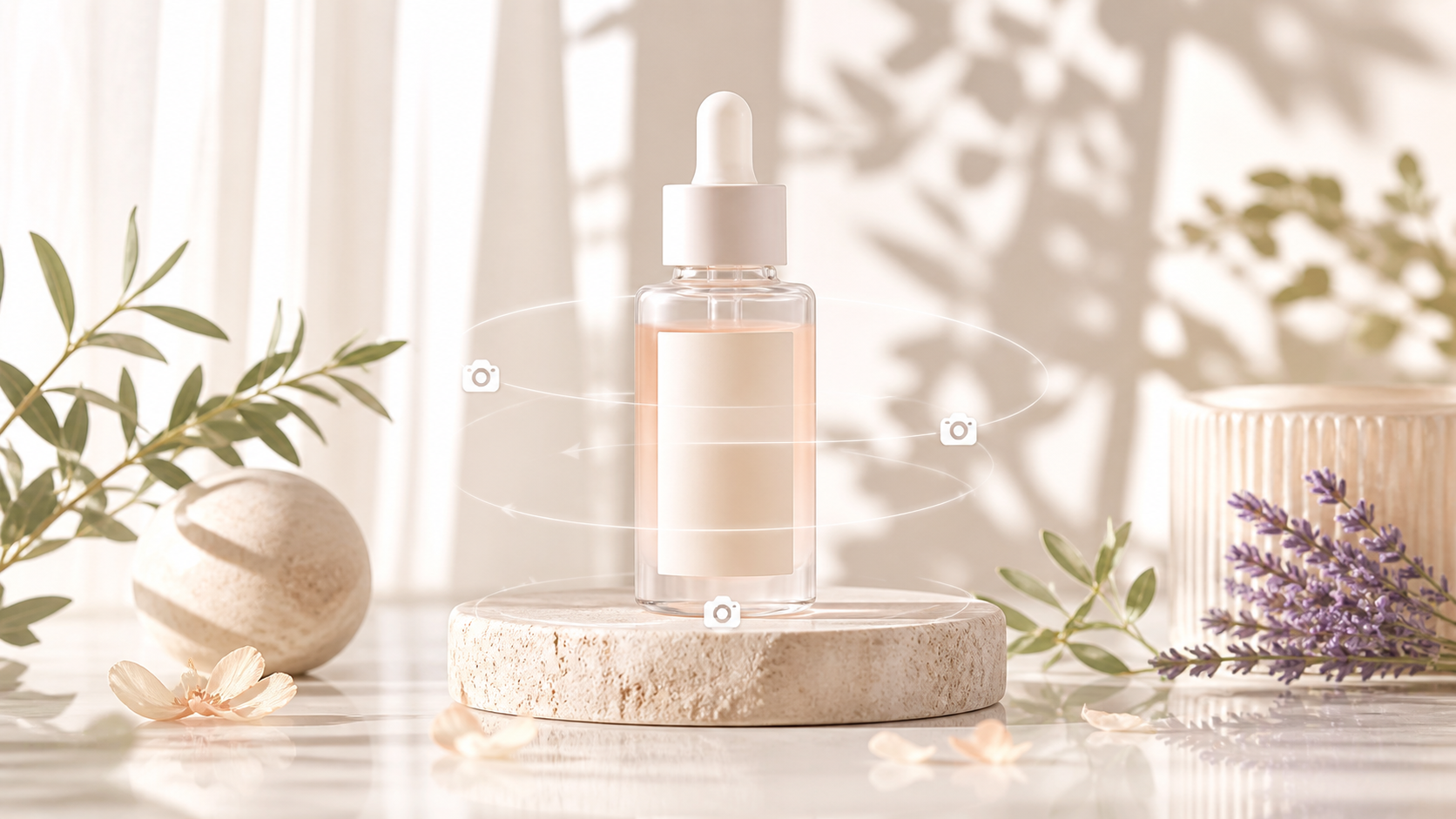
Product reveal: Image 1 is the exact product. Keep its shape, colors, logo, and label text unchanged. 0–4s: slow clockwise orbit. 4–8s: soft light sweep reveals the texture. Premium studio lighting, one continuous shot, no added text or objects.
Talking portrait: Image 1 is the exact speaker. Preserve face, age, hair, wardrobe, and skin texture. Static medium shot. The speaker says in English: “Your exact line.” Natural lip sync, calm pace, no subtitles, logo, watermark, or background music.
Camera transfer: Video 1 provides camera movement only; do not copy its subject or setting. Image 1 provides the exact character. Recreate the same camera path around the character in a bright modern studio, with stable identity and one continuous motion.
Targeted edit: Edit video 1 from 4–7 seconds. Remove the distracting person in the background. Keep the main subject, action, framing, lighting, audio, duration, and every other detail unchanged.
Extension: Extend video 1 forward. Continue from the final pose with the same subject, environment, lighting, color grade, camera direction, ambience, and audio level. The subject walks to the window and stops; no new characters or cuts.
Real Use Cases and Workflow Examples
Social media short video. Use a vertical frame, show the hook immediately, and keep one payoff. Prompt: 9:16 creator video. 0–2s: macro reveal of the finished result. 2–6s: one clear action demonstrates the transformation. 6–8s: confident final pose with clean space for a later caption. Natural handheld micro-movement.
Product advertisement. Begin from the real product image and freeze label text. Prompt: Image 1 is the exact bottle. Preserve shape, material, color, logo placement, and every label character. Slow 20-degree orbit while condensation forms. Dark premium studio, soft rim light, no hands, deformation, invented branding, or watermark.
Wedding or event memory. Use approved portraits or venue images as identity and scene anchors. Prompt: Images 1–2 define the couple; image 3 defines the venue. Preserve faces, wardrobe, flowers, and warm evening lighting. 0–5s: slow push toward joined hands. 5–10s: gentle orbit as they smile at each other. Natural ambience, no face drift or extra guests.
Education and training. Divide the explanation into visible steps. Prompt: 16:9 training clip. 0–5s: show the complete workstation. 5–12s: close-up of one correct hand action. 12–18s: reveal the finished state. Locked camera per beat, clear neutral lighting, calm narration, no invented labels.
Seedance 2.5 vs Traditional Video Editors
| Task | Seedance 2.5 | Traditional editor |
|---|---|---|
| Start with no footage | Generates a shot from a prompt | Requires recorded, licensed, or created media |
| Animate a still | Creates new motion and sound | Uses keyframes, effects, or plugins |
| Change one generated scene element | Can attempt an instruction-based edit | Gives deterministic masks, layers, and frame control |
| Exact cuts, captions, and logos | Better finished in post | Strongest option for frame-accurate delivery |
| Repeat many concepts | Fast prompt and reference variations | Slower setup, precise repeatable finishing |
Seedance wins when the problem is missing footage: concept tests, product motion, social hooks, story beats, or talking portraits. CapCut, Premiere, and DaVinci Resolve remain better for exact trimming, multi-track sound, typography, color finishing, and legal final masters. The practical workflow is complementary: generate the shot, then finish it precisely.
Common Problems and How to Fix Them
The video does not match the prompt. Put the most important subject and reference mapping first, remove secondary ideas, and use one action per beat. Keep every timestamp range contiguous.
Human movement looks unnatural. Reduce speed and range of motion, specify the body part that moves, describe how one action connects to the next, and avoid combining a jump, spin, camera orbit, and scene change in one beat.
Resolution or detail looks weak. Seedance 2.5 currently outputs 480p or 720p on Seedance.tv. Use a clean source image, close framing, simple lighting, and fewer small text details. If 1080p is mandatory, test a supported Seedance 2.0 route instead of upscaling a failed composition.
Credits disappear during retries. Validate a new look with a short draft, estimate the full batch before submitting, and change one variable per rerun. Track cost per accepted clip rather than cost per generation.
Conclusion
Seedance 2.5 is most useful when timed direction, mixed references, native audio, or selective edits can turn an idea or source asset into a controllable 4–30 second clip. Start with one subject, one action, one camera move, and a short test; add references or duration only when needed, then finish exact captions, logos, and cuts in a traditional editor—without assuming a newer version always means higher resolution.
Ready to try it yourself?
Put the steps from this guide into practice with Seedance and turn prompts or images into polished videos in minutes.
Free credits on signup. Plans from $28/month.
Related Articles
More posts in the same locale you may want to read next.

Seedance App Preview Video Generator 2026: Create App Store and Product Launch Clips
Use Seedance to turn app screenshots, feature copy, and launch goals into App Store previews, Google Play promo videos, and product launch clips.
Read article
Gemini AI Video Prompt Examples: Copy-Ready Veo Scenes and a Better Prompt Formula
Copy Gemini AI video prompt examples for cinematic motion, product ads, dialogue, and vertical clips, then adapt them with a practical Veo prompt formula.
Read article
How to Keep Product Shape Consistent in AI Video Ads
Lock product geometry, packaging, labels, references, camera angles, and approval checks so AI video ads preserve the real SKU across every shot.
Read article