
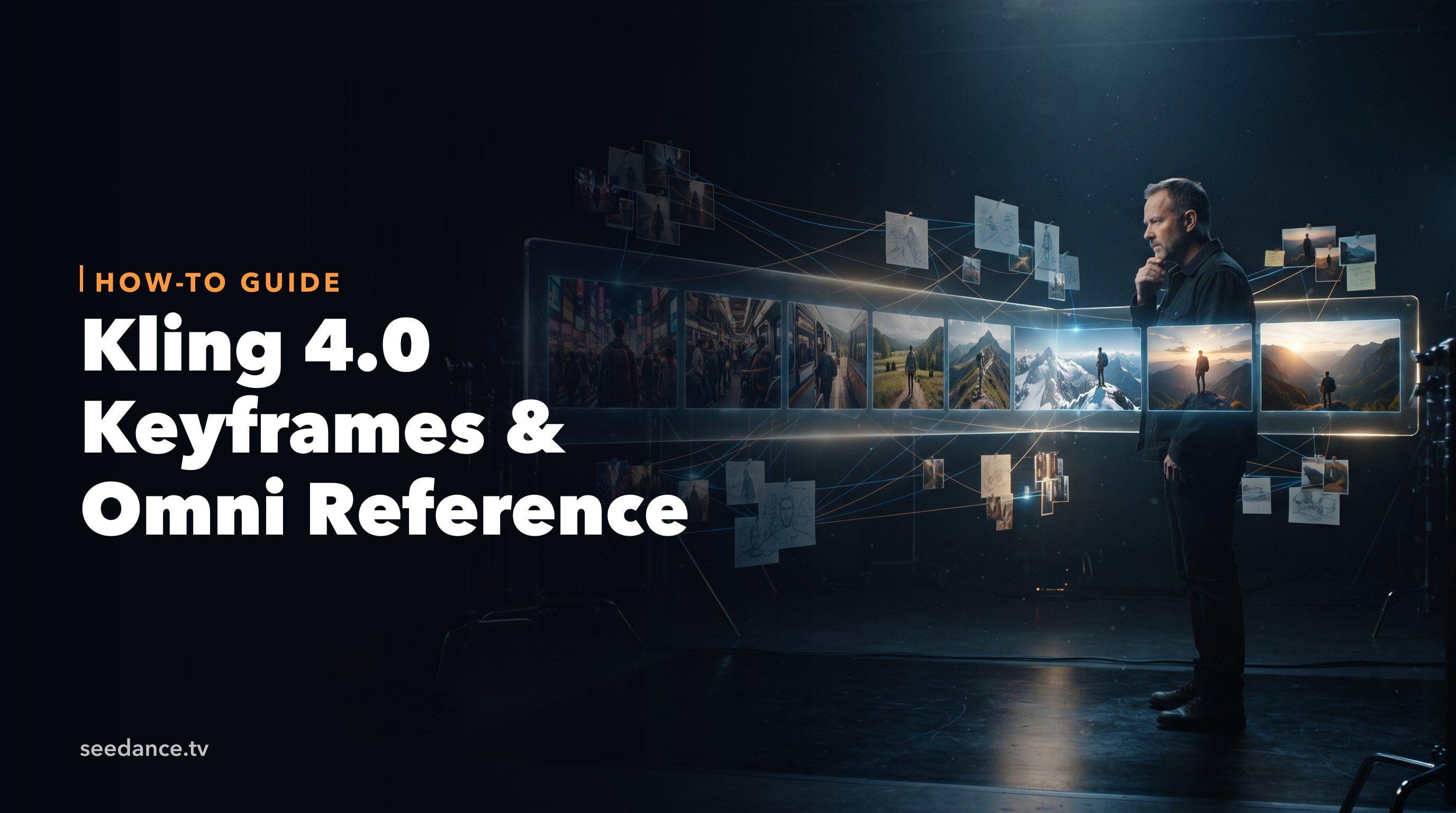
Quick Answer: Kling 4.0 lets you place up to 10 keyframe images on a single 3–30 second generation and attach up to 15 Omni Reference assets (images, videos, and subjects) to the same task. Keyframes decide when the picture changes; Omni Reference decides what stays consistent. Put keyframes only where the scene must change, and keep your prompt in the same order as your keyframes.
Kling 4.0 was announced by Kuaishou's Kling AI on September 28, 2026, and two of its biggest upgrades are about control: multiple keyframes and a much larger Omni Reference. Kling 3.0 only offered a start and an end frame, and generations topped out at 15 seconds. Kling 4.0 goes to 30 seconds and lets you pin down the middle of the video too.
This guide explains how the two features work, how to plan them on a 30-second timeline, and three worked plans you can copy. Kling 4.0 will be landing on seedance.tv soon, so these plans are written to be drafted now and generated the moment it's available. At the end, we compare the approach with Seedance 2.5 timestamp prompts and its 50-reference input, which you can already use here.
Keyframes vs Omni Reference in One Table
| Keyframes | Omni Reference | |
|---|---|---|
| What it controls | When the visual state changes | What stays the same across the video |
| Maximum | Up to 10 keyframe images per generation | Up to 15 assets per task |
| Input type | Still images placed on the timeline | Images, video clips, subjects/elements, voice |
| Typical use | Story beats, scene changes, camera shifts, hero shot | Product shape, character face, outfit, style, voice |
How Kling 4.0 Keyframes Work
A keyframe is an image that tells the model "at this point in the video, the frame should look like this." With Kling 4.0 you can place up to 10 keyframe images in one generation, on top of the familiar first and last frame workflow.
The model then generates the motion between them. Your text prompt describes what happens in each stretch so the transitions make sense.
Kling's own advice for multiple keyframes is short and practical:
- Place keyframes where the visual state must change, not at fixed intervals. A keyframe every 3 seconds "because you can" usually makes the motion stiff.
- Use only as many keyframes as the story needs. Three well-chosen keyframes often beat ten.
- Don't change everything in one keyframe. Changing character, setting, camera, lighting, and style at the same point gives the model too much to bridge. Change one or two things at a time.
- Write the prompt in the same event order as the keyframes. If keyframe 3 is "product in use," the third segment of your prompt should describe the product in use.
Planning Keyframes on a 30-Second Timeline
Kling's example plan for a 30-second product video looks like this:
| Time | Keyframe | What changes |
|---|---|---|
| 0 s | Character and setting | Establishes who and where |
| 6 s | Product introduced | New object enters |
| 12 s | Product in use | Action changes |
| 20 s | Scene or angle shift | Camera or location changes |
| 28 s | Hero shot | Final composed frame |
Notice the gaps are uneven. The keyframes sit at story beats, not on a grid.
The prompt is then written as timeline segments that match those beats, for example 0–5 s, 5–12 s, 12–20 s, 20–27 s, and 27–30 s. This is the same idea as timeline prompts, just anchored with images.
Kling 4.0 accepts prompts up to 8,000 tokens, so you have room to describe each segment in detail. Short prompts are auto-expanded, but for keyframed videos, a written-out timeline gives you more predictable results.
How Omni Reference Works in Kling 4.0
Omni Reference is where you upload the things that must stay recognizable. In Kling 4.0, one task can take up to 15 assets in total:
| Asset type | Limit |
|---|---|
| Images | Up to 10 |
| Videos | Up to 5, 30 seconds combined |
| Elements / subjects | Up to 7 (up to 3 can be built from video) |
| Audio | Voice reference only |
| Total per task | Up to 15 assets |
A few notes on using these well:
- Images are best for product shots, character faces, outfits, logos, and style frames. Use clean, well-lit images with one clear subject each.
- Videos help when motion or a subject's look from several angles matters. Keep them short since the combined limit is 30 seconds.
- Elements / subjects are reusable characters or objects. Building one from video gives the model more angles to work from.
- Audio is a voice reference only. Kling does not list music or sound-effect references, so describe music and SFX in the prompt instead.
The limits are maximums, not targets. Two or three strong references usually hold consistency better than fifteen mixed-quality ones.
How Keyframes and Omni Reference Work Together
Kling's own summary is the best rule to remember: keyframes define when things change, Omni Reference defines what stays consistent.
In practice:
- Upload the constants to Omni Reference. The product, the main character, the outfit, the brand style.
- Build keyframes only for changes. Each keyframe should show the same character or product (matching your references) in a new state, pose, place, or angle.
- Write the prompt as a timeline in the same order as your keyframes, and name the referenced subject the same way every time.
- Describe sound in the prompt. Kling 4.0 generates native stereo audio with lip sync, so add dialogue, music style, and effects per segment.
A tip for making keyframe images: generate them from the same reference image with an image model such as Nano Banana 2, changing only one thing per keyframe. That keeps faces and products matched before the video model ever sees them.
Worked Plan 1: 30-Second Product Video
Goal: a 9:16 ad for a stainless steel water bottle.
Omni Reference (4 assets):
- 3 product images: front, side, cap detail
- 1 subject image: the runner who appears in the ad
Keyframes (5):
| Time | Keyframe image |
|---|---|
| 0 s | Runner tying shoes at dawn on a city bridge |
| 6 s | Runner pulls the bottle from a backpack side pocket |
| 12 s | Runner drinks mid-run, water droplets visible |
| 20 s | Low-angle shot as the runner passes the camera |
| 28 s | Bottle on a stone ledge, sunrise behind, hero product shot |
Prompt (timeline):
0–5 s: Dawn on a quiet city bridge. A runner in a grey hoodie ties her shoes, breath visible in cool air. Soft blue light. Ambient city hum, distant birds.

5–12 s: She stands and pulls the stainless steel bottle from her backpack side pocket. Close-up on the bottle's brushed metal and black cap. A light metallic click.

12–20 s: Running along the river path, she drinks from the bottle mid-stride, droplets catching the first sunlight. Upbeat electronic music begins.

20–27 s: Low-angle tracking shot as she runs past the camera, the bottle in her hand. Music builds.

27–30 s: The bottle stands on a stone ledge with the sunrise behind it. Static hero shot. Music resolves.
For more ad structure ideas, see Product Ads and our guide on keeping product shape consistent.
Worked Plan 2: Character Story Scene
Goal: a 16:9 short-film moment with dialogue.
Omni Reference (5 assets):
- 1 subject built from a short video of the main character (more angles)
- 2 images of her outfit and bag
- 1 style frame (warm, film-like color)
- 1 voice reference for her dialogue
Keyframes (4):
| Time | Keyframe image |
|---|---|
| 0 s | She waits alone at a rainy bus stop at night |
| 10 s | A stranger offers her an umbrella |
| 18 s | Close-up of her face as she recognizes him |
| 27 s | Both walk away under one umbrella, wide shot |
Here, only one thing changes per keyframe: a new person enters, then the camera moves closer, then the camera pulls wide. The setting and lighting stay the same, which keeps transitions smooth.
In the prompt, write the dialogue inside the segment where it happens and specify the language. Kling 4.0 supports dialogue in many languages, including English, Chinese, Japanese, Korean, Spanish, Portuguese, German, and French, plus accents such as American, British, and Indian English.
Worked Plan 3: Travel or Music Montage
Goal: a 21:9 cinematic travel montage cut to music.
Omni Reference (3 assets):
- 1 subject image of the traveler
- 1 image of her red jacket
- 1 style frame (teal and orange grade)
Keyframes (6):
| Time | Keyframe image |
|---|---|
| 0 s | Traveler at a train window, mountains outside |
| 5 s | Walking through a market at dusk |
| 11 s | Standing on a cliff above the sea |
| 17 s | Dancing at a street festival |
| 23 s | Sitting by a campfire under stars |
| 29 s | Back at the train window, now at sunrise |
A montage is one case where more keyframes make sense, because each one is a genuinely new location. Keep the traveler, jacket, and color style in Omni Reference so she looks the same in every place. Describe the music once at the top of the prompt ("steady acoustic guitar with a building drum beat") and mark the beat changes in each segment.
Kling 4.0 supports 21:9, 16:9, 1:1, 9:16, and Auto aspect ratios, so the same plan can be re-run in 9:16 for Reels. For more travel formats, try the AI Travel Video Maker.
Common Mistakes
- Keyframes on a fixed grid. Ten evenly spaced keyframes produce stop-start motion. Place them at story beats.
- Too many changes per keyframe. New character, new place, new camera, and new lighting at once is the most common cause of messy transitions.
- Prompt order doesn't match keyframe order. The model reads both. If they disagree, results drift.
- Keyframes that don't match the references. If the face in keyframe 4 differs from the Omni Reference subject, the model has to guess which one is right.
- Expecting music from the audio reference. Audio reference in Kling 4.0 is voice only. Put music and effects in the prompt.
- Planning around unreleased features. Video extension up to 2 minutes and 10-bit HDR are marked "coming soon" by Kling, so build today's plans within a single 30-second generation in SDR.
Kling 4.0 Keyframes vs Seedance 2.5 Timestamp Prompts
Both models can produce a 30-second video in one generation, but they approach control differently.
| Kling 4.0 | Seedance 2.5 | |
|---|---|---|
| Timeline control | Up to 10 explicit keyframe images | Timestamp prompts and region-level targeted edits |
| References | Up to 15 assets (10 images, 5 videos, 7 subjects) | Up to 50 multimodal references (commonly reported: 30 images, 10 videos, 10 audio) |
| Audio reference | Voice only | Audio references supported, with native dialogue, music, and SFX |
| Motion copying | Not listed | Motion reference copies a clip's camera move |
| Color | 10-bit HDR "coming soon" | Native 4K with 10-bit color |
Pick Kling 4.0 when you already have a storyboard as images and want each beat pinned down exactly. Ten explicit keyframes is a very direct form of control.
Pick Seedance 2.5 when you have lots of reference material (a brand kit, several product angles, music, voice) or want to copy a camera move from a reference clip. Its timestamp prompts and reference guide cover the details.
For a full side-by-side, read Kling 4.0 vs Seedance 2.5. If image quality is your main concern, see Kling 4.0 4K and 10-bit HDR explained.
FAQ
How many keyframes does Kling 4.0 support?
Up to 10 keyframe images in one generation, within a 3–30 second video. Kling 3.0 only supported a start and end frame.
How many references can I use with Kling 4.0 Omni Reference?
Up to 15 assets per task: up to 10 images, up to 5 videos (30 seconds combined), and up to 7 elements or subjects, of which up to 3 can be built from video. Audio reference is voice only.
Does Kling 4.0 Flash support multiple keyframes?
Multiple keyframes are not listed in the Kling 4.0 Flash spec table, though Flash does list Omni Reference. See Kling 4.0 Flash vs Kling 4.0 for the full differences.
Should I use keyframes or Omni Reference?
Usually both. Use Omni Reference for anything that must look the same throughout, and keyframes only where the shot needs to change.
Try It on Seedance
Sketch your story beats, pick two to five keyframes, and gather only the references that matter. Kling 4.0 hasn't switched on here yet; follow the Kling 4.0 page for its arrival and official examples. Meanwhile, run the same brief in Seedance 2.5 through Reference to Video or Image to Video, or test start-and-end frames with Kling 3.0. Once it's enabled, your keyframe plan is ready and you can compare the two control styles side by side.
Ready to try it yourself?
Put the steps from this guide into practice with Seedance and turn prompts or images into polished videos in minutes.
Free credits on signup. Plans from $28/month.
Related Articles
More posts in the same locale you may want to read next.

Seedance App Preview Video Generator 2026: Create App Store and Product Launch Clips
Use Seedance to turn app screenshots, feature copy, and launch goals into App Store previews, Google Play promo videos, and product launch clips.
Read article
Kling 4.0 vs Seedance 2.5: Full Comparison
Kling 4.0 vs Seedance 2.5 compared by spec: 30-second clips, keyframes vs 50 references, audio, 4K and 10-bit color, editing, and which model fits which job.
Read article
Kling 4.0 Flash vs Kling 4.0: Key Differences
Kling 4.0 Flash vs Kling 4.0 by spec: length, resolution, color, keyframes and references, when Flash is enough, and a draft-in-Flash, finish-in-full workflow.
Read article