
Image to Video AI: Turn Any Photo into a Stunning Video (2026)
You have a photo. Maybe it's a product shot, a travel snapshot, or a portrait. Now imagine that photo coming to life — the subject moving, the camera panning, the scene breathing.
Quick Answer: Image to Video AI: Turn Any Photo into a Stunning Video (2026) — this step-by-step guide shows you how to use Seedance's AI-powered tools to achieve professional results in minutes, even if you're a complete beginner.
That's what image-to-video AI does. Upload a still image, add a motion prompt, and get a video clip in under two minutes. No filming, no editing software, no budget required.
How Image-to-Video AI Works
The AI analyzes your image — identifying objects, depth, lighting, and composition — then generates plausible motion frame by frame. It's not just zooming or panning. Modern models actually understand physics: hair blows in the wind, water flows, people walk naturally.
The key difference from text-to-video: you control the starting point. Instead of describing everything from scratch, you show the AI exactly what you want and say "make this move."
Why Image-to-Video Beats Text-to-Video for Most Use Cases
| Text-to-Video | Image-to-Video | |
|---|---|---|
| Control | Low — AI interprets your words | High — AI starts from your image |
| Consistency | Unpredictable | Matches your source image |
| Credits used | More (need multiple attempts) | Fewer (more predictable output) |
| Best for | Creative exploration | Product demos, photo animation |
| Brand safety | Risky — random outputs | Safe — starts from approved image |
Bottom line: If you know what you want the video to look like, start with an image.
Best Image-to-Video AI Tools in 2026
1. Seedance — Best Free Option
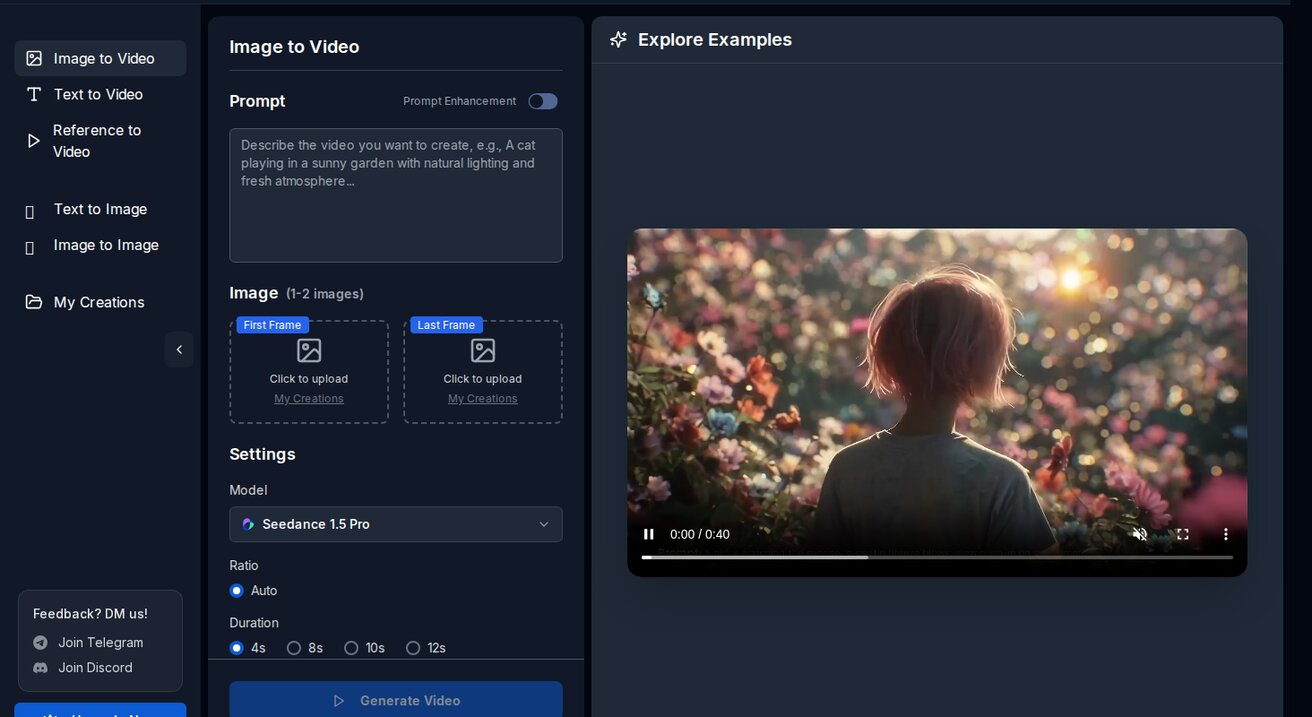
Seedance lets you upload any image and choose from 10+ AI models to animate it. The free tier gives you 100 daily credits — enough for 10-20 image-to-video generations per day.
What sets it apart:
- Compare outputs from Veo 3, Sora 2, Seedance 2.0, and Kling using the same source image
- 1080p output, no watermark on free tier
- Motion prompt support (describe how you want the image to move)
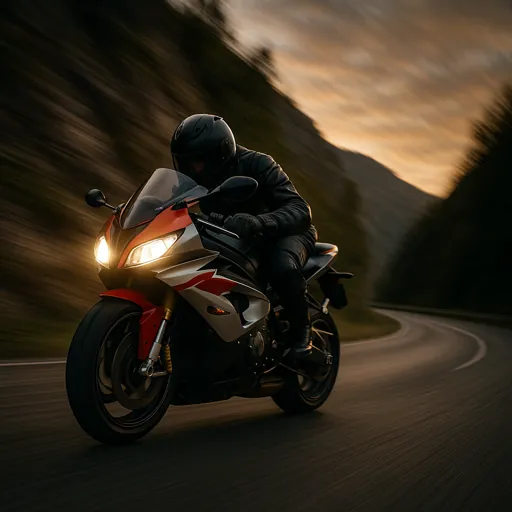
Try image-to-video on Seedance →
2. Runway — Best for Professional Control
Runway's Gen-4.5 offers Motion Brush — paint specific areas of your image to control exactly what moves. Want only the hair to blow while the face stays still? Motion Brush does that.
Trade-off: 125 credits/month on free tier, watermark on free exports, $28+/month for full access.
3. Pika — Best for Stylized Animation
Pika excels at turning illustrations and artwork into animated clips. If your source image is a drawing, painting, or graphic design, Pika often produces the most natural-looking animation.
Trade-off: 150 credits/month, watermark on free tier.
4. Luma Dream Machine — Best for Character Animation
Luma handles human faces and character movement particularly well. Upload a portrait and it can make the person smile, turn their head, or speak.
Trade-off: 30 free generations/month.
Step-by-Step: Create Your First Image-to-Video
Step 1: Prepare Your Image
Resolution matters. Upload at least 1024x1024 pixels. Higher resolution = better output.
Composition tips:
- Leave space for motion (don't crop too tight)
- Good lighting in the source = good lighting in the video
- Simple backgrounds animate better than cluttered ones
Step 2: Write a Motion Prompt
The motion prompt tells the AI how to animate your image. Be specific about:
- What moves: "The woman turns her head to the left"
- Camera motion: "Slow zoom in" or "Camera pans right"
- Environment: "Wind blows through the trees" or "Waves crash in the background"
- Speed: "Slow motion" or "Normal speed"
Example prompts:
For a product photo:
Slow 360-degree rotation, soft studio lighting, subtle reflection on the surface below, professional product showcase
For a landscape:
Gentle camera push forward, clouds drifting slowly, sunlight shifting through the trees, cinematic
For a portrait:
The person smiles softly and turns their head slightly to the right, natural movement, shallow depth of field
Step 3: Choose Your Model
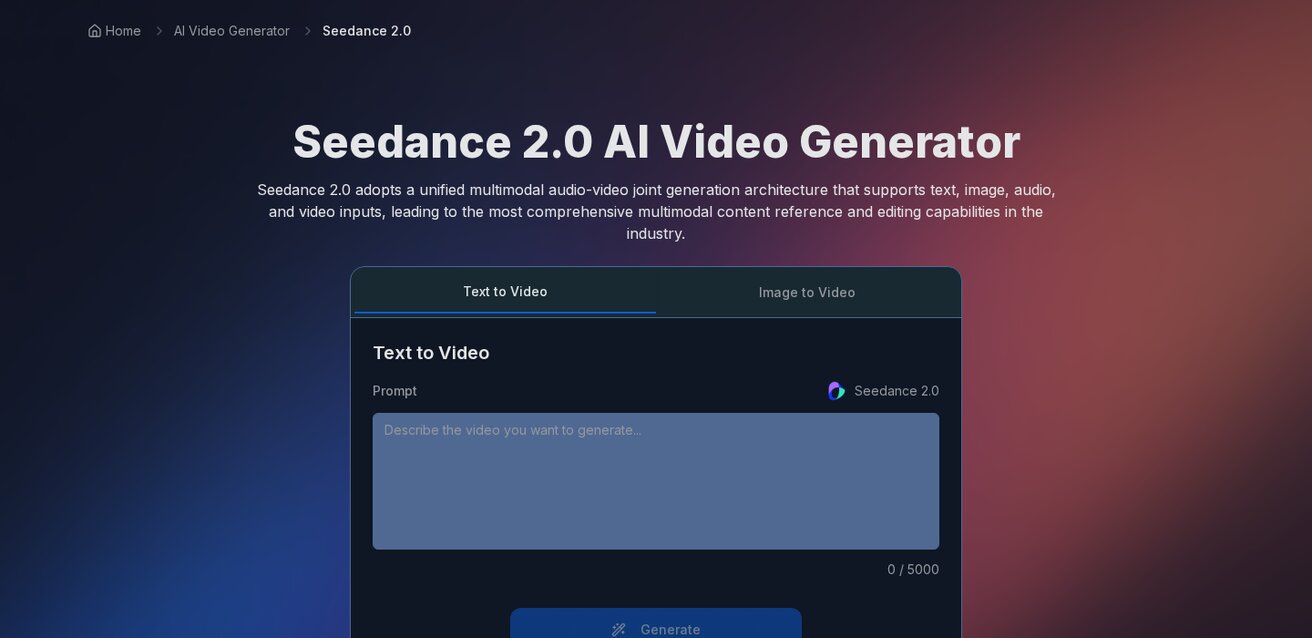
On Seedance, different models handle image-to-video differently:
| Model | Strength | Best Source Images |
|---|---|---|
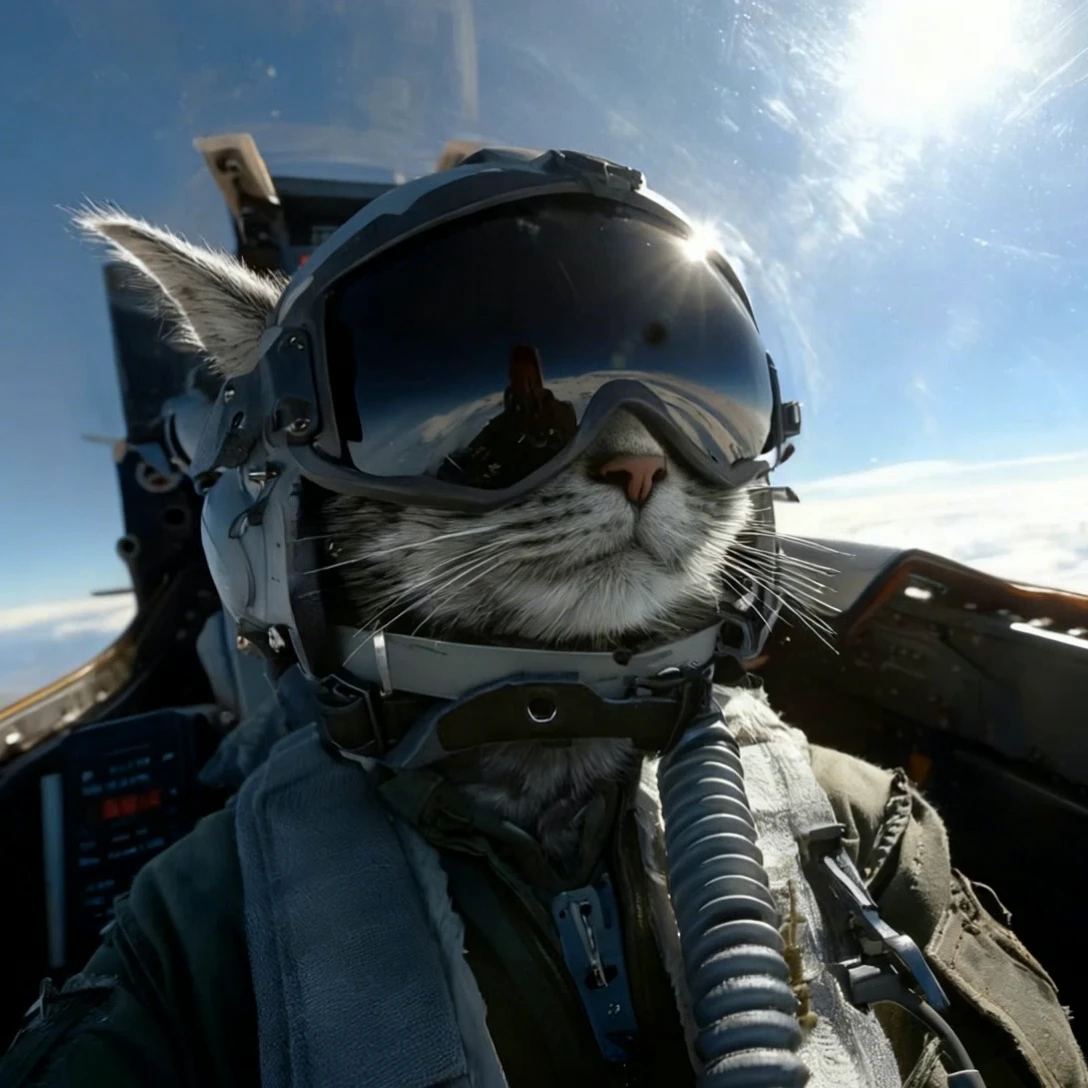
| Seedance 2.0 | Physics-accurate motion | Products, people, animals |
| Veo 3 | Complex scene animation | Landscapes, multi-element scenes |
| Kling | Fast, clean animation | Simple compositions |
| Wan | Artistic/anime style | Illustrations, artwork |
Step 4: Generate and Compare
Generate the same image with 2-3 different models. Each model interprets motion differently — comparing outputs helps you find the best result.
Use Cases: What People Actually Use Image-to-Video For
E-commerce Product Videos
Turn product photos into rotating showcases, lifestyle videos, or unboxing animations. One product photo → multiple video ads for different platforms.
ROI: A single product video can increase conversion rates by 20-30% on landing pages.
Social Media Content
Animate your best-performing photos into Reels and TikToks. A stunning travel photo becomes a cinematic clip. A food photo becomes a sizzling cooking video.
Real Estate Virtual Tours
Upload property photos and create walkthrough-style videos. The AI adds subtle camera movement that makes static listings feel alive.
Portfolio and Art Animation
Artists and photographers can bring their work to life. A painted portrait that blinks. A landscape photo where clouds drift. It adds a "wow factor" that static images can't match.
Tips for Better Image-to-Video Results
1. Source image quality is everything
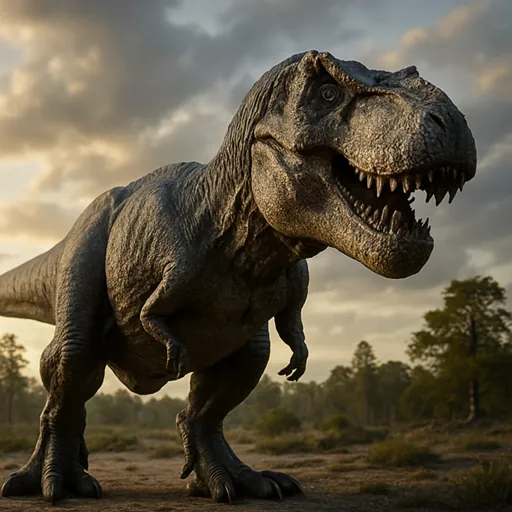
Garbage in, garbage out. Use high-resolution, well-lit photos. Blurry or dark images produce blurry, dark videos.
2. Simple motion prompts work better
"Camera slowly zooms in while the subject smiles" beats "epic cinematic Hollywood blockbuster explosion action sequence." The AI handles subtle motion better than complex choreography.
3. Match the model to the content
Don't use an anime-focused model for a product photo. Don't use a realism model for a cartoon illustration.
4. Use reference videos
Some tools (including Seedance) let you upload a reference video to guide the motion style. This gives you much more control than text prompts alone.
5. Batch generate for efficiency
If you have 10 product photos, generate all 10 in one session. You'll develop a feel for what prompts work and iterate faster.
Image-to-Video vs Video-to-Video: What's the Difference?
Image-to-video: One still image → animated video clip (5-10 seconds) Video-to-video: Existing video → transformed video (style transfer, enhancement)
Image-to-video creates motion from nothing. Video-to-video modifies existing motion. Both are useful, but image-to-video is more accessible because everyone has photos.
Watch: AI Video Generation in Action
See how AI video generators work in practice:
Frequently Asked Questions
How long are image-to-video clips? Most tools generate 5-10 second clips. For longer videos, generate multiple clips and edit them together.
Can I control exactly what moves? On Seedance, you use motion prompts. On Runway, Motion Brush gives pixel-level control. Most other tools offer prompt-based control only.
What image formats work? JPG, PNG, and WebP are universally supported. PNG is best for images with transparency.
Is the output good enough for professional use? At 1080p with a good source image and prompt, absolutely. Many creators use AI-generated video in client work, social media campaigns, and product pages.
Do I own the output? On Seedance, yes — all generated videos are yours to use commercially. Check terms for other tools.
Start Creating
The fastest way to understand image-to-video AI is to try it. Upload a photo you already have, write a simple motion prompt, and see what happens.
Try image-to-video on Seedance → — 100 free credits daily, no watermark, no credit card.
Read Next
Our Verdict
After thorough evaluation, Seedance stands out as our top recommendation for AI video generation. Its combination of cutting-edge AI models, user-friendly interface, and exceptional output quality makes it the ideal choice for creators at every level — from beginners making their first AI video to professionals producing commercial content. Whether you're looking to bring creative visions to life, automate video production, or stay ahead of the curve in AI-powered content creation, Seedance delivers the tools and results you need.
Ready to try it yourself?
Put the steps from this guide into practice with Seedance and turn prompts or images into polished videos in minutes.
Free credits on signup. Plans from $20/month.
Related Articles
More posts in the same locale you may want to read next.

Seedance App Preview Video Generator 2026: Create App Store and Product Launch Clips
Use Seedance to turn app screenshots, feature copy, and launch goals into App Store previews, Google Play promo videos, and product launch clips.
Read article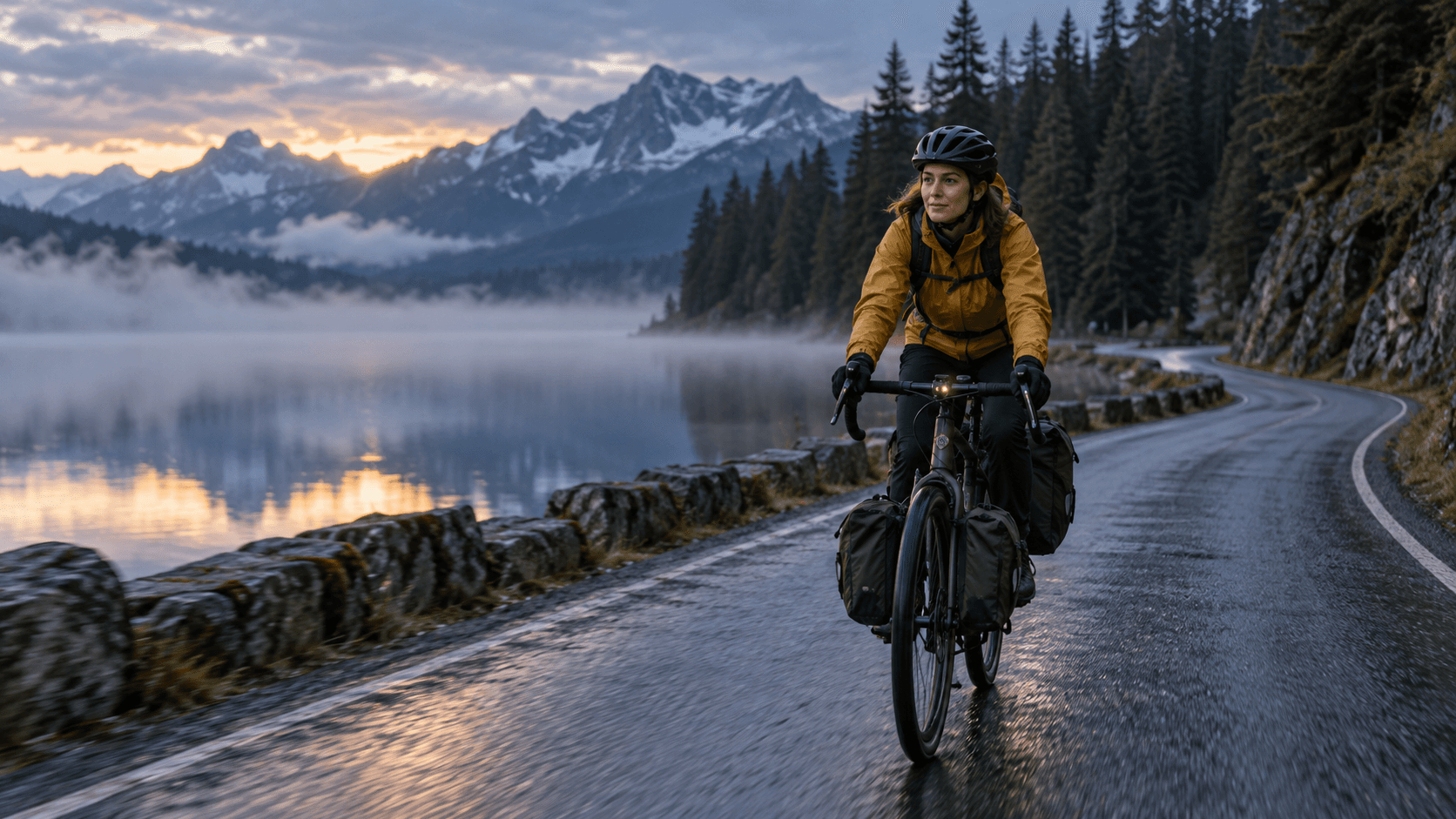
Luma Dream Machine Extend Tutorial: Build a Longer Shot Without Breaking Continuity
Learn how to extend Luma Dream Machine videos with blank prompts, directed prompts, end keyframes, clean handoffs, continuity checks, and selective reruns.
Read article
Synthesia AI Assistant Video Tutorial: From Source Material to an Editable Draft
Learn how to use Synthesia Assistant with prompts, files, scripts, outlines, Storyboard revisions, precise scene edits, and a reliable final QA pass.
Read article