
Synthesia AI Assistant Video Tutorial: From Source Material to an Editable Draft

AI Overview
What does Synthesia Assistant do?
Synthesia Assistant turns a prompt, supporting files, or URLs into an outline, script, and visual first draft. You can then refine the script and visuals through chat or move into the editor for scene-level control.
What should a good Synthesia Assistant prompt include?
State the topic, target audience, objective, desired language, duration, and delivery style. Also explain which attached sources matter and what the viewer should know or do after watching.
Should you import a file or import a script?
Import a file when you want Assistant to rewrite source material into a new video. Import a script when the wording is approved and must be used exactly rather than summarized or reorganized.
Can you edit the video after Assistant creates it?
Yes. Review the outline before scene generation, then revise structure, script, and visuals in Storyboard or switch to the canvas editor for precise scene and element changes.
Start With the Right Synthesia Assistant Route
Choose prompt, file, or exact script before you generate
The most important decision happens before the first draft. On Synthesia's home screen, a prompt is best when you have an idea and want help shaping it. Attach a PDF, PowerPoint, Word document, text file, or URL when the source contains facts Assistant should interpret. Use Import script when legal, product, or training copy has already been approved and must remain word for word.
This distinction prevents the most common failure: uploading a finished script as a document and expecting a verbatim result. Synthesia's official documentation says file import creates a new script from the source; it does not preserve the original wording or structure. If one sentence cannot change, paste it through Import script instead.
Before you start, remove duplicate pages, outdated claims, speaker notes that should not be narrated, and irrelevant appendices. A shorter, cleaner source gives Assistant less room to select the wrong detail. For a policy video, create a two-page source pack with the current rule, three examples, and the required call to action rather than uploading an entire handbook.

Illustrative generated still, not a Synthesia output: a specific presenter, location, audience, and training goal make a stronger brief than a generic request for a professional video.
If you already have a deck, the Google Vids slides-to-video workflow offers a useful comparison: both routes benefit from simplifying slides before generation, but the decision here is whether the source should guide a rewritten story or remain exact.
Write a Prompt That Produces a Usable Outline
Give Assistant a production brief, not a topic label
A weak prompt says, “Make a warehouse safety video.” A production brief defines the audience, objective, viewing context, language, duration, tone, and evidence. It also tells Assistant how to use attachments. This makes the outline easier to approve because every section has a job.
Create a three-minute onboarding video for new warehouse associates.
Objective: teach the three checks required before operating a pallet jack.
Audience: first-week employees with no equipment experience.
Language: clear US English at an eighth-grade reading level.
Delivery: Presentation style, calm and direct, with five sections.
Use only pages 2–4 of the attached policy. Keep the three numbered checks exact.
Open with a realistic consequence, demonstrate each check, then end with a supervisor sign-off reminder.
Use one consistent trainer and relevant warehouse b-roll. Avoid jokes, invented statistics, and dramatic accident imagery.
Synthesia determines output language from the prompt when one is present. If your sources mix languages or the requested language differs from the attachment, state the language explicitly. Choose Short, Medium, or Long as a planning signal, but still describe the intended runtime or scene count when pacing matters.

Illustrative generated still: consolidate approved facts and visual references before asking Assistant to write the first draft.
Use Dynamic delivery for shorter scenes and frequent visual changes; use Presentation for denser, longer scenes. Neither setting fixes an unfocused brief. Ask for one clear learning outcome, then split a broad subject into a series if the outline needs more than six or seven distinct ideas.
Review the Outline Before Building Scenes
Treat every section as a promise to the viewer
After submission, Assistant returns an editable outline with section titles and key points. Do not rush past it. Read the outline without imagining the visuals and ask whether a new viewer could follow the logic. Delete repeated sections, move prerequisites earlier, and add missing proof before scene generation.
Use a simple test for every section:
| Outline check | Approval question | Fix when it fails |
|---|---|---|
| Purpose | Does this section change what the viewer knows or does? | Delete or merge it |
| Evidence | Is the claim grounded in the source? | Add the exact page or URL guidance |
| Sequence | Does the viewer have the prerequisite context? | Reorder the section |
| Visual job | Can one scene show this clearly? | Split the idea or simplify it |
| CTA | Is the next action concrete? | Name the person, place, or step |
Assistant lets you edit or remove outline sections and choose a template before generating the video. A template controls layout; it does not validate the story. If your workspace uses a custom template, confirm that replaceable media slots are configured intentionally so the first draft does not swap protected brand or product imagery.
For recurring training, keep the approved outline as the reusable standard. Only update the facts that changed. This makes future revisions more reliable than prompting from zero and gives reviewers a clear diff.
Refine the Draft in Storyboard and the Editor
Revise structure first, then individual scenes
Continue to the editor when you want to refine before rendering. Storyboard shows the visual for each scene, the script, and Assistant chat together. Start with macro changes: shorten the opening, move a warning earlier, remove repeated language, or request a more relevant visual. Only after the flow works should you tune individual scene layouts.
Useful follow-up instructions are concrete and bounded:
- “Reduce this to five scenes without removing the three mandatory checks.”
- “Replace generic office b-roll with realistic warehouse preparation.”
- “Make the opening one sentence and move the definition to scene two.”
- “Keep the approved CTA unchanged and shorten everything else by 20 percent.”

Illustrative generated still: judge each scene by one spoken idea, one visual action, and one stable presenter treatment.
Assistant focuses on script and visual creation, so it cannot precisely edit every element. Switch from Storyboard to the traditional canvas when you need exact placement, timing, avatar, voice, language, or per-element adjustments. Preview the complete draft before generation and listen for repeated phrases, unpronounceable product names, visual claims the narration does not support, and scenes that change faster than the viewer can read.
The Synthesia avatar B-roll prompt guide is useful when the presenter should remain consistent while supporting shots change. For voice review across scenes, use the same checks in the Seedance voice-consistency guide: timbre, pacing, pronunciation, silence, and transitions should be evaluated separately.
Add Motion Only Where It Explains the Script
Use b-roll as evidence, not decoration
Assistant can create or update visuals, including b-roll, images, motion graphics, and a-roll. Ask for media that proves the spoken point. A pallet-jack check should show the named control or movement, not an unrelated wide shot of a warehouse. One relevant action is more useful than three attractive but generic clips.
Actual Seedance output, not a Synthesia result: use it as a motion-review example for pacing and continuity rather than as evidence of Synthesia performance.
When a scene needs cinematic camera movement, a consistent character across several shots, or a product action that a presenter template cannot express, plan that insert separately. Seedance Agent can hold the reference image, shot brief, prompt variants, generated motion, and review notes together, then the approved clip can return to the training edit. The reference-to-video workflow is the best starting point for that motion-first route.
Do not generate motion simply to fill every pause. Static diagrams, a close product image, or a clean presenter frame often communicate procedural information better. Preserve enough screen time for the viewer to understand the action before the narration advances.
Run a Final Accuracy and Engagement Pass
Separate content approval from visual polish
Watch the draft once for facts, once for performance, and once for visual continuity. On the fact pass, compare claims against the source and confirm that Assistant did not turn an example into a requirement. On the performance pass, listen for pace, emphasis, pronunciation, and awkward line breaks. On the visual pass, check presenter identity, wardrobe, background, object relevance, captions, and safe areas.
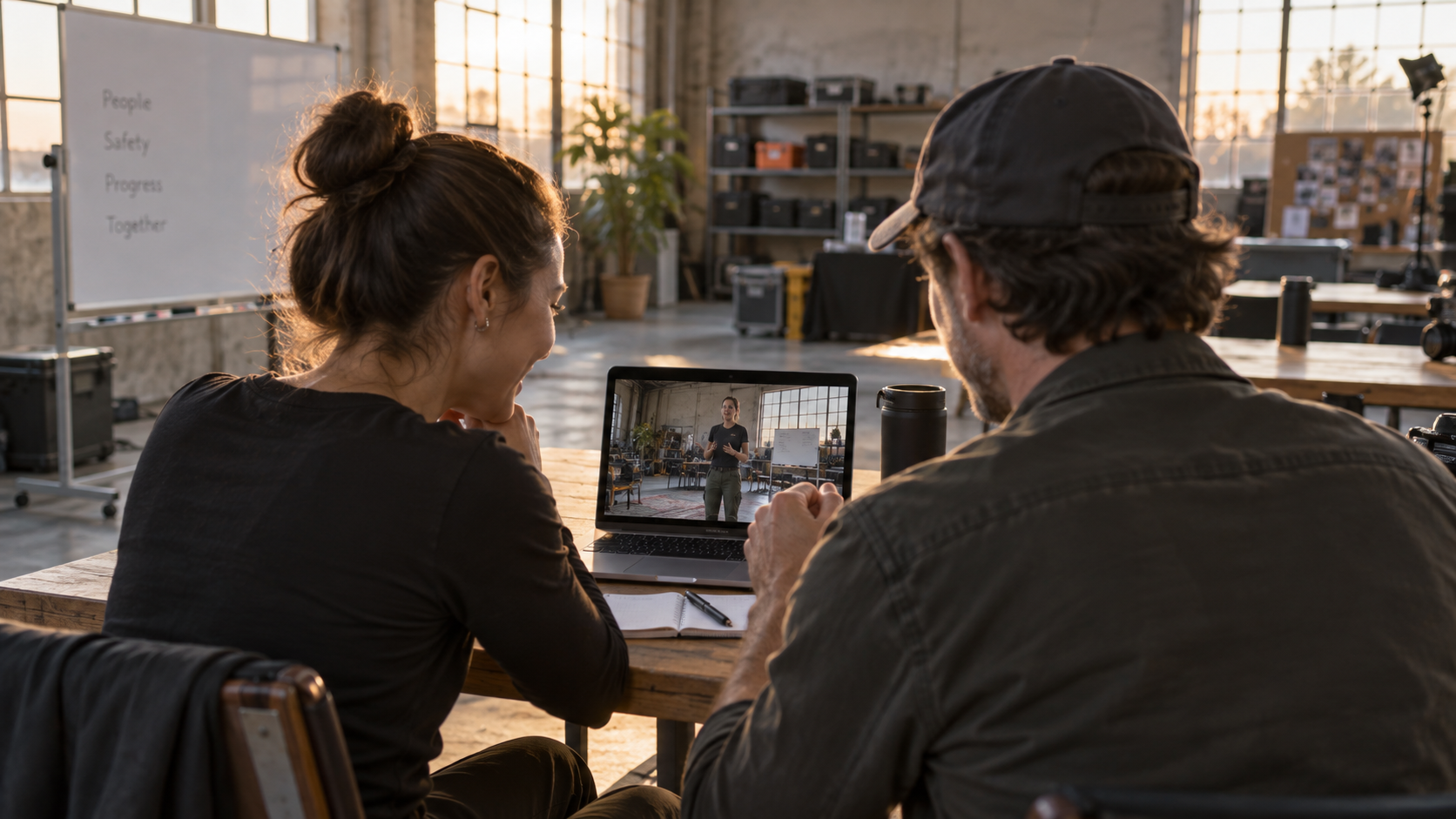
Illustrative generated still: approve the story, voice, and scene evidence before spending time on final polish or localization.
Ask a subject-matter expert to approve the script separately from a brand reviewer. Record every requested change against a scene number so Assistant receives specific instructions rather than a vague “make it better.” If a revision changes several approved facts, undo it and issue smaller commands.
Finally, test the finished video on the device and player your audience will actually use. Check captions, volume, thumbnail, opening speed, and the CTA. For a broader presenter-production benchmark, compare the workflow with the Google Vids personal avatar tutorial, then choose the route that reduces review time for your specific team.
Conclusion
A dependable Synthesia AI Assistant workflow begins by choosing the correct input route, cleaning the source, writing a production brief, approving the outline, refining structure in Storyboard, and switching to scene-level editing only when precision is necessary. Keep exact copy in Import script, treat files as source material to be rewritten, and use motion only when it explains the narration. When the project also needs cinematic inserts, reference continuity, and reusable shot approvals, start the companion motion workflow with Seedance Agent.
Ready to try it yourself?
Put the steps from this guide into practice with Seedance and turn prompts or images into polished videos in minutes.
Free credits on signup. Plans from $28/month.
Related Articles
More posts in the same locale you may want to read next.

Seedance App Preview Video Generator 2026: Create App Store and Product Launch Clips
Use Seedance to turn app screenshots, feature copy, and launch goals into App Store previews, Google Play promo videos, and product launch clips.
Read article
How to Make a Talking AI Avatar You Can Reuse
Make a talking AI avatar with Seedance: design one consistent character, give it a voice, and make it speak in a talking photo or a full Seedance 2.5 scene, episode after episode.
Read article
Best AI Video-to-Video Models in 2026
The best AI video-to-video models in 2026 for editing footage you already shot: Higgsfield Genjutsu, Seedance 2.x, Runway Aleph, Luma Modify and Kling Omni compared.
Read article