
GPT Image 2.5 to Video Workflow: From Reference Frame to Final Clip
AI Overview
Can GPT Image 2.5 generate a video?
No. GPT Image 2.5 Flare and Sunburst produce images, not video or audio. Use them to create and refine the reference frame, then animate that approved frame with an image-to-video model.
What makes a reference image ready for animation?
Use a clear subject silhouette, visible hands and feet, stable product geometry, separated depth layers, and enough room for movement. Fix text, identity, reflections, and tangled anatomy before generating video.
How should I write an image-to-video prompt?
Write one subject action, one camera move, and a short lock list. Define the start state, end state, pace, and elements that must not change instead of describing a whole story at once.
How do I keep a character consistent across several shots?
Reuse the same approved reference, wardrobe and environment anchors, then vary only shot size or action. Save each accepted shot and rerun the failed shot rather than regenerating the complete sequence.
Start with a Motion-Ready Image
OpenAI describes GPT Image 2.5 as stronger at reference fidelity, focused edits, natural lighting and texture, and consistency across multiple editing turns. Those improvements are valuable before video generation because the reference frame becomes the visual contract. A video model can invent motion, but it should not be asked to repair a changing face, unreadable label, merged fingers, or impossible product at the same time.
Choose Flare while exploring concepts and variants; use Sunburst when a valuable final frame still needs a precise contained edit. The Flare versus Sunburst guide provides the escalation rule. Once the still passes review, stop editing it casually. Export one master and identify it by version so every shot begins from the same approved state.
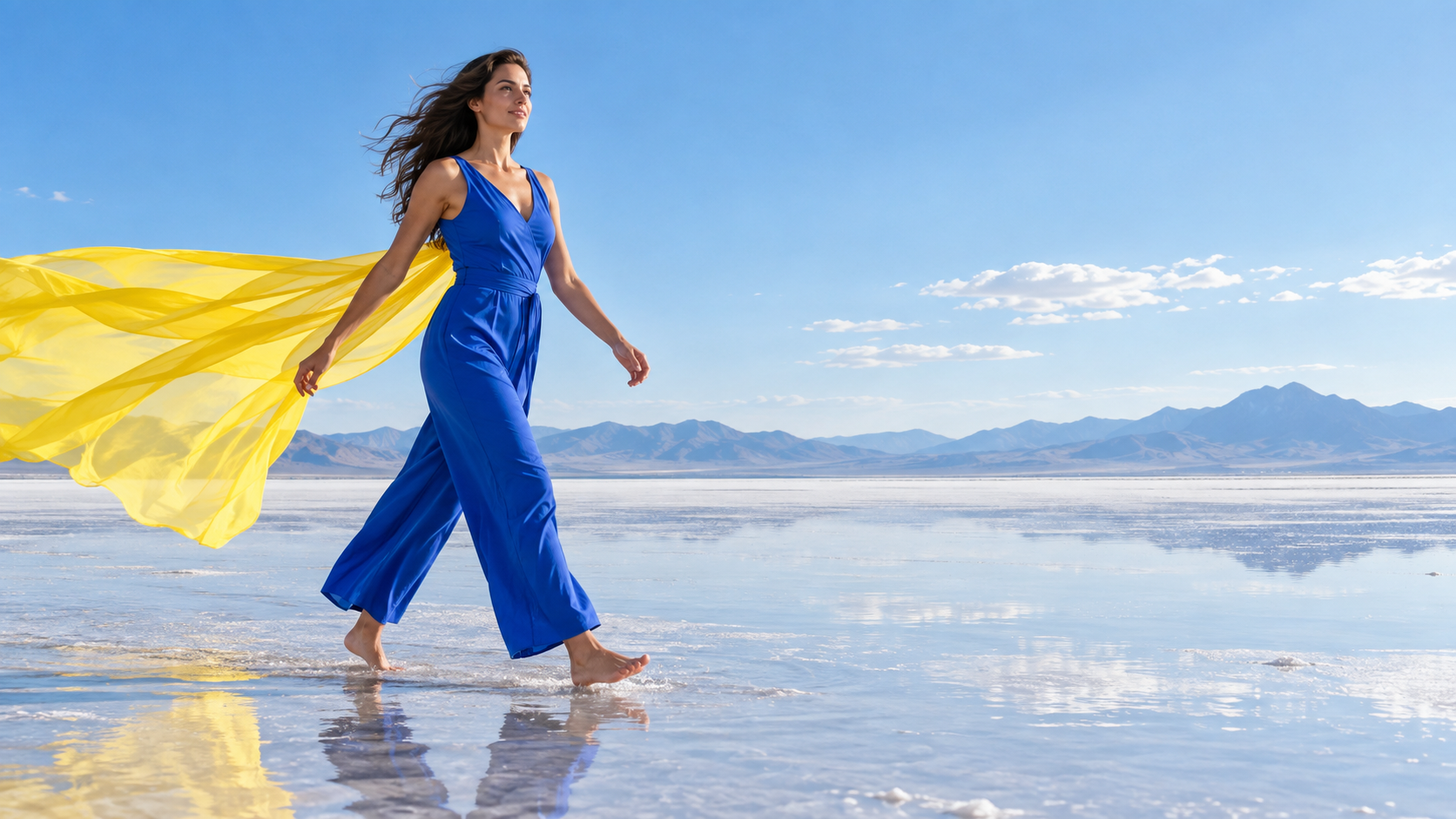
This neutral example leaves lead room, separates both arms and feet, and gives the fabric, reflection, horizon, and subject distinct motion roles.
Pass the source-frame gate
Inspect the frame at full size and answer five questions. Is the identity correct? Are rigid objects geometrically plausible? Are hands, feet, hair, fabric, and props separated enough to move? Does the composition leave space in the intended direction? Can you name which layers are foreground, subject, midground, and background? If any answer is no, revise the image before paying for motion.
Text deserves its own decision. Small package copy often deforms when the camera or object moves. If exact words are mandatory, keep the label front-facing, minimize rotation, and plan to add typography after generation. The broader GPT Image 2.5 review covers edit containment and reference checks before this handoff.
Write a Motion Contract
The best image-to-video prompt is a compact contract, not a screenplay. It tells the model what changes over time and what remains fixed. Copy this template and replace the brackets:
Start state: [what is visible at frame one]. Subject action: [one observable action]. Camera: [one move and speed]. Environment: [one secondary motion]. End state: [where the subject and camera settle]. Lock: preserve [identity, clothing, product geometry, text area, lighting direction, and background anchors]. Avoid: [specific failure modes].
For the salt-flat frame, a useful version would be: “The woman takes two calm steps to the right as the yellow fabric lifts once in the wind. The camera tracks laterally at walking speed. Shallow water ripples under each foot. End on a balanced medium-wide profile. Preserve her face, cobalt outfit, body proportions, mountain horizon, and reflection; avoid camera shake, extra limbs, and a changing garment.”
Separate subject, camera, and environment
One sentence per motion channel makes failure diagnosable. If the subject action works but the camera lurches, change only the camera line. If fabric behaves unnaturally, simplify the environment line. Prompts such as “cinematic, epic, dynamic, viral” describe taste, not movement, and cannot tell you what to fix.
State a measurable pace. “Slow five-percent push-in over five seconds” is more useful than “dramatic zoom.” Name the end pose when the final frame matters. For reusable examples, see the prompted image-to-video guide, then keep your project-specific lock list beside the source image.
Choose Duration, Aspect Ratio, and Camera
Match the canvas before generation. A 9:16 social clip needs a source with safe headroom and enough vertical background; a 16:9 campaign shot needs lateral lead room. Cropping after motion can remove hands, products, or the direction of travel. Generate or extend the still to the delivery ratio first, then keep that ratio across retries.
Use four to six seconds for one simple beat. Longer duration does not automatically create more story; it gives the model more frames in which identity, geometry, or camera logic can drift. Build a long sequence from approved short shots. Reserve multi-action prompts for cases where the transition itself is essential and can be described as one continuous movement.
A real Seedance motion output: one product, one controlled camera idea, and a clean background make shape changes easy to spot. It is not presented as a GPT Image 2.5 benchmark.
Pick the smallest useful camera move
Start with locked camera, slow push-in, lateral track, gentle orbit, or a restrained tilt. Avoid stacking orbit, zoom, handheld shake, rack focus, and speed ramp in one first pass. A static camera is especially useful for evaluating human movement or rigid products because it removes one source of deformation.
A second real motion output demonstrates a different brief: restrained hand movement, steam, and sunlight rather than a product orbit.
Build a Multi-Shot Package
A three-shot sequence should not be generated from three loosely related prompts. Create a handoff card containing the master reference, character anchors, wardrobe, environment anchors, prop geometry, color palette, lens language, aspect ratio, and one continuity rule. Then specify what changes in each shot.
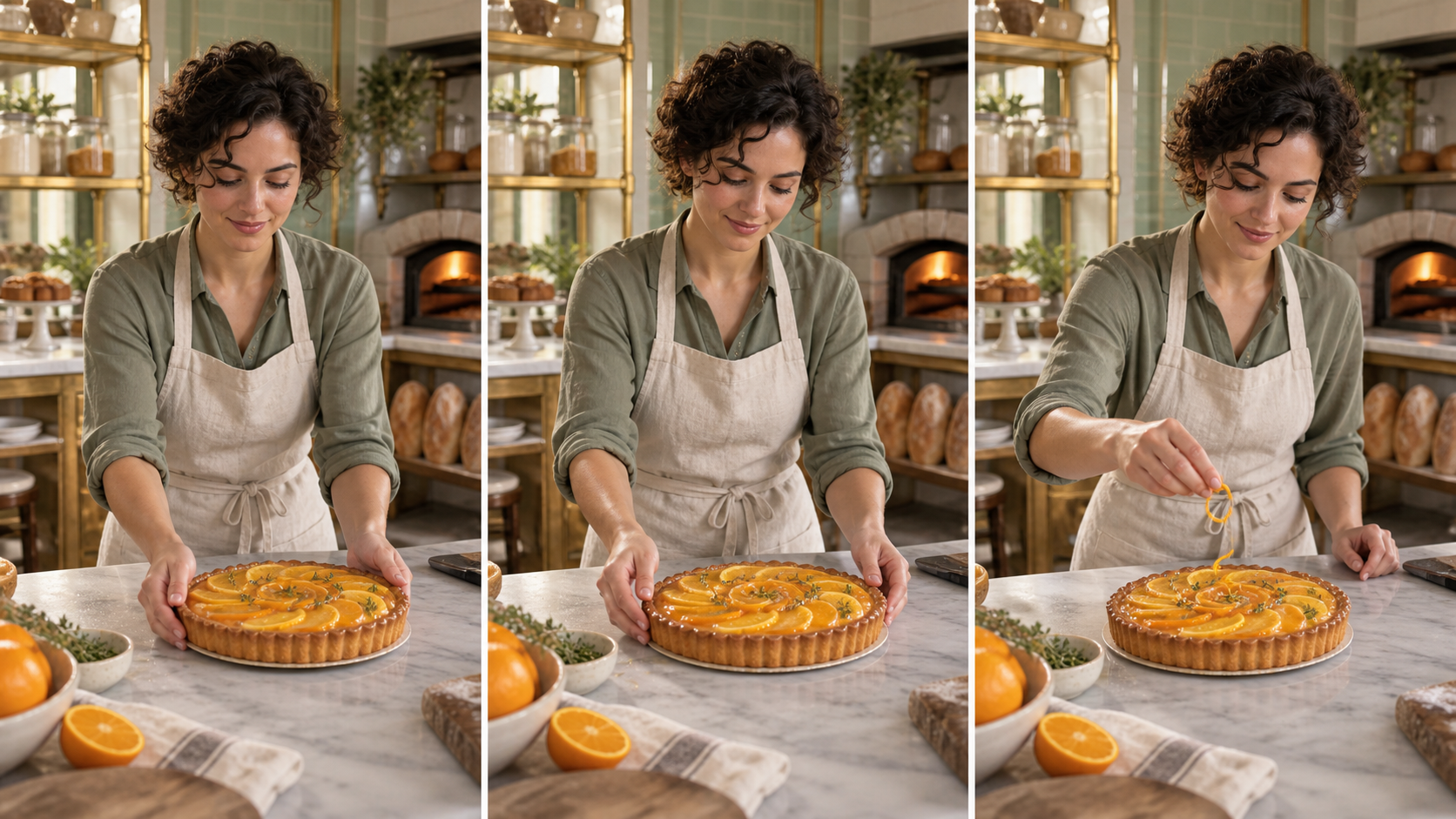
Read left to right: place the tart, rotate it, add the zest. The face, wardrobe, camera, counter, tart, and lighting remain continuity anchors.
Use this simple shot card:
| Shot | Only new information | Must remain fixed |
|---|---|---|
| Wide | Establish subject, room, direction | identity, wardrobe, hero prop |
| Medium | Perform the main action | room layout, prop shape, light direction |
| Close | Show expression or product detail | face, material, palette, action outcome |
Generate the wide shot first because it establishes spatial logic. Use the approved wide image or master character reference for the medium shot, then use the approved medium for the close detail when the tool accepts it. Do not rewrite the person from memory each time. For more complex handoffs, the multi-model video workflow explains how to preserve checkpoints across tools.
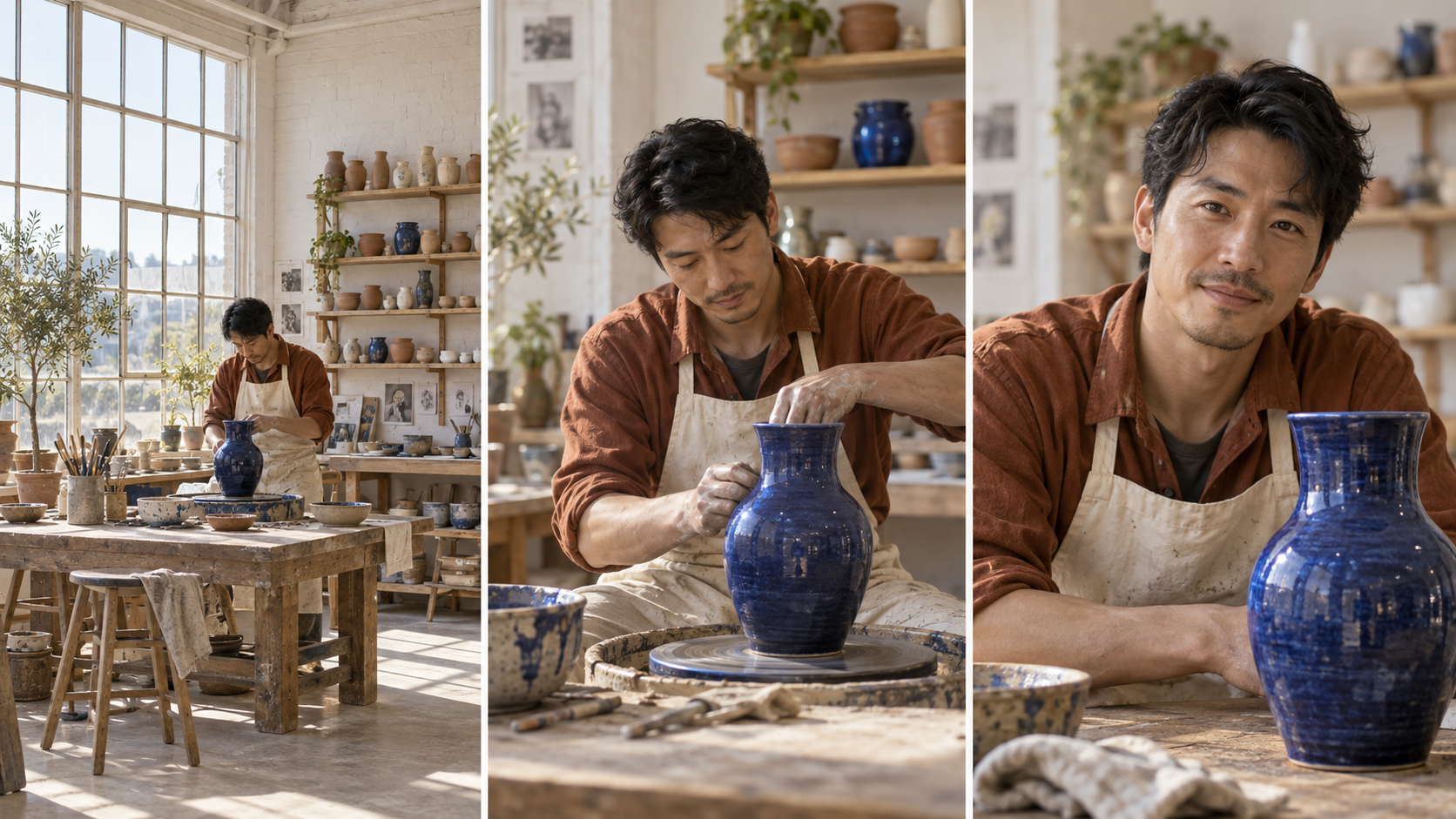
Continuity is broader than the face: inspect the rust overshirt, apron, vase profile, glaze, shelf positions, windows, workbench, and daylight across shot sizes.
Diagnose Failures and Rerun Only What Broke
Review the complete clip once for story, then inspect it again with a technical checklist. Watch the face, hands, rigid edges, clothing seams, text area, contact shadows, background anchors, camera path, and final frame. Pause around the middle, where deformations often hide between an attractive opening and ending.
Map each failure to the smallest rerun:
| Failure | First correction |
|---|---|
| Face changes during a turn | reduce head rotation; use a stronger identity reference |
| Hands merge with a prop | return to a frame with separated fingers and simplify the action |
| Product bends during orbit | reduce rotation or lock the camera; emphasize rigid geometry |
| Background swims | remove camera motion or simplify environmental movement |
| Action never completes | shorten the action, name the end state, or increase duration modestly |
| Clip feels lifeless | add one secondary motion, not five new primary actions |
Do not repair a failed four-second shot by regenerating five approved shots. Keep the prompt and source version with every output, record why it passed or failed, and compare retries side by side. This turns “try again” into a production decision and reveals whether the real problem belongs to the source image, motion brief, camera request, or video model.
Use Seedance Agent for Production Handoff
The workflow becomes harder when a campaign has multiple source images, alternate aspect ratios, localization, approval comments, and several model handoffs. Seedance Agent can hold the brief, organize reference assets, propose the shot sequence, preserve acceptance notes, and rerun only the rejected shot. The benefit is not another generic prompt box; it is keeping the decision trail attached to the assets that move through production.
Give the Agent the master frame, motion contract, shot card, destination, duration, and lock list. Ask it to return a draft sequence before paid generation. Review whether every shot adds new information and whether the intended motion can be expressed in one beat. After generation, approve clips individually and keep the strongest first or last frame as the next shot's reference when continuity matters.
This division of labor is practical: GPT Image 2.5 creates and precisely edits the source frames; an image-to-video model creates temporal motion; Seedance Agent coordinates references, shots, approvals, and partial reruns. Each stage has a visible input, output, and acceptance test, so a failure does not force the whole project back to the beginning.
Conclusion
A reliable GPT Image 2.5 to video workflow begins with a motion-ready still, not a longer motion prompt. Approve identity and geometry, match the delivery ratio, write one subject action plus one camera move, preserve a concise lock list, and build longer stories from accepted short shots. For multi-shot work, carry the same reference and environment anchors across a wide-medium-close package, then diagnose failures by channel and rerun only what broke. When you are ready to turn the approved frames into a managed production, start the image-to-video project in Seedance.
Ready to try it yourself?
Put the steps from this guide into practice with Seedance and turn prompts or images into polished videos in minutes.
Free credits on signup. Plans from $28/month.
Related Articles
More posts in the same locale you may want to read next.

Seedance App Preview Video Generator 2026: Create App Store and Product Launch Clips
Use Seedance to turn app screenshots, feature copy, and launch goals into App Store previews, Google Play promo videos, and product launch clips.
Read article
How to Make a Talking AI Avatar You Can Reuse
Make a talking AI avatar with Seedance: design one consistent character, give it a voice, and make it speak in a talking photo or a full Seedance 2.5 scene, episode after episode.
Read article
Best AI Video-to-Video Models in 2026
The best AI video-to-video models in 2026 for editing footage you already shot: Higgsfield Genjutsu, Seedance 2.x, Runway Aleph, Luma Modify and Kling Omni compared.
Read article