
Firefly Camera Motion Reference Tutorial: Shoot, Upload, and Review a Five-Second Move

AI Overview
How do I use a camera motion reference in Adobe Firefly?
Open Generate video, choose the Firefly Video model, then add your clip under Camera > Motion reference. Describe the new subject and setting in the prompt, generate, and play the result to check the actual camera path.
What video can I upload as a Firefly motion reference?
Adobe specifies a 5–10-second clip under 200 MB. If it runs longer than five seconds, Firefly uses only the first five as the motion guide, so put the intended move at the beginning and keep it steady.
Does Firefly copy the person or object in my reference clip?
The motion-reference control is meant to borrow camera movement, not the reference clip's subject. Describe the new subject separately, and review the result for identity, framing, parallax and the intended beginning and ending compositions.
Why does my generated shot not follow the reference move?
First check that Firefly Video is selected, the source clip meets the upload rules, and the move is visible in its first five seconds. Then simplify competing camera instructions and compare the generated clip at matching timestamps.
Camera motion reference is a path, not a style preset
Separate camera travel from subject action
A person turning on a stool is subject motion. A camera walking around them changes background overlap and parallax. Adobe says Firefly Video can extract pans, zooms, tilts and a camera path from an uploaded video; its teaching example uses a phone clip circling a dog to guide a new subject. The dog is not the desired output. The arc is.
Imagine a five-second film of a ceramicist shaping a cobalt-blue bowl. The camera walks a gentle clockwise arc; a foreground shelf shifts relative to the window while the bowl stays recognizable. The images here are editorial concepts, not Firefly output or proof of this exact arc.

Illustrative opening composition: note the shelf, window and bowl. These stable landmarks make a changed camera position easier to judge.
Know what each reference is responsible for
Use the video for camera movement and the prompt for subject, action, location and light. Where enabled, first or last frames can anchor composition; a still cannot replace a moving reference. Adobe's current help page describes frame controls, but an earlier tutorial showed a mode where frames and Motion reference could not be combined. Follow the controls in your current model and account.
If your real need is to preserve an existing person or product across shots, the Seedance reference-video workflow explains the broader identity and performance problem. This page stays focused on camera travel inside Firefly.
Prepare a reference clip that teaches one move
Record five useful seconds, not ten indecisive ones
Adobe requires 5–10 seconds and under 200 MB, using only the first five seconds if the source is longer. A phone is enough for the reference. Walk one smooth arc around the bowl or one lateral track past a shelf. Avoid combining several unrelated moves.
For the pottery example, establish a stable frame, travel through the arc, then settle. Keep the wheel in frame and include near and far landmarks. A dancing person filmed from a stationary phone describes performance, not camera travel.
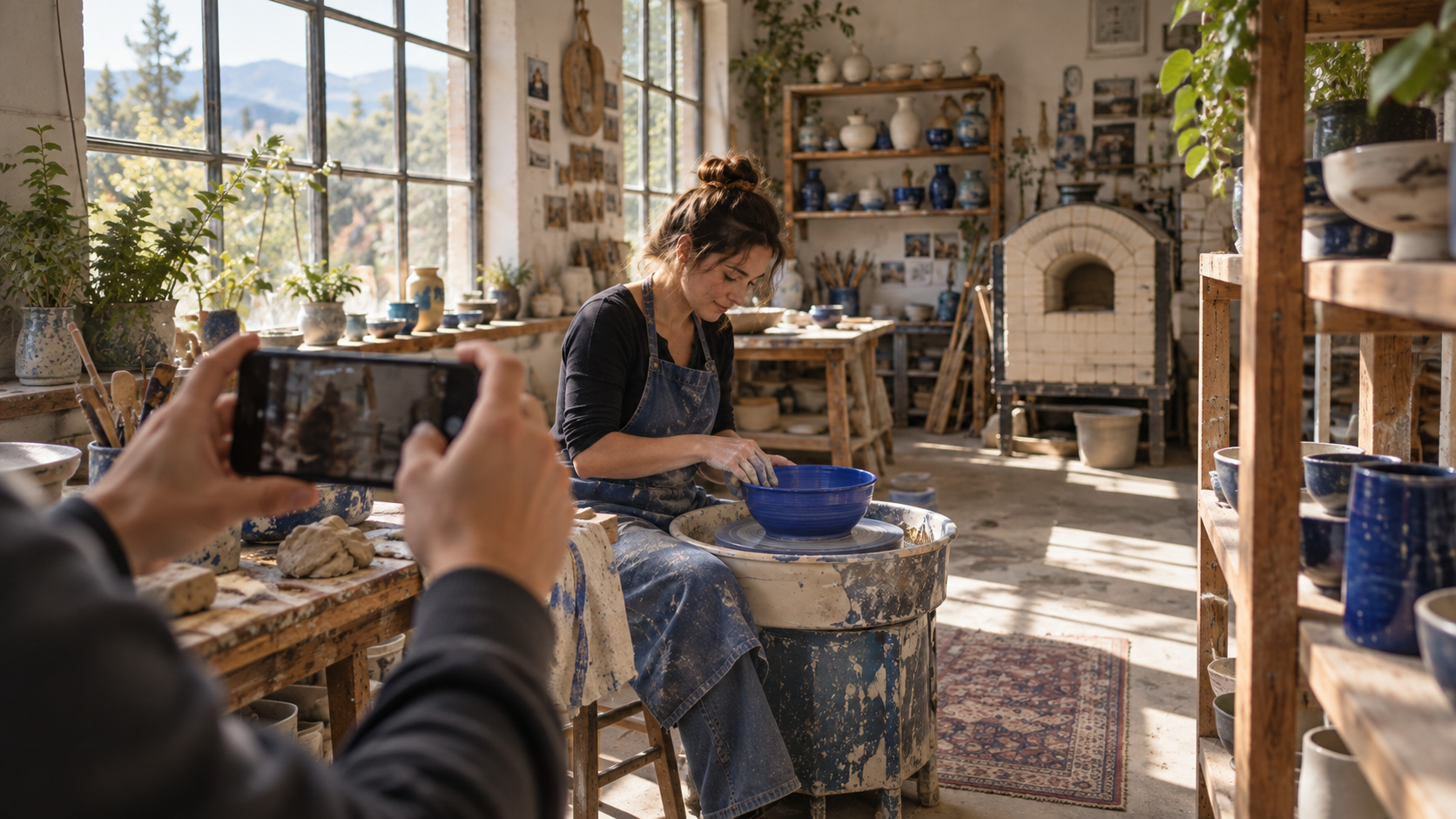
Illustrative behind-the-scenes view. The useful source is the short moving phone clip, not this still or an overlay of arrows.
Before upload, check that the file plays, the camera changes viewpoint, the move fits in seconds zero to five, and the file meets Adobe's limits. Keep it for timestamped comparison. The Seedance camera-movement prompts guide clarifies orbit, pan, push and lateral tracking.
Upload the reference in Firefly Video
Follow the model-specific control path
In Adobe Firefly, open Video > Generate video. Under General, choose Firefly Video as the model; Adobe's current instruction specifically ties Motion reference to that model. Choose the output aspect ratio and resolution offered in your account. The documentation describes a five-second generated clip at the default 24 frames per second. Under Camera > Motion reference, select Upload video and choose your prepared source. Add your subject-and-scene prompt, then generate. Preview and download only after inspecting the moving result.
If you use a first or last frame, inspect its crop against the chosen aspect ratio; Adobe warns that mismatched images can crop automatically. Some Style controls may also be unavailable with a frame image. Do not assume a partner model exposes Firefly Video's camera-reference control.
The Seedance image-to-video workflow is a separate path when an approved still image matters more than borrowing a specific filmed camera path. It does not change the instructions for Firefly's own Motion reference menu.
Write the prompt around the new scene
Keep one primary camera intention
A motion reference already carries camera information. Define the new scene without fighting the path. Copy-ready prompt: “A ceramicist in a faded indigo apron shapes one cobalt-blue bowl at a pottery wheel in a daylight studio. Keep the bowl, apron and workshop consistent. Natural clay dust and skin texture. Follow the uploaded gentle clockwise arc; keep hands and bowl readable. No cut, extra hands, new person, text or logo.”
Specify the move once. “Static tripod shot with rapid zoom and 360-degree orbit” contradicts itself. If you use Enhance prompt, remove any move it adds that competes with the source.

Illustrative mid-arc composition. In the real video, judge whether foreground and background shift smoothly, not whether one attractive still resembles the reference.
Treat aspect ratio and frame anchors as separate decisions
Choose 16:9 for widescreen delivery or 9:16 for a vertical cut. Cropping changes what a camera path can reveal. A first frame should agree with the source's beginning; a last frame should be reachable within five seconds. Neither guarantees a pixel-exact trajectory.
Keep a shot card with opening position, direction, final composition and two parallax landmarks. Use it when reviewing variants.
Review and troubleshoot the generated motion
Play both clips at matching timestamps
Do not approve from a thumbnail. Compare source and output at start, middle and end. Check direction, shelf–window parallax, bowl identity, hands and final composition. A moving subject in a static frame can look lively yet fail the camera-reference job.
This is an existing five-second Seedance astronaut clip, not Firefly output or the pottery film. Play it to practice separating the subject's walk from changes in camera viewpoint and background.
Diagnose the failure before changing everything
If Motion reference is missing, check that the Firefly Video model is selected and that the current mode supports the control. If upload fails, verify duration, file size and that the file itself plays; Adobe's current limit is under 200 MB. If the camera appears to ignore the path, inspect the first five seconds of the source, then remove conflicting camera words from the prompt. If the move transfers but the subject warps, simplify the action and protect just the identity features that matter. If the crop clips the bowl, correct the aspect ratio or frame anchor before paying for another attempt.
Make one change per rerun and keep the prior output. The Seedance and OpenShot editing guide covers trims and delivery fixes that do not need another generation.

Illustrative detail target. The moving result should arrive at a useful frame without changing the bowl's shape or the ceramicist's hands.
Where Seedance Agent fits after the motion test
Turn one approved move into a reusable shot plan
Firefly's Motion reference is useful when you already have a short filmed camera path and want a new five-second shot guided by it. A campaign is a larger job: the pottery arc may need a product close-up, a vertical cut, approved captions, audio, alternate endings and review from another person. That is where Seedance Agent can help coordinate your brief, references, shot order and selective reruns on seedance.tv. It does not operate Firefly's upload control or guarantee that Firefly will follow the source; it gives your own production a place to keep the accepted move and feedback connected.
For each accepted clip, record the source file, final prompt, aspect ratio, chosen output and one-sentence acceptance reason. Reject a beautiful clip if the camera path is wrong. If the output is part of an image-led series, the Seedance 2.5 image-to-video guide offers a complementary way to keep visual anchors consistent across later shots.
Conclusion
The reliable Firefly camera motion reference workflow is short: film one clear move, keep its useful action in the first five seconds, select Firefly Video, upload under Camera > Motion reference, and write a prompt that defines the new subject without contradicting the path. Then play source and output at matching moments before accepting a result. The pottery images here are illustrative, and the playable astronaut clip is a separate Seedance sample, not a Firefly test. When an approved move needs to become a coordinated multi-shot deliverable, plan and review the next shots with Seedance Agent.
Ready to try it yourself?
Put the steps from this guide into practice with Seedance and turn prompts or images into polished videos in minutes.
Free credits on signup. Plans from $28/month.
Related Articles
More posts in the same locale you may want to read next.

Seedance App Preview Video Generator 2026: Create App Store and Product Launch Clips
Use Seedance to turn app screenshots, feature copy, and launch goals into App Store previews, Google Play promo videos, and product launch clips.
Read article
How to Make a Talking AI Avatar You Can Reuse
Make a talking AI avatar with Seedance: design one consistent character, give it a voice, and make it speak in a talking photo or a full Seedance 2.5 scene, episode after episode.
Read article
Best AI Video-to-Video Models in 2026
The best AI video-to-video models in 2026 for editing footage you already shot: Higgsfield Genjutsu, Seedance 2.x, Runway Aleph, Luma Modify and Kling Omni compared.
Read article