
Seedance 2.5 Image to Video: The Complete Guide for 2026
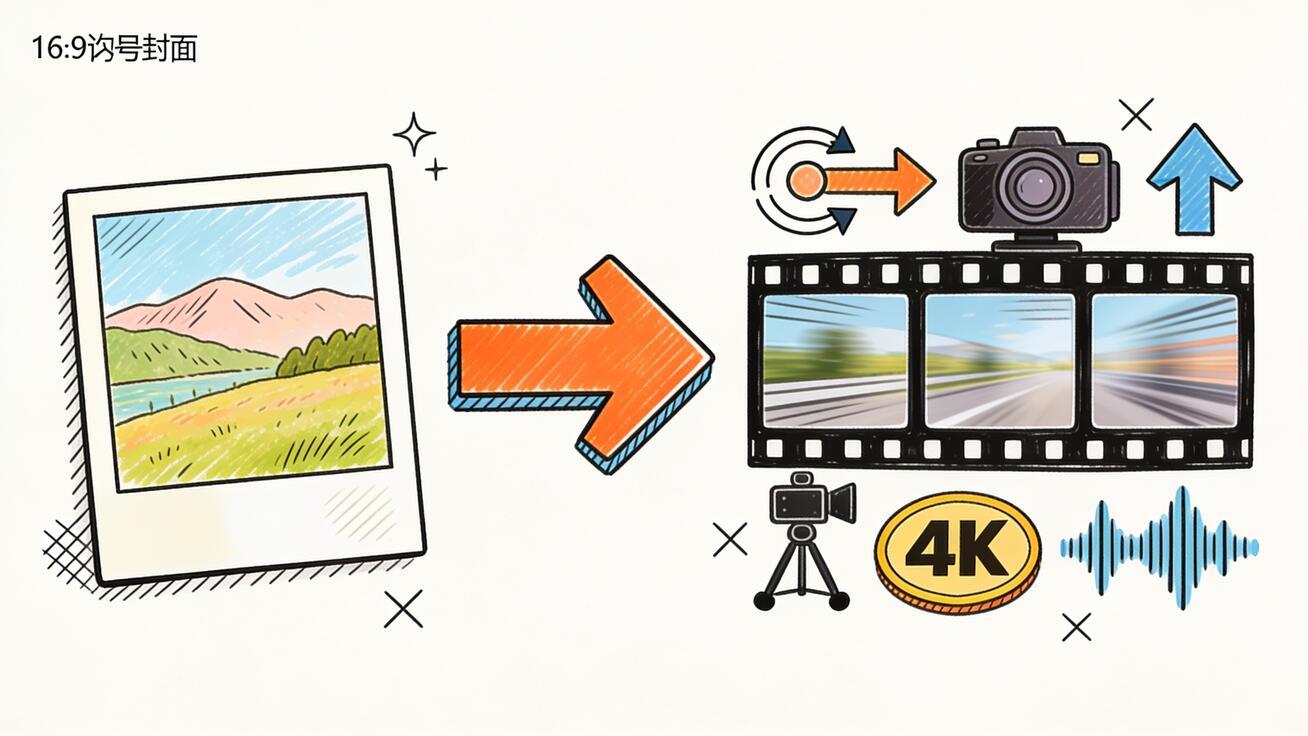
Seedance 2.5 image to video lets you take any still image — a product photo, a portrait, a landscape, a render — and turn it into a 30-second cinematic clip with native audio, all in a single generation pass. No stitching, no post-processing pipeline, no separate audio job. You upload the image, write a motion prompt, and Seedance 2.5 animates it with the physics, camera movement, and sound already integrated.
This guide covers everything you need to use Seedance 2.5's image-to-video mode effectively: how it differs from text-to-video, how to prepare source images, how to write I2V-specific prompts, how to control camera motion, six high-value use cases with copy-ready prompts, the reference image system, and how to fix the most common I2V problems.
If you want the broader Seedance 2.5 overview, start with the Seedance 2.5 model page or the how-to guide. This guide is for users who want to go deeper on image-to-video specifically.
Quick Answer: How Seedance 2.5 Image-to-Video Works
Upload a still image to Seedance, select Image-to-Video mode, write a motion-and-camera prompt, and generate. Seedance 2.5 treats your image as the first frame and generates a single continuous clip — up to 30 seconds, native 4K, with synchronized audio — that starts from that visual state and animates outward from there.
The key difference from text-to-video: your image anchors the subject. Color, lighting, texture, subject pose, background composition — all of these carry directly into the output. The model's job is to add motion, physics, camera movement, and audio on top of what you provided. This makes I2V the better choice when you already have a precise visual you can't describe in words.
Image to Video vs. Text to Video in Seedance 2.5
Choosing between I2V and text-to-video in Seedance 2.5 is not about which is more powerful — both use the same underlying model. It's about what you're starting with and what you need to control.
Use image-to-video when:
- You have an existing asset with an exact color, product design, brand identity, or face you need to preserve
- You need to animate a specific photo (product, real estate, portrait, illustration)
- The visual look is defined and the task is adding motion and audio
- You want character or product consistency without using the reference system
Use text-to-video when:
- You're generating from scratch and have no source asset
- You want maximum creative latitude on the visual style
- The specific visual doesn't matter as much as the mood, scene type, or narrative arc
- You're producing concept footage before final assets exist
For marketing teams and product studios, I2V is usually the starting point because the source asset — a packshot, a product render, a lifestyle photo — already exists and needs to stay accurate. For concept work and scripted narratives where you're generating everything from scratch, text-to-video is the cleaner entry point.
How to Prepare Source Images for Best Results
The quality of your image-to-video output depends heavily on the quality of your input image. Seedance 2.5 is good at working with what it's given, but weak inputs produce inconsistent results.
Resolution and aspect ratio: Use the native export resolution of your asset — don't upscale a small image before uploading. Seedance 2.5 handles the mapping to 4K output. Aspect ratios of 16:9 (horizontal) and 9:16 (vertical) work best for most use cases. Square images work for product shots but may leave compositional headroom that the model needs to fill.
Subject clarity: The model reads the image to understand what to animate. Blurry, heavily compressed, or JPEG-artifact-heavy images confuse the motion generation. Use the clearest version of your source image available, especially around edges that will move — hair, fabric, water, foliage.
Compositional headroom: If you're planning camera movement — a push-in, a pan, a tilt — leave room in the composition for the camera to move into. An image where the subject fills the entire frame edge-to-edge limits how much the model can move the camera without cropping key information.
Lighting consistency: Seedance 2.5 extends the lighting from your source image. If the source image has strong directional light, the model will animate that light environment — shadows will move accordingly, reflections will be consistent. Starting with intentional lighting makes the output more cohesive.
Writing Prompts for Image-to-Video
Image-to-video prompts have a different job than text-to-video prompts. You don't need to describe what's already in the image — the model can see it. Your prompt needs to tell the model what to do with the image.
Focus your I2V prompt on three things:
-
The motion: What should move, and how? Be specific: "the product rotates 90 degrees clockwise" is better than "the product moves." "Her hair lifts in a slow breeze" is better than "there's wind."
-
The camera: How should the camera move? Seedance 2.5 follows camera instructions well in I2V mode. Name the shot type, the movement, and the speed: "slow push-in from medium to close-up" or "orbit left 45 degrees around the product" or "static locked-off shot."
-
The atmosphere: What should the environment add? Sound, light changes, weather, particle effects. "Rain begins falling in the background," "golden hour light shifts warmer," "ambient street noise and distant music."
What to leave out: Don't re-describe what the model can already see in the image. If your source image shows a red sneaker on a white surface, don't write "a red sneaker on a white surface." The model has the image. Your prompt is the director's instruction, not the art description.
I2V Prompt Template
[What moves] [How it moves] + [Camera movement and speed] + [Atmosphere/Audio]
Example (product shot):
The sneaker rotates slowly to reveal the side profile, laces settling naturally. Orbit from front to 3/4 side view over 10 seconds, holding. Clean studio light unchanged. Subtle ambient room tone.
Example (portrait photo):
She glances up from the book, a soft smile forming. Camera holds static medium shot, then a gentle push-in to close-up over the final 8 seconds. Warm afternoon light through the window, slight dust motes. Ambient interior quiet, distant birds outside.
Example (landscape photo):
Clouds drift slowly left to right across the mountain range, casting rolling shadows on the valley. Camera holds static wide shot. Late afternoon golden light deepens to orange. Wind through grass audible, distant hawk cry.
Camera Motion in Seedance 2.5 I2V: The Full Vocabulary
Seedance 2.5 understands a wide range of camera movement instructions in I2V mode. Using the right language reliably produces the camera behavior you're describing.
| Movement | Prompt Phrase | Best For |
|---|---|---|
| Push toward subject | "slow push-in", "dolly-in", "zoom toward" | Portraits, product details, reveals |
| Pull away from subject | "pull back", "dolly-out", "slow pull away" | Landscapes, wide establishing shots |
| Rotate around subject | "orbit left/right", "arc around" | Products, objects, architecture |
| Pan horizontal | "pan left", "pan right", "track left" | Scenes with horizontal width, landscapes |
| Tilt vertical | "tilt up", "crane up", "tilt down" | Tall subjects, sky reveals |
| Locked static | "static locked-off", "no camera movement" | Tabletop shots, talking heads, product close-ups |
| Slight handheld | "slight handheld movement", "subtle camera drift" | Documentary feel, naturalistic portraits |
Add speed qualifiers: "very slow," "gradually," "quick pan," "sweeping." Seedance 2.5 responds to pacing language and it makes a visible difference in the final output.
Six Image-to-Video Use Cases with Ready-to-Use Prompts
1. Product Rotation and Detail Reveal
Start from a clean product packshot and animate a rotation that shows all angles.
Source image: Product shot against neutral background, front-facing.
Prompt:
The bottle rotates 90 degrees counterclockwise, revealing the side label. Smooth orbit movement, 8 seconds. Pristine studio lighting remains constant, clean white bounce fill visible on product edges. Subtle ambient studio tone.
Why it works: Product rotation is a high-intent e-commerce asset. A rotating packshot that starts from the real product photo preserves branding accuracy while adding the movement that static images can't provide.
2. Portrait Photo Animation
Animate a portrait photo into a short clip for social media, film-style showreels, or magazine-style content.
Source image: High-resolution portrait, subject looking off-frame or into camera.
Prompt:
She slowly turns to look directly into camera, a calm expression shifting to a slight smile. Camera holds static medium close-up. Soft window light from camera-left brightens slightly over the clip. Gentle ambient room atmosphere.
Use this for: LinkedIn content, personal brand reels, model card animations, team page videos.
3. Architectural and Real Estate Walk-Through
Take a real estate or architectural photo and create a slowly moving establishing shot.
Source image: Exterior or interior architectural photo, natural light.
Prompt:
Camera slowly pushes in toward the building entrance, starting from a wide establishing shot and ending on the facade detail. Motion is smooth, 12 seconds. Late afternoon light, slight breeze through nearby trees. Ambient suburban street noise, birds.
Use this for: Listing videos, property marketing reels, architecture portfolio content.
4. Food and Beverage Animation
Bring a static food or drink shot to life with steam, liquid movement, or atmospheric light.
Source image: Styled food or beverage shot on a table or bar surface.
Prompt:
Steam rises slowly from the coffee cup, swirling upward in the warm light. Camera holds static close-up, then a very slow tilt down over 10 seconds. Warm café lighting, bokeh background. Ambient café sounds, espresso machine hiss.
Use this for: Restaurant social media, food brand content, menu promotions, beverage advertising.
5. Landscape and Nature Photo Cinematic Treatment
Take a still landscape photo and make it feel like a cinematic establishing shot from a film.
Source image: Wide landscape photo, natural light, strong foreground and background separation.
Prompt:
Slow pan right across the mountain valley, clouds casting moving shadows on the slopes below. Gentle movement, 15–20 seconds. Golden hour light gradually deepens. Wind through grass in the foreground, distant stream sound.
Use this for: Travel content, tourism marketing, ambient video backgrounds, documentary openings.
6. Illustration and Concept Art Animation
Take a digital illustration, concept art piece, or stylized image and animate it while keeping the art style intact.
Source image: Digital illustration or concept art with a defined visual style.
Prompt:
The character's cape moves gently in an unseen wind, eyes shifting slowly left then returning forward. Camera holds static medium shot. Dramatic backlighting pulses subtly. Cinematic ambient score (non-diegetic), deep atmospheric hum.
Use this for: Game character showcases, comic/illustration portfolio reels, animated storyboard previews.
Using the Reference Image System with I2V
Seedance 2.5 supports reference images separately from your source image. In image-to-video mode, this creates a powerful combination: your source image defines the starting frame; your reference images define a consistent character, face, or product that must remain stable across the animation.
When to use references alongside I2V:
- The source image shows a character at one angle, but you want the animation to turn them — reference ensures face consistency through the motion
- You're animating a product with a brand character in the scene — reference keeps the character looking right even when they move
- You want to maintain a design element (logo, label, typography) with high fidelity as the camera moves
How to add references:
- In Seedance's I2V mode, upload your source image in the main image slot
- Use the reference image fields to attach additional assets — faces, products, or style anchors
- Your prompt should still direct the motion; the reference system handles the visual consistency
Up to 50 reference images are supported in Seedance 2.5. For most I2V work, 1–3 targeted references (one face, one product, one environment anchor) is enough.
Common Seedance 2.5 I2V Problems and Fixes
Problem: The subject moves too much and loses coherence early in the clip Fix: Add "slow, subtle" qualifiers to your motion prompt. Specify the motion range: "turns 30 degrees" rather than "turns." Use reference images if the subject has a face or specific product identity to preserve.
Problem: Camera movement is too aggressive or cuts off the subject Fix: Add "slow" and "gradual" to camera instructions. Specify where the camera should hold: "push-in from wide to medium, hold on medium." Leave compositional headroom in your source image.
Problem: Audio doesn't match the visual environment Fix: Be explicit about the audio environment in your prompt. Name what you want: "café ambient noise," "outdoor wind and birds," "electronic ambient score." Don't leave audio to the model's default inference from the image alone.
Problem: Lighting shifts dramatically partway through the clip Fix: Describe the lighting state you want to hold: "constant studio light," "unchanged window light throughout," "late afternoon light stays consistent." If you want a light change, describe it explicitly: "light gradually warms from daylight to golden hour over 20 seconds."
Problem: Background elements conflict with the motion intent Fix: Specify whether the background should move or stay static: "background environment remains still," "background elements drift slightly," "static background, foreground subject only moves." Unguided, the model will sometimes animate background elements in unexpected ways.
Comparing Seedance 2.5 I2V to Competitors
| Feature | Seedance 2.5 I2V | Kling 3.0 Omni I2V | Veo 3 I2V |
|---|---|---|---|
| Max clip length from I2V | 30 seconds | ~10 seconds | 8 seconds |
| Native audio generation | Yes | No (separate step) | Yes |
| Reference system | Yes (up to 50) | Limited | Limited |
| Output resolution | 4K | 1080p | 1080p |
| Camera control precision | High | Medium | High |
| Best for | Long-form product/portrait/landscape | Short social clips, quick iterations | Cinematic quality short clips |
Seedance 2.5's main advantage in I2V is the combination of 30-second continuous clips, native 4K, native audio, and a deep reference system. If you need 8–10 second social clips with fast iteration speed, Kling and Veo 3 are faster. If you need a 30-second product video with audio that starts from your exact packshot, Seedance 2.5 is the more capable option.
FAQ: Seedance 2.5 Image to Video
Does Seedance 2.5 image-to-video preserve my exact image colors and branding? Yes. Your source image defines the starting frame, and color, lighting, and texture carry into the output. The model adds motion on top of your image rather than interpreting it loosely. For brand-sensitive assets, I2V is the right mode precisely because it preserves your visual identity.
Can I use any image format? JPEG and PNG are fully supported. Higher-resolution source images generally produce better I2V results because the model has more visual information to work from.
Does I2V mode support 30-second clips? Yes. Seedance 2.5 I2V generates the same maximum clip length as text-to-video mode — up to 30 seconds continuous.
How do I access Seedance 2.5 image-to-video mode? From the main Seedance interface, select the Image-to-Video option in the mode selector, then upload your source image before writing your prompt. If you don't see Seedance 2.5 in the model selector, check the Seedance 2.5 model page for current access status.
Can I combine image-to-video with text overlays or graphic elements? The model generates video from the image; adding text overlays or graphic elements is a post-production step in your video editor. The model does not generate on-screen graphics or typography.
What's the difference between the source image and a reference image in I2V? The source image is the starting frame — what the video begins from. Reference images are anchors the model uses to keep a specific element (face, product, style) consistent throughout the clip. Use both when you need both: a specific starting point and a specific consistency target.
Conclusion
Seedance 2.5 image to video is the most practical path from a still asset to a polished marketing or creative video in 2026. The combination of 30-second clip length, native 4K output, synchronized audio, and a deep reference system makes it usable for real production work — not just demos. The key is prompting for motion and camera, not redescribing the image the model already has.
Start with a clean, high-resolution source image. Write a prompt focused on what moves, how the camera moves, and what the audio environment sounds like. Add references if you need a face or product to stay consistent. Generate two variants, compare results, and export.
Try the workflow directly on the Seedance 2.5 image-to-video page or see the full Seedance 2.5 prompt guide for the complete prompt reference.
Ready to try it yourself?
Put the steps from this guide into practice with Seedance and turn prompts or images into polished videos in minutes.
Free credits on signup. Plans from $28/month.
Related Articles
More posts in the same locale you may want to read next.

Seedance App Preview Video Generator 2026: Create App Store and Product Launch Clips
Use Seedance to turn app screenshots, feature copy, and launch goals into App Store previews, Google Play promo videos, and product launch clips.
Read article
Gemini AI Video Prompt Examples: Copy-Ready Veo Scenes and a Better Prompt Formula
Copy Gemini AI video prompt examples for cinematic motion, product ads, dialogue, and vertical clips, then adapt them with a practical Veo prompt formula.
Read article
How to Keep Product Shape Consistent in AI Video Ads
Lock product geometry, packaging, labels, references, camera angles, and approval checks so AI video ads preserve the real SKU across every shot.
Read article