
Synthesia PowerPoint to Video Tutorial: Import, Narrate, and Fix Slides

AI Overview
How do you turn a PowerPoint into a video in Synthesia?
Choose Import PowerPoint, upload a .pptx, configure editable elements, scripts, and avatars, then import. Review every scene before selecting Generate Video.
Does Synthesia keep PowerPoint animations?
No. Slide animations and transitions do not carry over. Import the visual elements, then rebuild only the motion that helps explain the narration inside Synthesia.
Can Synthesia use PowerPoint speaker notes as narration?
Yes. Auto-populate script can use each slide's speaker notes. When notes are missing, Synthesia can create narration from slide text if editable conversion is enabled.
Is PowerPoint import available on Synthesia's free plan?
Current Synthesia documentation lists Import PowerPoint as available on Free plans. Some controls, including custom font uploads, still depend on the workspace plan.
Choose the Right PowerPoint Import Route
Use standalone Import PowerPoint when the deck structure matters
Synthesia offers two PowerPoint-related paths that solve different jobs. The standalone Import PowerPoint route is the better choice when every slide should become a scene and the layout should remain recognizable. It accepts .pptx files up to 1 GB and 150 slides. Text boxes, shapes, images, videos, and tables can become editable when you enable conversion during import.
Assistant file import is different. It reads a deck as source material and writes a new outline, script, and visual story. That is useful when the presentation is research rather than a finished storyboard, but it may reorganize or summarize the source. If the exact slide order, speaker notes, and approved design matter, begin with the standalone route. If the deck is dense and needs to become a shorter story, use the planning method in the Synthesia Assistant tutorial.
 A strong conversion keeps the learning sequence but gives each scene one spoken idea and one readable visual job.
Decide what must remain exact
Before upload, mark each slide as preserve, simplify, or replace. Preserve regulated wording, product names, diagrams, and approved calls to action. Simplify slide text that was written for a live presenter. Replace decorative stock images that do not prove the narration.
This prevents every PowerPoint object from being treated as equally valuable. A slide built for a live speaker often needs two scenes or a shorter script in a narrated video.
Prepare the Deck Before Upload
Build a clean import copy
Duplicate the original deck and prepare a video-specific version. Delete hidden slides, unused masters, presenter-only appendices, overlapping objects, and duplicate media. Embed fonts when possible. Synthesia detects missing fonts and can offer a replacement or accept an uploaded font, but Basic and Starter plans do not support custom font uploads. Font replacement also does not apply to imported tables.
Keep lists to two indentation levels because deeper nesting is not supported. Treat SmartArt carefully: its text becomes part of a static background rather than normal editable text. If the wording must change later, rebuild important SmartArt as simple shapes and text before import.
PowerPoint decks in 4:3 are converted to 16:9. Open the import copy in 16:9 first, protect safe margins, and enlarge details that need to survive on a laptop or mobile player. The Google Vids slides-to-video workflow provides a useful comparison with a more collaborative scene editor.
 Create an import copy: simplify visuals, embed fonts, and make each note card match the scene it should narrate.
Write speaker notes for listening, not reading
Enable Auto-populate script when the speaker notes contain the intended narration. If a slide has no notes, Synthesia can generate script from slide text when Convert slides to editable text, shapes, and media is enabled. That fallback is convenient, but it can turn labels or legal footers into stiff narration.
Use one note block per slide. Start with the takeaway, explain only the visual evidence on screen, and end with a transition to the next scene. Read it aloud before upload. A 25-word sentence that looks reasonable in PowerPoint can sound breathless, especially with product names, numbers, or acronyms.
Import and Configure the Presentation
Set the three import options deliberately
From the Synthesia home page, select Import PowerPoint, upload the .pptx, and open More options. Configure these controls before importing:
| Import control | Turn it on when | Review after import |
|---|---|---|
| Auto-populate script | Speaker notes are approved narration | Missing notes, footers read aloud, awkward line breaks |
| Convert slides to editable elements | Text and media need revision, animation, or localization | Font substitutions, table editing, layered objects |
| Add avatar to each scene | A presenter should anchor most scenes | Position, scale, eye line, and repeated placement |
Selecting editable conversion gives you the most flexibility, but it also creates more objects to inspect. If a deck is already visually approved and will not be localized, a flatter import can be faster. If text will change across languages, editable elements are valuable because lines and tables can resize rather than remaining baked into an image.
Audit the imported scene before styling
After import, compare the first, middle, and most complex slides with the source. Check line height, paragraph spacing, bullets, table cells, media crops, and video playback. Imported videos can be trimmed and adjusted to match the script. Tables are editable as motion graphics, so their text-editing behavior differs from ordinary text boxes.
Fix structural errors before adding avatars or transitions. Apply font replacements across the whole deck, and split unreadable tables into separate scenes before polishing details.
Rebuild Motion, Voice, and Scene Pacing
Replace missing animations with purposeful movement
PowerPoint animations are not imported. That is a limitation, but it is also a useful reset. Rebuild only the reveal, emphasis, or sequence that helps comprehension. Animate a diagram in the order it is explained, reveal one comparison at a time, or move from a presenter frame to a close product view. Avoid recreating every entrance, spin, and fly-in from the source deck.
Use one new visual event for each spoken idea, leave time to read labels, and keep transitions consistent. For presenter-heavy material, the AI avatar video workflow covers framing, cadence, and continuity.
 When the narration describes an action, a clear demonstration is stronger than animating decorative slide elements.
Keep the avatar and voice consistent
If an avatar appears in every scene, lock a repeatable placement and scale. Move it only when a chart, table, or demonstration needs the space. Listen across scene boundaries for changes in speed, emphasis, pronunciation, or silence. Add pronunciation guidance for names and abbreviations before generating the entire project.
The avatar B-roll prompt guide helps separate presenter shots from evidence shots. The goal is not to hide the deck under more media; it is to choose the best visual source for each statement.
Fix Common PowerPoint-to-Video Problems
Use a symptom-to-fix checklist
| Problem after import | Likely cause | Practical fix |
|---|---|---|
| Text wraps or shifts | Missing font or changed width | Embed/upload the font, choose one replacement, then review all scenes |
| 4:3 content looks cramped | Automatic conversion to 16:9 | Recompose the source deck in 16:9 and re-import |
| SmartArt wording cannot be edited | SmartArt became static background | Rebuild critical content with simple shapes and text |
| Narration reads labels or footers | Slide had no useful speaker notes | Write explicit notes and replace the generated script |
| Motion disappeared | PowerPoint animations are unsupported | Rebuild only instructional animations in Synthesia |
| Lists lose hierarchy | More than two indentation levels | Flatten the list or split it across scenes |
| Table font looks wrong | Font replacement does not apply to tables | Edit the table motion graphic or rebuild a simpler version |
Do not re-import the whole deck for every small correction. Once elements are editable, replace media, revise text, and adjust timing in the Synthesia project. Re-import when the underlying slide system is wrong across many scenes—such as the aspect ratio, master layout, or missing fonts.
Preserve a versioned handoff
Give the deck, imported project, review export, and final master matching versions. Record which slide became which scene so reviewers can distinguish a local correction from a structural change.
Publishing creates a hosted share or embed experience that can reflect later resharing, while a downloaded MP4 is static. After an approved edit, download and replace the file wherever the MP4 was manually distributed. Do not assume an old download updates itself.
Add Better B-roll and Approve the Final Video
Use motion to prove a point
A PowerPoint can establish the sequence, but some explanations need a real moving insert: a product operating, a location changing, a camera revealing scale, or a consistent character completing an action. Plan those clips separately, then return only approved footage to the presentation edit.
This is a real Seedance motion output, not a Synthesia result; use it as an example of the kind of approved b-roll a slide-based video can incorporate.
For a multi-scene course or product launch, Seedance Agent can keep the deck brief, reference frames, motion prompts, generated inserts, and reviewer decisions together. Teams can approve one difficult shot and rerun only that unit instead of reopening the entire presentation. Start the motion route with reference to video when a slide image already defines the subject and composition.
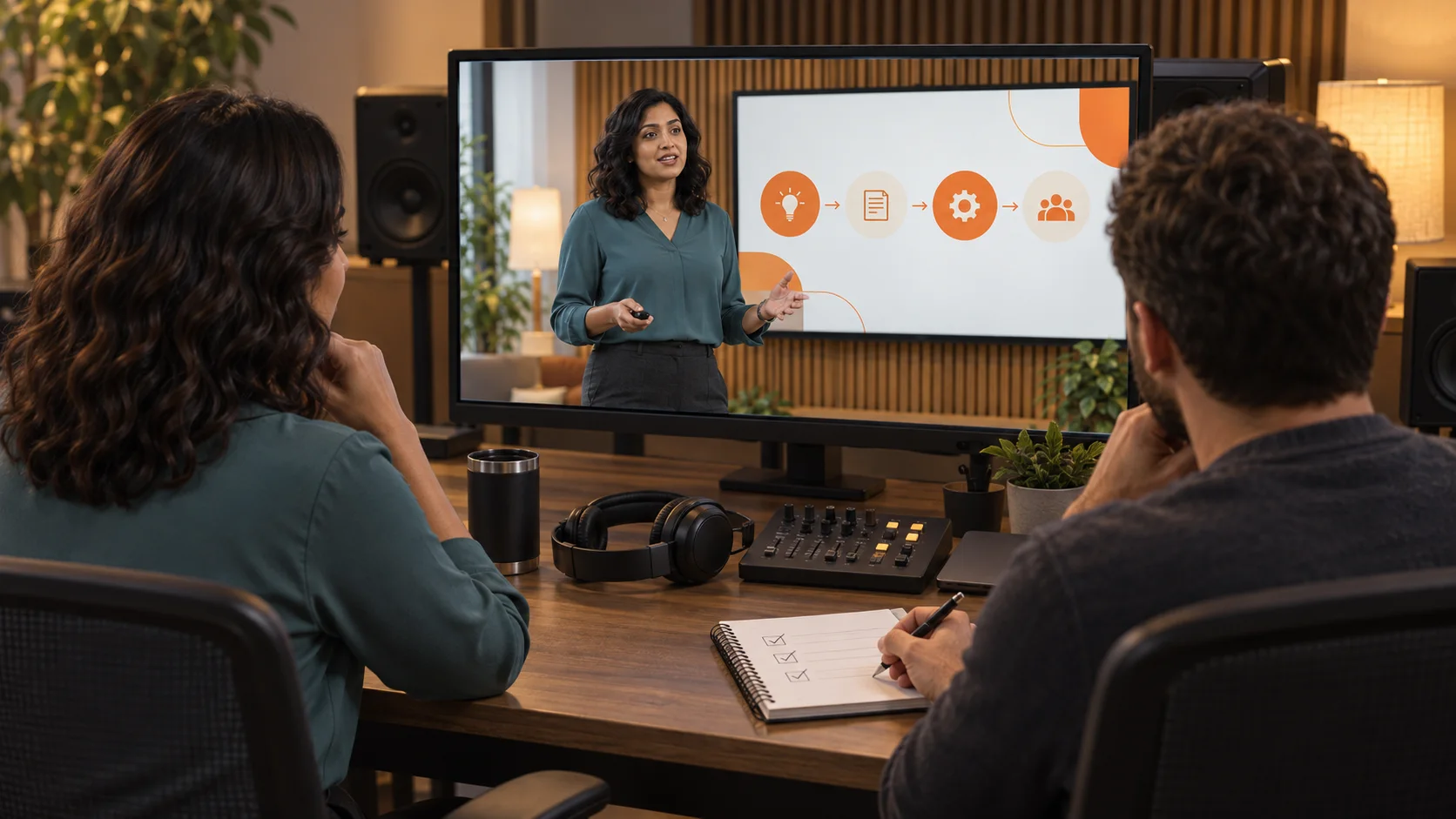 Approve facts, pronunciation, timing, object relevance, captions, and the final call to action before generating or distributing the master.
Review in three passes
First, verify accuracy against the deck and speaker notes. Second, listen without watching to catch pronunciation, pacing, repetition, and abrupt cuts. Third, watch without sound to inspect hierarchy, avatar continuity, safe areas, and whether every visual supports the intended point.
Test the result in its real LMS, embed, share page, or downloaded file. Check captions, audio, mobile readability, and the final action. The video must work without a live presenter filling the gaps.
Conclusion
A dependable Synthesia PowerPoint-to-video workflow starts by choosing the standalone import when slide structure matters, cleaning a 16:9 .pptx, writing narration in speaker notes, enabling only the import options you need, and auditing the complex scenes before styling. Rebuild purposeful motion because PowerPoint animations do not transfer, fix fonts and tables systematically, then review facts, voice, visuals, and delivery separately. When the deck needs cinematic product or character inserts beyond slide animation, plan and approve those shots with Seedance Agent before placing the finished clips into the presentation.
Ready to try it yourself?
Put the steps from this guide into practice with Seedance and turn prompts or images into polished videos in minutes.
Free credits on signup. Plans from $28/month.
Related Articles
More posts in the same locale you may want to read next.

Seedance App Preview Video Generator 2026: Create App Store and Product Launch Clips
Use Seedance to turn app screenshots, feature copy, and launch goals into App Store previews, Google Play promo videos, and product launch clips.
Read article
How to Make a Talking AI Avatar You Can Reuse
Make a talking AI avatar with Seedance: design one consistent character, give it a voice, and make it speak in a talking photo or a full Seedance 2.5 scene, episode after episode.
Read article
Best AI Video-to-Video Models in 2026
The best AI video-to-video models in 2026 for editing footage you already shot: Higgsfield Genjutsu, Seedance 2.x, Runway Aleph, Luma Modify and Kling Omni compared.
Read article