
Seedance in Firefly: Why Real Faces Are Blocked and What to Do
AI Overview
Why does Firefly block a real face in a Seedance reference?
Adobe says images and videos uploaded as references to its Seedance 2.0 or 2.0 Fast partner models cannot contain real human faces. Firefly rejects the reference when detected.
Does that mean Seedance cannot generate any human face?
No. Adobe says a text prompt may still create a video with human faces, or you can choose another available model. The restriction concerns this reference-upload route.
What if Firefly flags a fictional or AI-generated face?
Do not assume the detector knows the asset's origin. Save the exact warning, source file and settings, then ask Adobe support to review the case.
What is the fastest compliant way to finish the shot?
Identify which reference caused the block. Then use a text-first fictional-character brief, an allowed model, or a face-free storyboard that preserves the scene's production goal.
What the Firefly real-face warning actually means
A reference restriction, not a universal Seedance ban
If your search is “seedance firefly real faces blocked,” the first distinction saves the most time: Adobe Firefly's Seedance partner-model route is not identical to every place that offers Seedance. Adobe's current help page for generating video with Seedance 2.0 and Seedance 2.0 Fast says uploaded image and video references cannot include real human faces. When Firefly detects one, it notifies you and prevents that asset from being used as a reference. The page also says you can create a video with human faces using a text prompt or choose a different model. That is the documented boundary; it is not a claim that all human subjects are disallowed in every output or that consent automatically makes this specific upload eligible.
This warning concerns a reference upload, not a distorted face in a completed video or a failed render. Label the failure stage accurately before changing the workflow. The broader Seedance prompt-blocked guide covers general prompt and safety-message diagnosis; this page focuses on Firefly's reference-media rule.
Why the distinction matters for a real brief
Even a licensed interview portrait can be blocked as a first-frame reference in this Firefly route. Rewriting camera adjectives will not change the rejected source. Decide whether the exact likeness is essential, whether another model permits that input, or whether the brief can work without a face. Keep permission records; consent and platform eligibility are separate questions.
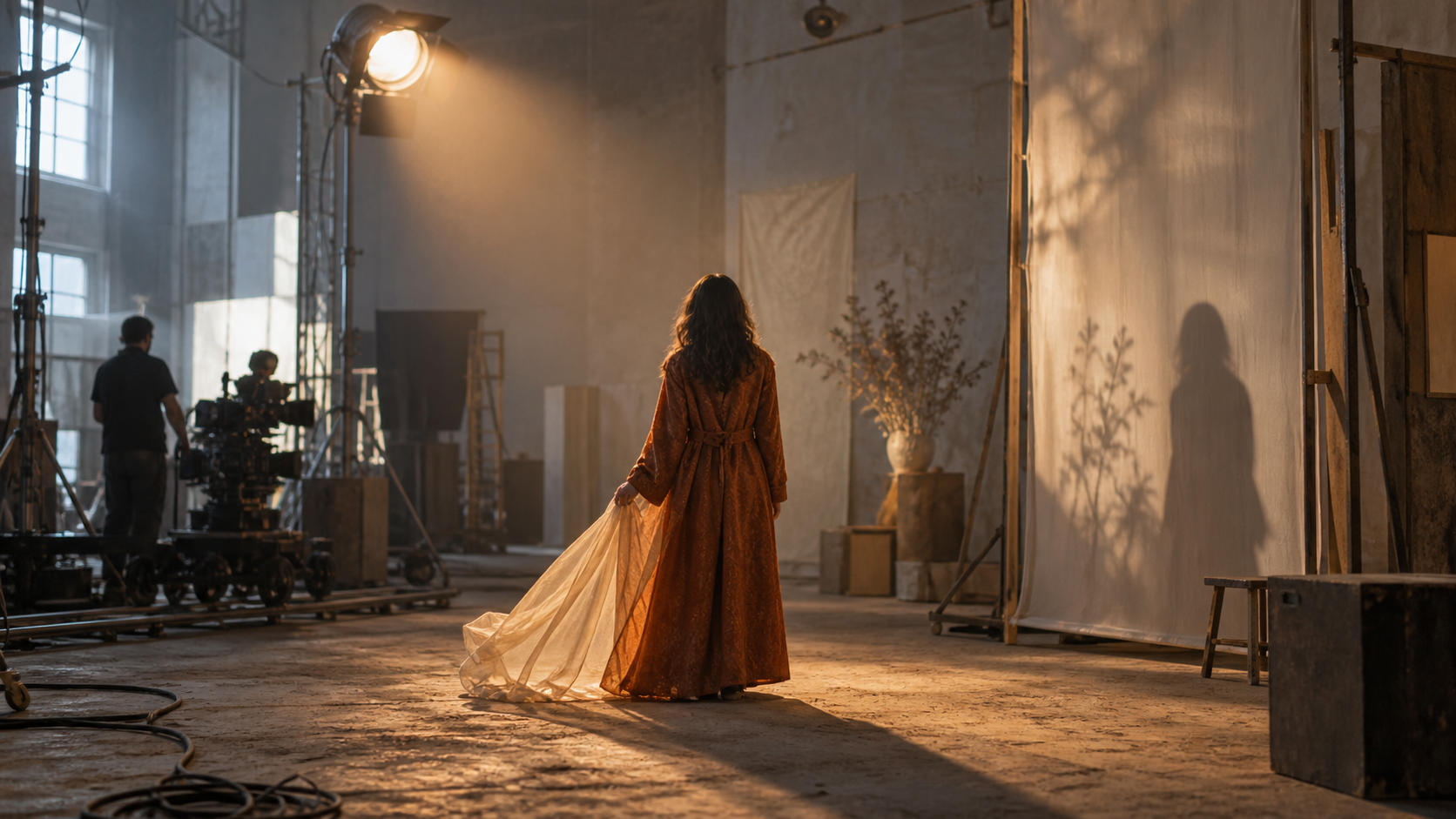
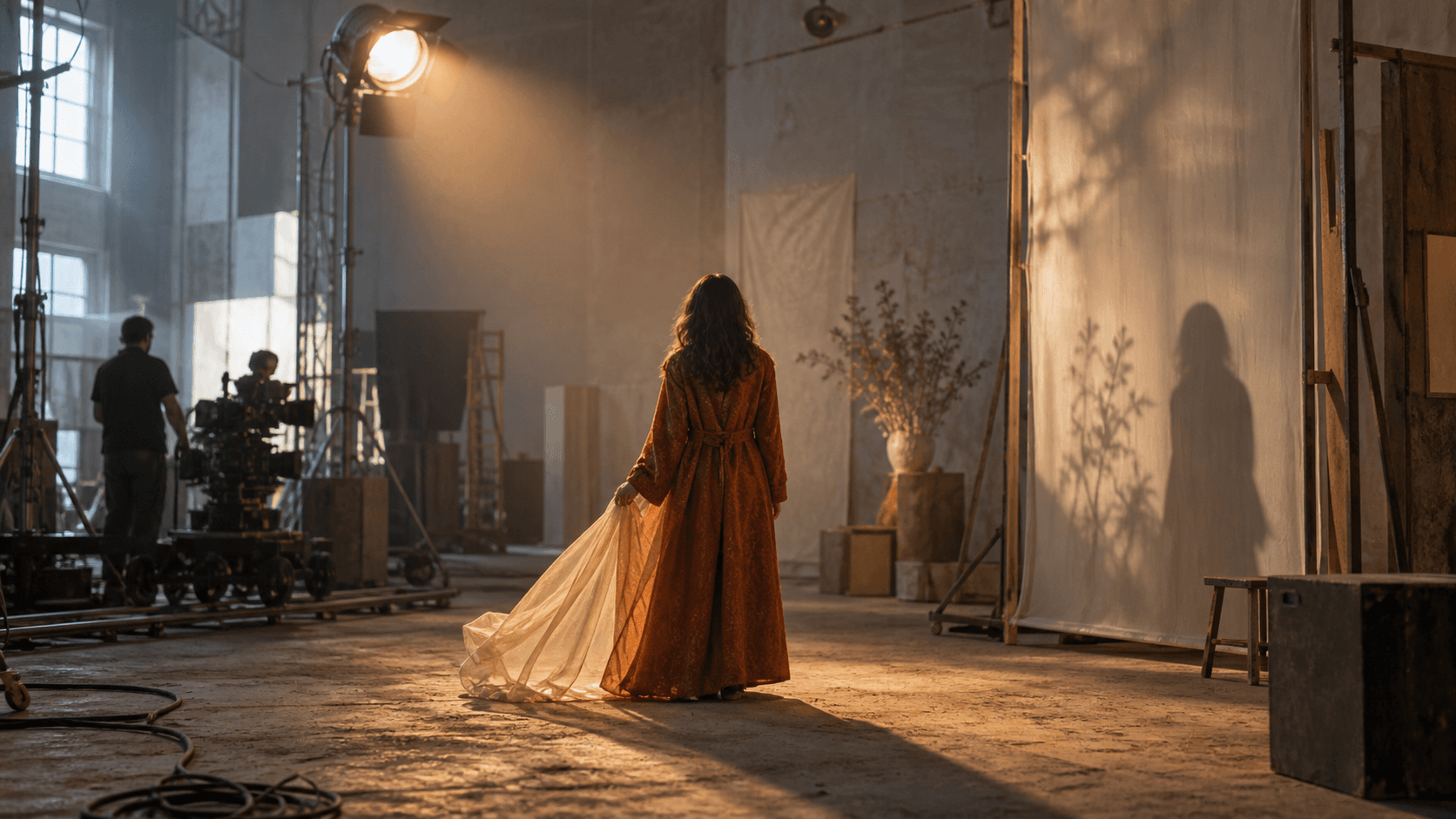
Original illustrative frame, not an Adobe Firefly output. The coat, translucent fabric, lighting and set design carry the shot while the performer remains non-identifiable.
Find the blocked input before changing the brief
Check every reference role separately
Firefly can accept a mix of reference roles, including first and last frames and other media references, depending on the selected controls. A prompt that appears harmless can still sit beside an ineligible image. Review each uploaded still and video, including thumbnails or background passersby. Write down the selected model, which control uses the file, and the exact error text. Keep a local copy of the original rather than repeatedly re-encoding it. If a project has several assets, remove all references from a duplicate draft and restore only files whose provenance and subject are known. The goal is diagnosis, not a trial-and-error way around detection.
Ask whether a real face appears even at the edge of the shot, which reference role holds it, where the asset came from, and which model is selected. Do not blur or stylize a real face merely to trick detection. If likeness is required, choose a permitted workflow and follow its permission rules.
A short triage record you can reuse
For each rejected asset, record shot ID; model; reference role; asset origin; face status; exact warning; likeness requirement; next authorized route. For example: “Run-03; Firefly Seedance 2.0; first frame; actor photo; visible face; real-face warning; likeness required; evaluate an eligible model.” This makes the decision and any support request understandable.
Our separate real-face and image-prompt safety guide covers other Seedance routes. Check Firefly's own current rules before changing the workflow.

Illustrative reference audit. Separate the performer, prop, environment and action into known assets so the blocked input and its role are easy to identify.
Three legitimate ways to keep the production moving
1. Keep the character, change the input route
If the brief needs a fictional person rather than a particular living person's likeness, start with a text description and no face-bearing upload on the Firefly Seedance route. Adobe explicitly identifies text prompting as a way to create videos with human faces. Describe the fictional character through wardrobe, body language, setting, lens and action, then review the generated clip for continuity. This does not guarantee a specific identity or an approved output. It is a different production method that avoids presenting a prohibited face reference to the model. For a shot built entirely from words, see the text-to-video workflow and keep the brief limited to a single clear action before adding complex camera moves.
If exact likeness is required, text-only generation may not meet the brief. Review another model's rules and release forms, or use conventional footage; do not claim an actor's portrait was used when it was not.
2. Choose a permitted model and keep the audit trail
Adobe's help page says selecting another available model is an option. “Another model” is not a blanket waiver: it means you should inspect the specific model's current terms, input restrictions and output rights before uploading the source. Save the accepted settings with the shot record. If you have a first frame without any face, an image-to-video starting point may be useful for object shape and scene continuity; if the requested source contains a real person, assess it under the chosen provider's rules first. Never move a sensitive file across services simply because one upload control is less strict.
At planning time, mark each shot “exact licensed likeness,” “fictional human acceptable,” or “no face needed.” Choose the model route before uploading sensitive assets.
3. Tell the story through product and environment
Many briefs ask for energy, identity and a memorable payoff, but not an identifiable face. The original stills on this page now form a face-free fashion-film concept: a practical soundstage establishes production context; a physical reference table separates the performer, prop and environment; and a rear-view courtyard shot turns the translucent fabric into the motion anchor. The burnt-orange coat, pale stone and fabric shape provide continuity a director can specify and review across shots. These stills illustrate a possible creative route; they are not claimed Firefly generations, an Adobe compliance certification, or proof that an actual video will preserve every detail.

Illustrative face-free motion frame. Check coat color, fabric direction, architecture and camera angle rather than adding an unnecessary face close-up.
Try this face-free prompt as a starting point: “One continuous five-second tracking shot follows a performer from behind through a pale stone courtyard. A burnt-orange textured coat and long translucent fabric remain consistent as the fabric arcs in the wind. The camera stays at a low rear three-quarter angle. No visible or reflected face, no logos, no cut.” Pair it with a clean face-free reference only when the chosen route allows that reference. Review the finished clip for actual movement, not just an attractive poster frame.
This is a real moving Seedance product example, not an Adobe Firefly test of the storyboard above. Inspect the continuous motion and stable product silhouette; it does not demonstrate Firefly policy acceptance.
If a fictional face is flagged, document a possible false positive
Escalate evidence, not evasion attempts
An Adobe community user reported that Firefly flagged an AI-created fictional face. One report does not prove a systematic error or an Adobe exception. If your case appears similar, keep the original, its creation provenance, exact warning, model, reference control and date. Ask Adobe support to review it. Never describe an uncertain asset as synthetic or alter a real face to evade the filter.
While the case is unresolved, use a text-first fictional shot or a genuinely face-free reference if the brief permits. If the actor's identity must be retained, choose a route that accepts licensed real-person material. “It generated once” is not a compliance test.

Illustrative fictional-character frame. The visible craft materials and animator's gloved hand make the asset's non-human provenance clear, but any platform warning should still be documented and reviewed rather than bypassed.
Plan the replacement shot in Seedance Agent
Make route selection part of the shot brief
When a reference is rejected, the expensive part is often the downstream replan: which shots share that face, which frames need replacement, whether an approved product reference can be reused, and which clips must be generated again. Seedance Agent can help turn the brief into shot-sized tasks, organize permitted references, review candidate outputs and rerun only the weak part of a sequence. It should be used to plan and evaluate the work, not as a promise to bypass Firefly's restriction. The policy of whichever generation route you actually select still applies.
For the courtyard example, make a four-row shot list with action, allowed source, continuity anchor, camera move and acceptance check. The first row might be “enter soundstage; original face-free rear-view still; burnt-orange coat and translucent fabric; slow push-in; no facial angle or reflection.” The courtyard row carries those same anchors into a wider environment. An editor can approve each clip against that checklist instead of repairing a vague full-campaign render. The character-consistency guide covers related cross-shot review. If a shot fails, change its specific reference or camera requirement and retain the approved sequence.
Keep creative acceptance criteria stable when you change models. An accepted input may still yield unusable likeness; a beautiful fictional character may not match the licensed performer. Record policy and aesthetic outcomes separately.
Conclusion
The Firefly warning for Seedance 2.0 and 2.0 Fast is a documented limit on uploading real-human-face image or video references in that Adobe route, not proof that every Seedance video with a human face is impossible. Identify the rejected asset and reference role, preserve its provenance, then choose a legitimate path: a text-first fictional subject, a model whose rules permit the cleared input, or a product- and environment-led shot that needs no face reference. For a possible false positive, document the case and ask Adobe to review it rather than trying to fool the filter. To keep revised references, shot plans, approvals and partial reruns in one production flow, start with Seedance Agent.
Ready to try it yourself?
Put the steps from this guide into practice with Seedance and turn prompts or images into polished videos in minutes.
Free credits on signup. Plans from $28/month.
Related Articles
More posts in the same locale you may want to read next.

Seedance App Preview Video Generator 2026: Create App Store and Product Launch Clips
Use Seedance to turn app screenshots, feature copy, and launch goals into App Store previews, Google Play promo videos, and product launch clips.
Read article
How to Make a Talking AI Avatar You Can Reuse
Make a talking AI avatar with Seedance: design one consistent character, give it a voice, and make it speak in a talking photo or a full Seedance 2.5 scene, episode after episode.
Read article
Best AI Video-to-Video Models in 2026
The best AI video-to-video models in 2026 for editing footage you already shot: Higgsfield Genjutsu, Seedance 2.x, Runway Aleph, Luma Modify and Kling Omni compared.
Read article