
How to Make a Music Video with Seedance 2.5: Full Guide for Creators
AI Overview
Can Seedance 2.5 create music videos?
Yes. Seedance 2.5 can generate cinematic shots with controlled subjects, camera movement, and visual style; assemble the approved clips around your song in an editor.
How do I sync Seedance 2.5 video to music beats?
Map the intro, verse, chorus, bridge, and outro first. Generate one visual job per section, then cut the clips on strong beats in your editing timeline.
What kind of music videos can I make with Seedance 2.5?
You can build narrative, abstract, performance-style, landscape, lyric-backdrop, and live-action-plus-animation videos. References and repeated style anchors keep separate clips visually related.
Is Seedance 2.5 free for making music videos?
Seedance.tv offers signup credits for testing a short shot. A full song normally needs more generations, revisions, and final editing.
Why Seedance 2.5 Is Built for Music Video Creation
A music video is not one long generation. It is a sequence of purposeful shots whose color, performer, camera language, and rhythm feel as if they belong to the same world. Seedance 2.5 suits that structure because you can create short clips from text, still images, or references, review each shot, and regenerate only the weak moment.
That modular workflow works like a conventional shot list. A chorus can receive the largest movement, the verse can stay intimate, and the bridge can introduce a new setting. Image references help protect wardrobe, face, props, and art direction across those changes.
If you are searching for an AI music video generator free starting point, use the test to validate one hero shot: performer, palette, motion level, and aspect ratio.
Separate visual rhythm from literal synchronization. Ask Seedance for section-appropriate motion; perform frame-accurate cuts, lyric timing, and audio mixing later.
Music Video Styles You Can Create with Seedance 2.5
Cinematic Narrative
Build a miniature story with locations, actions, and callbacks. Give every shot one clear endpoint, then repeat the same identity, wardrobe, lens character, and palette across generations.
Abstract Visual
Use shape, fabric, liquid, particles, light, and controlled transformations as emotional counterparts to the track. Keep one recurring rule—circular movement, monochrome lighting, or a signature material.
Performance-Style
Start from a clear performer image and keep the action simple: walking through light, turning between poses, or completing one dance phrase. Use Image to Video when the face, styling, and opening composition are approved.
Landscape and Ambient
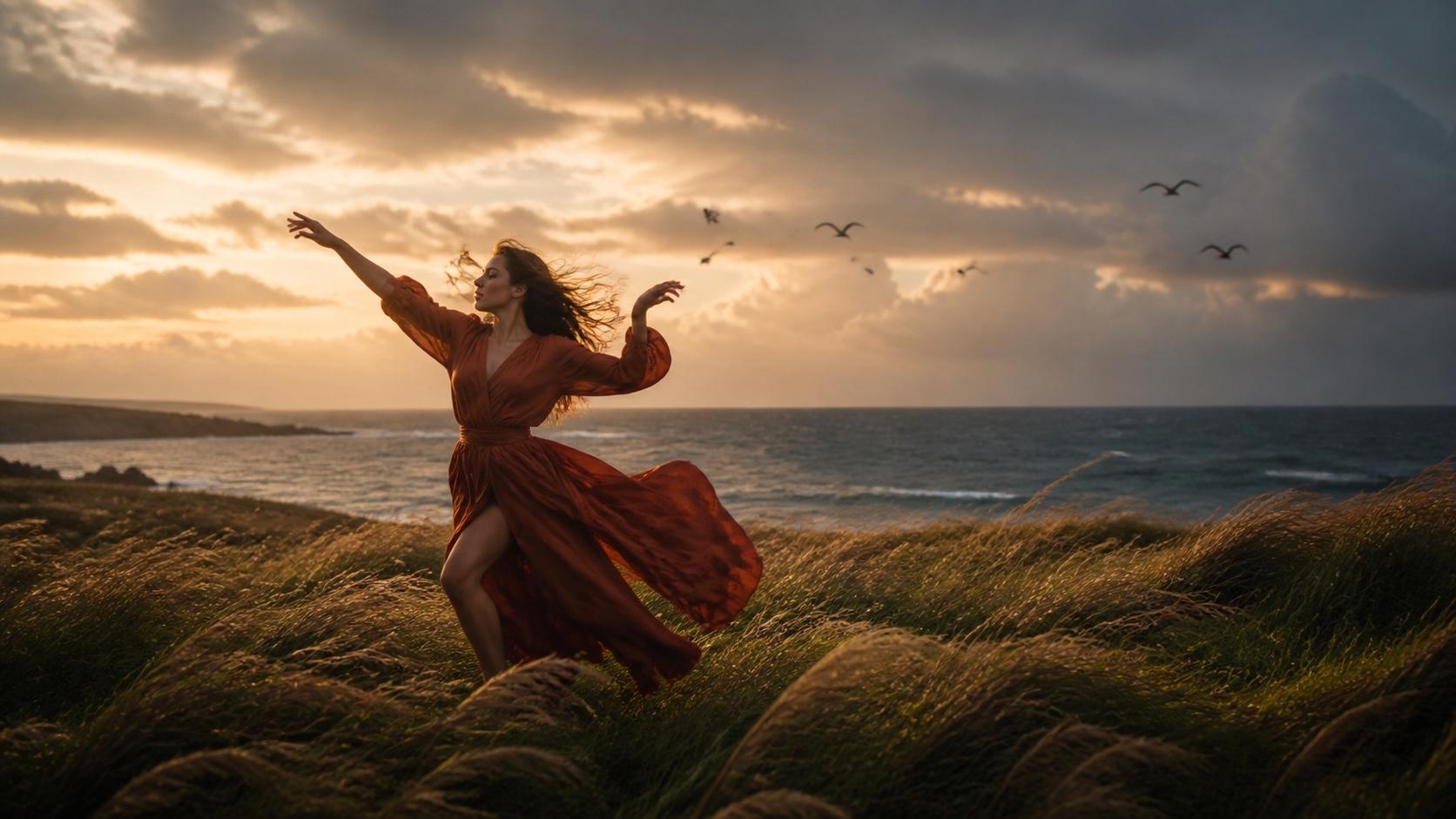
Match slow music with wind, water reflections, clouds, fog, or a restrained aerial move. The landscape becomes the performer, so atmosphere matters more than plot.
Live Action Plus Animation
Combine a realistic subject with illustrated lines, paper textures, paint, particles, or graphic transitions. Keep identity fixed and introduce one animated system at a time.
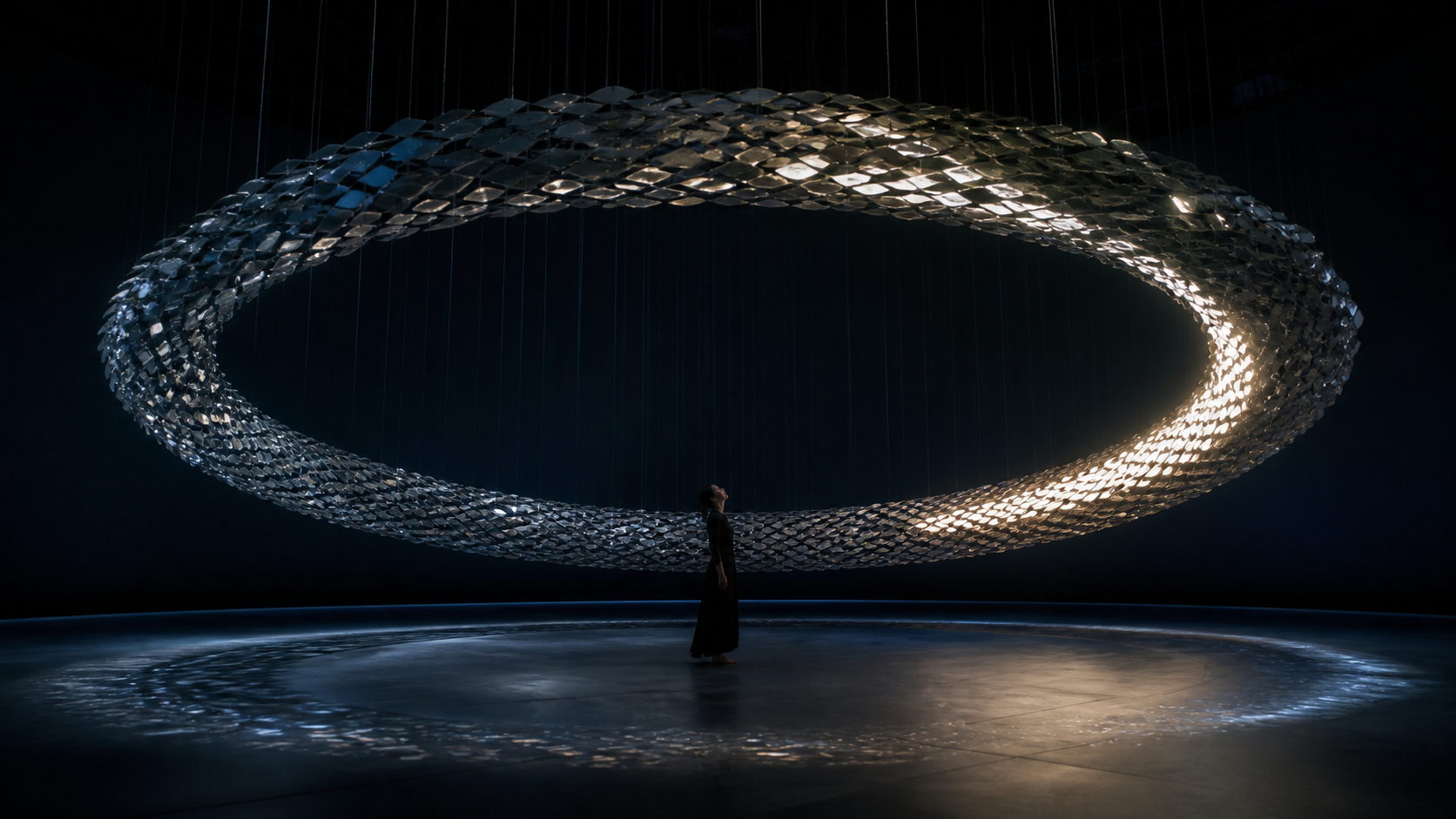
A repeated shape, a stable performer, and one traveling light create a visual motif that can return at every chorus.
How to Make a Music Video with Seedance 2.5 — Step by Step
Learning how to make music video with AI becomes easier when you plan the edit before generating footage. Work from the song outward, not from a pile of attractive clips inward.
1. Mark the Song Structure
Place markers for intro, verse, pre-chorus, chorus, bridge, instrumental break, and outro. Note each section's time, energy, major hits, pauses, and vocal entrances.
2. Give Every Section a Visual Job
Write one sentence per section: “The verse introduces the lonely coast,” “the chorus opens into wide performance shots,” and “the bridge enters a mirrored space.”
3. Build a Continuity Pack
Save the approved performer image, wardrobe description, color palette, and location references. Use Reference to Video when several visual inputs must guide the same shot, and document what each reference controls.
4. Generate in Shot-Sized Batches
Create the chorus hero shot first, then generate verse and bridge batches. Keep aspect ratio, anchors, and base style unchanged while testing one new action or camera move.
5. Select for Editability
Inspect each clip's opening and closing pose, identity stability, motion direction, edit handles, and ability to cut into the next shot.
6. Assemble and Sync
Import the song and approved clips into your editor, cut the sequence, then adjust timing with trims, speed changes, and transitions. Add titles, lyrics, color finishing, and the final audio mix only after the picture edit works without decoration.
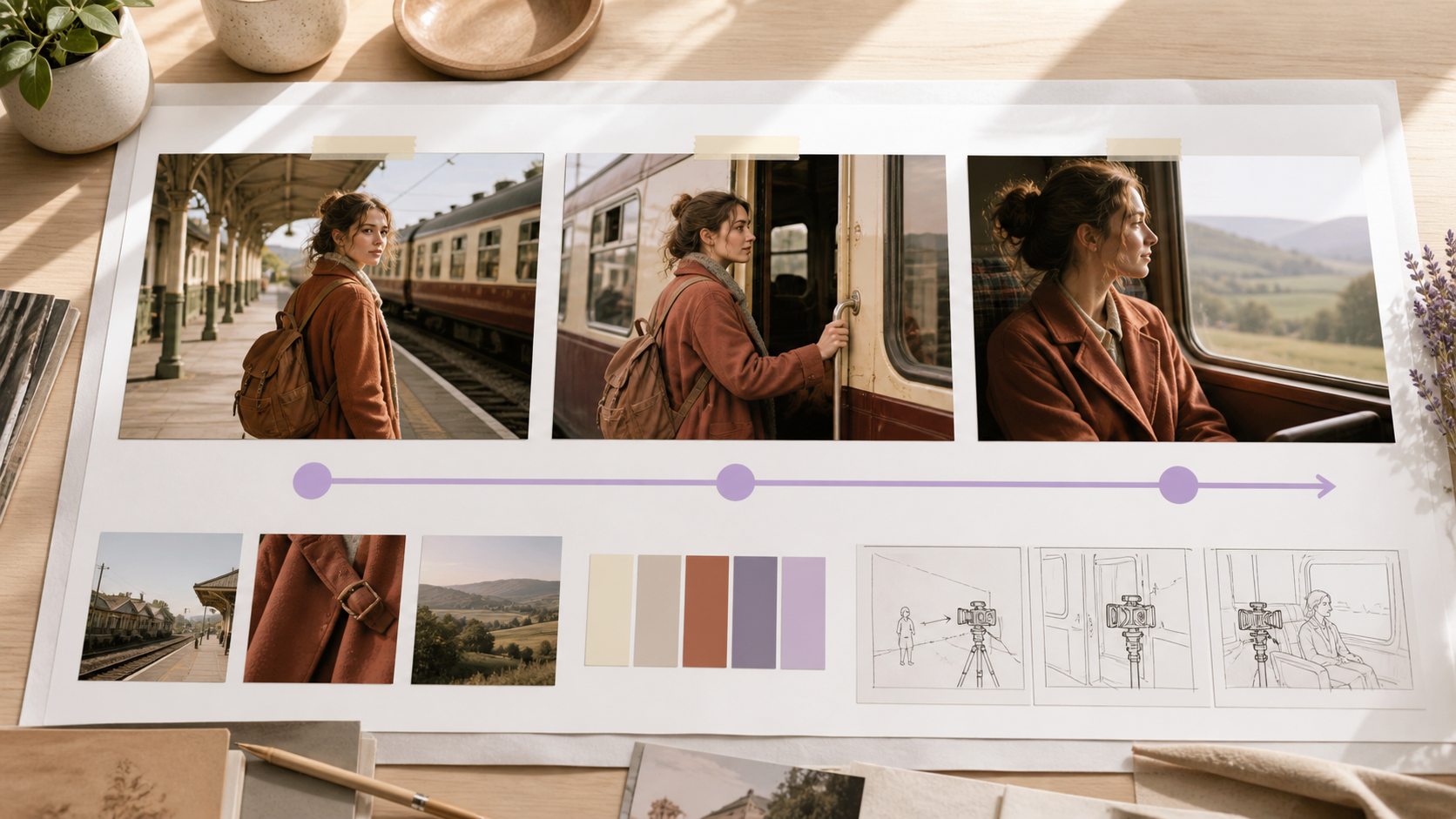
Plan the emotional progression and handoff frames before spending generation credits on every section.
Writing Cinematic Prompts for Music Videos in Seedance 2.5
Strong Seedance 2.5 cinematic video prompts describe a visible shot rather than an entire music video. Use this order: subject anchor, action, camera, environment, light, color, timing, and preservation rules. Camera terms such as slow dolly in, lateral tracking shot, locked wide shot, overhead drift, and restrained handheld are more useful than simply saying “cinematic.”
Atmosphere should support the song. Try golden-hour haze for warm folk music, neon-lit rain for electronic tracks, soft fog and low contrast for ambient work, or hard backlight and deep shadows for an aggressive chorus. Repeat the same palette phrase in every related prompt.
Narrative Verse Prompt
Exact performer from Image 1, burgundy coat and short dark hair. She walks alone
through a quiet coastal town at blue hour. Slow lateral tracking shot, 50 mm lens feel,
wet pavement reflecting cyan shop lights, restrained melancholy, stable face and wardrobe,
no lip movement, no extra people, no text.
Performance Chorus Prompt
Exact performer from Image 1 on a circular black stage. 0–3s: locked medium shot as
silver fabric rises behind her. 3–7s: camera arcs left while she completes one strong turn.
White spotlight, deep cobalt shadows, confident energy, preserve face, outfit, hands,
and stage geometry; no microphone, logos, captions, or crowd.
Abstract Bridge Prompt
The performer stands still inside a suspended ring of mirrored leaves. A white-gold
highlight travels clockwise around the ring while reflections pulse once on each musical
accent. Symmetrical wide composition, slow push-in, black and silver palette, clean silhouette,
no transformation of the face or body, no added objects or text.
Ambient Outro Prompt
Wide aerial view of the same coastal grassland after sunset. The performer becomes a small
red figure walking toward the ocean as wind moves through the field in long waves. Slow rise
and pullback, natural dusk color, quiet finality, no birds near camera, no sudden motion,
hold the last composition for one second.
Change only one variable per revision. If the face drifts, simplify the action and camera before adding more style. The Seedance video prompt guide provides a reusable diagnostic structure, while the Seedance 2.5 reference guide explains how to assign clear roles to source assets.
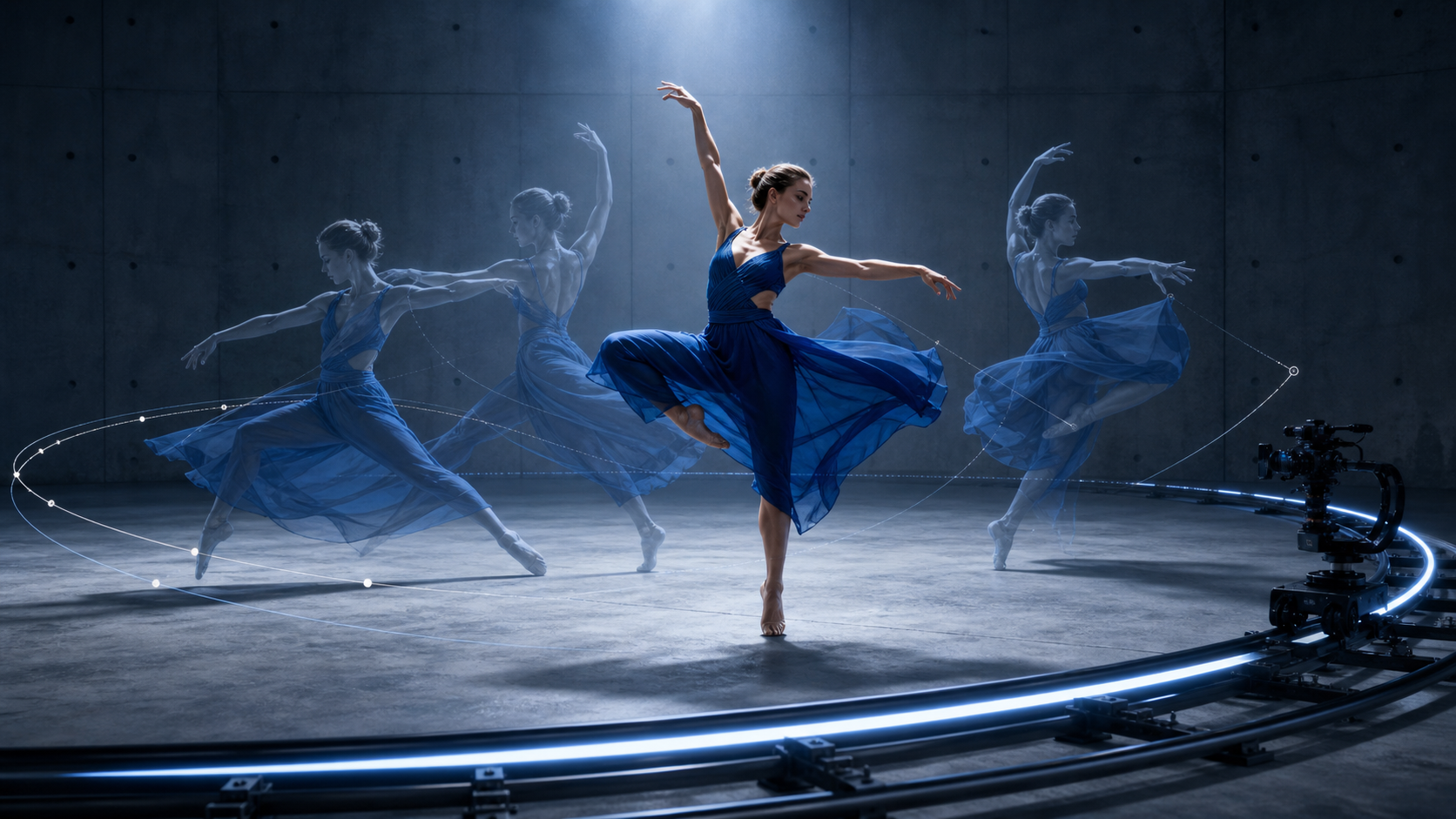
Design motion and camera direction together; do not ask both to improvise several unrelated actions.
Syncing Your AI Video to Music — Editing Workflow
For reliable AI video sync to music beat, calculate a useful cut interval from the tempo. At 120 BPM, one beat lasts 0.5 seconds, a four-beat bar lasts 2 seconds, and an eight-bar phrase lasts 16 seconds. You do not need to cut on every beat; use bars and phrases for structure, then reserve single-beat cuts for peaks.
In CapCut, Premiere, or DaVinci Resolve, place the final song on the timeline first and add markers while listening. Align scene changes to phrase boundaries, motion peaks to kicks or snares, and the first clear performer reveal to an important vocal entrance. Trim clips from the middle when their strongest motion does not begin at frame one.
Use transitions sparingly. A direct cut has the most energy, a short dissolve can bridge two similar slow shots, and a match cut can connect repeated shapes or poses. Alternate wide, medium, and detail shots so the chorus feels larger without relying on constant fast cutting. Add exact lyrics and subtitles in the editor, where spelling and timing remain controllable.
A complete audiovisual clip is useful reference, but the final music video still needs an intentional timeline and approved master track.
For a fuller assembly and finishing checklist, use the Seedance 2.5 video editing guide.
Seedance 2.5 vs Other AI Music Video Tools
Different tools solve different parts of an MV. Compare the workflow you must finish—not a single showcase clip.
| Tool | Visual quality | Style control | Audio workflow | Free access | Best music-video role |
|---|---|---|---|---|---|
| Seedance 2.5 | Strong reference-led shots | Detailed prompt and reference control | Plan visually, finish to the master track in an editor | Signup credits | Complete creator workflow and consistent shot families |
| Runway | Strong generation plus editing | Broad creative controls | Useful post-production ecosystem | Limited testing varies | Iterative visual editing and finishing |
| Kling | Strong character motion | Good movement and camera control | Route-dependent audio options | Limited access varies | Dance, fashion, and performance shots |
| Pika | Fast effect-led clips | Accessible templates and transformations | Usually edit to music afterward | Limited access varies | Short hooks and stylized transitions |
| Sora | Cinematic scene generation | Natural-language direction | Availability and workflow can change | Check current access | Experimental narrative sequences |
Seedance 2.5 is the most balanced option when you need to move from references to several coherent shots without adopting a preset-only style. The main advantage is not automatic beat matching; it is the ability to build reusable visual rules, generate variants, and keep the production organized around an edit.
Tips and Tricks to Level Up Your AI Music Videos
- Lock the hero frame. Approve one clear performer or environment frame before animating it. Use the same identity, wardrobe, and palette wording in every connected prompt.
- Create a color bible. Save three to five color terms and one lighting direction. Consistency in color often makes different locations feel like one video.
- Generate handles. Ask the action to settle at the end, then retain a few quiet frames before and after each useful moment. Editors need room to cut.
- Mix real and generated footage. Real close-ups of hands, instruments, locations, or textures can anchor AI wides and abstract transitions. Match grain, contrast, and camera movement in the grade.
- Design for the destination. Use 16:9 for YouTube, 9:16 for TikTok and Reels, and keep faces and lyrics away from interface overlays. Reframe intentionally instead of cropping a finished composition blindly.
- Review without sound. If the sequence communicates a clear rise, contrast, and resolution in silence, the music will strengthen it rather than rescue it.
Conclusion
Seedance 2.5 makes ambitious music-video production practical for independent artists because it turns one expensive shoot into a controllable series of generated shots. The winning process is simple: map the song, define a visual system, prompt one shot at a time, protect continuity, and make the final rhythm decisions in an editor. Start with the chorus hero shot, prove the look, then expand only the ideas that earn their place in the cut. Create your first AI music-video shot with Seedance →
Ready to try it yourself?
Put the steps from this guide into practice with Seedance and turn prompts or images into polished videos in minutes.
Free credits on signup. Plans from $28/month.
Related Articles
More posts in the same locale you may want to read next.

Seedance App Preview Video Generator 2026: Create App Store and Product Launch Clips
Use Seedance to turn app screenshots, feature copy, and launch goals into App Store previews, Google Play promo videos, and product launch clips.
Read article
Gemini AI Video Prompt Examples: Copy-Ready Veo Scenes and a Better Prompt Formula
Copy Gemini AI video prompt examples for cinematic motion, product ads, dialogue, and vertical clips, then adapt them with a practical Veo prompt formula.
Read article
How to Keep Product Shape Consistent in AI Video Ads
Lock product geometry, packaging, labels, references, camera angles, and approval checks so AI video ads preserve the real SKU across every shot.
Read article