
Pika Multiple Keyframe Video Tutorial: Plan, Prompt and Review Every Transition
AI Overview
How do I make a video with multiple keyframes in Pika?
Prepare two to five images in story order, open Pika's Keyframe or Pikaframes workflow, upload them as ordered frames, describe the motion between them, then generate and inspect every transition.
How many keyframes can Pika 2.5 use?
The current Pika 2.5 Keyframe API accepts two to five ordered images. Its documented transition setting runs from one to ten seconds, but a transition longer than five seconds requires exactly two keyframes.
Why do my Pika keyframes look like separate scenes?
The source images may disagree on subject size, camera direction, lighting or location. Keep stable visual anchors, ask for one plausible movement, and repair the weakest adjacent pair before adding more frames.
Can Seedance Agent help with a multi-shot project?
Yes. Use it to organize the brief, references, shot order and review across a larger deliverable. Pika's ordered-keyframe generation and Seedance Agent's production coordination solve different parts of the job.
What Pika multiple keyframes actually control
Understand the frame order before opening the generator
A search for “pika multiple keyframe video tutorial” usually means the creator already has several still images and wants motion that respects their order. The task is not merely to animate one photograph. It is to connect A to B, B to C and possibly C to D without changing the main subject or inventing an unrelated camera move. Pika calls the current Pika 2.5 API route Keyframe; its endpoint documentation also uses the Pikaframes name. It accepts an ordered list of image URLs and treats each consecutive pair as a transition. Two frames define one transition; four define three. The images are visual anchors, not frame-by-frame instructions. The model still generates the movement between them.
For access and plan context, see our Pika AI video generator review. Confirm current options and credits in your own account; API rules and consumer controls should not be treated as identical.
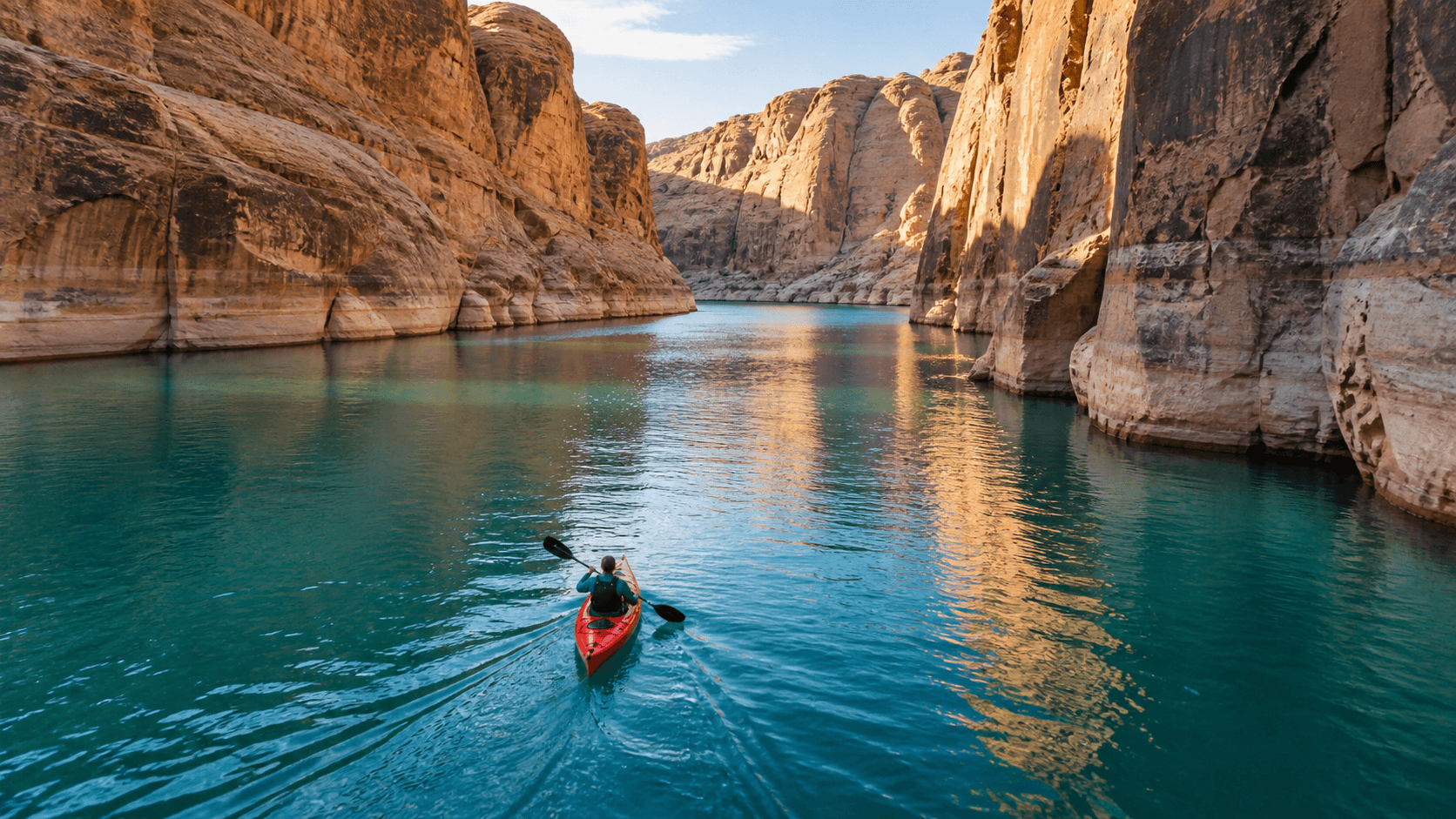
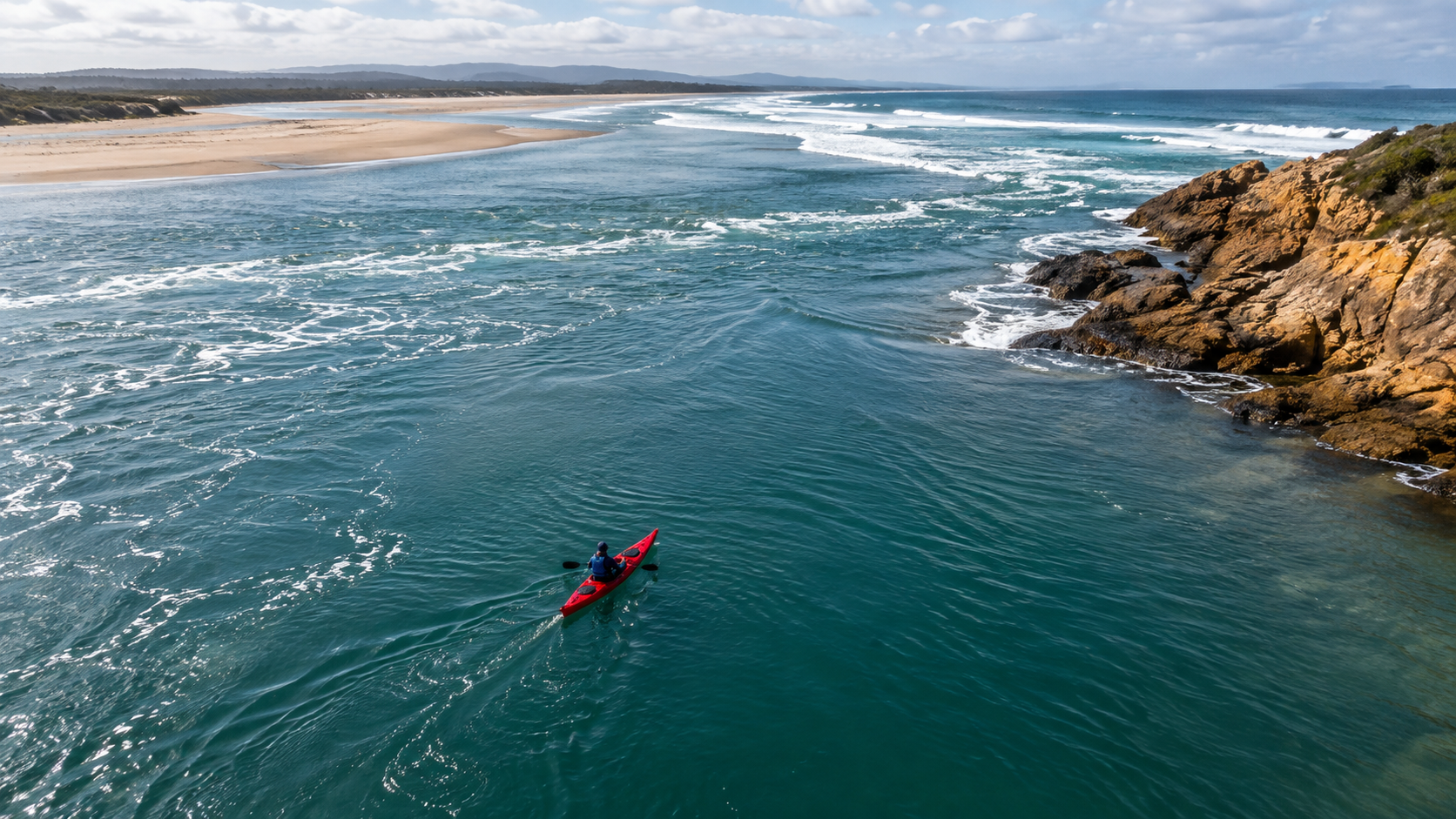
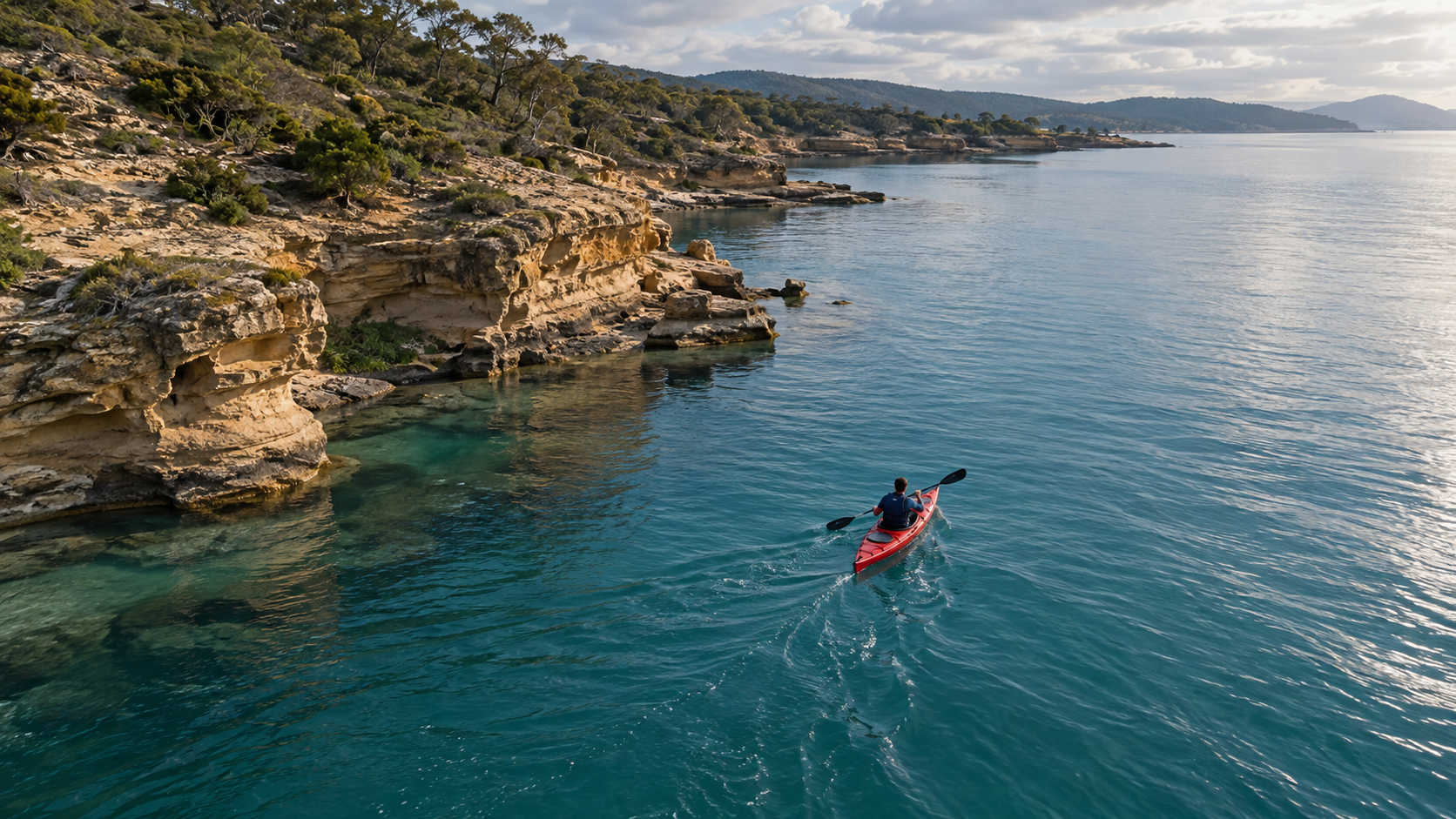
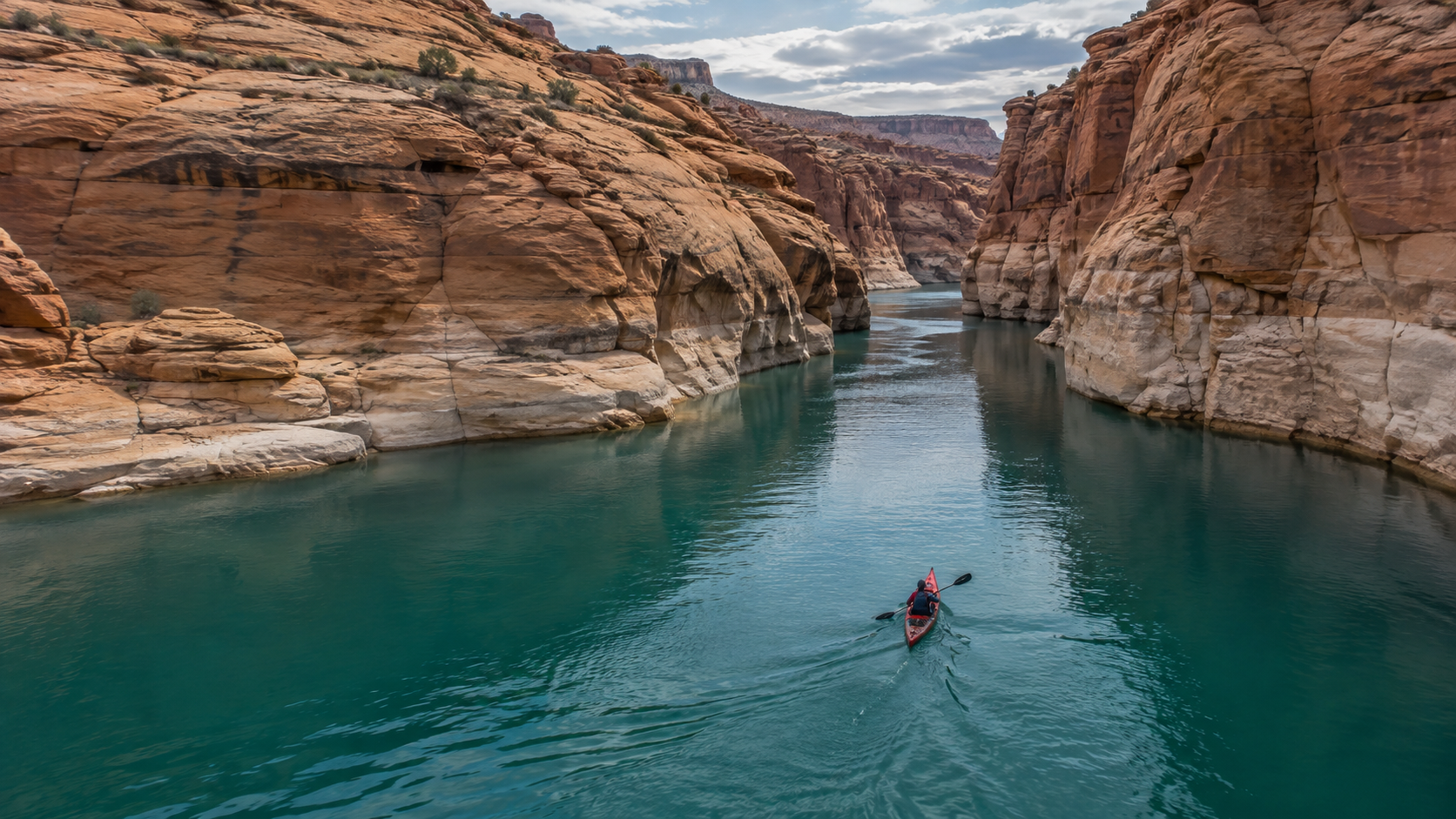
The four kayak images are illustrative planning stills, not Pika outputs or extracted frames. The separate playable video is an existing Seedance motion example, not a Pika test.
Original concept frame A: establish the red kayak, dark vest, teal water and forward direction. It is not a Pika output.
Prepare two to five frames that can become one shot
Pick continuity anchors before attractive compositions
Create a one-sentence scene contract first: “One red touring kayak, one distant paddler in a dark navy vest, moving forward on teal water as a coastline narrows into an ochre canyon, observed from an elevated camera.” This sentence makes revision possible. The boat color, number of people, travel direction and camera scale are anchors. Rock contours can evolve with the journey. A new boat or an abrupt sunset is not progression; it is a continuity break.
Choose frames at compatible scales. A high aerial view followed by a tight side profile demands a dramatic camera move and subject preservation at once; split that move into another shot. Do not also rotate the kayak, change clothes and shift daylight. Believable differences animate more readily than unrelated images.
Our four-frame order is river mouth, sandstone shoreline, canyon entrance and quiet bend. Leave water ahead of the boat, name the source files A through D, and use only two if a middle frame weakens the route. The image-to-video starting frame workflow helps when you have one approved still but no second anchor.
Original concept frame B: the shoreline changes, while the boat, vest, water palette and forward trajectory remain recognizable. Not a Pika output.
Write the frame-to-frame beat sheet
The beat sheet below is a planning example, not a report of a generated clip. It says what must change and what must remain. Use it to check your own source images before spending credits. Pika's documented transition_duration_s is a single transition setting in the API request, not a separate duration field for each segment; a three-pair plan should therefore use a duration valid for all three pairs.
| Pair | Story change | Keep fixed | Inspect in motion |
|---|---|---|---|
| A → B | Leave the wide river mouth and follow the shore | One red boat, one paddler, forward direction | Wake and coastline move continuously |
| B → C | Enter the narrower canyon approach | Boat proportions, vest, elevated camera | Rock forms grow naturally, no jump cut |
| C → D | Continue through the bend into warmer light | Same subject and water path | Paddler and paddle do not duplicate |
If A and B look like different kayaks, repair the stills first. The multi-keyframe workflow comparison covers another model, but its continuity checklist also helps inspect faces and clothing.
Set duration, ratio and one global motion prompt
Respect the documented transition boundary
In Pika's current 2.5 Keyframe API documentation, image_urls is an ordered array of two to five images. transition_duration_s is an integer from one to ten seconds and defaults to five. There is an important exception: if the requested duration exceeds five seconds, the API allows exactly two keyframes. A four-frame kayak sequence can therefore use a four- or five-second transition setting, but not four frames with a six-second setting in one API call. The consumer site's duration and credit controls may be presented differently; verify the product surface you are actually using rather than copying API numbers blindly.
Choose duration based on the visual distance. One or two seconds may fit a small pose change; four or five gives a location move more room but also more frames in which drift can appear. For longer runtime, approve separate clips and edit them together. The Seedance 2.5 video-extension guide explains a different extension route.
The API documentation lists 720p and 1080p resolutions for this route. Keep all source images the same aspect ratio and crop important subjects with room to move. Check what the current interface actually offers for your account; a 16:9 article embed and a 9:16 social cut are different compositions, not a safe one-click crop. Reframe or regenerate source stills for the second format before committing to a long sequence.
Original concept frame C: the passage narrows gradually. Look for room ahead of the kayak so a moving transition has somewhere to go. Not a Pika result.
Prompt the movement, not a replacement story
The Pika API exposes one prompt for the sequence. Do not write three contradictory instructions as if each were a separate prompt field. State the shared subject, camera and motion; let the ordered images carry the changing geography. A concise example is: “One small red touring kayak with a single paddler in a dark navy vest travels steadily forward from a broad river mouth along ochre sandstone cliffs into a narrow canyon. Maintain an elevated tracking camera, natural daylight, believable paddle strokes and water wake; preserve kayak shape, rider count and travel direction. Smooth continuous motion, no scene cuts, no new objects.”
Treat the prompt as a hypothesis. If the canyon appears suddenly, reduce the gap between source frames. If the kayak changes shape, strengthen its reference. If water is static, ask for wake and paddle contact. Avoid tiny lettering on the boat.
Generate, inspect and repair the weakest transition
Use a first pass as a diagnostic render
Upload the frames in their storyboard order and confirm the thumbnails before submitting. A swapped B and C can make a canyon appear and then disappear. On an API workflow, submit the documented request and wait for its asynchronous job result; “queued” means the job was accepted, not that a finished video has passed quality review. On the web product, inspect the final order and duration in the current controls. Make one conservative first pass and save the settings beside the source files so you can tell whether a later change improved the clip.
Watch at normal speed, then scrub each midpoint. Is it the same boat? One paddler and paddle? A plausible route? An ending without morph or frozen hold? Judge moving frames, not only posters.
When a pair fails, revise that pair first. Replace B with a less extreme intermediate image, remove an unnecessary middle frame, or simplify the global prompt. Re-rendering a whole sequence with more adjectives rarely repairs incompatible visual evidence. Once all segments pass, inspect the exported file for ratio, frame rate, crop, accidental repeats and sound. Pika keyframes are a visual-generation control; do not assume synchronized narration or a reliable audio bed unless the specific workflow documents and produces it.
This is a separate, existing Seedance moving-video example—not a Pika render and not an animation of the kayak concept frames. Play it to practice judging continuity through a location transition instead of judging a poster.
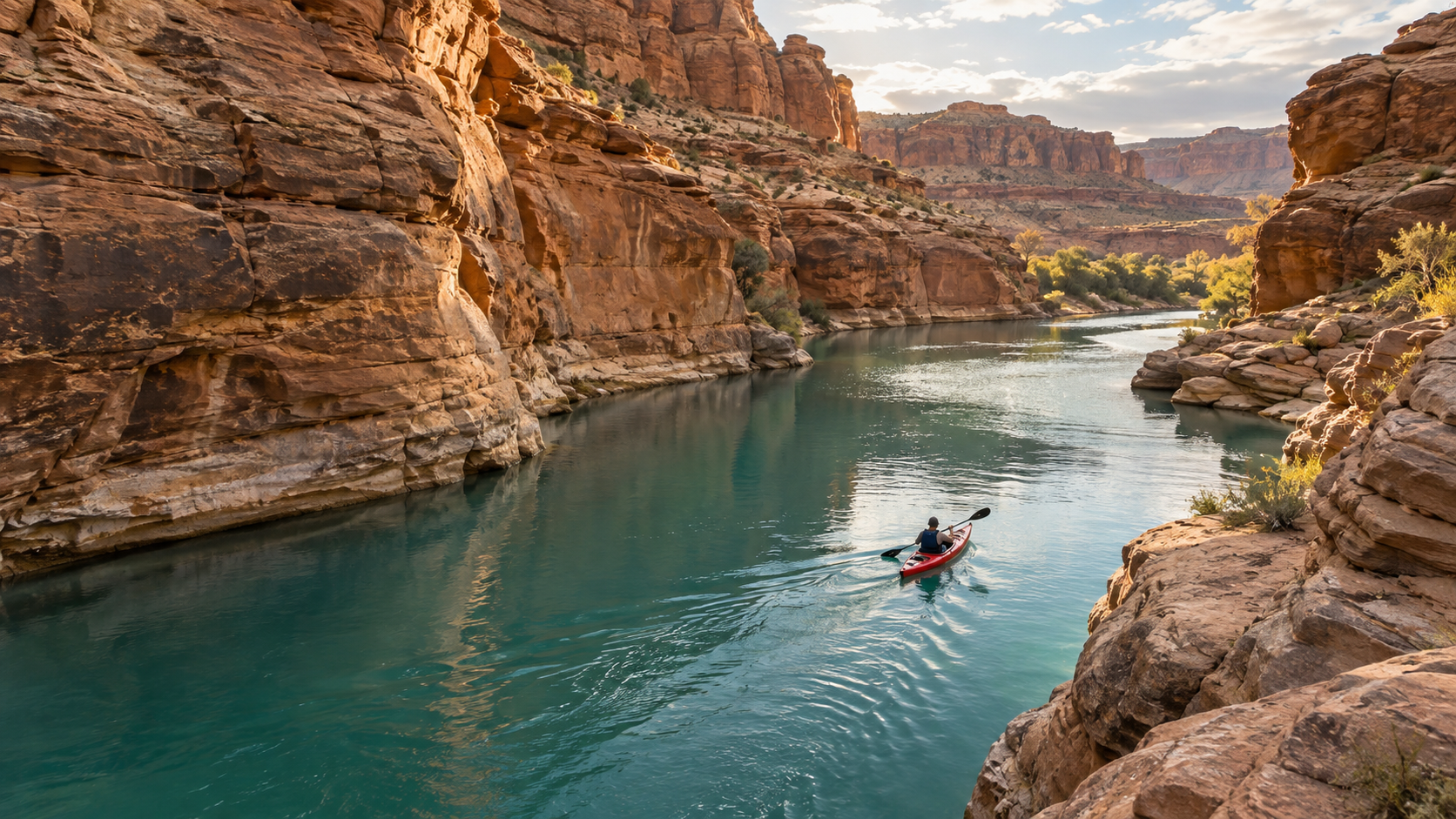
Original concept frame D: the ending changes light and location without replacing the boat or rider. This still is not a frame from the playable video.
Where Seedance Agent fits around a Pika keyframe job
Coordinate a deliverable, not just a single transition
Pika's Keyframe workflow is useful when your deliverable is a controlled transition through several approved images. A campaign usually includes more work: source permissions, multiple aspect ratios, a hook, titles, music, reviewer notes and variants. That is where a production layer such as Seedance Agent can help. Begin with the approved brief and references, organize shots and formats, review real moving outputs, and selectively rerun the portion that fails. This does not imply that Seedance Agent is a Pika control panel or that it automatically validates copyright, truthfulness or a client's brand rules; people still approve those decisions.
Keep the beat sheet even if you use a different generator for a later shot. Record each reference's role, expected change, fixed anchors, target format and acceptance test. Then your team can identify whether a weak deliverable needs a new still, a new transition or an edit rather than paying to regenerate everything. If the story starts from a written concept rather than approved stills, a text-to-video planning route may be the better first step.
Conclusion
A useful Pika multiple keyframe video begins with two to five ordered images that agree on the subject, camera and direction of travel. Build a simple beat sheet, use the documented duration limit for the product surface in front of you, write one global motion prompt, then inspect every adjacent transition in the finished moving file. The kayak stills here are illustrative planning assets and the playable clip is a separate Seedance example; neither is presented as a Pika benchmark. For a larger campaign with references, review and selective reruns, plan the project with Seedance Agent before committing credits to each shot.
Ready to try it yourself?
Put the steps from this guide into practice with Seedance and turn prompts or images into polished videos in minutes.
Free credits on signup. Plans from $28/month.
Related Articles
More posts in the same locale you may want to read next.

Seedance App Preview Video Generator 2026: Create App Store and Product Launch Clips
Use Seedance to turn app screenshots, feature copy, and launch goals into App Store previews, Google Play promo videos, and product launch clips.
Read article
How to Make a Talking AI Avatar You Can Reuse
Make a talking AI avatar with Seedance: design one consistent character, give it a voice, and make it speak in a talking photo or a full Seedance 2.5 scene, episode after episode.
Read article
Best AI Video-to-Video Models in 2026
The best AI video-to-video models in 2026 for editing footage you already shot: Higgsfield Genjutsu, Seedance 2.x, Runway Aleph, Luma Modify and Kling Omni compared.
Read article