
Picsart Flow Article to Video: A Practical Visual-Story Workflow
AI Overview
Can Picsart Flow turn an article into a video automatically?
It provides a connected canvas for the work, not a guaranteed one-click adaptation. Choose the article's key moments, make visuals and clips, then assemble narration and export.
Which Picsart Flow nodes are needed for article to video?
Start with text and image inputs, animate selected images through video nodes, join clips with video concat, generate narration with an audio node, then combine sound and picture.
How long should the script be for a short article video?
Write for the intended runtime, not the article's word count. A 30-second summary usually needs only a hook, two or three useful points, and a closing action.
When should I use Seedance Agent instead of a Flow canvas?
Use a coordinated production layer when the article needs several shots, approvals, format variants, or selective reruns. Keep the original facts, source rights and final review with your team.
What Picsart Flow actually does with an article
It connects editorial decisions, not every paragraph
The search “picsart flow article to video” usually comes from someone with a finished post and a familiar problem: the article explains something well, but its most useful ideas are trapped in text. They want an engaging summary for social, a video embedded near the top, or a short visual cut for a newsletter. Picsart's own guide describes a canvas workflow: mark the ideas that deserve visuals, generate or refine images for those points, animate them as clips, concatenate the clips, make narration from a tighter summary, combine audio and picture, and export. That is more specific than a vague “AI converts an article” promise. An editor still decides what to omit, what each image proves, and whether the video is faithful to the source.
The Seedance 2.0 on Picsart guide covers model access and prompting. This page starts with an article and turns its key points into a video plan. The model can change; the source paragraph, visual purpose and acceptance check should remain clear.
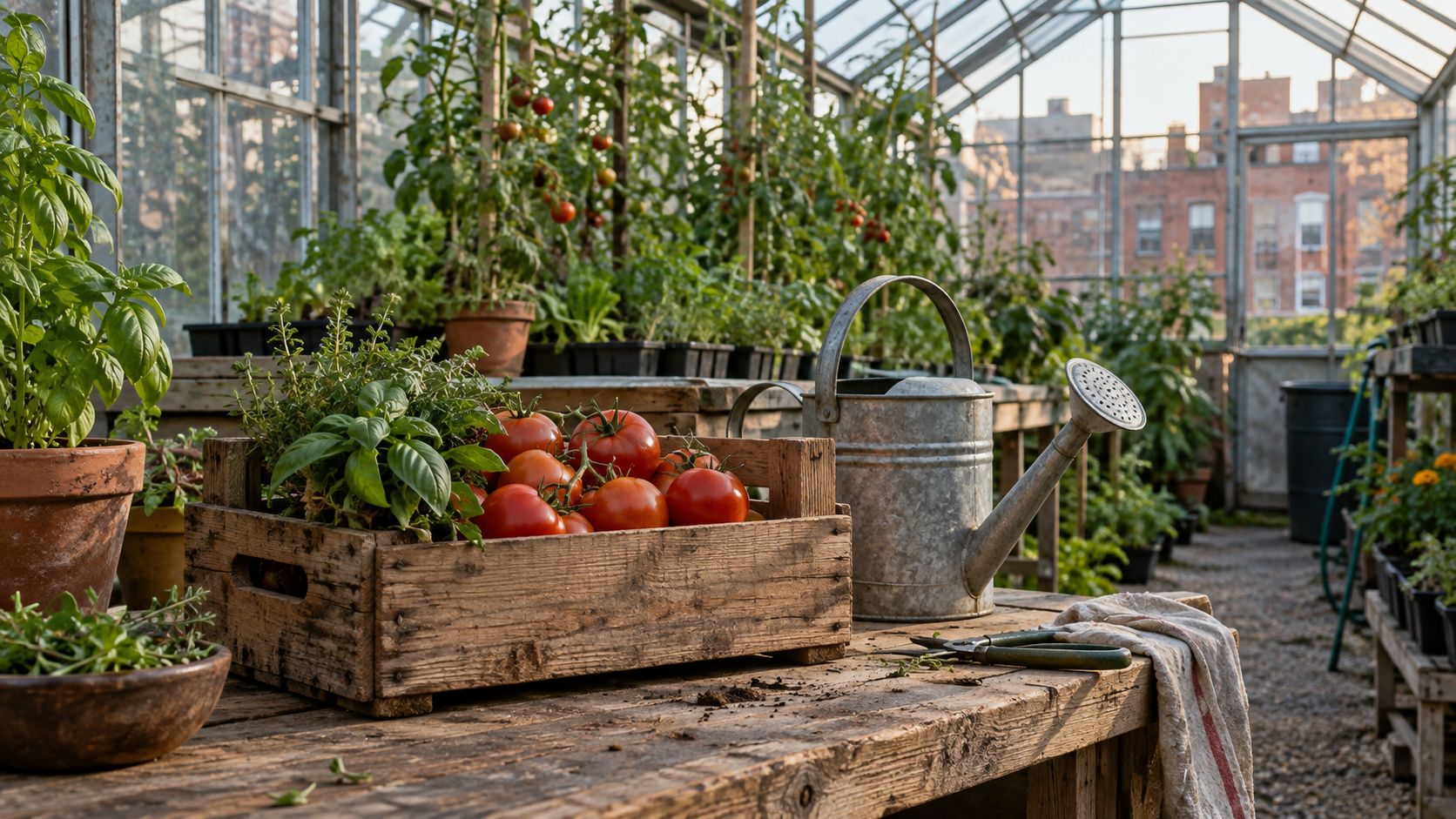
Our running example is a hypothetical article about a neighborhood greenhouse: location, transplanting, growth and harvest. The five original photos are concept frames, not Picsart outputs or evidence of a real greenhouse's results.
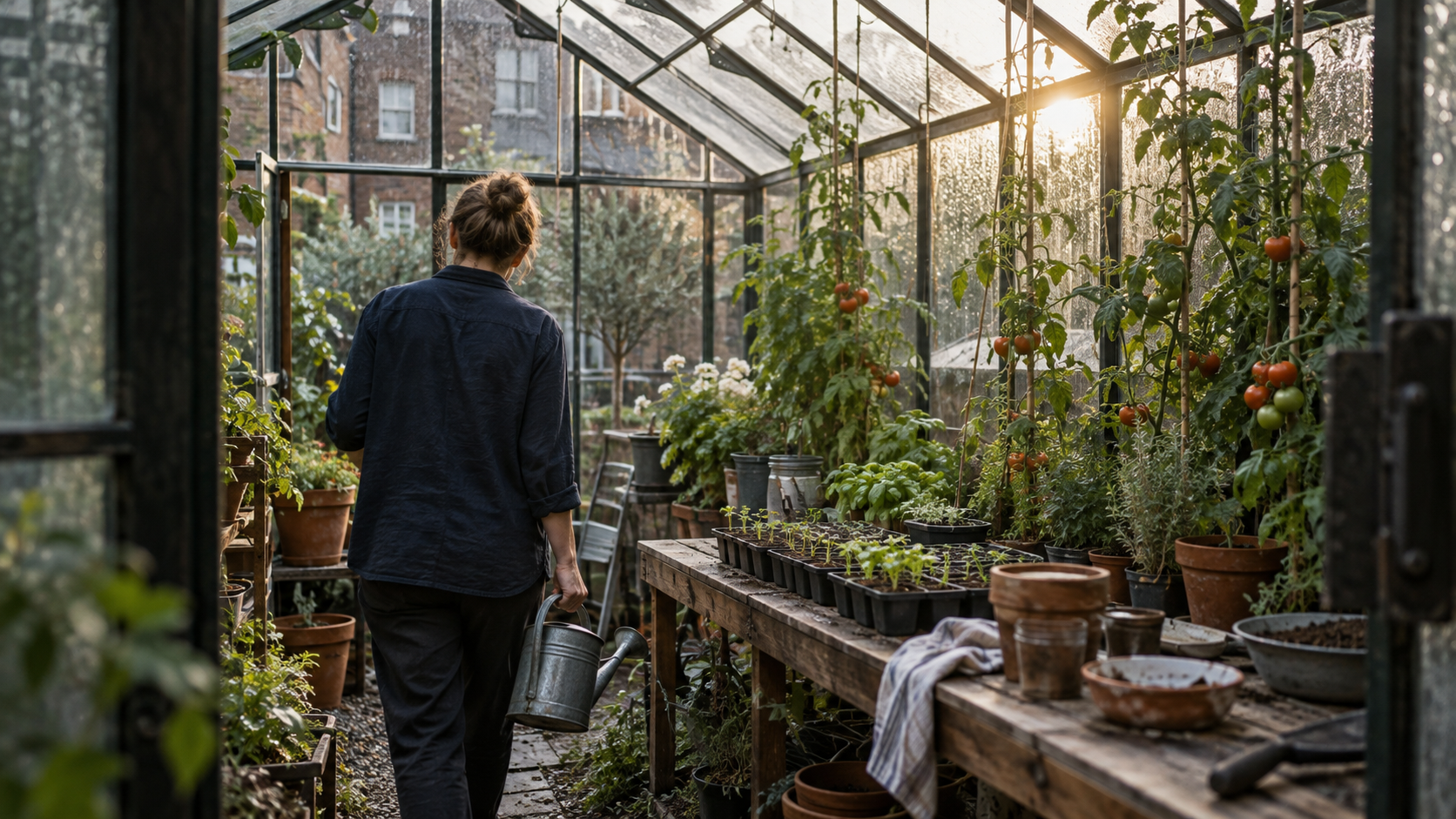
Original illustrative frame for the “where” beat. The wood table, city buildings and glass structure communicate place before any voiceover claim is added.
Turn paragraphs into a shot plan before generating
Extract claims, evidence and a visual action
Do not feed a long post into one prompt and expect a coherent short video. Write its thesis in one sentence, then select three or four claims a viewer can grasp without opening the page. Give each claim a visible action: “a gardener transplants seedlings” is filmable; “gardens are valuable” is not. Verify any measured claim before it reaches narration. An AI image cannot substantiate a statistic.
This worksheet is the piece to keep beside the Flow canvas. It prevents pretty but irrelevant imagery from replacing the article's real argument.
| Article point | Video beat | Image or clip direction | Acceptance check |
|---|---|---|---|
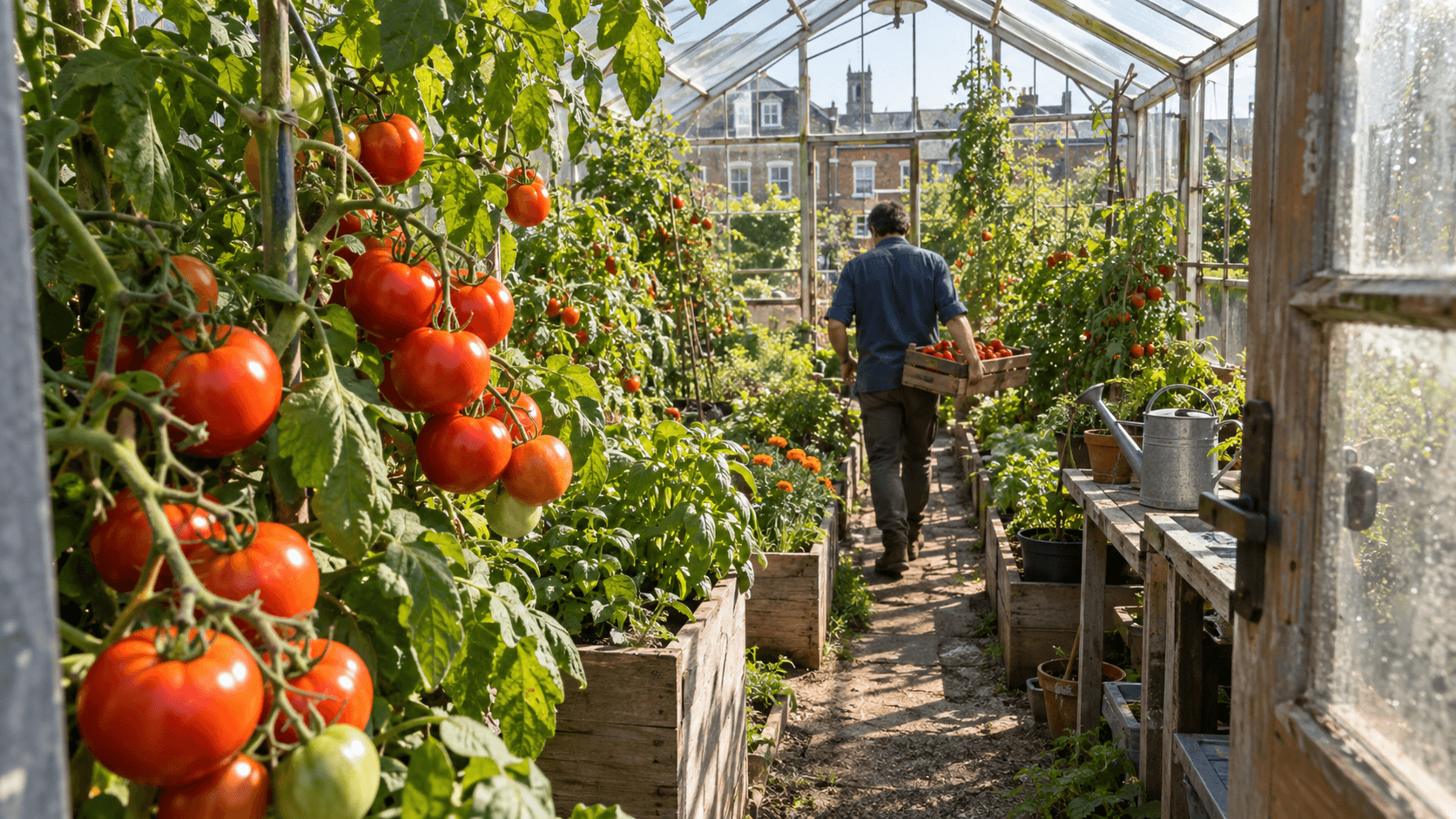
| Introduce the location | 0–5s: greenhouse among city buildings | Wide interior, visible glass and brick | Viewer understands the setting without a caption |
| Explain the work | 5–11s: pot a seedling | Hands, soil, terracotta pot | Planting action reads at normal speed |
| Show the process | 11–19s: tend tomato vines | Leaves and fruit in the same space | Tomato shape and greenhouse geography remain coherent |
| Give a concrete payoff | 19–27s: harvest basket | Small crate on the worktable | Ending image supports the narration, not a new claim |
Times are illustrative, not Picsart settings. For tutorials, show steps; for comparisons, show comparable criteria. Never invent documentary footage of a news event: use licensed material or labeled concepts.
Write narration from the evidence, not the image
A sample script: “On one city block, a small greenhouse creates a growing space. Seedlings are transplanted by hand, tended as vines mature, and harvested in a small basket. Read the full guide for setup steps.” This is fictional, not a claim about actual yield. Keep sources in production notes; voiceover must not promote unverified language into fact.
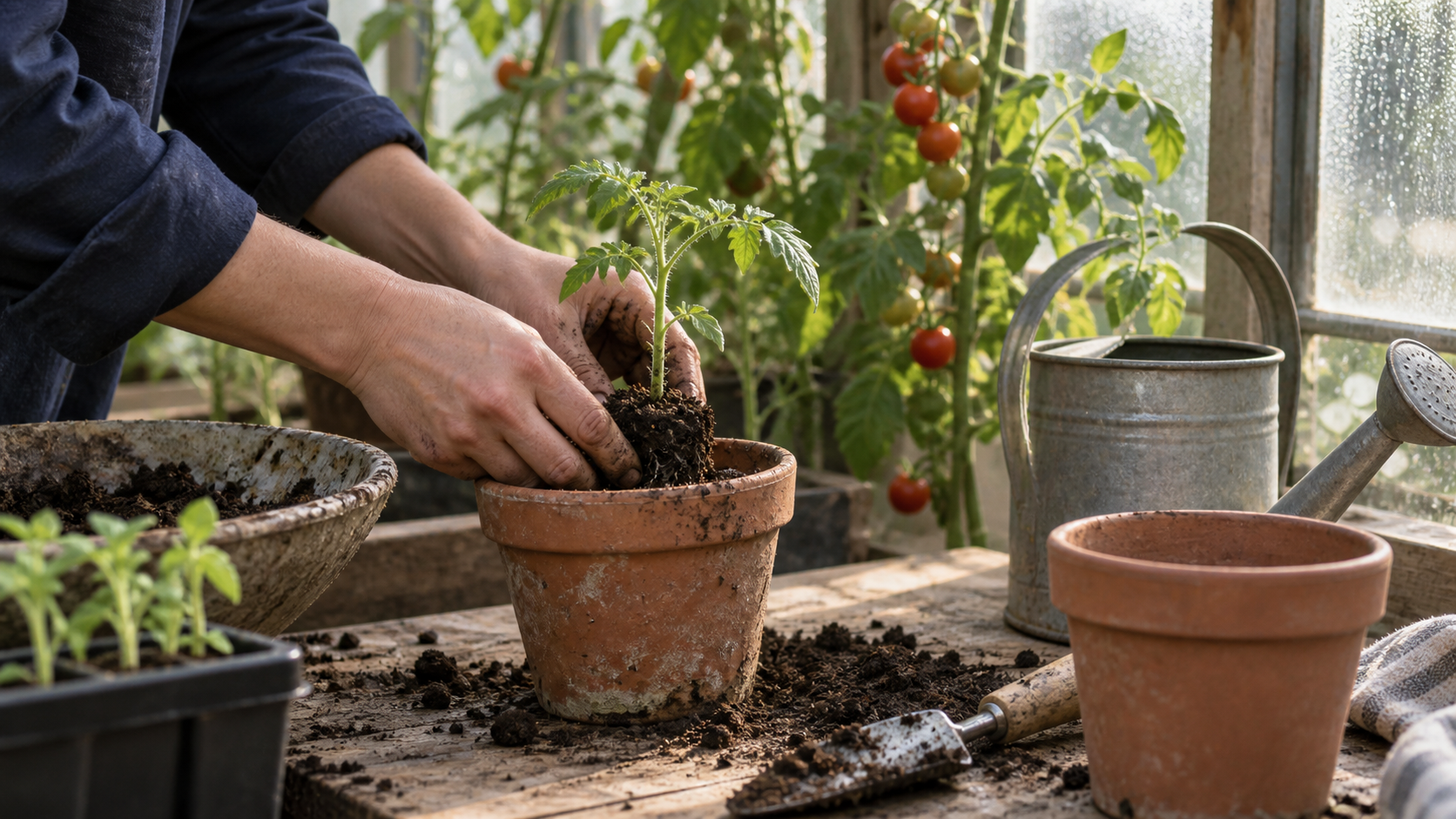
Original illustrative action frame. Soil, hands and plant should stay readable if this still is animated; a moving background alone would not communicate transplanting.
Build visuals and motion in Picsart Flow
Make each image node answer one sentence
Picsart's Flow help describes input, processing and output nodes. Its article walkthrough selects an image model, ratio and quality, then refines promising results. Make one image node per greenhouse beat—“location,” “planting,” “growth,” “harvest”—and keep each paired with its source paragraph.
The prompt for a still should specify place, subject, physical action, camera scale and continuity anchors. For example: “Documentary close-up inside a modest city glasshouse. A gardener in a dark indigo work shirt places a tomato seedling into a worn terracotta pot at a long wooden table; city brick buildings show softly through damp windows; natural daylight, believable soil texture, no visible logo or text.” Use a similar anchor block for later scenes: same glasshouse, worktable, indigo shirt, tomato plants and natural light. If the article describes a real facility, use properly cleared original photographs instead of pretending an AI image documents that facility.
Use a text-to-video brief when the shot is an idea without an approved still. If object geometry, layout or a specific product matters, an image-to-video starting frame may give the clip a stronger visual anchor. In either case, do not treat one perfect-looking still as proof that the full moving result will work. Review leaves, hands, fruit and the wood table as the action unfolds; those are where a beautiful thumbnail can fail.
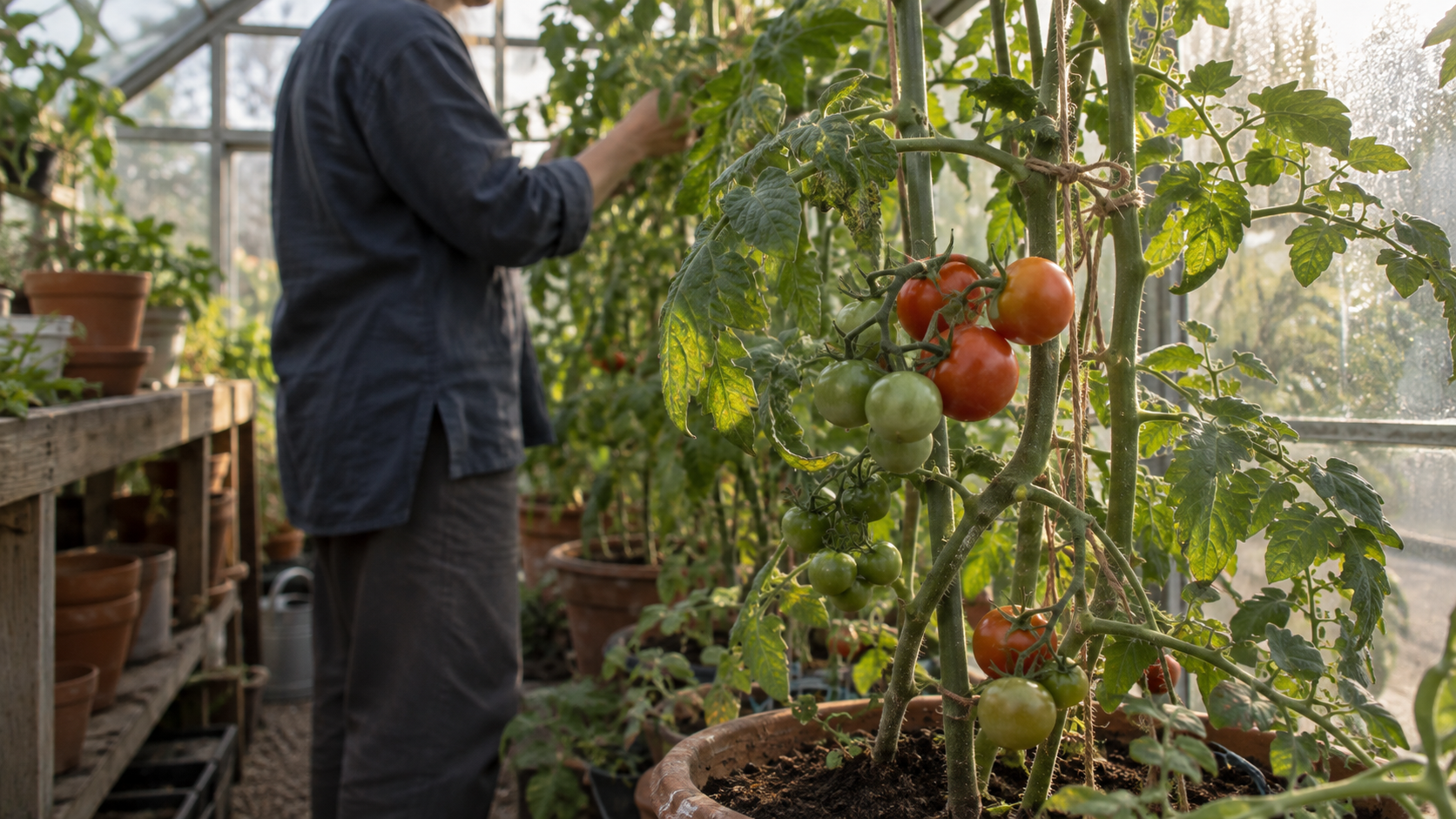
Original illustrative growth beat, not a frame extracted from a generated video. For animation, check fruit continuity and background placement across the entire clip.
Animate a meaningful change
On the Flow canvas, connect an approved image to a video node and write a short motion instruction for that beat. The planting beat needs fingers to lower the seedling and settle the soil, not just a camera push across a static hand. The growth beat might be a gentle lateral move through vines rather than a biologically implausible transformation in seconds. Generate one short clip, inspect it at normal speed, and only then branch a variant. If the action is unreadable, change the motion request or source frame; do not add more effects to conceal the problem.
Keep orientation consistent. A 9:16 social cut and 16:9 article embed may need separate framing; cropping could remove the seedling. Plan both before generation. For cross-shot subject review, use the character-consistency guide.
Join clips, add narration and finish the export
Connect video and audio only after the story reads silently
Picsart's official article workflow uses a video concat step to combine clips, a text-to-audio step for a summarized narration, and an audio-video concat step to merge the two. Before adding the voice, play the assembled cut with sound off. Can a viewer tell where the greenhouse is, what action follows, and why the basket is an ending rather than a random still? If not, revise the sequence or the edit points. The voiceover should clarify context, not rescue a visual story that has no readable order.
Then record or generate the approved script and listen for pace, pronunciation and claim accuracy. Align the clause about transplanting with the transplant clip, not the opening shot. Leave room for breath and a clean ending; do not speed the voice until it is unintelligible merely to fit every paragraph. The native-audio video guide covers a different route when synchronized sound is part of generation itself. In Flow's article adaptation, narration is an editorial layer that needs its own fact and timing review.
This is an existing moving Seedance example, not a Picsart Flow render or a completed version of the hypothetical article above. Watch the full motion to judge environment consistency; the stills in this guide are separate concept frames.
Original illustrative end beat. The small harvest is a visible payoff; it must not be used as evidence for an unverified quantity or sustainability claim.
Check the file as a deliverable
Inspect the exported file outside Flow: frame size, aspect ratio, narration, titles, crop and accidental repeated clips. Watch once without sound and once without subtitles. Confirm the final article link is real. Keep the source draft, script, prompts and approved export together for targeted updates.
When Seedance Agent is the better production layer
Move from one visual story to a repeatable campaign
Flow's visible nodes are useful when one editor wants to assemble an article illustration and narrated cut in the same workspace. A campaign has a wider coordination problem: five articles, two aspect ratios, reviewers who must approve claims, and a rule that only one weak shot should be rerun. Seedance Agent is relevant there because you can start from the brief, organize source and reference assets, plan shots, review outputs and keep selective revisions tied to the deliverable. That is a production-management advantage, not a claim that Seedance Agent automatically verifies your article's facts or replaces human editorial sign-off.
Use the same worksheet either way. Keep one row per claim with its evidence source, visual action, script line, format and acceptance check. Approve claims and rights before generation, accept clips based on motion rather than posters, and save the final export's version. If the article changes from “four steps” to “five steps,” the row mapping shows exactly which narration line and visual beat need replacement. That is more efficient than rebuilding a whole video because a sentence was corrected.
Conclusion
A useful Picsart Flow article-to-video workflow begins by selecting a few source-backed ideas, not by asking a generator to recite the whole page. Give each claim a visible action, make and animate coherent frames, join the clips, add a concise verified narration, and inspect the exported file for motion, timing and factual fidelity. The greenhouse worksheet and concept images here are a reusable planning example, while the playable clip is a separate Seedance motion sample—not a Picsart benchmark. If the job grows into several articles, shots, stakeholders or formats, plan the next visual story with Seedance Agent and keep references, approvals and partial reruns together.
Ready to try it yourself?
Put the steps from this guide into practice with Seedance and turn prompts or images into polished videos in minutes.
Free credits on signup. Plans from $28/month.
Related Articles
More posts in the same locale you may want to read next.

Seedance App Preview Video Generator 2026: Create App Store and Product Launch Clips
Use Seedance to turn app screenshots, feature copy, and launch goals into App Store previews, Google Play promo videos, and product launch clips.
Read article
How to Make a Talking AI Avatar You Can Reuse
Make a talking AI avatar with Seedance: design one consistent character, give it a voice, and make it speak in a talking photo or a full Seedance 2.5 scene, episode after episode.
Read article
Best AI Video-to-Video Models in 2026
The best AI video-to-video models in 2026 for editing footage you already shot: Higgsfield Genjutsu, Seedance 2.x, Runway Aleph, Luma Modify and Kling Omni compared.
Read article