
MiniMax H3 Long Video Workflow on Low VRAM: The 2026 Local Guide
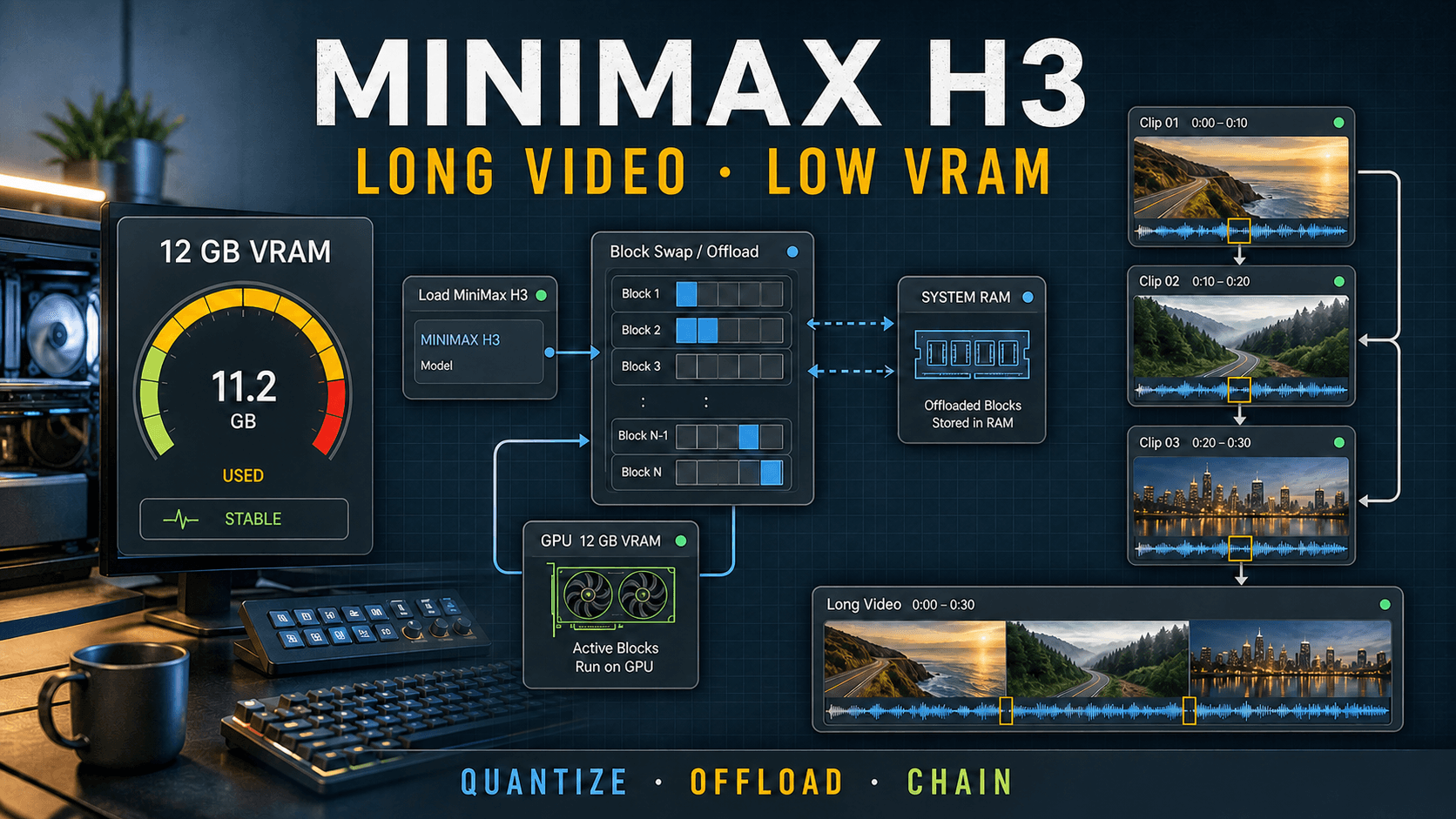
AI Overview
What is MiniMax H3?
MiniMax H3 is an open-weight omni-modal generation system for video with native stereo audio. Local ComfyUI workflows cover text, first/last-frame, and reference-driven generation, with 768p-class output as the practical open-weight baseline.
How much VRAM does MiniMax H3 need?
The original BF16 model is a multi-GPU workload. Community quantized workflows can run short drafts on 12–24GB cards by moving model blocks through system RAM, but less VRAM means more swapping, longer renders, and softer output.
Can MiniMax H3 make long videos?
One native generation is normally about 4–15 seconds. A local “long video” is therefore a chain of short segments that reuse a handoff frame, overlap motion, and join the audio rather than one uninterrupted long inference pass.
How do you run H3 long videos on low VRAM?
Use a compatible quantized checkpoint, batch size 1, block or layer swapping, memory-efficient attention, and tiled VAE decoding. Render conservative short segments first, then extend them through a continuation workflow.
What Is MiniMax H3 — and What "Long Video" Actually Means
MiniMax H3 generates picture and stereo audio together. Current native ComfyUI nodes expose text-to-video-audio, first/last-frame video-audio, and reference-driven conditioning. The model operates at 24 fps and is trained around a frame grid that corresponds to roughly five to fifteen seconds. That range is the important production boundary: increasing the frame field far beyond it may be technically accepted by a node, but it is not the same as a trained, reliable long-form mode.
The local open-weight path is centered on a 768-pixel short side. MiniMax also describes a separate 2K regeneration route, but that managed high-resolution path should not be confused with ordinary local H3-Base inference. For a local editor, “long” means assemble several approved H3 segments into one sequence. Each segment gets one action and camera job; the next inherits a controlled final state.
Treat a clean short segment as the building block. Long-form reliability comes from the handoff between blocks, not from asking one graph to exceed its dependable range.
If you have not yet built the base graph, start with the MiniMax H3 ComfyUI setup guide before adding quantization or continuation nodes.
MiniMax H3 VRAM Requirements: What Your GPU Can Really Do
No single VRAM number guarantees a duration. The checkpoint precision, 32B text encoder, video and audio VAEs, resolution, frame count, attention backend, and number of resident model blocks all compete for memory. System RAM and storage speed also matter once tensors leave the GPU.
| Available GPU memory | Realistic local role | Main compromise |
|---|---|---|
| Full BF16 multi-GPU allocation | Research baseline and full-precision validation | Expensive hardware and complex orchestration |
| 24–32GB | Quantized 480p–768p short segments; moderate offload | Slow when the text encoder and model cannot stay resident together |
| 16GB | Quantized five-second drafts, batch 1, heavier block swap | Longer load and sampling time; final resolution may need a separate pass |
| 12GB | Aggressive quantization and offload for conservative short drafts | System RAM traffic, page-file risk, and softer detail |
| 6–8GB | Experimental graph validation at reduced size | Extreme swapping; long H3 production is usually impractical |
A dual high-memory consumer setup can reduce offloading, but two GPUs do not automatically behave like one large pool. The loader and node pack must explicitly distribute blocks. On any consumer card, begin with a five-second, 864×480, batch-1 baseline. Record peak VRAM, system RAM, sampling time, decode time, and output quality before increasing frames or pixels.
The settings in the best MiniMax H3 settings guide are useful starting points, but a low-VRAM recipe must prioritize repeatability over maximum resolution.
The Low-VRAM Setup: GGUF, Offloading & Your ComfyUI Workflow
GGUF conversions and other quantized repacks reduce model memory by storing weights at lower precision. They are community deployment formats, so verify the conversion source, quantization level, and supported loader. A smaller file is not automatically faster: if its graph constantly moves blocks between GPU, RAM, and disk, transfer time can dominate sampling.
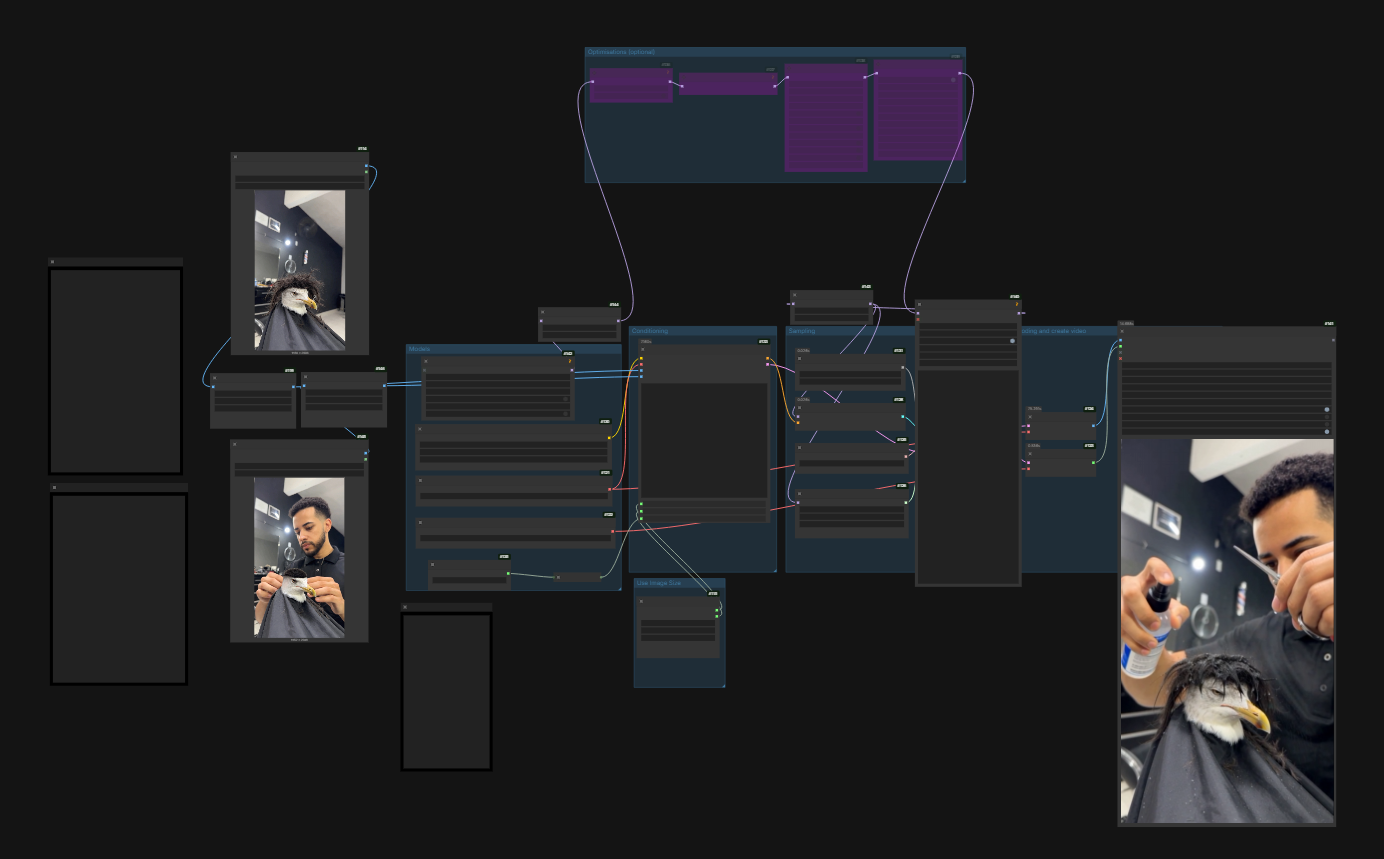
Start from a known-working H3 graph, then replace one memory-heavy component at a time. This keeps a loader problem from looking like a bad quantization.
A conservative starting recipe
- Load a compatible Q4/Q5 GGUF or maintained INT8/FP8 H3 conversion and its required loader.
- Use the compressed text encoder recommended by that workflow; unload it after conditioning when the node pack supports it.
- Set batch size to 1, draft at 864×480, and begin near 124 frames rather than building the final duration immediately.
- Enable block or layer swapping and increase the number of offloaded blocks only until the graph fits. Keep enough system RAM free for the transfer window.
- Use SageAttention or another memory-efficient attention backend only when its build matches the active Torch and CUDA environment.
- Decode with tiled VAE settings when the full latent cannot be decoded in one allocation.
Block swap solves capacity, not bandwidth. Keep model files on fast local storage, avoid a nearly full page file, and close other GPU applications. If you need fewer sampling steps, use a matching accelerated weight rather than lowering steps blindly; the MiniMax H3 Turbo LoRA guide explains that distinction.
Building a Long-Video Workflow: Multishot Chaining & Audio Handoff
A stable long workflow is a loop: generate a segment, choose a handoff state, condition the extension, render an overlap, then append only the fresh frames. A published continuation-node example uses a 22-frame overlap and 119 new frames inside a 141-frame window. Treat those values as one tested recipe, not a universal rule; motion speed and shot design determine how much overlap is needed.
Preserve the visual handoff
Use the final clean frame—not the final encoded frame if it contains motion blur or a transition—as the next first-frame reference. Repeat the subject anchor, wardrobe, hero prop, environment, lens, lighting direction, and screen direction in every prompt. When a hard cut is acceptable, a planned cutaway is safer than forcing a perfect match across unrelated actions.
First- and last-frame control can define the state a following segment must inherit. Review the actual transition, not only the two key images.
The MiniMax H3 first-and-last-frame guide covers the keyframe lane in more detail.
Carry audio without an obvious seam
Keep dialogue inside one segment when possible. For ambience or music, export each stereo track, overlap room tone, and use a short equal-power crossfade. Do not concatenate two clips that both contain a loud transient at the join. If the next shot changes location, design the sound bridge deliberately: let the incoming ambience begin before the visual cut or end the previous line over the new frame.
Render segment files and a separate master. This lets you replace one failed shot without regenerating the entire timeline. Name files by sequence and approved seed, and save the workflow JSON beside every accepted segment.
Fixing the Common Problems: OOM, Grainy Output & Slow Renders
| Problem | Likely cause | Practical fix |
|---|---|---|
| OOM during model load | Too many blocks, encoder, and VAE resident together | Offload more blocks; unload the encoder after conditioning; restart for a clean baseline |
| OOM during decode | Full-resolution AV latent decoded at once | Enable tiled VAE; decode segments separately; reduce frames before reducing every visual setting |
| Grainy or soft output | Aggressive quantization, low resolution, or too few matched steps | Move up one quant level, restore the companion sampler preset, or finish with a controlled upscale |
| Render slows after several clips | RAM/page-file growth, cached models, or disk thrashing | Save the queue, unload models, monitor system RAM, and relaunch before the master batch |
| Visible jump at the join | Weak overlap or inconsistent final-frame state | Extend the overlap, choose a calmer handoff frame, and repeat the locked identity clause |
| Audio click or doubled beat | Waveforms appended without a crossfade | Trim on a zero crossing and crossfade the overlap in an editor |
Shared GPU memory is not extra VRAM. When Windows reports usage beyond the physical card, tensors may be spilling into system RAM and the page file. The graph can keep running while each step becomes dramatically slower. Measure physical VRAM, committed RAM, and disk activity together before assuming the sampler is broken.
When Local Isn't Worth It: Cloud Long-Video with Seedance
The local route is valuable when you need offline control, inspectable weights, custom nodes, or reproducible research. Its cost is operational: model downloads, quantization compatibility, GPU drivers, Python packages, memory tuning, queue recovery, segment management, and final audio assembly. On a 12GB machine, one revision can mean hours of rerendering.
Seedance removes the local VRAM constraint and keeps prompting, reference inputs, generation, and review in a browser workflow. Start from Text to Video, plan the story as timed beats, and generate each approved section without maintaining an inference environment. The creative discipline remains the same—one action per beat, stable identity anchors, and intentional transitions—but the infrastructure work disappears.
A cloud workflow is the practical choice when delivery speed matters more than owning every model block.
Switch when your bottleneck is memory management rather than art direction. Stay local when the customized graph is itself a product requirement.
Conclusion
MiniMax H3 can run on modest local hardware, but low VRAM changes the workflow. Quantization reduces weight memory; block swapping trades capacity for time; tiled decoding protects the final stage; and long video comes from chained short segments with controlled visual and audio handoffs. Benchmark one five-second segment before scaling, and keep every setting tied to the exact checkpoint and node pack you installed.
If local ownership is essential, accept the slower, more technical route and preserve reproducible workflow files. If the goal is simply to finish a consistent long-form video, skip the GPU limits and try Seedance free →.
Ready to try it yourself?
Put the steps from this guide into practice with Seedance and turn prompts or images into polished videos in minutes.
Free credits on signup. Plans from $28/month.
Related Articles
More posts in the same locale you may want to read next.

Seedance App Preview Video Generator 2026: Create App Store and Product Launch Clips
Use Seedance to turn app screenshots, feature copy, and launch goals into App Store previews, Google Play promo videos, and product launch clips.
Read article
Kling 4.0 vs Seedance 2.5: Full Comparison
Kling 4.0 vs Seedance 2.5 compared by spec: 30-second clips, keyframes vs 50 references, audio, 4K and 10-bit color, editing, and which model fits which job.
Read article
Kling 4.0 Keyframes & Omni Reference Guide
Learn how Kling 4.0 uses up to 10 keyframes and 15 Omni Reference assets in one 30-second video, with 3 worked plans, common mistakes, and Seedance 2.5 tips.
Read article