
Magic Hour Video Restyle Tutorial: Stable Video-to-Video Style Transfer

AI Overview
How do you restyle a video in Magic Hour?
Open Video-to-Video, add the Original Video, select an Art Style, describe the intended look in Prompt, choose the available model, then generate and review the completed clip.
Is video restyling the same as editing one object?
No. Restyling transforms the broad visual treatment. For one object or character replacement, use a targeted editing workflow instead of asking style transfer to isolate the change.
Why does a restyled video flicker?
Fast motion, occlusion, tiny textures and an overcomplicated prompt can change details between frames. Shorten the test and simplify the style before spending credits on a longer clip.
Can I judge the result from the preview image?
No. A still preview cannot prove temporal consistency. Watch the finished Dashboard video from beginning to end, especially peak motion, scene changes and the final frame.
What Magic Hour Video Restyle Actually Does
Choose Video-to-Video for a broad visual transformation
A Magic Hour video restyle tutorial should begin with the tool boundary. Magic Hour calls the relevant workflow Video-to-Video: an existing clip supplies motion and composition, while an Art Style and a separate Prompt define the new appearance. The official guide distinguishes this from a prompt-based edit to one object and from replacing a person or character.
That means restyling is a good fit when the action already works but the footage needs a different overall world: painterly animation, a period-film treatment, graphic print textures or another coherent aesthetic. It is a poor fit when the real request is “remove the bag,” “change only the shirt,” or “replace this actor.” A broad generative transformation can reinterpret more of the frame than a precise edit.

This editorial concept visualizes broad style transfer; it is not a Magic Hour output or product screenshot.
Define what must change and what must survive
Before uploading, write two lists. The change list names the treatment: medium, palette, surface texture, period and lighting mood. The survival list names the evidence that makes the source useful: subject identity, movement direction, camera path, object geometry, contact points and edit timing.
For the roller-skater example, the walls may become gouache and printed paper, but the cobalt jumpsuit, orange scarf, cream skates, left-to-right movement and empty-pool geometry should remain readable. This compact brief becomes the acceptance checklist. Without it, a visually impressive restyle can distract from broken motion.
If you are still deciding whether to transform existing footage or generate a new shot, compare the task with a dedicated video-to-video workflow before choosing a route.
Prepare a Source Clip That Survives Restyling
Trim around one readable action
Start with the shortest clip that contains a complete action: entry, peak motion and usable ending. The current Magic Hour Dashboard guide tells users to add an Original Video and choose the source section with the available controls. A short controlled test is easier to inspect and cheaper to repeat than a long clip containing three lighting changes and multiple cuts.
Favor a dominant subject with clean separation from the background. Avoid rapid cuts, severe motion blur, flashing exposure and long occlusions on the first attempt. These are not forbidden, but each asks the model to reconstruct more uncertain information from frame to frame. If the source contains two scenes, test them separately before processing the full edit.
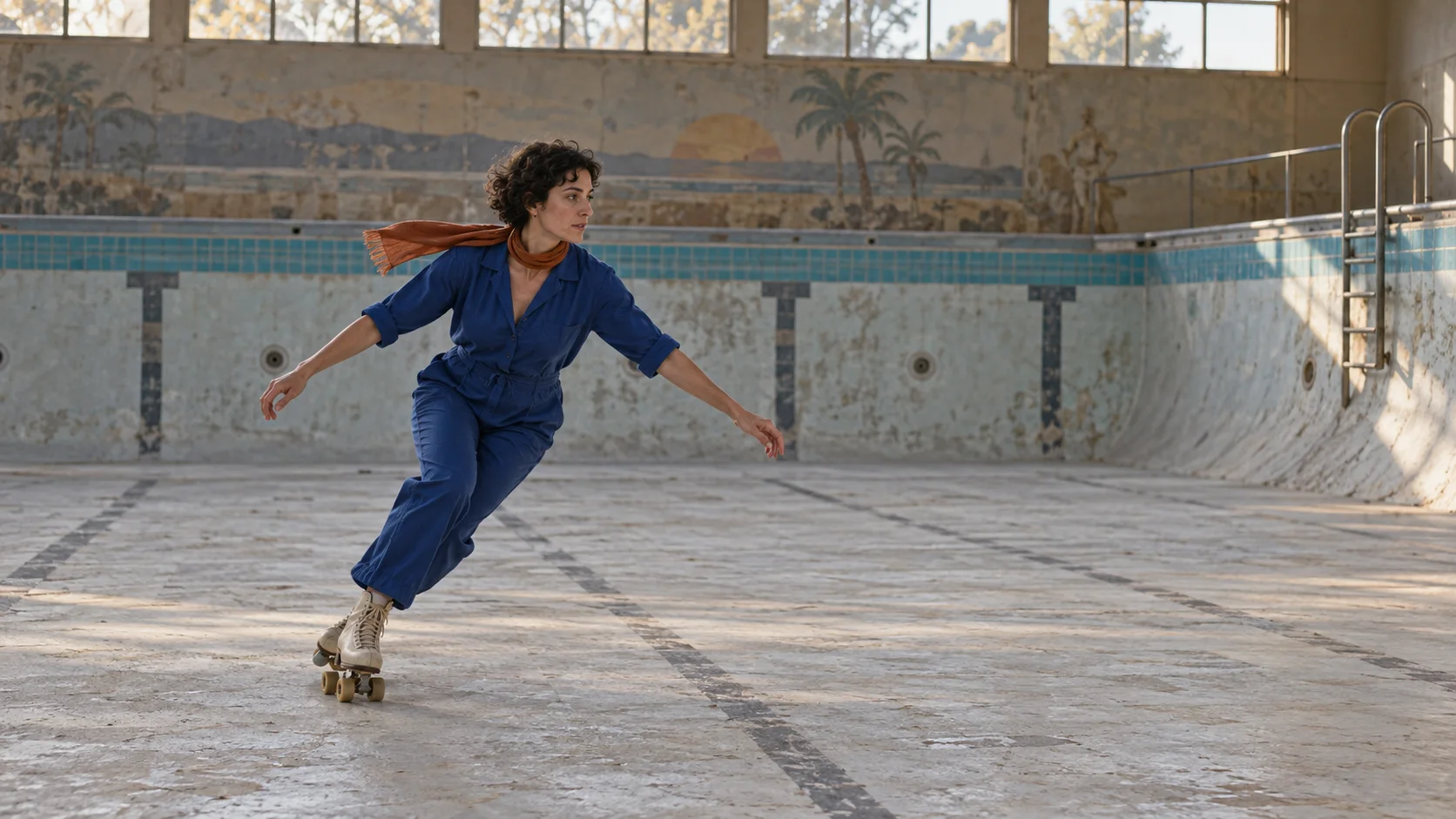
A useful source frame makes continuity anchors obvious before any aesthetic transformation is applied.
The same preparation principle applies when extending rather than restyling footage. The Magic Hour Video Expander guide explains how clean edges and a stable subject reduce ambiguity in a different tool.
Audit rights, text and fragile details
Only upload footage you have permission to process. Record who owns the video, which people consented to the use, and where the transformed result may be published. A style preset does not remove copyright, likeness or brand obligations.
Treat readable text, logos, hands, thin accessories and patterned clothing as fragile. Generative restyling may redraw them across frames. If exact packaging or typography must remain unchanged, plan to composite the original element back in after the restyle, or choose a targeted editor. Crop out irrelevant detail when possible instead of asking the model to protect dozens of small elements.
Choose an Art Style and Write the Prompt
Let Art Style set the medium
Magic Hour exposes Art Style and Prompt as separate controls. Use the style selection for the broad medium, then use the prompt for subject interpretation, palette and protected features. Repeating ten style labels in the prompt can create competing instructions and make failures harder to diagnose.
Begin with one restrained look. “Mid-century gouache animation” is testable. “Anime, oil paint, cyberpunk, clay, watercolor and photoreal” is not. Generate one result, identify what the style changed, then increase or reduce the transformation intentionally.
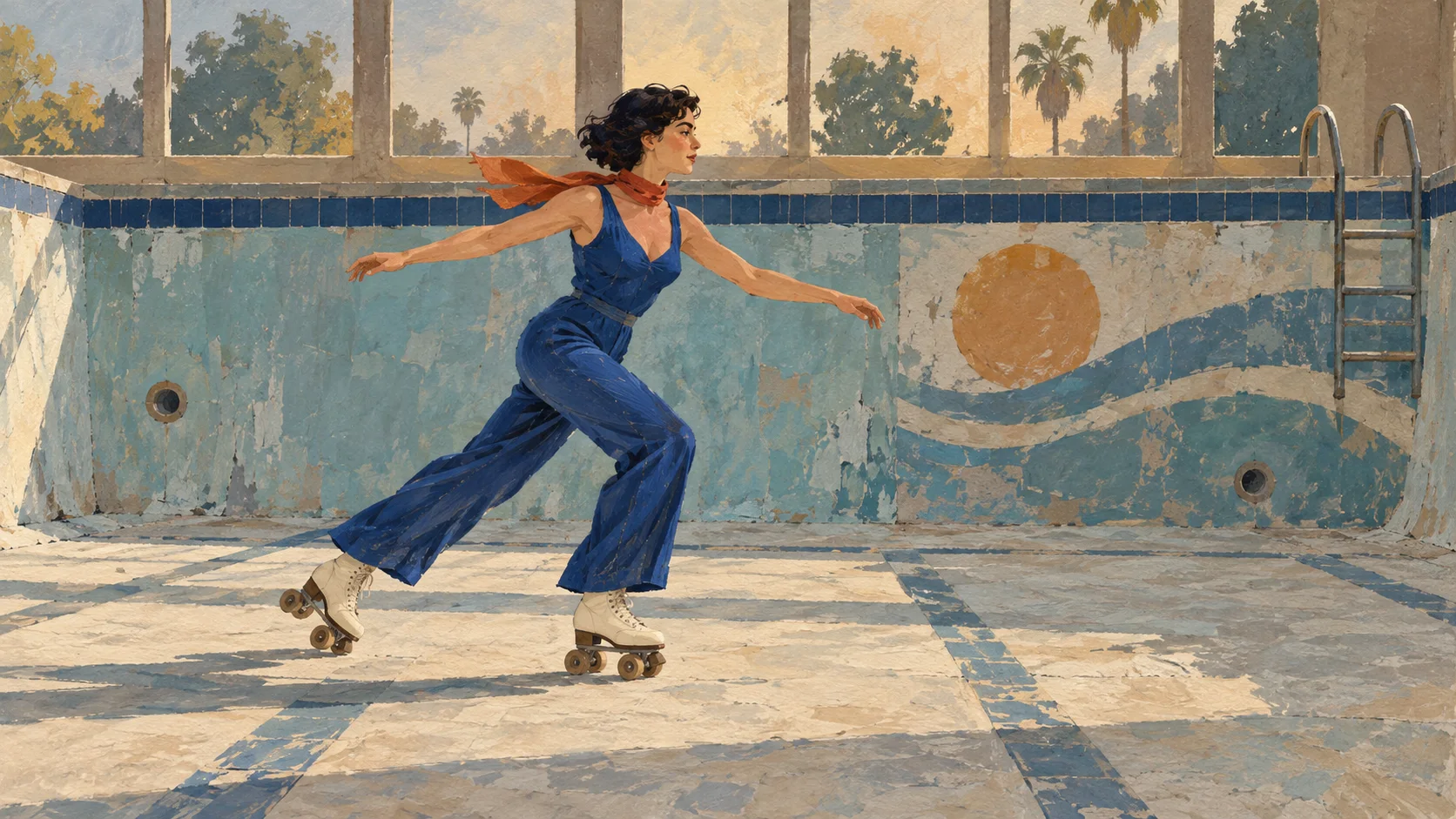
Inspect whether the medium changed without losing the subject, wardrobe anchors, direction of travel or background layout.
For a more experimental visual brief, the psychedelic AI video guide shows how to separate motion, transformation and color instructions instead of stacking vague adjectives.
Use a prompt with five concrete parts
A reliable Magic Hour video restyle prompt contains: transformed subject, environment, medium, palette and protected anchors. Keep it visual and avoid directing a new action that contradicts the Original Video.
Copy this pattern:
Restyle the roller skater and drained pool as a sophisticated mid-century gouache animation. Layered brush texture, muted turquoise, indigo, cream and burnt-orange accents. Preserve the same adult woman, cobalt jumpsuit, orange scarf, cream skates, left-to-right motion, pool geometry and late-afternoon light. No extra people, readable text or sudden scene change.
Run the first test with one prompt. If identity drifts, shorten the transformed-subject description and emphasize the three most visible anchors. If the result barely changes, strengthen the medium and surface language rather than adding a second unrelated aesthetic.
Generate and Review the Completed Video
Confirm model, estimate and output settings
After adding the source, choosing Art Style and writing the prompt, select a Model Version from the options currently shown and review the credit estimate before generating. Access, validation messages and limits can depend on the selected tool, model and plan, so use the live Dashboard rather than an old screenshot as the final authority.
This is an existing Seedance motion sample, not a Magic Hour restyle. It demonstrates the kind of complete movement, contact and ending frame to inspect in source footage.
Do not repeatedly submit a job that still shows processing. Check its status first. When a generation is technically failed or blank, save the project link or visible ID, model, source trim, prompt and timestamp before contacting support.
Review motion, not only the favorite frame
Watch the completed video once at normal speed. Then check opening, peak motion, occlusion points, scene boundaries and ending. At each checkpoint, score identity, silhouette, hands and feet, object contact, background geometry, palette, texture stability and editability.
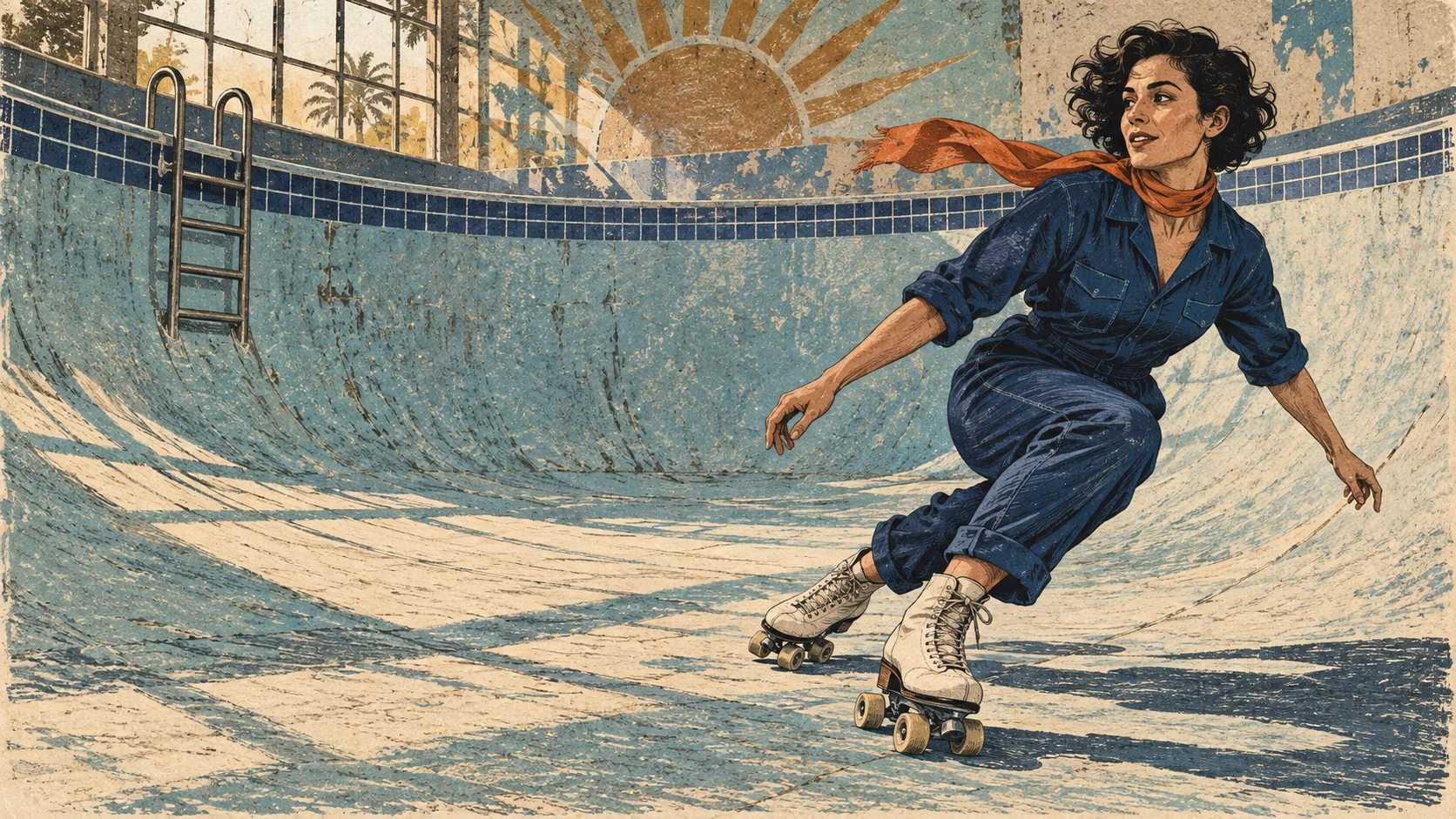
Peak motion is where style transfer often reveals identity drift, broken contact or texture crawling that a still preview hides.
Use three decisions: keep when style and continuity both pass; revise when one controllable variable needs a narrower instruction; reject when identity, geometry or motion fails. Download only after reviewing the complete Dashboard video. A product-page still preview is not proof that a full clip has rendered consistently.
Fix Flicker, Identity Drift and Wrong Changes
Simplify the most unstable variable first
For Magic Hour video restyle flicker, do not rewrite everything at once. Trim to the difficult moment, reduce the number of style descriptors and test again. If detail changes when the subject turns, remove tiny costume texture from the prompt and protect one high-contrast anchor such as scarf color. If the background crawls, lower visual complexity or use a source with less parallax.
When the model changes an object that should remain exact, the problem may be tool choice rather than wording. Broad restyling is allowed to reinterpret the frame. Use a targeted editor for a specific object, or composite the exact asset after generation. A longer negative-prompt list cannot guarantee pixel-level preservation.
The Magic Hour Video Colorizer tutorial covers a narrower restoration task where temporal review still matters but broad subject redesign is not the goal.
Approve a style test before scaling the sequence
Choose the riskiest representative shot and approve it first. Save the source trim, selected style, exact prompt, model version, credit estimate, output URL and a short verdict. That record lets you repeat a successful treatment and explains why a later shot was rejected.
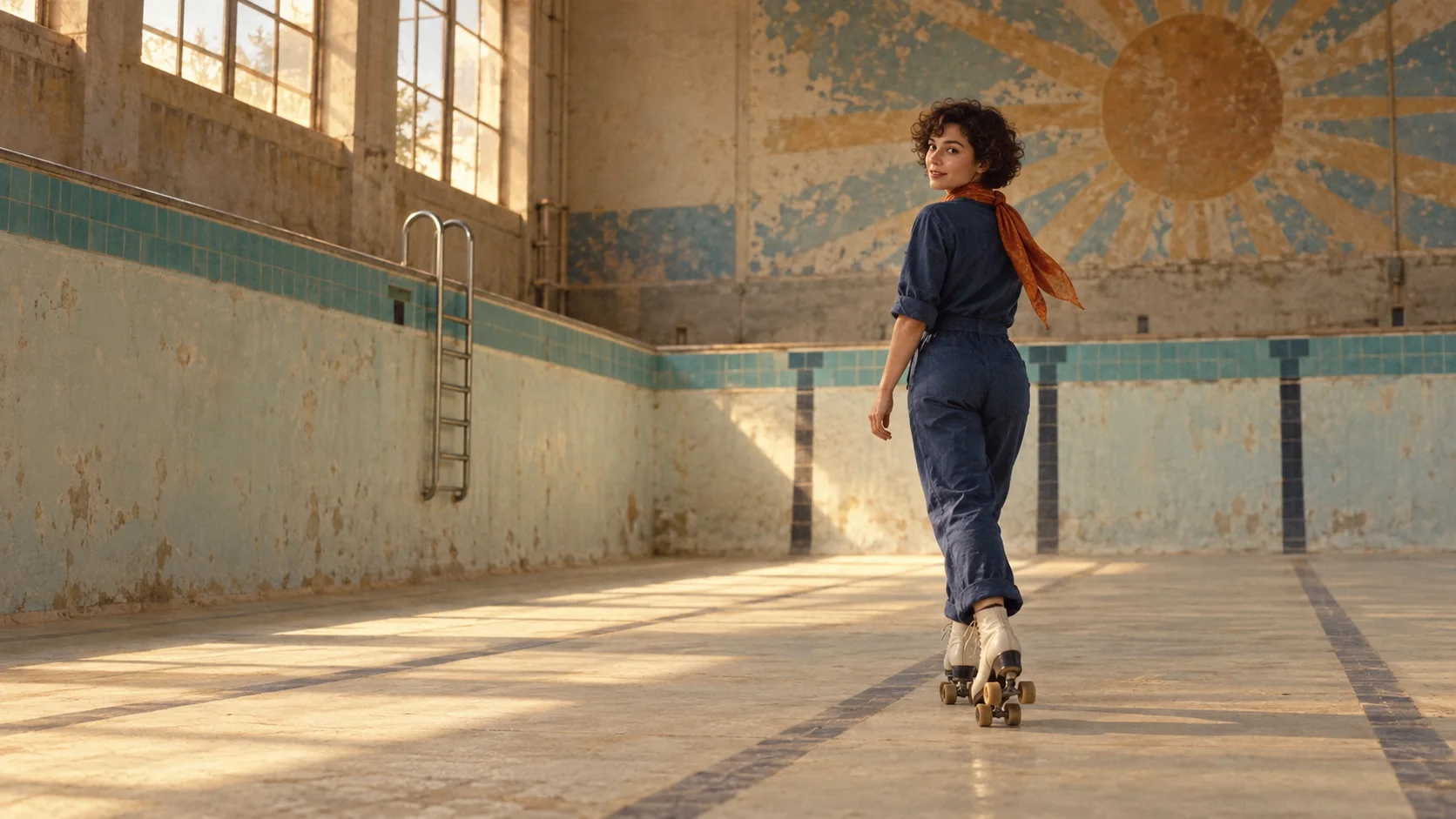
A subtle restyle may be more production-safe when the audience must still recognize the person, wardrobe and location.
For several shots, the hard problem becomes coordination: matching source trims, preserving reference roles, approving cost before generation and rerunning only the failed segment. Seedance Agent can turn the treatment into a reviewable shot plan and keep accepted references with each scene, so the approval layer grows with the project instead of becoming a separate tracking job.
Conclusion
Use this Magic Hour video restyle tutorial as a controlled style-transfer test: choose Video-to-Video, trim one readable action, separate Art Style from Prompt, name the anchors that must survive, review the displayed credit estimate and judge the complete output rather than the preview still. Fix flicker by simplifying one unstable variable, and approve one representative shot before scaling. When the treatment expands into multiple clips, references and selective reruns, carry the accepted source, prompt and review notes into Seedance’s production workflow instead of rebuilding the visual decision for every scene.
Ready to try it yourself?
Put the steps from this guide into practice with Seedance and turn prompts or images into polished videos in minutes.
Free credits on signup. Plans from $28/month.
Related Articles
More posts in the same locale you may want to read next.

Seedance App Preview Video Generator 2026: Create App Store and Product Launch Clips
Use Seedance to turn app screenshots, feature copy, and launch goals into App Store previews, Google Play promo videos, and product launch clips.
Read article
How to Make a Talking AI Avatar You Can Reuse
Make a talking AI avatar with Seedance: design one consistent character, give it a voice, and make it speak in a talking photo or a full Seedance 2.5 scene, episode after episode.
Read article
Best AI Video-to-Video Models in 2026
The best AI video-to-video models in 2026 for editing footage you already shot: Higgsfield Genjutsu, Seedance 2.x, Runway Aleph, Luma Modify and Kling Omni compared.
Read article