
Invideo Agent Timeline Editing Prompts: A Practical Playbook
AI Overview
What should an Invideo agent timeline editing prompt include?
Name the exact section, desired result, source clips, target duration, and details that must stay unchanged. A strong prompt defines one observable edit and tells the agent where to make it before you spend credits.
Can the Invideo agent edit an existing timeline?
Invideo's current documentation says its agents can assemble and revise a cut, while the result remains available for manual timeline editing. Review every change in the monitor and timeline rather than treating a completed agent task as approval.
How do I stop the agent from changing the whole video?
Limit the request by scene, marker, or time range; state “change only this section”; and lock the surrounding order, dialogue, music, captions, and ending. Save a version before submitting the focused instruction.
When is Seedance Agent a better fit?
Use Seedance Agent when the work begins before editing: planning shots, binding references, generating clips, reviewing outputs, and rerunning only weak shots. Use a timeline agent when approved media already exists and the main job is assembly or refinement.
What Invideo Agent Timeline Editing Actually Changes
People searching for invideo agent timeline editing prompts usually have footage or a rough cut already. They are not asking for another one-click video. They want the agent to shorten an opening, swap a weak shot, move B-roll, repair pacing, lower music under speech, or make two scenes feel like one sequence—without unexpectedly rewriting everything else.
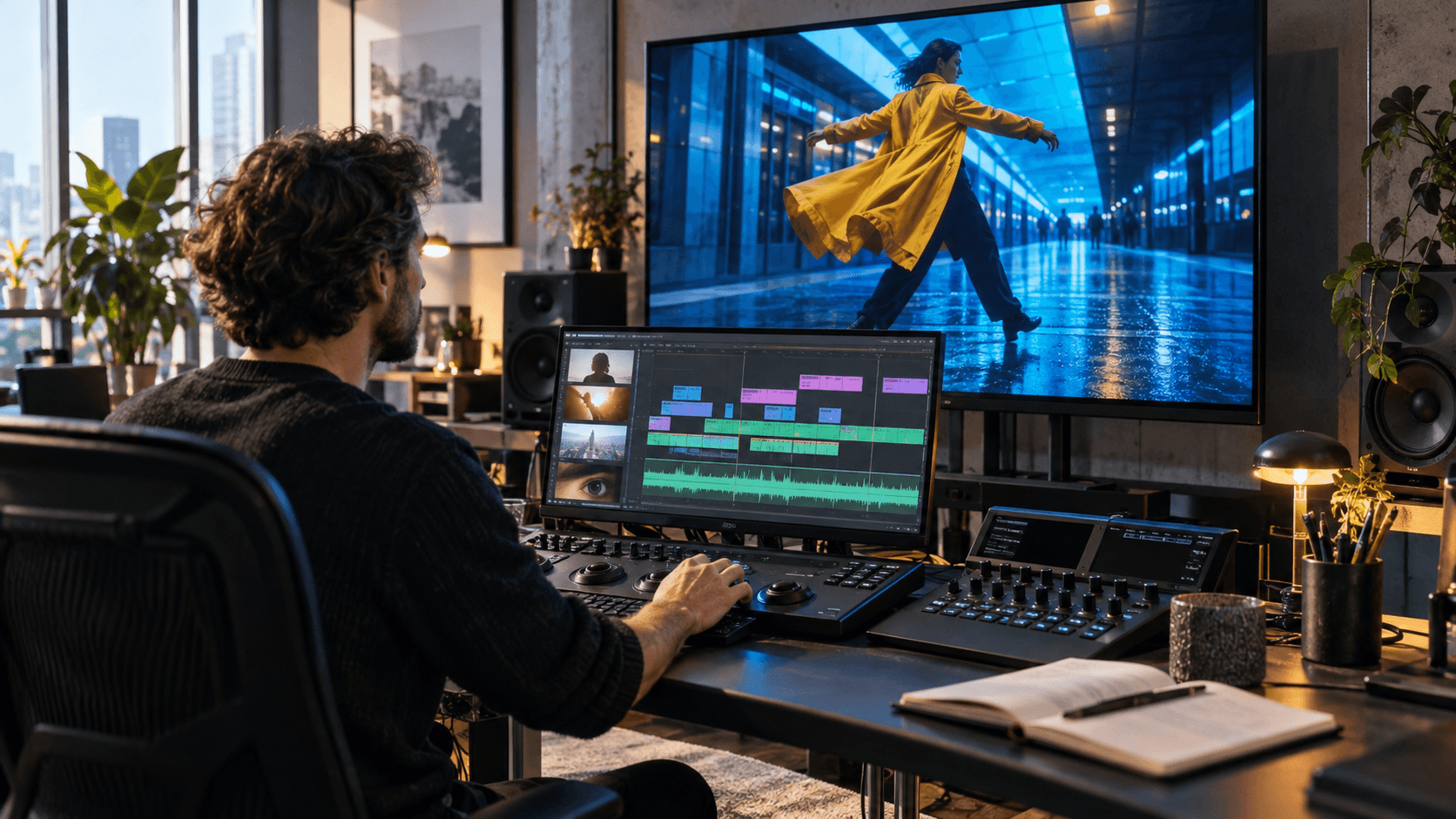
Invideo's current help material separates the editing workspace from its agent. The timeline holds video and audio tracks; the playhead and monitor show the selected moment; and the agent panel accepts plain-language tasks. Manual edits remain possible, so the result stays inspectable.
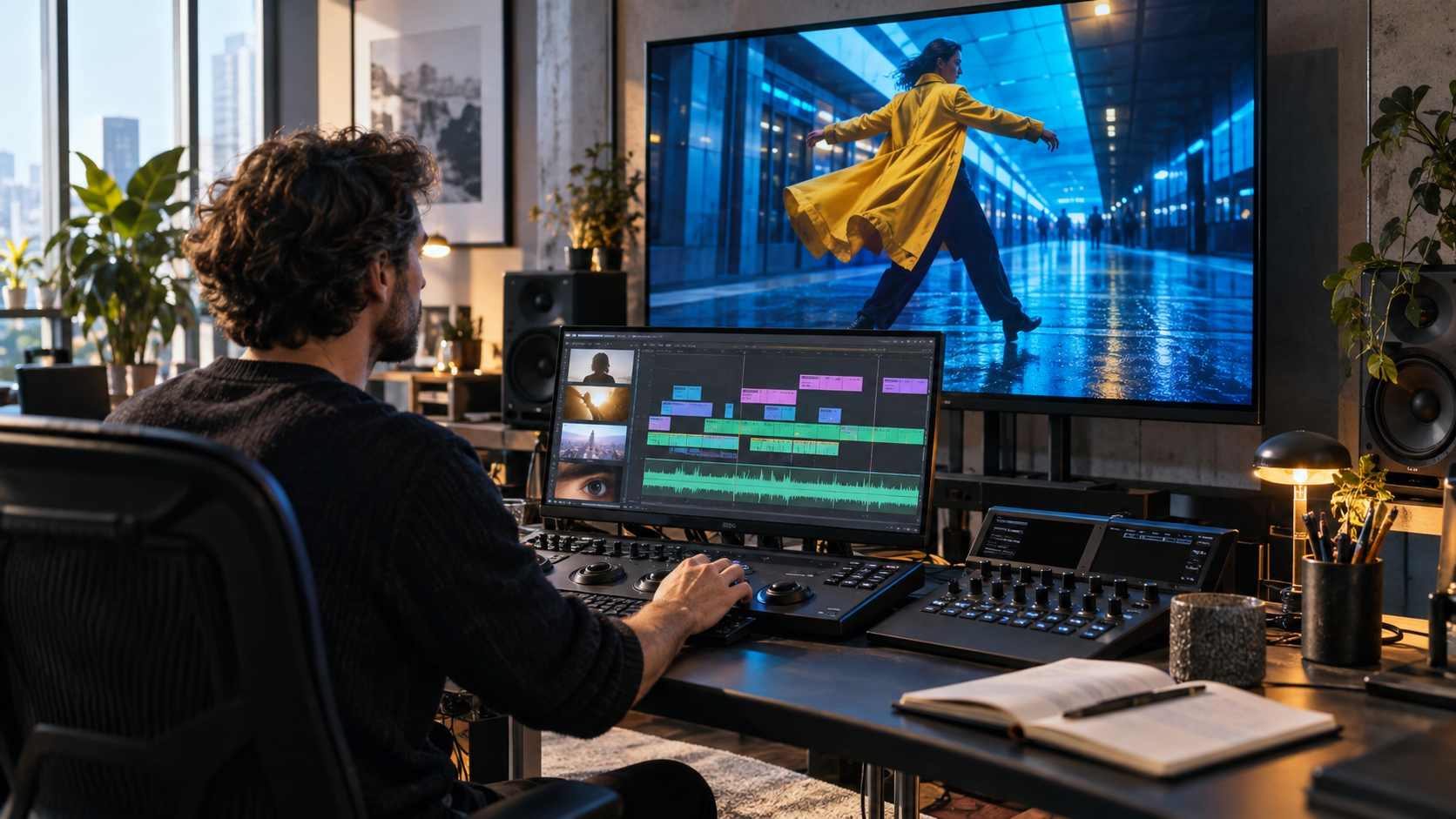
A fresh editorial visual for this guide: the agent can operate the tools, but the editor still owns the brief, boundaries, and final decision.
“Make this exciting” has too many interpretations. “From 00:08 to 00:15, remove the two static wide shots, keep the yellow-coat close-up, and tighten the remaining pauses so the section lasts five seconds” has visible pass conditions. Precision reduces ambiguity and credit spend.
Prepare the Timeline Before You Prompt
Name sources, ranges, and protected elements
An agent can only follow references that are unambiguous. Rename important media by role—station-wide, yellow-coat-close, train-arrival, voiceover-main, music-bed—instead of leaving camera filenames. Put the rough cut in story order, remove obvious duplicates, and mark the beginning and end of the section you want changed. If your timeline uses several tracks, specify whether the edit applies to picture, dialogue, music, captions, or all of them.
Create a short protected list before every paid request. For example: keep the first frame, narration wording, yellow coat, cobalt suitcase, logo-free ending, 9:16 canvas, and total duration. This is especially important when a change touches only one layer. “Replace the picture under line three, but keep the voiceover timing and captions unchanged” is safer than “improve scene three.”
Save a reversible checkpoint
Duplicate the timeline or save a named version before the agent acts. Note the current duration. A checkpoint gives you a factual comparison and protects the earlier structure from later revisions.
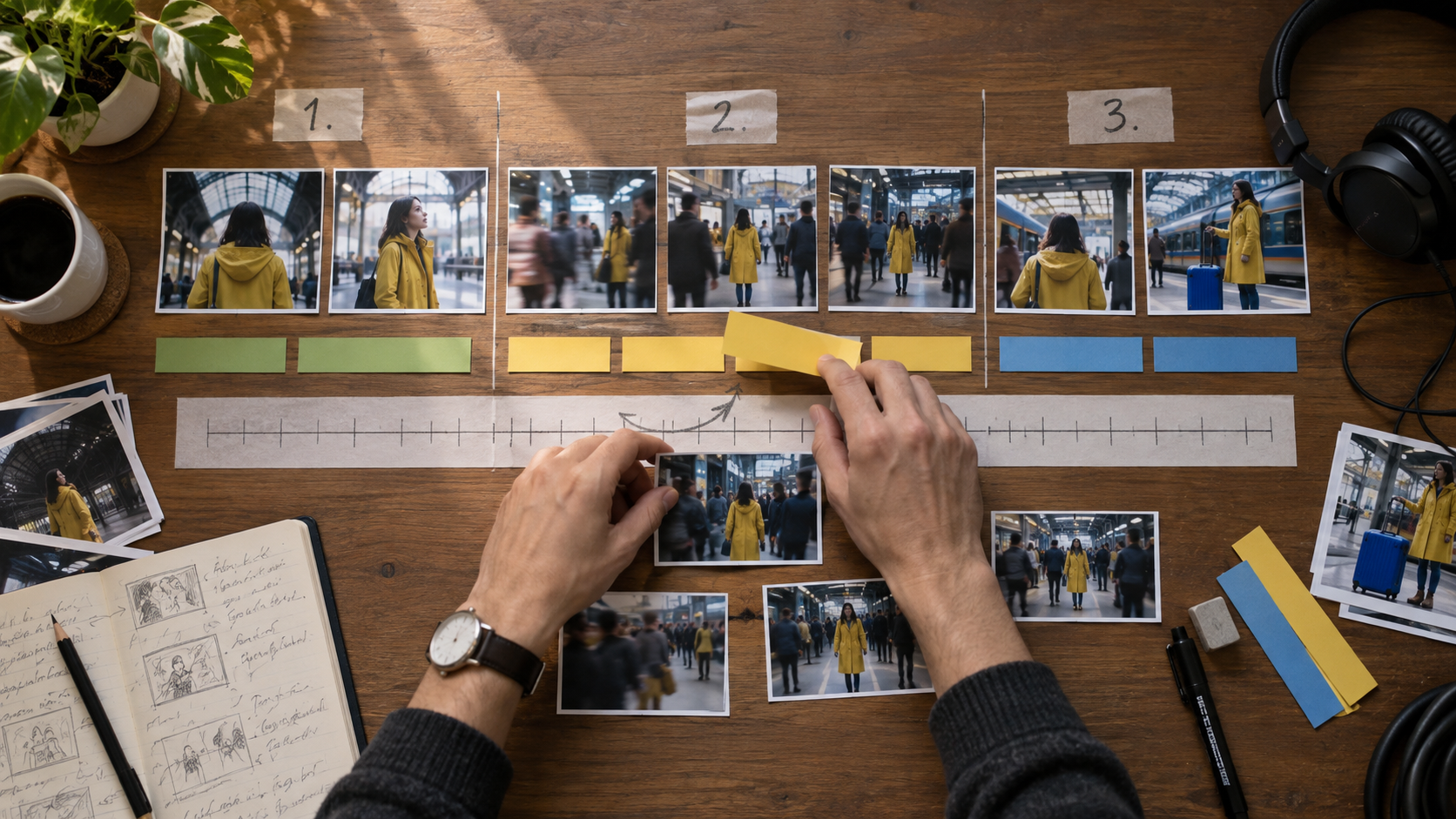
The middle sequence is being changed while the opening and ending remain fixed—the same boundary your prompt should express.
For generated material, keep prompt, model, aspect, duration, and reference notes with each accepted clip. The Invideo AI video generator free guide explains the generation-side limits; this page focuses on what happens after media reaches an editable cut.
Prompts for Structure, Pacing, and Shot Order
Assemble a rough cut from selected media
Use a prompt contract that states scope, order, target length, and protected material:
Build a 20-second 9:16 rough cut using only
station-wide,yellow-coat-close,crowd-motion, andtrain-arrival. Open on the wide station for two seconds, move to the close-up before the first narration sentence ends, use crowd motion as a bridge, and finish on the train arrival. Keep the existing voiceover, captions, and final frame unchanged. Do not generate new media. Show the revised timeline for review.
“Using only” prevents source expansion. “Do not generate new media” separates editing from generation, while the final sentence makes review part of the task.
Shorten a section without breaking meaning
Shorten 00:08–00:17 to six seconds. Preserve the speaker's sentence order and the reaction close-up. Remove repeated ideas, trim dead air before each answer, and use straight cuts only. Do not change anything before 00:08 or after 00:17. Keep the music and caption timing aligned with the surviving dialogue.
For a pacing pass, define rhythm with measurable choices: maximum shot length, number of cuts, or a target duration. Avoid “make it faster everywhere,” which can damage comprehension and force the agent to guess which moments matter.
A real motion example: identify the readable opening pose, strongest movement, and stable exit frame before asking an agent to shorten it.
If you need frame-level trimming outside an agent workflow, the OpenShot editing guide provides a manual alternative.
Prompts for Audio, Captions, and Visual Continuity
Repair dialogue and music balance
From 00:12 to 00:28, lower
music-bedonly whilevoiceover-mainis speaking, then return it smoothly over one second. Keep dialogue clips, picture edits, captions, and total duration unchanged. Remove no audio. Preview the transition into and out of the adjusted section.
This prompt names the track, range, relationship, fade behavior, and locks. If loudness targets are available, supply them; otherwise ask for intelligible dialogue without pumping. Listen on speakers and headphones because meters alone will not reveal every distraction.
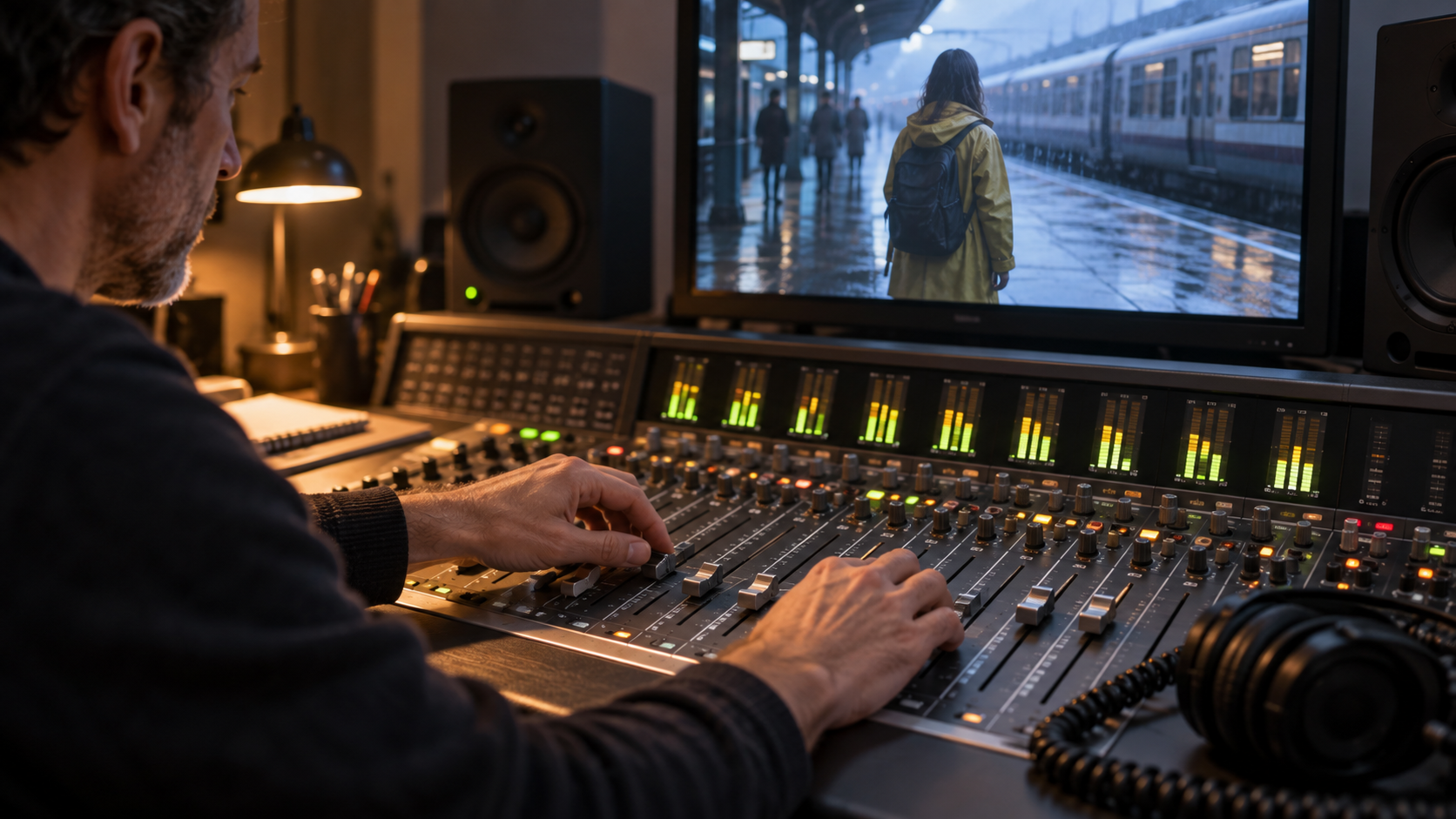
Picture approval and sound approval are separate gates. A clean visual cut can still fail when music masks a word or ambience jumps between shots.
For voice-led projects, the Seedance 2.5 voice consistency guide shows how to protect vocal identity before the clips reach the timeline.
Correct captions without re-editing the picture
In captions between 00:18 and 00:26, change “Night line” to “Nightline” and keep the original spoken audio. Preserve caption style, position, line breaks where possible, and every picture edit. Do not regenerate the voice or replace footage. Flag any timing collision instead of moving unrelated clips.
Give exact replacement text in quotation marks. Check spelling, capitalization, safe margins, reading speed, and sync after the edit. A caption correction should not become permission to rewrite the script.
Match color across two adjacent shots
Match
platform-closeto the neutral skin tone and cool-blue station ambience ofstation-wide. Adjust only color and exposure onplatform-close; preserve crop, speed, stabilization, duration, and audio. Avoid crushed shadows or oversaturated yellow fabric. Show a before-and-after frame at the cut point.
Name the reference shot and protected attributes. Review the transition, because a match that looks attractive alone can still flash beside its neighbor.
Break a complex request into one-variable passes. First approve story order, then pacing, then audio, then captions, then color. If the agent changes the wrong thing, do not add a paragraph of apologies and new goals. Return to the saved checkpoint and issue a narrower instruction.
A useful follow-up format is: observation, retained decision, single correction, boundary. For example: “The new opening order works. Keep it. Restore the original music from 00:00 to 00:06, change nothing else, and show the same range again.” This tells the agent what was approved and prevents the next pass from undoing it.
For a vertical crop with preserved sound, state the crop target, tracking subject, safe area, and audio lock. The ComfyUI crop video with audio guide covers a node-based path when you need repeatable batch control rather than conversational editing.
Review Agent Edits Like a Human Editor
Compare the complete cut, not the success message
Play the revised section from several seconds before the edit through several seconds after it. Check story meaning, continuity, lip sync, audio transitions, caption timing, crop, and total duration. Then scrub the cut points frame by frame. A task can report success while leaving a flash frame, clipped word, repeated shot, or one-frame caption.
A different real-motion sequence for continuity review. Watch the room geometry, screen direction, action handoff, light, and audio across every cut.
Use a compact acceptance table:
| Area | Pass condition | If it fails |
|---|---|---|
| Scope | Only the named range or track changed | Restore checkpoint and tighten the boundary |
| Story | Meaning and required beats remain | Reinstate the missing beat before pacing work |
| Picture | Cuts are clean; no duplicates or flash frames | Name the exact cut and source replacement |
| Audio | Dialogue is clear; fades and ambience are continuous | Adjust one track while locking picture |
| Delivery | Duration, canvas, captions, and end frame match | Correct settings before export |
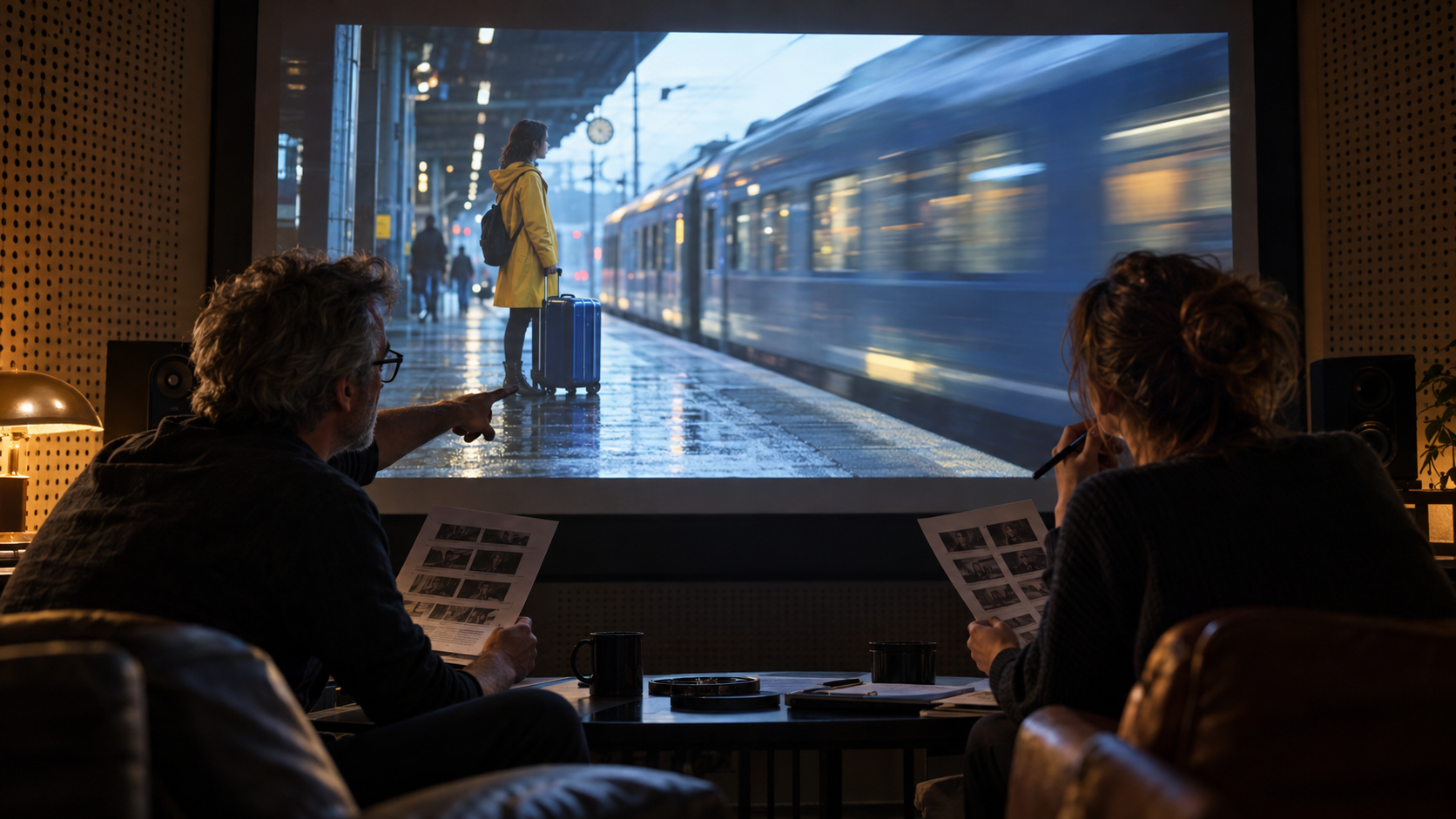
Approval happens on the rendered experience, not on the wording of the agent's reply.
Record the accepted version and prompt. Instructions such as “shorten dialogue without changing order,” “duck music under narration,” and “match color to the approved wide” can become team templates with project-specific names and ranges.
When Seedance Agent Is the Better Route
Invideo's timeline agent is a logical fit when approved media is already in a cut and you want conversational help with assembly, pacing, sound, captions, or color. Seedance Agent is better when the hard problem begins upstream: turning a brief into a shot plan, assigning references, generating several shots, reviewing actual outputs, and selectively rerunning failures before final assembly.
The difference is not “agent versus editor.” It is where the production memory lives. A timeline agent works from the material and structure already present. Seedance Agent keeps the business goal, scene plan, reference roles, generated outputs, and approval decisions connected while the footage is still being made. For a longer interrupted production, the resumable multishot workflow shows why checkpoints matter across generation as well as editing.
Run a small comparison with the same deliverable. Measure setup time, agent credits, manual cleanup, number of approved cuts, and total time to final export. Choose the path that reduces rework, not the one that produces the most impressive task summary.
Conclusion
The best Invideo agent timeline editing prompts define one observable result, name the exact range and media, lock everything that must survive, and require a timeline review before the next paid action. Prepare a reversible checkpoint, separate structure, pacing, audio, captions, and color into focused passes, then judge the complete cut rather than the agent's success message; when your project still needs shot planning, reference control, generation, and selective reruns before editing begins, start the full production with Seedance Agent →
Ready to try it yourself?
Put the steps from this guide into practice with Seedance and turn prompts or images into polished videos in minutes.
Free credits on signup. Plans from $28/month.
Related Articles
More posts in the same locale you may want to read next.

Seedance App Preview Video Generator 2026: Create App Store and Product Launch Clips
Use Seedance to turn app screenshots, feature copy, and launch goals into App Store previews, Google Play promo videos, and product launch clips.
Read article
How to Make a Talking AI Avatar You Can Reuse
Make a talking AI avatar with Seedance: design one consistent character, give it a voice, and make it speak in a talking photo or a full Seedance 2.5 scene, episode after episode.
Read article
Best AI Video-to-Video Models in 2026
The best AI video-to-video models in 2026 for editing footage you already shot: Higgsfield Genjutsu, Seedance 2.x, Runway Aleph, Luma Modify and Kling Omni compared.
Read article