
HeyGen Video Agent Editing Tutorial: Fix Scenes, Then Finish in AI Studio

AI Overview
How do I edit a video made with HeyGen Video Agent?
Open the generated project, identify the scene or line that needs work, and describe a specific change in Video Agent chat. For precise timing, layout or captions, choose Edit a Copy in AI Studio.
Can I change one HeyGen Video Agent scene without remaking everything?
HeyGen says small changes such as replacing a visual or adjusting one scene can revise affected content. Name the exact scene and state what must remain unchanged; larger structural changes may reopen the video plan.
When should I use AI Studio instead of the Agent chat?
Use chat for a clear creative instruction, such as a different voice tone or replacement shot. Use AI Studio when you need direct control over media, script, timing, transitions, captions or final layout.
Do edits to a HeyGen Video Agent video use credits?
It depends on what is regenerated. HeyGen says AI Studio visual, layout, caption and timing edits do not themselves add credits, while changes that re-render an avatar scene can. Check the current estimate before confirming.
Where HeyGen Video Agent editing actually begins
Start with the approved plan, not a vague remake request
Someone searching for a HeyGen Video Agent editing tutorial usually has a first draft that is nearly right. Perhaps the script is clear but one B-roll clip shows the wrong product; perhaps the avatar speaks too quickly, or the captions obscure the object. The job is to repair the relevant part without losing the rest. HeyGen's current help guide describes two paths after generation: keep chatting with Video Agent for content and creative revisions, or select Edit a Copy in AI Studio for detailed manual control. Treat these as two editing levels, not competing buttons.
Watch the whole draft and list defects by scene: “Scene 2 uses a generic shoe,” “scene 3 makes an unverified claim,” “the final subtitle hides the product.” Factual claims need approval before re-recording; the list also protects unaffected scenes.
Our fictional 20-second ad moves from presenter to shoe detail, outdoor runner and product ending. The images are original editorial concepts, not HeyGen outputs. The separate playable shoe clip is a Seedance sample, not this exact ad.
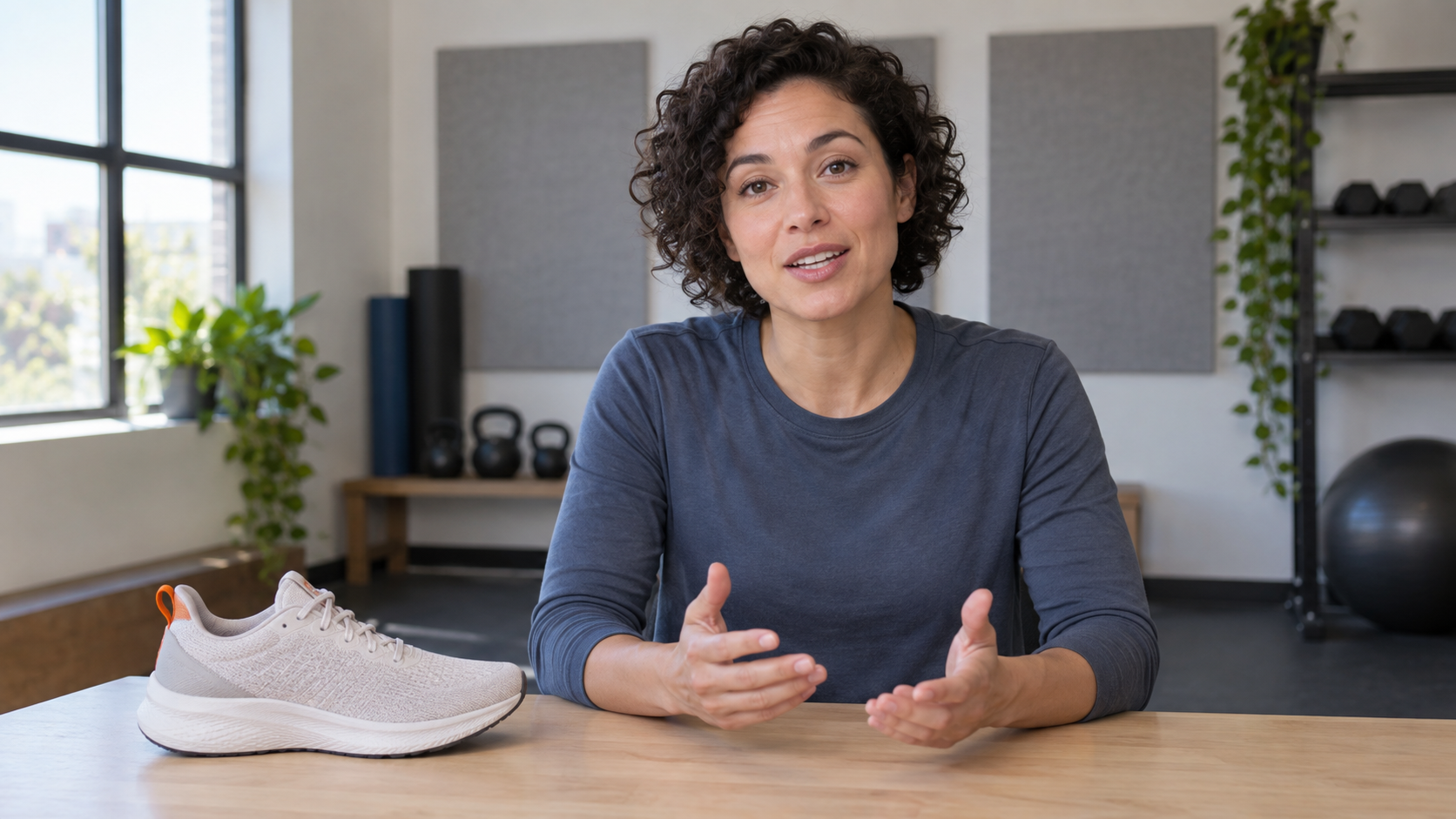
Illustrative presenter beat. In a real Agent draft, approve the line, voice and shoe identity before changing surrounding B-roll.
Build a first version that is easy to revise
Give the Agent a script and asset roles
HeyGen's official workflow lets you choose an avatar, optional Brand System, duration and orientation, then supply a script, instructions and attachments. Its Chat Mode lets you review a video plan before generation; Autopilot proceeds with less intervention. For a client or product ad, Chat Mode is the safer editorial route because the plan exposes scene order and narration before a paid render. The product's current interface may rename options, so check the labels in your account.
Assign each asset a role: presenter opening, product close-up, runner reference and uncluttered ending. Use only cleared files. For a real brand, provide approved product photos and copy; an AI still cannot prove materials or performance.
Use a compact brief such as: “Make a 20-second portrait ad for an unbranded everyday running shoe. One presenter introduces comfort without quantified performance claims. Show the shoe detail, a runner on a wet riverside path, then a calm product ending. Natural city photography, restrained transitions, legible captions, no invented logo. Hold the product close-up long enough to inspect the shoe.” The plan should show which scene carries each sentence and which media are proposed. Resolve incorrect scene order before approving generation; a major sequence change later may require a new blueprint.
The HeyGen Video Agent credit guide covers the separate question of budget and estimates. This tutorial is about where to make an edit, how to scope it and how to accept the result. If you are still choosing an avatar platform, the HeyGen alternatives guide compares the broader decision rather than repeating these editing steps.
Edit one scene in Video Agent chat
State the change and the invariants together
HeyGen's help article says you can find a scene, select Edit, then enter a prompt in chat. It gives a useful pattern: name the scene, describe the replacement and explicitly keep the avatar, voice, script and other scenes unchanged. For the shoe ad, a copy-ready edit instruction is: “In scene 2, replace the generic stock shoe shot with the approved grey running-shoe close-up. Keep the presenter's spoken line, voice, scene duration, captions, music and all other scenes unchanged. Preserve the shoe's light-grey mesh and rust-orange heel pull tab.”
After regeneration, compare the same timestamp: was the shot replaced, does narration align, is the shoe unchanged, and is the cut clean? If an invariant moved, name that error in a follow-up prompt.
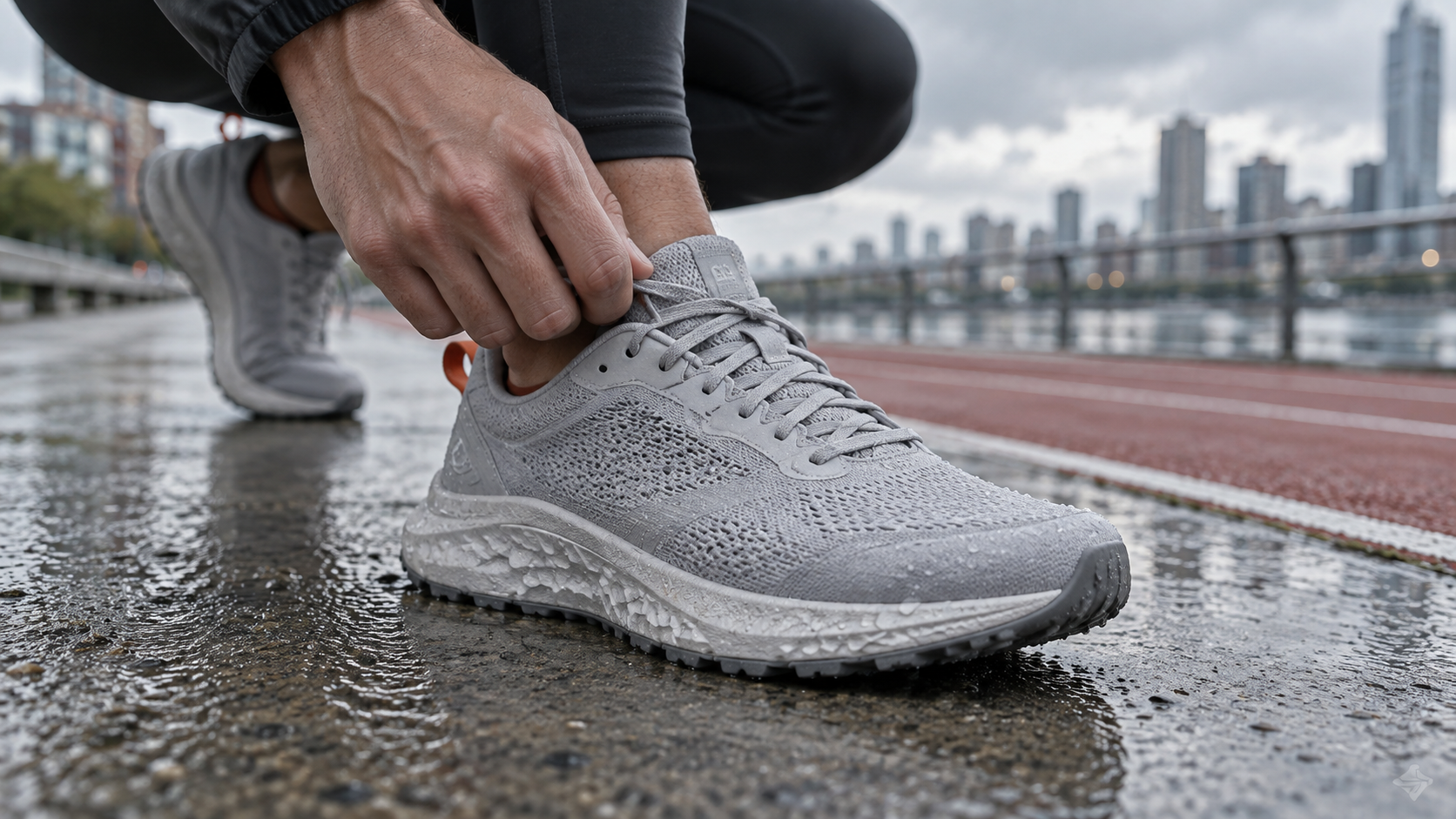
Illustrative replacement asset. A close-up is useful only if the moving edit preserves product shape and timing; the still itself is not a HeyGen result.
Use a scene edit for creative problems, not every final polish task
Chat also suits a script, voice-tone, style or pacing change. Work one change at a time: “Shorten scene 3 and begin the runner action earlier” is easier to verify than a simultaneous rewrite of voice, music and visuals. Save the approved version first.
For added or reordered scenes, expect a revised plan. Approve the new story, runtime and narration before rendering.

Illustrative outdoor B-roll direction. Inspect actual motion for foot contact, shoe continuity and a clean cut back to the presenter.
Finish precise adjustments in AI Studio
Edit a copy when the question is frame-level
HeyGen recommends Edit a Copy in AI Studio for final refinements. There you can adjust script and text, avatar scenes, voice, audio, images, layout, timing, transitions and captions. A copy protects the Agent version while you make direct adjustments. Use this route if scene 2's media is correct but the crop hides the heel tab, a caption arrives a half-second early, or the end frame needs more breathing room. Those are timeline and layout decisions, not reasons to ask an agent to reinvent the story.
Replace an off-brand runner clip with the approved asset and set in/out points so the stride reads. Check the neighboring cut. Leave the shoe and caption visible in portrait framing; effects should not hide the product. The image-to-video workflow helps create a new moving insert from an approved still.
This is a separate existing Seedance-generated shoe clip, not HeyGen Video Agent output or a reconstruction of the fictional ad. Play it to inspect moving product geometry rather than relying on its poster.
Understand the credit boundary before re-rendering
HeyGen's current guide distinguishes visual refinements in AI Studio from changes that require re-rendering an avatar scene. It says changing media, layout, captions or timing does not by itself require additional credits there; changing an avatar-scene script, avatar or voice can. The exact account estimate and plan rules may change, so verify the previewed cost before approving a new render. Treat “small edit” as a scope description, not a promise that every request is free.
Swapping the shoe image is a media edit; changing a spoken claim may require avatar rendering and factual approval. Check the estimate and review the resulting file before export.
Review the finished file, not just the editor preview
Run a five-point acceptance pass
Export a draft and watch it at normal speed on the target device. Check (1) the same unbranded shoe appears through close-up, motion and end frame; (2) no spoken claim exceeds what was approved; (3) captions match the actual words and stay readable; (4) cuts preserve natural action; and (5) the final CTA is visible long enough to understand. Watch once with sound off and once with captions hidden. A strong thumbnail can mask a broken stride, repeated frame or clipped last syllable.
For one-shot defects, revise that scene; for whole-video pacing, revisit the plan. Replace a bad source image rather than prompting around it. Save source files, approved script, prompts and export version together. For a later trim or caption fix, see the Seedance and OpenShot editing guide.
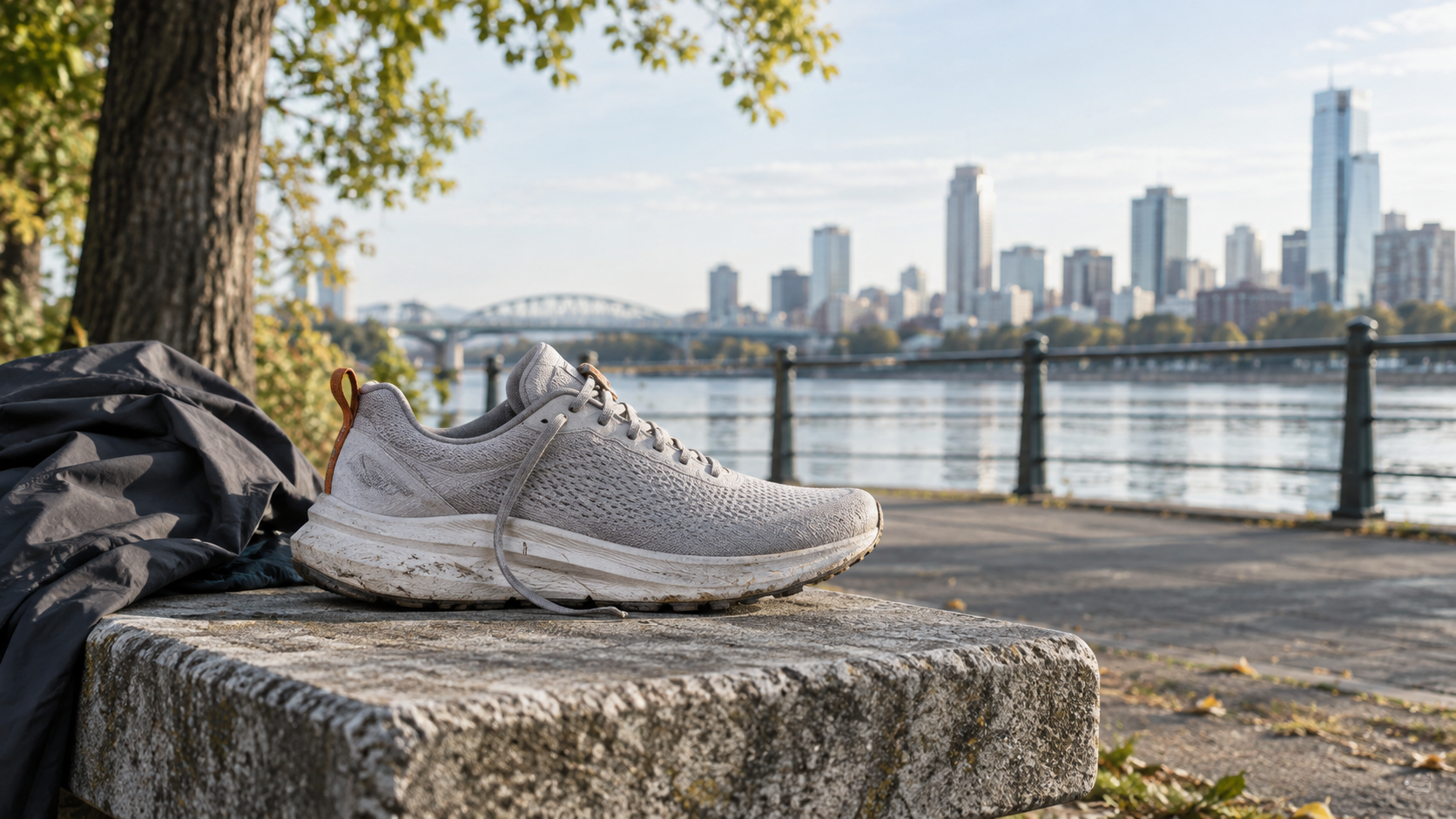
Illustrative end-frame concept with room for approved copy to be added in the editor. It contains no generated claim or fake brand mark.
Where Seedance Agent fits in a larger editing workflow
Coordinate references, approvals and selective reruns
HeyGen Video Agent is a reasonable fit when a prompt-led, presenter- or avatar-led video needs conversational revision followed by AI Studio polish. Seedance Agent addresses a related but distinct production problem on seedance.tv: organizing a brief, reference assets, shot plan and feedback across multiple clips or output formats. That is useful when the shoe ad becomes a campaign with a 9:16 social cut, a 16:9 page embed, several approved product close-ups and reviewers who must sign off each variant. The goal is not to imply Seedance Agent controls HeyGen's editor; it gives your own production a place to coordinate and selectively rerun work.
Keep the same edit list in either environment: exact scene, approved change, unchanged elements and acceptance check. If identity across shots is the hard part, use the Seedance character-consistency guide as an inspection checklist. Product geometry, avatar speech and final copy still need human review. Choose the workflow that keeps those decisions visible instead of promising that a single agent prompt removes the need for editing.
Conclusion
A reliable HeyGen Video Agent edit starts by naming the defect, scoping one scene and specifying what must not change. Use Agent chat for clear creative revisions, then Edit a Copy in AI Studio when the job needs direct control over media, timing, captions or final layout. Approve facts, inspect actual motion and audio, and check the exported file on its target device. The running-shoe images here are illustrative concepts and the playable shoe clip is a separate Seedance sample, not a HeyGen benchmark. When a single edited video grows into a multi-format campaign, plan references and selective revisions with Seedance Agent.
Ready to try it yourself?
Put the steps from this guide into practice with Seedance and turn prompts or images into polished videos in minutes.
Free credits on signup. Plans from $28/month.
Related Articles
More posts in the same locale you may want to read next.

Seedance App Preview Video Generator 2026: Create App Store and Product Launch Clips
Use Seedance to turn app screenshots, feature copy, and launch goals into App Store previews, Google Play promo videos, and product launch clips.
Read article
How to Make a Talking AI Avatar You Can Reuse
Make a talking AI avatar with Seedance: design one consistent character, give it a voice, and make it speak in a talking photo or a full Seedance 2.5 scene, episode after episode.
Read article
Best AI Video-to-Video Models in 2026
The best AI video-to-video models in 2026 for editing footage you already shot: Higgsfield Genjutsu, Seedance 2.x, Runway Aleph, Luma Modify and Kling Omni compared.
Read article