
HeyGen Photo Avatar Tutorial: From One Photo to a Natural Talking Video

AI Overview
How do you make a Photo Avatar in HeyGen?
Open Avatars, choose New Avatar, and either upload a clear portrait or design one with AI. Name the avatar, wait for validation, then select it inside Studio.
What photo gives the best avatar result?
Use a recent, sharp image with one human-like face, visible eyes and lips, natural proportions, and enough room around the head and shoulders. Avoid masks, tiny faces, and heavy stylization.
Can you change the outfit and background later?
Yes. Generate additional Looks from a reference photo, a written prompt, or an inspiration image. Keep identity anchors stable while changing only the wardrobe, setting, pose, or framing.
How do you make a Photo Avatar look less artificial?
Begin with a clean source image, use restrained motion, write concrete positive prompts, and review a short preview for lip timing, blinking, skin texture, hands, and background stability.
Prepare a Source Photo That Can Survive Animation
A talking avatar exposes problems that are easy to ignore in a still. A soft mouth edge can wobble when speech begins; hair covering one eye can make blinking uneven; a tiny face gives the motion model too little information. The first step in this HeyGen photo avatar tutorial is therefore not uploading—it is selecting a frame that remains readable once the face moves.
Choose a recent image that represents the person accurately. Keep only one clear subject in frame, with the face large enough to inspect at normal screen size. Both eyes should be visible, the lips should have a clean outline, and the jaw should not disappear into a scarf, hand, microphone, or deep shadow. A mid-chest portrait is safer than an extreme close-up because it leaves room for subtle shoulder motion without demanding a full-body performance.

Editorial concept image: the neutral expression and uncluttered framing give an animation model clear facial landmarks; it is not a claimed HeyGen output.
Use the five-second source-photo test
Before upload, inspect the image at phone size and answer five questions: Can you see both pupils? Is the complete mouth visible? Is the face larger than your thumb? Does the lighting show skin texture instead of clipping it? Would a small head turn remain inside the frame? If any answer is no, fix the source rather than hoping generation will repair it.
Illustrated or fantasy characters can work when the face still follows human-like proportions. Highly exaggerated eyes, absent noses, beaks, and hidden mouths raise lip-sync risk. If the goal is a realistic spokesperson, start with photographic proportions and save stylization for a later Look. In any source-image workflow, remember that framing and motion instructions interact: a tight portrait cannot safely support the same gesture range as a wider composition.
Create the Photo Avatar and Organize Its Identity
From the HeyGen dashboard, open Avatars, choose New Avatar, and select the photo route. Upload the approved image, give the avatar a durable name, and submit it for validation. The exact labels can change as the product evolves, but the production logic is stable: one avatar slot represents the identity, while Looks represent alternate presentations of that identity.
That distinction prevents a common library problem. Do not create a new identity every time you need a blazer, a kitchen, or a wider camera angle. Keep one canonical identity and create separate Looks beneath it. A practical naming pattern is Name — Context — Framing, such as Mina — Office — Medium or Mina — Outdoor — Wide. It remains readable when a campaign reaches dozens of scenes.
Handle consent and ownership before generation
Use only photos you own or are authorized to animate. If the subject is a client, employee, or performer, agree on allowed channels, languages, scripts, and retention before uploading. A technically successful avatar can still become unusable if the team cannot prove consent for the final distribution.
Keep the untouched source, the selected upload, the approved voice, and the final export in the same project record. When many stakeholders are involved, Seedance Agent can keep references, shot plans, reviews, and partial reruns together instead of scattering approvals across folders and chat threads.
Generate Avatar Looks Without Losing the Person
A Look can change wardrobe, environment, pose, or camera angle while staying attached to the same avatar. Begin with one controlled change. If the base portrait is casual, first test an office wardrobe in a similar medium framing. Once the face remains stable, vary the background; only then try a larger pose or a wider shot. Changing four variables at once makes it difficult to identify why identity drift appeared.

Editorial concept image: use a wardrobe-and-setting change like this to judge identity preservation before adding stronger motion.
Copy this Photo Avatar Look prompt formula
Write the prompt as a visible scene, not a conversation with the model:
[shot size] of the same presenter, [specific outfit], [specific setting], [natural pose], [lighting], [camera stability], [expression]
For example: Medium shot of the same presenter, navy blazer over a cream shirt, quiet daylight office, shoulders relaxed with one open-palm gesture, fixed camera, calm confident expression. This is stronger than “make her professional” because each phrase describes something visible. Positive wording also tends to be more dependable than a long list of prohibitions.
Generate a small set of variations and select one on identity first, aesthetics second. Compare eye spacing, jaw shape, hairline, age cues, and smile lines. A beautiful frame that looks like a different person is not a usable Look. The same principle applies when building consistent character shots in the Seedance 2.5 animation guide.
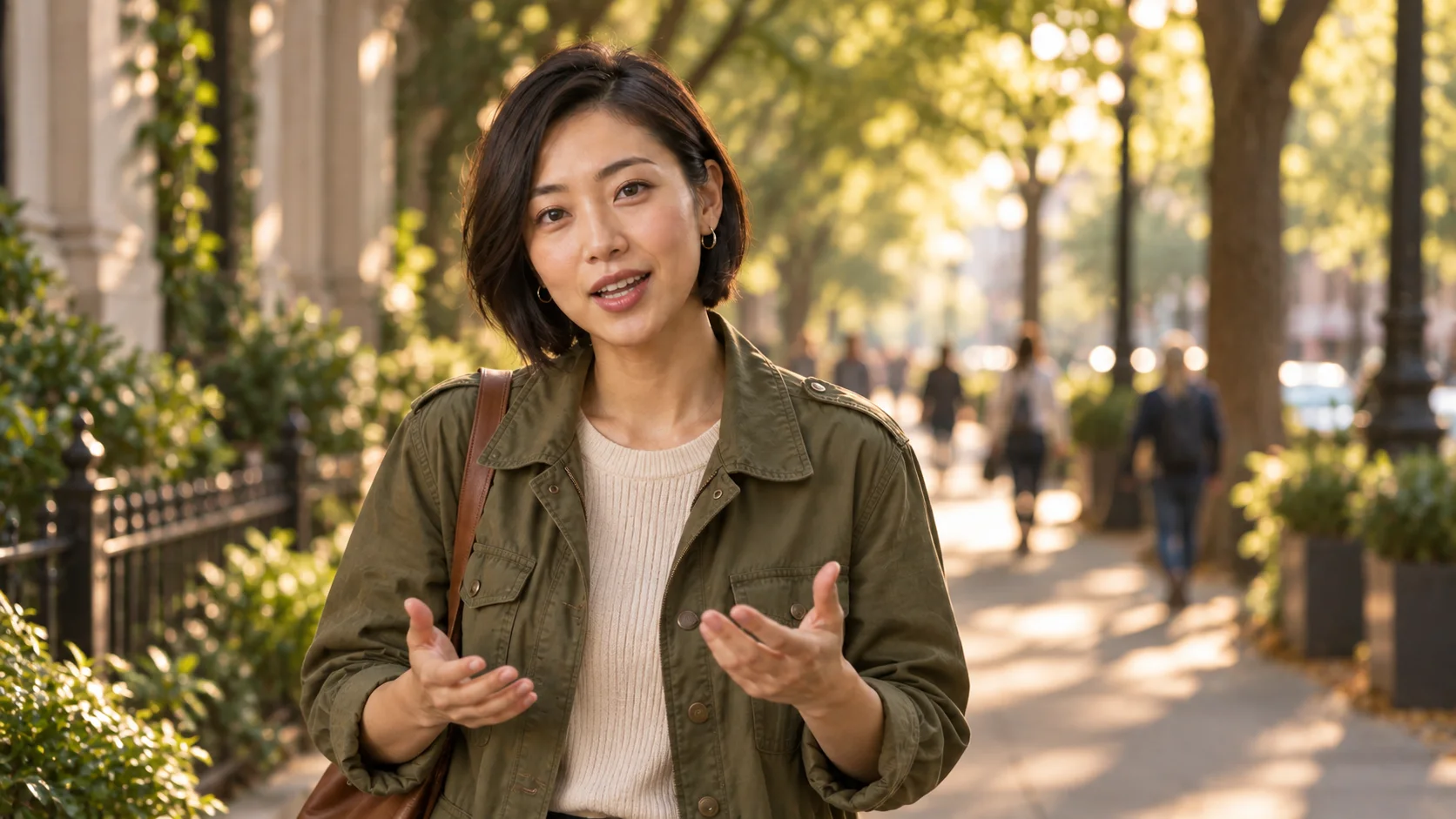
Editorial concept image: after the medium shot passes, test a wider environment while keeping the face, hairstyle, and age cues recognizable.
Add Voice and Motion With a Short Controlled Test
Choose the avatar inside Studio, add a voice, and start with a 10–15 second script. A short test is cheaper and easier to diagnose than a full presentation. Use one sentence with varied mouth shapes, one brief pause, and one calm emphasis. Avoid tongue twisters, rapid numbers, and emotional acting until the baseline passes.
Motion-engine availability and credit rates can vary by region and plan, so check the current in-product selector before generating. The useful decision is not “which engine is newest?” but “how much movement does this shot need?” A fixed-camera explainer usually benefits from restrained head and shoulder motion. A social clip may tolerate stronger expression, but larger gestures amplify problems in hands, clothing, and background geometry.
Prompt motion as observable behavior
Use concrete positive phrases: fixed camera, steady shoulders, gentle natural blinking, small nod on the final phrase, relaxed hands below frame. Avoid abstract directions such as “make it charismatic” or negative-heavy prompts such as “do not move too much.” If you need a gesture, describe one action and where it happens. A specific thumbs-up or a single point may also deserve its own Look rather than being forced into every performance.
Independent Seedance sample for the review method—not a HeyGen output. Watch mouth timing, eye focus, skin highlights, shoulder stability, and audio continuity across consecutive frames.
If the script will be localized, approve one master performance first. Then compare timing and mouth closure language by language instead of assuming the same pacing will survive translation. The HeyGen translation speed versus precision guide provides a separate decision framework for localized versions.
Review the Preview Before You Spend on the Full Script
Watch the test once at normal speed with sound, once muted, and once frame-by-frame around the fastest syllable. With sound on, judge whether emphasis and pauses feel intentional. Muted playback reveals facial motion that dialogue can conceal. Frame stepping exposes lip-edge tearing, sudden eye changes, warped earrings, and background pulses.

Editorial concept image: review the mouth, eyes, hair boundary, earrings, and skin highlights before approving a longer render.
Use one acceptance checklist for every Look
Score each preview on six items: identity, lip timing, eye behavior, expression, body stability, and background stability. Approve only when every item is acceptable for the delivery size. A tiny lip artifact may disappear in a mobile social clip but remain obvious in a large training video. Record the reason for rejection—“left eye drifts after pause” is actionable; “looks AI” is not.
Change one variable per rerun. If the lips lag, simplify speech or try another voice/motion option. If the body is restless, reduce the gesture prompt. If the identity shifts only in one outfit, return to the approved Look and regenerate that wardrobe rather than rebuilding the avatar. This local-repair discipline is also the core of the HeyGen Video Agent editing workflow.
Troubleshoot the Most Common Photo Avatar Failures
The face looks different from the upload
Return to the identity layer. Use a sharper, more current portrait; remove heavy beauty filters; keep the face larger; and generate a conservative Look before requesting a new environment. If the result changes age, jaw shape, or eye spacing, reject it even when the overall image is attractive.
Lip sync feels mechanical
Shorten the test script, add punctuation for breathing, and replace difficult abbreviations with spoken words. Select a voice whose cadence fits the language and speaker. Then compare the mouth at pauses: it should settle naturally rather than freezing open or snapping shut. For extended multi-scene speech, the continuous talking avatar workflow offers a useful segmentation method even when you use another generation platform.
Hands or shoulders move too much
Reduce the requested performance to one behavior. Use medium or closer framing so hands can remain outside the shot, specify a fixed camera and steady shoulders, and reserve larger gestures for a separately approved Look. Motion should support the sentence, not continuously prove that the avatar can move.
The background pulses or bends
Simplify the environment and avoid repeating fine geometry near the face. Shelves, blinds, patterned walls, and crowds create more opportunities for temporal instability. A quiet background with natural depth is easier to animate, easier to caption, and easier to combine with supporting footage.
Conclusion
A dependable HeyGen Photo Avatar begins with a readable source portrait, one canonical identity, controlled Looks, a short voice-and-motion test, and a repeatable acceptance checklist. Build complexity only after the baseline passes, keep consent and source files attached to the project, and rerun the smallest failed layer instead of rebuilding everything; when you want one workspace for references, shot planning, approvals, and targeted revisions, start the next avatar video with Seedance.
Ready to try it yourself?
Put the steps from this guide into practice with Seedance and turn prompts or images into polished videos in minutes.
Free credits on signup. Plans from $28/month.
Related Articles
More posts in the same locale you may want to read next.

Seedance App Preview Video Generator 2026: Create App Store and Product Launch Clips
Use Seedance to turn app screenshots, feature copy, and launch goals into App Store previews, Google Play promo videos, and product launch clips.
Read article
How to Make a Talking AI Avatar You Can Reuse
Make a talking AI avatar with Seedance: design one consistent character, give it a voice, and make it speak in a talking photo or a full Seedance 2.5 scene, episode after episode.
Read article
Best AI Video-to-Video Models in 2026
The best AI video-to-video models in 2026 for editing footage you already shot: Higgsfield Genjutsu, Seedance 2.x, Runway Aleph, Luma Modify and Kling Omni compared.
Read article