
Gemini Omni Voice Reference Tutorial for Consistent Avatar Videos
AI Overview
Can Gemini Omni use my voice as a reference?
Yes, through a personal avatar created from a guided face-and-voice recording. Google does not document arbitrary audio-file voice cloning as the standard route.
What account do I need for a personal avatar?
You need to be 18 or older, signed in with a personal Google Account, and eligible for the feature. Avatar video creation requires a Google AI plan.
How do I call the same avatar in a new prompt?
Add the avatar from the upload menu or type @ and select your Google username. Keep the spoken script, action, camera and environment explicit.
How do I improve voice consistency across clips?
Reuse the same avatar, keep language and delivery instructions stable, and compare exported clips at identical checkpoints before approving a sequence.
What “Voice Reference” Means in Gemini Omni
Use the documented personal-avatar route
People searching for a Gemini Omni voice reference tutorial usually want one practical outcome: a generated presenter who looks and sounds recognizably like the same person in more than one clip. In Gemini Apps, the documented route is a personal avatar. You complete a guided enrollment that records your face and voice, then invoke that reusable avatar when creating a Gemini Omni video. This is different from uploading any speaker sample and asking the model to clone it.
That distinction matters. Google’s current help page says Gemini Apps can create new AI content with your own voice and likeness by using your avatar. It does not describe an open-ended voice-cloning tool for other people. Build the workflow around the account holder’s own enrollment, and only use faces, voices, scripts and brand assets you are authorized to use.
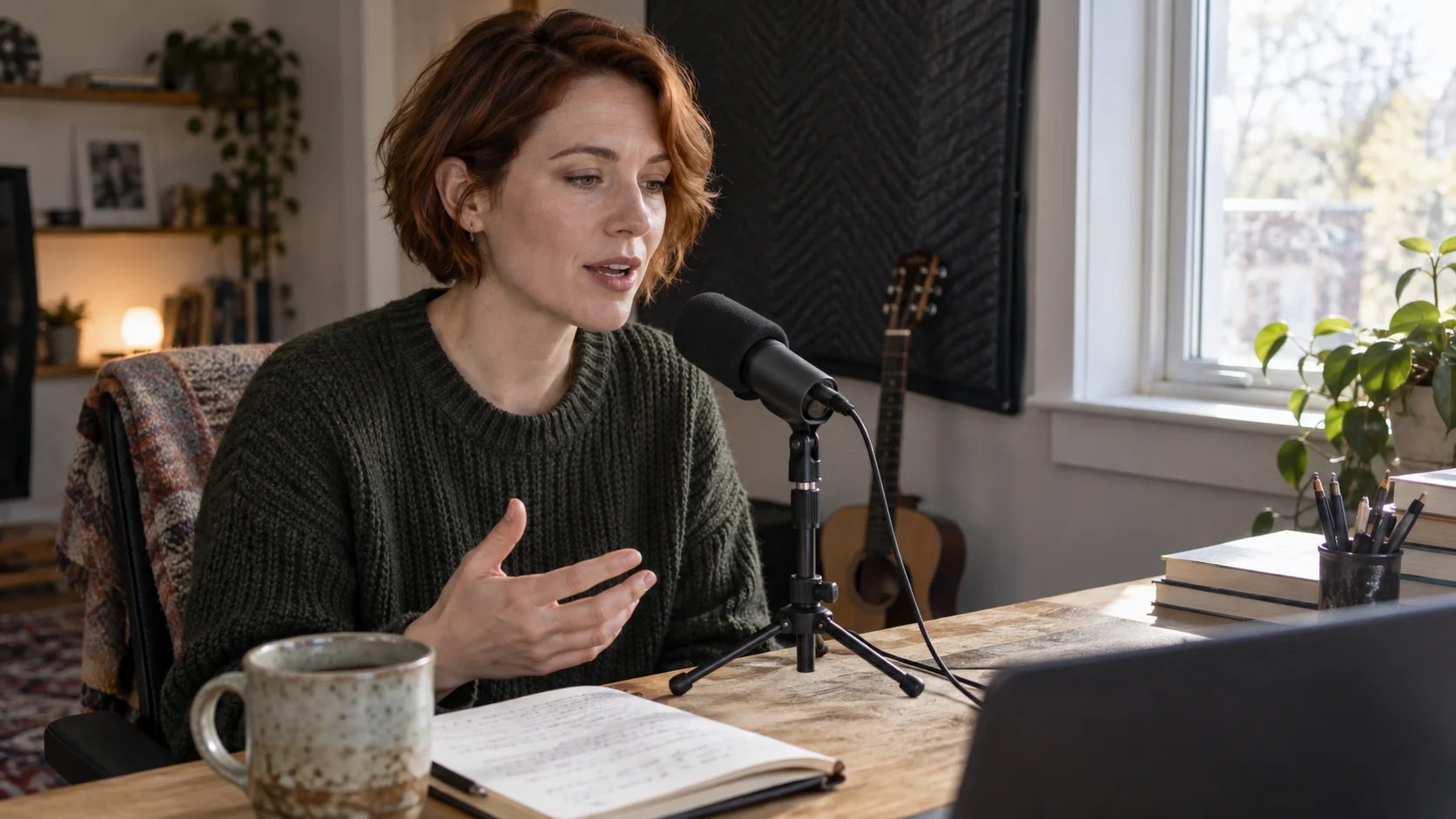
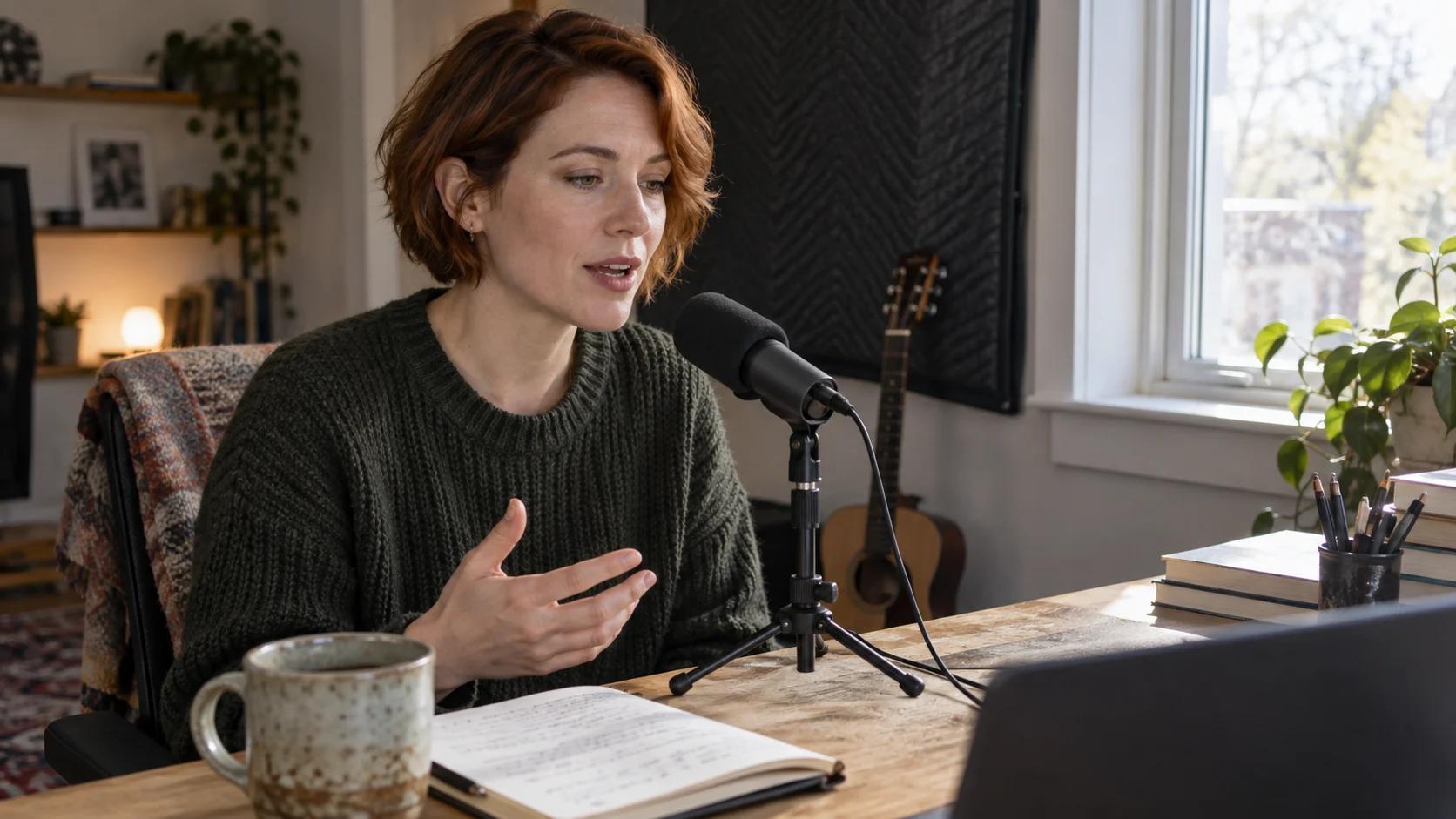
This editorial image illustrates a controlled recording environment; it is not a screenshot of Gemini or a claimed model output.
Separate voice identity from performance direction
The avatar supplies the reusable identity anchor. Your prompt still directs the performance: words, pace, emotional tone, gesture, framing and setting. A voice reference cannot repair a vague script, noisy enrollment or a prompt that asks for several incompatible moods in eight seconds. Treat identity and performance as separate controls.
Use the same short test script for the first two or three runs. If the voice changes while the words remain fixed, you have a consistency issue. If timing changes because you rewrote the script, that is a writing variable. This separation makes revisions useful instead of random.
For a broader cross-model decision, compare this workflow with Gemini Omni vs Seedance 2.5. The comparison page owns model-selection intent; this guide stays focused on the avatar voice task.
Check Access Before You Record
Confirm account, age, plan and region
Google currently lists several gates for avatars. The account holder must be at least 18 and signed in with a personal Google Account. Avatar availability is limited by region, and Google says avatars are not currently available in the EEA, Switzerland or the United Kingdom. The avatar experience is currently supported in English. Creating a video with a personal avatar requires a Google AI plan.
Open Gemini Apps and look for Add files, More uploads, then Avatar. If Avatar is missing, do not spend time rewriting prompts. First confirm the signed-in account, plan, language and location. Product availability can change, so the interface you can actually access is more authoritative than an old tutorial screenshot.
Google’s general Gemini Omni video workflow also supports eligible work or school accounts with qualifying Workspace access, but the personal-avatar instructions specifically describe enrollment with a personal Google Account. Do not assume a Workspace seat automatically exposes the same avatar controls.
Prepare a clean enrollment environment
Enrollment quality begins before the model sees a prompt. Put the phone at eye level. Use even light that keeps the eyes, nose and mouth visible without glare. Remove masks, hats and dark glasses. Choose a quiet room without other voices, fans, traffic or music. Keep other people and visible faces out of the background.
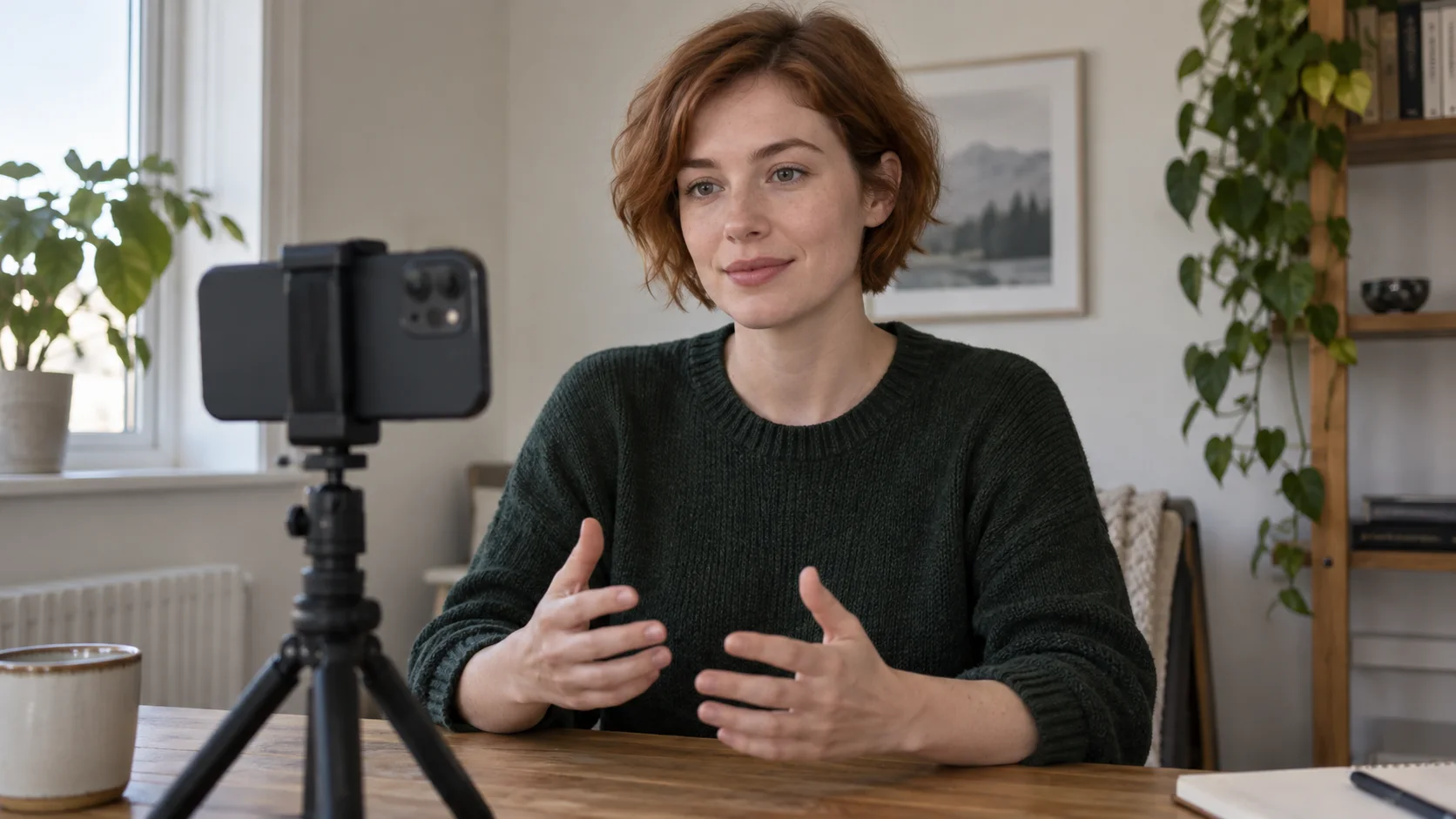
A simple calibration pass reduces variables: eye-level phone, even window light, quiet room and one clearly visible account holder.
Read the supplied enrollment lines naturally. Do not imitate a commercial announcer unless that is your normal speaking style. The reference should capture a repeatable baseline, not a one-time performance you cannot reproduce. If the interface flags the recording, use Retake rather than forcing a weak enrollment into production.
Record and Invoke the Personal Avatar
Complete the guided face-and-voice capture
On a computer, open Gemini Apps, choose Add files, More uploads and Avatar, then scan the QR code with a phone or tablet. Follow the mobile instructions to record the face and voice, return to the computer and select Use avatar. Camera and microphone access are required during this capture.
Google says the avatar is linked to the account holder, and that the recorded selfie and voice data used for enrollment are removed from its systems after the avatar is created. Review the current on-screen terms and privacy information before recording. If the avatar is meant for a company tutorial, get the presenter’s approval for the specific scripts and distribution channels as well as the initial capture.
For a related but different workflow inside Google’s presentation product, see the Google Vids personal avatar tutorial. Keep that route separate when documenting your team process so editors know whether they are working in Gemini Apps or Google Vids.
Invoke the same identity deliberately
Start a new Gemini Omni video, add the avatar from the upload menu, or type @ and choose your Google username. The username token is the identity reference. Put the spoken line in quotation marks, then describe delivery, visible action, shot size, camera behavior and environment.
A compact prompt pattern is:
@[Google username]delivers: “Today I’ll show you how to center a clay bowl.” Calm instructional pace, one short pause after “today,” natural hand gesture toward the wheel, medium shot, locked camera, quiet daylight ceramics studio, clear speech, no background conversation, no captions.
Do not overload the test with a costume change, moving camera, crowded room and long speech. First prove the voice and face remain usable in a stable shot. Add one production variable per approved iteration.
Prompt a Short Voice-Led Video
Write for duration and spoken rhythm
Spoken copy consumes time. Read the line aloud with a stopwatch before rendering. For a short generated clip, one clear sentence is safer than a paragraph compressed into rushed speech. Mark one pause, one emphasis and one emotional direction. Avoid stage directions that can be mistaken for dialogue.
Keep the vocabulary conversational. Numbers, abbreviations, brand names and uncommon proper nouns deserve phonetic simplification or a rewritten sentence. If pronunciation matters, test that term in isolation before building a complete scene. This is also the point to decide whether subtitles will be added later rather than generated into the picture.
The voice consistency guide for Seedance 2.5 provides a complementary checklist for pacing, speaker turns and cross-shot review when the project extends beyond one avatar clip.
Give audio and visuals separate instructions
Write the audio requirement in one sentence and the visual requirement in another. “Clear, close-mic speech with no room echo” describes sound. “Medium close-up, locked camera, soft window light” describes the picture. Separating them makes failures easier to diagnose.
This is an existing Seedance editorial output, not a Gemini Omni benchmark. Use it only as a review example for speech timing, facial motion and background sound.
If the speech is correct but the scene is visually wrong, revise camera or environment language. If the scene works but the voice is unclear, shorten the line and simplify the delivery. The native-audio video guide explains how to review dialogue, ambience and picture as separate layers.
Review Voice and Likeness Before Scaling
Use the same three checkpoints on every export
Download the generated video and review it outside the creation interface. Listen once without watching, then watch once muted, then review both together. At the opening, middle and final second, score speaker identity, pronunciation, cadence, lip movement, facial stability, gesture, background sound and editability.

The review should produce evidence: transcript notes, timecodes and a clear keep, revise or reject decision.
Use three outcomes. Keep when the person remains recognizable, the line is intelligible and the clip ends cleanly. Revise when one controllable issue—pace, pronunciation, gesture or framing—can be changed without rebuilding the concept. Reject when identity drifts, speech becomes unusable or the result creates consent or brand risk.
Preserve an approval record
Save the exact prompt, script, account route, avatar version, generation date, exported file and review notes. Do not rely on chat history as your production archive. If a pronunciation changes later, the record shows whether the cause was a new script, a new avatar enrollment or a model update.

A finished editorial concept should preserve the presenter, studio and instructional tone established in the reference frames.
For multi-shot work, use Seedance Agent to turn the brief into a shot plan, keep reference roles and scripts attached to their scenes, review actual outputs and rerun only the weak segment. It does not replace consent or voice approval; it reduces the coordination work after those decisions are made.
Conclusion
A reliable Gemini Omni voice reference workflow starts with the documented personal-avatar enrollment, not an assumption that any audio file can clone any voice. Verify eligibility, record one account holder in a quiet controlled environment, invoke the same @username avatar, keep the first script short and review voice, likeness and motion separately. When an approved presenter needs to carry a longer sequence, move the evidence, scripts and references into Seedance’s video production workflow so each shot can be planned and corrected without losing the original voice decision.
Ready to try it yourself?
Put the steps from this guide into practice with Seedance and turn prompts or images into polished videos in minutes.
Free credits on signup. Plans from $28/month.
Related Articles
More posts in the same locale you may want to read next.

Seedance App Preview Video Generator 2026: Create App Store and Product Launch Clips
Use Seedance to turn app screenshots, feature copy, and launch goals into App Store previews, Google Play promo videos, and product launch clips.
Read article
How to Make a Talking AI Avatar You Can Reuse
Make a talking AI avatar with Seedance: design one consistent character, give it a voice, and make it speak in a talking photo or a full Seedance 2.5 scene, episode after episode.
Read article
Best AI Video-to-Video Models in 2026
The best AI video-to-video models in 2026 for editing footage you already shot: Higgsfield Genjutsu, Seedance 2.x, Runway Aleph, Luma Modify and Kling Omni compared.
Read article