
Firefly Video Transparent Background Tutorial: Generate, Export, and Composite Clean Overlays
AI Overview
Can Adobe Firefly generate a video with a transparent background?
Yes. In Generate video, choose the Firefly Video model and enable Transparent background under Advanced settings. Firefly creates a foreground element that can be layered over another scene; review the downloaded files before calling it an alpha-ready deliverable.
What does Firefly download for a transparent video?
Adobe says the download is a ZIP with a foreground video and a separate alpha video. The alpha file describes visibility; it is not a second creative shot, and a normal preview background does not mean transparency has disappeared.
Can I use first and last frames with transparent video?
Yes, if the current controls allow them and both files are PNGs that already contain transparency. An opaque JPEG or flattened PNG is not the same input, even if its background looks white or black.
Why is my Firefly transparent-background video not working?
Confirm Firefly Video is selected, then look for the Advanced settings toggle. If the preview seems opaque, inspect the ZIP and switch preview backgrounds; if edges look poor, simplify the subject and test its matte over both light and dark plates.
What Firefly's transparent video really gives you
Transparency is a deliverable, not a preview color
A transparent video lets an effect or object sit above footage that changes later: steam over a café film, confetti over a launch moment, or a product used against several backgrounds.
Adobe says the Firefly Video model has a Transparent background switch under Advanced settings. Incompatible controls disappear. The default clip is five seconds at 24 frames per second; choose the offered aspect ratio and resolution. Do not assume another Firefly model has the same switch.
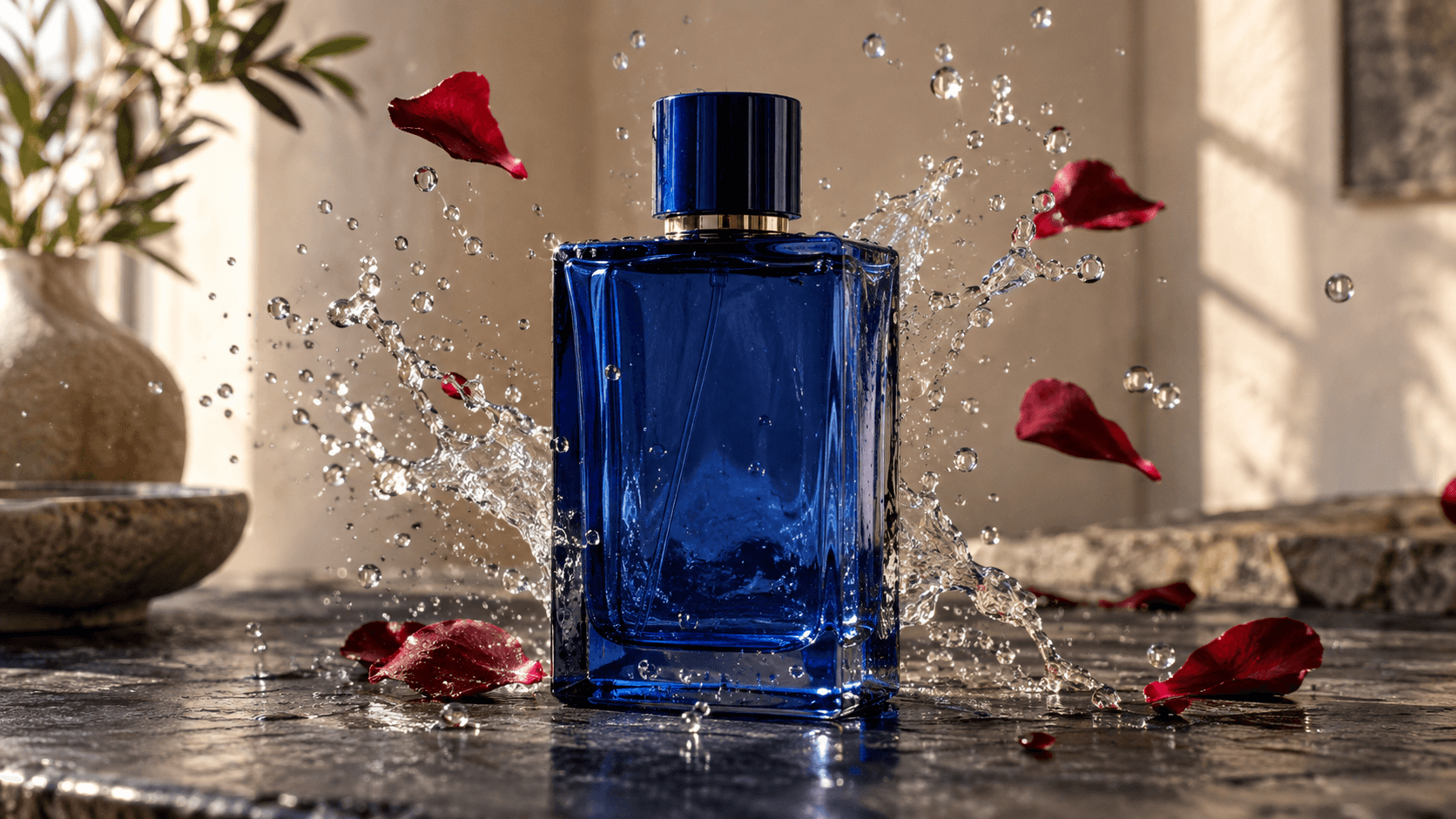
The images below are editorial illustrations, not Firefly outputs. Inspect whether an overlay's fine edges survive a new background without a visible rectangular plate.
The two downloaded videos have different jobs
Adobe says Download produces a ZIP containing foreground video and alpha video. The foreground holds the subject; alpha controls pixel visibility. Keep frame rate, duration, dimensions and start time aligned. The import control depends on your editor.
Checkerboard, green, white and black previews are viewing aids, not exports. Adobe also offers Foreground only and Alpha mask only views. Inspect the ZIP and test it in your timeline. If you need a full scene rather than an overlay, use the Seedance image-to-video workspace.
Prepare an element the matte can keep clean
Choose one readable silhouette
Start with one identifiable foreground object or effect, moderate motion and few overlapping strands. A distinct splash, steam column or sparse confetti gives you edges to inspect. Glass, dense rain and flying hair together create multiple matte problems.
Plan the landing plate and ratio first: 9:16 needs caption-safe space; 16:9 may need product margins. The Seedance first-and-last-frame guide helps plan a full scene, but ordinary video is not an alpha matte.
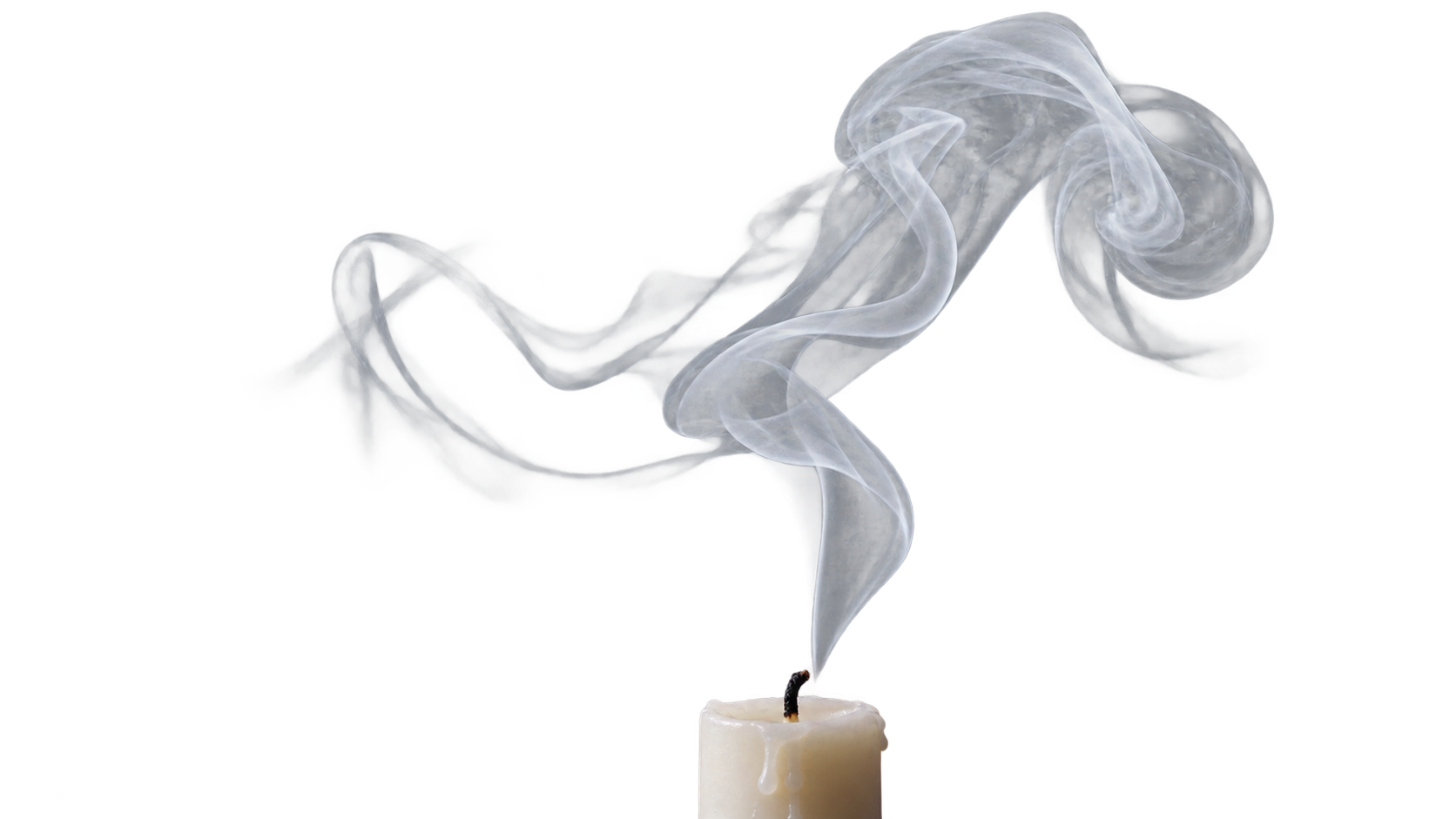
Illustrative transparent PNG, not a Firefly video. It reveals why fine smoke edges are harder to judge than a solid bottle silhouette.
Write for motion and clean boundaries
Describe the object, five-second motion, clean edges and exclusions. Ask for one isolated element, not a detailed room or horizon. Add approved text later in the edit.
Adobe requires transparent PNGs for first or last frames in this mode. A white canvas is still opaque if its alpha is filled; check the file. Keep endpoints reachable within five seconds.
Before you spend a generation, open the PNG in an image editor that can display transparency. Hide any checkerboard preview layer, put a vivid color beneath the image, and confirm that the color really shows around the subject. Pay particular attention to translucent fabric, glass, smoke and hair. Save the file with its alpha intact rather than flattening it during export. This short preflight distinguishes a real cutout from an image that merely looks isolated on white.
Generate a transparent clip in Firefly
Follow the current model and settings path
Open Adobe Firefly and select Video > Generate video. Under General settings, select Firefly Video. Scroll to Advanced settings and turn on Transparent background. Choose the available aspect ratio and resolution. If you are anchoring motion, add a transparent PNG to First frame, Last frame, or both. Enter a concise prompt for the foreground action and generate.
Adobe's April teaching video and August help page agree that incompatible controls disappear. This is an interface limit, not a prompt failure. Stage the isolated element later in the editor.
Play the whole clip over white, black and the alpha mask view. White catches dark halos; black catches pale fringes. Test against your real plate before downloading the ZIP.

Illustrative final-use scenario. Watch thin droplets and reflections, not just the larger solid bottle edge.
Pair the alpha and foreground in your edit
Keep the files synchronized
Unzip and name the pair together. Put the base plate below the foreground video, then use alpha as its matte in your editor. Align first frames, trim together and scale identically. A few frames of offset can create ghost edges.
Use your editor's matte control, not a generic opacity slider. Export a five-second test; inspect start, middle and end against bright and dark backgrounds. A small preview can hide halos visible after compression.
Use a simple acceptance pass before putting the asset into a campaign: the pair starts together; the subject never jumps or changes size; no black or white rectangle appears; fine edges remain believable over at least two contrasting plates; and the result still reads at the intended social or website size. If one check fails, identify whether the problem is the generated foreground, alpha alignment, editor import, or final codec. That diagnosis tells you whether to regenerate, realign, or export differently instead of changing everything at once.
Editorial assembly, not a Firefly output: a real moving Seedance background clip with a transparent smoke asset layered over it. Use the bright suit and dark sky to notice how a fine edge can read differently as the plate moves.
For downstream trimming and assembly, see the Seedance and OpenShot editing walkthrough. Editing cannot create a missing matte.
Prompt recipes for three useful overlays
Product splash
“One unbranded cobalt-blue glass bottle, isolated foreground only. A small, realistic arc of water splashes around the lower half over five seconds. Bottle shape stays stable; droplets are separated and readable. No room, table, horizon, label, letters or extra product.” Add approved branding later and compare shape with the source packshot.
Steam accent
“One narrow plume of soft white steam rises and curls slowly for five seconds. Fine edges, restrained density, no candle, cup, kitchen or background scene. Keep the plume within frame from first to last second.” Judge translucent smoke on black, white and your final plate.
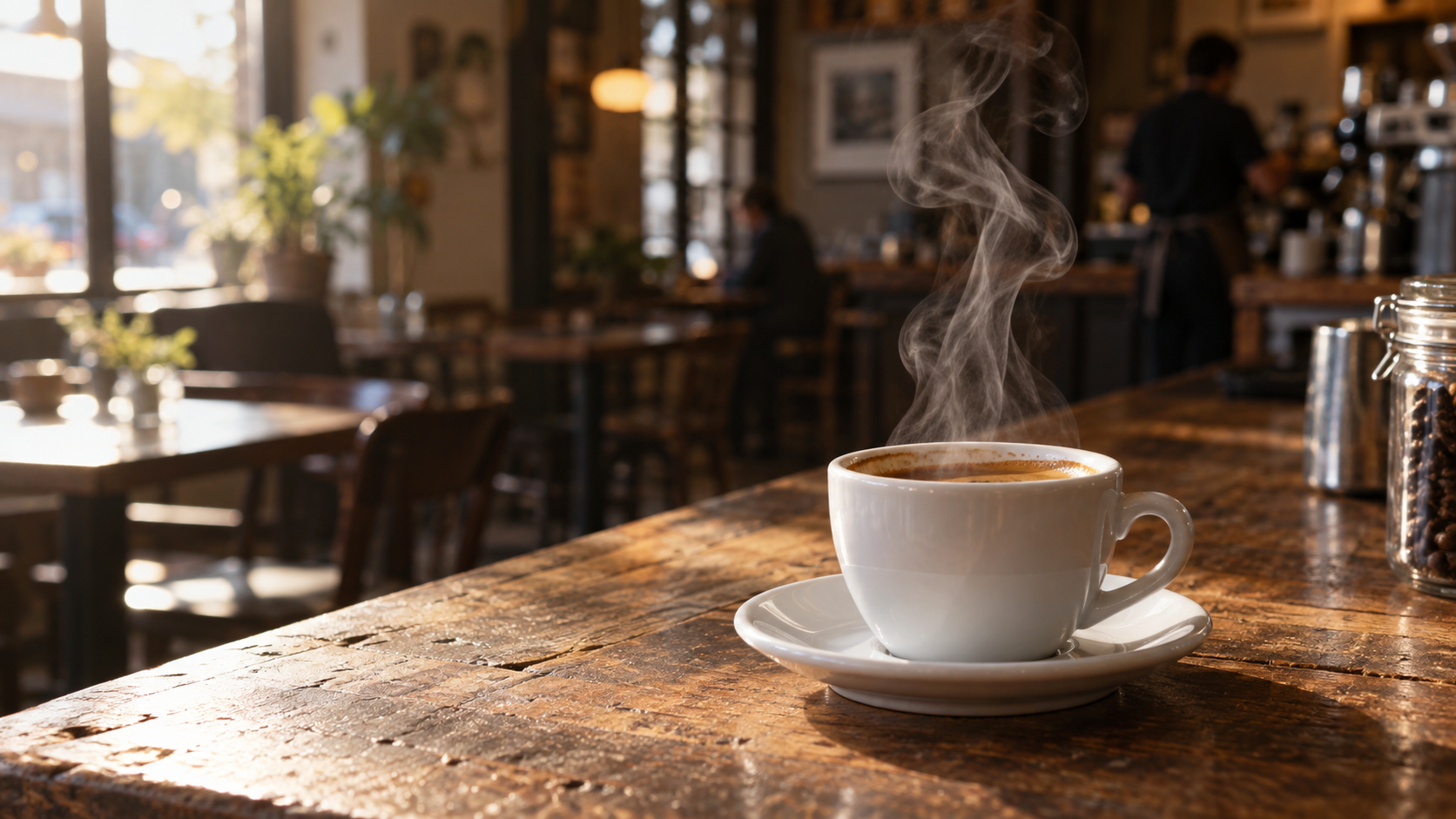
Illustrative composite destination. The steam should remain legible without turning the room into a solid rectangle.
Sparse confetti
“A restrained shower of separate gold paper confetti pieces drifts downward, with slight natural rotation and realistic motion blur. Each piece stays distinct. No crowd, stage, sky, words, logos or other background.” Approve one clean overlay before adapting it to other ratios.

Illustrative final scene. Inspect individual paper pieces where they pass a person and a dark sky; the same matte can fail differently over each.
Fix the most common transparency failures
The switch is missing or controls disappear
Confirm Firefly Video and Generate video, then check Advanced settings. Incompatible controls may disappear. Follow the current account UI rather than an old screenshot; partner models may differ.
The export looks opaque
Check the ZIP pair, matching timing and size, and whether your editor uses alpha as a matte rather than another visible layer. A black rectangle often signals compositing trouble. Test a short segment over a contrast plate.
If the alpha file is missing entirely, confirm you generated with the Transparent background switch enabled and downloaded that specific generation, not an earlier opaque version in your history. If both files exist but the matte is inverted, the editor may interpret white and black in the opposite direction; inspect its inversion control with a one-second test. Keep the original ZIP untouched so the troubleshooting process does not destroy the only clean source.
The edge flickers or has a halo
Inspect Alpha mask only. Reduce strands, blur or overlapping objects and generate one simpler variant. Do not feather away product shape. Test at final resolution and after compression.
Seedance Agent can plan the base scene, keep approved references together and review reruns; it does not turn an opaque clip into Firefly's alpha export. The prompt-led image-to-video guide helps build the underlying scene.
Conclusion
Use Firefly's Transparent background mode for a foreground element you can judge and reuse, not as a magic background-removal promise. Select Firefly Video, keep frame inputs as transparent PNGs, download the foreground-plus-alpha pair, align them in your editor and test edges over real light and dark plates. For the scene planning, reference control and revision work around that overlay, start a project in Seedance Agent.
Ready to try it yourself?
Put the steps from this guide into practice with Seedance and turn prompts or images into polished videos in minutes.
Free credits on signup. Plans from $28/month.
Related Articles
More posts in the same locale you may want to read next.

Seedance App Preview Video Generator 2026: Create App Store and Product Launch Clips
Use Seedance to turn app screenshots, feature copy, and launch goals into App Store previews, Google Play promo videos, and product launch clips.
Read article
How to Make a Talking AI Avatar You Can Reuse
Make a talking AI avatar with Seedance: design one consistent character, give it a voice, and make it speak in a talking photo or a full Seedance 2.5 scene, episode after episode.
Read article
Best AI Video-to-Video Models in 2026
The best AI video-to-video models in 2026 for editing footage you already shot: Higgsfield Genjutsu, Seedance 2.x, Runway Aleph, Luma Modify and Kling Omni compared.
Read article