
AI Video Sound Effects Tutorial: Make Every Sound Land on the Action

AI Overview
How do you add sound effects to an AI-generated video?
List the visible actions, assign one sound cue to each real event, then generate or select effects and place them at the action's onset. Keep ambience continuous and review the complete clip with headphones.
Can an AI video generator create sound effects automatically?
Some models can generate picture and audio together; other workflows need a separate sound pass. Check the selected task's audio capability, then choose native generation for a new shot or postproduction for an already approved picture.
How do you sync an effect to a visual action?
Find the first frame where contact, movement, or impact actually occurs. Align the effect's transient there, then trim its tail so it does not mask dialogue or spill unnaturally across the next cut.
What makes an AI sound effects prompt work?
Name the source, material, motion, acoustic space, start time, and allowed background sound. State what must stay quiet; “cinematic audio” alone usually gives too little control over the result.
Build a Cue Sheet Before You Generate Audio
Separate visible events from general atmosphere
Start with the picture, not an adjective such as “epic.” Watch the clip and list events that could make sound: cup contact, a boot on gravel, a turning latch, or a slowing tram. Rain, room tone, wind, and distant traffic are ambience; dialogue and music are separate layers. Keeping them distinct prevents every cut from becoming the same whoosh.
Use a short cue sheet that another editor could follow. Timecodes are placeholders here: replace them with the actual contact frames from your clip rather than copying these numbers blindly.
| Visible beat | Cue to request | Timing instruction | Keep underneath |
|---|---|---|---|
| Cup base meets wood | Soft ceramic-on-wood tap, slight table resonance | Start at the first contact frame; short tail | Quiet café room tone |
| Boot lands on wet gravel | One damp crunch with a small splash | One hit per visible step | Low outdoor wind |
| Hand turns a brass latch | Brief metallic click, then subtle hinge creak | Click on rotation; creak during the door swing | Stable greenhouse ambience |
| Tram enters a platform | Restrained rail friction and motor deceleration | Follow the actual slowing motion | Rain and distant city bed |

The useful cue is the cup's first contact with wood—not the moment the hand enters the frame. This is an illustrative frame, not a measured model output.
Mark intentional silence too. For a new visual, the image-to-video workflow can establish the action before you commit to sound design.
Choose the Right AI Sound Effects Generator Route
Generate picture and sound together for a new shot
Native audio is convenient when picture, motion, and sound are all still negotiable. Describe the action and its acoustic consequence in the same timeline: “At 02.1 seconds the cup touches the walnut table; one quiet ceramic tap; no musical accent.” The Seedance 2.5 workflow supports audio as part of a wider reference-and-timeline brief, but availability and control depend on the chosen model and task. Check the current generation settings instead of assuming every mode behaves alike.
If the picture is already approved, a sound-only edit is safer than a rerun that might change it.
Add sound after the picture is approved
For a locked visual, keep the source video unchanged and create separate effects or a new audio pass. This gives you control over exact onset, duration, gain, and replacement. It also makes revisions cheaper: if one latch sounds too heavy, you can replace that cue without asking a model to recreate the entire greenhouse shot. When a tool offers video-guided sound generation, still inspect its result as an editable layer rather than treating automatic alignment as final approval.
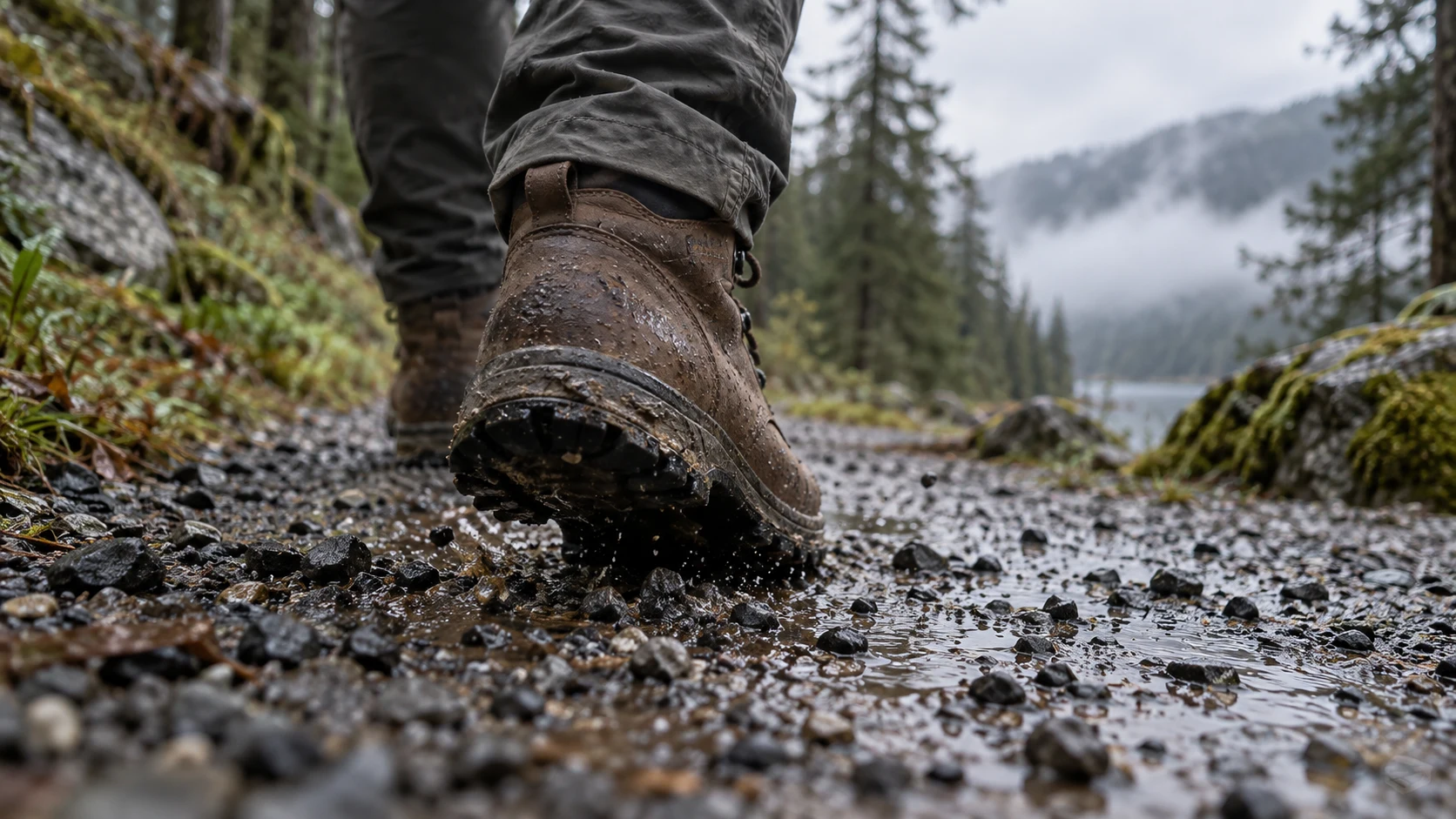
Visible ground contact suggests a damp gravel crunch. The surface, shoe weight, and pace all matter more than the generic prompt “footsteps.”
Choose native audio for an evolving shot, postproduction sound for locked picture, or a hybrid when only a few critical hits need precise replacement.
Write Prompts That Describe a Sound Event
Use source, material, action, space, and timing
An AI video ambient sound prompt describes a continuous environment; a Foley prompt describes an event. Name the source, materials, action, acoustic space, and timing, then protect what must stay untouched. “Wooden door” is too broad when the shot shows a brass latch: the hardware should click before the hinge creaks.
Copy this structure and replace the brackets with evidence from your own clip:
Source video: [clip name], preserve picture, timing, dialogue, and existing music.
Ambience: [place and continuous sound], steady from first frame to last.
Event at [time / visible action]: [source + material + movement].
Sound: [attack, body, decay], appropriate to [room / outdoor distance].
Mix position: [foreground or background], below dialogue where present.
Exclude: extra whooshes, swells, duplicate hits, unrelated music, and new voices.
For the café example: “At the first frame the ceramic base meets the walnut tabletop, add one soft, dry tap with a brief wooden resonance. Keep the café's quiet room tone steady. Do not add a sparkle, chime, whoosh, or music cue.” This is more actionable than “make the cup scene cinematic.” A wide shot might need a quieter, more distant sound than a close-up; do not let the same effect play at identical loudness in both.

A specific object gives the prompt a source: metal latch first, door movement second, garden ambience throughout.
For ambience, write continuity explicitly: “Soft air through greenhouse leaves remains at one level beneath the entire eight-second clip, without a fade or transition effect.” If the location changes, state the frame at which the new space becomes visible and let its ambience enter there. Avoid a floating “atmospheric” layer that ignores the scene boundary.
Sync Sound Effects to the Action Frame
Place the transient, then judge the tail
Sound has a beginning, a body, and a tail. The beginning—often a click, crack, crunch, or splash—is the transient that makes synchronization perceptible. Scrub a few frames around the visual event, find the first contact or decisive movement, and place the transient there. Then play at normal speed. A cue that looks aligned on a timeline can still feel late when its attack is soft or when the visible action accelerates into contact.
For repeated movement, count visible events. Three footsteps need three subtly different cues, not one looped impact. Do not add a foreground hit for a footfall that remains hidden. Across a cut, decide whether the sound carries through or resets with the new shot.
This previously published moving clip is an inspection exercise: compare each visible footfall with the audible track and note any missing, early, or late cue. It is not a new benchmark generated for this tutorial.
Listen without looking, then watch without sound. Repetitive effects or cues with no visible source become obvious in this two-pass check.
Mix Ambience, Foley, Dialogue, and Music in Layers
Give the audience one clear foreground sound
A believable mix has hierarchy. Dialogue normally needs the clearest space; one foreground Foley cue can emphasize the important action; ambience gives continuity; music supports pacing without impersonating an impact. When all four layers compete at the same loudness, viewers may hear “AI video audio” rather than a place. Start with dialogue if present, add the constant ambient bed, then introduce only the Foley events that make the action readable. Bring music in last and ask whether the scene actually needs it.
The native-audio guide covers reviewing voice, effects, ambience, and music as one deliverable. For a tram shot, distant conversation and rain can form the bed. Rail friction should rise only while the tram slows, not start as a loud synthetic sweep the instant it appears. A cyclist passing near camera may make a small tire-on-wet-stone sound, but that should not overpower the platform.

The tram, cyclist, rain, and crowd suggest separate sonic distances. Do not flatten them into one loud city-noise effect.
Review on headphones and a small speaker; the former exposes harsh transients, while the latter reveals cues that disappear beneath dialogue.
Repair Common AI Video Sound Failures
Wrong material, duplicate hits, and invented transitions
If a ceramic cup sounds metallic, change the source description and shorten the ringing tail. If one step produces two impacts, check whether the generator placed a hit at both the leg swing and the footfall. Keep the cue at contact. If an effect begins before the object moves, trim or slide it rather than rerendering a strong visual. If ambience jumps at a cut within one location, bridge the bed across the edit or explicitly request a continuous room tone.
An unexplained whoosh deserves its own diagnosis. It may come from a camera move, a hard cut, an extension boundary, or a vague “dramatic” instruction. The unwanted-audio transition guide gives a focused repair path for those sounds. If the voice changes while effects are correct, preserve the voice reference and use the voice-consistency guide rather than trying to solve timbre drift by turning down the mix.
Use a three-pass acceptance check before publishing: first, every foreground cue has a visible or narratively justified source; second, the transient lands on the event and the tail ends naturally; third, the clip plays cleanly across its first frame, cuts, and final hold. Save the cue sheet and prompt alongside the approved export so the next aspect-ratio version can reuse the intent without blindly copying timecodes.
Keep the Sound Plan Manageable With Seedance Agent
For a multi-shot project, the harder problem is often coordination: the cup shot, walking shot, and exterior tram shot need distinct acoustic spaces, while a voice or music bed may need to stay consistent across them. Treat sound as part of the shot brief. Attach the relevant visual and audio references, name the allowed layers per shot, and approve a short sample before generating the full sequence. After review, isolate the one shot or cue that fails instead of asking for a global rerun.
Seedance Agent can keep reference assets and shot decisions together, but an editor still needs to listen and approve the final sound. Keep the cue sheet portable if you finish in another editor.
Conclusion
The best AI video sound effects tutorial starts with visible cause and audible consequence: identify real events, write one precise cue per event, choose native generation only when the picture can still change, and use a separate sound pass when the visual is locked. Sync the transient to the action, protect dialogue and ambience, and approve the full clip rather than a convincing isolated effect. To plan the next visual-and-audio sequence with references and shot-level revisions in one place, start a Seedance Agent project.
Ready to try it yourself?
Put the steps from this guide into practice with Seedance and turn prompts or images into polished videos in minutes.
Free credits on signup. Plans from $28/month.
Related Articles
More posts in the same locale you may want to read next.

Seedance App Preview Video Generator 2026: Create App Store and Product Launch Clips
Use Seedance to turn app screenshots, feature copy, and launch goals into App Store previews, Google Play promo videos, and product launch clips.
Read article
How to Make a Talking AI Avatar You Can Reuse
Make a talking AI avatar with Seedance: design one consistent character, give it a voice, and make it speak in a talking photo or a full Seedance 2.5 scene, episode after episode.
Read article
Best AI Video-to-Video Models in 2026
The best AI video-to-video models in 2026 for editing footage you already shot: Higgsfield Genjutsu, Seedance 2.x, Runway Aleph, Luma Modify and Kling Omni compared.
Read article