
Wan Animate 2 Tutorial: Move Mode, Mix Mode, and ComfyUI Workflow Guide
AI Overview
What is Wan Animate 2 and what can it do?
Wan-Animate-2 is an open-source character animation model that transfers a driver video's full-body motion and facial performance to one reference character image. It also supports prompt-controlled background and viewpoint changes.
What is the difference between Move mode and Mix mode in Wan Animate 2?
Move animates a reference image with motion from a driver video and generates a new background. Mix replaces the performer inside the original scene, but that mode belongs to the earlier Wan2.2 Animate workflow.
Can I run Wan Animate 2 locally in ComfyUI?
Yes. Current ComfyUI templates support Wan-Animate-2 through WanAnimate2ToVideo, using a reference image, raw driver video, model files, and text prompts. Update ComfyUI first because stable desktop releases can lag nightly support.
What inputs does Wan Animate 2 require?
The current Move workflow requires one clear reference image, one driver video, and appearance/background prompts. Face crops, a solid character mask, and clean background frames apply to the older Mix replacement workflow.
What Wan Animate 2 Actually Does — and Why It's Different
Wan-Animate-2 is not a standard image-to-video model. Ordinary I2V starts with a still image and invents motion from your text prompt. Wan-Animate-2 instead consumes a second input—the driver video—and transfers its timing, pose, gestures, and facial performance to the character in your image.
The new model reads raw driver frames directly rather than depending on an intermediate skeleton extractor. That matters when a performance includes small hand timing, shoulder movement, facial changes, or a camera viewpoint that a pose map would simplify. Text can separately describe the output background and viewpoint.
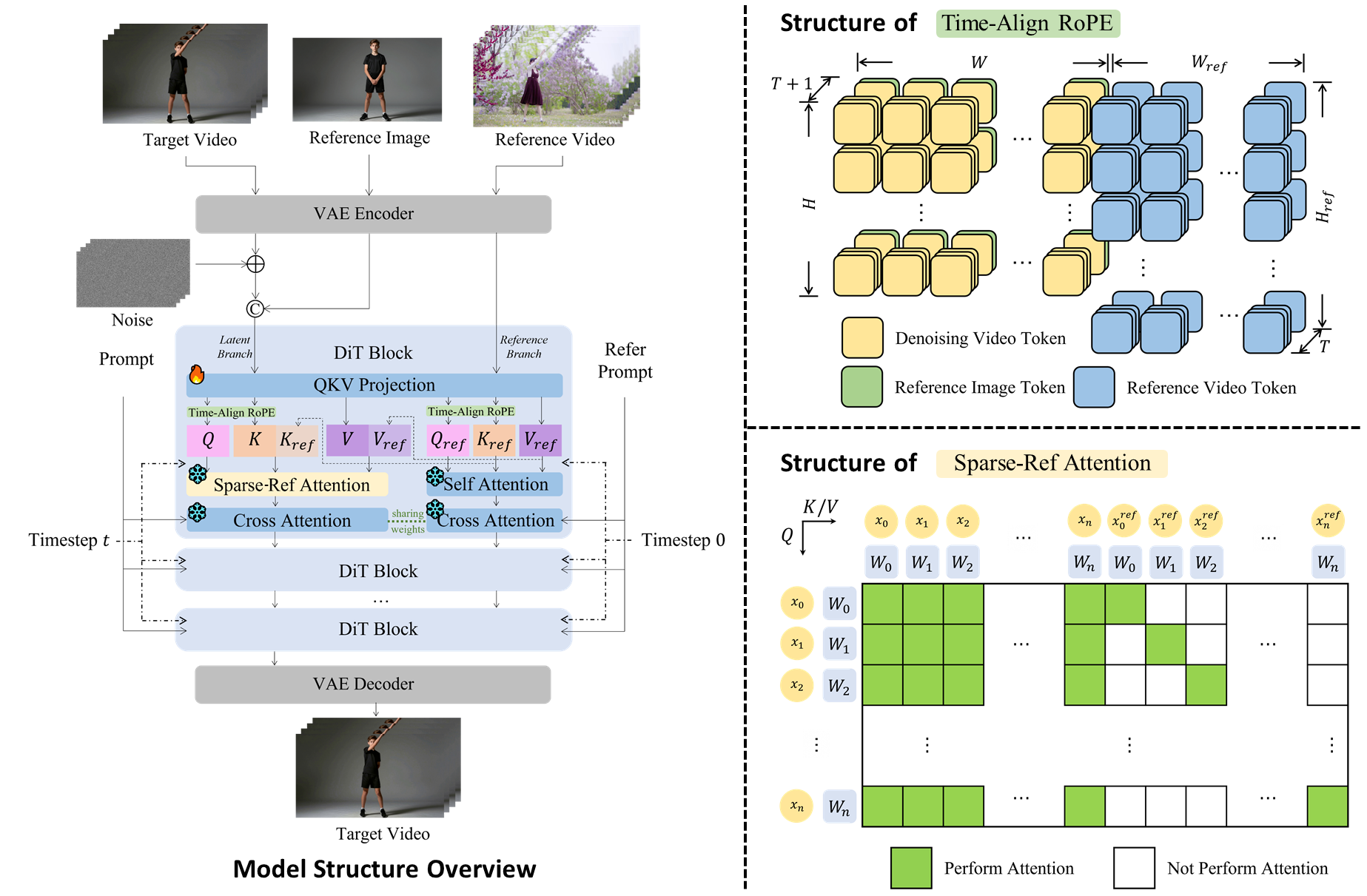
Official Wan-Animate-2 architecture: the reference image defines identity, the driver video defines performance, and text controls appearance and scene direction.
If you only need a still image to define the start or end of a generated shot, use the first-and-last-frame guide. Use Wan-Animate-2 when copying a specific performance is the point of the task.
Move Mode vs Mix Mode — Choosing the Right One
The names are easy to mix up because two generations of the project are circulating at once. Wan-Animate-2 uses the Move-style character-animation workflow. Mix is the character-replacement mode in the earlier Wan2.2 Animate template.
| Move mode | Mix mode | |
|---|---|---|
| Model generation | Current Wan-Animate-2 | Earlier Wan2.2 Animate |
| Inputs | Reference image + driver video | Reference image + driver video + mask/background controls |
| Background | Generated from the prompt | Original video scene is preserved |
| Best for | Animating artwork, avatars, or custom characters | Replacing the person inside existing footage |
| One-line rule | “Make this image perform” | “Replace the person in this video” |
Choose Move for a mascot dancing on a clean set, an illustrated host presenting, or a character performing a recorded routine. Choose Mix when the wet street, lighting, camera move, props, and other people in the original clip must stay while only the performer changes.
What You Need Before Starting — Inputs and Model Files
Prepare the smallest input set that matches your mode:
- Driver video: the performance source. Use clear motion, visible limbs, minimal occlusion, and framing close to the reference image.
- Reference image: a sharp, front-facing or three-quarter character image. Full-body driver footage works best with a full-body reference.
- Prompts: one appearance/background description and one concise motion description. Do not put motion language in the appearance prompt.
- Mix-only controls: face crops for expression accuracy, a solid character mask, and clean background frames for scene preservation.
The official ComfyUI package provides wan_animate_2_int8_convrot.safetensors for the diffusion model, plus the UMT5 text encoder, CLIP vision encoder, Wan VAE, and an optional LightX2V step-distillation LoRA. The full official checkpoint is BF16; use it only when your hardware can handle its much larger memory requirement. The INT8 ConvRot package is the practical ComfyUI choice for lower memory use.
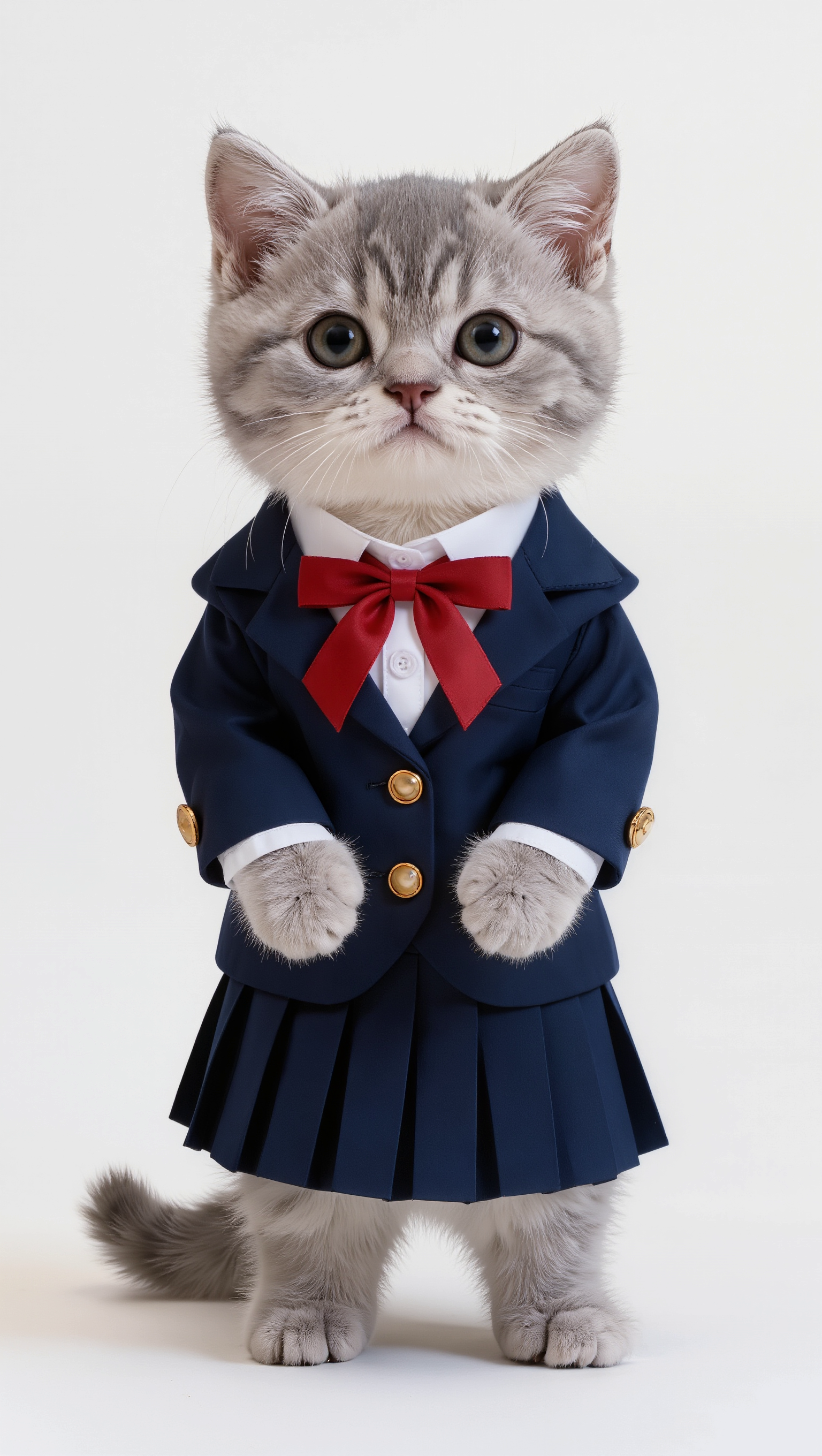
A usable reference keeps the character unobstructed and matches the driver's crop. This official example pairs a full-body character with full-body motion.
Local video pipelines are still hardware-heavy. If you are comparing setup effort with another local model, the LTX 2.5 review explains the same practical trade-off: open weights are free, but GPU time and troubleshooting are not.
Step-by-Step ComfyUI Workflow
- Update ComfyUI. Open Workflow → Browse Templates → Video and load the Wan Animate 2 template. Missing
WanAnimate2ToVideoorWanAnimate2Cachenodes usually means your build is behind the template. - Place the model files. Put the diffusion model, LoRA, text encoder, CLIP vision model, and VAE in the matching folders shown by the template. Restart ComfyUI after adding them.
- Load the inputs. Add the reference image and driver video. Match the crop first: close-up to close-up or full-body to full-body.
- Check the core nodes. The current workflow uses
WanAnimate2ToVideoand raw driver frames.WanVideoAnimateEmbeds, pose preprocessors, SAM 2 masks,background_video, andcharacter_maskbelong to the older Wan2.2 Animate Mix path. - Set size and length. Keep width and height divisible by 16. The template generates 81-frame windows, about 3.4 seconds at 24 fps; duplicate and chain the Motion Transfer subgraph for longer driver videos.
- Write prompts and sample. Describe the character and background in the main prompt, then describe only the performance in the motion prompt. Start with the template's sampler settings; use the distilled LoRA when faster, lower-step iteration matters more than maximum fidelity.
- Queue and review. Save the output video, then inspect identity, hands, face, foot contact, background stability, and the seam between any chained windows.
The official template preview places the animated reference beside the driver footage so you can compare timing, body motion, framing, and identity preservation throughout the clip.
Getting Better Results — Common Fixes and Tips
- Identity or face drift: use a sharper reference with the same framing as the driver. Avoid tiny faces, profile-only references, and hands crossing the face.
- Background drift: keep the background prompt literal and stable. For exact preservation of an existing scene, switch to the legacy Mix workflow with a clean background and solid mask.
- Wrong speed or jerky motion: resample the driver to roughly 16–24 fps before loading it. The current workflow reads frames directly rather than automatically matching every source frame rate.
- Soft or broken limbs: simplify the driver, reduce occlusion, and test a shorter window. Fast turns, floor work, and two people crossing are much harder than an unobstructed solo performance.
- Visible seam in a long clip: overlap chained windows through
continue_motion, advancevideo_frame_offset, and trim the duplicated first frame when the join hiccups. - Out-of-memory error: lower the generation size, use the INT8 ConvRot checkpoint, move the cache to CPU, or test the distilled configuration before the BF16 base model.
If a LoRA improves speed but changes identity or motion style, compare a fixed driver/reference pair before keeping it. The LoRA training guide provides a useful evaluation pattern even though its model family differs.
Use Cases — What You Can Build with Wan Animate 2
- AI virtual presenter — Move. Record a clear human presentation, then transfer it to an illustrated host or mascot. For a managed alternative, start with Reference to Video.
- Ecommerce model variation — Mix. Preserve the store, product, camera move, and lighting while replacing the on-camera performer in the earlier Mix workflow.
- Custom IP character animation — Move. Make a game, comic, or brand character perform a dance, greeting, or action without keyframing every joint.
- UGC motion remake — Move. Transfer one approved performance to a new character image; for simpler animation that does not need exact motion transfer, use Image to Video.
- Ad localization variants — Mix. Reuse one shot design while replacing the spokesperson, then finish logos, captions, and legal copy in post-production.
Use only reference images and driver footage you own or have permission to process. Treat a successful render as a draft until a human checks identity, claims, continuity, and scene details.
Conclusion
The decision rule is simple: Move makes an image perform; Mix replaces the person in a video. For the current Wan-Animate-2 ComfyUI workflow, use Move with a well-matched reference image and driver video. Use the earlier Wan2.2 Animate Mix path only when preserving the source scene is essential.
If you do not want to install models, manage VRAM, or chain ComfyUI windows, try character animation on Seedance →.
Ready to try it yourself?
Put the steps from this guide into practice with Seedance and turn prompts or images into polished videos in minutes.
Free credits on signup. Plans from $28/month.
Related Articles
More posts in the same locale you may want to read next.

Seedance App Preview Video Generator 2026: Create App Store and Product Launch Clips
Use Seedance to turn app screenshots, feature copy, and launch goals into App Store previews, Google Play promo videos, and product launch clips.
Read article
Gemini AI Video Prompt Examples: Copy-Ready Veo Scenes and a Better Prompt Formula
Copy Gemini AI video prompt examples for cinematic motion, product ads, dialogue, and vertical clips, then adapt them with a practical Veo prompt formula.
Read article
How to Keep Product Shape Consistent in AI Video Ads
Lock product geometry, packaging, labels, references, camera angles, and approval checks so AI video ads preserve the real SKU across every shot.
Read article