
Viggle AI Motion Control Settings: A Practical Guide to Cleaner Character Animation
AI Overview
What are the best Viggle AI motion control settings?
Start with a full-body character image and a clean reference clip, then enable Character Refine. Use Smooth Motion for flowing action and Foot Lock when planted steps matter.
Should I turn on Smooth Motion?
Use it for dancing, walking, and gestures that should connect naturally. Leave it off when the reference contains sharp impacts or intentionally abrupt pose changes.
When should I use Foot Lock?
Enable Foot Lock for standing, stepping, kicks, and floor contact. Disable it for jumps, slides, or moves where the feet should travel freely through the frame.
How do I stop identity drift in Viggle AI?
Use a clear, uncropped character reference that resembles the opening pose. Avoid long disappearances, extreme turns, heavy occlusion, and motion far outside the source silhouette.
Prepare the Character and Motion Reference First
The most important Viggle AI motion control setting is often decided before the settings panel opens. Motion transfer must reconcile two sources: a still character that defines appearance and a reference video that defines timing, pose, and body movement. If those sources disagree sharply, no toggle can fully repair the conflict.
Choose a character image with the whole body visible, including both hands and both feet. Leave space above the head and around the limbs. A three-quarter or front-facing pose is usually easier to map than an extreme profile. Fitted or clearly structured clothing gives the system a readable silhouette; oversized sleeves, long coats, crossed arms, props, or cropped shoes introduce ambiguity. Use an evenly lit subject with a face large enough to read, but do not trade away the full body just to obtain a close-up.
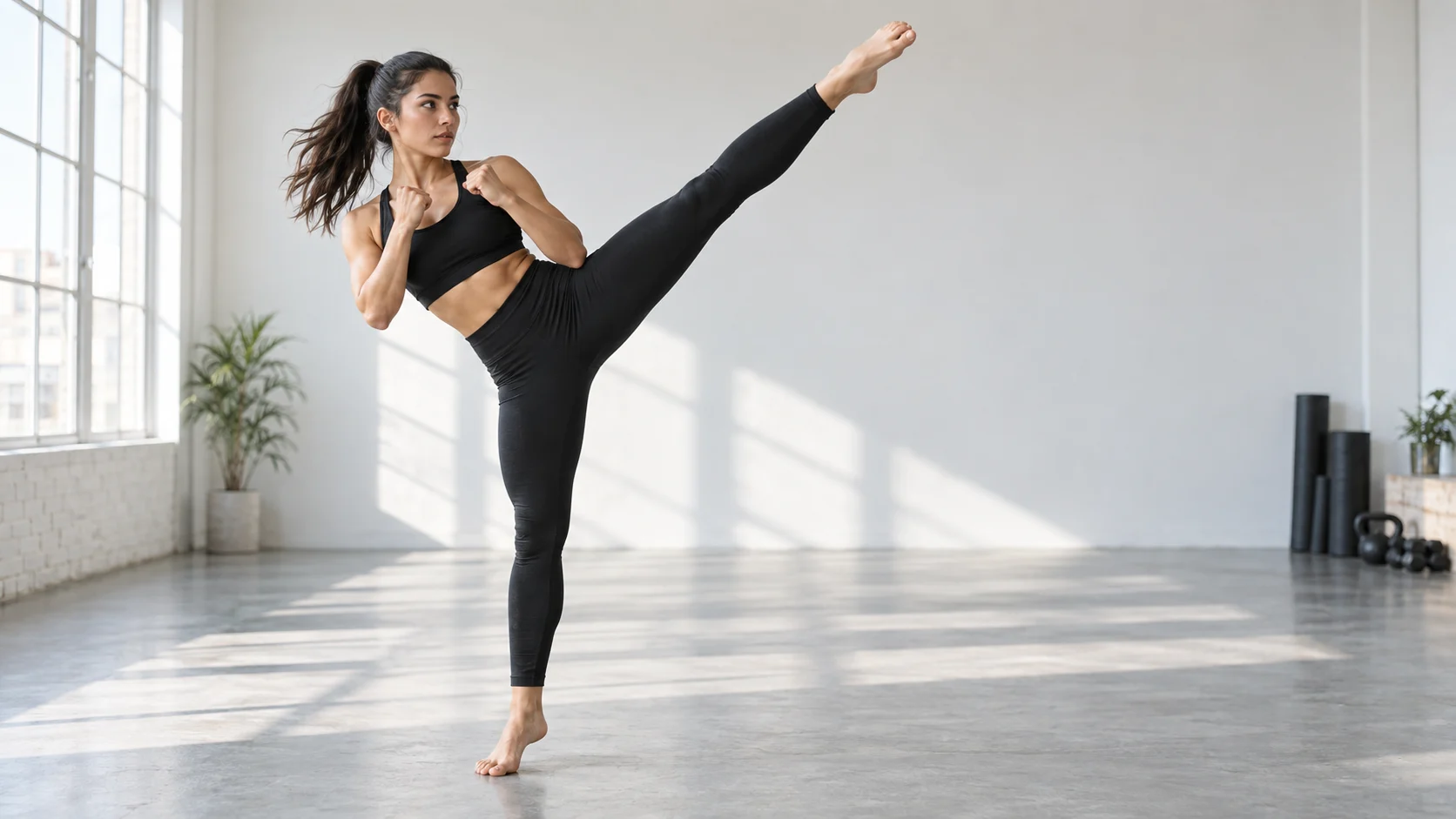
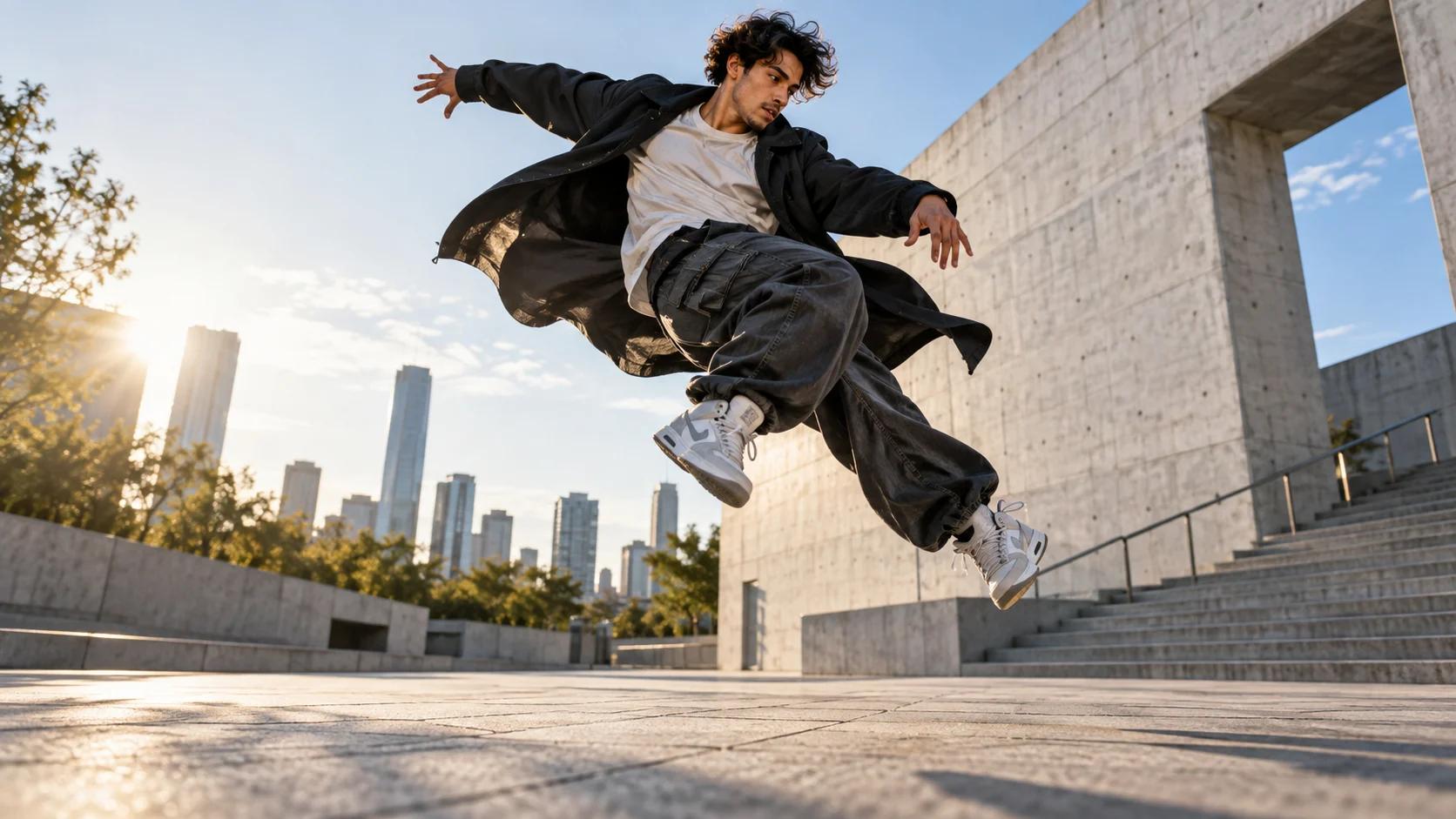
A strong motion-control source exposes the face, joints, hands, and planted foot while leaving room for the transferred action.
The motion reference should also show one main performer from head to toe. Prefer a stable camera, consistent scale, clear limb separation, and limited occlusion. Trim dead time before the action and remove frames after the performance ends. If the driver turns away, exits the frame, crosses behind another person, or changes scale rapidly, expect the generated character to work harder to reconstruct identity. For an exact social clip, match the still image to the reference video's opening pose before you upload it.
If you need a new character source rather than an existing portrait, create a clean full-body still with Seedance's image tools, then keep the approved face, costume, and proportions unchanged across retries.
Choose Motion Control, Mix, or Multi for the Job
Viggle separates several character-animation jobs. Motion Control adds motion from a video to a static character image. Mix places a character into a motion video, while Multi handles several characters. The right choice depends on the deliverable, not which button looks most advanced.
Use Motion Control when the character itself is the asset you want to animate and you are comfortable rebuilding the scene around it. Use Mix when the original video's composition and timing are important. Use Multi only after a one-character test proves that the driver, scale, and identity are stable; adding several subjects multiplies tracking and occlusion risks.
Start with a five- to eight-second excerpt containing one action. A short test reveals whether the pose match, body scale, outfit, and face survive before you spend time on a full dance. Evaluate the moving clip rather than a favorable thumbnail. Watch the wrists during turns, the knees during deep bends, the foot contact during direction changes, and the face when the head crosses profile.
This is an existing Seedance output, not a claimed Viggle benchmark. Use the complete clip to practice inspecting feet, silhouette, timing, and background interaction.
For broader image-to-video decisions, compare this workflow with a conventional image-to-video generator, where motion can be prompted but is not necessarily copied from a performance.
Tune Character Refine, Smooth Motion, and Foot Lock
Viggle's V4 guide describes three paired controls: Character Refine, Smooth Motion, and Foot Lock. Treat them as targeted corrections rather than a universal “best settings” preset.
| Setting | Turn it on when | Watch for |
|---|---|---|
| Character Refine | Face, hair, costume, or texture must remain recognizable | Over-sharpened details or a refined face that no longer follows strong head motion |
| Smooth Motion | Walking, dancing, gestures, or turns should connect fluidly | Softened impacts, delayed stops, or motion that loses the driver's snap |
| Foot Lock | The performer plants, steps, pivots, squats, or kicks from the floor | Sticky feet during jumps, slides, or intentional airborne travel |
Character Refine is the safest default for a reusable subject, especially when the reference image contains distinctive hair, fabric, or facial details. Still, it cannot recover identity that disappears behind a long occlusion or an extreme back-facing turn. Think of it as a consistency aid, not a replacement for compatible inputs.
Smooth Motion is valuable when the raw transfer looks jittery between poses. Use it on a flowing dance, a walk cycle, or conversational hand movement. For a punch, stomp, rapid pop, or hard cut between poses, compare an off version because smoothing can reduce the intended acceleration.
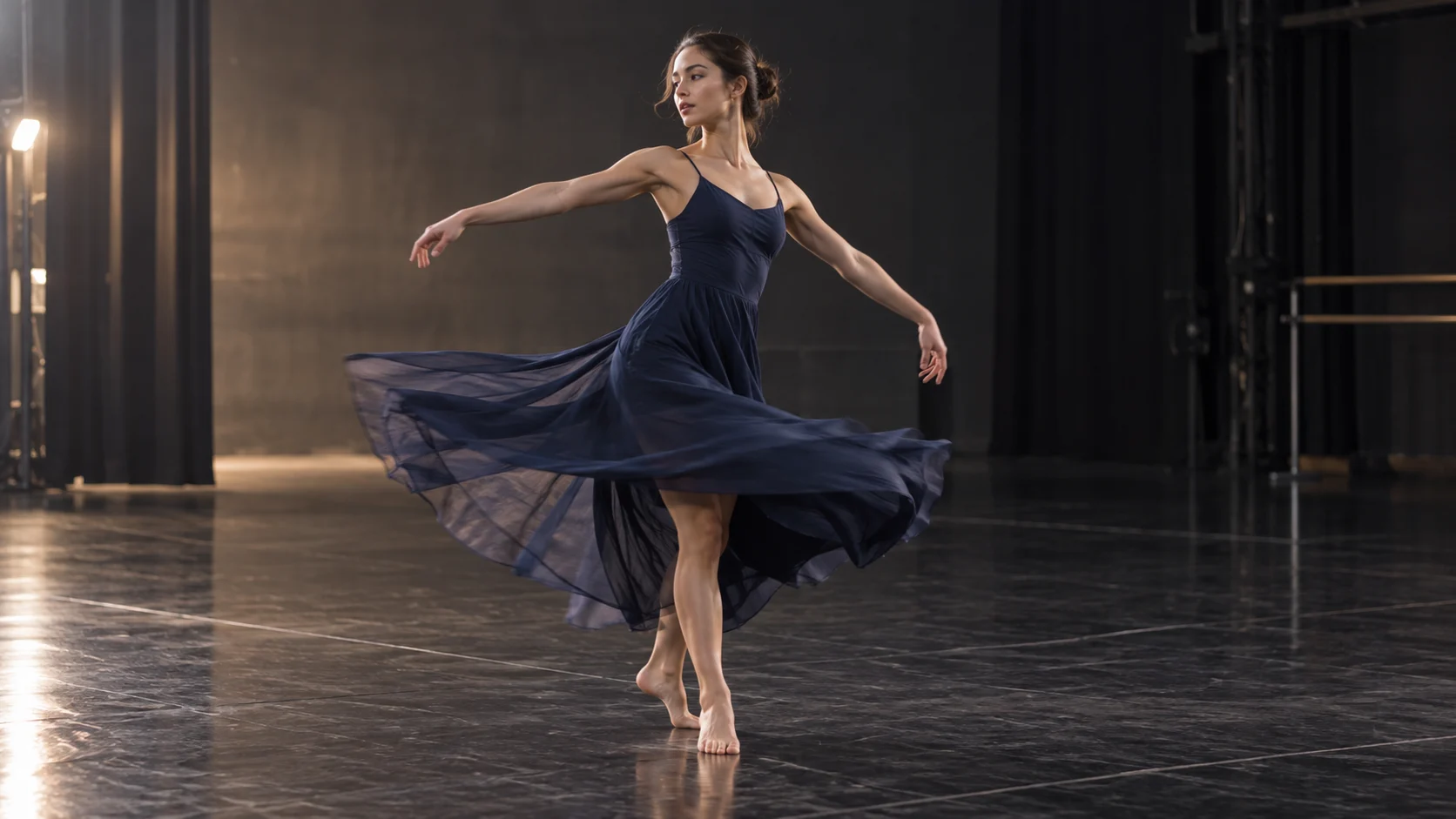
Smooth motion should preserve the dancer's center of gravity while connecting the arms, dress, and turn—not merely blur the frame.
Foot Lock is most useful when viewers can see the ground. It should reduce sliding while a foot is meant to support body weight. Turn it off or test both versions when the driver jumps, glides, skates, or leaves the floor. A wrong lock can look just as artificial as drifting shoes.
Match Each Setting to the Type of Movement
Different actions fail in different ways. For a walk or lateral step, prioritize Foot Lock and stable framing. For a dance with turns, prioritize Character Refine, then compare Smooth Motion on and off. For martial arts, keep the source silhouette clean and preserve the sharp timing of contact poses. For mascot or costume characters, watch whether the transferred body scale fits the oversized head, paws, and fabric.
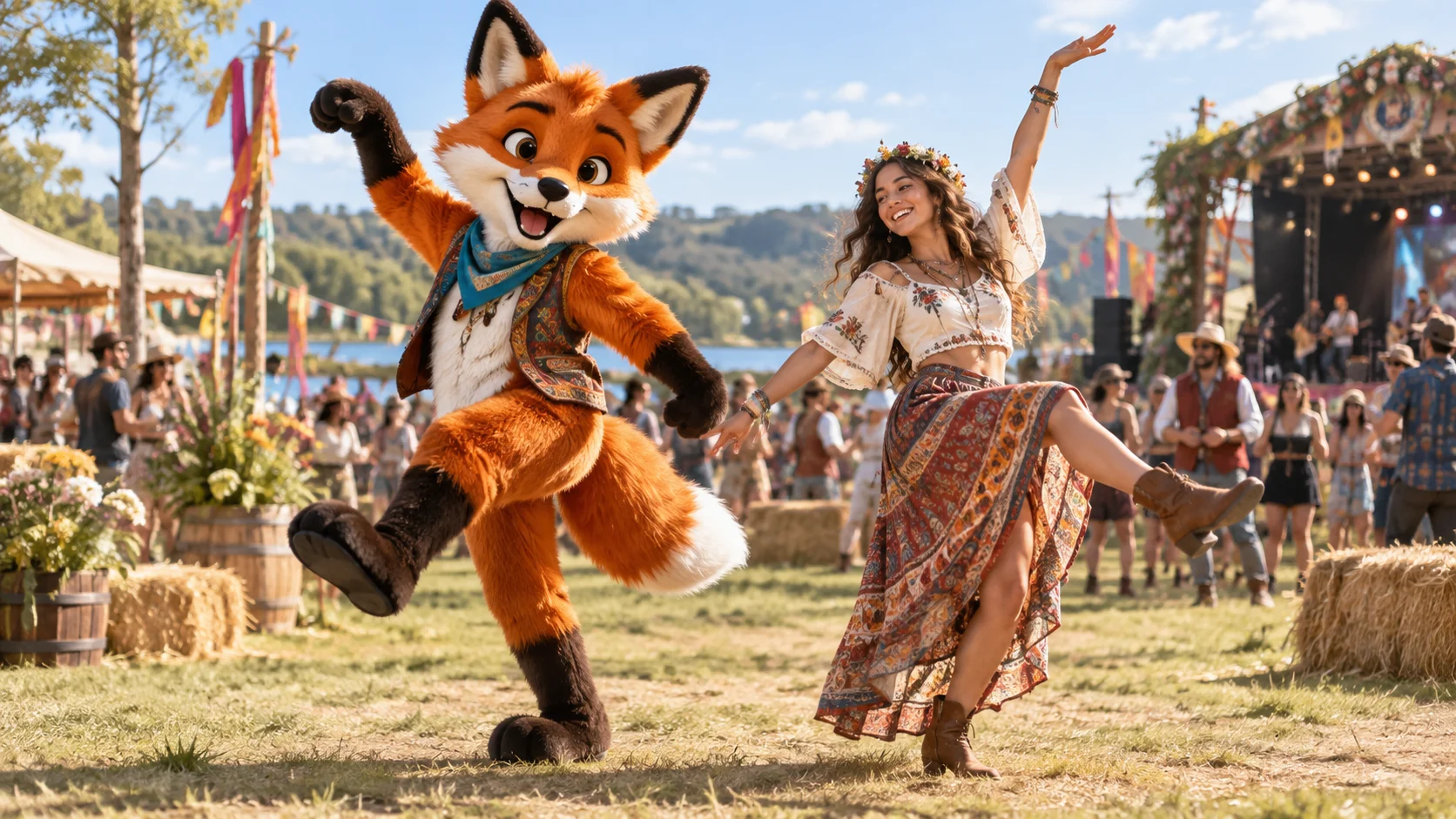
Stylized characters need readable limb separation and compatible proportions; a fun pose is useful only if the costume identity survives the movement.
Camera motion matters too. A locked camera is easiest to evaluate because every wobble belongs to the character transfer. A pan or push can work, but combine it with predictable subject scale. Avoid a reference that simultaneously zooms, rotates, hides the performer, and changes direction. If you need a cinematic camera path rather than literal performance transfer, plan that as a separate motion-control workflow.
For vertical output, crop only after checking whether the hands and feet remain inside the safe area. A 9:16 dance needs more space above and below the body than a talking portrait. Test the delivery crop early, but keep a wider master when possible so stabilization and reframing do not cut the action.
Diagnose Sliding Feet, Warped Hands, and Identity Drift
When feet slide, first verify that the driver's planted foot is visible and that the character image includes the floor relationship. Then enable Foot Lock and rerun the same short segment. If the move is airborne, disable the lock and judge landing frames instead. Do not change the source image, driver clip, crop, and settings all at once; one-variable tests make the cause readable.

For foot-lock evaluation, inspect the support foot through several frames and confirm that the body moves around it without skating.
Warped hands usually appear when fingers cross the face, grip a prop, move too fast, or leave the frame. Trim the worst gesture, choose a cleaner driver, or use a source with hands closer to the opening pose. If the face drifts, reduce back-facing time, abrupt scale changes, and occlusion. A multi-angle character asset can help Character Refine understand appearance, but it does not make an impossible driver compatible.
Background wobble is a separate failure. If the job is character animation, use a simpler background or isolate the subject, then composite the approved result later. If the environment must remain exact, test Mix and preserve the source plate. The AI video editing guide explains how to trim, stabilize, reframe, and finish an approved motion clip without regenerating it.
Keep a small test log: source image, driver filename, mode, three setting states, crop, duration, observed failure, and chosen output. That log turns random reruns into a reproducible decision.
Build a Repeatable Motion-Control Review Workflow
Review in four passes. First, watch motion only at normal speed: does the action read? Second, inspect identity at the opening, strongest turn, closest face, and final frame. Third, check contact points—feet, hands, props, and overlaps. Fourth, judge the delivery crop, background, and audio together.
This existing Seedance performance sample is an inspection reference, not a Viggle result. Watch hands, prop contact, rhythm, and face stability across the entire take.
Approve criteria before generating a batch: no identity change at the main pose, no foot slide longer than a brief transition, no broken hand at the story beat, no cropped limb, and no background tear that cannot be edited. Name variants by the single setting changed, such as smooth-on or foot-lock-off. Keep the driver and character source constant until one setting wins.
When a project needs several characters, shots, models, or approval rounds, move the test plan into Seedance Agent. The Agent can hold character references, shot intent, setting variants, review notes, and approved outputs together, then rerun only the failed shot instead of rebuilding the whole sequence. For a larger production, the multi-model AI video workflow helps route motion transfer, generative shots, native audio, and finishing without losing continuity.
Conclusion
The best Viggle AI motion control settings come from compatible inputs and one-variable tests: use a full-body character image, a clear driver, Character Refine for identity, Smooth Motion for connected movement, and Foot Lock only when the feet should stay planted. Test five to eight seconds, inspect the full clip, and log each change before scaling. If the project expands beyond one motion transfer, plan the references, variants, approvals, and selective reruns with Seedance Agent.
Ready to try it yourself?
Put the steps from this guide into practice with Seedance and turn prompts or images into polished videos in minutes.
Free credits on signup. Plans from $28/month.
Related Articles
More posts in the same locale you may want to read next.

Seedance App Preview Video Generator 2026: Create App Store and Product Launch Clips
Use Seedance to turn app screenshots, feature copy, and launch goals into App Store previews, Google Play promo videos, and product launch clips.
Read article
How to Make a Talking AI Avatar You Can Reuse
Make a talking AI avatar with Seedance: design one consistent character, give it a voice, and make it speak in a talking photo or a full Seedance 2.5 scene, episode after episode.
Read article
Best AI Video-to-Video Models in 2026
The best AI video-to-video models in 2026 for editing footage you already shot: Higgsfield Genjutsu, Seedance 2.x, Runway Aleph, Luma Modify and Kling Omni compared.
Read article