
VEED Auto Subtitles Free: A Practical Guide to Captions You Can Publish
AI Overview
Can you use VEED auto subtitles for free?
Yes. The free plan can auto-caption short clips within your account allowance. Check export rules separately: free videos carry a watermark, and subtitle-file downloads require a paid plan.
How do you generate automatic subtitles in VEED?
Upload your video, open Subtitles, choose the spoken language, then select Auto-subtitle. Correct the generated words and timing, and preview the rendered file before export.
Will a free VEED export have a watermark?
Yes. VEED says free exports include a watermark and are capped at 720p. If you upgrade, re-export the original project for a clean file; an old export remains watermarked.
Can you download an SRT file for free?
VEED's current help lists subtitle-file downloads for paid plans. You can burn captions into a free-plan video, but confirm your account rules if you need editable SRT or VTT.
What “free” means before you upload
Separate transcription from the deliverable
There are three jobs: generate a transcript from speech, correct the captions, and export the format the audience needs. VEED's auto-subtitle feature is available across plans with limits; its product page describes the free option as suitable for short clips with a monthly allowance. Check your account's current usage screen for the exact quota.
The bigger distinction is between a burned-in video and a separate subtitle file. Burned-in captions become pixels: simple for social posts, but impossible for a player to switch off. SRT or VTT keeps words and timestamps separate for web players or localization. VEED's help currently places subtitle-file download behind a paid plan.
Budget for the watermark and 720p ceiling
VEED says free exports carry its watermark and are limited to 720p. This matters more for a brand ad than for a rough internal review. If the final file must be clean, the free editor is a trial of the workflow, not a guaranteed free delivery path. Do not remove a watermark by cropping a prior export; that often damages framing, and VEED says you must return to the original project and export again after upgrading.
Translation is separate: VEED says free and Creator plans have a one-time try, while broader use consumes AI credits. The Seedance guide to video and text explains why captions should be planned as part of the story.
Prepare a caption-ready source video
Give the recognizer speech it can hear
Auto-captioning begins with audio, not with a prompt. If the speaker is buried under music, echo, wind, or sound effects, the model may invent words or lose timing. Listen once with headphones. Choose the primary spoken language, trim long silence, and reduce competing sound where you can. If there is no speech, use title or text overlays instead of expecting automatic subtitles to describe the visuals. For accessibility, add important non-speech cues manually rather than treating a speech transcript as complete closed captions.
List names, product terms, acronyms, and numbers that must be exact; a transcript can mangle them. Caption a finished visual edit, because changing shot order later can break timestamps.
Leave room for words in the frame
Captions need space that does not hide a face, a product label, or the action. The bakery example below shows a practical lower-third position: the subject remains visible, the line stays brief, and the flour-colored background gets enough contrast from a restrained shadow. This is an illustrative generated still, not a screenshot or a VEED output.

Caption-safe example: keep the line away from hands, the product, and the bottom edge.
If you are creating footage first, use the Seedance text-to-video workspace to plan negative space above the lower third. For image-led scenes, the image-to-video workflow helps set composition before motion. These make the video plate; VEED is the separate captioning step.
Generate VEED auto subtitles step by step
Choose the clip and spoken language
Sign in, create or open a project, and upload the finished video or audio. In the editor, select Subtitles and Auto-subtitle. If the timeline contains several clips, VEED's help says you can subtitle a selected clip or the full project; choose deliberately. For a stitched interview, full project avoids leaving the second speaker uncaptioned. For one corrected insert, selecting only that clip may be quicker, but review the joins afterward.
Choose the language actually spoken, not the audience's translation target. VEED's translation toggle has separate limits and credits. Speaker detection is paid on Pro or higher, so free-plan users should not assume speaker labels will appear.
Read the timed segments while playing audio. Fix names, numbers, punctuation, and missing words; then check that each caption starts and ends with the phrase.
Test a real moving plate, not a still preview
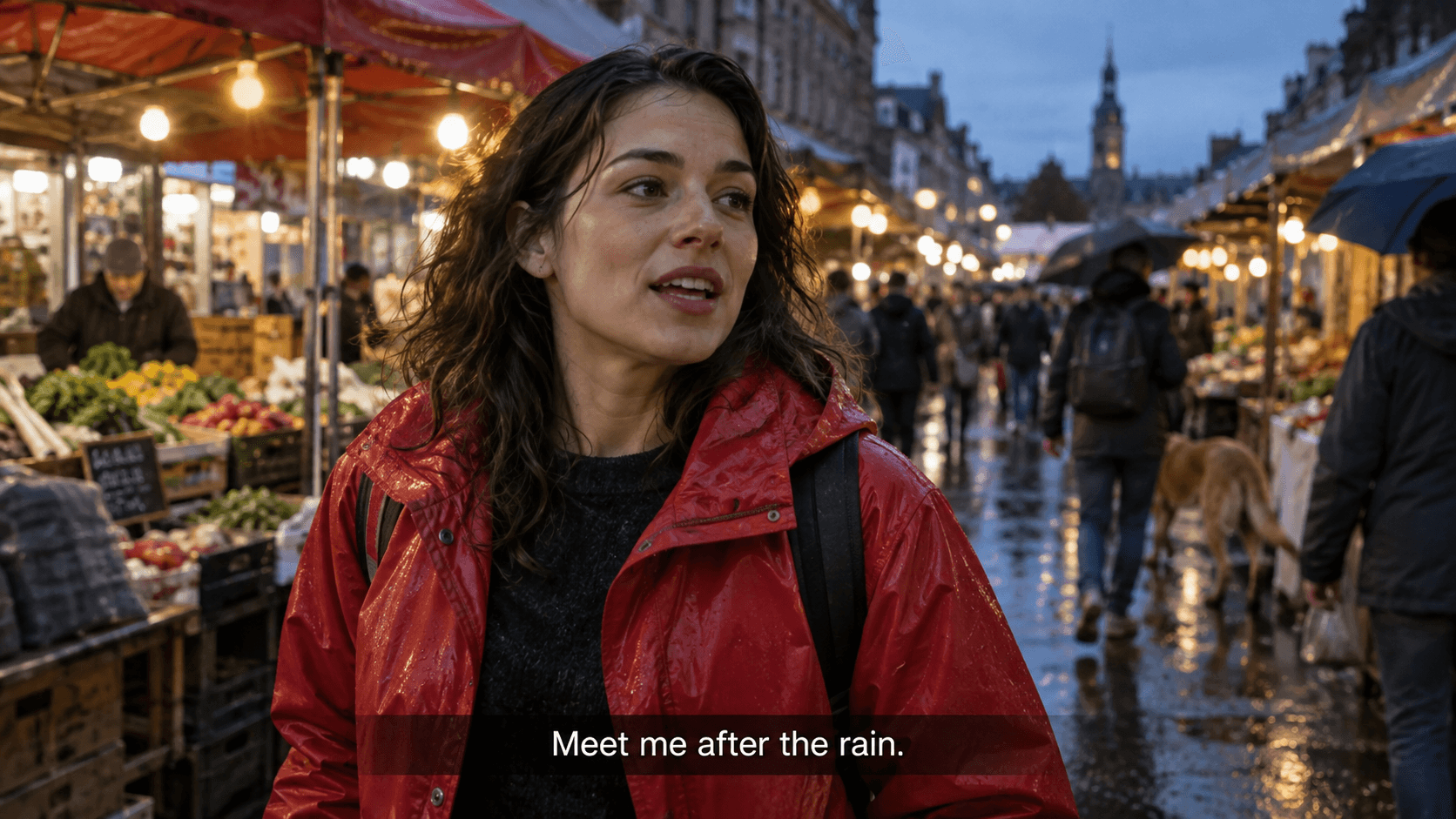
The short moving sample below uses an existing Seedance video with a newly added voice line and matching subtitle. It is an editorial caption demonstration, not a VEED-generated transcript or a claim about VEED accuracy. Watch the transition from an uncaptioned opening into the spoken phrase and back out. That is the timing review you should perform on your own export.
Editorial Seedance motion sample with a synthetic voice line and manually synchronized subtitle; it demonstrates the acceptance test, not VEED's transcription result.
Edit captions for reading, not just accuracy
Fix timing and line breaks
VEED's editor lets you click and revise each line. Split long lines at natural pauses; merge fragments that flash too quickly. Keep a meaningful phrase together. Each caption should take one glance, leaving the viewer time to watch the subject.
Review five things: words, speaker, in/out points, line length, and placement. Test at phone size. The editor's monitor below shows how a restrained translucent band keeps a caption readable over a detailed bakery scene. It is an illustrative generated still, not a VEED result.
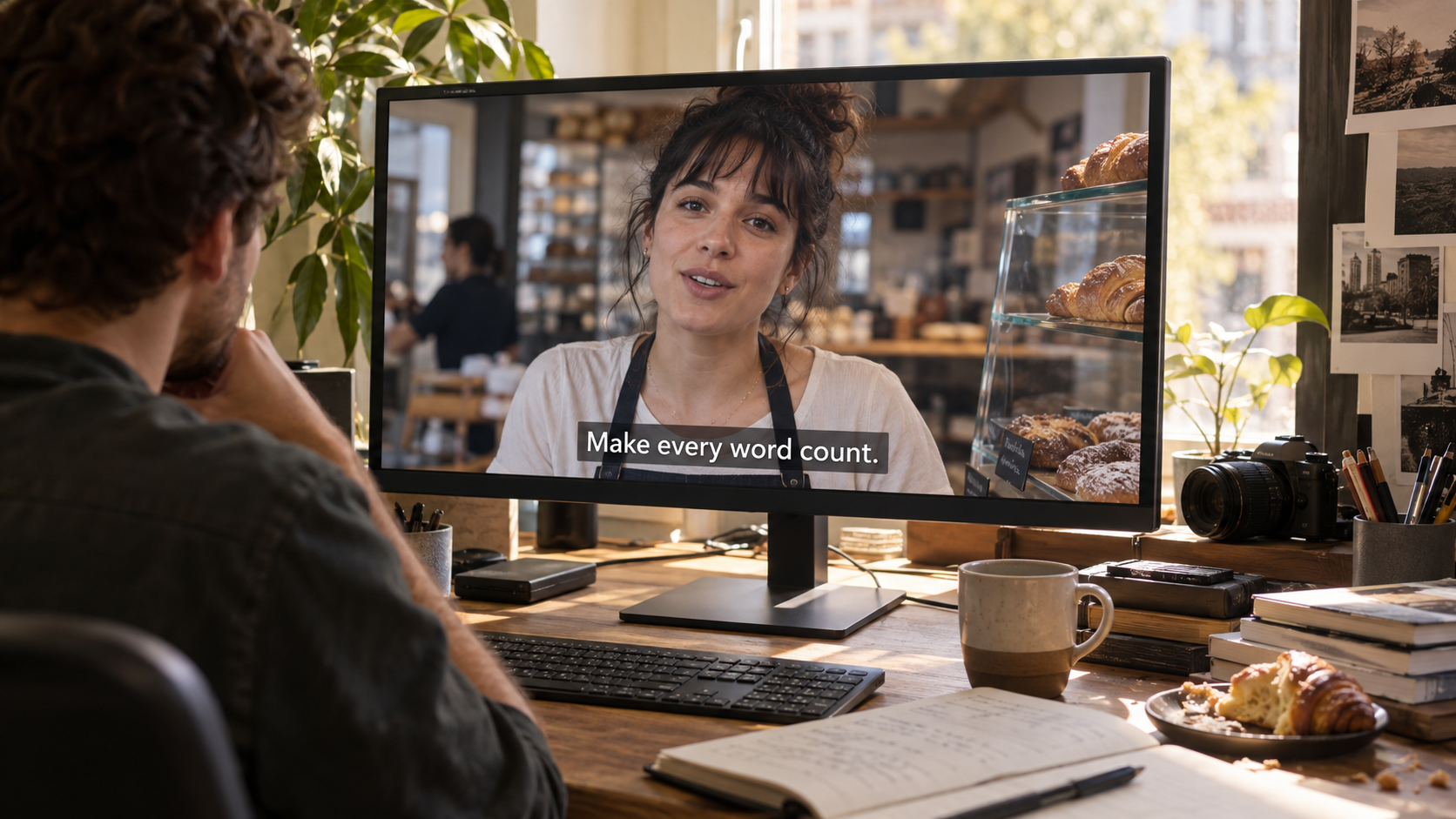
Review the caption in context; a style that works on one shot can disappear on the next.
Keep vertical captions inside the safe area
On 9:16 video, a platform may place its own controls near the bottom and right edge. Do not anchor captions directly on the border. The courier still illustrates a single short line in a safer area, with the face and movement left readable. This is a compositional example, not a screenshot of a platform or editor.
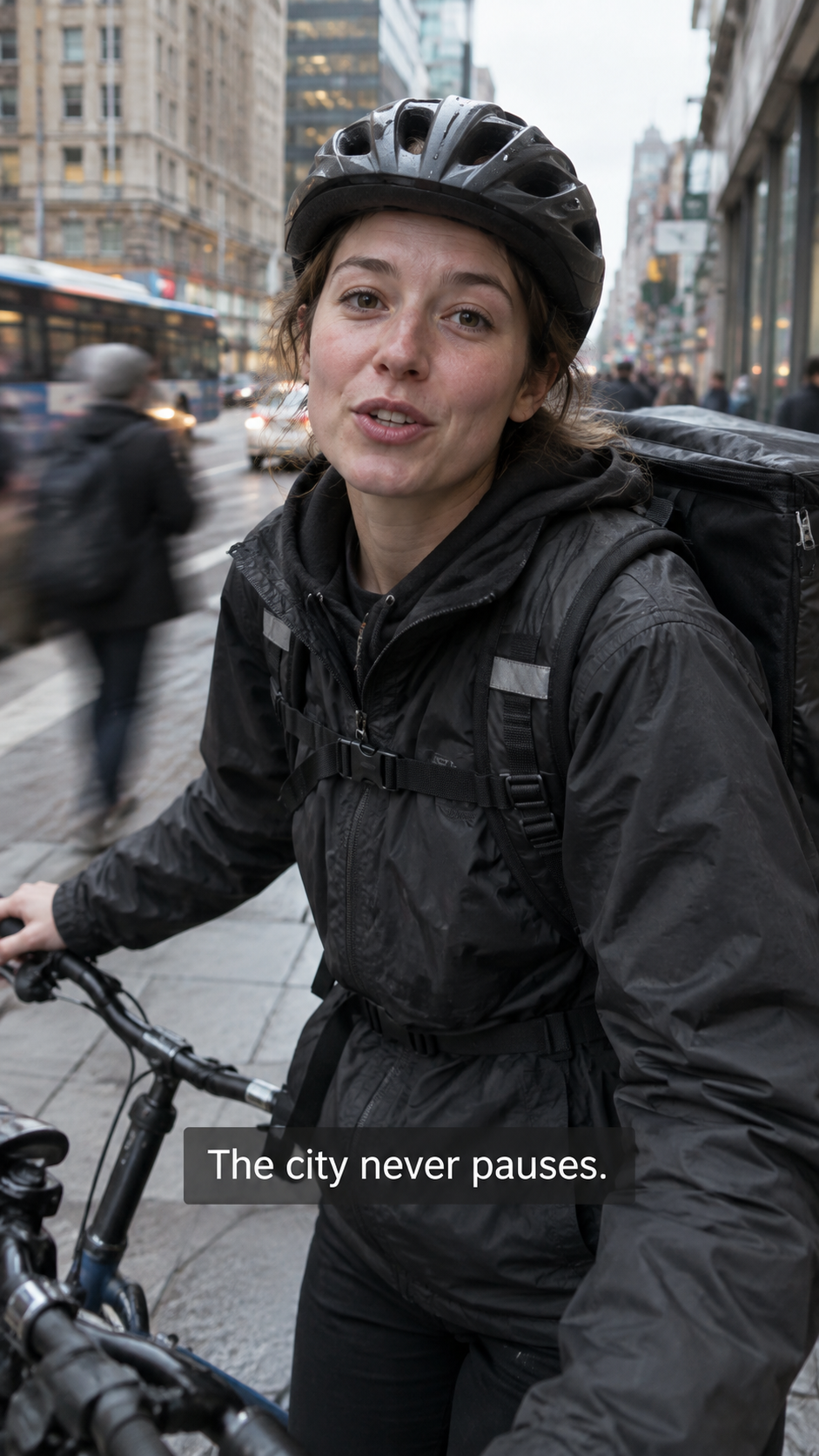
Vertical inspection: check the subtitle with phone controls visible, then again on a clean exported file.
Keep font, contrast, and position consistent. Animated highlights may suit social hooks, but can distract from tutorials or interviews. Put titles and calls to action on their own layer.
Export the right kind of captioned file
Burned-in video versus SRT or VTT
For a social draft, select the exported video with subtitles burned in and inspect the rendered file from start to finish. VEED's help describes burned-in captions as hardcoded in the video. Check the actual watermark and resolution before sending it to a client. For a separate caption file, verify that your current plan includes downloading SRT or VTT. An editor view that displays a transcript is not proof that you can export an editable subtitle file on the free plan.
For translation, approve the source-language track first. Compare each version against a master script, recheck timing when phrases grow longer, and inspect captions after every aspect-ratio crop.
Run a one-minute acceptance test
Before processing a long video, test a one-minute excerpt containing a name, a number, a pause, a cut, and background noise. Generate, correct, and export it. Is the watermark acceptable? Is 720p enough? Can you download the required file? Is timing clean on a phone? If not, change the plan or the finishing route before captioning the campaign.
For a broader finishing workflow, the Seedance–OpenShot editing guide covers trimming and assembly before captions are locked. Do your structural cut first; subtitle timing should be one of the last editorial passes.
Where Seedance Agent fits in a captioned workflow
Plan the story before paying for repeated exports
VEED can caption a file, but it cannot fix an unclear script or a shot with nowhere for text. With Seedance Agent, define the audience, script beats, references, framing, and approval points before generation. Ask for a caption-safe lower third and clean audio. Approve the cut and spoken lines, then caption it. If a line changes, revise that shot and transcript segment.
The pottery image below is an illustrative generated still, not a VEED output.

Final pass: judge the caption in the complete frame, not a text-only transcript.
For campaign variants, record the source clip, approved script, language, aspect ratio, watermark requirement, and export format. Start the visual and script plan in Seedance Agent, then caption for the final delivery requirement.
Conclusion
VEED auto subtitles are free to try on short clips, but a publishable deliverable depends on more than automatic transcription. Plan clean speech and caption-safe framing, correct every line, verify timing on a moving export, and check the current limits for watermark, 720p output, translation, and SRT/VTT download. If you are making a new video rather than captioning an existing one, start with Seedance Agent to organize the script, shots, and approval before the subtitle pass.
Ready to try it yourself?
Put the steps from this guide into practice with Seedance and turn prompts or images into polished videos in minutes.
Free credits on signup. Plans from $28/month.
Related Articles
More posts in the same locale you may want to read next.

Seedance App Preview Video Generator 2026: Create App Store and Product Launch Clips
Use Seedance to turn app screenshots, feature copy, and launch goals into App Store previews, Google Play promo videos, and product launch clips.
Read article
How to Make a Talking AI Avatar You Can Reuse
Make a talking AI avatar with Seedance: design one consistent character, give it a voice, and make it speak in a talking photo or a full Seedance 2.5 scene, episode after episode.
Read article
Best AI Video-to-Video Models in 2026
The best AI video-to-video models in 2026 for editing footage you already shot: Higgsfield Genjutsu, Seedance 2.x, Runway Aleph, Luma Modify and Kling Omni compared.
Read article