
SeedVR2 Load VAE Failed: Fix the Error Without Rebuilding Everything
AI Overview
How do I fix SeedVR2 load VAE failed?
Read the first terminal exception, identify your SeedVR2 node package, and check its required VAE file. Test one image before restoring the full video workflow.
Where should the SeedVR2 VAE model go?
For the numz integration, the default folder is ComfyUI/models/SEEDVR2. Other integrations may use different loaders and folders; follow the matching workflow template.
Does a VAE loading error always mean insufficient VRAM?
No. Missing files, incompatible weights, and failed Python imports can stop loading. Treat it as a memory problem only when the traceback supports that diagnosis.
Can I keep producing videos while fixing ComfyUI?
Yes. Keep the repair separate from production and use a hosted generation workflow when appropriate. That avoids the local setup problem; it does not repair SeedVR2 itself.
Find the Failure Before Changing Settings
Searching for seedvr2 load vae failed usually means a render stopped before producing anything useful. The quickest route forward is identifying what actually failed, not downloading every model again. Save a copy of the workflow and preserve the original media before touching the environment.
This guide focuses on the numz SeedVR2 integration and distinguishes it from other implementations. It is a documented troubleshooting approach, not a claim that one setting fixes every installation. Node names, weight formats, and folder conventions must belong to the same workflow family.
Read the first useful exception
Open the terminal that launched ComfyUI. Copy the complete traceback around the failure, including the first exception and the named file or library. A red node is a location marker; its short message may omit the underlying cause.
Record the operating system, GPU, ComfyUI version, node version, selected VAE filename, and whether the failure began after an update. Keep tokens, private paths, and client filenames out of public bug reports. These details make a reproducible report far more useful than a screenshot saying only “failed.”
Match the symptom to the next test
| What you observe | First check | Avoid initially |
|---|---|---|
| VAE absent from the selector | Correct folder and completed download | Changing sampling settings |
| Invalid VAE or incompatible keys | Loader and checkpoint compatibility | Renaming unrelated weights |
| Node missing or import failed | Startup traceback and Python environment | Repeatedly refreshing the browser |
| Out-of-memory exception | Failing phase and input size | Assuming the download is corrupt |
| Failure only after updates | Reproduce with a minimal node set | Updating every extension again |
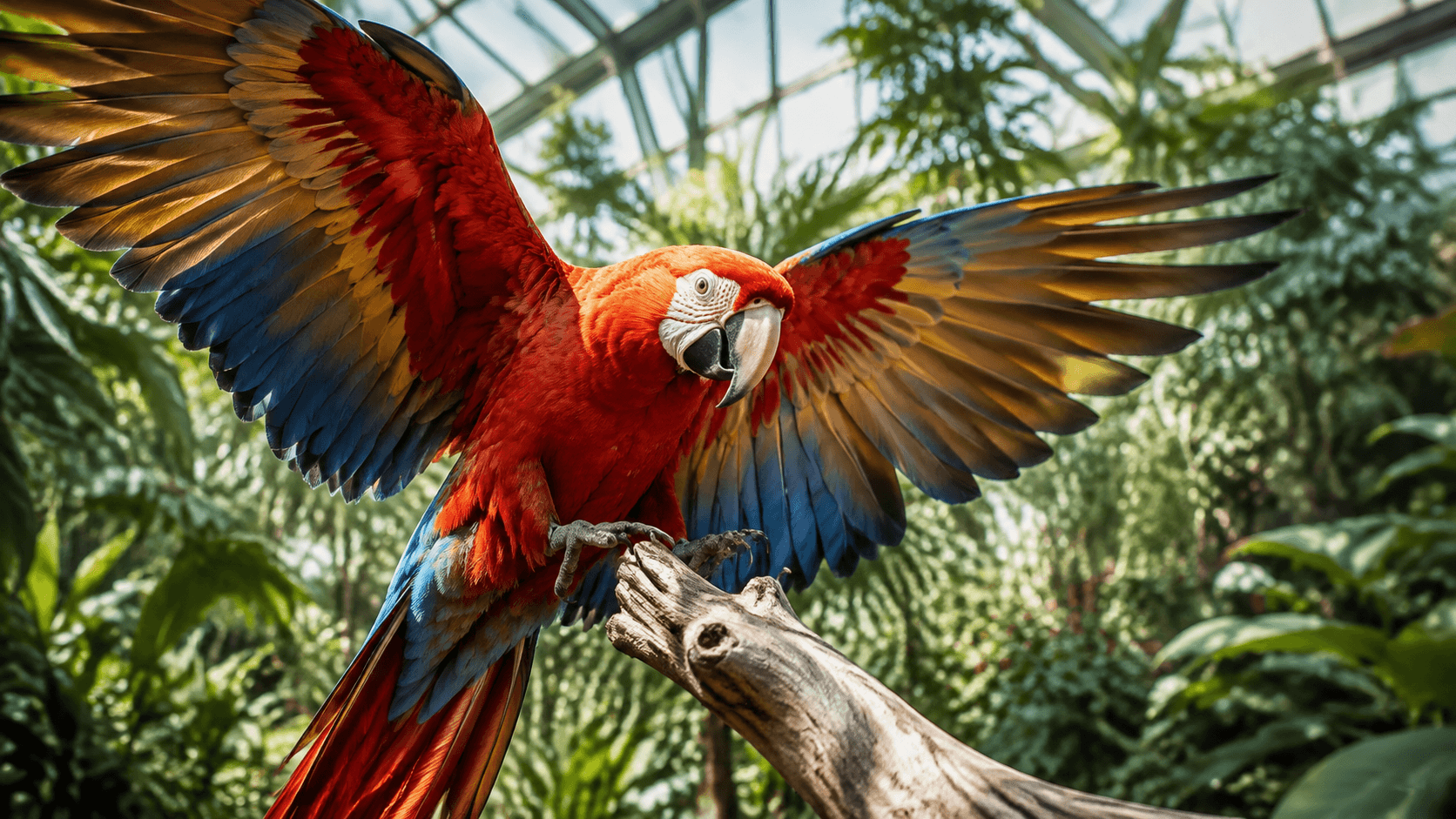
For a first visual check, choose an uncomplicated image with readable texture. Keep the same input through each test so changes in subject or composition do not obscure whether the repair helped.
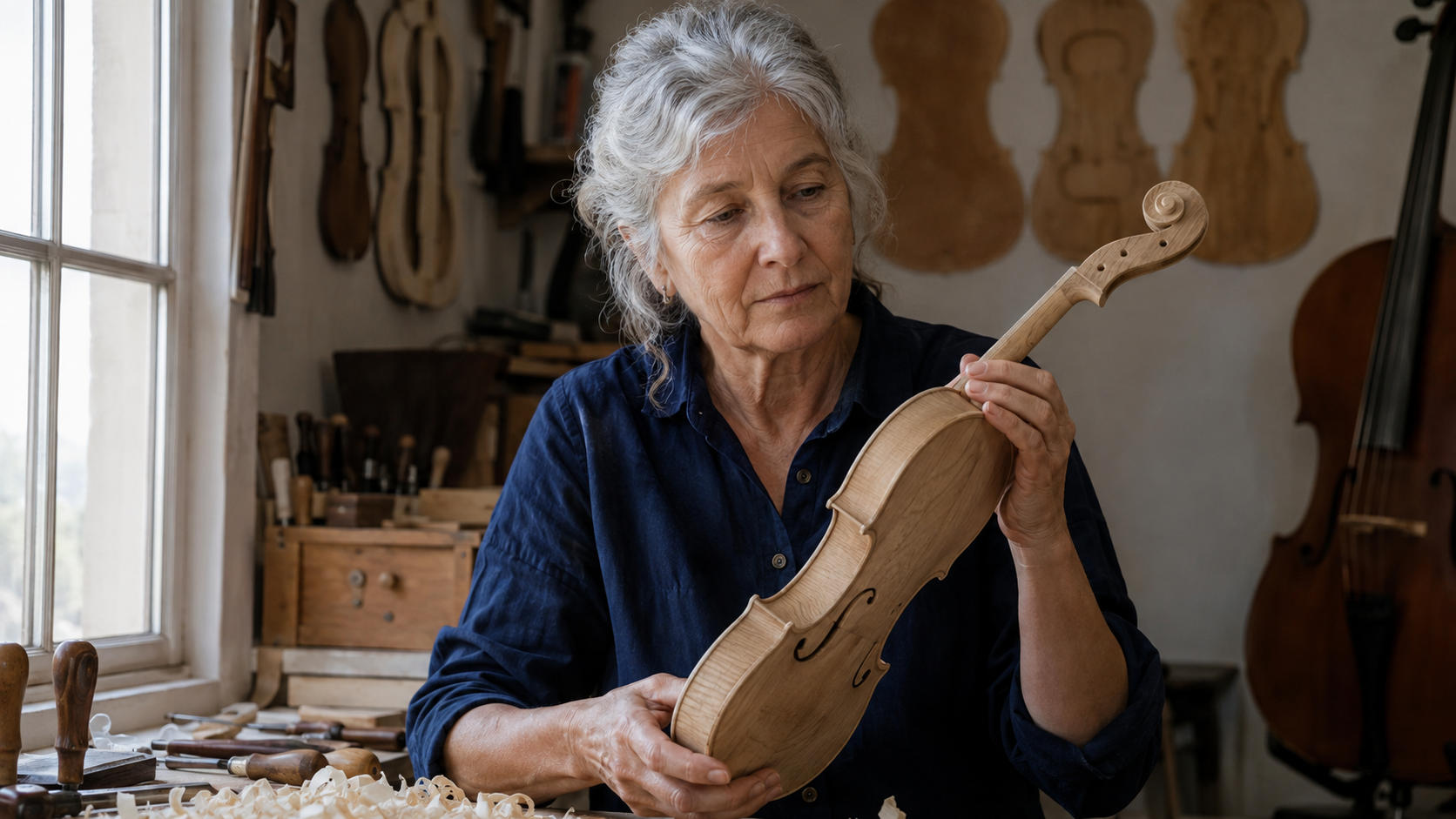
Newly generated inspection example, not a SeedVR2 before-and-after result. Compare identity and natural texture, not sharpness alone.
Match the SeedVR2 Load VAE Model to Your Workflow
Verify the file and its location
In the numz workflow, use its dedicated VAE loader with the documented ema_vae_fp16.safetensors checkpoint. Confirm the exact filename, full download, and readable location. A downloaded web page or interrupted transfer is not a usable weight file, even if its filename looks plausible.
Compare file size with the trusted download listing and verify a checksum when one is supplied. Check whether a custom model-path configuration changes the default search location. Restart the ComfyUI process after installation changes, then select the file again in a fresh example workflow.
Do not delete your entire model library. If a file is suspect, retain it separately until a verified replacement works. This preserves a recovery path and prevents an uncertain diagnosis from becoming a much larger reinstall.
Keep native, custom, and GGUF variants separate
The phrase SeedVR2 GGUF VAE does not identify one universally interchangeable file. Format support depends on the loader and installed version. Start with the exact combination specified by your chosen integration before experimenting with smaller variants.
The SeedVR2-1.4B model card, for example, distinguishes native ComfyUI weights from its distilled Tiny VAE and warns that the latter is not directly interchangeable in the standard VAE loader. Changing the extension or filename does not convert the architecture. When importing an older graph, recreate the loaders from the matching current example rather than mixing apparently similar nodes.
Fix ComfyUI SeedVR2 Import Failed Errors Safely
Repair the environment that actually runs ComfyUI
If startup logs show an import failure, downloading another VAE cannot make the missing Python module appear. Read the node package's installation requirements and use the Python interpreter belonging to that ComfyUI installation. Portable, desktop, and manually created virtual environments can be different from the system Python.
Install or repair only the dependency implicated by the traceback, following the package's supported instructions. Record the previous versions first. Avoid pasting a generic CUDA or PyTorch upgrade command from an unrelated machine: a successful installation message is not proof that your active environment became compatible.
Isolate a conflict without losing the working setup
A failure immediately after adding another extension deserves a controlled comparison. Back up the environment information and disable unrelated custom nodes temporarily, keeping SeedVR2 and the minimal required input/output nodes. Restart, test the same input, then re-enable extensions in groups to narrow the conflict.
Do not interpret one community workaround as a universal version requirement. If a minimal setup succeeds, document which extension or dependency change reintroduces the failure. If it still fails, keep the complete traceback and exact reproduction steps for the package maintainer. A browser reload cannot resolve a backend import conflict.
Reduce Memory Only When the Traceback Says OOM
Distinguish model loading, image encoding, inference, and decoding. A run that reaches decoding has already passed several earlier steps. Use debug logging to identify the failing phase instead of repeatedly redownloading a checkpoint that loaded successfully.
For the numz integration, VAE tiling can be enabled separately for encoding and decoding. Reduce the corresponding tile size if that phase exhausts memory. Block swapping targets the DiT side, not a missing VAE file. Start with optional compilation disabled while establishing a baseline.
Lower the target dimensions and test a short input before increasing workload. Close other GPU-heavy jobs, but save their work first. Change one variable at a time and note the result. There is no reliable “works on every 8 GB GPU” promise: other allocations, precision, resolution, and implementation all matter.

Generated inspection scene. Examine long edges, repeated railings, and smooth walls for seams or uneven detail after adjusting tiling.
Validate a Complete Clip After the Error Disappears
Move from one image to a short motion test
One successful image proves that a basic path works; it does not validate a long video. Test a short representative excerpt next, preserving the source and saving the processed version under a different name. Include the movement that normally challenges the job: turning faces, moving hands, or fine repeating textures.
Existing generated motion sample, not a measured SeedVR2 restoration. Moving sticks, cymbal edges, and sound provide concrete checks beyond a still frame.
Watch at normal speed and inspect selected frames at native scale. Reject invented texture, unstable facial details, crawling edges, or distracting flicker even when the export is larger. A frame that looks impressive when paused can still fail in motion.
Check sound, timing, and repeatability
Keep the original audio available through assembly. Verify duration, frame rate, orientation, and synchronization in the delivered file, not only in the preview window. Our ComfyUI crop video with audio guide explains the separation between frame processing and preserving sound.
After a successful short test, save the working graph and version notes. Run another representative excerpt before scheduling an entire folder. Use the multiple-video batch workflow to organize independent outputs and failures. Do not overwrite approved masters while testing a newly repaired environment.
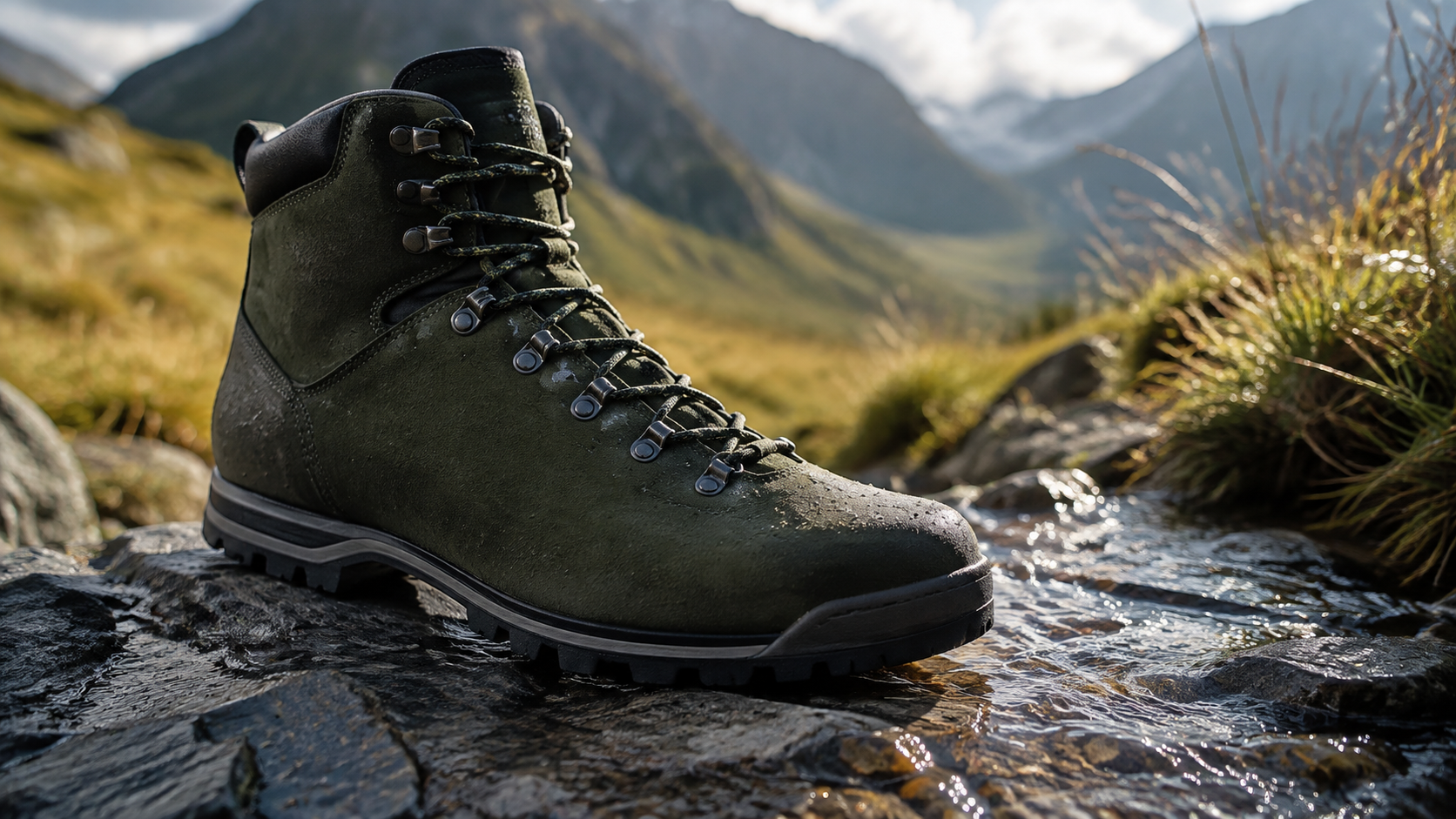
Generated product inspection example. Check whether stitching and material grain remain believable; stronger artificial detail is not automatically a better result.
Keep Production Moving with Seedance Agent
Local restoration makes sense when you need its particular controls or must preserve an existing shot. A hosted generation tool is a different route, not a drop-in replacement for a SeedVR2 VAE. Make that distinction before spending more time troubleshooting.
If the actual task is creating a new campaign shot, start from the brief and references instead. The Seedance AI video generator offers a browser-based starting point, while image-to-video suits work anchored to an approved source image. Confirm available models and output settings for your project rather than assuming identical local controls.
Seedance Agent can help turn an idea into a proposed video plan and generated assets. Review the plan, costs, and available controls before approving generation. Keep the original product reference and evaluate the result against the brief; hosted access removes local installation work, not the need for creative review.
Actual Seedance Agent output shown in full. This illustrates a separate production route, not evidence that Agent repaired or ran SeedVR2.
Choose between these routes using delivery needs, setup time, and required control. The local versus cloud workflow comparison helps separate infrastructure decisions from the visual result you need to deliver.
Conclusion
Fix SeedVR2 load VAE failed by identifying the real exception, matching the loader and weights, and testing the smallest reproducible workflow. Adjust memory settings only for memory failures, then verify motion, detail, and audio before scaling up. When your priority is a new finished video rather than maintaining a local restoration graph, start your project with Seedance Agent.
Ready to try it yourself?
Put the steps from this guide into practice with Seedance and turn prompts or images into polished videos in minutes.
Free credits on signup. Plans from $28/month.
Related Articles
More posts in the same locale you may want to read next.

Seedance App Preview Video Generator 2026: Create App Store and Product Launch Clips
Use Seedance to turn app screenshots, feature copy, and launch goals into App Store previews, Google Play promo videos, and product launch clips.
Read article
Best AI Video-to-Video Models in 2026
The best AI video-to-video models in 2026 for editing footage you already shot: Higgsfield Genjutsu, Seedance 2.x, Runway Aleph, Luma Modify and Kling Omni compared.
Read article
Kling 4.0 vs Seedance 2.5: Full Comparison
Kling 4.0 vs Seedance 2.5 compared by spec: 30-second clips, keyframes vs 50 references, audio, 4K and 10-bit color, editing, and which model fits which job.
Read article