
Seedance 2.5 4K Tutorial: How to Generate Ultra-HD AI Videos Step by Step
AI Overview
Does Seedance 2.5 support 4K video output?
Yes. Seedance 2.5 targets native 4K detail, but availability varies by generation route and rollout. Choose 4K only when it appears in the live Resolution control.
How do I enable 4K in Seedance 2.5?
Open Create, choose a Seedance 2.5 workflow, and check Resolution. Select 4K when listed; if the selector stops at 720p, that route or account does not offer 4K yet.
What's the difference between Seedance 2.5 1080p and 4K output?
4K has four times the pixels of 1080p, preserving more texture and crop room. Use it for large screens, premium product work, or footage that needs reframing.
How many credits does a 4K generation cost in Seedance 2.5?
Credit use depends on duration, resolution, input type, and references. Check the live estimate beside Generate and test at lower resolution before committing to the 4K render.
What's New in Seedance 2.5 That Makes 4K Worth Using
4K is useful only when detail survives across frames. Seedance 2.5 combines longer clips, stronger subject consistency, multimodal references, native audio direction, and time-based prompting. That matters more than pixel count: a sharp frame still fails if a face changes, a label drifts, or the action loses continuity.
The most visible gains appear in product close-ups, skin, fabric, water, foliage, architecture, and controlled camera motion. References anchor color, wardrobe, packaging, and composition; time ranges separate actions. Start in the Seedance creation workspace, then choose the input route that matches the brief.
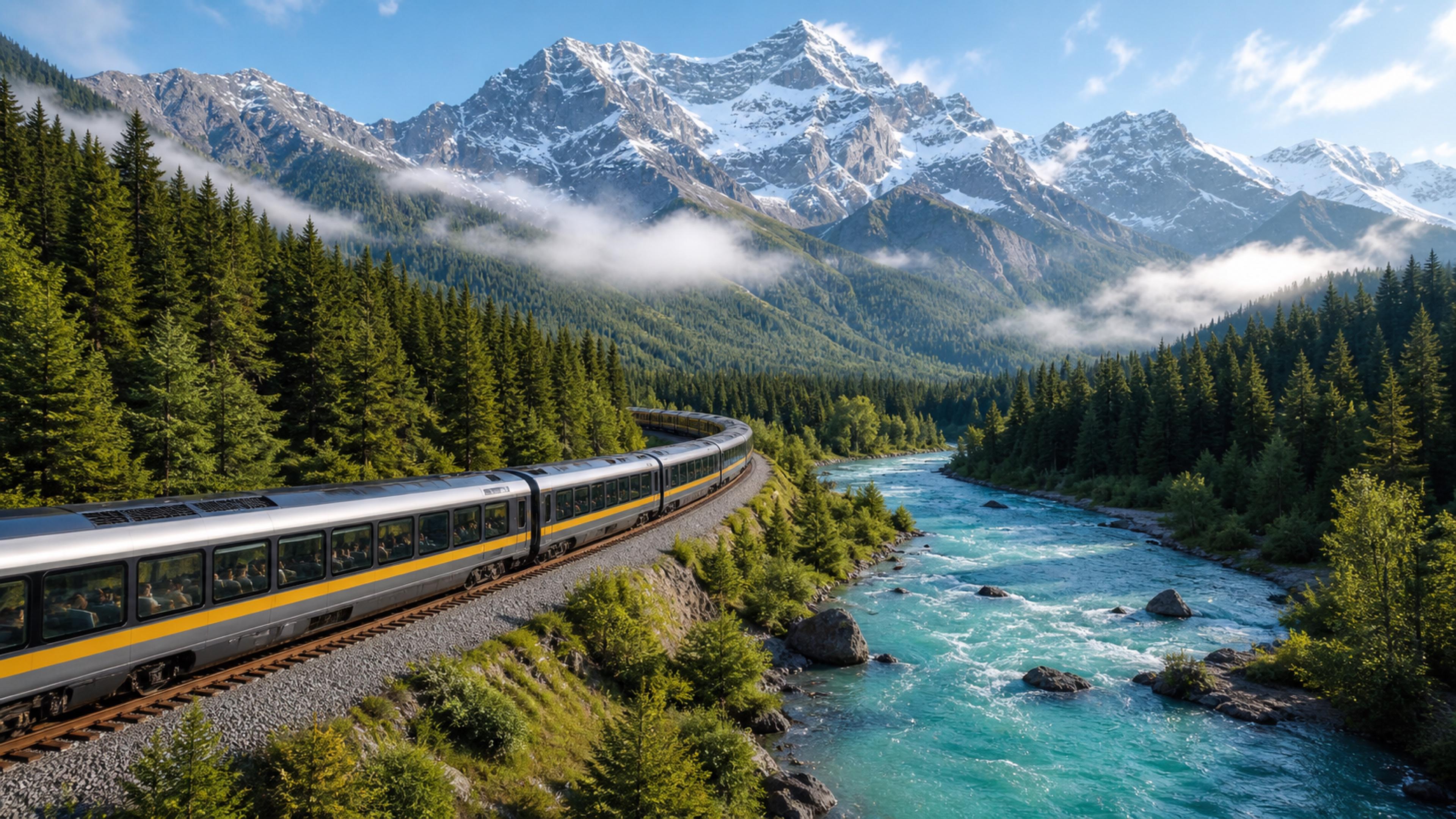
A practical detail benchmark: look at feather edges, flower texture, water droplets, background separation, and stability during motion rather than judging one paused frame.
Requirements — What You Need Before Generating in 4K
You do not need a workstation GPU because generation runs in the cloud. You do need a current browser, a stable upload connection, enough storage for large downloads, and a credit balance that covers the selected settings. A fast screen helps with review, but it does not change the model's output.
Prepare a clean brief and only the references needed to control the shot. Use a high-resolution source; compression artifacts and tiny text become more obvious at high output resolution. Choose the final ratio early: 16:9 for landscape, 9:16 for vertical social, or 1:1 for flexible product placements. The image-to-video workspace is the direct route when a product, character, or composition must remain recognizable.
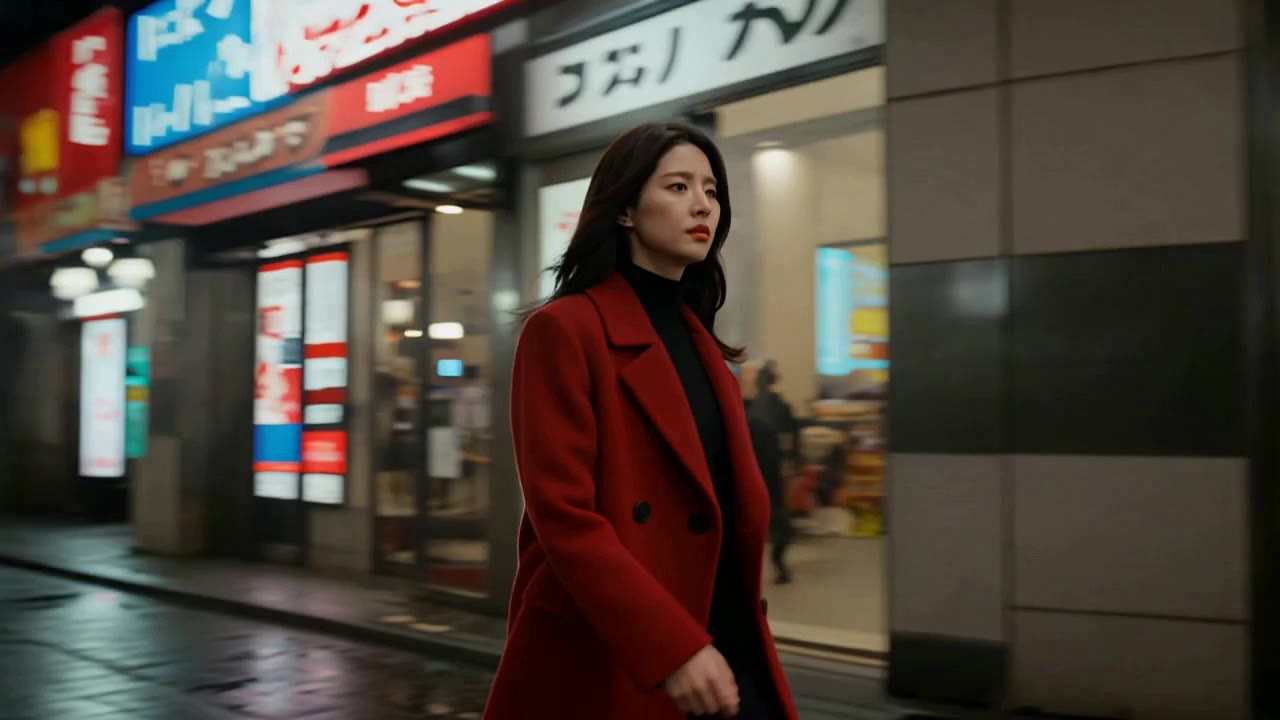
A strong reference has one clear subject, readable lighting, clean edges, and enough context to define wardrobe and environment without overloading the model.
Check the Resolution control visible in your account. Seedance 2.5 supports a 4K production target, but some browser routes expose lower delivery resolutions during rollout. The creation panel is the authoritative signal for the job you are submitting.
Step-by-Step — How to Generate a 4K Video in Seedance 2.5
- Sign in and open Create. If this is your first session, follow the Seedance 2.5 access guide before building the shot.
- Choose Text to Video for a scene built from language, Image to Video for a controlled first frame, or the reference workflow for multiple visual, motion, or audio anchors.
- Select Seedance 2.5 and open Resolution. Choose 4K when it is listed. If it is not listed, select the highest available resolution and keep the prompt, references, and edit timeline ready for a later 4K rerun.
- Set the aspect ratio before writing camera directions. Use 16:9 for landscape delivery, 9:16 for vertical content, 1:1 for square placements, or another supported ratio required by the campaign.
- Start with a 3–5 second test. Short tests reveal identity drift, unwanted camera motion, misspelled packaging, and unstable textures without consuming the budget of a long final render.
- Write the prompt in production order: subject, environment, action, camera, lighting, texture, audio, and preservation constraints. Give each time range one job.
- Review the displayed credit estimate, then click Generate. Do not submit until the model, duration, resolution, aspect ratio, and reference set all match the brief.
- Inspect the result at 100% scale. Check facial features, hands, text, fine product edges, reflections, temporal flicker, audio sync, and the first and last frames before downloading.
For prompt-only scenes, begin in the text-to-video generator. The browser remains a client for cloud generation; downloading a 4K result does not install the model locally. The technical distinction is explained in Can I Run Seedance 2.5 Locally?.
Use a continuous shot to test whether detail, subject identity, camera direction, and scene logic remain stable beyond the opening seconds.
Writing Prompts for 4K Output — What Works Differently
High resolution rewards specificity, not quality buzzwords. State what must be sharp, what may move, and what must remain unchanged. Camera language such as “macro lens,” “locked medium shot,” or “slow dolly-in” shows where detail matters. Describe actual texture—brushed aluminum, woven cotton, condensation, polished stone—not merely “ultra detailed.”
Use time ranges for sequential action: [0–2s] establish subject; [2–4s] perform one movement; [4–5s] hold the final composition. Avoid combining crowds, fast camera motion, debris, costume changes, and readable text. Each dependency increases the chance that 4K reveals an error instead of an advantage.
Copy and adapt these five templates:
Product — [0–2s] amber skincare bottle centered on pale stone, soft window light, label and cap perfectly preserved; [2–4s] slow 120-degree clockwise orbit; [4–5s] macro push toward glass texture and condensation, premium commercial finish, no new text.
Portrait — close-up portrait beside a bright studio window, natural skin texture, individual hair strands, subtle breathing and one blink, locked 85mm lens, shallow depth of field, preserve facial identity and wardrobe throughout.
Nature — sunrise across a misty alpine lake, foreground grass moving gently, detailed rock and water texture, slow forward glide, stable horizon, realistic reflections, no sudden weather or camera changes.
Architecture — daylight interior of a modern gallery, clean vertical lines, limestone and oak surfaces, slow symmetrical dolly forward, visitors move naturally in the distance, preserve room geometry and lighting continuity.
Advertisement — [0–2s] product hero on a clean color field; [2–4s] controlled light sweep reveals material finish; [4–5s] camera settles with empty negative space for the editor's headline, preserve product proportions and all packaging.

The best 4K product prompt protects geometry and packaging first, then adds one measured camera move and one lighting event.
4K vs 1080p — When to Use Which
More resolution is not automatically a better production decision. Choose the smallest format that survives the final platform, crop, and review process.
| Scene or delivery | Recommended resolution | Why |
|---|---|---|
| TikTok, Reels, or short vertical posts | 1080p | Platform compression reduces much of the visible 4K advantage |
| Ecommerce product detail | 4K | Fine materials, packaging, and close crops benefit from extra pixels |
| YouTube or large-screen playback | 4K | Viewers can see texture and edge detail on larger displays |
| Early ad creative testing | 1080p | Validate the hook and composition before paying for final quality |
| Film concepts and reframing in post | 4K | Editors need room to crop, stabilize, and build alternate framing |
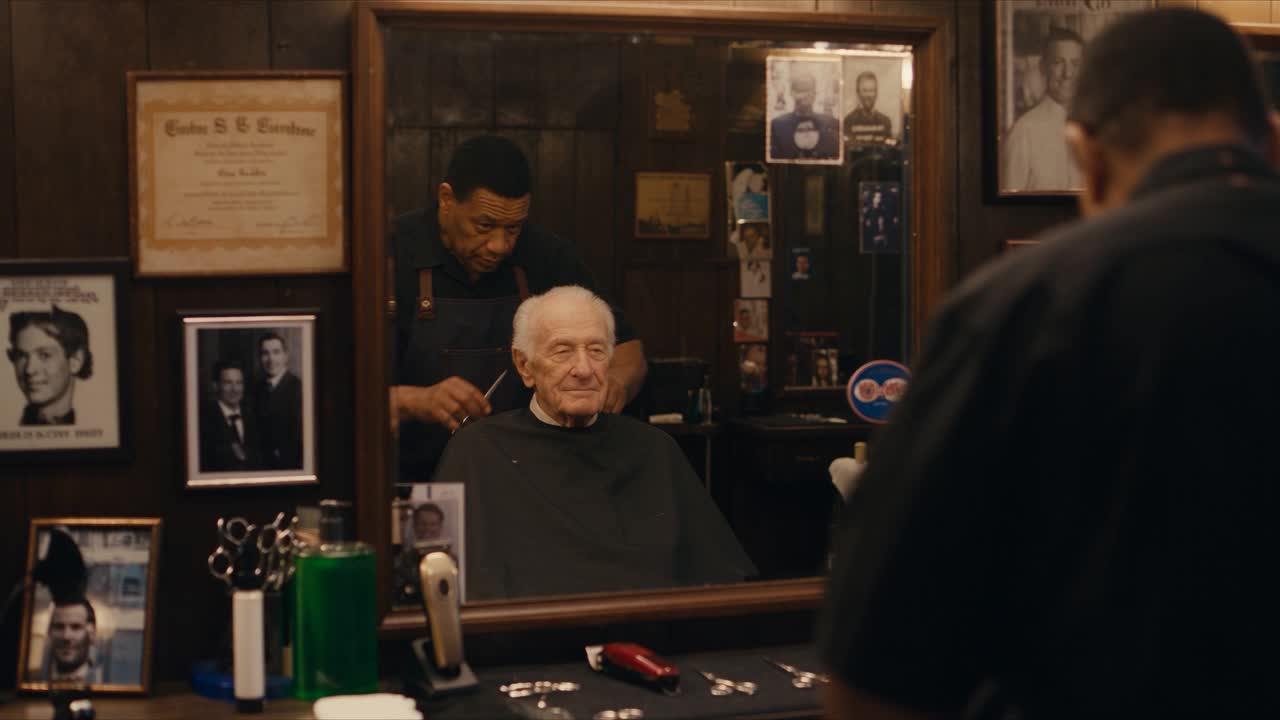
A useful resolution test includes faces, reflections, fine hair, repeated objects, and layered motion—not just a simple landscape.
Maximizing Credit Efficiency When Generating in 4K
Treat 4K as the finishing pass. Draft at 720p or 1080p when available, approve subject identity and camera blocking, then rerun only the strongest prompt at 4K. Keep tests to 3–5 seconds, change one variable per attempt, and save every approved prompt with its model, ratio, duration, references, and seed or job ID.
For batches, finalize one master shot before creating aspect-ratio variants. Do not spend high-resolution credits on five weak hooks at once. Test hooks cheaply, choose the winner, and reserve 4K for the version that will be delivered. Reference video can also add processing cost, so include it only when motion cannot be described clearly in text or established with a still image.
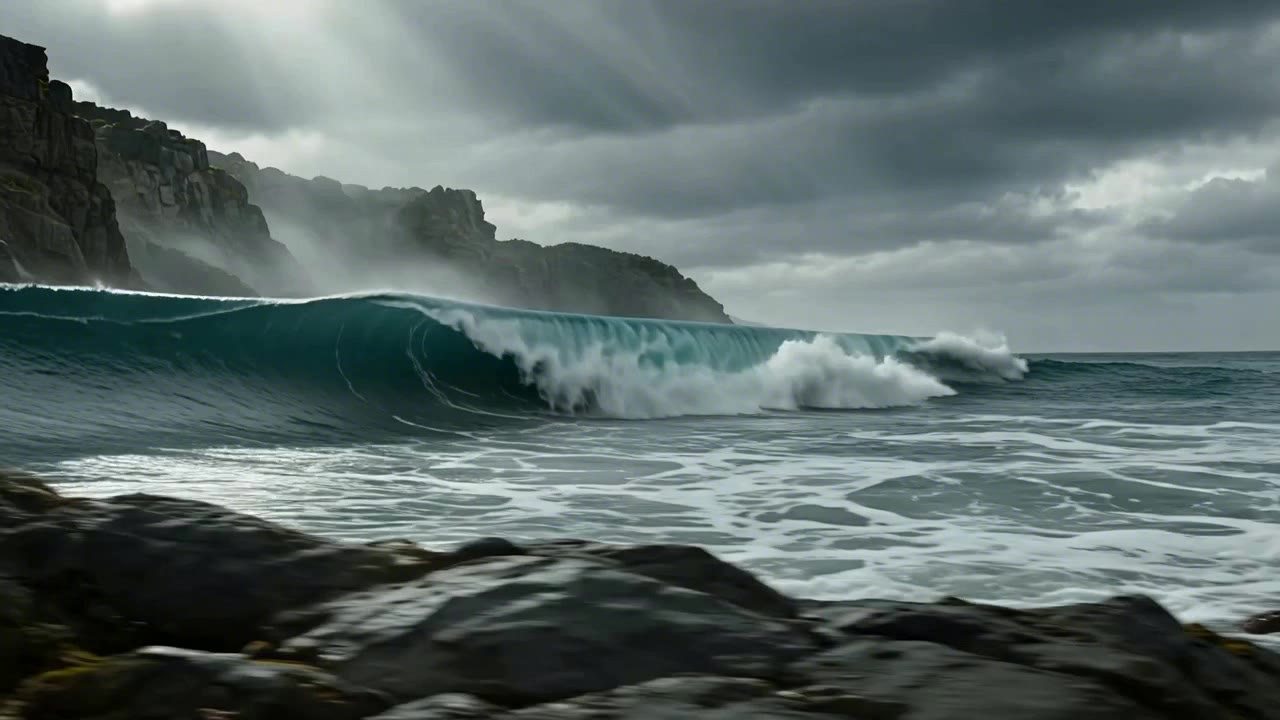
Review motion and sound together: a technically sharp image can still fail if wave timing, ambience, or camera rhythm feels disconnected.
Real Use Cases — What Seedance 2.5 4K Is Best For
Ecommerce teams can use 4K for beauty, apparel, jewelry, electronics, and packaging close-ups. Filmmakers gain detail for stabilization and reframing. Architecture teams benefit when surfaces, lighting transitions, and straight lines must remain readable on presentation screens.
Brand teams can produce hero footage for landing pages, launches, displays, and premium social campaigns. Creators can build nature, travel, fashion, or educational B-roll. For a broader map across ads, social, film, property, and brand storytelling, see where creators use Seedance 2.5.
Use 4K where the final viewer can benefit from detail, not simply because the setting exists.
Conclusion
Seedance 2.5 makes 4K most valuable when the shot is already controlled: strong references, one clear action per time range, protected subject details, and a tested camera plan. Confirm that 4K is actually available in the live Resolution selector, prototype at a lower setting, and spend high-resolution credits only on the approved final brief.
Ready to try it yourself?
Put the steps from this guide into practice with Seedance and turn prompts or images into polished videos in minutes.
Free credits on signup. Plans from $28/month.
Related Articles
More posts in the same locale you may want to read next.

Seedance App Preview Video Generator 2026: Create App Store and Product Launch Clips
Use Seedance to turn app screenshots, feature copy, and launch goals into App Store previews, Google Play promo videos, and product launch clips.
Read article
Gemini AI Video Prompt Examples: Copy-Ready Veo Scenes and a Better Prompt Formula
Copy Gemini AI video prompt examples for cinematic motion, product ads, dialogue, and vertical clips, then adapt them with a practical Veo prompt formula.
Read article
How to Keep Product Shape Consistent in AI Video Ads
Lock product geometry, packaging, labels, references, camera angles, and approval checks so AI video ads preserve the real SKU across every shot.
Read article