
Seedance 2.5 1080p Not Available? Diagnose the Missing Resolution and Deliver Full HD
AI Overview
Why is Seedance 2.5 1080p not available?
The resolution can depend on the provider, creation mode, plan, region, and rollout. If 1080p is absent from the actual settings, the current route cannot generate a native Full HD file.
Can a prompt force Seedance 2.5 to render at 1080p?
No. Writing “1080p,” “Full HD,” or “high resolution” may influence visual detail, but it cannot unlock a disabled output setting or change the pixel dimensions returned by the service.
Should I change providers or upscale a 720p result?
Change routes when native 1080p is required before generation. Upscale when the 720p clip already has correct motion, identity, composition, and audio and only the delivery frame needs to be larger.
How do I verify that a Seedance video is really 1080p?
Inspect the downloaded file, not the preview player or filename. A landscape Full HD file should report 1920×1080 pixels; a vertical Full HD file should report 1080×1920.
Check Whether 1080p Is Actually Missing
Read the generator controls before you spend credits
Open the exact project and confirm the selected model says Seedance 2.5 rather than Seedance 2 Mini, Seedance 2.0, or a similarly named preset. Then inspect resolution after choosing the input mode, duration, aspect ratio, and reference type. Some services rebuild the available settings when one of those choices changes. A resolution that appears for text-to-video may disappear for reference-heavy generation, edit, extension, or a discounted queue.
The current Seedance 2.5 generator deliberately shows the available resolution and price before generation. If the selector offers only 480p and 720p, paying for the job or adding “1080p” to the prompt will not turn that request into a native 1920×1080 render. Save a screenshot of the selected model and settings for your production record, but judge the delivered clip from the file itself.
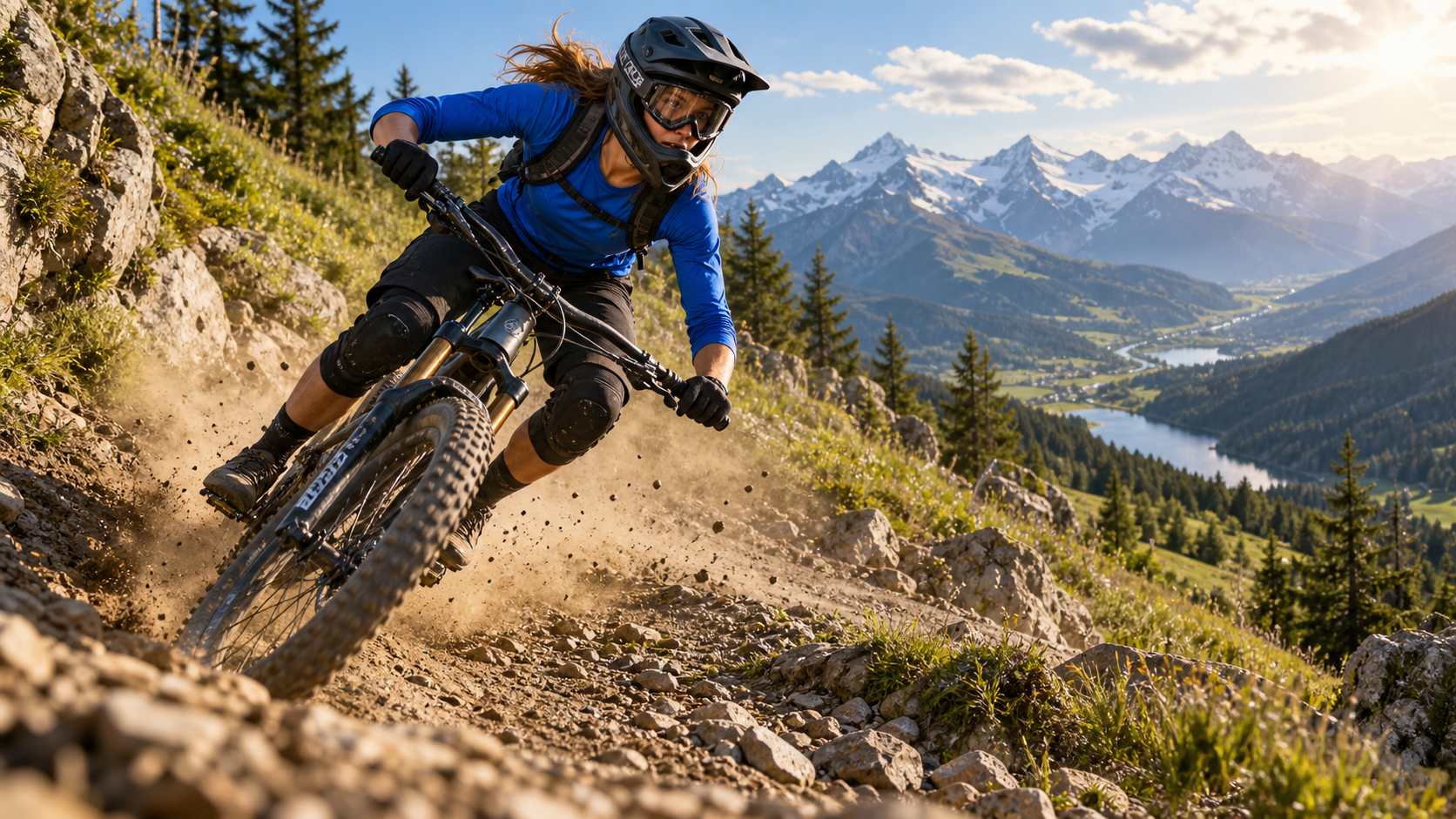
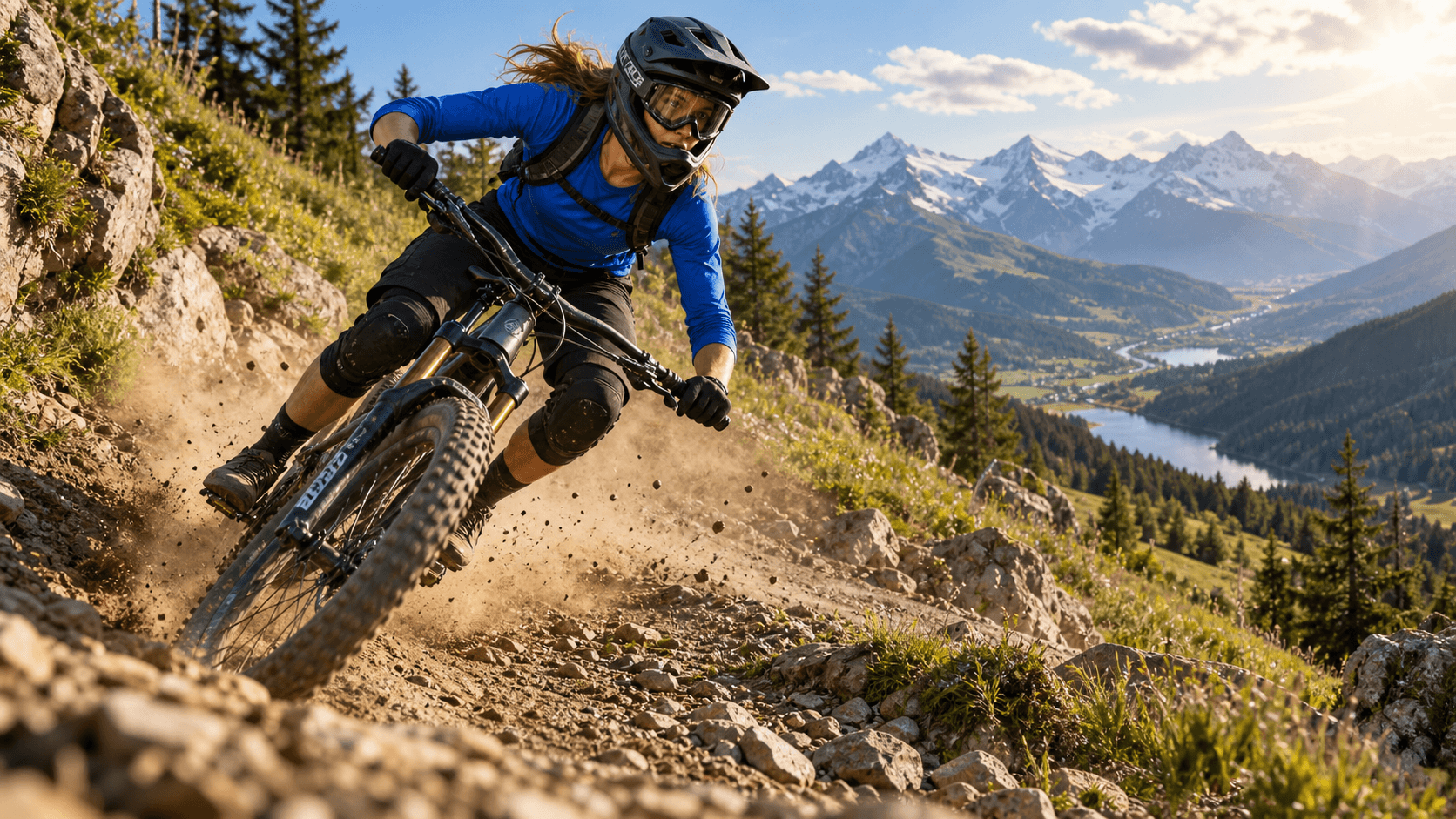
Use a detail-rich finished frame to inspect tire tread, dust, foliage, face structure, and distant landscape rather than judging resolution from a plain scene.
Inspect the downloaded dimensions
A browser preview may scale a 720p video to fill a 1080p display, while a social platform may transcode it again. Download the original result and inspect Width, Height, Frame rate, Codec, and Bit rate in your operating system or editor. For 16:9, 1280×720 is 720p and 1920×1080 is 1080p. For 9:16, the dimensions rotate: 720×1280 versus 1080×1920. A file named “HD,” a 1080p monitor, or a 1920×1080 export timeline does not prove that the source was generated at that resolution.
If the file is already 1920×1080, the problem is softness, compression, or unstable generated detail—not missing 1080p. If it is 1280×720, decide whether you need a native rerun or an upscale. The Seedance 2.5 troubleshooting guide covers broader failures when the job itself will not complete.
Why Seedance 2.5 Resolution Options Differ
Provider, mode, plan, and rollout are separate gates
Seedance 2.5 is delivered through different products. One provider can expose 1080p while another still offers 480p and 720p. That does not create a universal entitlement; treat the visible control and returned metadata as the source of truth for each route.
Use this decision table before changing the prompt:
| What you see | Likely explanation | Best next action |
|---|---|---|
| 1080p never appears | Route or rollout does not expose it | Use 720p or choose a documented 1080p route |
| 1080p appears, then disappears | Current mode, references, duration, or queue is incompatible | Remove one constraint at a time and recheck |
| 1080p is locked | Plan, credits, workspace policy, or account access | Confirm cost and entitlement before upgrading |
| 1080p job returns 720p | Request ignored, fallback occurred, or wrong file was downloaded | Save the job ID and compare request with file metadata |
| File is 1080p but looks soft | Source detail, motion, compression, or generation quality | Improve the shot; do not chase dimensions alone |
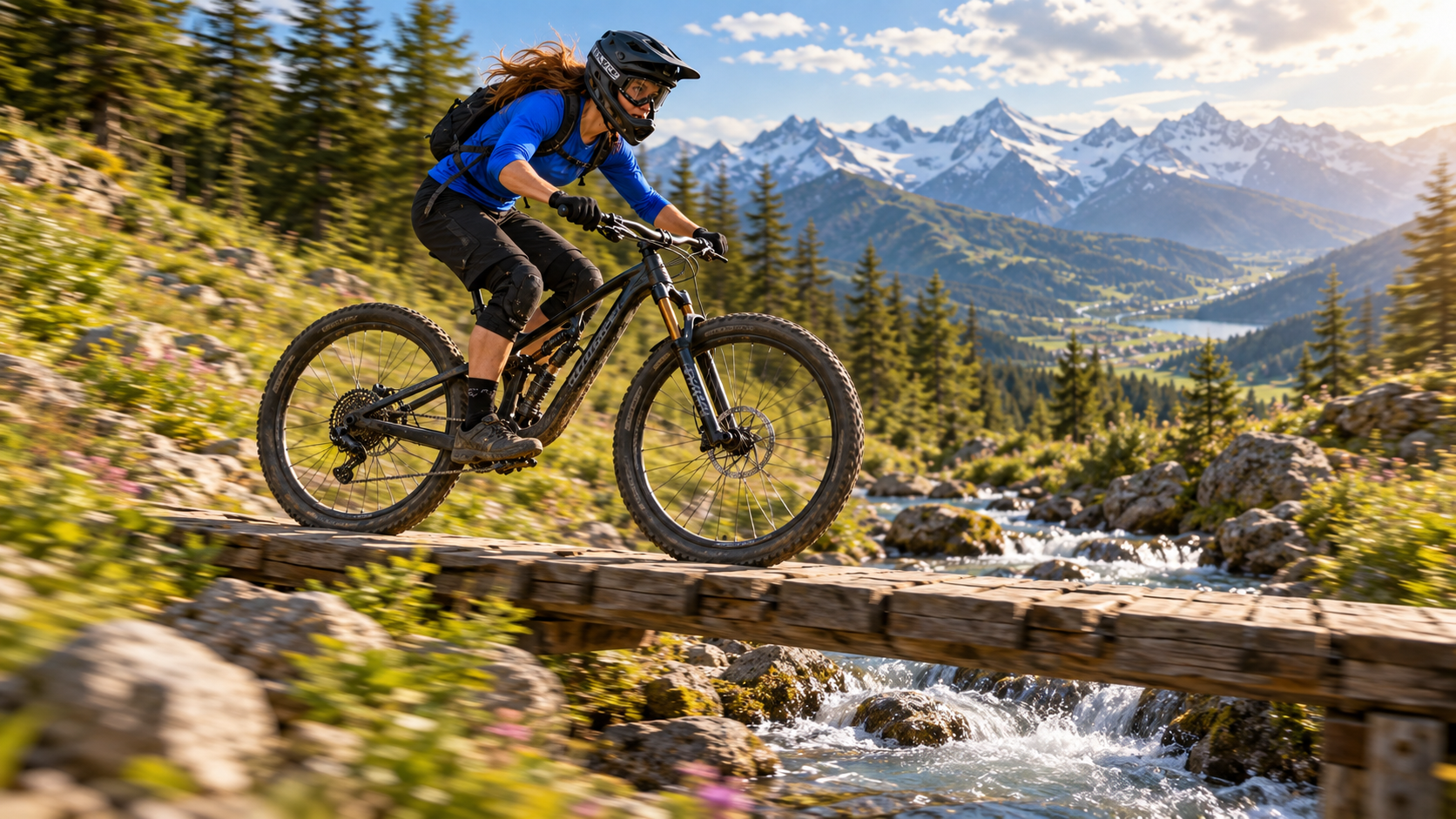
A medium tracking frame reveals whether spokes, cables, water texture, and background motion stay coherent when the shot becomes more demanding.
Resolution is not the same as visible quality
A 1080p container can still contain smeared hands, doubled spokes, waxy skin, or over-sharpened edges. Conversely, a stable 720p shot with good lighting and a large subject can look cleaner after careful upscaling than a native 1080p rerun with worse motion. Resolution describes the raster dimensions; it does not guarantee trustworthy detail in every frame.
Evaluate at normal playback speed and on paused frames from the beginning, middle, and end. Check faces at their smallest size, object contact, thin lines, repeating textures, reflections, and text added in post. Frame cadence also changes perceived clarity, so match your delivery platform with the best frame rate for AI video rather than adding interpolation automatically.
Use the Fastest Fix for Your Situation
If you need native 1080p before generation
Preserve the prompt and reference package, then move it to a route whose current settings explicitly show 1080p for the required mode. Run a short, simple test first: one subject, one action, one camera move, no optional references, and the intended aspect ratio. Confirm the returned dimensions before committing a 30-second scene or a large reference set. This separates account access from prompt quality and keeps an expensive request from becoming the diagnostic test.
If a service documents Full HD but your account does not show it, collect the workspace ID, timestamp, model, mode, and screenshot for support.
src=https://r2.seedance.tv/model-landing/seedance-2-5/feature-30s.mp4
poster=https://r2.seedance.tv/model-landing/seedance-2-5/feature-30s-poster.jpg
label=Finished Seedance 2.5 long-scene output for resolution inspection
Review a moving result across the full scene: continuity, fine edges, facial size, camera motion, and compression matter more than a single sharp poster.
If 720p is available and the shot is not approved yet
Stay at 480p or 720p while solving motion and composition. A higher-resolution rerun does not repair an incorrect camera path, drifting identity, broken hands, unstable product geometry, or weak story beat. Approve the creative state first, then decide whether the final shot deserves a native 1080p rerun or an upscale. This order minimizes expensive repeats and makes comparisons fair.
Multiple drafts and failed approvals can cost more than the final resolution step. The Seedance 2.5 film cost guide helps separate exploration from delivery renders.
Get a Better 720p Master Before Upscaling
Protect the details an upscaler cannot invent reliably
Start with a clean source image that already contains the face, product, fabric, and environmental detail you want to preserve. Keep important subjects large enough in frame, avoid extreme crops, and reduce simultaneous camera and subject motion during contact-heavy actions. Ask for one readable movement instead of several competing movements. Clear light, controlled contrast, and stable edges give a later upscaler better evidence.
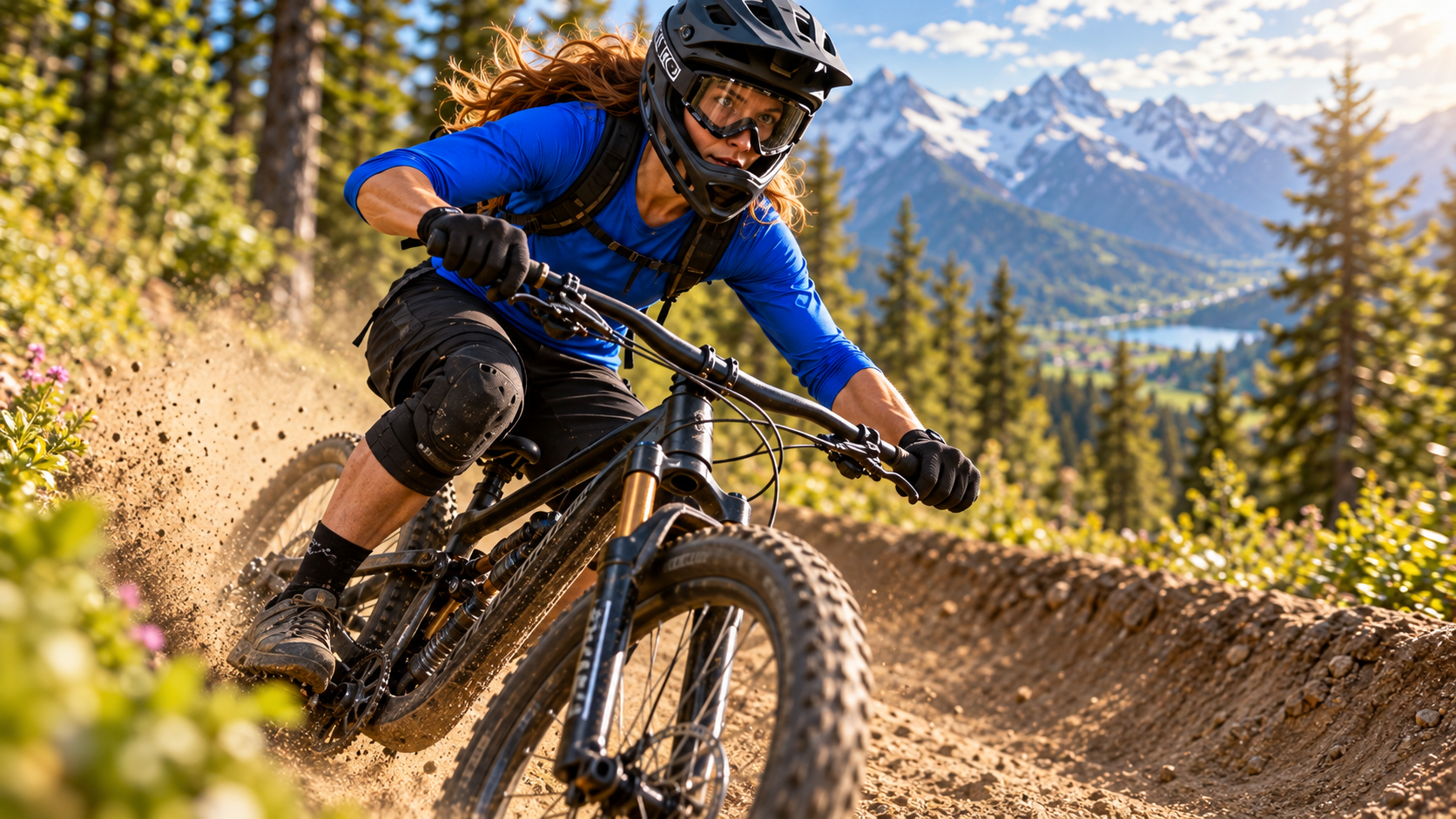
Pause on the hardest frame: face, fingers, cables, tire tread, dust, and hair should remain structurally believable before enlargement.
Use a three-point acceptance check. First, watch the whole clip for story, timing, and audio. Second, inspect the middle frame, where many clips lose identity or geometry. Third, inspect the smallest face and thinnest object edge in the scene. Reject the shot if the structure is wrong. Upscaling can increase pixel count and perceived sharpness, but it cannot reliably reconstruct a missing finger, a changing logo, or a bicycle frame that bends between frames.
Preserve the original master
Keep the untouched source beside the upscale and avoid repeatedly exporting the same compressed file. Name versions by model, source resolution, frame rate, and take. For vertical work, enlarge 720×1280 directly to 1080×1920 rather than placing it inside a landscape canvas and cropping again.
Upscale and Export a Real 1080p Master
Choose a conservative enlargement path
For a stable approved clip, upscale once from 1280×720 to 1920×1080, or from 720×1280 to 1080×1920. Use light temporal consistency and restrained sharpening. Heavy enhancement can make skin plastic, create halos around hair, turn dust into noise, and cause fine lines to shimmer from frame to frame. Compare at 100% scale, then watch the result at normal speed.
If local node graphs are part of your workflow, the latent upscaler guide explains the difference between improving a latent before decode and enlarging an already exported video. For a Seedance download, you normally have pixels rather than the model's latent, so use a video-aware pixel-space process and label the result as upscaled 1080p, not native generation.
Verify delivery after export
Export a standard MP4 or MOV accepted by the destination, preserve the original frame rate unless a delivery specification requires another value, and use sufficient bitrate for the scene complexity. Reinspect the finished file dimensions after export. Then compare the source and upscale for facial identity, thin edges, texture stability, gradients, audio sync, and new artifacts.
src=https://r2.seedance.tv/model-landing/seedance-2-5/feature-audio.mp4
poster=https://r2.seedance.tv/model-landing/seedance-2-5/feature-audio-poster.jpg
label=Finished Seedance 2.5 motion and audio output for final-delivery review
A valid Full HD delivery check includes motion and sound: confirm temporal detail, lip or action timing, ambience, and sync after the upscale and export.
Build a Recoverable Resolution Workflow
Keep resolution decisions attached to each shot
A multi-shot project can mix drafts, approved 720p masters, native 1080p reruns, and upscaled deliveries. For each shot, store the prompt, references, route, requested resolution, actual dimensions, job ID, approval state, and final file.

The closing frame checks whether rider, wardrobe, bicycle, landscape, light direction, and fine texture survive the sequence—not merely whether the file is larger.
Let Seedance Agent coordinate the handoff
Seedance Agent is useful when the bottleneck is no longer generation but deciding which shots need native Full HD, which can be upscaled, and which must be rerun for creative defects. Attach resolution and acceptance criteria to the shot plan, review real outputs, approve the strongest take, and rerun only the weak unit. That keeps resolution upgrades from turning into a full-project restart.
Mark native and upscaled 1080p separately, preserve the original 720p clip, and keep the path reproducible for localization or alternate crops.
Conclusion
When Seedance 2.5 1080p is not available, first verify the exact model, mode, plan, region, visible resolution control, and downloaded file dimensions. A prompt cannot unlock Full HD, and a 1080p export timeline does not make a 720p source native 1080p. Move to a route that explicitly exposes 1080p when native delivery is mandatory; otherwise approve the motion, identity, geometry, and audio at 720p, upscale once with restrained settings, verify the final 1920×1080 or 1080×1920 file, and label it honestly. To keep drafts, native reruns, upscales, and approvals organized across a production, start the project with Seedance Agent.
Ready to try it yourself?
Put the steps from this guide into practice with Seedance and turn prompts or images into polished videos in minutes.
Free credits on signup. Plans from $28/month.
Related Articles
More posts in the same locale you may want to read next.

Seedance App Preview Video Generator 2026: Create App Store and Product Launch Clips
Use Seedance to turn app screenshots, feature copy, and launch goals into App Store previews, Google Play promo videos, and product launch clips.
Read article
How to Make a Talking AI Avatar You Can Reuse
Make a talking AI avatar with Seedance: design one consistent character, give it a voice, and make it speak in a talking photo or a full Seedance 2.5 scene, episode after episode.
Read article
Best AI Video-to-Video Models in 2026
The best AI video-to-video models in 2026 for editing footage you already shot: Higgsfield Genjutsu, Seedance 2.x, Runway Aleph, Luma Modify and Kling Omni compared.
Read article