
Runway Aleph 2 Prompt Guide: Templates, Tips, and What Actually Works

AI Overview
What is Runway Aleph 2 and what does it do?
Runway Aleph 2.0 is an in-context video editing model that transforms existing footage with text and optional keyframes. It can relight, replace, remove, add, or restyle elements while preserving the shot's motion and structure.
How is Runway Aleph 2 different from Gen-4?
The Gen-4 family creates new video from text or image inputs. Aleph 2.0 edits a clip you already have, so Gen-4 is for generation and Aleph is for controlled post-production changes.
What types of prompts work best with Runway Aleph 2?
Start with a direct editing verb—change, replace, swap, add, remove, restyle, or relight—then name the target and desired result. Finish by stating what must remain unchanged.
What are the main limitations of Runway Aleph 2?
Heavy shake, motion blur, weak lighting, and large structural changes make tracking less reliable. It is better at targeted edits than moving a subject into a completely different composition or extending a video's duration.
Aleph 2 vs Gen-4 — Which One to Use and When
The easiest distinction is creation versus revision. Gen-4 begins with a description or image and produces a new shot. Aleph 2.0 begins with video footage and returns an edited version of that footage. It follows the original timing, camera movement, subject performance, and composition while changing the part you specify.
| If your task is… | Use | Why |
|---|---|---|
| Create a scene that does not exist | Gen-4 | It generates new footage from text or an image |
| Change lighting, wardrobe, weather, or an object | Aleph 2.0 | It edits the existing shot in context |
| Preserve a performance but change the setting | Aleph 2.0 | The source clip supplies motion and framing |
| Build a shot, then polish one detail | Gen-4 → Aleph 2.0 | Generate first, refine second |
Choose Aleph when you can point to the exact clip and say, “keep this performance, but change that element.” Choose Gen-4 when there is no source shot to preserve. For a wider platform-level comparison, see Seedance vs Runway ML in 2026.
The 7 Things Aleph 2 Can Actually Do
- Relight. Change the light source, direction, color, contrast, or mood. A useful request names both the light and its direction: “Relight with warm sunset light entering from camera right.”
- Replace. Substitute a product, prop, wardrobe item, or subject while retaining its position and movement.
- Swap. Exchange the background or environment without rebuilding the foreground performance.
- Remove. Delete a distracting object, passerby, prop, reflection, or unwanted graphic from the frame.
- Restyle. Apply a consistent film treatment, photographic look, illustration style, or period aesthetic.
- Add. Introduce rain, smoke, practical light, environmental effects, or another clearly located element.
- Maintain multi-shot edits. Edit Studio can apply a coherent transformation across a short sequence, including multi-shot material, when the requested change is visually consistent.
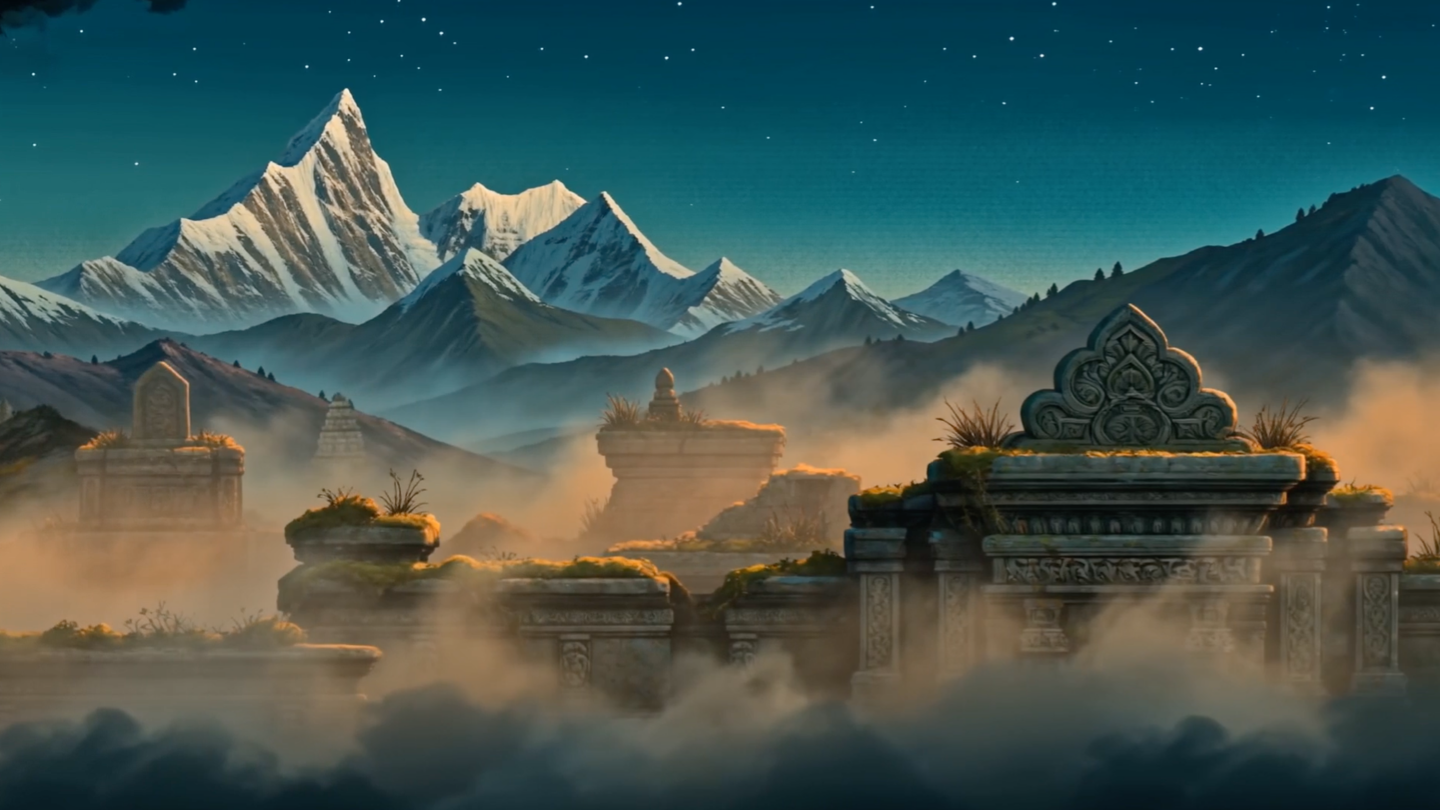
Before: the original mountain environment and foreground architecture establish the motion and composition that should remain stable.

After: the skyline changes to an ancient ruined city while the foreground layout, haze, palette, and camera framing remain recognizable.
These capabilities still have boundaries. Aleph does not lengthen a clip, and it is not the safest choice for moving a subject to a radically different screen position. Edit Studio accepts source clips from 2 to 30 seconds, up to 30 fps, with input resolution up to 1080p. Treat those figures as input limits, not a promise that every difficult edit will remain perfect for the full duration.
Prompt Structure — The Formula That Works
The most reliable Aleph prompt is an editing instruction, not a cinematic paragraph:
[Transformation verb] + [target element] + [specific result] + [what to preserve]
Write the transformation first. Then identify one target, describe the desired result in observable terms, and lock the parts that must not drift.
- Weak: “Make the background look different.”
- Better: “Replace the office background with a minimalist white studio. Keep the subject, camera movement, and body motion unchanged.”
- Weak: “Better lighting.”
- Better: “Relight the scene with warm golden-hour sunlight entering from the right. Preserve the subject's motion and skin tone.”
- Weak: “Change the product color.”
- Better: “Swap the red sneaker for the same model in an all-white colorway. Preserve its position, rotation, shadows, and every background element.”
Avoid stacking unrelated changes in the first attempt. Start with one edit, inspect the full clip, and add a second instruction only after the subject boundary and motion stay stable. If you need more help separating camera, action, and visual constraints, the MiniMax H3 prompting guide offers a useful shot-writing framework.
Prompt Templates by Use Case
Copy these templates, replace the brackets, and remove any preservation clause that does not apply.
Background replacement
Replace the [current background] with [target environment].
Keep the [subject/product], framing, camera movement, and all foreground motion unchanged.
Lighting adjustment
Relight the scene with [light quality and color] coming from [direction].
Preserve subject motion, skin tone, wardrobe color, and the existing shadow shapes on the subject.
Product color or packaging swap
Swap the [current product/version] with [target version].
Keep its position, size, rotation, label placement, reflections, and all background elements unchanged.
Element removal
Remove the [specific element] from [location in frame].
Reconstruct the background naturally and preserve every other object and movement.
Style transfer
Restyle the footage as [specific visual treatment].
Preserve facial identity, performance timing, composition, and camera motion.
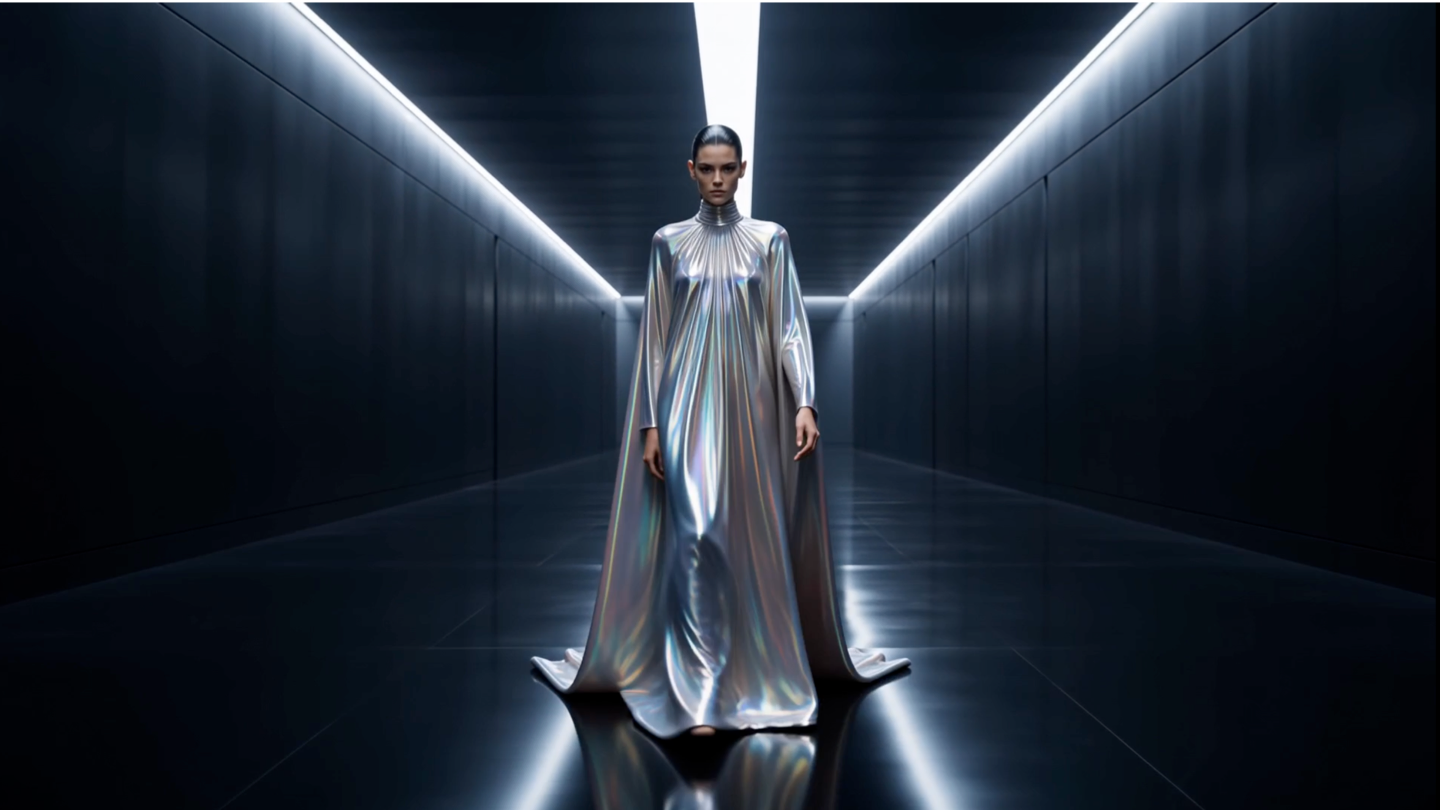
Before: the subject, tunnel, lighting axis, body position, and reflective floor form the preservation anchors.
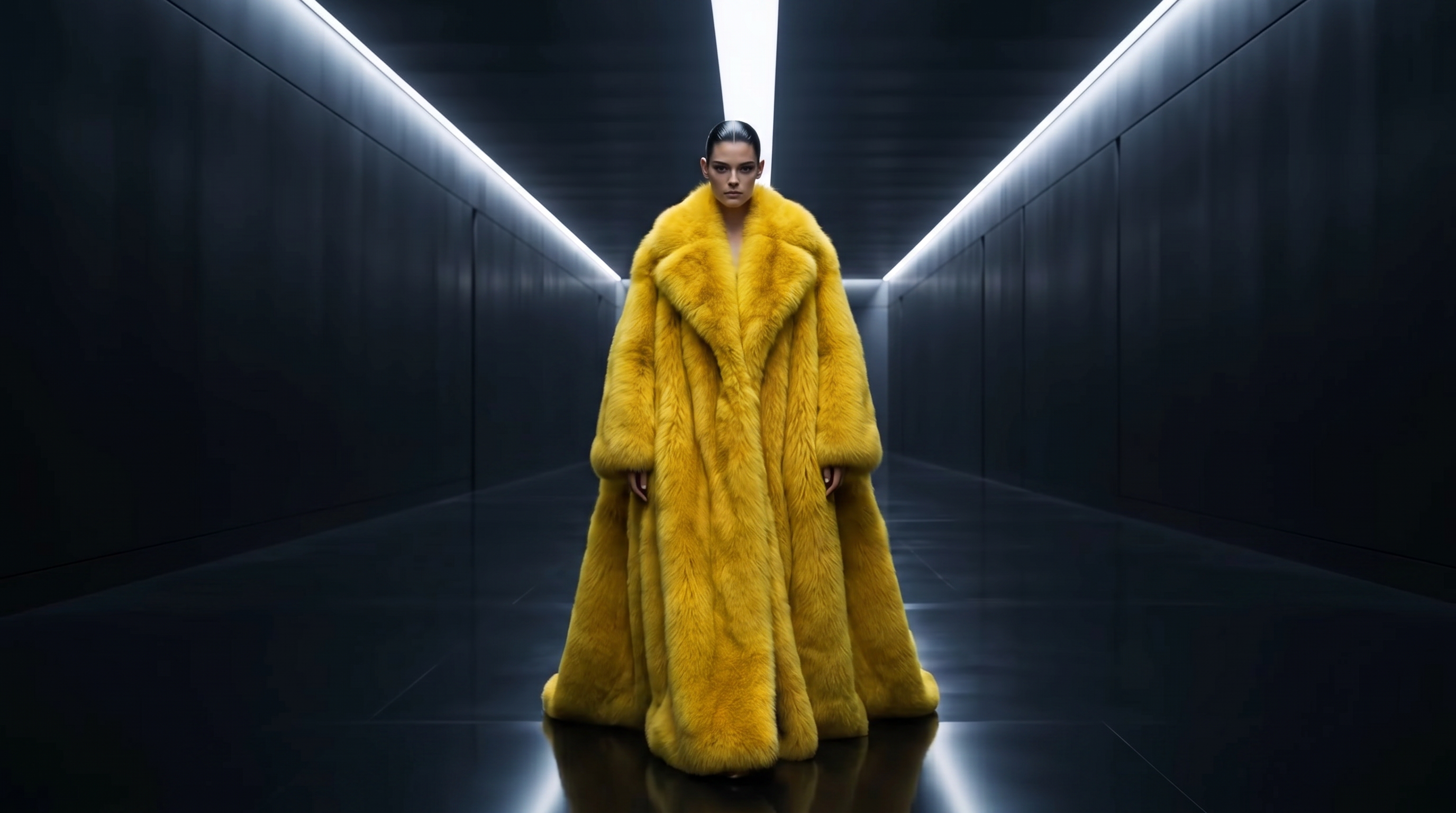
After: the wardrobe changes to a bright yellow fur coat while the subject's identity, central position, environment, and lighting geometry remain consistent.
For edits that introduce motion not present in the source—fire spreading, fabric beginning to move, or an added object entering the frame—use the optional extra-motion instruction. Keep it separate and literal: describe only the new motion that the visual edit requires.
Footage Quality — What Makes Aleph 2 Work Better
Aleph can only preserve details that are readable in the source. Stabilize handheld footage before editing when possible. Use clips with enough light to separate the subject from the background, and avoid frames dominated by motion blur, compression blocks, or fast occlusion. A clean 720p or 1080p input generally gives the model more useful information than a heavily compressed repost.
Run this three-question check before submitting:
- Can you identify the target in every important frame? If it disappears behind another object, expect a visible transition or identity drift.
- Is the requested change localized and testable? “Replace this coat” is easier to judge than “make the entire scene more exciting.”
- Did you say what must remain unchanged? Lock the subject, motion, camera, composition, product geometry, or background—whichever anchors matter to the shot.
For a single continuous shot, begin with one targeted edit. For a multi-shot sequence, use Edit Studio and test a short range first. Check the edit at cuts, fast gestures, reflections, hands, logos, and the first and last frames before processing the full range.
Advanced Workflow — Chaining Aleph with Gen-4 and Seedance
Aleph is strongest as the refinement stage in a larger pipeline.
Creative iteration: generate several concepts with Text to Video or animate an approved frame with Image to Video. Select the shot with the best performance and composition, then use Aleph to replace the background, tune the lighting, or remove a distracting detail.
Product advertising: film a real product move, use Aleph to create approved color or environment variations, and generate supplemental establishing shots separately. Keep labels and legal copy for conventional post-production when exact typography matters.
Campaign localization: reuse one approved performance, then create controlled background, weather, or set-dressing variations for each market. Change one variable per pass so reviewers can identify exactly what caused a drift.
If you are comparing a local generation stage with this managed editing workflow, the LTX 2.5 review explains the trade-off between open-weight control and setup time. For a simpler multi-model creation workspace before the editing pass, start with Seedance.
Conclusion
Aleph 2.0 is a post-production tool, not a blank-canvas video generator. Start with clean footage, use one precise verb—relight, replace, swap, remove, restyle, or add—and state what must be preserved. The best results come from making the smallest controlled change needed for delivery.
Ready to try it yourself?
Put the steps from this guide into practice with Seedance and turn prompts or images into polished videos in minutes.
Free credits on signup. Plans from $28/month.
Related Articles
More posts in the same locale you may want to read next.

Seedance App Preview Video Generator 2026: Create App Store and Product Launch Clips
Use Seedance to turn app screenshots, feature copy, and launch goals into App Store previews, Google Play promo videos, and product launch clips.
Read article
Gemini AI Video Prompt Examples: Copy-Ready Veo Scenes and a Better Prompt Formula
Copy Gemini AI video prompt examples for cinematic motion, product ads, dialogue, and vertical clips, then adapt them with a practical Veo prompt formula.
Read article
How to Keep Product Shape Consistent in AI Video Ads
Lock product geometry, packaging, labels, references, camera angles, and approval checks so AI video ads preserve the real SKU across every shot.
Read article