
Pictory Edit Video Using Text: Cut a Recording From Its Transcript

AI Overview
Can Pictory edit an existing video by deleting text?
Yes. Pictory transcribes an uploaded recording, and deleting words or sentences from that transcript removes the corresponding spoken sections from the video.
Does correcting transcript text change the spoken audio?
No. Pictory says deletions change the video, while other transcript edits affect the subtitles. Correcting a word does not make the speaker say a new word.
What should I check before automatic filler-word removal?
Review every suggested cut in context. Some “um,” repetitions, pauses, and discourse words carry timing, emphasis, or meaning and should remain.
Can I add B-roll and branding after the text edit?
Yes. After the transcript cut, choose Customize Video to continue in the storyboard, where you can adjust visuals, music, scenes, captions, and branding.
Decide What the Transcript Edit Should Accomplish
The Pictory edit video using text workflow is best for spoken recordings: interviews, tutorials, webinars, podcasts, testimonials, and screen presentations. Pictory converts speech into a time-aligned transcript. You search, select, and delete transcript passages, and the corresponding video ranges are removed. This makes rough cutting feel closer to editing a document, but the transcript is still a control surface for time-based media.
Define the deliverable before uploading. A clean full-length lesson needs conservative cuts and natural breathing room. A two-minute highlight needs a clear thesis and can remove complete detours. A social clip needs a fast opening, one self-contained idea, and an ending that does not depend on missing context. Write the target length, audience, format, and one sentence the viewer should remember.
Keep the original recording untouched. Create a source inventory with file name, duration, language, frame rate, audio quality, and any sections that must remain. Note proper names, technical terms, quotations, and numbers that automated transcription may misunderstand. These notes become the acceptance checklist after the first transcript appears.
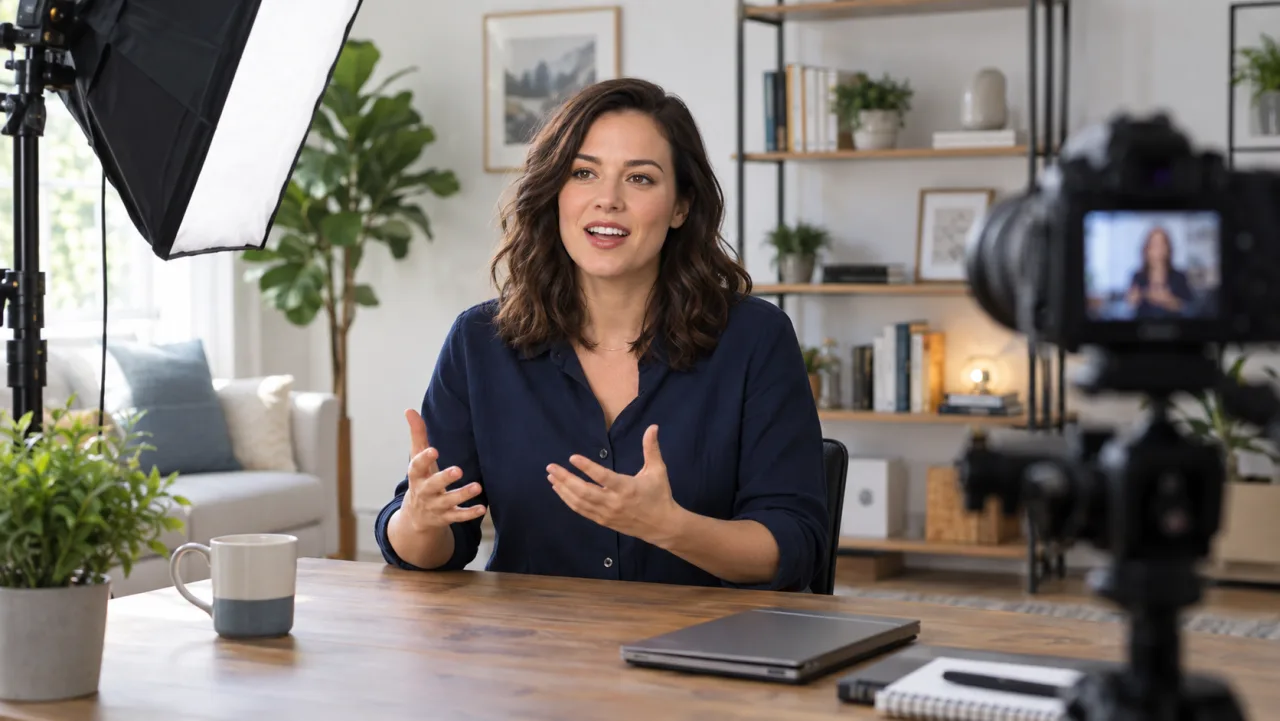
Original illustrative source setup. Clear speech, steady framing, and clean audio give transcript-based editing a more reliable foundation.
If you are generating a new performance rather than shortening an existing recording, begin in the text-to-video workspace. For source footage built from a still, use the image-to-video workflow before assembling the edit.
Upload the Recording and Verify the Transcript
From Pictory's home screen, choose Edit videos with AI and upload the video or audio file. Select the spoken language before transcription; Pictory's official guide recommends changing the default English US setting when the recording uses another language. Processing can continue in the background, and the completed project opens with transcript on the left and preview on the right.
Do not start deleting as soon as the transcript loads. Play the first minute and compare every sentence against the speaker. Then jump to the middle and end to test whether timing remains aligned. Correct names, terminology, numbers, and obvious recognition errors so captions will be accurate. Remember the distinction documented by Pictory: deleting transcript text changes the video, while correcting or replacing words changes subtitle text rather than the underlying speech.
Mark passages before cutting. Use a simple system: keep, optional, remove, and verify. A passage needs verification when the transcript is unclear, the speaker talks over someone else, or the sentence continues across a pause. This review prevents a deletion from removing the beginning of the next idea.

Illustrative review scene, not a Pictory screenshot. Verify transcript accuracy and time alignment before using text selections as edit commands.
Search is useful for repeated phrases, sponsor sections, housekeeping, questions, or a specific topic. It is not a substitute for watching the transitions around each result. A transcript can identify where a word occurs; only playback reveals whether the edit produces a clean visual and audible join.
Make the Rough Cut by Deleting Complete Thoughts
Start with large, obvious removals: setup chatter, repeated explanations, irrelevant tangents, long technical delays, and sections outside the deliverable. Delete complete thoughts whenever possible. Cutting half a sentence may create a grammatical jump, mismatched hand position, or a click in the audio.
Work from the outside in. First remove whole sections, then tighten sentences, and only then consider individual filler words. Preview several seconds before and after each cut. Watch the speaker's mouth, hands, posture, camera framing, room tone, and the rhythm of the conversation. An edit that looks correct in the transcript can still reveal a jump cut or abruptly changing background sound.
Automatic filler-word and silence detection can accelerate review, but accept each suggestion deliberately. A pause can signal a transition. A repeated word can show emotion. “So” or “well” may connect the answer to the question. Remove a filler when it adds no meaning and the surrounding audio joins naturally.
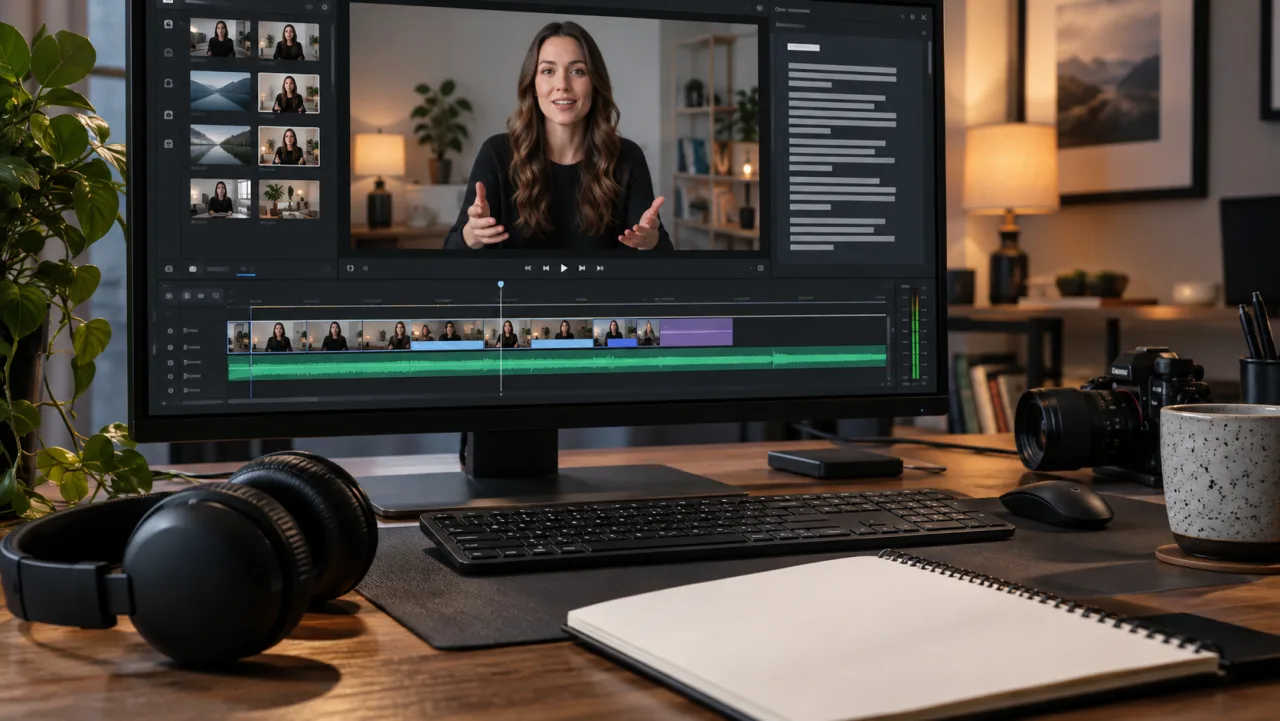
Illustrative text-editing workstation. Treat transcript deletions as real timeline cuts and inspect picture, speech, and ambience around every join.
This is a real Seedance motion example, not a Pictory edit. Use it to practice identifying safe cut points from speech while checking mouth closure, gesture continuity, and room tone.
Keep one duplicate version before aggressive trimming. If the short cut loses logic, compare it with the conservative edit rather than rebuilding from the original transcript. Record the intended final duration, but prioritize comprehension over hitting a number exactly.
Repair Jump Cuts, Captions, and Scene Transitions
Transcript editing naturally creates jump cuts in a single-camera talking head. Some are acceptable and keep educational content energetic. Others feel distracting because the speaker's position changes sharply between adjacent frames. Cover a difficult cut with relevant B-roll, a slide, a screen detail, or a deliberately framed crop. Do not use an unrelated stock shot merely to hide the join.
Choose Customize Video to continue into Pictory's storyboard when the rough cut needs visual work, music, an intro, outro, logo, or other brand elements. Keep the visual connected to the sentence it supports. A product detail should appear while the speaker explains it; a chart should remain long enough to read; a title card should not interrupt the middle of a thought.
Review caption line breaks after all structural cuts. Shorten dense captions without changing meaning, keep names and numbers together, and avoid covering faces or key objects. A corrected subtitle must still match what is audibly said. If the speaker truly says the wrong word, a caption correction alone can create a credibility problem; rerecord or replace the line when accuracy matters.
Check room tone at each deletion. If noise changes suddenly, add a continuous ambience bed or choose a wider cut at a natural pause. Use short audio crossfades when the finishing environment allows them. Listen without looking at the screen: clicks, chopped breaths, and changing background hum are easier to hear when visual motion is not distracting.
Turn the Long Recording Into a Focused Short Version
A summary is an editorial claim about what matters. Choose the single viewer job first: learn a method, understand a result, compare options, or decide what to do next. Keep the minimum context required for that job, then arrange the selected passages into a beginning, middle, and end.
The opening should identify the problem quickly. The body should contain evidence or steps, not several versions of the same point. The ending should resolve the promise and provide a next action. When an interview answer depends on the question, retain the question, add a concise context card, or rewrite the introduction outside the transcript-based cut.
For a vertical social version, verify that reframing does not cut off the speaker or visual evidence. Captions need safe margins and readable duration. For a training module, preserve definitions and caveats even if the result is slightly longer. For a sales highlight, keep claims attached to their proof and remove statements that become misleading outside the original context.
The AI subtitles workflow offers a complementary caption-quality checklist. For a more general continuity review, use the video consistency guide to evaluate identity, camera, motion, and edit transitions together.
Review the Final Storyboard and Export
Watch the complete preview at normal speed without touching the controls. Note confusing jumps, repeated points, missing context, caption errors, irrelevant visuals, music conflicts, and abrupt audio. Then make a second pass focused only on technical defects. Separate story approval from polish so one attractive scene does not hide a broken argument.

Illustrative final review. Approve meaning, cut continuity, caption accuracy, visual relevance, audio joins, branding, and disclosure before rendering.
Pictory's export guide distinguishes Generate Video from Customize Video. Use Customize Video when scenes, media, music, or branding still need changes. Use Generate Video when the review copy is approved and ready to render. After processing, verify the downloaded file rather than assuming the preview and export are identical.
Check resolution, aspect ratio, frame rate, total duration, caption spelling, audio sync, and the first and last frames. Watch the actual file on desktop and phone. Save the transcript or caption export when downstream teams need SRT, VTT, or text, and keep a version note describing every major removed section.
For teams producing several cuts, Seedance Agent can organize source recordings, transcript decisions, B-roll references, approval notes, and output versions. It does not replace editorial judgment, but it prevents a rejected cut or old caption file from quietly returning during a later rerun.
Conclusion
To edit a video using text in Pictory, begin with a clear deliverable, upload the clean recording, select the correct language, and verify the transcript before using it as an edit surface. Remove complete thoughts first, inspect every join in picture and sound, repair visible cuts with relevant coverage, correct captions without pretending they change speech, and review the rendered file on real devices. For a larger content pipeline with multiple source clips, review stages, and social variants, coordinate the production with Seedance Agent.
Ready to try it yourself?
Put the steps from this guide into practice with Seedance and turn prompts or images into polished videos in minutes.
Free credits on signup. Plans from $28/month.
Related Articles
More posts in the same locale you may want to read next.

Seedance App Preview Video Generator 2026: Create App Store and Product Launch Clips
Use Seedance to turn app screenshots, feature copy, and launch goals into App Store previews, Google Play promo videos, and product launch clips.
Read article
15 Faceless YouTube Channel Ideas You Can Make with AI (2026)
15 faceless YouTube channel ideas for 2026, with the format, a sample AI video prompt and difficulty for each, plus how to make them with Seedance AI.
Read article
How to Use Seedance in Claude: MCP Setup and Automated Video Workflows
Use Seedance 2.5 inside Claude: connect the Seedance MCP server, generate videos by chat, batch variations and schedule daily video jobs with Claude scheduled tasks.
Read article