
OpenArt Consistent Character Video Tutorial: Keep One Person Across Scenes
AI Overview
How do I keep the same character in multiple OpenArt videos?
Approve one clean master image, save the person in OpenArt Characters, and reuse that identity in every shot. Start clips from a reference image, then compare the face, hair, and outfit across full videos.
What is OpenArt Multi-View for?
Multi-View turns a master image into additional viewing angles. Keep a front, three-quarter, and profile view so a side shot does not force the model to invent the unseen half of the character.
Should I use text-to-video or image-to-video for a consistent character?
Use Image to Video when identity matters: an approved still anchors the first frame. Let the prompt describe action and camera movement instead of rebuilding the person's face from words each time.
Can I repair a clip whose character has changed?
OpenArt describes Replace Character for swapping in a saved identity while retaining motion. Review the whole repaired clip, especially hands, hair edges, occlusions, and the transition into adjacent shots.
Define a Character That Can Survive a Scene Change
An OpenArt consistent character video starts before generation. Decide which details make the person recognizable, which can change for the story, and which must remain stable from shot to shot. A useful identity contract names face shape, hairstyle, skin tone, age range, distinctive accessories, body proportions, and a default outfit. Keep the description of the fictional person separate from the description of the room. If the person enters a different location, only the location, lighting, action, and camera job should change.
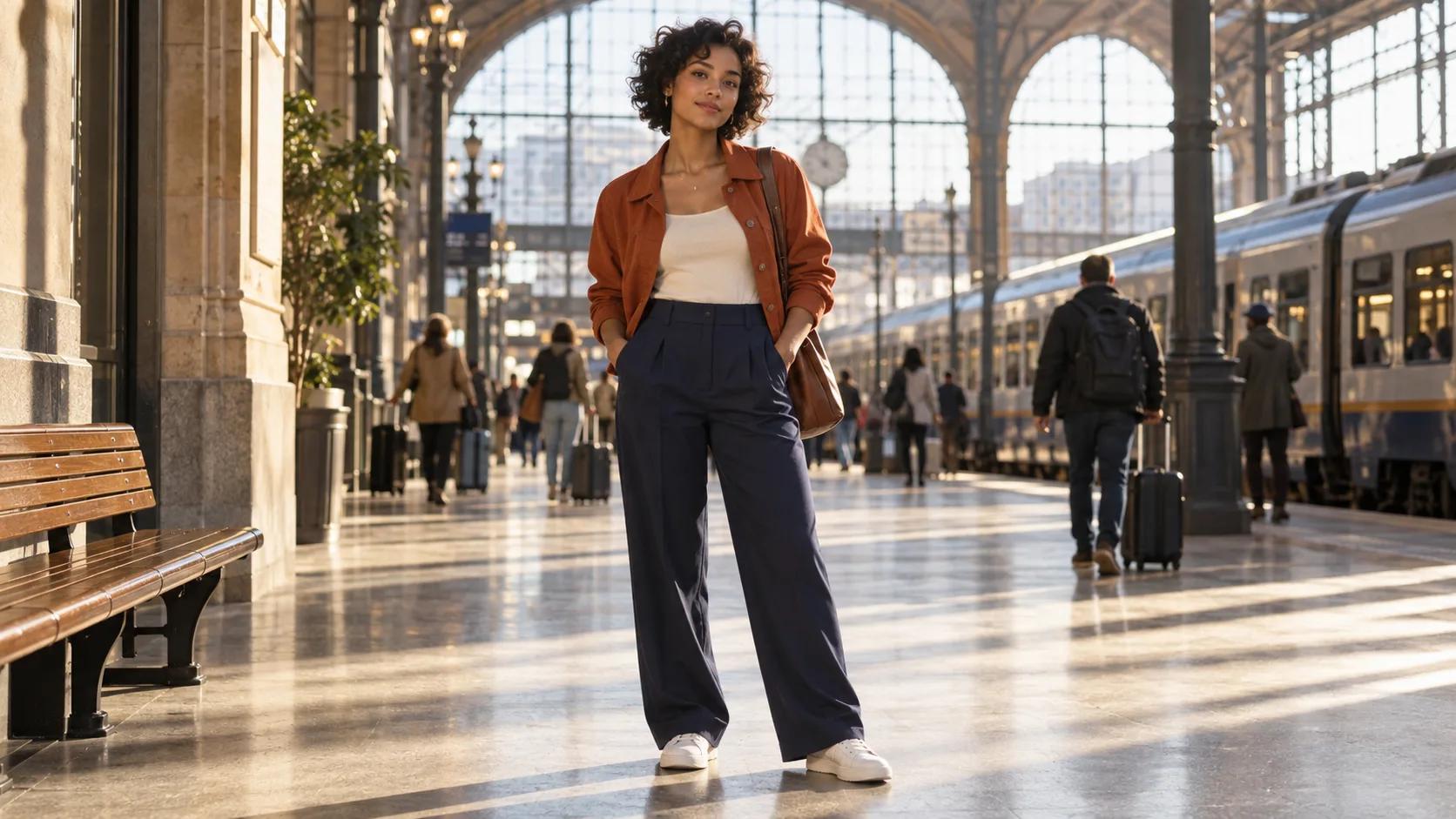
The editorial character illustrated here wears a rust jacket, cream top, and navy trousers. Those simple anchors make a station shot and a bookshop shot easier to compare. The images are newly created planning stills, not screenshots from OpenArt and not proof that OpenArt generated a matching video. Their purpose is to make the evaluation contract visible. A more complex costume can work, but stripes, tiny jewelry, logos, and thin eyeglass frames add details that a moving model may reinterpret.
Write a short rule card before opening the generator: “Same adult woman, short dark curls, rust jacket, cream top, navy trousers, natural face proportions. Background and action may change; face, hair, outfit, and body scale may not.” If a new shot needs a coat or different hairstyle, call it a deliberate wardrobe change and document the exact transition. Otherwise, an editor cannot tell an approved story change from accidental drift.
This page covers the hands-on character workflow. If your actual task is connecting OpenArt to an agent through MCP, use the separate OpenArt MCP setup guide; if you are deciding between platforms, the Seedance and OpenArt comparison owns that decision rather than this tutorial.
Make One Master Reference and an Angle Set
OpenArt's published walkthrough recommends beginning with a clean, front-facing master image: even lighting, neutral expression, simple background, and a visible outfit. This is not the most dramatic picture. It is an identity record. A shadow across the face or a cropped jacket makes later matching harder because the model must guess what the reference hides. Save the approved original and do not quietly replace it halfway through a project.
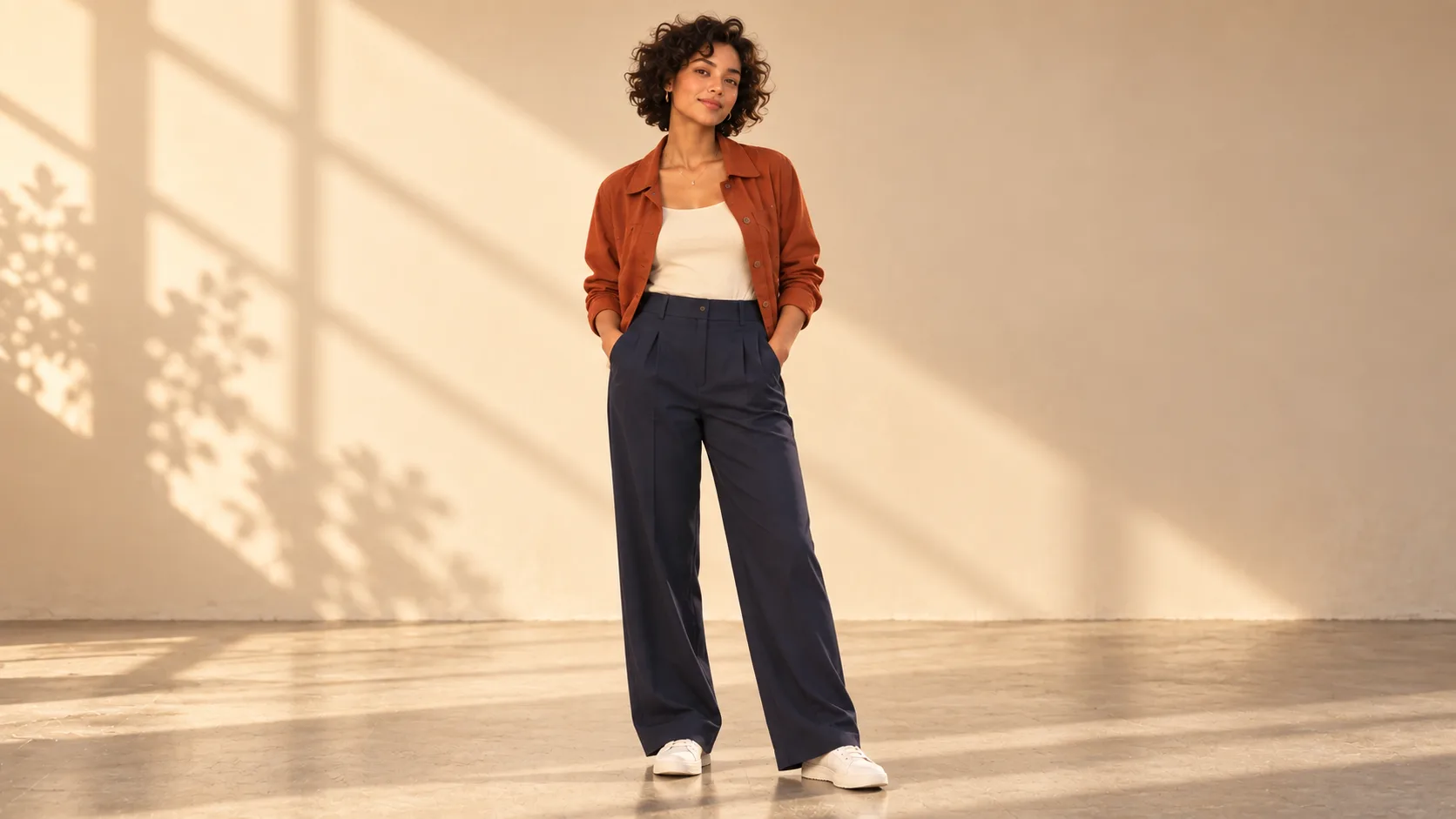
Original editorial illustration. The neutral pose makes face, hair, outfit, hands, and body scale easy to inspect; it is not an OpenArt output.
OpenArt describes Multi-View as a way to derive nine angles from the master, initially as a grid and then as separate images. Keep the front, three-quarter, and profile views in a clearly named folder. Check them yourself before using them: a profile that changes the nose or hairline is not a valid anchor just because it came from the same tool. A shot turning toward camera needs an angle that can plausibly bridge the first and final pose.
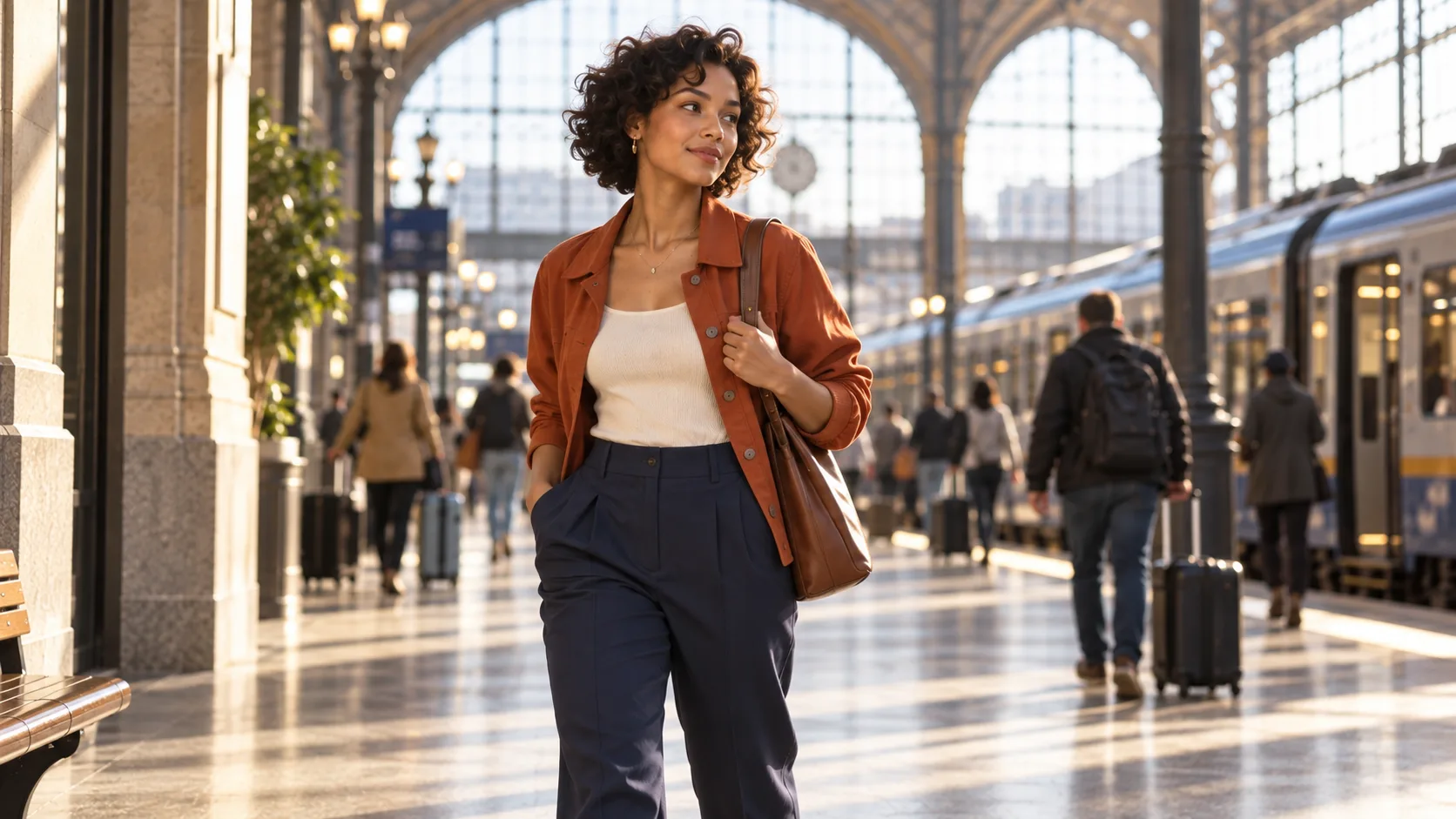
Original editorial illustration of the angle you should validate before animating. Compare face shape, curls, rust jacket, and proportions with the master.
Choose one approved reference per camera angle and store its filename with the shot. Conflicting references can make the target ambiguous. For more on still-image anchors, see the Seedance image-to-video workflow.
Save the Character, Then Animate Short Shots
Save the approved person in OpenArt Characters instead of rebuilding them from a fresh text prompt for every scene. OpenArt's character feature describes creation from a prompt, a reference image, or guided presets, then reuse in images and video. Its guidance also describes calling a saved character by an @name tag where that interface supports it. Verify the exact control in the current tool and model; saving an identity is a workflow aid, not a promise that every generated frame will match.
For the first moving test, use Image to Video with the master or an approved scene still as the starting frame. Keep the action modest: turn toward a doorway, take two steps, pause, and look back. Ask for a stable medium-wide frame and preserve face, curls, rust jacket, cream shirt, navy trousers, and body scale. The motion prompt should not re-invent the entire person. OpenArt suggests short clips around five to eight seconds for this kind of first test; treat that as a practical starting range, then adapt to the model's current settings and your scene.
Here is a reusable prompt contract: “Use the saved adult character and the approved front-facing reference. In the station concourse, she takes two natural steps toward the window, turns her head slightly to camera, and holds for one beat. Gentle fixed camera, natural daylight, continuous face and outfit, realistic hands and feet. No identity swap, extra person, costume change, abrupt zoom, or cut.” The negative clauses flag failures for review; they cannot guarantee a clean result.
Generate the low-motion shot first. If the person changes during an easy head turn, a chase scene will not solve the identity problem. Approve one moving baseline, record its model, settings, reference, prompt version, aspect ratio, duration, and accepted take, then increase complexity one variable at a time. The reference-to-video workflow is useful when motion guidance is licensed and the exact movement matters more than a new text description.
Plan the Same Person Across Several Scenes
The hard part of an OpenArt same character across scenes workflow is not recognizing a face in one still. It is retaining identity when the room, pose, angle, and light change. OpenArt's walkthrough names Smart Shot for a storyboarded sequence and Director for longer multi-scene work with saved characters and settings. A storyboard does not remove the need to inspect every generated cut; it gives you a place to define what should stay constant.
Use a shot contract rather than a long paragraph of mixed instructions:
| Shot | Change allowed | Identity anchor | Approval check |
|---|---|---|---|
| Station introduction | Static camera, small head turn | Master front view | Face, curls, jacket, hands remain stable |
| Bookshop action | New room and hand movement | Three-quarter view plus saved character | Same person after reaching behind an object |
| Outdoor platform | New light and wider framing | Approved profile or three-quarter view | Face and outfit still match both earlier shots |

Original editorial illustration of an intended scene change. A new room should not silently produce a new person.
Keep an approved start frame, angle, one action, and a finish that connects to the next clip. A deliberate outfit change needs an explicit transition; a different face fails review.
When planning several deliverables, separate identity continuity from location continuity. A person can remain the same while a bookshop mysteriously gains new shelves, or a room can stay stable while the face changes. The consistency evaluation guide gives a broader pass/fail lens for these distinct failure modes.
Review and Repair Drift in Moving Footage
Inspect actual motion at normal speed, not only thumbnails. Pause at the first, middle, and last frame; then scrutinize the moment the face turns, a hand crosses the body, or another object covers part of the person. Compare adjacent shots side by side. Look for a changed eye spacing, hairline, skin tone, jacket cut, trouser color, height, or a hand that comes out of an occlusion with extra fingers. A still may look convincing even when a one-second identity swap makes the sequence unusable.

Original editorial end-scene illustration. Check it against the station and bookshop images for identity, clothing, and scale before considering movement.
The clip below is an existing real moving Seedance media-library example for inspecting face and lip motion. It is not an OpenArt generation, a multi-scene character test, or evidence that the illustrated woman can be reproduced in motion. It demonstrates why a moving deliverable needs full-clip review rather than a poster-only judgement.
Review the complete motion, including face and mouth timing; this independent sample is not an OpenArt benchmark.
Use a three-way decision: pass when the same person and outfit remain legible through the full shot; repair when one local region or transition fails but the action is valuable; reject when face, body, or scene drift affects most of the clip. OpenArt documents Replace Character as an option for a moving clip whose identity is wrong. Apply the saved character, then check the replacement through motion, occlusions, lighting, hands, and the cut into neighboring shots. If the correction introduces new artifacts, it is not a pass.
Organize Approved Takes With Seedance Agent
Once the references and shot contracts are set, the production job becomes coordination. Keep the master, accepted angles, permitted costume variants, prompt versions, model settings, approved clips, and rejection notes together. Seedance Agent can help plan the shot order, keep references attached to the right scenes, review generated takes, and rerun only the weak shot instead of restarting a whole story. It does not make an OpenArt output automatically reproducible; use the same identity acceptance checks regardless of the model or platform used for a shot.
Before assembly, compare the first and last frames of neighboring clips, then watch the complete piece with sound. Record why each take passed. If one action changes later, keep approved shots and replace only the affected clip.
Conclusion
Consistent character video is an approval process, not a magic prompt. Build one clean master in OpenArt, validate the angle set, save the character, animate short reference-led shots, plan each scene's allowed changes, and judge the moving sequence for face, hair, wardrobe, hands, and transitions. Repair local drift when it preserves the story; reject footage whose identity no longer matches. When those references, takes, and decisions become difficult to track, organize and finish the sequence in Seedance Agent.
Ready to try it yourself?
Put the steps from this guide into practice with Seedance and turn prompts or images into polished videos in minutes.
Free credits on signup. Plans from $28/month.
Related Articles
More posts in the same locale you may want to read next.

Seedance App Preview Video Generator 2026: Create App Store and Product Launch Clips
Use Seedance to turn app screenshots, feature copy, and launch goals into App Store previews, Google Play promo videos, and product launch clips.
Read article
15 Faceless YouTube Channel Ideas You Can Make with AI (2026)
15 faceless YouTube channel ideas for 2026, with the format, a sample AI video prompt and difficulty for each, plus how to make them with Seedance AI.
Read article
How to Use Seedance in Claude: MCP Setup and Automated Video Workflows
Use Seedance 2.5 inside Claude: connect the Seedance MCP server, generate videos by chat, batch variations and schedule daily video jobs with Claude scheduled tasks.
Read article