
OpenArt MCP Video Agent Setup: Connect, Generate and Review Real Outputs
AI Overview
What is the OpenArt MCP video agent setup?
It connects an MCP-compatible assistant to one hosted OpenArt server. The assistant plans the request; OpenArt generates and saves the result to your library.
What server URL do I add?
Add https://mcp.openart.ai/mcp as a remote Streamable HTTP server, then complete browser OAuth. No separate API key is required.
Can OpenArt MCP generate video from an image?
Yes. Use an accessible image URL or supported upload, then specify motion, camera, duration, aspect ratio and what must remain unchanged.
Should I use MCP or the OpenArt CLI?
Use MCP for conversational planning. OpenArt recommends its CLI for terminal-first agents such as Codex or Claude Code and repeatable batch work.
What OpenArt MCP Adds to a Video Agent
Searchers looking for an OpenArt MCP video agent setup usually do not want another definition of MCP. They want the connection string, the authorization flow, a first prompt that actually invokes the tool and a way to tell whether the returned video is usable. The central split is simple: your assistant holds the conversation and production context, while OpenArt exposes generation tools, available models, account credits, projects and saved library assets.
The current hosted endpoint uses OAuth, so there is no OpenArt API key to create, store or rotate for the connector. Once authorized, the agent can ask what models are available, choose a suitable image or video workflow, start a generation and return the result to the conversation. Completed work also remains in the connected OpenArt library, which matters when a later shot needs the same reference rather than a freshly uploaded copy.
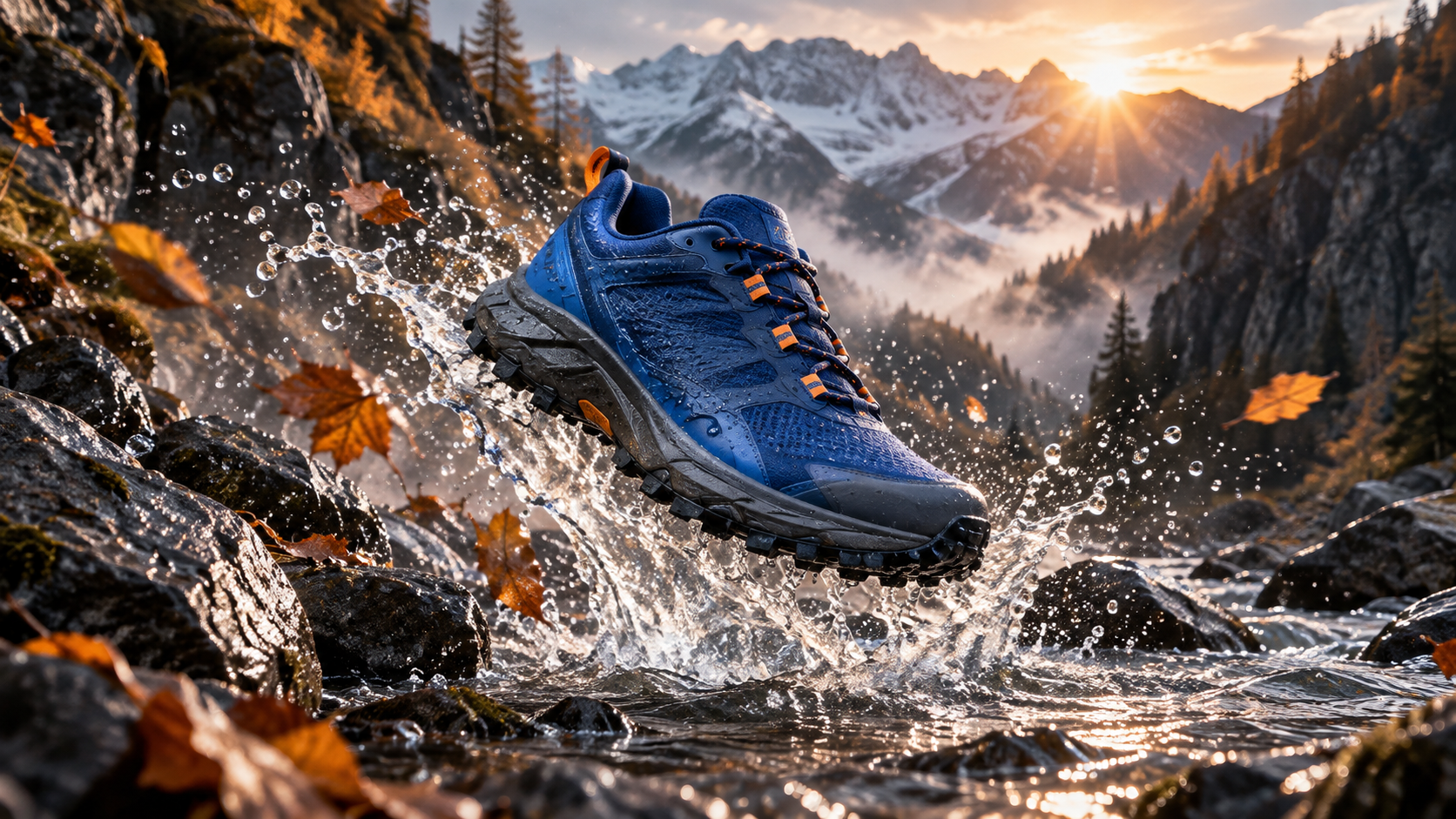
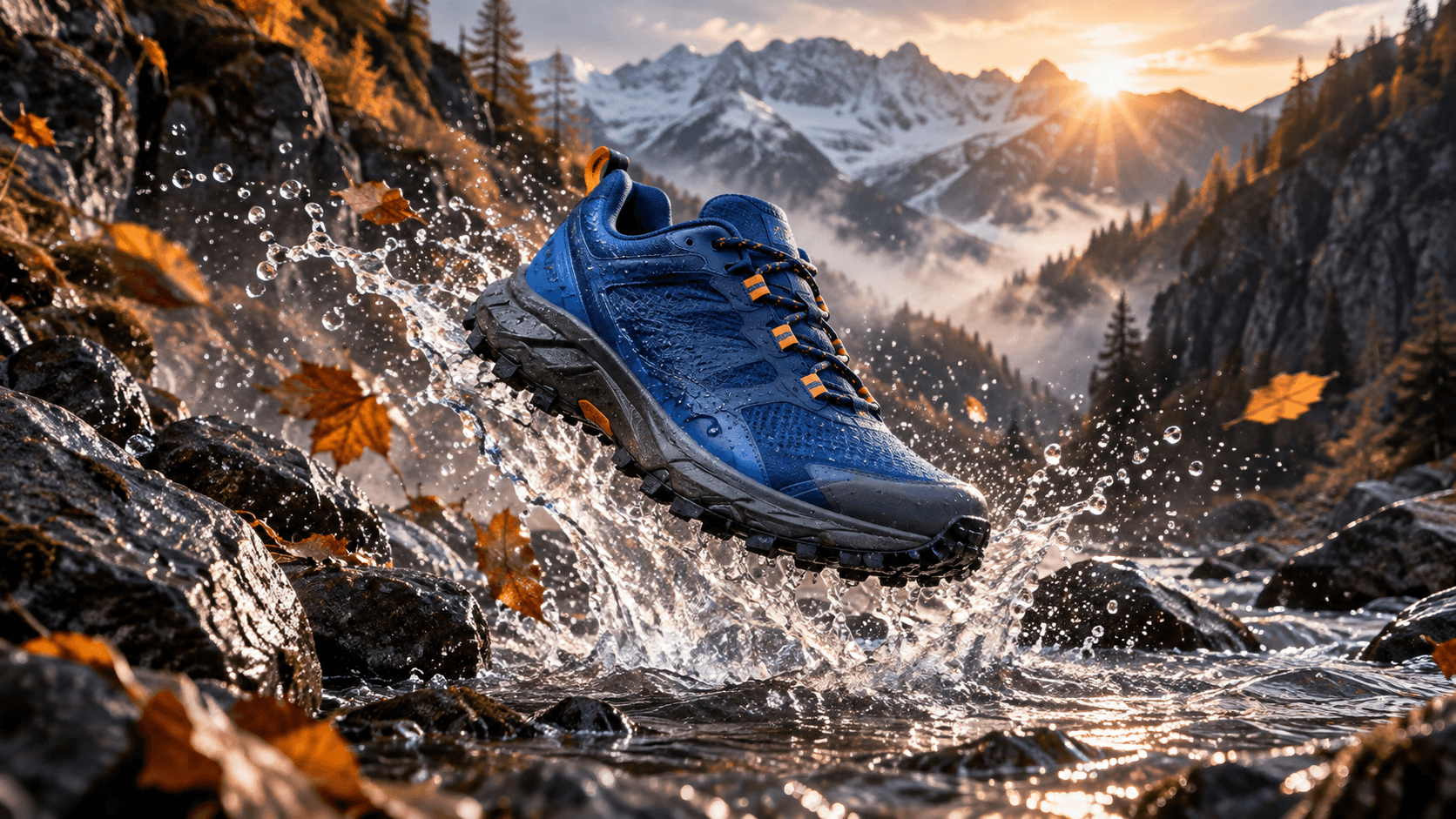
A finished-output concept for this guide. Shoe geometry, cobalt mesh, orange lace loops, black sole, water and alpine dawn form the continuity anchors.
Connect OpenArt MCP to Your Client
1. Choose the correct connection route
In a client that supports custom MCP servers, open its connector or integrations settings and add a new remote server. Name it OpenArt and use Streamable HTTP when the transport must be selected. Paste the official server URL exactly:
{
  "mcpServers": {
    "openart": {
      "url": "https://mcp.openart.ai/mcp"
    }
  }
}
Cursor uses an mcp.json-style configuration. Claude’s supported consumer clients can use a custom connector screen. ChatGPT’s current OpenArt route may be presented as a published plugin rather than a manually entered custom server, so follow the installation surface shown in that account instead of forcing the JSON route everywhere. Managed team workspaces may require an owner or admin to approve the connector first.
2. Authorize the correct account and workspace
Save the connector, choose Connect or Needs login and complete the OpenArt sign-in in the browser. Check the account and workspace before approving. Generations use that account’s credits and are written to its library, so authorizing a personal account for a team campaign creates a tracking problem even when the tool technically works.
Return to the client and ask the agent to list OpenArt capabilities or check the connected credit balance. This is a read-only smoke test. It proves the agent can call the intended server without spending on a render. If the tool does not appear, restart the conversation or client, confirm the connector is enabled for that chat and name OpenArt explicitly in the next request.
3. Use the CLI for terminal-first automation
OpenArt’s current setup page recommends the CLI for Codex and Claude Code. That route is better when outputs must land in a known directory, prompts belong in scripts or many variations need repeatable filenames. Install only from the current official repository instructions, then sign in with openart login. Do not paste an account token into shell history.
Run a Safe First Video Test
Ask for a tool call, not an explanation
Some clients can answer a generation request from their own native image tools unless the external connection is explicit. Start with “Use OpenArt” or activate the OpenArt plugin/connector before the prompt. Ask the agent to confirm the model, duration, aspect ratio and estimated credit use before generation when those details are uncertain.
For the trail-shoe sequence, use a bounded request:
Use OpenArt to create one five-second 16:9 product video from this shoe image. Preserve the cobalt mesh, charcoal sole and orange lace loops. Begin with the shoe suspended above a shallow alpine stream, then land it on wet black rock as water splashes outward. Use a low tracking camera, realistic outdoor light and no text or logo. Show the final prompt, model and settings before spending credits.
The request identifies the provider, the deliverable, a reference role, continuity anchors, motion, camera and negative constraints. It also creates an approval boundary. The agent can improve wording, but it should not silently change the product color, add copy or extend the duration.
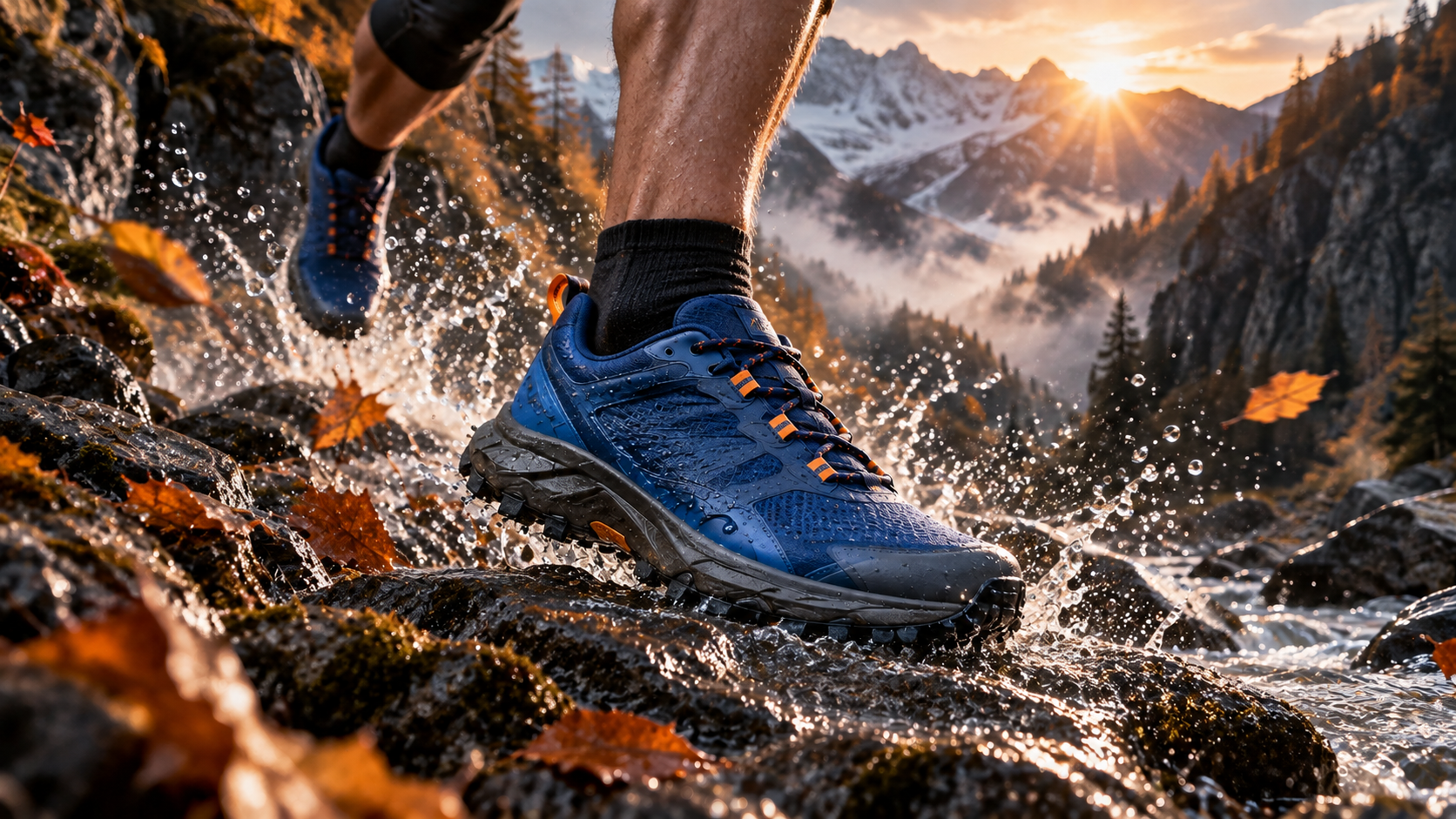
The action frame changes pose and energy while the sole, upper, lace color and alpine environment remain readable.
An existing Seedance Agent output from our media library, not an OpenArt benchmark. Inspect product geometry, camera intent and edit rhythm.
Build Repeatable Image-to-Video Instructions
Give every reference one job
A reference image can define identity, product geometry, environment, composition or style. Say which one. “Use this image” is ambiguous when the frame contains a runner, shoe, mountain, leaves and sunrise. For this example, the shoe is the protected product reference, the gorge is the location reference and the runner’s movement is described in text. The agent should not treat the original framing as immutable unless you say so.
Use an accessible direct image URL when the MCP client cannot pass an attachment through to the tool. A webpage URL is not necessarily an image file. If the client offers an OpenArt upload widget, confirm the uploaded asset appears in the connected library before asking for generation. Never turn a private customer asset into a public URL merely to make the connector convenient.
The image-to-video workspace is useful for a direct baseline: animate the same reference with one restrained move, then compare whether the agent layer improved planning or only added words. The text-to-video workspace is the better control when you want to test whether the concept survives without any visual anchor.
Lock the shot before requesting variants
Approve one representative shot before asking for four versions. Store the accepted prompt and invariants, then vary one dimension at a time: camera distance, speed, ending pose or lighting. Random variants make it impossible to know which change improved the result and can spend credits faster than a deliberate second draft.
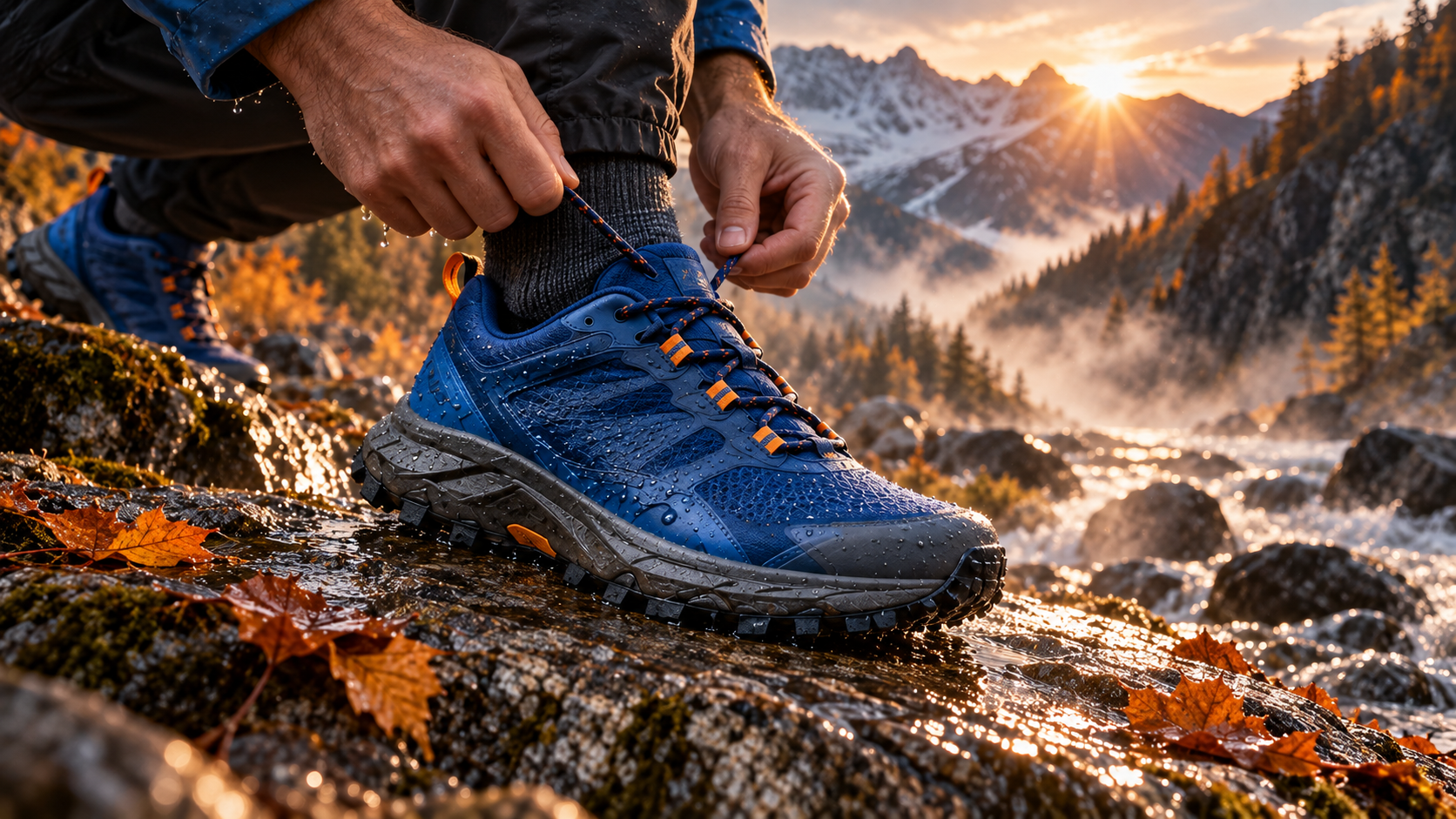
A detail shot tests whether the connector’s next prompt preserves material, lace layout and product proportions under hand interaction.
Review Results, Credits and Library State
Separate connection success from output success
A healthy response should identify the requested model or chosen recommendation, return a completed asset rather than only a task ID, and save the result to the expected OpenArt account or workspace. If generation remains pending, let the tool poll normally rather than sending the same paid request again. If authorization expires, reconnect before changing the creative prompt.
Watch every video at normal speed first. Then inspect the opening, highest-motion moment and final frame. For a product ad, reject mutated tread, shifting lace holes, duplicated shoes, impossible foot contact or a camera move that hides the product. For people, add identity, hands and body mechanics. For audio, listen for sync and a clean ending. Save the specific rejection reason with the take.
Credit use belongs in the acceptance record. OpenArt says MCP generations use the same account credits as generation on its site, with cost depending on model and settings. Check the current estimate rather than copying an old price. The multi-model AI video workflow shows how one acceptance checklist survives a model change.
An existing Seedance editorial output, not an OpenArt speed test. Use it to practice a concrete accept-or-reject review.
When Seedance Agent Fits the Production Job Better
OpenArt MCP is useful when you want one connection to a broad model catalog and an OpenArt-centered asset library. The remaining friction appears when a job expands into a campaign: the brief must become several shots, references need roles, stakeholders need an approval point, outputs require comparison and only the failed shot should be rerun.
Seedance Agent is designed around that production layer. Provide the audience, offer, destination, reference assets, shot constraints and acceptance rules; review the proposed script and shot plan before paid generation; then evaluate finished outputs together. The agent can keep the reasoning about model choice, continuity and reruns attached to the campaign rather than scattered across connector tests.
For product work, the product ads workflow gives a direct route to generation, while the Higgsfield MCP AI video agent guide provides another example of judging an agent by the work it completes rather than the novelty of its connection. Choose OpenArt MCP for OpenArt library access and cross-model experimentation. Choose Seedance Agent when coordinated planning, approvals and selective reruns are the main cost.

The closing wide frame tests the hardest continuity condition: the protected product must remain recognizable while the subject becomes smaller and motion expands.
Troubleshoot without burning credits
If the server is missing, confirm the client supports remote Streamable HTTP MCP and enables the connector for this chat. If login loops, reconnect the intended OpenArt account and workspace. If the agent explains but never calls a tool, name OpenArt explicitly and request a read-only capability check first.
If an image reference fails, use a direct accessible image file or the client’s supported upload flow. If the wrong model is selected, name it or provide image-to-video, audio, duration and resolution constraints. If results save to the wrong library, stop and correct workspace authorization before another paid run.
Record the client, connection method, requested model, prompt, reference identifier and exact error. That evidence separates authentication and routing failures from creative-quality problems.
Conclusion
A reliable OpenArt MCP video agent setup has four proofs: the client reaches the hosted MCP server, OAuth connects the intended account and workspace, a read-only capability check succeeds, and one bounded video request returns a reviewable asset in the expected library. From there, assign each reference one job, require model and cost visibility before paid generation, preserve accepted settings and change one variable per revision. When the work grows beyond a single connector call into a multi-shot campaign, start with Seedance Agent to keep briefing, shot planning, approvals and continuity checks together.
Ready to try it yourself?
Put the steps from this guide into practice with Seedance and turn prompts or images into polished videos in minutes.
Free credits on signup. Plans from $28/month.
Related Articles
More posts in the same locale you may want to read next.

Seedance App Preview Video Generator 2026: Create App Store and Product Launch Clips
Use Seedance to turn app screenshots, feature copy, and launch goals into App Store previews, Google Play promo videos, and product launch clips.
Read article
How to Make a Talking AI Avatar You Can Reuse
Make a talking AI avatar with Seedance: design one consistent character, give it a voice, and make it speak in a talking photo or a full Seedance 2.5 scene, episode after episode.
Read article
Best AI Video-to-Video Models in 2026
The best AI video-to-video models in 2026 for editing footage you already shot: Higgsfield Genjutsu, Seedance 2.x, Runway Aleph, Luma Modify and Kling Omni compared.
Read article