
AI Overview
What is the MiniMax H3 two-stage workflow?
It builds motion, composition, and sound on a smaller first-pass canvas, then enlarges the H3 latent and runs a low-noise second pass to reconstruct high-resolution detail.
Is it faster than generating directly at high resolution?
Usually for iteration, because the first pass is cheaper. The refinement pass still approaches the target resolution, so peak VRAM and total time depend on scale, duration, and offloading.
Does the second stage preserve MiniMax H3 native audio?
It can. A compatible H3 latent upscaler carries the audio latent forward and lets you lock it or lightly polish it; excessive audio denoise can replace or garble the soundtrack.
Who should use this workflow?
It suits ComfyUI users who need sharper H3 output, faster drafts, or a low-VRAM route and can check identity, motion, and audio between the two passes.
What the MiniMax H3 Two-Stage Workflow Actually Does
A MiniMax H3 two-stage workflow separates creative decisions from detail reconstruction. Stage one solves motion, camera travel, timing, and native audio on a modest canvas. Stage two enlarges that approved latent and samples the lower-noise trajectory, rebuilding texture without inventing a new performance.
Stage 1: lock motion, composition, and audio
Start with a short, measurable shot and fix the prompt, seed, duration, frame rate, and references. A smaller canvas makes failed camera or hand motion cheaper to find. Review the whole clip and reject bad motion before refinement.
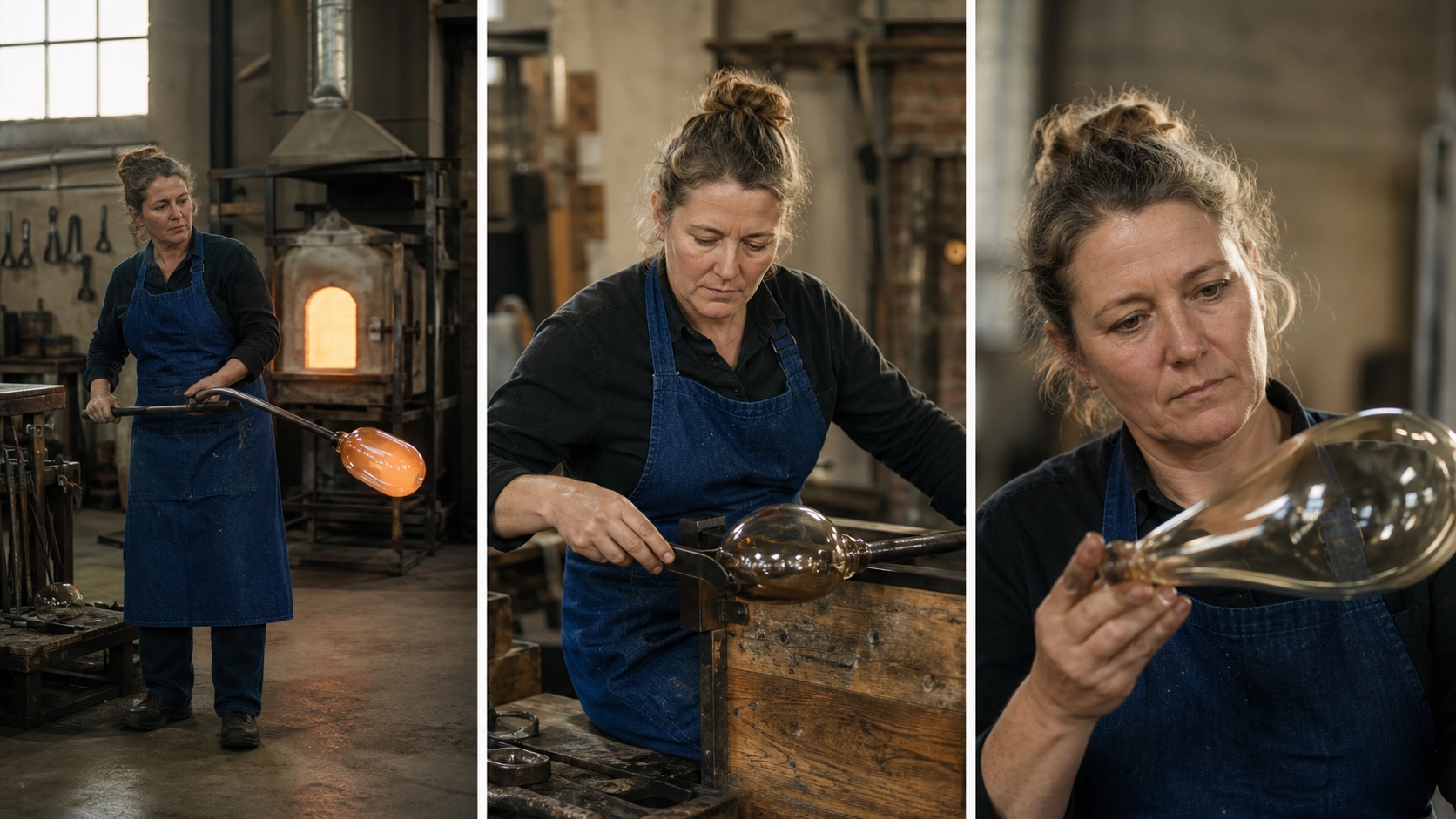
A useful first pass keeps the same person, apron, workshop, tool, and glass form recognizable as the shot moves from wide action to close detail.
Stage 2: upscale and reconstruct detail
Feed the first sampler's denoised output into an H3-compatible latent upscaler. Update conditioning to the new dimensions, add only enough noise for detail, and run the second sampler over lower sigmas. Decode after refinement to preserve structure while resolving microtexture.
Two-stage sampling vs direct rendering vs pixel upscaling
| Method | Best use | Main advantage | Main risk |
|---|---|---|---|
| Direct target-resolution render | Final shots on capable hardware | One sampling path | Expensive failed attempts |
| H3 latent two-stage workflow | Approved motion needing more detail | Rebuilds detail before decode | Too much re-noise can change identity or audio |
| Post-decode pixel upscale | Stable shot that only needs a larger delivery file | Predictable motion preservation | Cannot recover every missing semantic detail |
For quick visual experiments without a local graph, test the same shot structure in the Seedance image-to-video workflow, then compare motion and usable detail rather than resolution labels alone.
What You Need Before Importing the Workflow
Models, encoders, and VAE files
Begin with a MiniMax H3 workflow that already renders correctly. Confirm the checkpoint or quantized model, text encoder, VAE, and model paths. Save that graph separately as your rollback path.
Required custom nodes
Use an upscaler designed for H3's packed video-and-audio latent, not a generic image node. The first sampler must expose denoised output, the upscaler must carry audio, and stage two must accept rebuilt conditioning. Resolve every missing node before testing.
Hardware planning
Two stages reduce the cost of bad drafts; they do not guarantee lower peak memory. The refinement pass still processes the enlarged latent. VRAM, system RAM, precision, offloading, duration, and target canvas all matter. Make the first test short and leave disk space for models, latents, and decoded frames.
If one project mixes hosted and local generation, the multi-model AI video workflow shows how to route shots by cost, control, and production risk.
How to Build the Two-Stage ComfyUI Graph
Start with a known-good H3 baseline
Run the unmodified text-to-video, image-to-video, or reference-to-video graph first. Use one subject, action, camera instruction, and sound condition. Record the seed, dimensions, frame count, sampler, precision, and render time. If this baseline fails, a refiner will only hide the cause.
Connect stage one to the latent upscaler
Route the first sampler's denoised output, not a decoded image, into the H3 latent upscaler. Use dimensions supported by the graph and begin with a modest scale increase so motion preservation is easy to judge.
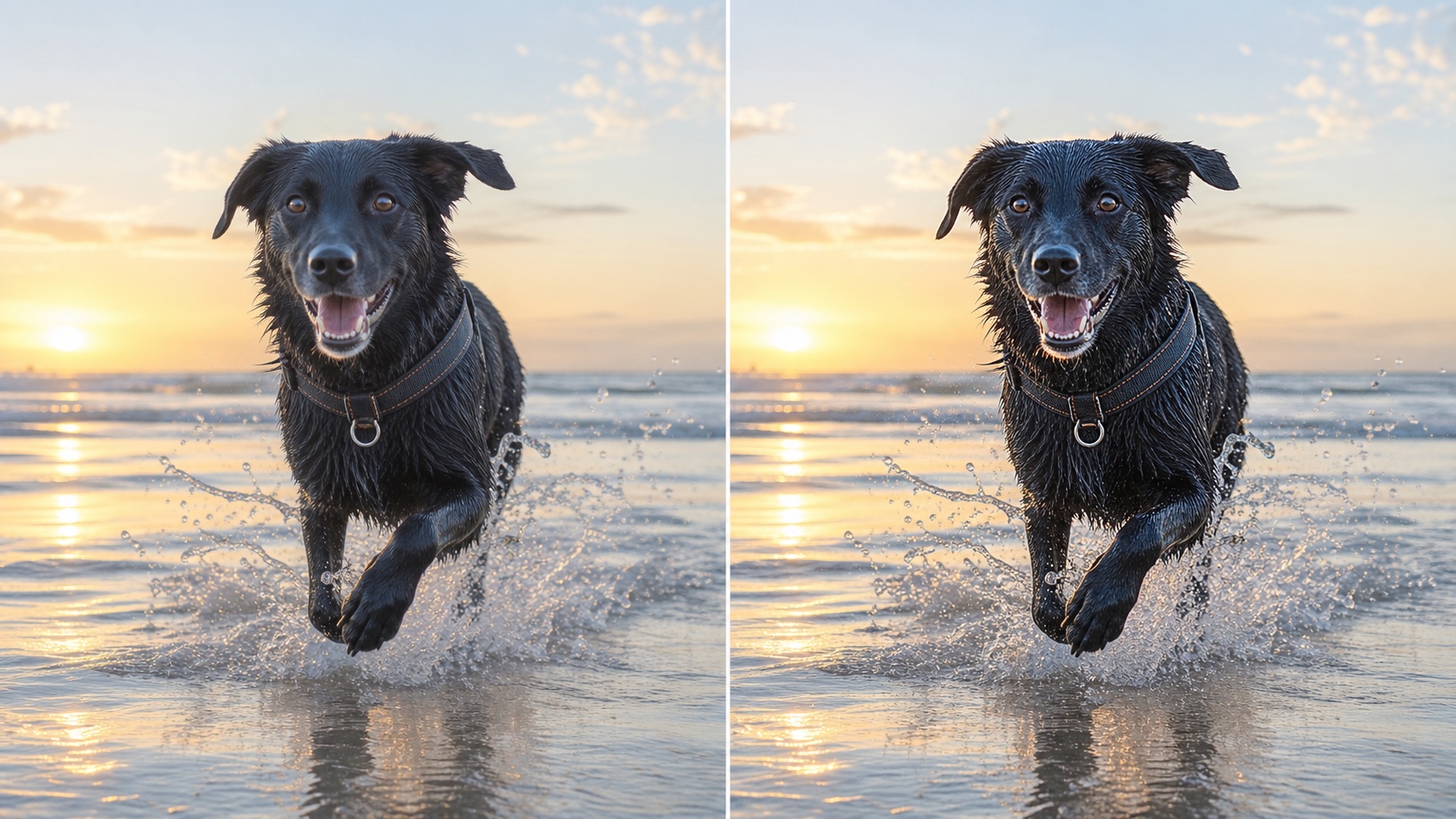
The right side should add fur strands, water structure, and surface texture without changing the dog's pose, silhouette, expression, or sunrise lighting.
Rebuild conditioning for the new canvas
Scale image or reference conditioning to the second-stage dimensions. A size mismatch can warp faces, shift framing, or reinterpret the subject. Keep reference strength conservative, increasing it only if identity still drifts.
Run the low-sigma refinement pass
Connect the enlarged latent to a second sampler with external noise disabled and a lower-noise sigma range. Test the split instead of copying a universal number. Decode with the compatible VAE and save video plus audio together. The MiniMax H3 AI agent skill guide shows another way to organize references and timing.
Best Settings for High Resolution, Speed, and Native Audio
Choose the base canvas and scale factor
The base canvas must define faces, hands, and small objects while keeping rejected drafts inexpensive. Start near a proven H3 resolution, then test one moderate scale step. Distant faces may need a larger base canvas, so do not judge the setting from one easy shot.
Split steps and sigma deliberately
Higher-noise sampling determines layout and motion; lower-noise sampling resolves texture. If stage two changes limbs or camera direction, begin refinement later or reduce denoise. If it adds almost nothing, expose slightly more of the lower-noise trajectory. Change one parameter per test.
Lock, polish, or remix audio
Treat audio as a deliberate branch. Use audio_denoise at zero when stage one already has usable dialogue, ambience, or music. A light amount can polish texture; a strong value may create gibberish, timing changes, or different room tone.
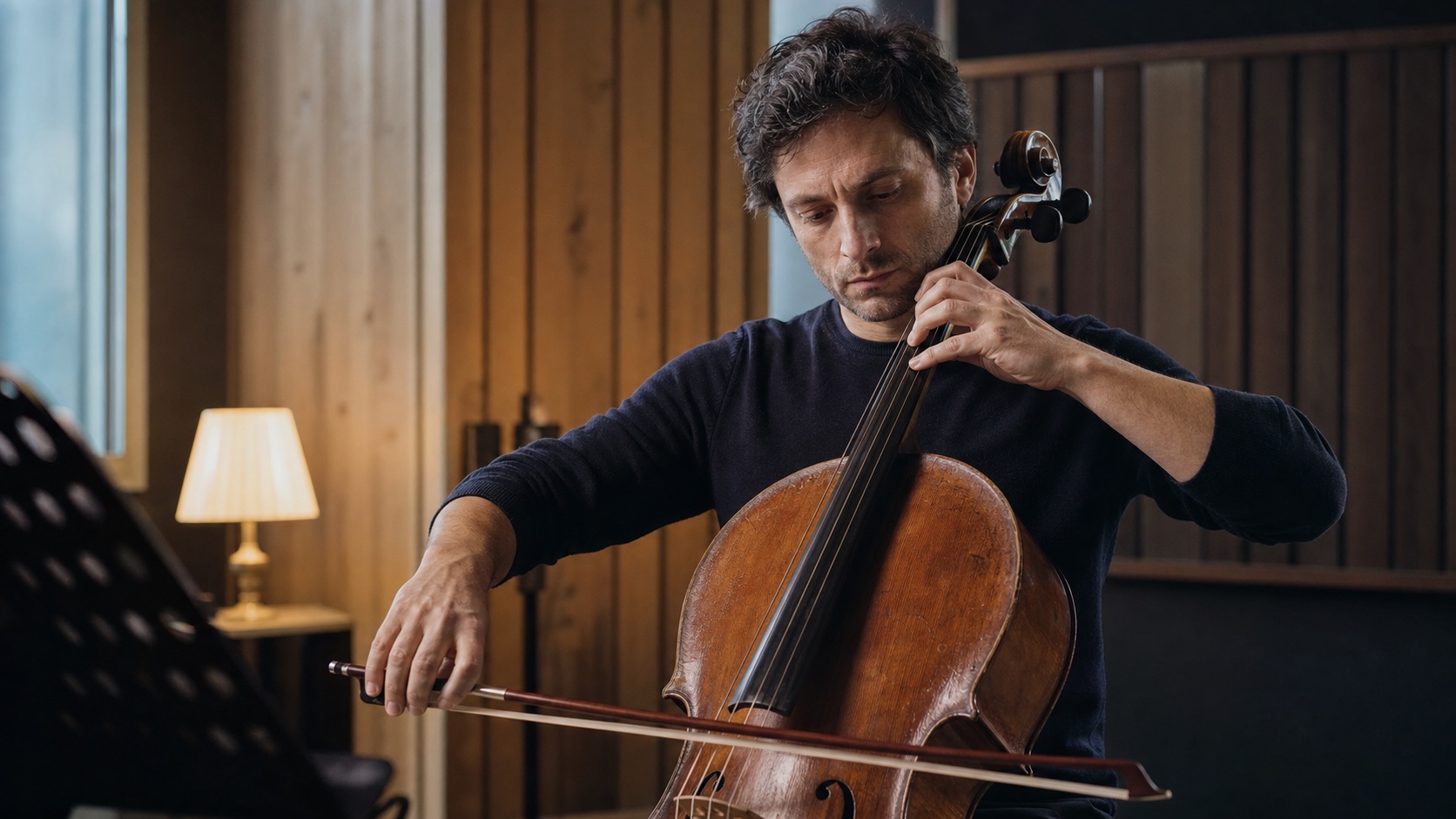
A musical close-up is a demanding test: the refined frame must keep the bow on the strings, fingers on the fingerboard, facial identity stable, and the audible note aligned with the motion.
Play the full sample and watch stick impacts, cymbal movement, hand continuity, and whether the sound remains attached to the visible rhythm.
For shots where several visual or audio references must keep separate jobs, organize them first with the reference-to-video workspace.
Low-VRAM settings that matter
Use model offloading, supported efficient attention, conservative frame counts, and one batch. Decode only the version you will inspect. If stage two still runs out of memory, reduce target size or duration before stacking more optimizers.
How to Import and Validate a MiniMax H3 Workflow JSON
Import and resolve dependencies
Drag the workflow JSON into ComfyUI, read the missing-node list, then verify each repository and model path. After restart, confirm that inputs have not reset. Preserve the original JSON and version your modified graph separately.
Run a controlled baseline test
Use a five-to-eight-second shot with a fixed seed. Save the stage-one, two-stage, and direct-resolution results without changing the prompt. For a clean baseline, the text-to-video generator can separate prompt problems from graph problems.
Compare what viewers can actually see and hear
Record render time, peak VRAM, identity, geometry, camera path, flicker, background stability, audio clarity, and synchronization. A still can exaggerate sharpness while hiding poor temporal consistency, so watch each version at normal speed before inspecting difficult frames.
Keep stage two only when it adds visible value. If it sharpens detail but changes the person, action, or soundtrack, lower its noise range or use post-decode upscaling.
Fix OOM, Audio Garble, Identity Warp, and Color Noise
Stage two runs out of memory
Reduce target dimensions first, then shorten duration or increase offloading. Confirm that both models are not unintentionally resident on the GPU; stage two can define peak VRAM.
Faces or characters change
Check conditioning dimensions, reference scaling, and denoise. Identity drift usually means the refiner has too much freedom or mismatched conditioning. Test a closer base canvas before adding face restoration.
Dialogue or ambience becomes garbled
Set audio denoise to zero and confirm stage one. If its audio is unstable, give stage one more of the schedule or simplify the prompt. Stage two cannot reliably repair a performance stage one never established.
Detail looks overcooked or color noise appears
Move the second-stage start later, lower its denoise, and verify the VAE and latent-upscaler versions. If color noise persists across controlled tests, use a decoded pixel upscale instead of forcing the latent route.
The JSON has missing or incompatible nodes
Match node versions and test after each change. Nested video-and-audio latent errors often mean a generic node entered an H3-specific path. Revert to the baseline and reconnect one section at a time.
Conclusion
Use the MiniMax H3 two-stage workflow as an approval pipeline: solve motion, composition, and audio cheaply, then refine shots worth keeping. Accept stage two only when it adds detail without rewriting performance. Begin with a known-good graph, preserve audio, compare a render, and change one variable at a time. To validate the brief, start with the Seedance AI video generator and turn the same prompt or frame into a test clip.
Ready to try it yourself?
Put the steps from this guide into practice with Seedance and turn prompts or images into polished videos in minutes.
Free credits on signup. Plans from $28/month.
Related Articles
More posts in the same locale you may want to read next.

Seedance App Preview Video Generator 2026: Create App Store and Product Launch Clips
Use Seedance to turn app screenshots, feature copy, and launch goals into App Store previews, Google Play promo videos, and product launch clips.
Read article
Best AI Video-to-Video Models in 2026
The best AI video-to-video models in 2026 for editing footage you already shot: Higgsfield Genjutsu, Seedance 2.x, Runway Aleph, Luma Modify and Kling Omni compared.
Read article
Kling 4.0 vs Seedance 2.5: Full Comparison
Kling 4.0 vs Seedance 2.5 compared by spec: 30-second clips, keyframes vs 50 references, audio, 4K and 10-bit color, editing, and which model fits which job.
Read article