
MiniMax H3 Slow After ComfyUI Update? Here's How to Fix It
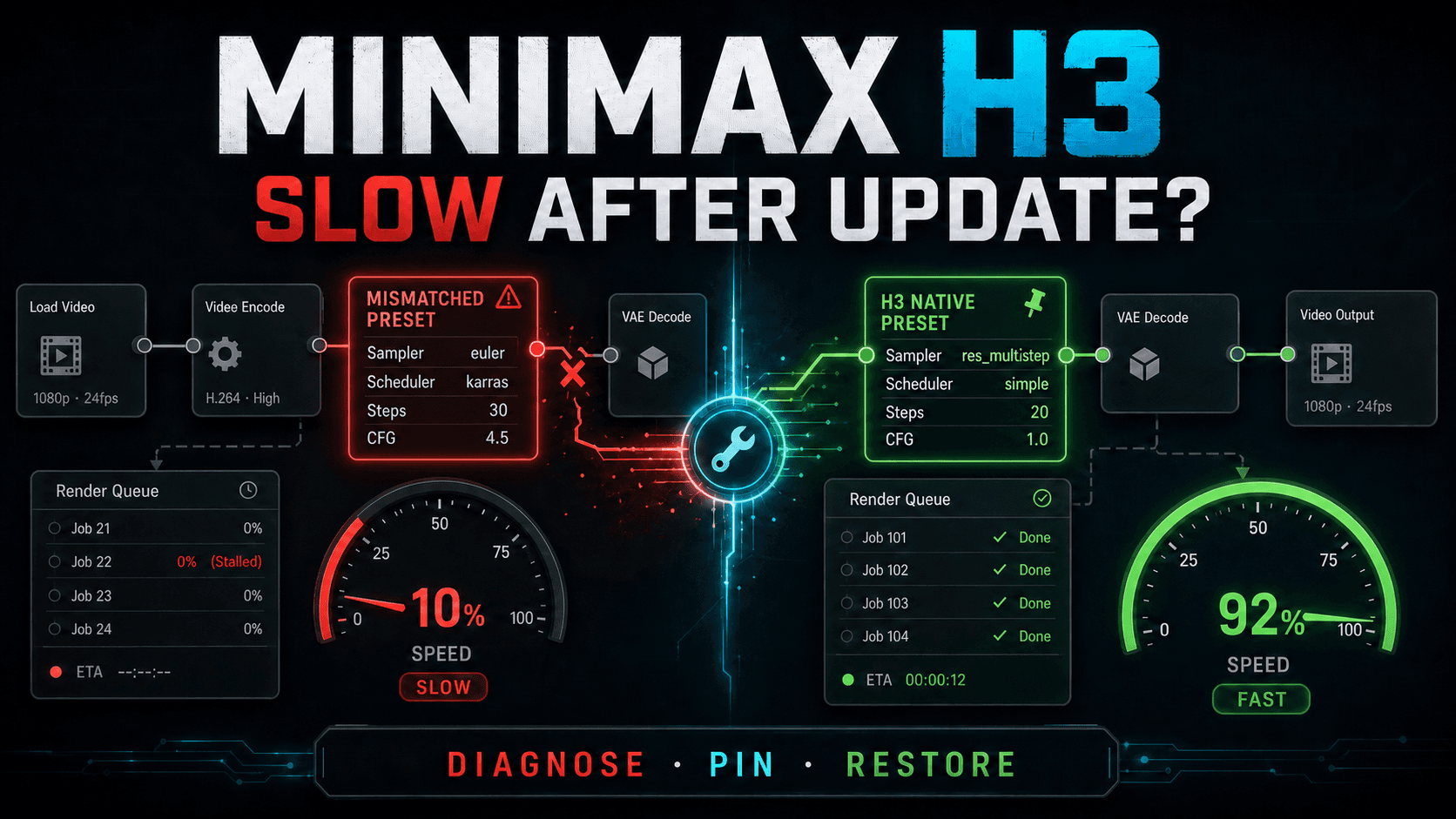
AI Overview
Why is MiniMax H3 slow after a ComfyUI update?
An update can change core APIs, custom-node versions, sampler defaults, or the active PyTorch attention backend. The workflow may still run while using a slower fallback, mismatched Turbo preset, or unnecessary step count.
What are the best sampler settings for MiniMax H3 in ComfyUI?
For the current native H3 workflow, start with res_multistep, simple, 20 steps, BasicGuider, and effective CFG 1.0. Turbo releases are different: use the exact sampler, scheduler, and step budget shipped with that weight or LoRA.
Does the MiniMax H3 turbo model actually speed up generation in ComfyUI?
Yes, when the Turbo weight, workflow, and intended 4-, 6-, or 8-step preset match. A Turbo filename alone does not guarantee the correct step count, and applying a Turbo preset to stock H3 can reduce quality or waste time.
Is there a faster alternative to MiniMax H3 for video generation without local setup?
Yes. Seedance 2.5 runs in the browser, so creators can generate and review video without maintaining ComfyUI, Python packages, custom nodes, model files, or a local GPU environment.
Why ComfyUI Updates Break MiniMax H3 Performance
A ComfyUI update rarely makes the H3 weights themselves slower. More often, it changes one layer around them. A node interface receives a new input, a custom pack remains on an older commit, or the Python environment resolves a different CUDA package. Because the graph still reaches an output, the problem looks like a model regression even when it is an execution-path regression.
Before changing anything, duplicate the workflow, record one known prompt, and note resolution, frame count, seed, steps, sampler, scheduler, model filename, and generation time. Compare the same job after each repair. A faster result at a smaller resolution is not proof that the update was fixed.
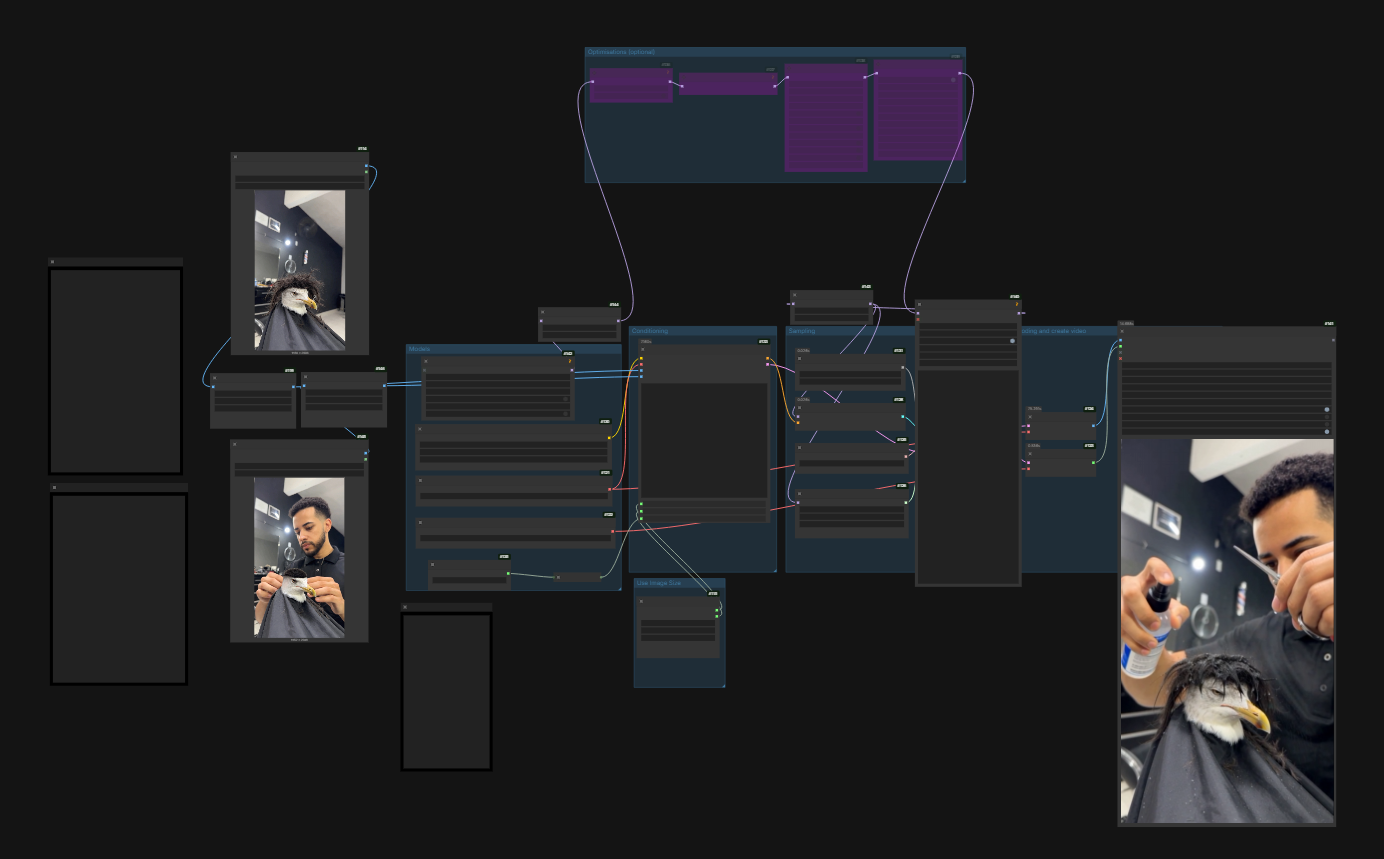
Use the graph as a dependency map: one outdated loader or video node can alter the entire path while the workflow still appears valid.
VideoHelperSuite or custom-node mismatch
VideoHelperSuite commonly handles frame loading, batching, and video assembly. If its installed revision expects different ComfyUI APIs, it may error, duplicate work, or fall back to a slower route. The same risk applies to H3-specific loaders and convenience nodes. A green Manager badge does not prove that every installed extension was tested against the same core commit.
Sampler defaults changed or were imported incorrectly
Templates are not interchangeable. A legacy graph may restore euler, karras, 30 steps, and a higher CFG even though native H3 is distilled around a different path. A Turbo workflow can fail in the opposite direction when its low-step preset is paired with full weights. Both cases create longer waits and make visual comparisons unreliable.
Python packages lost the fast attention path
Upgrading ComfyUI can expose a Torch, CUDA, xFormers, SageAttention, or custom-kernel incompatibility. ComfyUI may continue with standard PyTorch attention instead of stopping. That fallback is useful, but it can increase render time and VRAM. Startup logs are therefore part of the benchmark, not background noise.
For a clean baseline graph and installation sequence, compare your nodes with the MiniMax H3 ComfyUI setup guide before repairing individual extensions.
Fix 1 — Check and Pin Your Node Versions
Start with evidence, not a mass rollback. Save the workflow JSON and a package snapshot. In the terminal used to launch ComfyUI, record the core and custom-node commits:
cd ComfyUI
git rev-parse HEAD
git -C custom_nodes/ComfyUI-VideoHelperSuite rev-parse HEAD
python -m pip freeze > comfyui-packages-before.txt
Open ComfyUI Manager and note which nodes were updated on the day performance changed. Update one suspected node, restart completely, and inspect the console for deprecated inputs, failed imports, or attention warnings. If the current revision is incompatible, pin only that repository to the last known-good commit with git checkout <known-good-commit>. Avoid rolling back core, every node, and Python simultaneously; doing so hides the cause and makes the next update harder.
Validate with a short, repeatable job. For a Turbo workflow, use its matching low-step preset; for stock H3, use the native baseline below. Record load time separately from sampling and video encoding. The first run may include model loading or kernel compilation, so compare the second warm run. If sampling improves but encoding remains slow, investigate the video-output nodes rather than the model.
Fix 2 — Correct Sampler and Steps for Turbo Weights
The most important rule is simple: the workflow must match the weight. Current native H3 templates use res_multistep, the simple scheduler, 20 steps, BasicGuider, and effective CFG 1.0. Community Turbo releases may target 4, 6, or 8 steps and may ship a companion LoRA or altered model. Read the bundled workflow rather than guessing from another checkpoint.
The frequently shared file minimax_h3_turbo_v4_step600_ema_pruned_comfyui.safetensors belongs to a specific custom distribution. If its accompanying workflow specifies six steps, use six for that pack; do not treat six as the universal H3 setting. The same applies to filenames marked V4, Turbo, distilled, or pruned.
| Workflow | Sampler | Scheduler | Steps | Guidance |
|---|---|---|---|---|
| Stock/native H3 baseline | res_multistep |
simple |
20 | BasicGuider, effective CFG 1.0 |
| Turbo weight or LoRA | Use its companion workflow | Use its companion workflow | Exact advertised budget, often 4–8 | Keep the package's guidance method |
| Suspicious imported preset | euler |
karras |
30+ | High CFG copied from another model |
Judge a Turbo preset on motion, identity, and temporal detail across the entire clip—not only on the first frame.
For the differences between full and accelerated routes, see the MiniMax H3 Turbo LoRA guide. If you are deciding whether extra steps are worth their cost, use the controlled MiniMax H3 30 vs 50 steps test, but do not transfer those full-model counts to a Turbo pack.
Fix 3 — Resolve Python Dependency Conflicts
Do not begin by installing a random Torch and xFormers pair from an old post. The correct matrix depends on the Python interpreter, operating system, GPU, CUDA build, and ComfyUI release. First confirm which environment ComfyUI is actually using:
python -c "import sys, torch; print(sys.executable); print(torch.__version__, torch.version.cuda); print(torch.cuda.is_available())"
python -m pip check
Save pip freeze, then reinstall or upgrade requirements through that same interpreter. For a standard checkout, python -m pip install -r requirements.txt --upgrade is a reasonable repair only after the snapshot. Portable and desktop builds can use their own embedded Python, so running system pip may change nothing.
After restarting, read the startup log. Confirm that the intended attention backend loaded rather than silently falling back, and capture peak VRAM for the same warm benchmark. If the preferred backend fails, remove the incompatible optional package or install the build documented for your exact Torch/CUDA combination. A stable default backend is better than an acceleration extension that crashes midway.
| Before repair | After repair |
|---|---|
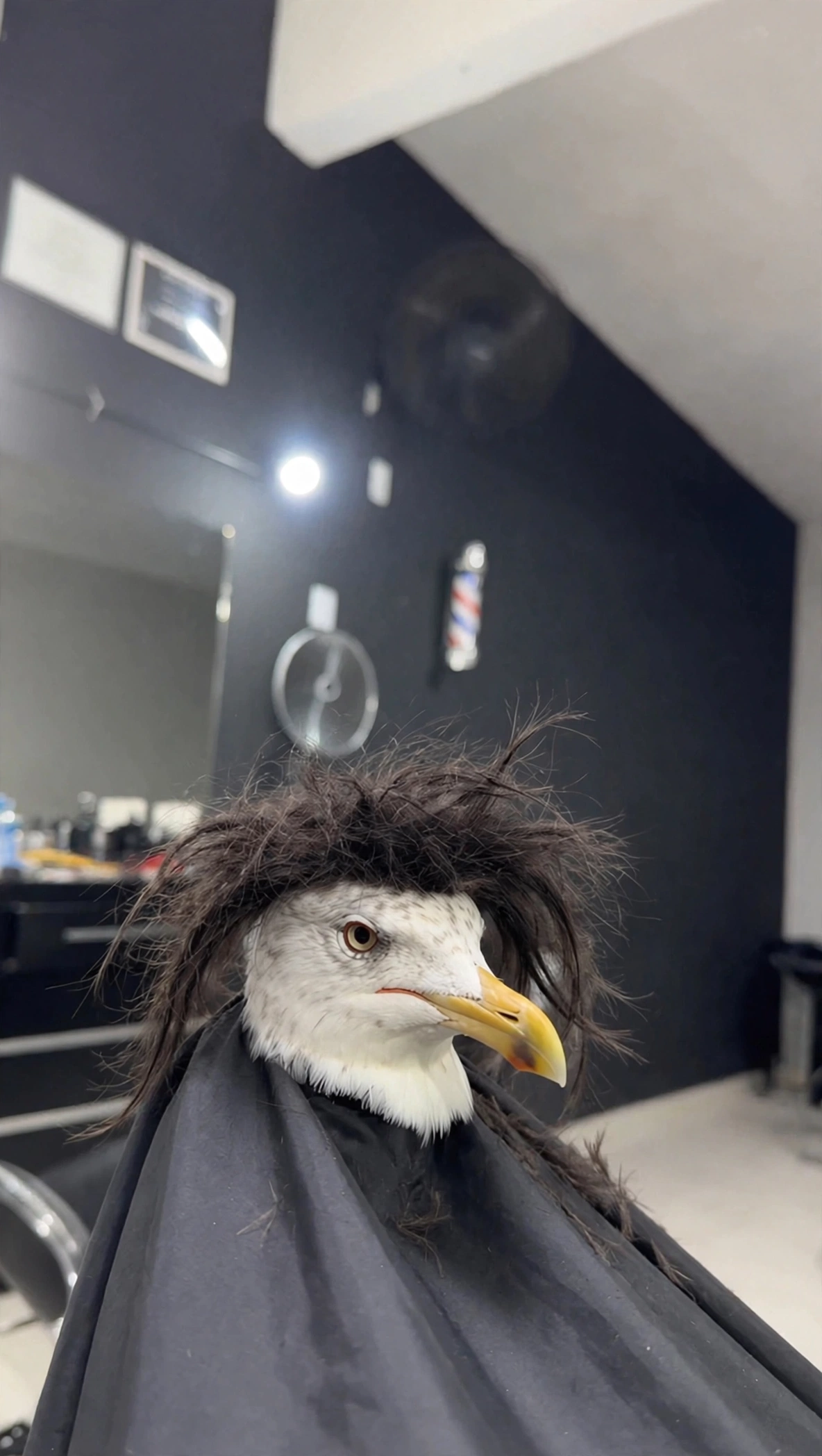 |
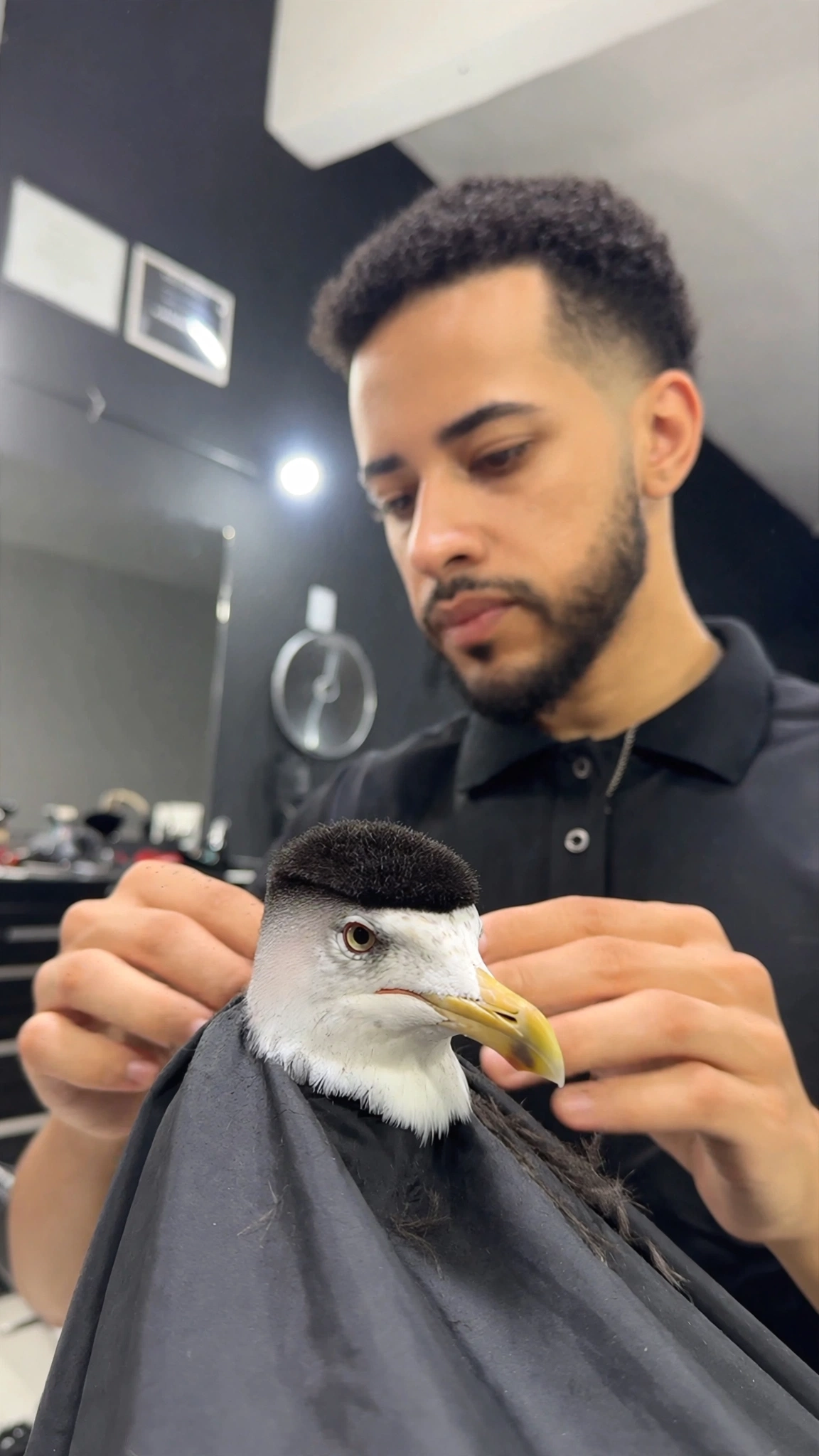 |
| Confirm the source, size, and intended motion. | Compare the finished frame for retained identity and detail. |
Dependency work is complete only when the output remains correct. Faster sampling with corrupted frames, missing audio, or broken video encoding is not a successful fix.
MiniMax H3 ComfyUI Best Settings Reference
Use this table as a diagnostic starting point, not a promise that every GPU will reach the same time. Duration and frame count often affect memory more than a small change in width.
| Goal | Resolution | Batch | Steps | Practical note |
|---|---|---|---|---|
| Fast draft | 864×480 | 1 | 20 stock; exact Turbo budget | Confirm composition and motion before scaling |
| Native-detail final | About 1344×768 | 1 | 20 stock | Keep the approved seed and monitor peak VRAM |
| RTX 3090 / 4090 | Start at draft size | 1 | Match the weight | Use block swap or offload only when VRAM requires it |
| A100 or larger VRAM | Test final size after baseline | 1 | Match the weight | Increase frame count cautiously; do not assume batch 2 is faster |
Keep model loading, sampling, decoding, and video combination as separate timings. If the queue pauses before sampling, storage or model loading may be the bottleneck. If sampling is fast but the final file appears late, inspect VAE decode and video encoding. For broader quality, speed, and audio controls, use the best MiniMax H3 settings reference.
Still Too Slow? Try Seedance 2.5 Instead
Local H3 remains valuable when you need full workflow ownership, custom nodes, offline processing, or reproducible experiments. It also asks you to maintain model files, disk space, Python packages, GPU drivers, attention kernels, node commits, and render queues. A team generating a few campaign clips may spend more time protecting the environment than directing the shot.
Seedance 2.5 moves that maintenance to a managed browser workflow. You can start from Text to Video, define subject, action, camera, environment, duration, and sound, then review the result without installing ComfyUI. That is especially useful for marketers, agencies, and creators who need an approved clip rather than a local inference stack.
A managed route removes dependency debugging, but the creative brief still controls composition, motion, and product consistency.
Switch when turnaround and collaboration matter more than node-level control. Stay local when custom infrastructure is the objective. The fastest workflow is the one that removes your actual bottleneck, not merely the one with the lowest seconds-per-step benchmark.
Conclusion
When MiniMax H3 slows after a ComfyUI update, isolate the changed layer. Pin compatible node versions, restore the sampler preset that belongs to your exact weight, and confirm that the active Python environment still loads its intended GPU and attention path. Benchmark warm runs with identical seeds, frames, and resolution, and separate sampling time from decoding and encoding.
If maintaining that stack is no longer worth the delay, move the brief to a managed workflow and keep your attention on the video. Try Seedance 2.5 Free →
Ready to try it yourself?
Put the steps from this guide into practice with Seedance and turn prompts or images into polished videos in minutes.
Free credits on signup. Plans from $28/month.
Related Articles
More posts in the same locale you may want to read next.

Seedance App Preview Video Generator 2026: Create App Store and Product Launch Clips
Use Seedance to turn app screenshots, feature copy, and launch goals into App Store previews, Google Play promo videos, and product launch clips.
Read article
Kling 4.0 vs Seedance 2.5: Full Comparison
Kling 4.0 vs Seedance 2.5 compared by spec: 30-second clips, keyframes vs 50 references, audio, 4K and 10-bit color, editing, and which model fits which job.
Read article
Kling 4.0 Keyframes & Omni Reference Guide
Learn how Kling 4.0 uses up to 10 keyframes and 15 Omni Reference assets in one 30-second video, with 3 worked plans, common mistakes, and Seedance 2.5 tips.
Read article