
MiniMax H3 Motion Continuity Repair LoRA: Fix the Broken Action Beat

AI Overview
What does the MiniMax H3 motion continuity repair LoRA target?
This community adapter targets skipped transitions and awkward action. It does not automatically edit an existing video.
What weight should I start with?
The creator suggests about 0.9 alone, 0.5–0.7 with Combat in Stage 1, and 0.2–0.3 in Stage 2. Treat these as test points, not guarantees.
Is bunny_crisp_motion a required trigger?
The creator marks bunny_crisp_motion as optional. Keep the rest of your prompt unchanged when comparing runs with and without it.
Can Seedance Agent load this exact LoRA?
Use Seedance Agent for shot planning and review. Check its current controls rather than assuming custom LoRA loading is supported.
Decide Whether the Failure Is Actually Motion Continuity
Searching for “minimax h3 motion continuity repair lora” usually means a promising shot fails during one important action. Before downloading anything, describe that failure precisely. “The runner's planted foot slides while the body keeps moving” is actionable. “The video feels AI” is not.
JOKER141's General Motion Continuity Repair is intended for varied dynamic scenes, including dance and sport, rather than combat alone. The creator reports benefits in difficult sequences, with little change when the base output is already good. Those are creator observations, not an independent benchmark from this article.
Mark the failed beat, not just the ugly frame
Watch at normal speed first. Note the time when the movement stops making sense, then inspect a short interval before and after it. A strange hand can be the visible symptom of a missing approach, contact, or release. Fixing a still does not establish that the whole action reads correctly.
Write one acceptance sentence: “The dancer plants the left foot, turns once, and settles without a second involuntary step.” Keep that sentence beside every candidate. It prevents a more dramatic replacement from being mistaken for a more accurate one.
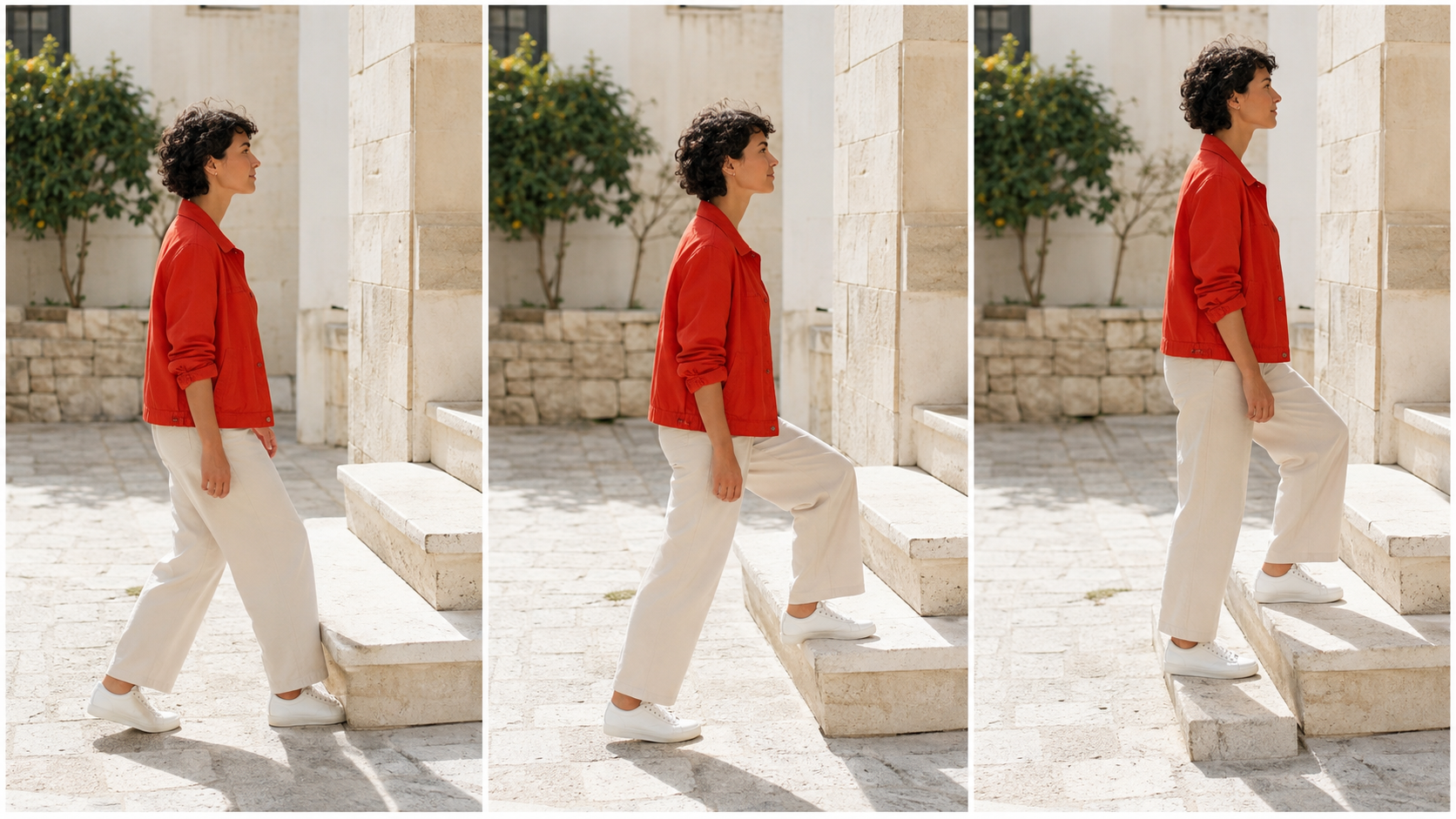
Newly generated illustrative poses: inspect approach, weight transfer, and landing. These stills are not frames from a LoRA A/B test.
Separate motion, appearance, and editing problems
| Observed problem | Useful first test | Wrong success criterion |
|---|---|---|
| A requested action is skipped | Simplify the action chain, then compare an adapter run | More movement of any kind |
| A face changes but motion is readable | Review identity references and framing | A faster gesture |
| Two shots join awkwardly | Check endpoint poses and screen direction | Smoother motion inside one shot |
| Sound lands after contact | Review picture and audio together | A sharp paused frame |
The multi-keyframe workflow covers planned pose and timing anchors. Keep that task separate from evaluating this adapter on a failed action beat.
Find the Correct File and Preserve a Working Baseline
Verify the download before changing your graph
The repository named JOKER141/MiniMax-H3-General-Motion-Continuity-Repair currently lists Motion_Repair.safetensors, approximately 155 MB. Record its revision and filename. Similar names such as Camera Motion, Motion Adapter, and Turbo refer to different projects; their instructions are not interchangeable.
Use the publisher's repository and review the current model card, base-model requirements, and applicable licenses. A filename alone does not prove compatibility with your checkpoint conversion or permission for your intended use. Do not install an unrelated node pack merely because a tutorial screenshot contains it.
Add the adapter to a duplicate workflow
Start with an H3 graph that already produces a valid output on your machine. Save a copy before adding the adapter. Select the file through the loader supported by that graph; confirm that it is recognized and that its model output reaches the intended sampling stage. Investigate missing-key warnings instead of silently ignoring them.
Keep the checkpoint, references, prompt, seed, dimensions, duration, sampler, schedule, and other adapters fixed for the first comparison. Export both the baseline clip and its workflow. The MiniMax H3 ComfyUI guide is the separate starting point if you do not yet have a working base setup.
Test LoRA Strength Without Flattening the Performance
Keep Stage 1 and Stage 2 decisions separate
| Creator's usage context | Published starting point |
|---|---|
| Adapter used alone | Around 0.9 |
| Combined with Combat, Stage 1 | Around 0.5–0.7 |
| Stage 2 | Around 0.2–0.3 |
These recommendations were checked on September 7, 2026. The creator warns that excessive strength can change style or audio, while excessive second-stage strength can dampen motion. Do not interpret the table as measured win rates.
Map the stage names to your actual graph before copying values. A single-pass generation, a refinement pass, and a separate video-repair pipeline do not necessarily expose equivalent controls. The two-stage workflow guide explains the broader handoff; this article focuses on adapter evaluation.
Change one variable per comparison
First compare a baseline with one adapter-enabled candidate. If it looks promising, test a nearby strength while preserving every other setting. Only after choosing a useful range should you try another seed or a second scene. This small sequence separates a setting effect from a lucky composition.
Record a short result, not a vague score: “landing improved; coat texture changed; footstep moved late.” Reject a candidate that solves the original defect by removing the intended turn. Also retain the baseline when the difference is negligible; adding a dependency without a visible gain makes later troubleshooting harder.
Write a Prompt That Exposes the Missing Transition
Keep the initial prompt narrow: one subject, one readable movement, one camera instruction, and one endpoint. A crowded choreography makes it difficult to tell whether the tool followed your request or invented a plausible substitute.
Use contact and release as observable checkpoints
Try this evaluation prompt: “In a bright ceramics workshop, a woman passes one blue mug to the man opposite her. He supports the mug before she releases it. The mug remains visible and keeps its shape. A steady waist-up camera shows both people's hands throughout the handoff. Natural real-time movement, one continuous shot.”
This is an original test brief, not a guaranteed recipe. Read the resulting action in order: approach, shared support, release. If you cannot see those moments, move the camera or simplify the interaction before assuming that more adapter strength is needed.

Newly generated handoff study. The checkpoints clarify the intended action; they do not demonstrate measured repair performance.
Do not request contradictory timing such as a natural-speed sprint combined with prolonged slow-motion suspension. Write the action you want to keep, then evaluate it against the acceptance sentence. An overly elaborate negative prompt can distract you from an unclear positive instruction.
Review the Whole Clip Before Calling It Repaired
Check normal playback, contact frames, and sound
Review the baseline and candidate at the same playback speed and display size. Watch once without stopping, once around the failed beat, and once with attention on sound. Compare the entrance and exit as well as the center: a cleaner gesture may still leave a visible jump into the next shot.
Existing playable performance sample for reviewing hand paths, instrument contact, and sound together. It is not a before-and-after test of Motion Continuity Repair.
Make the acceptance checklist concrete: recognizable subject, stable prop, complete action, plausible contact, intended pace, and usable audio. A brief result log should name both gains and regressions. Do not calculate a universal improvement percentage from one scene or a handful of subjective comparisons.
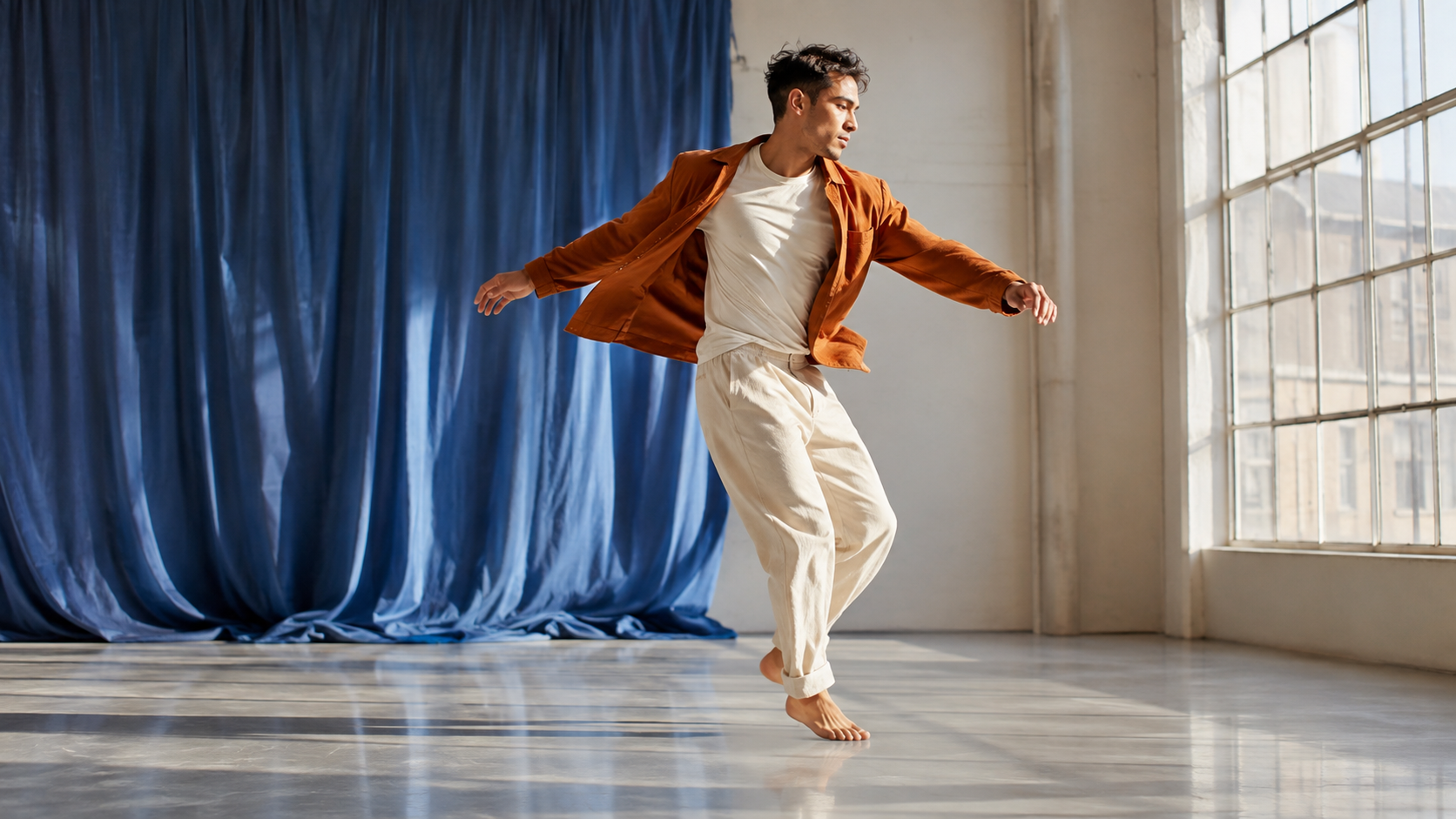
Newly generated finishing-pose illustration. A convincing endpoint matters, but only moving playback reveals whether the subject reached it coherently.
If you need to replace only a selected interval of an exported clip, that is a different operation. ComfyUI-MAINodes documents separate, experimental Repair Plan and Repair Splice tools. Loading a LoRA by itself does not select a frame range or preserve all other frames unchanged. Keep those workflows and their limitations distinct.
Turn the Winning Shot into a Seedance Agent Project
Once your acceptance criteria are clear, Seedance Agent can help organize a brief, references, and a shot plan for a hosted production route. Its role is not to prove that the community adapter is installed. Check the current model and generation controls before expecting any particular local setting to transfer.
Bring three things into the brief: the asset that must stay recognizable, the action that must happen, and the endpoint needed for the edit. Review the proposed shots and estimated cost before generating. Keep accepted clips and revision notes together so the next request targets a specific problem rather than restarting the creative direction.
For a product-ad video, the acceptance goal might be a believable handoff with unchanged packaging. For a performance, it might be a clear turn and landing. When a local adapter experiment becomes expensive to maintain, compare that total effort with producing a simpler hosted shot—not just the price of one generation.
Conclusion
Use the MiniMax H3 motion continuity repair LoRA as a controlled experiment around a clearly identified action failure. Keep a working baseline, confirm the correct file and stage, test one change at a time, and judge complete playback rather than attractive frames. Preserve motion intent, identity, props, and sound when deciding which clip to keep. For projects that need coordinated references and review more than local adapter tuning, plan your next sequence with Seedance Agent.
Ready to try it yourself?
Put the steps from this guide into practice with Seedance and turn prompts or images into polished videos in minutes.
Free credits on signup. Plans from $28/month.
Related Articles
More posts in the same locale you may want to read next.

Seedance App Preview Video Generator 2026: Create App Store and Product Launch Clips
Use Seedance to turn app screenshots, feature copy, and launch goals into App Store previews, Google Play promo videos, and product launch clips.
Read article
Best AI Video-to-Video Models in 2026
The best AI video-to-video models in 2026 for editing footage you already shot: Higgsfield Genjutsu, Seedance 2.x, Runway Aleph, Luma Modify and Kling Omni compared.
Read article
Kling 4.0 vs Seedance 2.5: Full Comparison
Kling 4.0 vs Seedance 2.5 compared by spec: 30-second clips, keyframes vs 50 references, audio, 4K and 10-bit color, editing, and which model fits which job.
Read article