
Dropshot AI MCP Video Generation: Setup, Prompts, and a Safer Workflow
AI Overview
What is Dropshot AI MCP video generation?
Dropshot AI MCP connects a compatible AI assistant to image and video generation tools. You can describe a shot in conversation, pass references, choose a supported model, and receive the generated result without rebuilding the request in another interface.
Which assistants can use Dropshot AI MCP?
Dropshot currently presents its MCP connection for assistants including Claude, Codex, and ChatGPT. Availability also depends on whether the assistant supports remote MCP connectors and whether your Dropshot plan includes MCP access.
Can Dropshot MCP create a complete multi-shot video automatically?
It can generate individual images and video clips, but a finished campaign still needs a shot plan, stable references, acceptance checks, and often assembly. Treat the agent as a production operator, not an automatic creative director.
Is Dropshot MCP or Seedance Agent better for video production?
Use Dropshot MCP when you want conversational access to several model families from an existing assistant. Use Seedance Agent when you want planning, references, generation, review, and selective reruns organized around a Seedance production workflow.
What Dropshot AI MCP Actually Does
People searching for dropshot ai mcp video generation are usually not looking for another gallery of attractive clips. They want to know whether an assistant can turn a natural-language request into a real generation job, whether references survive the handoff, which settings remain controllable, and how much human review is still required. Those questions matter because an MCP connection changes the interface, not the underlying physics of video generation.
Dropshot describes its MCP as a bridge between compatible assistants and its image and video tools. Its current page shows conversational creation for marketing, cinematic shots, character work, image generation, and video generation. It also lists several model families behind one connection. In practice, that means the assistant can help structure the request and call an available tool, while the selected generation model still determines duration, aspect ratio, reference behavior, audio support, cost, and failure modes.
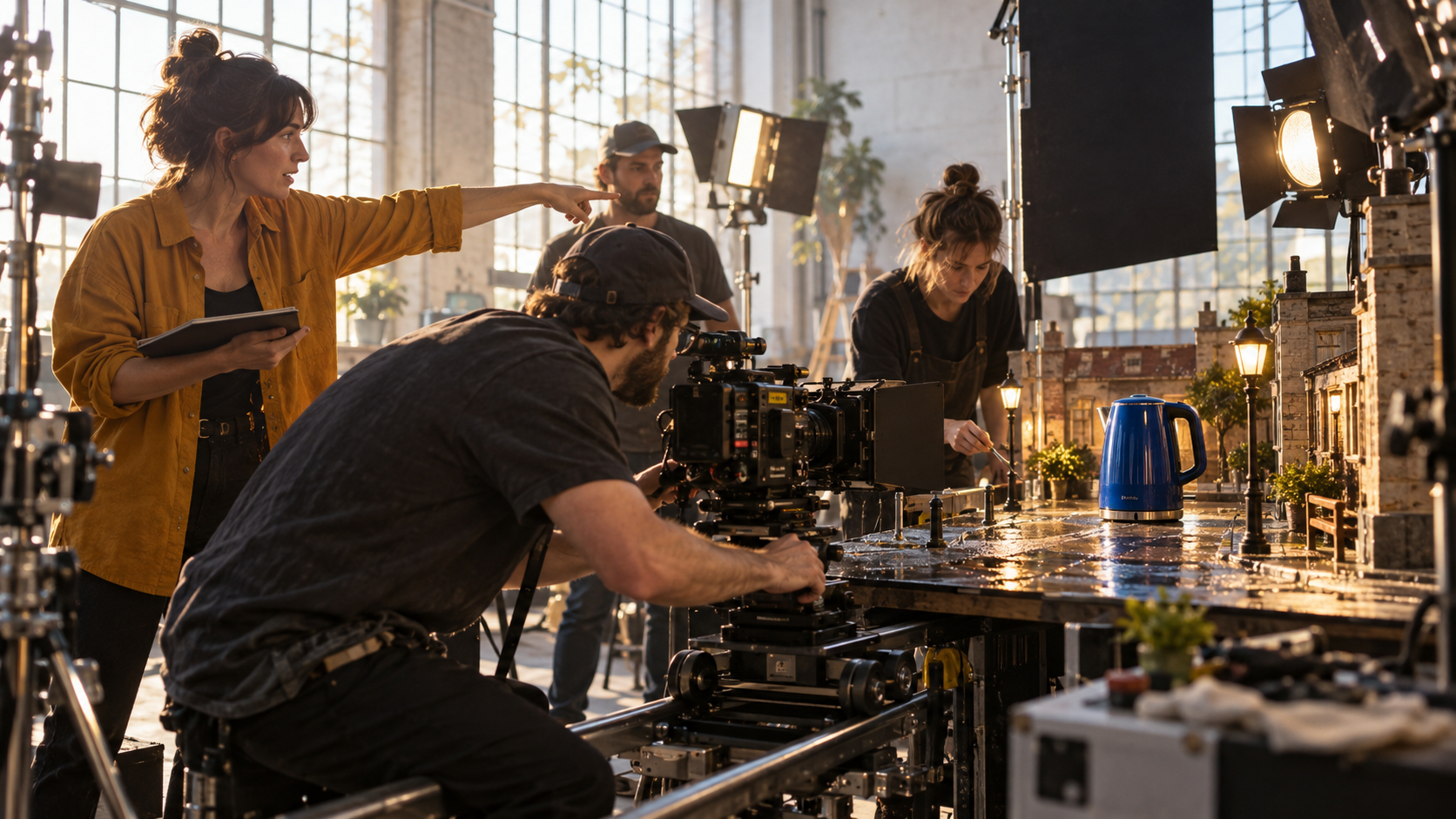
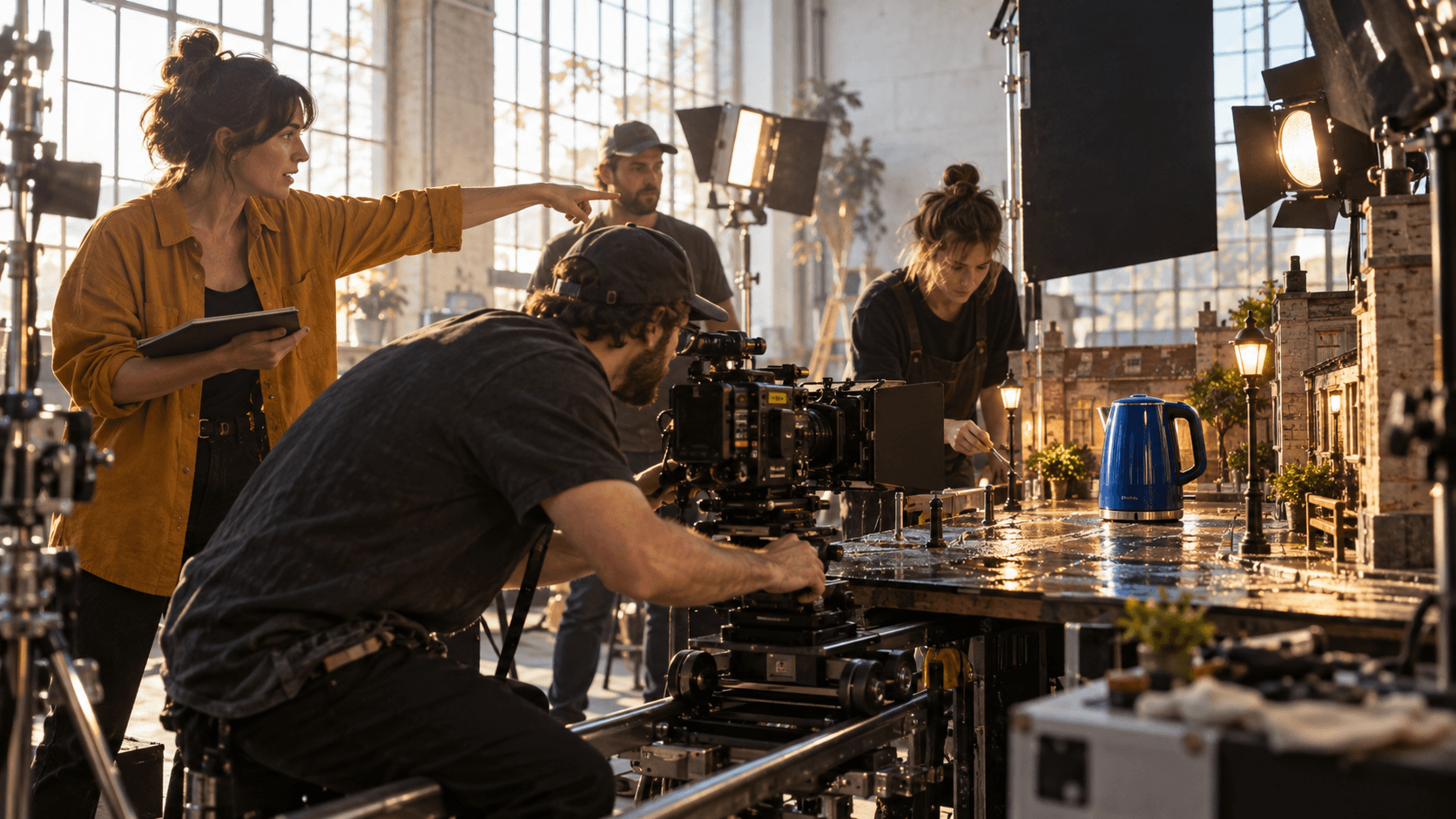
Fresh editorial illustration for this guide: the useful mental model is a production team with distinct roles, not a black box that replaces direction and review.
A polished chat response is not proof of a usable clip; the file must play, preserve key details, deliver coherent motion, and match the brief.
Connect the MCP Without Losing Control
Confirm access before building a production brief
Dropshot currently associates MCP with higher-tier plans, so confirm account access first. Add the official connector in a compatible assistant, authorize the account, and verify that image or video generation actions appear. Do not copy connection addresses from unofficial prompt packs.
First ask the assistant to list available generation capabilities without creating anything. Confirm the exposed model, aspect, duration, resolution, reference, and audio fields instead of assuming they will be inferred correctly.
Separate creative approval from paid execution
Before any generation call, require the assistant to return a compact job card containing the goal, subject, action, environment, camera move, aspect ratio, duration, reference list, audio instruction, negative constraints, and estimated number of outputs. Approve that card first. This protects against a vague request becoming several paid variations or a landscape idea becoming an unusable vertical clip.
Keep credentials inside the official authorization flow. Never paste passwords, session cookies, access tokens, or billing information into a creative prompt. For a team, assign connector authorization, spending, and final approval. The OpenArt MCP setup guide provides a related setup checklist.
Build a Video Brief the Agent Can Execute
Start with one measurable shot
The fastest test is not “make a viral product ad.” It is one five-to-eight-second shot with a visible pass condition. For example: a cobalt kettle remains geometrically stable while the camera makes a slow right arc, condensation gathers on the surface, and warm light reveals the metal handle. The output passes if the spout, lid, handle, color, camera direction, and final framing remain consistent.
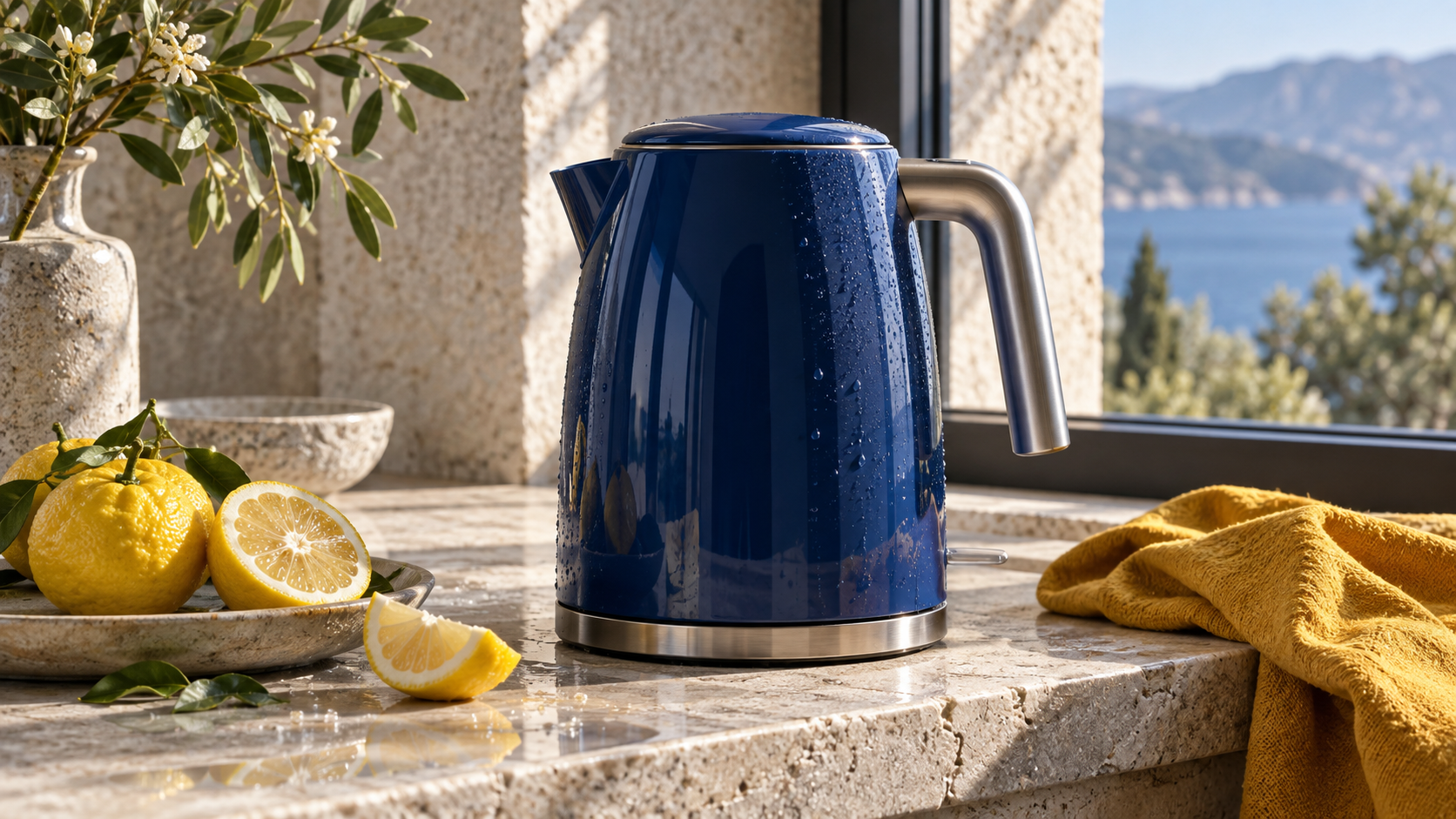
New source-frame study created for this article. It gives the agent a concrete identity anchor rather than asking the video model to invent the product and motion at the same time.
Write the brief in temporal order. Name the opening frame, the subject action, the camera action, environmental motion, and the ending frame. Put preservation rules after the positive direction: keep the kettle silhouette, cobalt finish, steel handle, lid position, and spout proportions unchanged; add no labels, extra products, hands, or generated text.
Use a prompt contract, not a pile of adjectives
A dependable request can follow this structure:
Prepare one 16:9, six-second image-to-video test from the attached approved kettle still. The kettle remains centered and unchanged. Begin with a medium product frame; make a slow right camera arc while fine condensation forms and warm side light moves across the steel handle. End on a stable three-quarter hero angle with clean negative space. Preserve silhouette, color, lid, handle, and spout. No labels, text, extra objects, cuts, sudden zoom, or camera shake. Before generating, return the selected model, duration, aspect ratio, reference mapping, audio setting, and estimated output count for approval.
This prompt is useful because every sentence maps to a reviewable property. If a connector supports multiple model families, ask the agent to explain the choice in one sentence. Do not ask for a broad comparison followed by automatic generation across every model; that creates cost without isolating the reason one output succeeded.
Run Generation as a Controlled Test
Lock the model and settings for the first comparison
Dropshot's public MCP page currently highlights several image and video model families. Model availability can change, so rely on what the connector reports at execution time. Choose one route that accepts your actual input. For a source still, use image-to-video; for a written concept, use text-to-video; for identity or environment continuity, choose a route that explicitly supports the required references.
Generate one or two variants with the same prompt and settings. Record the model label, seed if available, duration, aspect, resolution, audio choice, reference order, generation time, and credit charge. Without that record, a good result cannot be reproduced and a bad result cannot be diagnosed.
Existing Seedance motion output used as a review example. Check the full orbit, reflections, silhouette, and ending frame rather than judging a poster image.
If the first test fails, change one variable. A distorted product calls for a stronger reference or simpler motion, not a longer style paragraph. A static result calls for clearer temporal verbs. A wrong camera direction calls for one unambiguous move. A drifting environment calls for an environment reference or a tighter composition. For another connector-oriented workflow, see the Hugging Face video generation MCP guide.
Review the Result Before Spending Again
Inspect identity, motion, camera, and delivery separately
Review the entire file at normal speed, then scrub frame by frame through the beginning, strongest action, and ending. Use four acceptance columns:
| Review area | Pass condition | Common failure | Next action |
|---|---|---|---|
| Subject or product | Shape, color, face, wardrobe, and key details stay stable | Geometry or identity drifts | Strengthen the reference and simplify motion |
| Motion | The intended action reads continuously at normal speed | Frozen subject, rubbery movement, or sudden acceleration | Rewrite the action in temporal order |
| Camera | Direction, speed, and framing match the brief | Unrequested zoom, reversal, or cut | Specify one move and a stable end frame |
| Delivery | File plays, duration and aspect are correct, and audio is intentional | Broken file, wrong crop, or accidental sound | Correct settings and rerun only this shot |

New campaign frame created for this guide. In a real test, compare this frame with the approved product source for color, handle, lid, spout, and scale before approving the motion.
Do not let a strong first frame hide a weak clip. Product edges can deform mid-arc or a clean opening can end on a blurred crop. If the model generates sound, check sync, ambience, dialogue, noise floor, and usage rights; if the job is silent, make that an explicit setting.
A second, different motion example. Review packaging fidelity, continuous motion, camera rhythm, generated text artifacts, and the final product frame as separate checks.
Save the selected output together with the approved job card and its settings. Rejects are useful evidence: note the failure and the single change used in the next attempt. This creates a production memory instead of a folder of unlabeled generations. The same principle is useful when identity matters; the MiniMax H3 character replacement workflow shows how references and acceptance criteria can stay connected across revisions.
When Seedance Agent Is the Better Route
Dropshot MCP is attractive when a team already works inside a compatible assistant and wants one conversational connection to multiple generation families. It is especially practical for quick model discovery, single-shot experimentation, and creative requests that begin as a chat. The tradeoff is that responsibility can become distributed across the assistant, connector, provider account, chosen model, storage location, and editing process.
Seedance Agent is the more direct route when the deliverable is a controlled video campaign rather than an isolated generation call. It can turn a business goal into a shot plan, organize references around each shot, generate with supported video models, present real outputs for approval, and rerun the weak part without restarting the whole project. That continuity is valuable for product ads, multi-shot social concepts, repeated characters, and work that needs several review gates.
Run the same brief through a small paid test. Measure setup time, handoffs, usable generations, review time, corrections, and cost per approved second. A multi-model connector is valuable only when the team can identify the model, references, and reason the output passed.
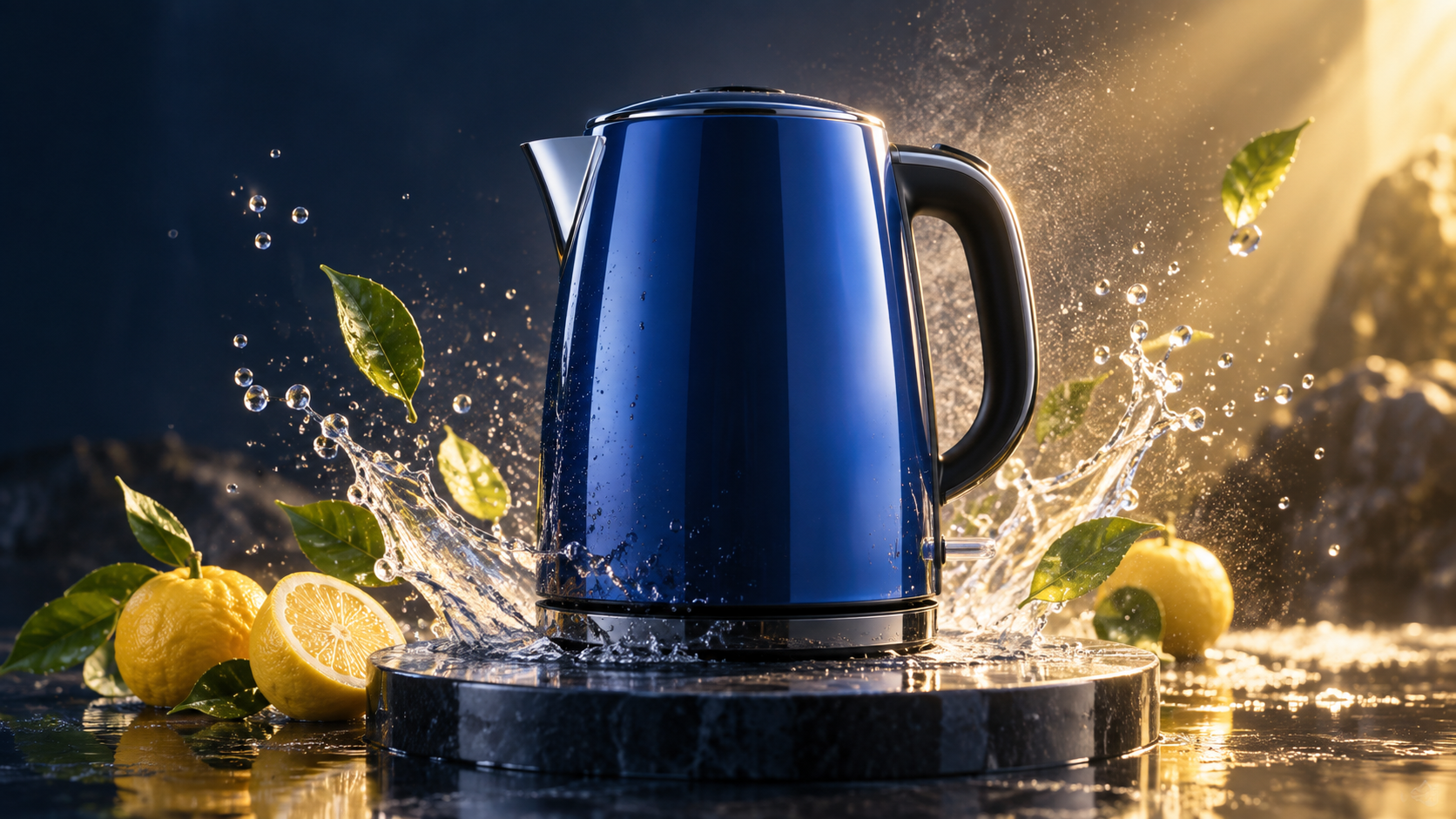
Fresh final-frame study for this article. A production workflow should preserve the approved product geometry while letting motion, light, water, and camera treatment change deliberately.
For teams comparing agent approaches, the MiniMax Hailuo AI video agent guide explains how model access differs from a full planning-and-review workflow. Keep the brief, references, outputs, decisions, and cost record together.
Conclusion
Dropshot AI MCP can make video generation easier to reach from a compatible assistant, but the reliable workflow still depends on a precise shot contract, approved references, controlled settings, full-clip review, and selective reruns. Start with one measurable shot, record every execution detail, and compare the cost per approved result; when you need the plan, references, generation, review, and revisions to remain in one production path, start the project with Seedance Agent →
Ready to try it yourself?
Put the steps from this guide into practice with Seedance and turn prompts or images into polished videos in minutes.
Free credits on signup. Plans from $28/month.
Related Articles
More posts in the same locale you may want to read next.

Seedance App Preview Video Generator 2026: Create App Store and Product Launch Clips
Use Seedance to turn app screenshots, feature copy, and launch goals into App Store previews, Google Play promo videos, and product launch clips.
Read article
How to Make a Talking AI Avatar You Can Reuse
Make a talking AI avatar with Seedance: design one consistent character, give it a voice, and make it speak in a talking photo or a full Seedance 2.5 scene, episode after episode.
Read article
Best AI Video-to-Video Models in 2026
The best AI video-to-video models in 2026 for editing footage you already shot: Higgsfield Genjutsu, Seedance 2.x, Runway Aleph, Luma Modify and Kling Omni compared.
Read article